


I recently stumbled upon an app called Photo Stats that analyzes your library metadata to tell you exactly when and where you take pictures. It was a massive wake-up call. I always considered myself a "night-life photographer," yet the data showed that 80% of my shots were taken during harsh, mid-day light. (You can read the full review of that tool here). That single data point forced me to totally rethink my workflow.
It wasn't just about timing; I realized I needed tools that could handle difficult lighting and post-processing better than Apple's stock software. If I was going to get serious, I needed to regain control over my images. This also sent me down a rabbit hole researching the best ways to organize a massive photo collection—because once you start shooting more, losing track of your best work is a real nightmare. Finding the right photo app is step one, but managing the output is just as important. Below, we’ve pulled together a list of iPhone photo apps that cover every inch of this process.
Table of Contents
We’re going to look at the criteria that actually matters when picking an app, and then break down our top 25 picks. We've split the list into five categories: Professional Shooting, Comprehensive Editing, Aesthetics, Retouching, and Design. Finally, we’ll talk about how to physically secure your phone so you can actually use these tools without dropping your gear.
Considerations: What Actually Matters?
Category A: Professional Shooting & Manual Control
Category B: The Digital Darkroom
Category C: Filters, Film Emulation, & Vibes
Category D: Retouching & Saving the Shot
Category E: Design & Layout
Protecting Your Gear: The Rokform Advantage
Final Thoughts
TL;DR
In a rush? Here are the critical takeaways from our 2026 guide. We’ve boiled down the current state of mobile photography into a quick list. Every app below hits these standards.
AI is Everywhere: It’s no longer a gimmick. It’s baked into almost every tool, but you need to decide if you want it to do the work for you or just assist you.
Subscription Fatigue: Most high-end apps have moved to subscriptions. Keep an eye out for the few remaining lifetime license options—they are gold.
Workflow Matters: Non-destructive editing is non-negotiable. You need the ability to undo changes days or months later.
Hardware Protection: Advanced apps often require steady hands or weird angles, making a magnetic, rugged case pretty much essential.
Considerations: Choosing the Right Photo App
Before you start downloading, let's talk criteria. The line between mobile apps and desktop software is practically invisible now. You have to weigh the importance of manual control versus AI automation. We also look at how these apps play with your existing Apple Photos library—nobody wants a messy, fragmented workflow.
User interface is another massive factor; a powerful app is useless if you can't operate it with one hand while walking down the street. Finally, we prioritize apps that support ProRAW and high-res export. These are the standards we use to determine the best photo apps for iPhone right now.
Feature |
Importance |
Why It Matters |
|---|---|---|
ProRAW Support |
Critical |
Keeps the data in the shadows and highlights so you can actually edit them later. |
Non-Destructive |
High |
Ensures you never accidentally ruin your original file. |
UI Ergonomics |
High |
Can you reach the buttons with your thumb? Essential for street photography. |
Library Sync |
Medium |
Saves you from the headache of manually importing and exporting every single shot. |
Category A: Professional Shooting & Manual Control
These five apps are designed to replace your native camera interface entirely. They let you touch the raw sensor data and manual settings that Apple usually hides behind its algorithms. While many guides list generic iPhone photography tips, these tools give you the manual control to actually execute those techniques.
If you're serious about this, you need apps that treat the device like the powerful camera it is. Here are the best options for manual capture.
1. Halide Mark II
Halide is the closest you will get to a professional camera interface on a phone. I’m obsessed with the "Process Zero" feature because it bypasses the iPhone's aggressive standard processing. It gives you a natural, film-like RAW image with grain and noise intact—no weird oil-painting effect. The gesture-based interface feels incredibly modern, and features like focus peaking ensure your subject is sharp before you even tap the shutter.
2. ProCamera
This app is a veteran in the space for a reason. It separates focus and exposure points, which gives you immediate control over how the scene is lit. I find the LowLight Plus mode indispensable for reducing noise in night shots when I don't have a tripod handy. It’s a great hybrid option that includes solid video features alongside photography tools.
3. Obscura 3
Ergonomics are the main selling point here. The control wheel sits perfectly under your thumb, allowing you to adjust exposure and focus without shifting your grip. It is my go-to for street photography where speed is everything. The design is minimalist, ensuring you are looking at the subject rather than hunting through menus.
4. Photon Camera
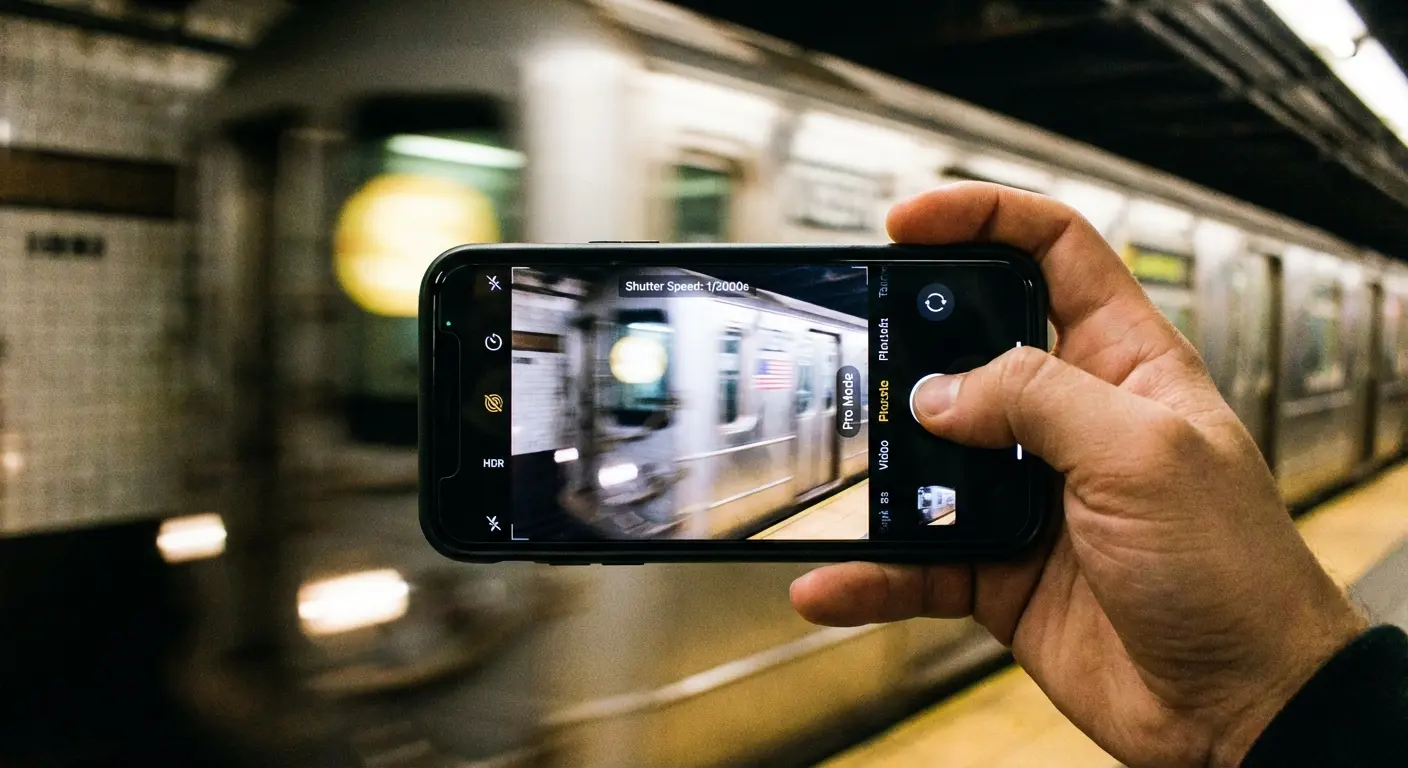
Photon cuts out all the fluff to focus strictly on the shooting experience. It supports direct saving to external drives, which is a massive advantage if you are shooting heavy files on an iPhone 16 or 17 Pro. The interface is utilitarian and clean—just shutter speed, ISO, and white balance without the distractions.
5. Spectre Camera
Spectre uses AI to handle long-exposure shots without requiring a tripod. You can use it to remove crowds from a busy tourist spot or create light trails from passing cars. It is a niche tool, but it executes that specific task better than anything else on the market. The interface is deceptively simple, often requiring just a single button press.
Practical Application: The Waterfall Effect
Imagine you're hiking and find a waterfall. With the stock iPhone camera, the water looks frozen and jagged. Open Spectre, set the duration to 3 seconds, and hold your phone steady. The AI stabilizes the frame while blurring the moving water, creating that silky, professional "mist" look without needing to lug a heavy tripod up the mountain.
Category B: Comprehensive Editing Suites
Once the shot is taken, you need a digital darkroom. These apps offer deep editing capabilities that rival desktop computers. If you want to see how this space has evolved, check out our previous guide on the best iOS apps for editing photos. Finding a reliable photo app for post-processing is just as critical as the capture itself.
We often rely on the native Photos app for quick tweaks, but the following tools offer significantly more horsepower.
6. Adobe Lightroom
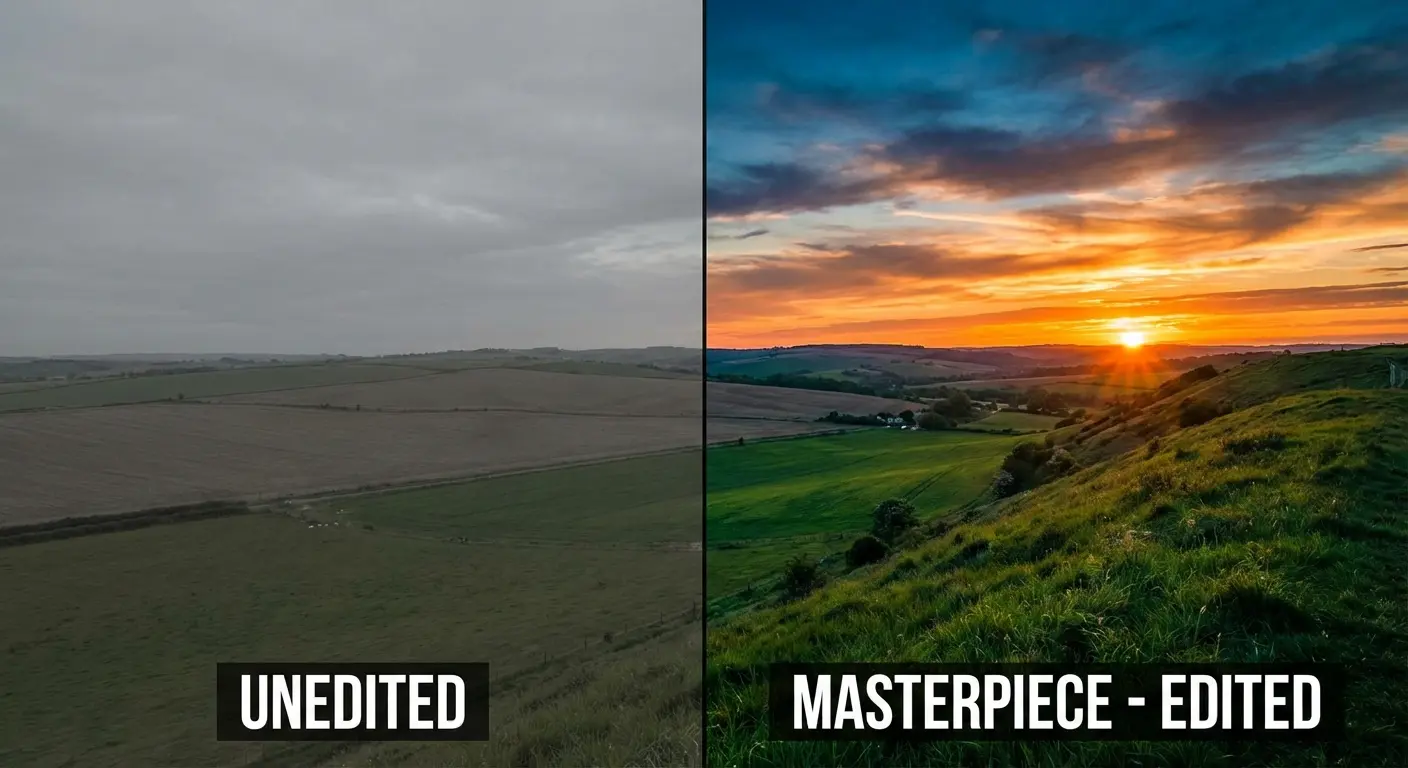
Lightroom remains the industry standard for a reason. The cloud syncing allows me to start an edit on my phone and finish it on my desktop. The masking tools are particularly powerful; you can brighten a subject's face while darkening the sky in the background simultaneously. It has a steep learning curve, but the color grading control is unrivaled.
7. Photomator
This app feels like it was built by Apple itself. It uses machine learning to upscale photos or remove objects, and it integrates so tightly with the Photos library that you forget it is a third-party app. Features like "Smart Deband" and "Super Resolution" are genuine lifesavers when dealing with lower-quality files.
8. Darkroom
Efficiency is the name of the game with Darkroom. It requires no importing, meaning you edit photos directly where they live in your library. I use this constantly for batch editing vacation photos; you can apply the same preset to 50 images instantly. It also includes excellent video color grading tools.
App Name |
Pricing Model |
Best For |
Learning Curve |
|---|---|---|---|
Lightroom |
Subscription (Cloud) |
Professional Color Grading |
High |
Photomator |
Subscription/Lifetime |
Apple Native Integration |
Medium |
Darkroom |
Subscription/Lifetime |
Batch Editing & Speed |
Low-Medium |
Snapseed |
Free |
Selective Adjustments |
Low |
9. Snapseed
Google’s editor is still a powerhouse and, amazingly, it's still free. The "Selective" tool allows you to tap on a specific area, like a dark shirt, and brighten only that tone without washing out the rest of the image. It also features "Double Exposure" and "Expand" tools that are still top-tier despite the app's age.
Practical Application: Saving the Sky
You took a great photo of a building, but the sky is blown out and white. Open Snapseed and use the "Selective" tool. Tap on the white sky area and drag the brightness down and the structure up. This brings back the blue tones and cloud details specifically in that area without making the building look dark or muddy.
10. Adobe Photoshop Express
Think of this as a quick-fix station. It is perfect for collages, adding text overlays, or reducing luminance noise in a hurry. While it lacks the deep color grading of Lightroom, it makes up for it with speed and a simplified UI designed specifically for mobile users.
Category C: Filters, Film Emulation, & Aesthetics
Sometimes accuracy isn't the goal; you want a specific "vibe." These apps specialize in color science and film simulation. If you are hunting for filter apps, this category contains the heavy hitters.
11. VSCO
VSCO pioneered the film emulation trend on mobile. I still reach for the classic "C1" preset when I want to give landscape photos a vibrant, chromatic look. The library of presets is massive, and they have expanded into video editing as well. The interface is minimalist—sometimes to a fault—but the results are consistent.
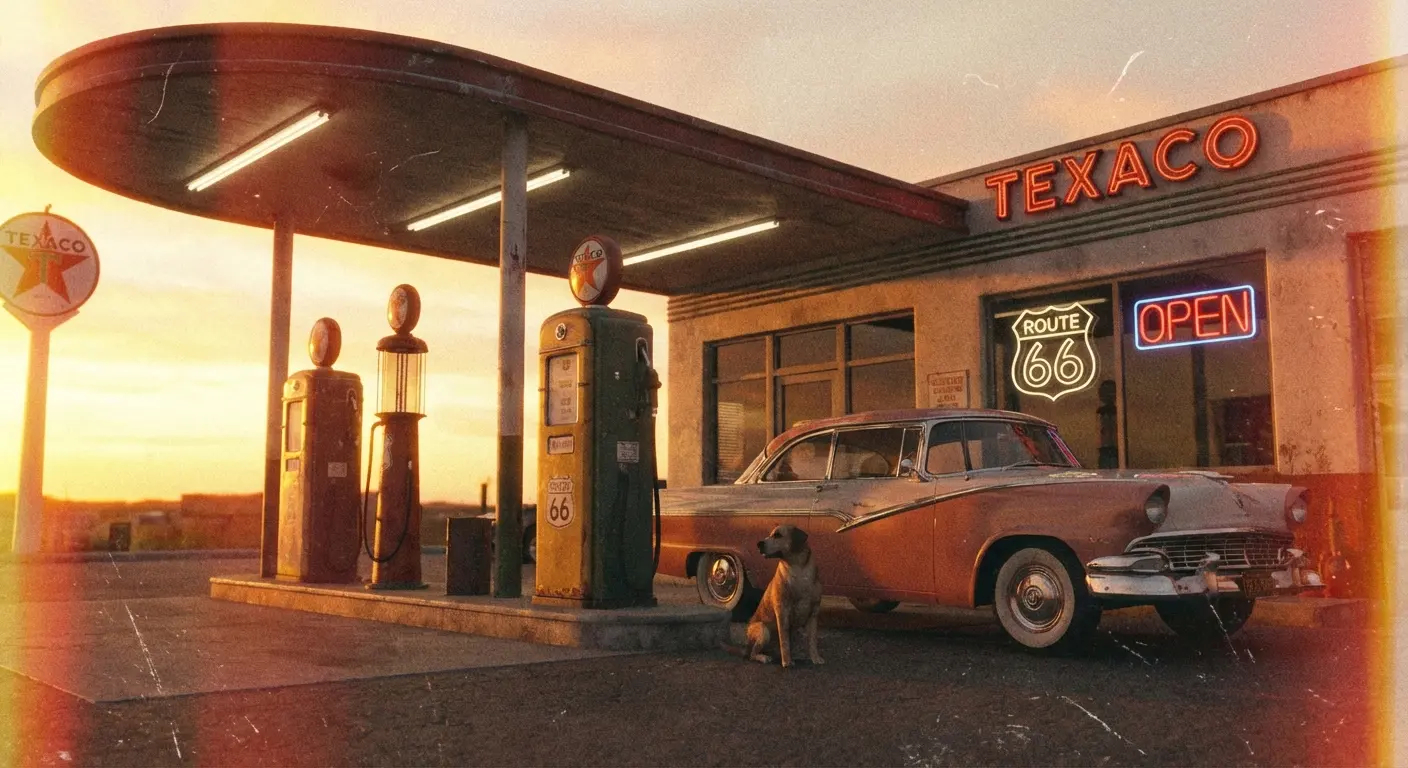
12. Tezza
This is the heavy hitter for influencers and aesthetic creators. It focuses less on technical editing and more on texture—think dust overlays, grain, and stop-motion effects. It gives photos a vintage scrapbook feel that is very popular right now.
13. RNI Films
"Really Nice Images" uses data from real film stocks. If you want your digital photo to look exactly like it was shot on Kodak Portra 400, this is the app to use. The interface is clean, and the fidelity of the film simulation is higher than almost any other app on this list.
14. Dazz Cam
Dazz Cam simulates the experience of using vintage cameras, not just the film. You can shoot video that looks like a 1980s VHS tape or photos that mimic an Instax Mini. It is less about professional editing and more about creative, fun experimentation.
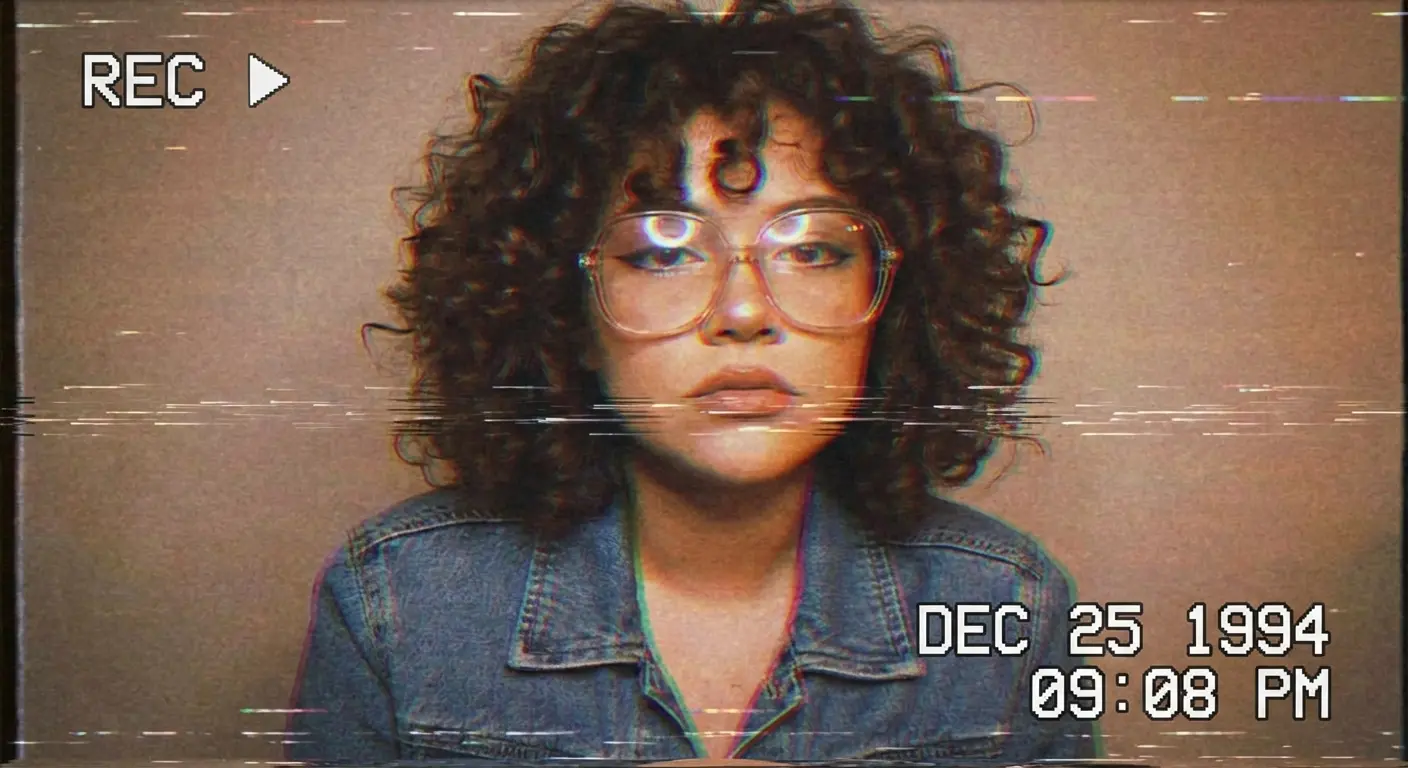
15. Hipstamatic
The original retro camera app is still kicking. You virtually swap lenses and films before you shoot, meaning you often don't know exactly what the result will look like until it processes. Pairing a specific lens with a specific film creates moody, bordered shots that feel distinct.
16. Afterlight
Afterlight balances filter application with deep editing tools. I love the "Light Leak" tool because it allows you to manually place a sun flare in the corner of an image, giving you control over the intensity and color. It offers great texture overlays and color shift tools wrapped in a user-friendly UI.
Category D: Retouching & AI Restoration
We all make mistakes, or sometimes the camera just doesn't capture reality perfectly. These apps fix flaws and restore old memories. This is especially useful when you are trying to apply specific creative photo techniques in low light where blur or noise might ruin a great composition.
Having a dedicated tool for cleanup is essential. These apps specialize in saving shots that might otherwise be deleted.
17. TouchRetouch
This app does one thing—removing unwanted objects—and it does it perfectly. I use the "Mesh Removal" tool to instantly wipe out fences or nets that are obstructing a view. It is incredibly efficient for cleaning up street photos where a trash can or power line ruins the composition.

18. Facetune
Facetune is the standard for portrait work. You can smooth skin texture, whiten teeth, or reshape facial features. It is easy to go overboard here, so I recommend using the sliders sparingly. The AI integration allows for "one-tap" makeovers if you are in a rush.
19. Remini
Remini uses AI to un-blur and restore low-quality photos. I have taken blurry photos from the iPhone 4 era and watched this app make the faces crisp and high-definition. The results can sometimes look slightly artificial, but for saving a ruined memory, it is magic.
Problem |
Best App Solution |
Primary Tool |
|---|---|---|
Unwanted Objects |
TouchRetouch |
Object Removal / Mesh Tool |
Blurry Old Photos |
Remini |
AI Enhance / Unblur |
Skin Blemishes |
Facetune |
Smooth / Heal |
Background Issues |
Lensa |
Background Blur / Replace |
20. Lensa
While famous for its avatars, Lensa is a solid editor for portraits. It can separate the foreground from the background, allowing you to apply different exposure settings to each. It is particularly good for automated batch editing of selfies or portraits.
Category E: Design, Layout & Native
Photography often ends up on social media or in marketing materials. These tools help you present your work. While the native Photos app has improved, sometimes you need features that are a bit more design-centric.
21. Unfold
Unfold is my favorite tool for creating Stories and Reels. You can drop your edited photos into "Film Strip" templates that look professional and clean. The typography options are high-quality, elevating a simple photo into a piece of content.
22. Canva
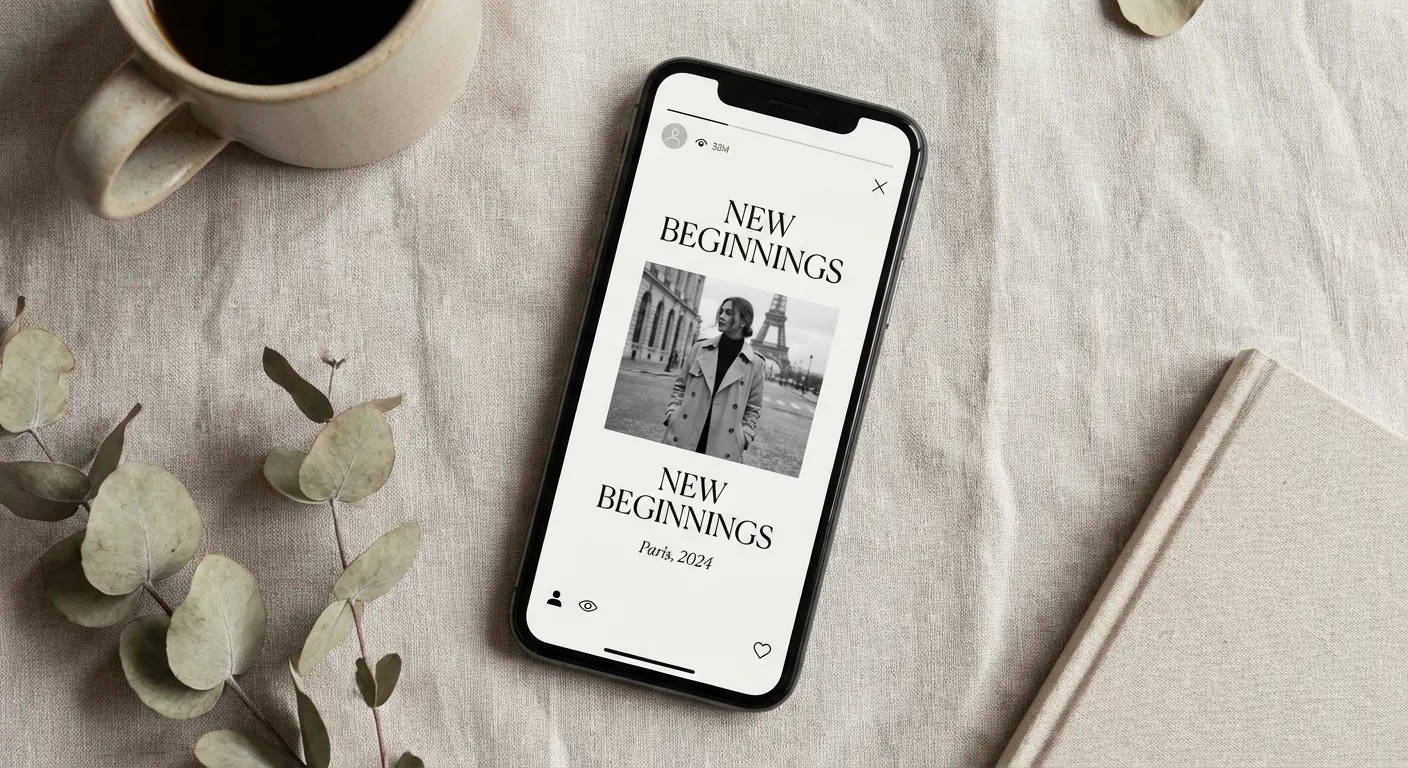
Canva is the all-in-one design tool. You can take a product photo and instantly turn it into a marketing flyer or a YouTube thumbnail. The stock library and graphics are massive, though the feature-rich interface can feel a bit cramped on a phone screen.
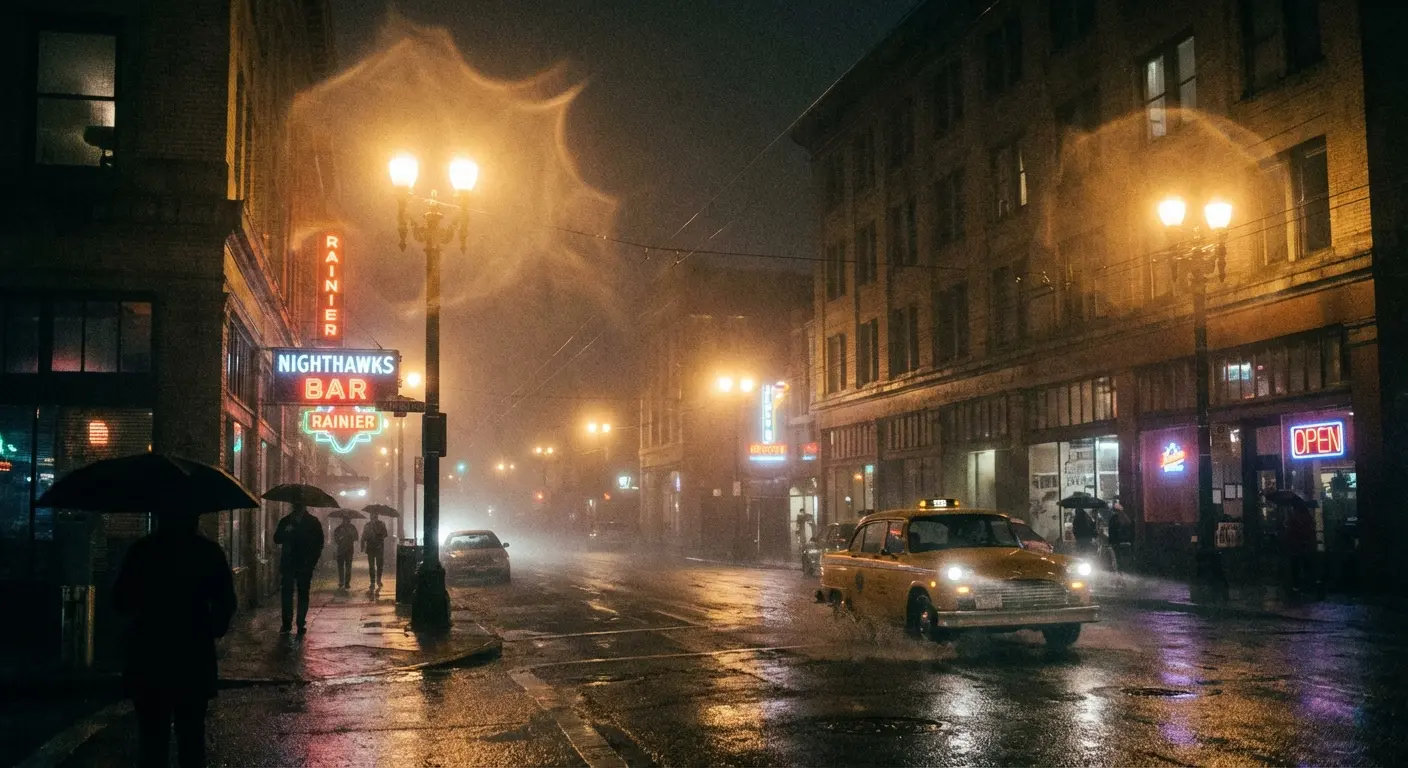
23. Lens Distortions (LD)
LD adds cinematic weather and lighting effects. I use this to add realistic rain, fog, or snow to moody street photos. The optical effects, like glass shards and light hits, are the best in class and layer beautifully over your images.
24. Superimpose X
This is for composite photography. You can cut out a subject and place them on a completely different background with realistic shadows. It offers advanced masking and blending modes that feel closer to desktop Photoshop than a mobile app.
25. Apple Photos App
We cannot ignore the native app. It has become a powerhouse with features like "Visual Look Up," which lets you lift a subject out of a photo and paste it into iMessage. Being able to edit Depth Control after the shot is taken is a feature I use constantly. It is fast, free, and improves with every iOS update.
Protecting Your Gear: The Rokform Advantage
You have loaded your phone with professional software, but you need hardware that can keep up. Photography requires stability and durability, especially when you are out in the field. Rokform cases bridge the gap between your expensive device and the rugged reality of shooting. Keeping the screen safe is obvious, but knowing how to protect the lens on your mobile phone is equally vital when using these mounting techniques.
Using photo apps requiring long exposures or precise framing is nearly impossible with shaky hands. We designed our gear to solve this exact problem.
Stability for the Perfect Shot
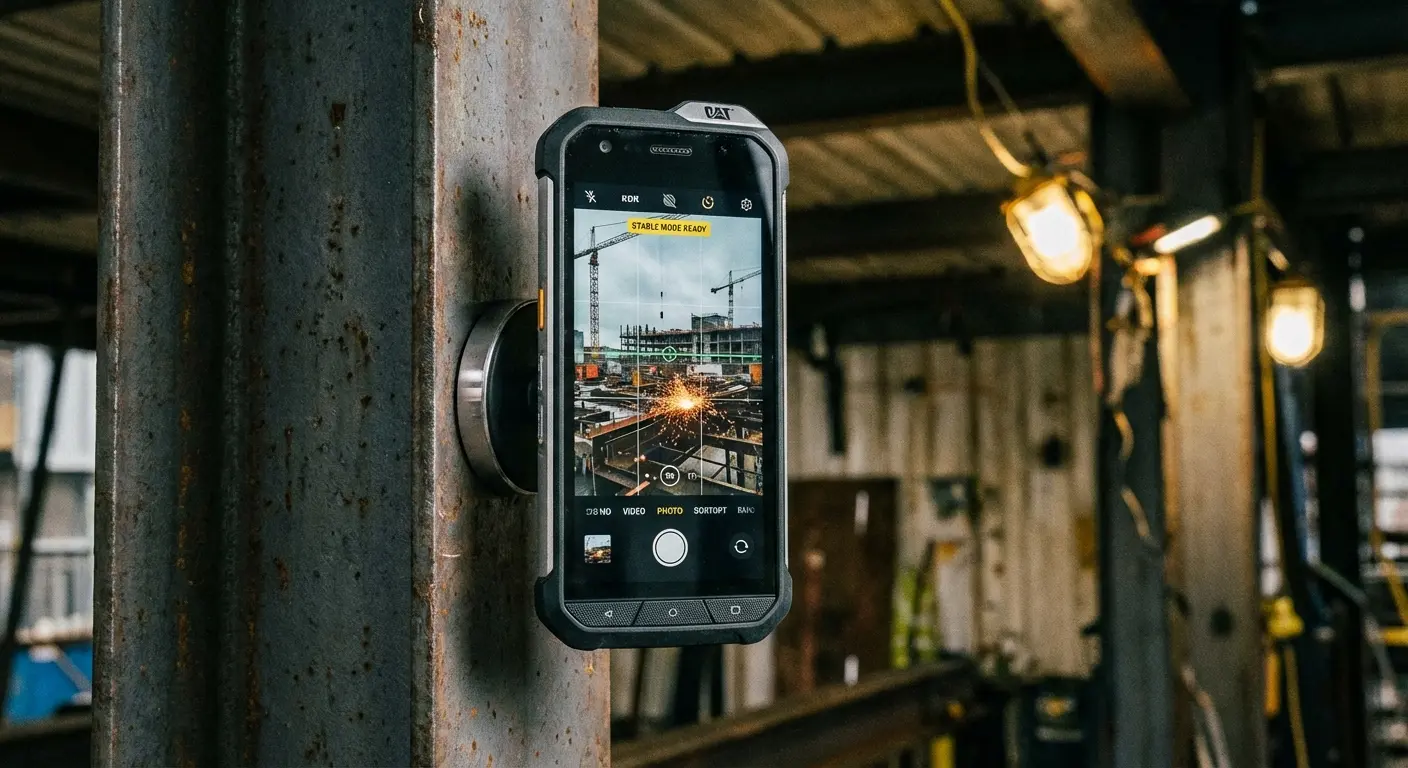
Many of the apps we discussed, like Spectre or Halide, demand a steady hand to work correctly. Our cases feature MAGMAX™ technology, which uses industrial-grade magnets to provide a hold significantly stronger than standard MagSafe. I often stick my phone to a street sign or a car hood to act as an instant tripod. This gives you shake-free photos without needing to carry extra gear.
Practical Application: The Solo Traveler
You are traveling alone and want a photo in front of a landmark, but you don't trust a stranger with your phone. With a Rokform case, you can magnetically mount your phone to a nearby lamppost or metal railing. Set a 10-second timer, walk into the frame, and get a perfectly stable, composed shot without a tripod or a selfie stick.
Rugged Protection for Field Work
If you are hiking to a vantage point or shooting on a busy city street, you cannot risk a shattered screen. Our Rugged and Crystal cases offer military-grade drop protection up to 6 feet. We protect the vulnerable corners and the camera bump, ensuring your lens stays pristine. Plus, with our RokLock™ twist-lock system, you can mount your phone securely to a bike or motorcycle to capture video while you move.
Final Thoughts
The "best" app is ultimately the one that fits your specific workflow. You don't need to download all 25 of these; that would be chaos. Pick the two or three that solve your specific problems. Whether you need the granular control of Halide or the quick restoration of Remini, these tools turn your iPhone into a camera capable of professional results.
Grab a reliable case, download your tools, and go shoot. With the right software, your potential is limitless. Remember, the goal isn't just to have every app available, but to master the ones that elevate your art. Explore these options and find your perfect digital darkroom.

