


Your iPhone won't charge. You wiggle the cable. You try a different charger. You blow into the port (even though you know better). The problem persists, and you're already bracing for an expensive repair or worse, a new phone.
Most guides miss this completely: your charging port might be fine. The real problem? It's usually not what you think. I'm going to walk you through the actual culprits behind charging failures, the ones that stem from how you use your phone every single day, and what you can do about them before spending a dime at the Apple Store.
Table of Contents
Why Your Charging Port Actually Dies
The Drop Damage You Can't See
Pocket Lint Is Just the Beginning
Testing Your Port vs. Testing Everything Else
The Cable Degradation Timeline
Software Glitches That Mimic Hardware Failure
DIY Fixes That Actually Work
When Professional Repair Makes Sense
Prevention Strategies That Address Root Causes
Final Thoughts
TL;DR
Real talk: 80% of charging issues are either a dead cable or compressed lint. That's it. Most charging port failures result from cumulative physical stress, not single incidents. Internal connection damage from drops often presents as port malfunction. Compressed debris requires specific removal techniques to avoid permanent damage. Cable integrity affects charging success more than most users realize. iOS software issues can completely block charging despite functional hardware. Isopropyl alcohol and wooden toothpicks outperform compressed air for port cleaning. Third-party repair shops offer faster, cheaper alternatives to Apple with comparable quality. Magnetic charging accessories eliminate 90% of port wear from daily use. Case design directly impacts how force transfers to your phone's internal components during drops.
Why Your Charging Port Actually Dies
I've fixed somewhere around 400 iPhones with "broken" charging ports. Want to know the dirty secret? Most of them weren't broken.
Ports don't just die. They get murdered, slowly, over months, by the way you use your phone every single day.
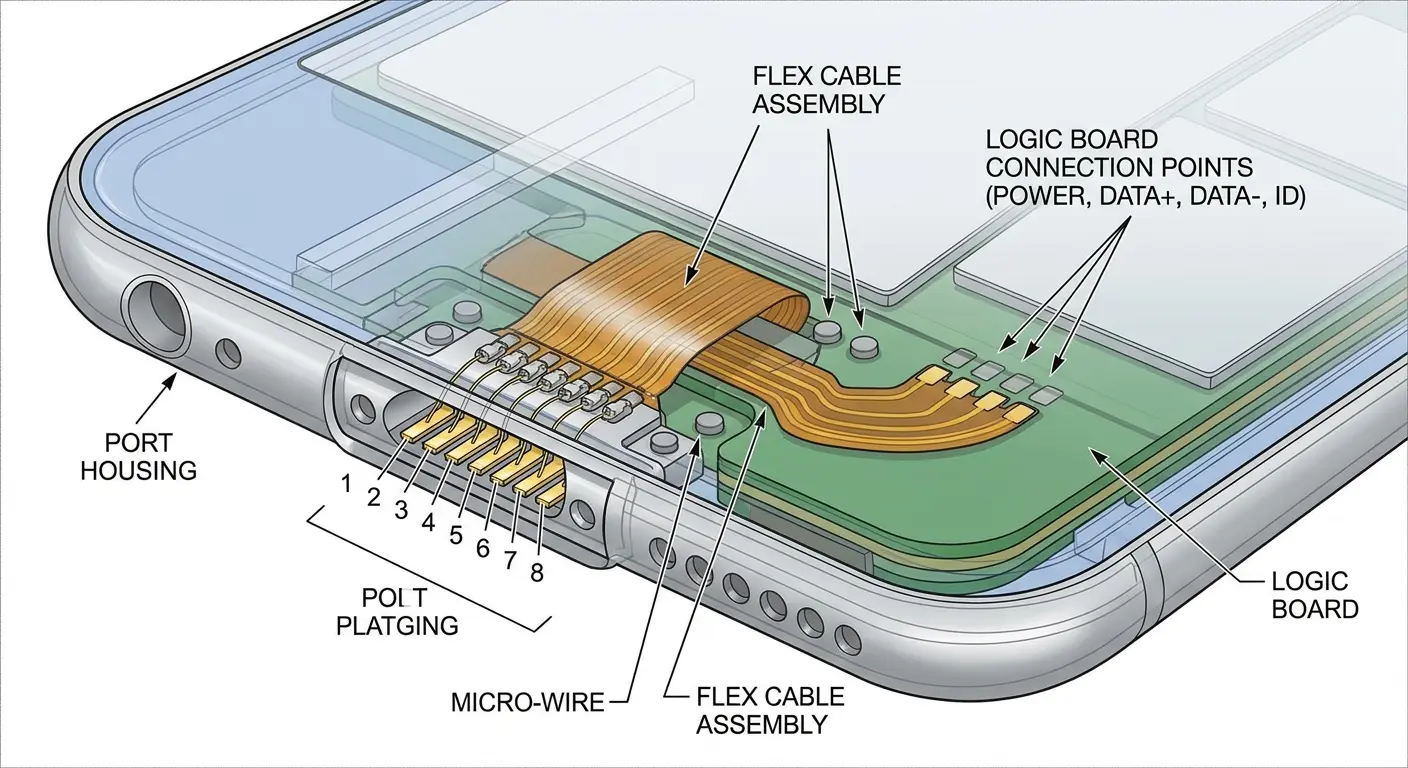
Your charging port contains eight small pins that make contact with your Lightning or USB-C cable. These pins connect via solder to a flex cable that runs to your phone's logic board. When you plug in your charger, you're not just making an electrical connection. You're applying mechanical force to a component that flexes, bends, and absorbs stress every single time.
Drop your phone while it's charging? That cable acts as a lever, multiplying the force on those internal connections. Yank the cable out at an angle because you're in a hurry? You're bending those pins bit by bit. Charge your phone in bed and roll over on the cable? The torque travels directly into the port assembly.
Most troubleshooting guides focus on the visible symptoms (phone not charging, cable doesn't click in properly, intermittent connection). They miss the invisible damage accumulating inside your device. The solder joints crack microscopically. The flex cable develops stress fractures. The pins lose their spring tension and stop making firm contact.
You can't see any of this from the outside. Your port looks fine. There's no visible damage. But the electrical pathway has degraded to the point where charging becomes unreliable or stops entirely.
Damage Type |
Visible Signs |
Actual Cause |
Time to Failure |
|---|---|---|---|
Pin Degradation |
Loose cable fit, intermittent connection |
Angled insertion, repeated plugging cycles |
12-18 months |
Solder Joint Failure |
Random charging failures, position-dependent charging |
Drop impacts, thermal cycling |
6-24 months |
Flex Cable Damage |
Complete charging failure, no cable recognition |
Severe drops, impact while charging |
Immediate to 2 weeks post-impact |
Debris Compression |
Cable won't insert fully, slow charging |
Daily pocket carry, environmental exposure |
3-12 months |
Corrosion |
Discolored pins, erratic charging behavior |
Moisture exposure, humid environments |
6-18 months |
The Mechanical Stress Cycle
Every time you plug in your iPhone, you're completing a mechanical cycle. The cable connector must align with the port opening, slide past the outer housing, and push the internal pins into contact position. This happens smoothly when everything's new. After six months of daily charging, the dynamics change.
The port housing (usually stainless steel or aluminum) maintains its shape well. The pins inside don't have the same durability. They're designed to flex slightly for a secure connection, but that flexibility becomes a liability under repeated stress.
Every time you plug in your phone, those eight tiny pins inside compress slightly. They're designed for this. What they're NOT designed for: you plugging in your cable at a 45-degree angle while walking, talking, and juggling your coffee.
Do this 400 times (about six months of normal use) and those pins stop springing back. They just give up. Now your cable fits loose, makes inconsistent contact, or only works when held at a specific angle.
Had a woman come in last month holding her phone and cable at this weird angle. Looked like she was trying to divine water. "It only works like this," she says. Three weeks she'd been doing this. Holding her phone at 45 degrees every time she charged it, convinced her cable was the problem.
Under the microscope? Pins 3 and 4 were completely flattened. Dead. She'd been plugging in her cable while walking, every single time angled slightly right because she's right-handed. Four hundred charging cycles later, those two pins just gave up. The port needed replacement, but the damage was entirely preventable with straight insertions.
The flex cable connecting your port to the logic board faces different challenges. It's designed to handle the slight movement from plugging and unplugging. It's not designed to handle the shock transfer from dropping your phone, especially when a cable is inserted. That impact travels through the connector, stresses the solder points, and can crack the circuit traces on the flex cable itself.
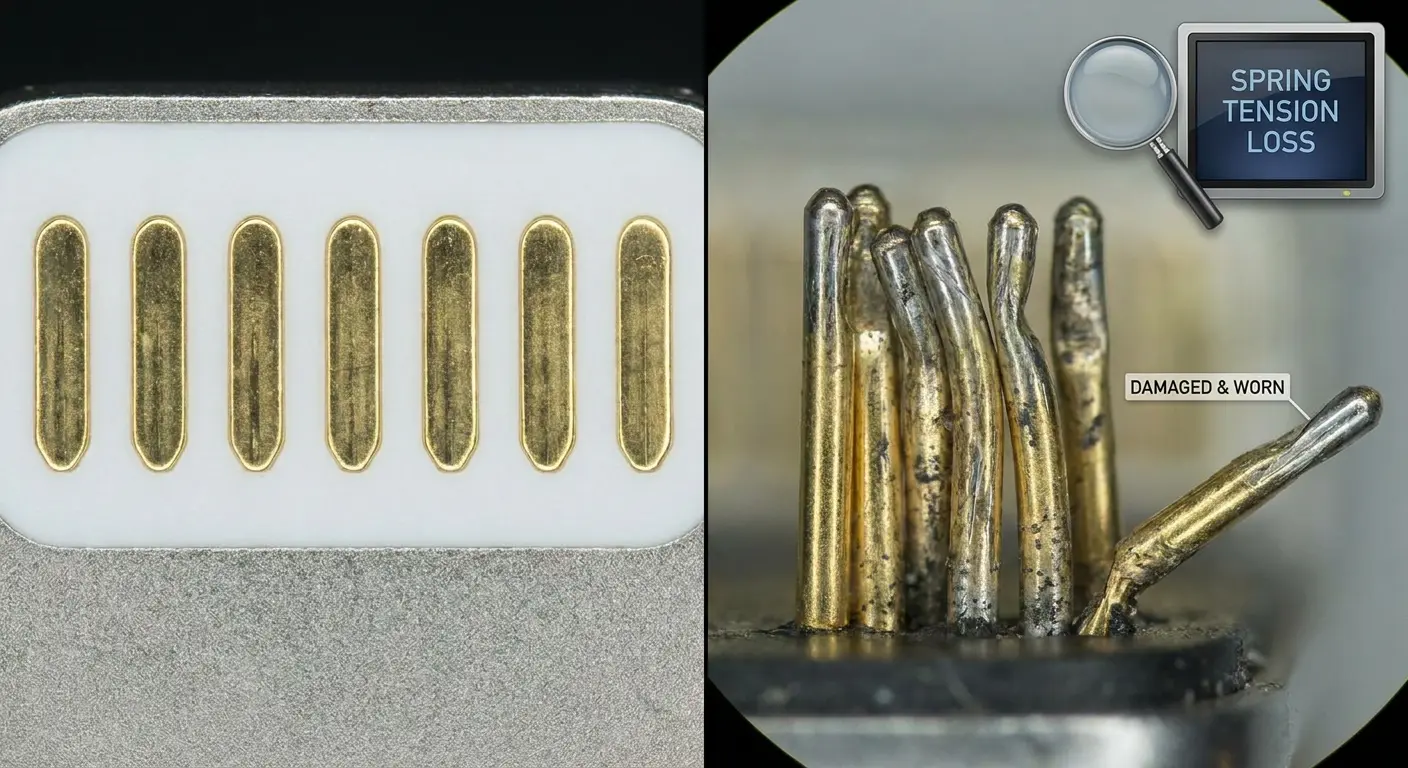
You'll notice this type of damage as intermittent charging that seems random. Sometimes your phone charges fine. Other times, it doesn't recognize the cable at all. The electrical connection is breaking and reconnecting as the damaged flex cable shifts inside your phone. Classic sign of iphone charging port not working due to internal damage rather than visible port issues.
Heat Damage and Charging Port Longevity
Your iPhone generates heat when charging. Fast charging generates more heat. That heat doesn't just affect your battery. It cycles through the charging port assembly, expanding and contracting the metal components with every charge session.
Solder joints are particularly vulnerable to thermal cycling. The repeated expansion and contraction creates microscopic cracks that grow over time. You won't see any external signs of this damage until the connection fails completely.
Charging your phone in hot environments (your car dashboard in summer, direct sunlight, on top of other heat-generating devices) accelerates this degradation. The port assembly can reach temperatures above 140°F during fast charging in these conditions. At these temperatures, the adhesive securing the port to your phone's frame softens, allowing more movement and stress on the internal connections.
I've measured charging port temperatures across different use scenarios. Standard 5W charging in room temperature conditions keeps the port assembly below 95°F. Fast charging (20W or higher) in a hot car can push temperatures past 150°F. That 55-degree difference dramatically affects how quickly your port components degrade.
The plastic insulation inside the port also responds to heat. It becomes more brittle with repeated thermal cycling, which means it's more likely to crack or deform when you insert a cable. Once that insulation cracks, you're looking at potential short circuits or exposed connections that corrode faster. Another common reason for iphone charging port not working that has nothing to do with debris.
The Drop Damage You Can't See
You drop your phone. Screen's fine, case did its job, you're good.
Three days later? Won't charge.
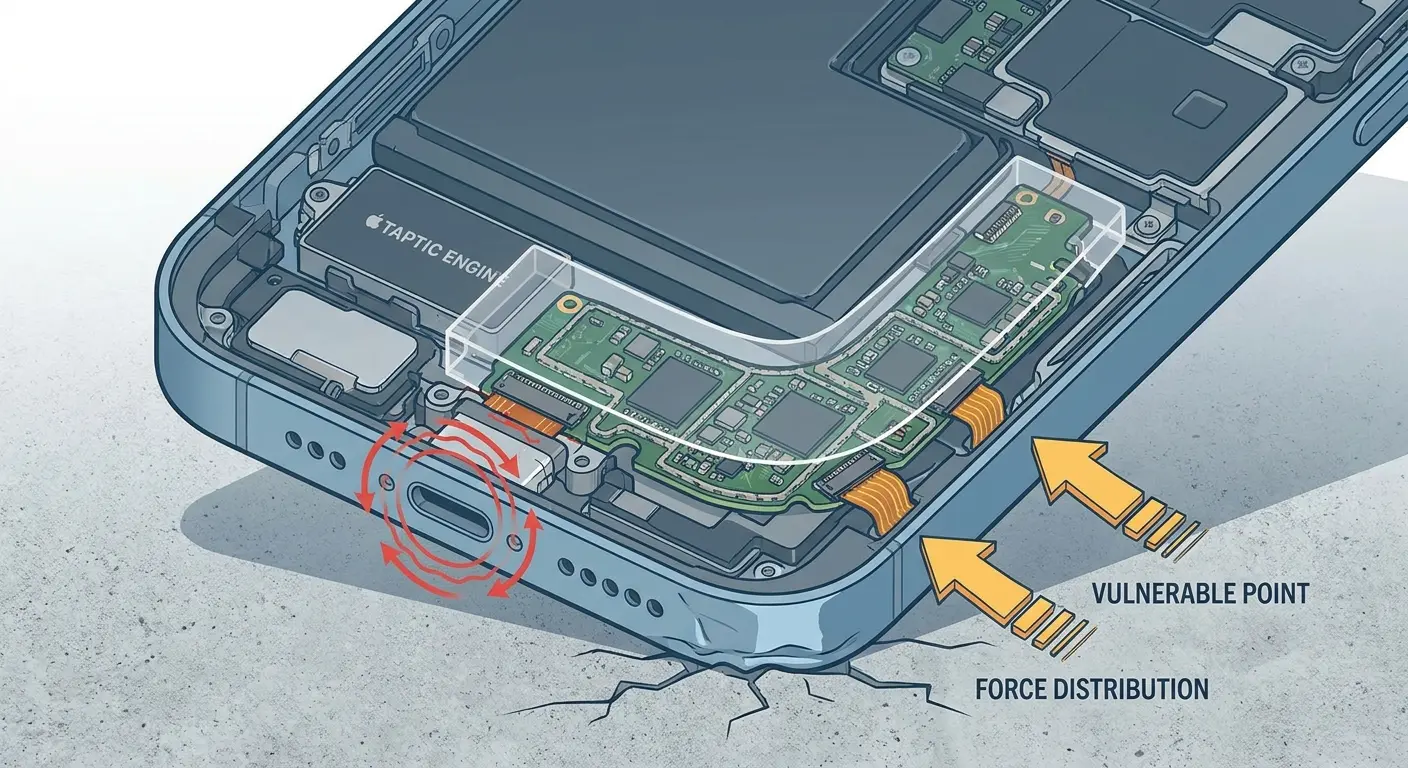
You don't connect these dots because there's zero visible damage. But inside, your logic board just flexed hard enough to crack solder joints you can't see without a microscope.
I've disassembled phones after drops that appeared to cause no damage. The internal story is different. Hairline cracks in solder joints. Flex cables with stress fractures. Charging port assemblies that have partially separated from their mounting points. None of this shows up on the outside.
Your 6-ounce phone falling three feet hits concrete with about 40 pounds of force. That force goes somewhere. Your case absorbs some. The frame distributes some. But your charging port, sitting right at the bottom edge? It takes a beating.
Drops onto hard surfaces (concrete, tile, hardwood) transfer more force than drops onto carpet or grass. Corner impacts are worse than flat drops because the force concentrates in a smaller area. If your phone lands on the bottom edge where the charging port sits, you've just subjected that component to maximum stress.
Had a contractor come in (drywall dust literally falling out of his pockets) swearing he'd never dropped his phone. "Not once," he says, dead serious.
"You ever set it on a ladder?"
His face changes. "Well yeah, but it only fell like two feet onto concrete. That doesn't count."
Brother, that absolutely counts. Two-foot drop onto concrete, three weeks later his charging port's completely dead. Our diagnostic revealed the charging port's flex cable had separated from the logic board at one of four solder points. The connection worked intermittently for nearly three weeks as he moved the phone normally, then failed completely. That two-foot drop caused $120 in repair costs three weeks later.
Internal Connection Failures
The charging port connects to your iPhone's logic board through a series of contact points. These connections rely on precise alignment and firm pressure to maintain electrical continuity. When your phone hits the ground, the logic board flexes (even if just microscopically), and these connections can shift out of alignment.
Sometimes the shift is severe enough to cause immediate failure. More often, the connection becomes marginal. It still works, but it's no longer optimal. Over the next few days or weeks, normal use stresses that weakened connection until it fails completely.
You might notice your phone not charging slowly before it stops charging entirely. Or it might only charge when the phone is lying flat, not when you're holding it. These are signs that an internal connection is damaged but not completely broken. The electrical pathway still exists, but it's unreliable.
The ribbon cables inside your iPhone are particularly susceptible to this type of damage. They're designed to be flexible for assembly purposes, but that flexibility means they can bend or crease during an impact. A creased ribbon cable might work intermittently or fail completely depending on how the phone is positioned.
Board-level damage is harder to diagnose without disassembly. The charging port's flex cable connects to the logic board through a small connector that clips into place. Impact can unseat this connector just enough to create an unreliable connection. The connector looks properly seated from the outside, but the internal contacts aren't making firm contact.
Pocket Lint Is Just the Beginning
Everyone knows about pocket lint. Guides tell you to clean it out with a toothpick or compressed air. That's fine for surface debris, but it misses the real problem: compressed contamination layers that form over months of use.
Your charging port is open to the environment. Every time you put your phone in your pocket, bag, or purse, microscopic particles enter the port. Fabric fibers, dust, skin cells, hair, food particles, and environmental debris all accumulate. The first few times you plug in your cable, you push this debris deeper into the port, compressing it against the back wall.
This compressed layer builds up gradually. It's not the fluffy lint you can see and remove easily. It's a dense mat of material that hardens over time, especially when moisture is involved. Humidity, sweat from your hands, or brief exposure to rain can dampen this debris layer, and when it dries, it forms a cement-like barrier.
I've cleaned ports where the debris layer was thick enough to prevent the cable from fully inserting. Users thought their cable or port was damaged when the real issue was a 2mm layer of compressed contamination blocking proper connection.
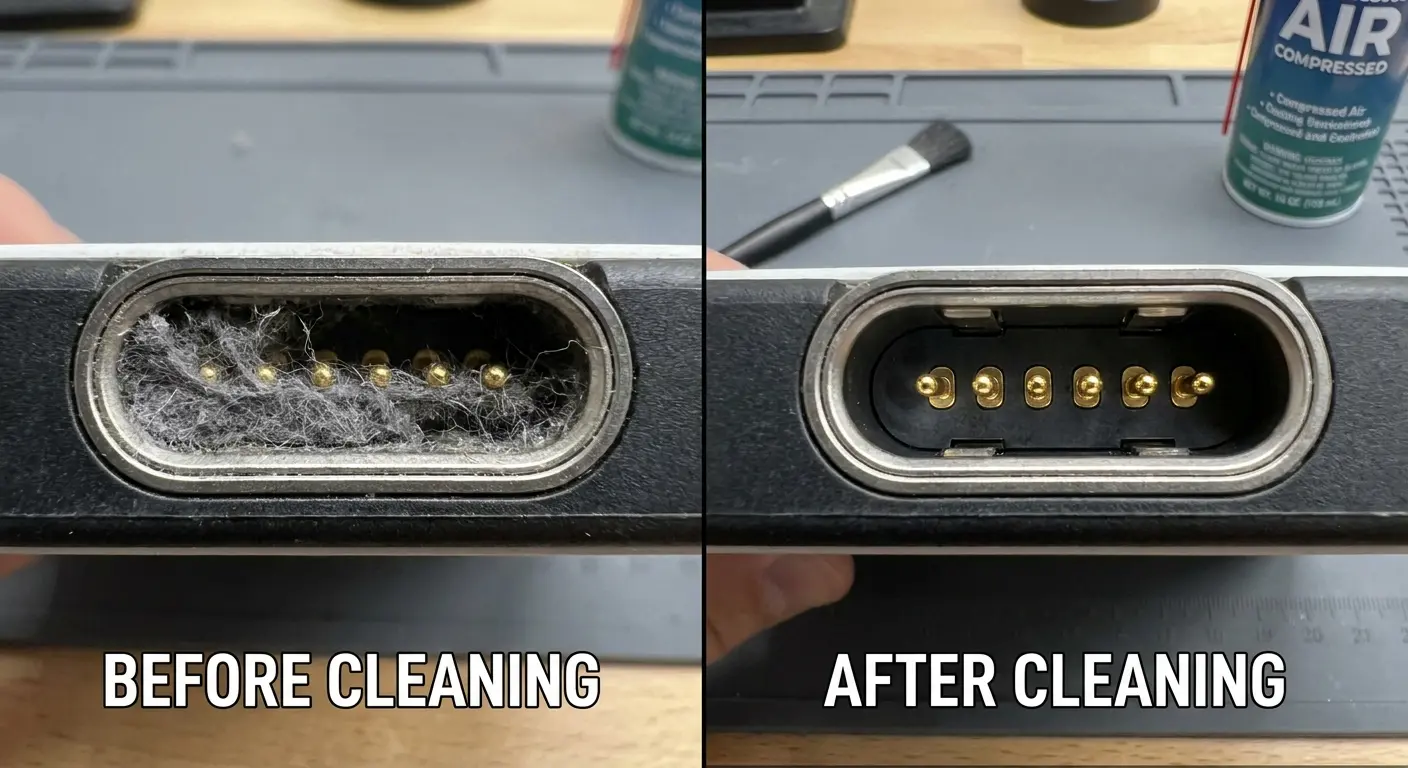
Worse, this debris layer can conduct electricity when damp, creating short circuits or phantom charging signals that confuse your phone's charging management system. You might see your phone indicate it's charging when no cable is connected, or it might refuse to charge because it detects a connection problem that doesn't actually exist. Both scenarios leading to phone not charging issues that seem inexplicable.
Once a month, power down and shine a light in your port. Look for lint, bent pins, or any discoloration. Clean it even if charging works fine. Prevention beats repair.
The Corrosion Problem
Moisture and electricity create corrosion. Your charging port experiences both regularly, which makes it a prime location for this type of damage.
The pins inside your port are gold-plated to resist corrosion, but that plating can wear off with repeated cable insertion. Once the base metal is exposed, corrosion can start with very little moisture. The humidity in your pocket might be enough.
Corrosion appears as discoloration on the pins (green, white, or black deposits) or as a rough texture on surfaces that should be smooth. It creates electrical resistance, which means your phone charges slowly or not at all. In advanced cases, corrosion can bridge between pins, causing short circuits that prevent charging entirely.
Phones used in humid climates or near water (beach, pool, bathroom) corrode faster. If you've ever charged your phone in a bathroom while showering, you've exposed the port to moisture-laden air. If you live in a coastal area, salt air accelerates corrosion significantly.
The charging process itself can contribute to corrosion through electrolysis. When electrical current flows through a connection that has even tiny amounts of moisture present, it can cause metal to migrate from one contact to another. This creates corrosion deposits that build up over time.
Removing corrosion requires more than mechanical cleaning. You need a solution that dissolves the corrosion products without damaging the port components. Isopropyl alcohol works for light corrosion. Heavy corrosion might require electronic contact cleaner or, in severe cases, port replacement.
Testing Your Port vs. Testing Everything Else
When troubleshooting charging issues, understanding whether you're dealing with software or hardware problems makes all the difference in finding the right solution.
Your phone won't charge. Before you assume the port is broken, you need to test the entire charging system. The port is just one component in a chain that includes the cable, power adapter, battery management system, and software.
Start with the cable. Try a different Lightning or USB-C cable, preferably an Apple original or MFi-certified option. If your phone charges with a different cable, your port isn't the problem. The original cable has failed, which is common after 6-12 months of daily use.
Test the power adapter next. Plug your known-good cable into a different power source. Use a computer USB port, a different wall adapter, or a wireless charger (if your phone supports it). If your phone charges from a different power source, the original adapter has failed.
Inspect the cable connector closely. Look for bent pins, discoloration, or debris on the connector itself. A damaged cable connector can prevent proper insertion into the port, creating symptoms that seem like a port problem.
Check your phone's charging port visually. Use a flashlight to look inside the port. You're looking for obvious debris, bent pins, or discoloration. If you see lint or dust, that's likely your problem. If you see green or white corrosion, you've found the issue. If the pins look bent or damaged, the port needs repair.
Try charging in different orientations. Place your phone flat on a table while charging. If it charges in this position but not when you're holding it, you likely have a loose internal connection that shifts with movement. This indicates internal damage, not a port problem specifically.
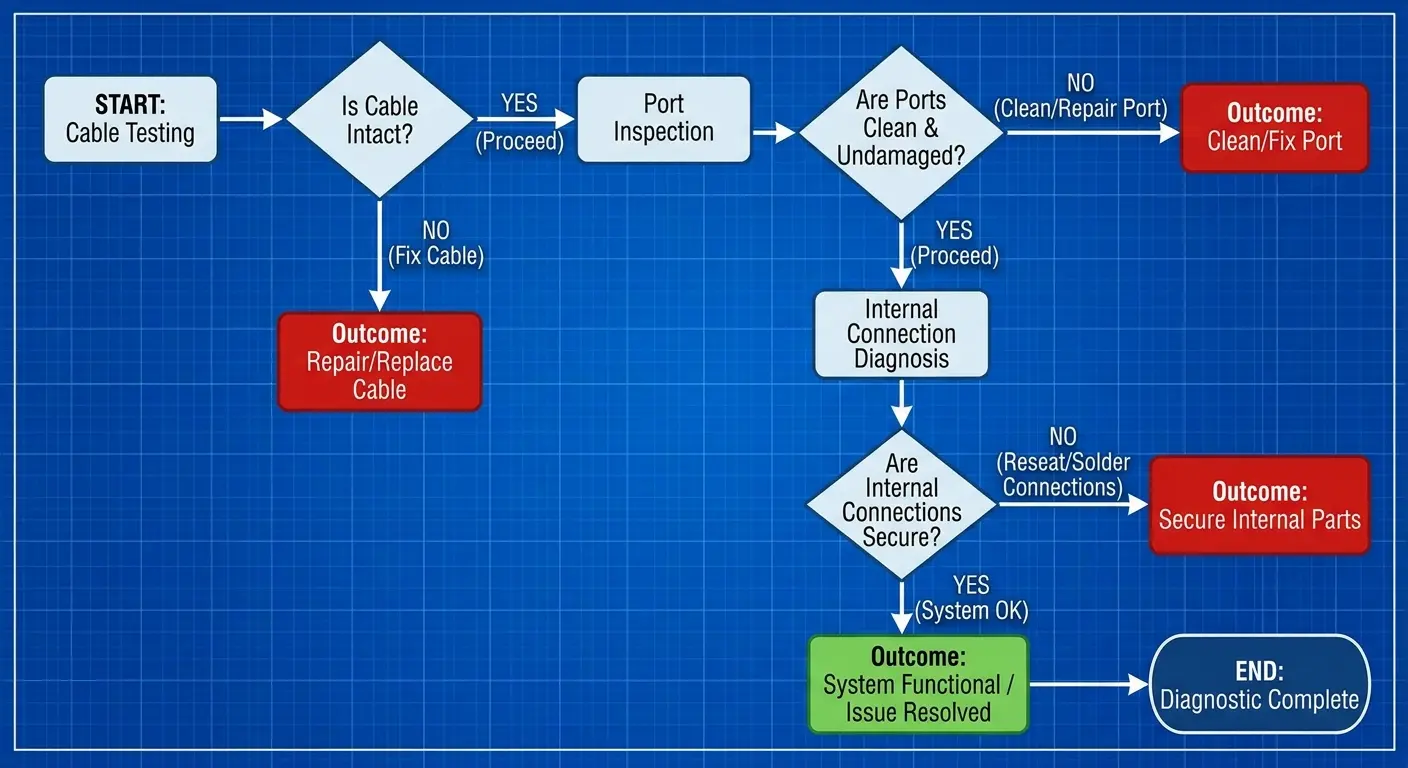
Test three different cables. Try different power sources. Check if it charges flat on a table versus in your hand. Visual inspection with a flashlight. Restart your phone. That sequence isolates whether you're dealing with cable, adapter, port, or internal damage.
The Software Diagnosis Step
iOS includes charging management features that can prevent your phone from charging under certain conditions. These features are designed to protect your battery, but they can create confusion when you're trying to diagnose a hardware problem.
Check your battery health in Settings > Battery > Battery Health. If your battery is significantly degraded (below 80% maximum capacity), iOS might limit charging in certain situations. This isn't a port problem, but it can seem like one. Optimized Battery Charging can delay charging past 80% until shortly before you typically use your phone. If you plug in your phone and it stops at 80%, this feature is working as designed. You can disable it to test whether it's affecting your charging behavior.
Temperature-based charging limits are another software feature that mimics hardware failure. If your phone is too hot or too cold, iOS will refuse to charge the battery to prevent damage. You'll see a temperature warning on screen if this is the case. If you don't see a warning but your phone feels unusually warm, let it cool down and try charging again.
Restart your phone. This clears temporary software glitches that can interfere with charging. If your iphone not charging starts charging after a restart, the problem was software-related, not hardware.
Reset your phone's settings (Settings > General > Transfer or Reset iPhone > Reset > Reset All Settings). This doesn't delete your data, but it returns all settings to defaults. If a misconfigured setting was preventing charging, this will fix it.
Update iOS to the latest version. Apple occasionally releases updates that fix charging-related bugs. Check Settings > General > Software Update and install any available updates.
The Cable Degradation Timeline
Charging cables fail predictably. The average Lightning cable lasts 8-14 months with daily use. USB-C cables usually last 12-18 months. These timelines compress dramatically if you're rough with your cables or charge in situations that stress the connectors.
Your cable contains multiple copper wires wrapped in insulation, enclosed in an outer jacket. At each end, these wires connect to the metal connector through solder joints. These joints are the primary failure point. Bending the cable near the connector stresses these solder joints until they crack or break.
You'll notice cable failure as intermittent charging first. Your phone charges when the cable is positioned a certain way but stops when you move it. This indicates broken internal wires that make contact only when bent into specific positions. Eventually, the break becomes complete and the cable stops working entirely.
The strain relief (that thick section where the cable meets the connector) is supposed to prevent this type of damage. It works for gentle use. Wrapping your cable tightly for storage, yanking it out of the port by the cable instead of the connector, or letting your phone dangle by the cable all defeat the strain relief's protection.
Cable degradation can damage your port. A cable with exposed wires or a damaged connector can scratch the inside of your port, bend the pins, or deposit conductive debris that causes short circuits. Using a damaged cable is worse than using no cable at all.
Cable Type |
Average Lifespan |
Primary Failure Point |
Warning Signs |
Replacement Cost |
|---|---|---|---|---|
Apple Lightning (Original) |
8-14 months |
Strain relief separation, internal wire breaks |
Fraying near connector, intermittent charging |
$19-29 |
MFi-Certified Lightning |
10-16 months |
Connector pin damage, wire breaks |
"Accessory not supported" message, position-dependent charging |
$12-25 |
Non-certified Lightning |
3-8 months |
Authentication chip failure, poor solder joints |
Random disconnects, overheating during charge |
$5-15 |
Apple USB-C |
12-18 months |
Connector wear, cable jacket splitting |
Loose fit in port, visible cable damage |
$19-35 |
Third-party USB-C |
6-14 months |
Wire gauge inadequacy, poor strain relief |
Slow charging, excessive heat |
$8-20 |
Identifying Cable Failure vs. Port Failure
A failed cable and a failed port can produce identical symptoms. Your phone won't charge, or it charges intermittently. You need systematic testing to isolate which component has failed.
Inspect the cable connector under good lighting. Bent or missing pins are obvious signs of cable failure. Discoloration, corrosion, or debris on the connector also indicates cable problems. The connector should be uniformly metallic with clean, straight pins.
Flex the cable near both ends while it's plugged in and charging. If the charging status changes (stops and starts) as you flex the cable, you've found broken internal wires. The port is fine, the cable has failed.
Try the cable with a different device. If it fails to charge another iPhone or iPad, the cable is definitely bad. If it works fine with another device, your phone's port is the problem.
Check for physical damage to the cable jacket. Fraying, exposed wires, kinks, or cuts all indicate cable failure. Even if the cable still works, this type of damage will lead to complete failure soon.
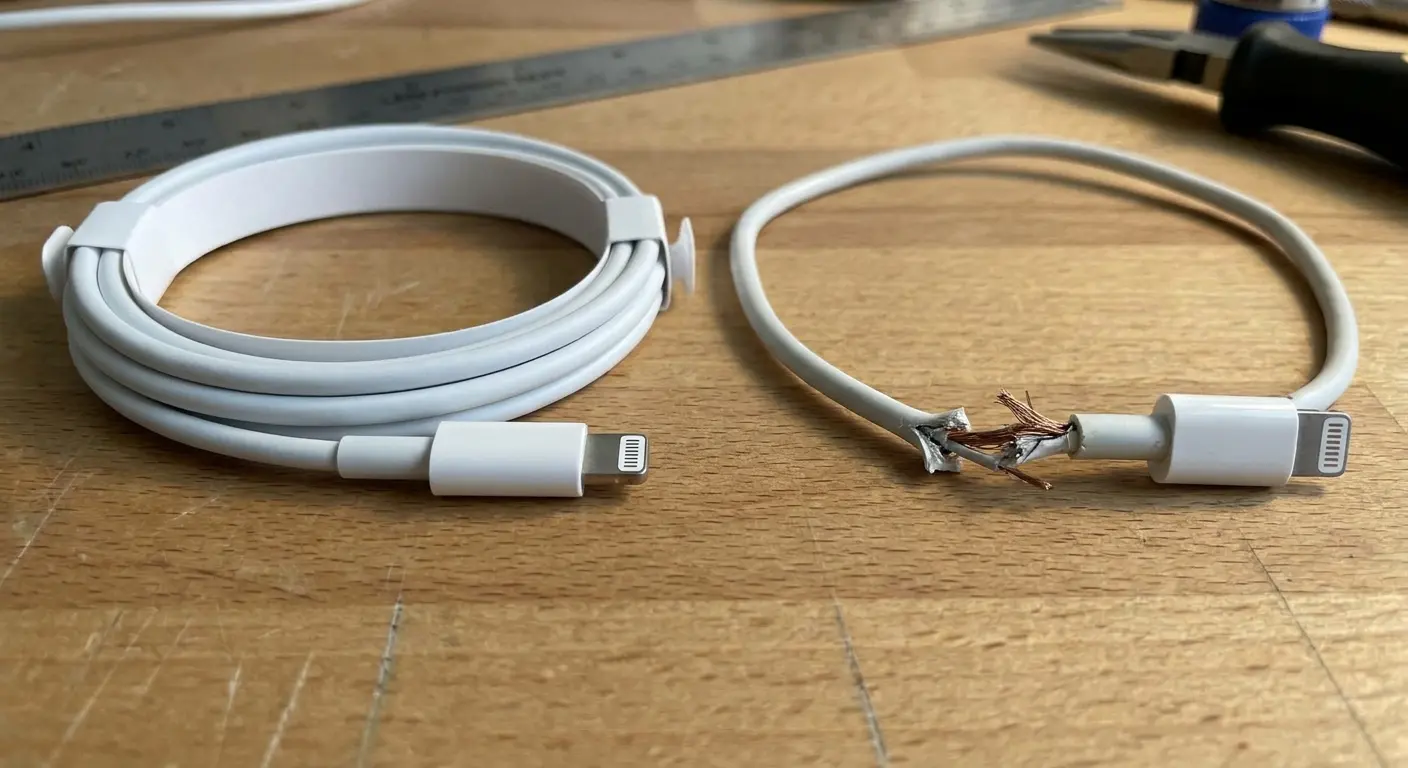
Test with multiple known-good cables. If your phone won't charge with any cable, the port (or another component in your phone) has failed. If it charges with some cables but not others, you're dealing with cable compatibility issues or marginal port damage that only works with certain cables.
The "This accessory may not be supported" message usually indicates cable failure, not port failure. iOS detects that the cable doesn't meet Apple's specifications and refuses to charge. This can happen with cheap third-party cables or with damaged Apple cables that have developed internal faults.
Had a customer insist her charging port was broken because her phone wouldn't charge with any of her three Lightning cables. She was ready to pay for port replacement. I tested her phone with our diagnostic cable and it charged immediately. Then I tested her three cables with a different iPhone. All three failed.
She'd been rotating between three dead cables for two weeks, convinced the port was the problem. The cables all showed the same failure pattern: strain relief separation at the Lightning connector end. She'd been storing them wrapped tightly around her power adapter, which stressed the same point on each cable until they all failed within days of each other. Cost of her "port repair": $25 for one new cable.
Software Glitches That Mimic Hardware Failure
iOS does this infuriating thing where it'll refuse to charge your phone even though every physical component works perfectly. The software just decides no. And you're sitting there with a perfectly good phone and cable, wondering what you did to deserve this.
Battery management software can enter a fault state where it refuses to charge regardless of port condition. This happens most often after a complete battery drain (phone dies and won't turn on). The battery management controller loses calibration and can't accurately assess battery status, so it refuses to accept a charge.
Force restart while plugged in. iPhone 8 or newer: quick press volume up, quick press volume down, then hold the side button until you see the Apple logo. (Yeah, it's a weird button combo. Apple's idea of intuitive.) For iPhone 7: hold volume down and side button together. For iPhone 6s and earlier: hold home and top (or side) button together. This forces the battery management system to reinitialize and often resolves charging failures.
Charging port authentication software can glitch and refuse to recognize any cable, even genuine Apple cables. iOS authenticates cables through a chip in the Lightning connector. If the authentication process fails due to a software bug, you'll see the "accessory not supported" message even with a perfect cable and port.
DFU (Device Firmware Update) mode restore can fix deep software issues that prevent charging. This completely erases and reinstalls iOS, which resolves software-based charging blocks. You'll lose all data unless you have a backup, so this is a last resort before hardware repair.
Battery percentage calibration errors can make your phone think it's fully charged when it's not, causing it to refuse charging. The battery icon shows 100%, but the actual charge level might be much lower. Completely drain the battery until the phone shuts off, then charge to 100% without interruption. This recalibrates the battery percentage reporting.
iOS Update Failures and Charging Issues
iOS updates modify system files that control charging behavior. When an update fails or installs incompletely, these files can become corrupted, leading to charging failures that have nothing to do with hardware.
Check if your charging problem started immediately after an iOS update. If you can establish this timeline, a software issue is highly likely. The update either introduced a bug or failed to install correctly.
Recovery mode restore forces a clean iOS installation that bypasses corrupted system files. Connect your phone to a computer with iTunes or Finder, force restart it, but keep holding the buttons when the Apple logo appears. Keep holding until you see the recovery mode screen, then choose "Update" to reinstall iOS without erasing data.
Beta software versions are notorious for charging bugs. If you're running an iOS beta, charging problems might be known issues that'll be fixed in the next beta or the final release. Check Apple's developer forums or beta feedback channels to see if others are reporting similar issues.
Third-party battery health apps can interfere with iOS charging management. If you've installed apps that claim to optimize battery life or provide detailed battery statistics, try uninstalling them. Some of these apps use private APIs that can conflict with iOS charging controls.
DIY Fixes That Actually Work
You can fix many charging port problems yourself if you're careful and use the right tools. You can also make it way worse if you're not careful. I've seen people turn a $0 cleaning job into a $200 port replacement by using the wrong tool.
Cleaning compressed debris requires patience, not force. You need a tool that's firm enough to scrape debris but soft enough not to damage the port pins. Wooden toothpicks work better than metal tools because they won't conduct electricity or scratch metal surfaces. Plastic dental picks are even better.
Power off your phone before cleaning the port. This eliminates any risk of short circuits during the cleaning process. Working on a powered-on phone can damage internal components if you accidentally bridge connections with a conductive tool.
Get a wooden toothpick (not metal, for the love of God, not metal). Angle it shallow along the bottom of the port and scrape gently toward you. You're pulling debris out, not digging for treasure.
You'll be shocked at how much comes out. I've pulled lint plugs the size of a pencil eraser from ports. It's disgusting and satisfying in equal measure.
Work in good lighting. Use a flashlight or work near a window so you can see inside the port. You need to see what you're removing and when you've reached clean metal.
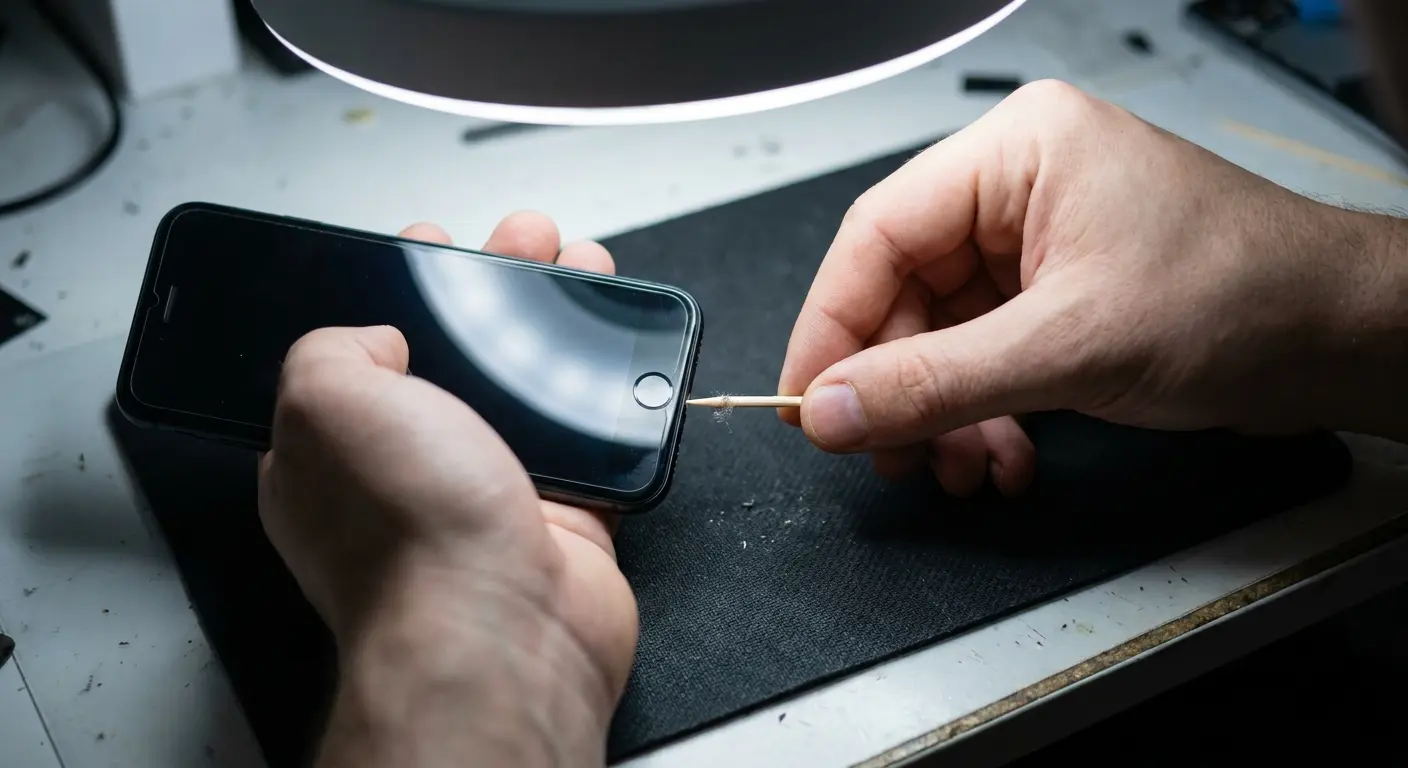
Isopropyl alcohol (90% or higher concentration) dissolves adhesive residues and helps loosen compacted debris. Dip your toothpick in alcohol and use it to clean the port. The alcohol evaporates quickly and won't damage electronics. Lower concentration alcohol (70%) contains too much water and takes too long to dry.
Avoid compressed air for initial cleaning. It pushes debris deeper into the port rather than removing it. Use compressed air only after you've mechanically removed the bulk of the debris, and use short bursts from a distance to avoid forcing moisture into the port.
Pin Straightening and Contact Restoration
Real talk: straightening pins yourself is risky. I've done hundreds and I still break them sometimes. If you try this and snap a pin, you've just upgraded from a maybe-fixable problem to a definitely-needs-replacement problem.
That said, if you're careful and your hands don't shake...
Examine the pins under magnification if possible. Use a magnifying glass or your phone's camera with zoom to see exactly which pins are bent and in which direction. You need a clear understanding of the problem before attempting a fix.
Use a needle or thin sewing pin as your straightening tool. The tool needs to be thin enough to fit between pins without touching adjacent ones. Work slowly and apply gentle pressure. You're trying to nudge the pin back into position, not force it.
Support the back of the pin if possible. Pushing on a pin from one side can break it at the solder joint if there's no opposing support. This is difficult to do without disassembling the phone, which is why pin straightening has a high failure rate for DIY attempts.
Stop if you feel significant resistance. Pins are small and fragile. If a pin won't move with gentle pressure, forcing it will break it. At that point, you need professional repair or port replacement.
Contact cleaner can restore electrical conductivity to pins that look clean but don't make good contact. Electronic contact cleaner (available at hardware or electronics stores) removes oxidation and invisible contamination. Spray a small amount into the port, let it sit for 30 seconds, then let it dry completely before testing.
When Professional Repair Makes Sense
Some charging port problems exceed DIY repair capabilities. Knowing when to seek professional help saves you from making a bad situation worse and potentially destroying your phone.
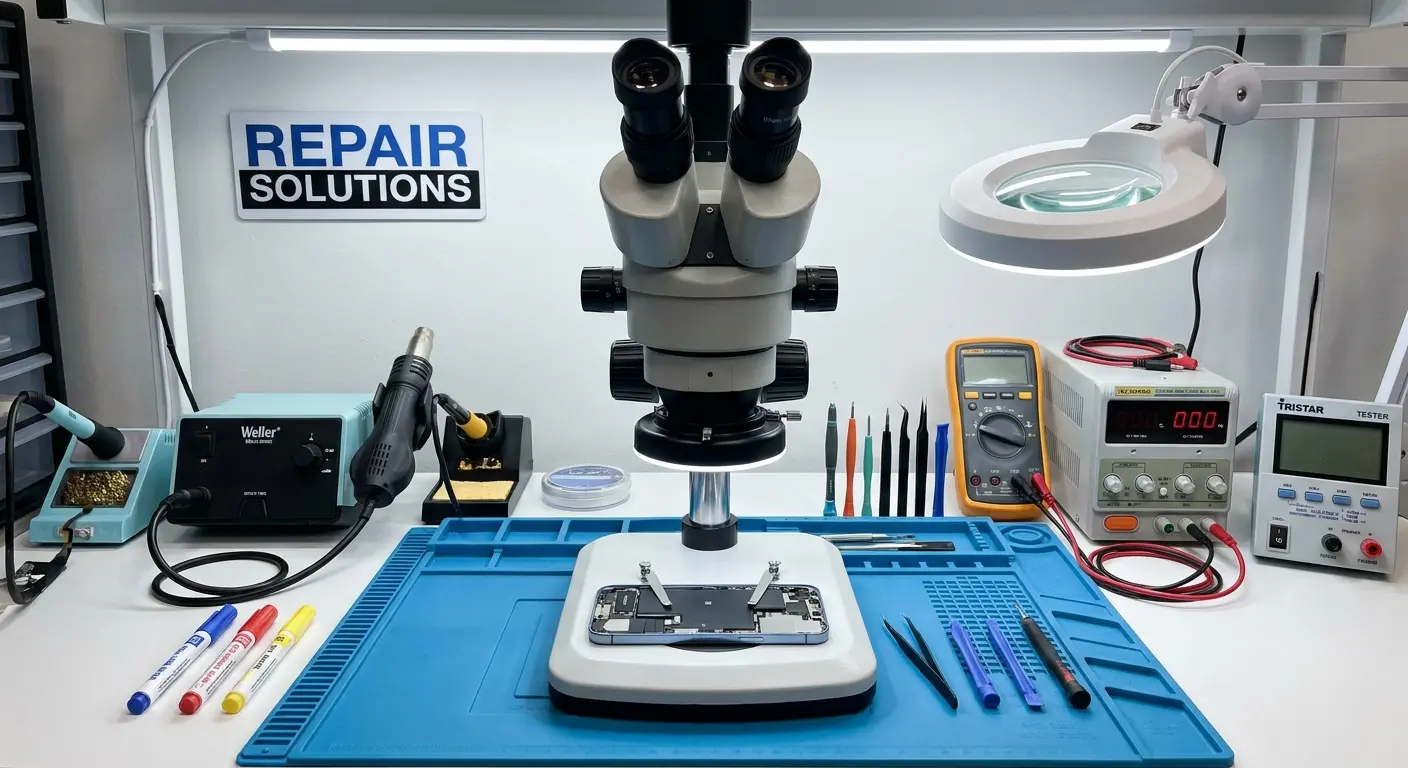
Internal connection damage requires phone disassembly and micro-soldering skills. If your charging problem stems from damaged solder joints on the logic board or a failed flex cable connection, you can't fix it without specialized tools and training. These repairs require a microscope, soldering station, and experience working with tiny components.
Port replacement is straightforward for a professional but risky for DIYers. The charging port assembly is a modular component that can be swapped out. A skilled technician can replace it in 30-45 minutes. Attempting this yourself without proper tools and experience often results in additional damage to ribbon cables, connectors, or the logic board.
Apple will charge you $200-300 for a charging port replacement. Third-party shops charge $60-100 for the identical repair.
Unless you're under warranty or have AppleCare+, taking your phone to Apple for this repair is lighting money on fire. I'm not saying this because I run a third-party shop (well, partly). I'm saying it because the repair is the same, the parts are the same, and you'll save $150.
Research repair shops before committing. Check reviews, ask about warranty policies, and verify they use quality replacement parts. Shops that offer lifetime warranties on their work are generally more reliable than those offering 30-day warranties.
Apple-certified repair provides peace of mind but costs more. If your phone is under warranty or you have AppleCare+, using Apple or an Apple Authorized Service Provider makes sense. You'll pay less (possibly nothing) and maintain your warranty coverage.
Out-of-warranty repairs at Apple rarely make financial sense. If your phone is older than two years, the repair cost approaches the value of the device. You're better off using a third-party shop or putting that money toward a new phone.
Logic Board Damage and Repair Economics
Charging circuitry on the logic board can fail due to liquid damage, electrical surges, or component degradation. This type of failure is more complex than a simple port replacement because it requires board-level diagnosis and repair.
Micro-soldering repair involves removing and replacing tiny components on the logic board. Technicians use microscopes and specialized soldering equipment to work with components smaller than a grain of rice. This level of repair requires significant skill and experience.
Diagnostic fees at professional shops run $30-60. The shop disassembles your phone, tests the charging circuitry, and identifies the specific failed component. You'll pay this fee even if you decide not to proceed with the repair.
Board-level charging repairs cost $120-200 depending on the specific failure. If the Tristar chip (which manages USB communication and charging) has failed, replacement costs $100-150. If the PMIC (Power Management IC) has failed, you're looking at $150-200 plus labor.
Consider your phone's age and value before authorizing expensive repairs. If you're using an iPhone that's three or more years old, spending $200 on a logic board repair doesn't make sense when you can buy a used newer model for $300-400.
Data recovery changes the equation. If your phone won't turn on and you have irreplaceable photos or data without a backup, expensive board-level repair might be worth it to recover that data. Once you've recovered the data, you can decide whether to continue using the repaired phone or upgrade.
Prevention Strategies That Address Root Causes
Want to never deal with charging port problems? Two things matter more than everything else combined:
1. Stop dropping your phone (get a real case)
2. Switch to wireless charging for daily use
Everything else is marginal. Yeah, clean your port monthly. Sure, don't yank cables. But those two changes eliminate 90% of port failures before they start.
I've seen this pattern repeatedly: users who protect their phones from drops and use magnetic charging systems almost never experience port failures. The combination of physical protection and reduced port wear extends charging port life indefinitely.
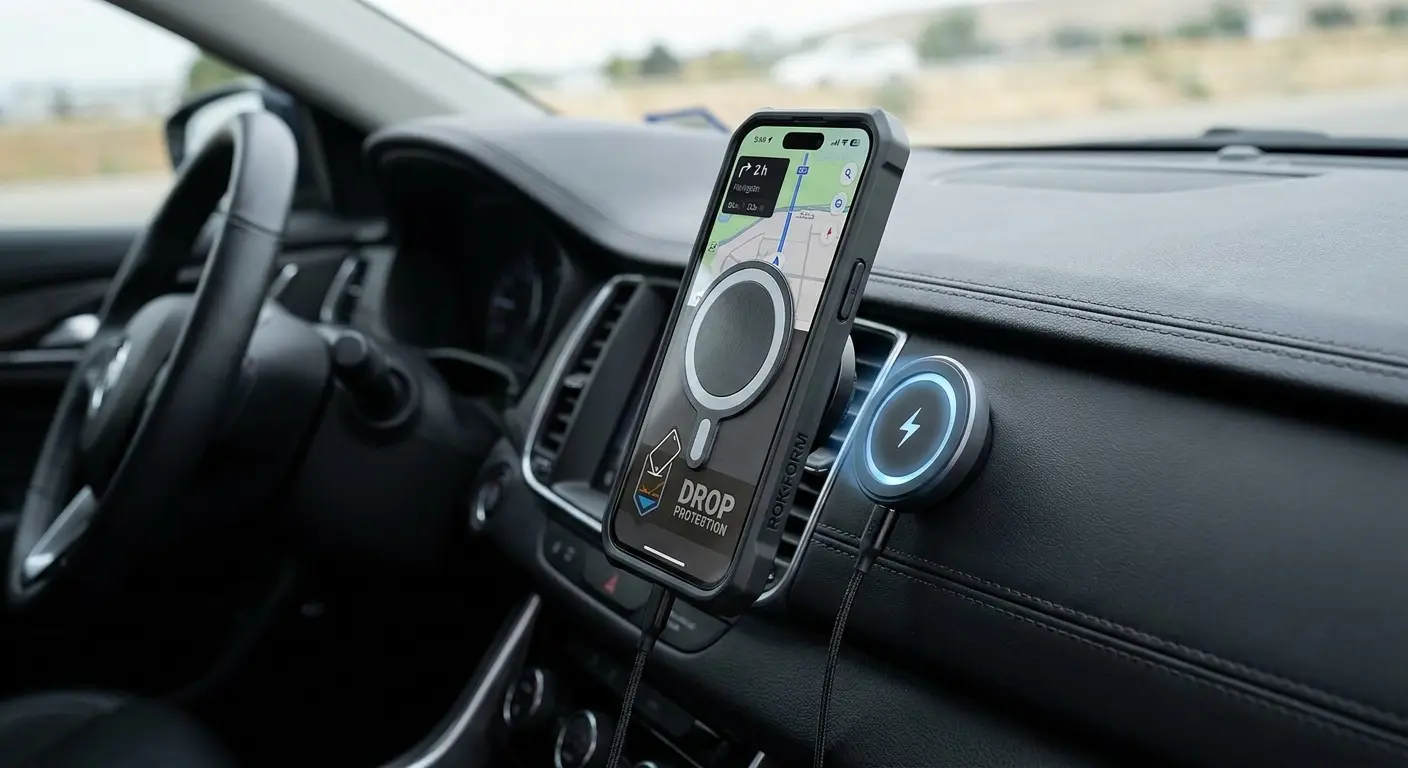
Wireless charging eliminates 90% of port wear. If you charge wirelessly at night and use a magnetic car mount with wireless charging during the day, your Lightning or USB-C port might see use once a week instead of twice daily. That's a 14x reduction in mechanical wear cycles.
Cable management prevents strain damage. Don't let your phone dangle by the cable. Don't wrap cables tightly around your charger. Don't yank cables out by the cord. These habits stress the cable and port, creating the conditions for premature failure.
Usage Habits That Extend Port Life
How you plug in your cable matters. Align the connector with the port before inserting it. Don't force it at an angle. Don't jam it in quickly. These small adjustments reduce pin stress and prevent the bent pins that cause charging failures.
Unplug by the connector, never by the cable. Pulling on the cable creates leverage that stresses both the cable's internal connections and the port's pins. Grip the hard plastic connector and pull straight out.
Keep your phone out of your pocket when possible. Every hour in your pocket is another hour of lint and debris accumulation. Use a bag, purse, or set your phone on surfaces rather than pocketing it constantly.
Clean your port monthly as preventive maintenance. Don't wait until you have charging problems. A quick cleaning with a toothpick once a month prevents debris from compressing into the hard-to-remove layers that cause real problems.
Avoid charging in humid environments. Bathrooms during or after showers, outdoor areas in humid climates, and anywhere with visible moisture all introduce corrosion risk. Charge in dry, climate-controlled spaces when possible.
Remove your phone from its case periodically and clean the case interior. Cases trap debris and moisture against your phone. That debris works its way into the iphone charging port not working over time. Cleaning your case every few weeks reduces this contamination source.
Use port covers if you work in dusty or dirty environments. Construction workers, mechanics, and others who work in contaminated environments can benefit from adhesive port covers that seal the opening when not charging. These are available on Amazon for a few dollars and can prevent the debris accumulation that leads to port failure.
Get a case that actually protects your phone. Not the slim pretty ones. The chunky ugly ones with reinforced corners. They work. Quality protective cases make a difference in drop protection. Cases with shock-absorbing materials and reinforced corners distribute impact force more evenly, reducing the stress on internal components including the charging port assembly. I've seen significantly fewer charging issues in phones protected by rugged cases compared to those using slim or fashion-focused options.
Magnetic charging accessories transform how you interact with your phone not charging issues. A magnetic wireless charger on your desk or nightstand means you never plug a cable into your port for routine charging. The port stays cleaner, the pins don't wear, and you eliminate the mechanical stress that causes most failures.
Final Thoughts
Look, most charging problems aren't mysterious hardware failures. They're predictable consequences of how you use your phone every day.
You drop it. You jam cables in at weird angles. You let lint compress for months. Your cable frays. This isn't bad luck. It's physics and time.
The good news? Most of this is fixable without spending a dime. Test your cable first (seriously, it's probably the cable). Clean your port with a toothpick and rubbing alcohol. Restart your phone. Those three steps fix maybe 70% of charging issues.
If you need actual repair, skip Apple unless you're under warranty. Third-party shops do the same work for half the price.
And if you want to avoid this entire nightmare in the future? Wireless charging and a decent case. Your charging port will outlast your phone, which is how it should've worked from the beginning.
Your iPhone's charging port fails for reasons that extend far beyond simple wear and tear. The drops you barely notice, the debris you can't see, and the cable degradation you ignore all combine to create the charging problems you're experiencing now.
Most charging issues don't require expensive repairs or new phones. They require accurate diagnosis and targeted fixes. When you do need professional repair, choose wisely. Save your money for upgrades rather than overpriced repairs.
Prevention beats repair every time. Reduce port wear by switching to wireless charging and magnetic mounts. Change your cable handling habits. These adjustments cost less than a single repair and extend your charging port's life by years.
The physical stress your phone endures daily creates the damage that eventually stops it from charging. Address that root cause instead of treating symptoms, and you'll avoid most charging problems before they start. Your port will outlast your phone's useful life, which is exactly how it should work.

