


Your phone died at 23% battery while you were hotspotting your laptop, didn't it?
Or you burned through your entire month's data in three days and got throttled to speeds that would embarrass a 2005 flip phone. Or devices just... wouldn't connect, for reasons you'll never understand.
Look, everyone knows HOW to turn on hotspot. It's a toggle switch. The problem is everything that happens after you flip it. The battery drain that makes no sense. The data consumption that destroys your monthly allowance. The connection drops every five minutes for no apparent reason.
I've watched my phone die at 47% battery mid-Zoom call enough times to figure out what actually matters. It's not the activation steps (those are simple). It's the decisions you make before, during, and after enabling the feature that determine whether your experience is smooth or absolutely miserable.
Think about the last time you needed internet urgently. Home WiFi died right before a deadline. Stuck somewhere with no reliable connection. You probably grabbed your phone, turned on the hotspot, and hoped everything would work out.
It didn't, did it?
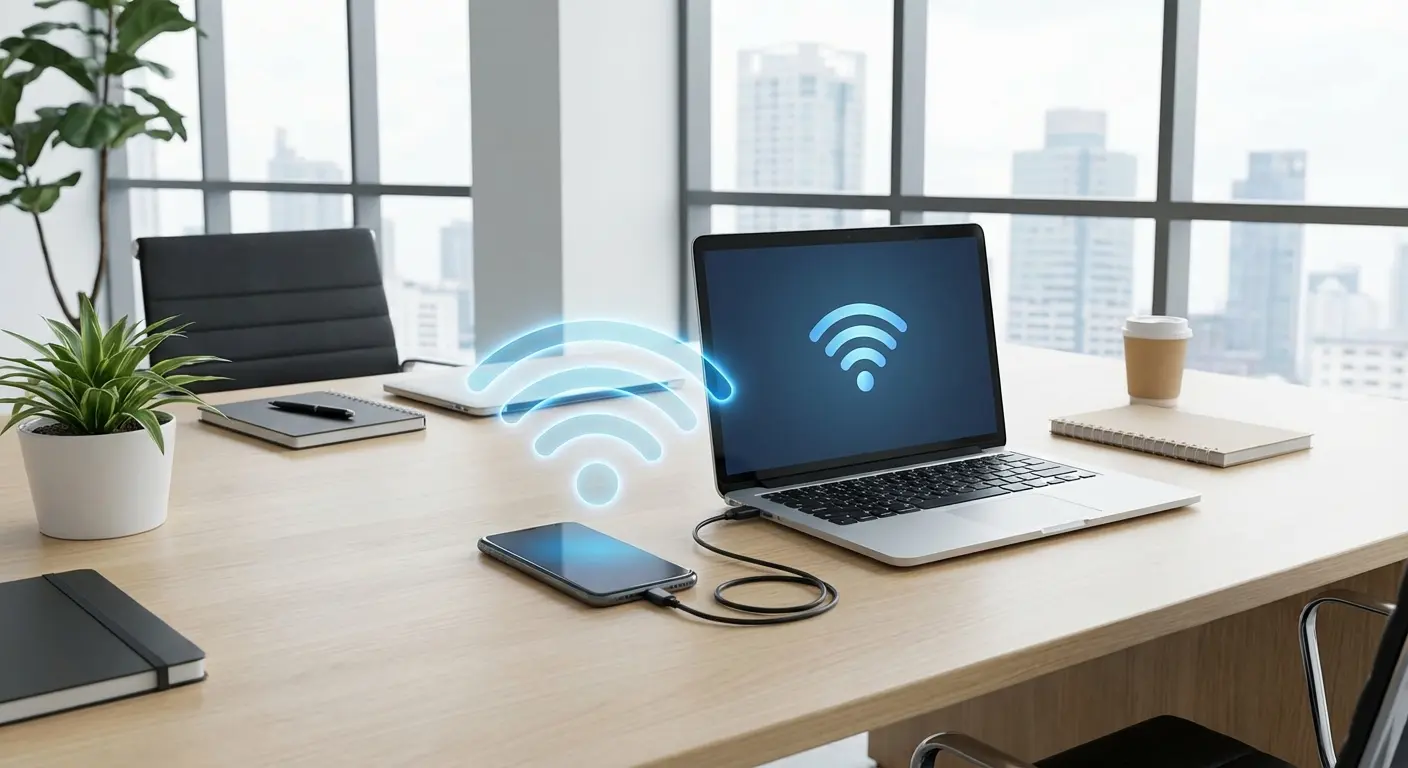
What Actually Happens When You Enable Hotspot
Two radios. Both running full blast.
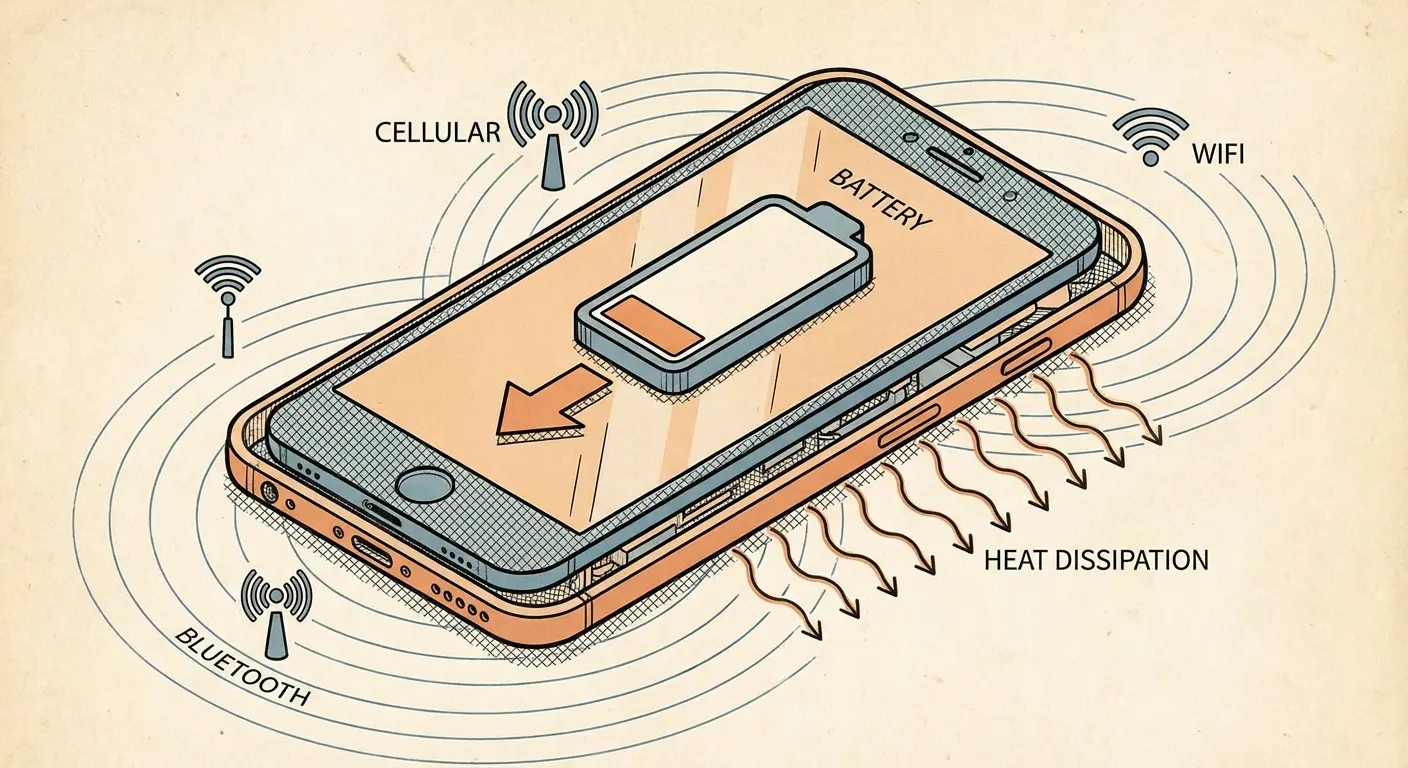
Your cellular radio pulls data from the tower. Your WiFi radio blasts that data to your laptop. Both radios screaming at maximum power, generating heat, murdering your battery.
Your phone wasn't built for this. It's doing it anyway because carriers figured out they could charge you extra.
This dual-radio thing explains why your battery percentage drops like a rock. Most people don't realize their phone is basically cosplaying as a router, and it's terrible at it. The battery drain is honestly offensive. I've had phones go from 80% to dead in under two hours just sitting there radiating WiFi.
45 minutes into a Zoom call and your battery's at 52%. Started at 85%. That's insane. Meanwhile, your phone is hot enough to cook an egg, and the fitness app notification that usually pops up at 10 AM never appears because your phone deprioritized everything to handle the hotspot load.
There's another thing most people miss. Your phone's processor is now playing router, managing traffic for every device you connected. It wasn't built for this job. That laptop downloading a software update? Your phone is handling that entire data stream, not just passing it through.
The battery drain issue has gotten bad enough that some users are switching to dedicated solutions. According to a recent analysis from Android Authority, one user noted that "when I use my phone as a hotspot, it drains the battery power, and I noticed other quirks as well," including significantly increased heat generation and occasional connectivity issues, leading them to invest in a dedicated mobile router with a 6,400mAh battery that lasts around 24 hours with multiple devices connected.
Your Carrier Is Watching (And Counting Separately)
Your carrier knows when you're using hotspot. They can tell, and they're counting it separately from your regular phone data.
Even "unlimited" plans (lol) usually cap hotspot at 10-50GB before they throttle you to unusable speeds. As Verizon explains, when a device is connected to your phone's Mobile Hotspot feature or app, data usage is applied to your data plan's monthly allowance, and after exceeding your plan's monthly high-speed allowance, you can either move to a plan with a higher monthly hotspot data allowance or continue to use your mobile hotspot at a lower speed.
They detect hotspot usage through packet inspection and device signatures. Yes, they're analyzing your traffic to enforce arbitrary limits on data you already paid for. It's as sketchy as it sounds. TTL (Time To Live) packet inspection shows when data passes through an extra hop. Device signature analysis identifies whether traffic comes from your phone's operating system or from a connected laptop.
This matters because you might have 100GB of data remaining on your phone plan but only 5GB of hotspot allocation left. The distinction isn't always clear in your account dashboard. You won't necessarily get a warning before throttling begins. I've seen people complain about slow speeds while assuming they had plenty of data remaining, only to discover they'd exhausted their hotspot-specific bucket days earlier.
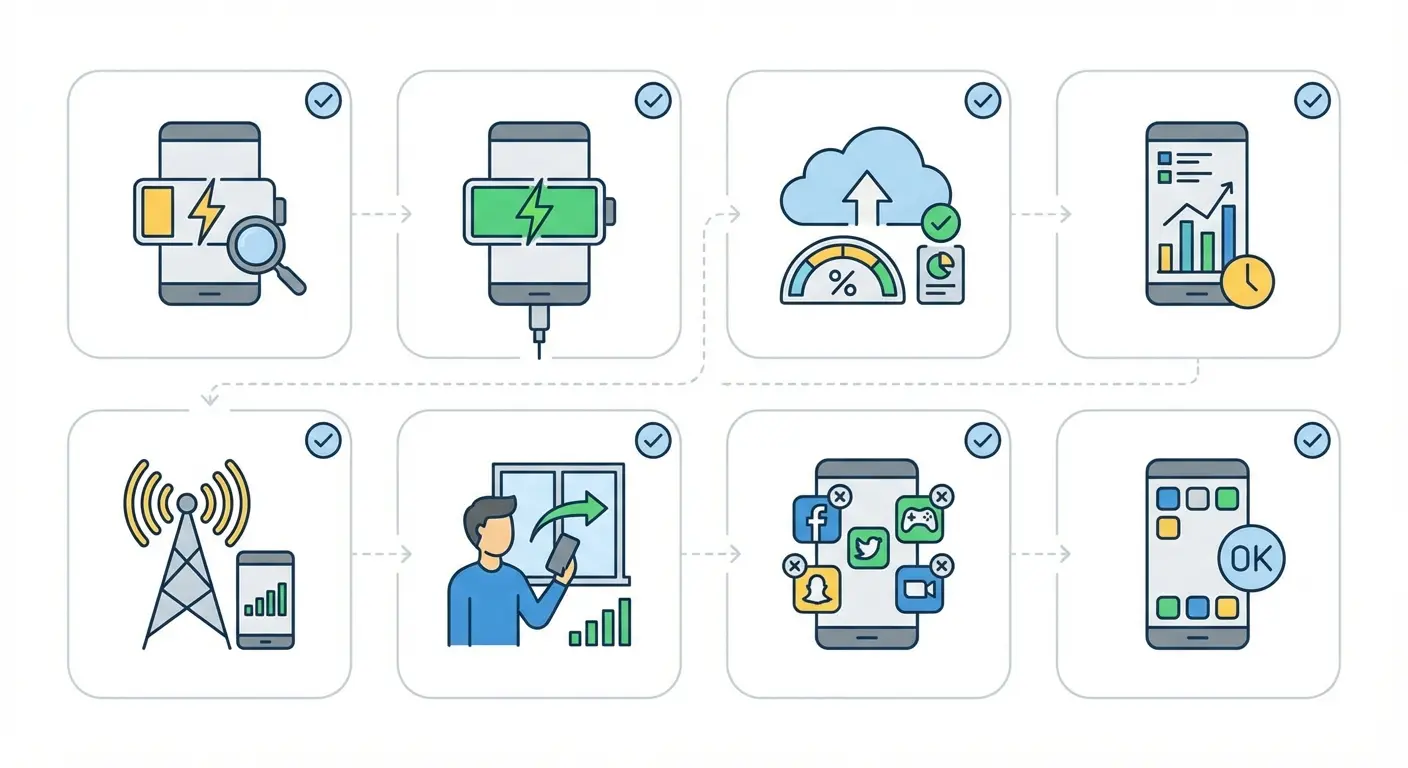
Check These Three Things First
You wouldn't start a road trip without checking your fuel level.
Hotspot data remaining. Not phone data. HOTSPOT data. Different buckets. Carriers love that you don't know this. Open your carrier app or dial your account management shortcode. Find your hotspot-specific data bucket. If you're at 9.8GB of 10GB, streaming video is a bad idea. Actually, it's a terrible idea.
Battery level above 50% or plugged in. Under 50%? You've got an hour, maybe less. Plan accordingly or find a charger. Some phones automatically disable hotspot when battery drops below 10-15% to preserve emergency calling capability. Better to know this now than when you're mid-presentation.
Background apps closed on your phone. That podcast downloading in the background? Gone. Cloud photo backup running since this morning? Paused. Those processes compete with hotspot traffic and can cause connection instability for your connected devices. Put your phone in a lean state before becoming a router.
Also worth checking: your plan actually includes hotspot capability. Some budget carriers and older plans don't include it at all, or they charge per-use fees. Better to confirm this now than after you've spent 20 minutes troubleshooting why devices won't connect.
Know what you're connecting and why. One laptop checking email requires different preparation than three devices streaming video. Your strategy changes based on your use case. (Yes, I know you're just going to wing it anyway. But when it fails, come back and read this part.)
How to Actually Turn It On
iPhone Setup
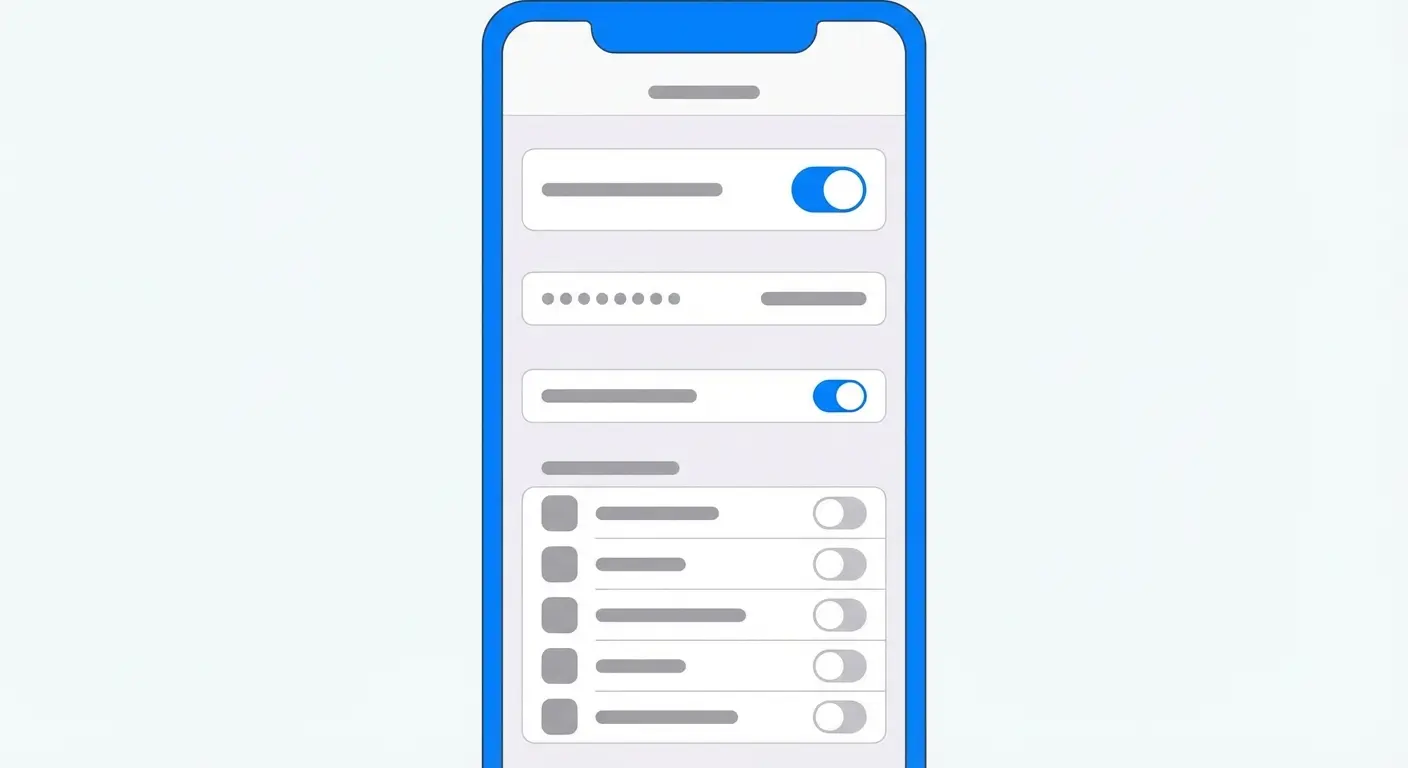
Open Settings and tap Personal Hotspot (near the top, right below your Apple ID banner). If you don't see it, your carrier plan might not support the feature. Contact them to enable it, prepare for a frustrating conversation.
Tap "Allow Others to Join" to enable the hotspot. Your phone displays the network name (defaults to "[Your Name]'s iPhone") and a password below it.
Change that password immediately. Tap the password field and create something secure but memorable. Avoid common patterns or dictionary words. You'll need to enter this on every device you connect, so make it reasonably typeable. Use a password manager to generate a strong 12-16 character password mixing uppercase, lowercase, numbers, and symbols.
Look, I know you won't actually do this. You'll use 'password123' or your dog's name. But when someone connects to your hotspot and burns through your data, don't say I didn't warn you.
You'll see a "Maximize Compatibility" toggle. This forces your hotspot to use the older 2.4GHz WiFi band instead of 5GHz. Turn it on if you're connecting older devices that struggle with 5GHz networks. Otherwise leave it off. 5GHz offers better speed and less interference in crowded areas.
Your hotspot remains active until you manually disable it or until no devices have been connected for about 90 seconds. iOS doesn't offer extensive configuration options. Apple's philosophy: we'll make it simple, you deal with it. Want to change the WiFi band beyond that one toggle? Too bad. Want to set connection limits? Nope. You get a toggle switch and a password field.
This can be frustrating if you want more control, but it also means fewer opportunities to break something.
Android Setup
Android lets you configure everything. Band selection, connection limits, auto-timeout, security protocols. This is great until you change something you don't understand and break your hotspot completely. Then you're Googling error messages at 2am.
Open Settings and navigate to Network & Internet (or Connections on Samsung devices), then tap Hotspot & Tethering. Tap "WiFi hotspot" to access configuration options.
Before enabling it, tap "Set up WiFi hotspot" or the gear icon. You'll configure several settings:
Network name (SSID): Change it from the default to something you'll recognize easily. Avoid names that reveal your phone model or your identity. "John Smith's Galaxy S23" is broadcasting too much information. Use something generic.
Security: Keep this on WPA3 or WPA2 Personal. Never select "None" unless you're in a truly emergency situation and understand the security implications. Actually, even then, don't do it.
Password: Create a strong password using letters, numbers, and symbols. Android requires at least 8 characters. Use 12 or more.
AP Band: Choose between 2.4GHz, 5GHz, or Automatic. Use 5GHz unless you're in a huge space or connecting old devices. It's faster and that matters more than range when you're sitting 10 feet from your phone. Automatic switches between them based on connected devices, which works well in most situations.
Turn off hotspot automatically: Enable this to save battery. Your hotspot will disable itself after 10 minutes of inactivity. This is one of those rare settings that's actually helpful.
After configuring these settings, return to the previous screen and toggle on WiFi hotspot. Some Android devices show a persistent notification with connected device count and a quick toggle to disable the hotspot.
Setting |
iOS Behavior |
Android Behavior |
What I Recommend |
|---|---|---|---|
Password Complexity |
Minimum 8 characters, auto-generated option available |
Minimum 8 characters, manual entry required |
Use 12+ characters with mixed case, numbers, symbols (you won't, but you should) |
Band Selection |
Automatic (5GHz default, 2.4GHz via Maximize Compatibility) |
Manual choice: 2.4GHz, 5GHz, or Automatic |
Use Automatic unless connecting older devices |
Auto-Disable |
90 seconds of inactivity |
10 minutes of inactivity (configurable) |
Enable it, save your battery |
Connection Limit |
No numerical setting (managed via device list) |
Configurable maximum (typically 1-10 devices) |
Set to actual need, not maximum |
Security Protocol |
WPA2/WPA3 (automatic) |
WPA2, WPA3, or Transitional (manual selection) |
Use WPA3 or Transitional mode |
Stop Letting Every Device Connect
Your phone can theoretically support 5-10 simultaneous hotspot connections depending on your model. That doesn't mean you should allow that many.
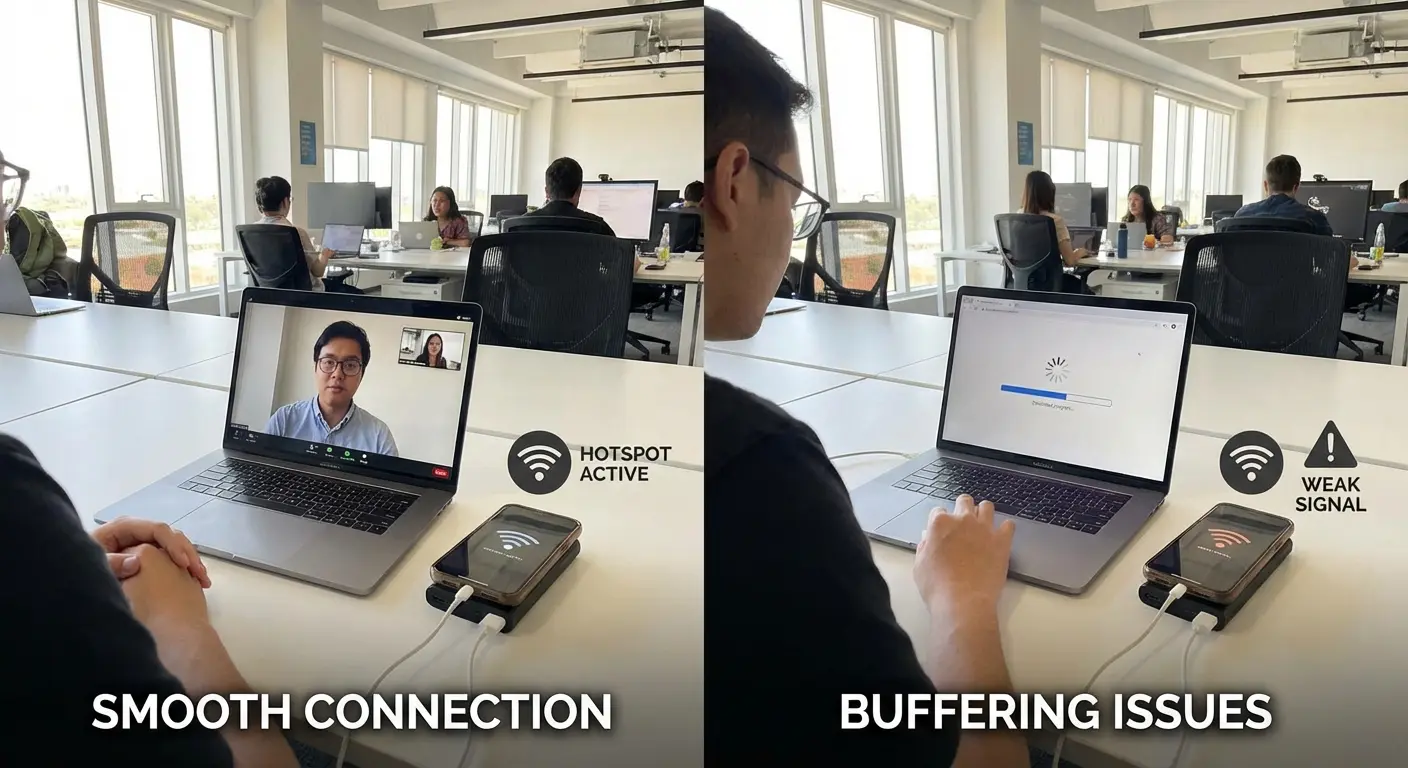
Each connected device splits your available bandwidth and increases the processing load on your phone. Three devices streaming video simultaneously will slow to a crawl on most cellular connections. Your phone will heat up noticeably as it tries to manage all that traffic.
On Android, you can set a maximum number of allowed connections. In your hotspot settings, look for "Maximum connections" or "Connected devices" and set a limit. If you're typically connecting just your laptop, set it to 1. This prevents your tablet or someone else's device from auto-connecting and consuming bandwidth.
iOS doesn't offer a numerical limit setting, but you can manage this through your Connected Devices list. When you're in the Personal Hotspot settings with the feature enabled, you'll see currently connected devices. Tap any device you want to disconnect.
Limiting connections forces you to be intentional about what's using your hotspot. It's easy to forget that your tablet auto-connected when you walked into the room, silently syncing photos in the background while you're trying to work on your laptop.
Making Bandwidth Work for What Matters
Your phone's hotspot doesn't include Quality of Service settings that let you prioritize specific types of traffic. You'll need to manage bandwidth manually.
Before that important video call, disable automatic updates on your connected laptop. Windows Update, macOS software updates, and app store downloads can consume massive bandwidth in the background. Your call quality degrades and you have no idea why.
Close browser tabs you're not actively using. Modern browsers pre-load content and maintain connections even for inactive tabs. Twenty open tabs might mean twenty active connections competing for bandwidth. It's stupid, but it's real.
Use data-saving modes where available. YouTube, Netflix, and most video platforms offer quality settings. Drop from 1080p to 480p and you'll reduce data consumption by 70% or more. The quality difference on a laptop screen during a work call is minimal.
If you're connecting multiple devices, communicate with the other users. Someone downloading a large file while someone else is on a video call creates a frustrating experience for everyone. Coordinate bandwidth-heavy activities rather than running them simultaneously. Or just don't share your hotspot. That works too.
Making Your Battery Last
Two realistic approaches: stay plugged in, or plan for limited runtime.
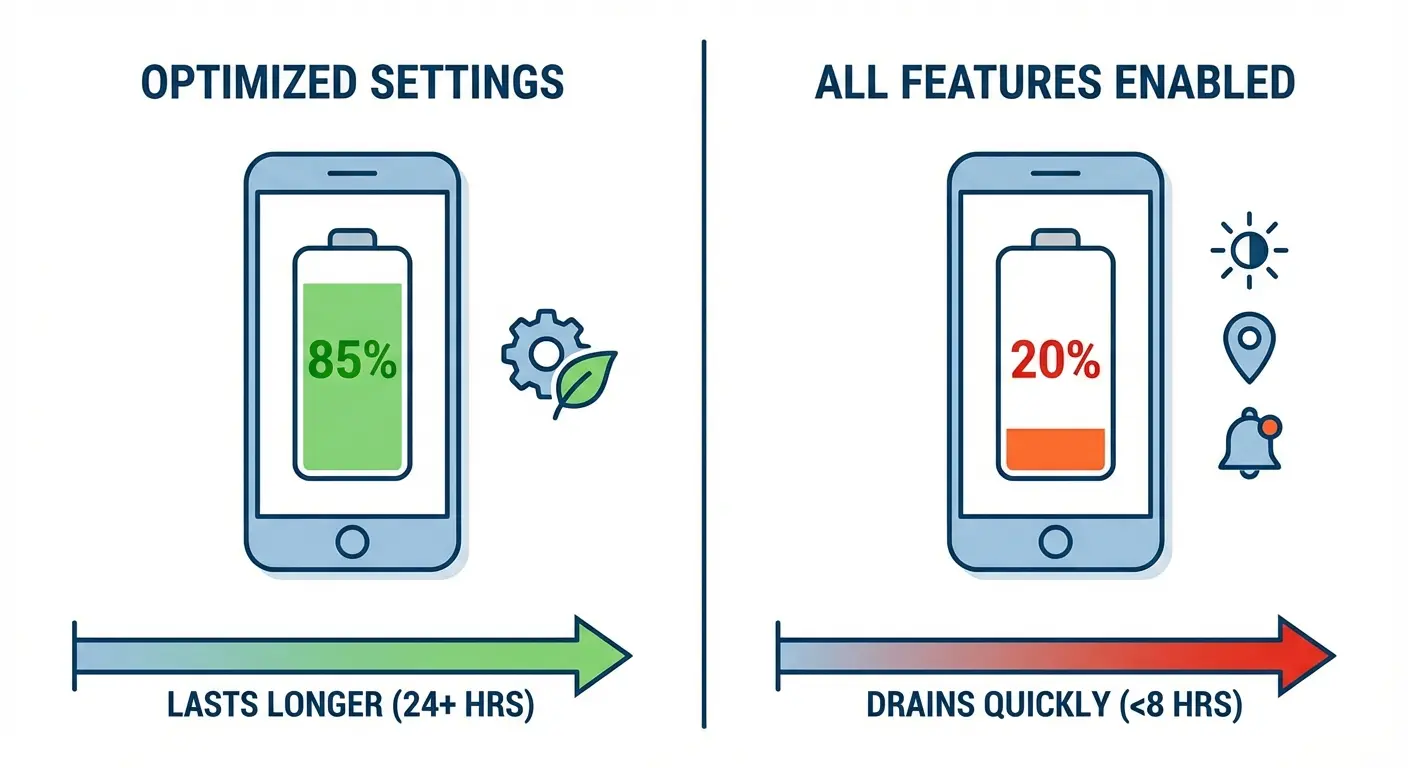
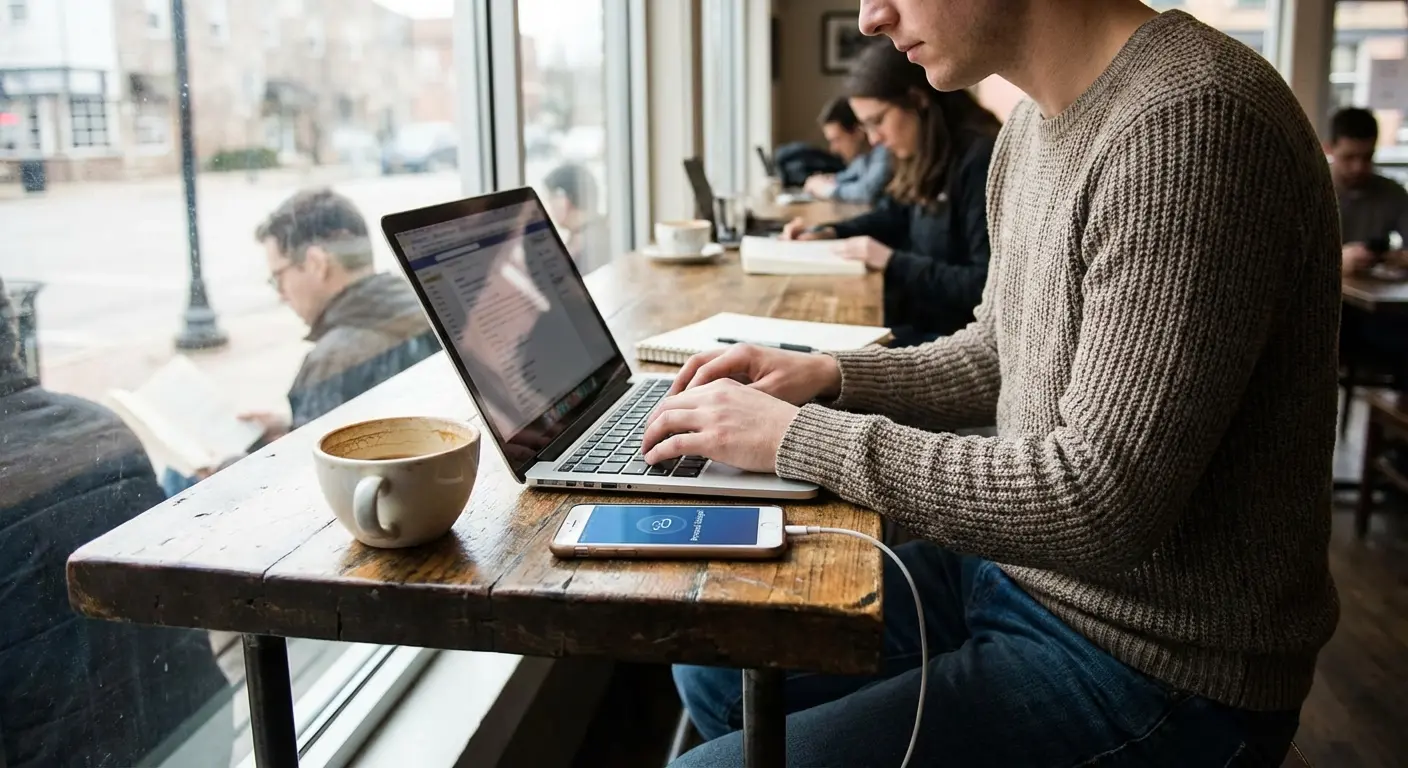
If you're at a desk, in a car, or anywhere with power access, keep your phone charging while running hotspot. This isn't just convenient, it's the only way to sustain hotspot usage for multiple hours. Your phone will still heat up due to the intensive radio activity, but you won't be watching your battery percentage drop by 1% every few minutes. Which is genuinely depressing to watch, by the way.
When charging isn't an option, you're working within constraints. A fully charged modern smartphone running hotspot with one connected device performing moderate tasks (email, web browsing, document editing) will last roughly 2-4 hours. Heavy usage (video streaming, large downloads) cuts that to 1-2 hours. These aren't problems to solve, they're physical realities to plan around.
Lower your phone's screen brightness or turn the screen off entirely. Your display is one of the highest power consumers. If your phone is sitting on a desk acting as a hotspot, you don't need the screen on. Some phones allow the screen to turn off while hotspot remains active, others require the screen to wake periodically. Test your device's behavior before you're in a situation where you're counting on it.
Enable Low Power Mode with caution. On iPhone, Low Power Mode can disable hotspot automatically or prevent it from enabling at all. On Android, battery saver modes vary by manufacturer. Some allow hotspot to continue running, others don't. This might depend on your phone model, I'm not sure. Test this before you need it.
Turn off location services. Your phone doesn't need GPS running while acting as a hotspot. Swipe down to access quick settings and disable location, or go into Settings > Privacy > Location Services and toggle it off.
Close unnecessary apps on your phone. Apps running in the background consume processor cycles and memory, both of which generate heat and drain battery. Put your phone in the leanest state possible before enabling hotspot. I mean actually close them, not just minimize them.
Disable WiFi scanning on Android. Even with hotspot enabled, some Android devices continue scanning for available WiFi networks. Go to Settings > Location > WiFi scanning and disable it. Why this is even a thing, I have no idea.
These changes combined can extend your hotspot runtime by 30-50%. That might mean the difference between your battery lasting through a two-hour work session or dying halfway through.
Someone's phone died at 18% during a client presentation. She'd been running hotspot for an hour with Instagram open, screen at full brightness, location on. Phone just quit. Presentation over.
Could've lasted the whole meeting if she'd closed apps and dimmed the screen. Instead she probably lost the client. That's a $10k lesson about background apps.
Security Settings That Matter
Your phone generates a default hotspot password when you first enable the feature. That password often follows a pattern: dictionary words, common number sequences, or predictable combinations.
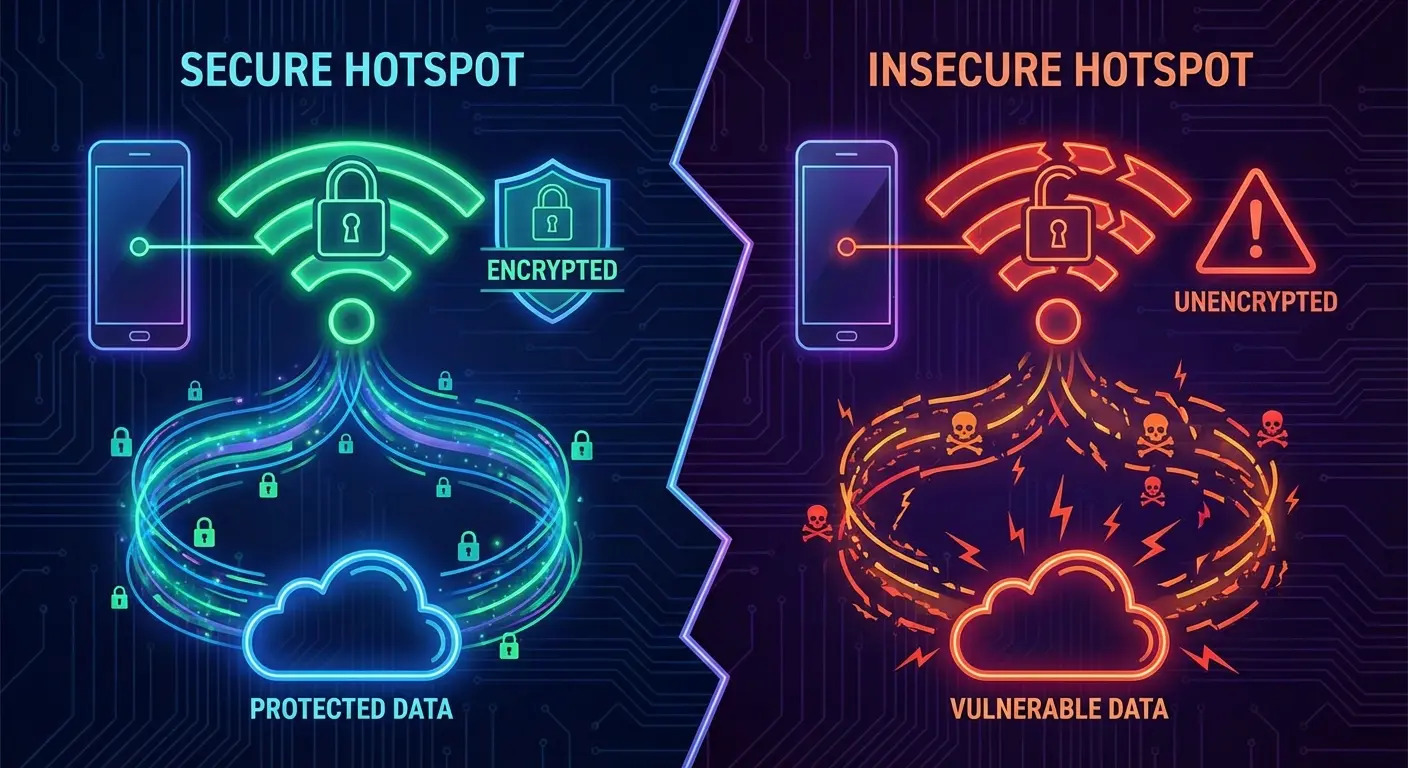
Someone sitting near you in a coffee shop with basic password-cracking tools can cycle through common patterns in minutes. If they successfully connect to your hotspot, they're consuming your data allocation and potentially monitoring traffic from your connected devices if you're not using encrypted connections.
Change your default password to something unique. Use a password manager to generate a strong 12-16 character password mixing uppercase, lowercase, numbers, and symbols. Yes, it's annoying to type on other devices, but you typically only enter it once per device (they remember it afterward).
If your hotspot password is 'password' or '12345678,' we need to have a different conversation.
Your Network Name Is Broadcasting Your Info
Your hotspot's network name broadcasts to every device within range. If it's set to "John Smith's iPhone" or "Sarah's Galaxy S23," you're advertising personal information unnecessarily.
Change your network name to something neutral and non-identifying. Avoid names that reveal your phone model, your identity, or anything that suggests an easy target. Generic names work fine: "Mobile Network," "Workspace," or even random alphanumeric strings.
Some people worry about hiding your SSID (network name) entirely so it doesn't appear in WiFi lists. Don't bother. It's security theater. The network is still detectable with basic tools. The tradeoff is that connecting new devices becomes more complicated (you must manually enter the network name instead of selecting it from a list). Not worth it.
WPA3 vs WPA2
If your phone offers WPA3 security for your hotspot, enable it. WPA3 provides stronger encryption and protection against brute-force password attacks compared to WPA2.
The challenge is compatibility. Devices manufactured before 2018-2019 often don't support WPA3. If you're connecting an older laptop, tablet, or smart device, it might not see your WPA3 network at all.
Most modern phones offer a "WPA2/WPA3 Transitional" mode that allows both types of devices to connect while using the strongest security each device supports. Use transitional mode. It works with everything and you're not giving up meaningful security.
Check your hotspot security settings and select the strongest option that still allows your devices to connect. If you're only connecting recent devices (2019 or newer), WPA3 works well. If you need to support older hardware, use the transitional mode.
WPA3 is technically more secure but honestly the difference is minimal if you have a strong password. Which you probably don't, but whatever.
Data Management for People Without Unlimited Plans
Your phone includes built-in data monitoring, but it tracks all cellular usage together rather than separating hotspot consumption specifically.
On iPhone, go to Settings > Cellular and scroll down to see data usage by app. This shows your phone's direct usage but doesn't clearly separate hotspot data. For that, you'll need to check your carrier's app or website, which breaks down hotspot usage separately.
Android offers slightly more granular tracking. Go to Settings > Network & Internet > Data usage > Mobile data usage. Some Android versions and carrier-modified builds include a separate "Hotspot data usage" section that tracks exactly how much data has passed through your hotspot. Your mileage may vary here.
The most accurate tracking comes from your carrier's app. Most major carriers (Verizon, AT&T, T-Mobile) offer apps that show your current billing cycle usage, including separate meters for phone data and hotspot data. Check this before enabling hotspot and monitor it during extended sessions.
Set up usage alerts if your carrier offers them. Many carriers will send a text message when you reach 50%, 75%, and 90% of your hotspot allocation. These warnings give you time to adjust your usage before hitting the cap and experiencing throttling or overage charges.
What Burns Through Data Fast (And What Doesn't)
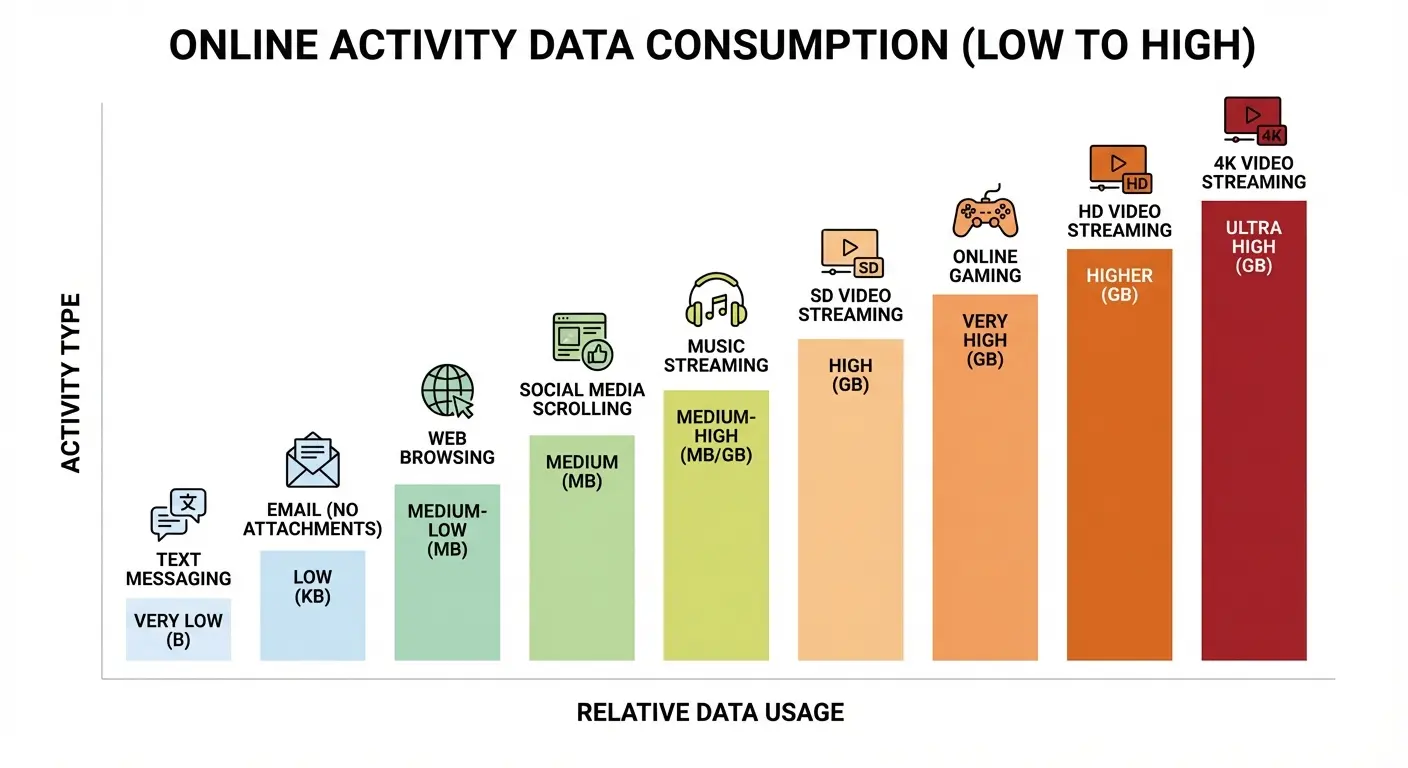
Not all internet activities consume data equally. Understanding the hierarchy helps you make strategic decisions about what to do on hotspot versus what to wait for WiFi.
These numbers assume normal quality settings. If you're one of those people who needs to watch YouTube in 4K on a 13-inch laptop screen, multiply everything by 3 and question your life choices.
Low data consumption (under 100MB per hour): Email checking and sending (without large attachments), web browsing text-heavy sites, messaging apps, social media scrolling (without auto-playing videos), document editing in cloud apps.
Moderate data consumption (100-500MB per hour): Video calls at standard definition, music streaming, social media with auto-play videos enabled, web browsing media-heavy sites, map navigation with satellite view.
High data consumption (500MB-2GB per hour): Video streaming at 720p, video calls at HD quality, downloading software updates, cloud gaming, video uploading.
Extreme data consumption (2GB+ per hour): Video streaming at 1080p or 4K, downloading large files (games, movies, software), backing up devices to cloud storage, streaming high-bitrate content.
A two-hour video call in HD quality can consume 2-3GB of your hotspot allocation. That same call at standard definition uses 600-800MB. The visual quality difference on a laptop screen during a work call is minimal, but the data consumption difference is massive.
Activity |
Data Per Hour |
10GB Cap Lasts |
Best Use Case |
|---|---|---|---|
Email & Text Browsing |
50-100MB |
100+ hours |
Entire work week |
Standard Video Calls |
300-400MB |
25-30 hours |
Multiple meetings |
Music Streaming |
150-200MB |
50 hours |
Background work audio |
720p Video Streaming |
1-1.5GB |
7-10 hours |
Occasional entertainment |
HD Video Calls |
1.5-2GB |
5-7 hours |
Important presentations only |
1080p Video Streaming |
2-3GB |
3-5 hours |
Emergency only |
4K Video Streaming |
7-10GB |
1 hour |
Never on hotspot |
Large File Downloads |
Varies (5-50GB) |
Single download |
Wait for WiFi |
Force Your Devices to Behave
Your connected devices don't automatically know they're on a limited data connection. They'll happily download updates, sync cloud storage, and stream high-quality video just as they would on unlimited home WiFi.
On Windows 10/11: Open Settings > Network & Internet > WiFi, click on your hotspot connection, and enable "Metered connection." This prevents Windows Update from downloading large updates, stops OneDrive from syncing, and alerts apps that they're on a limited connection. Many apps will automatically reduce quality or pause non-essential syncing.
On macOS: Apple doesn't offer a built-in metered connection setting, so you'll manage this manually. Disable automatic updates in System Settings > General > Software Update. Pause iCloud syncing in System Settings > Apple ID > iCloud. Set streaming apps to lower quality manually. It's annoying, but that's Apple for you.
On iOS/Android devices: If you're connecting one phone to another phone's hotspot, enable Low Data Mode (iOS) or Data Saver (Android) on the connected device. These modes restrict background activity and reduce quality in apps that support the feature.
These settings prevent the frustrating scenario where you connect your laptop for a quick email check and return an hour later to find it consumed 3GB downloading a Windows update you didn't authorize. This has happened to me more times than I care to admit.
The importance of proper device configuration has become more apparent with remote work and travel. A recent BGR article highlighted how travelers are using their phone's WiFi sharing feature in hotels where "the Wi-Fi lets you connect only one device at a time" or hotels that "try to charge you if you connect more than one device," noting that the trick uses your phone's built-in mobile hotspot feature with WiFi sharing enabled rather than mobile data, though the same data-saving principles apply when using cellular hotspot.
When Devices Won't Connect
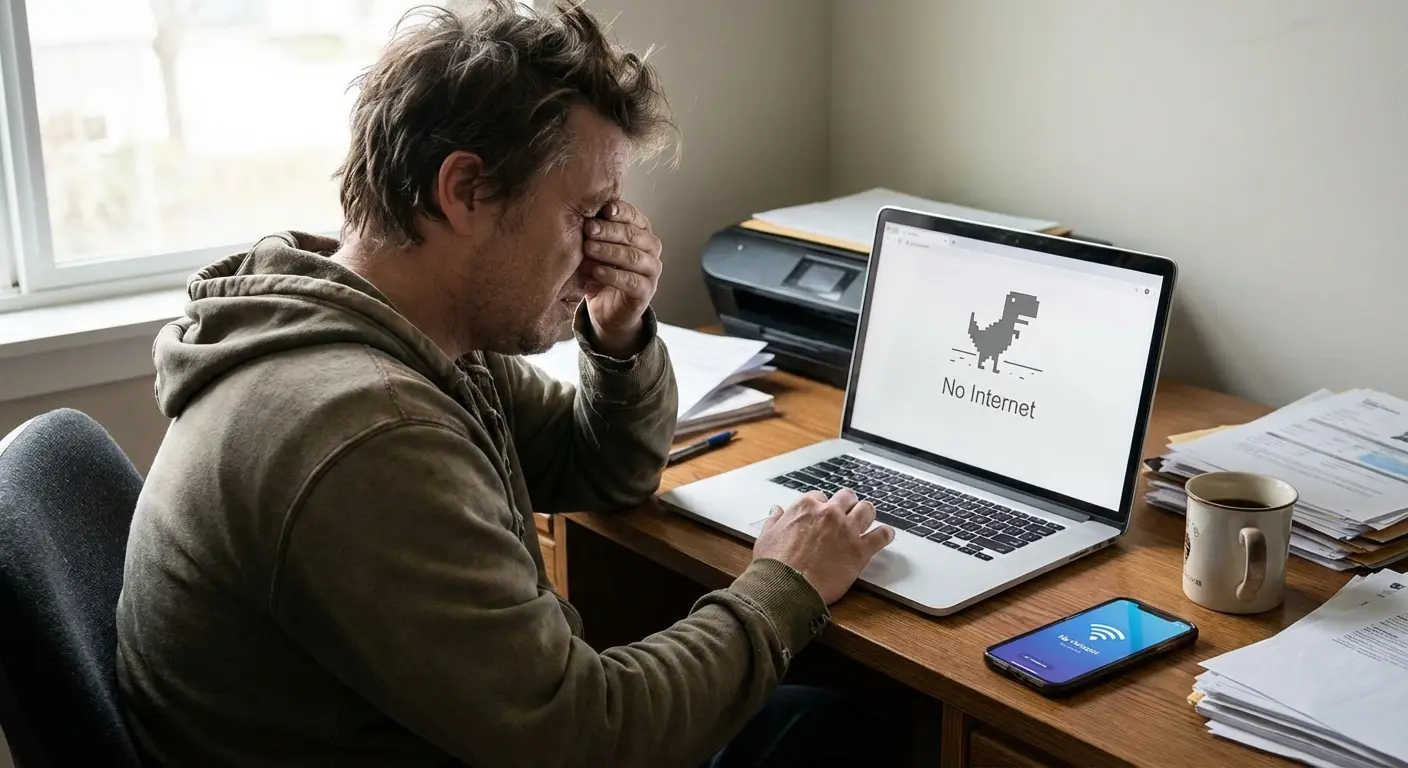
Your laptop sees the hotspot network, you enter the password correctly, and... nothing happens. Or worse, it attempts to connect, fails, and repeats endlessly.
Start with the basics. Turn your phone's hotspot off, wait 10 seconds, and turn it back on. On the device that won't connect, forget the network (remove it from saved networks) and try connecting fresh. This fixes it about 40% of the time.
If that doesn't work, check for typos in the password. This sounds obvious, but mixing up similar characters (0 vs O, 1 vs l, 8 vs B) accounts for many "failed" connections. Re-enter the password carefully, character by character.
Still broken? Check if you hit your device connection limit. Android shows this clearly. iOS makes you guess. Verify maximum device limit not reached, disconnect unused devices, or increase the limit.
Everything else is either a carrier restriction or a compatibility issue (old device, new security protocol). Switch to WPA2 if you're trying to connect something ancient.
Try this sequence: Turn hotspot off, wait 10 seconds, turn back on. Forget network on connecting device. Re-enter password. Check connection limit. Enable airplane mode on phone, wait 10 seconds, disable airplane mode, re-enable hotspot. Restart both devices completely if nothing else works.
Connected But No Internet
Your laptop shows "Connected" to your hotspot, but web pages won't load and apps report no internet access.
Check your phone's cellular data. This sounds too simple, but it's easy to have WiFi hotspot enabled while cellular data is disabled. On iPhone, swipe down to Control Center and verify the cellular data icon is green. On Android, check that mobile data is enabled in your quick settings.
Verify you have cellular signal. If your phone shows "No Service" or "Emergency Calls Only," your hotspot can't provide internet access because your phone itself has no internet connection. Move to an area with better coverage or wait for signal to return. Or give up and find WiFi.
Check for carrier account issues. If your bill is past due, many carriers suspend data services while still allowing calls and texts. Log into your carrier account to verify your service is active and in good standing. This is infuriating, by the way.
Test internet on your phone directly. Open a web browser on your phone and try loading a website. If your phone can't access the internet either, the problem isn't your hotspot configuration, it's your cellular data connection. Contact your carrier. Prepare for a frustrating conversation.
Reset network settings as a last resort. On iPhone: Settings > General > Transfer or Reset iPhone > Reset > Reset Network Settings. On Android: Settings > System > Reset options > Reset WiFi, mobile & Bluetooth. Warning: this erases all saved WiFi passwords and Bluetooth pairings, so use it only when other solutions fail.
Slow Speeds and Constant Disconnections
Your hotspot works, but speeds are painfully slow or the connection drops every few minutes.
Check your cellular signal strength. Hotspot performance directly correlates to your phone's cellular connection quality. If you're showing 1-2 bars of signal, your hotspot will be slow regardless of how you configure it. Move closer to a window, go outside, or relocate to an area with better coverage.
Verify you haven't exceeded your hotspot data cap. Most carriers throttle hotspot speeds to 600kbps or slower after you exceed your allocation, even if you have unlimited phone data remaining. Check your carrier account to see if throttling is active. Spoiler: it probably is.
Reduce the number of connected devices. Each additional device splits your available bandwidth. Disconnect devices you're not actively using. This should be obvious, but apparently it's not.
Your phone might be overheating. Sustained hotspot use generates significant heat. If your phone feels hot to the touch, it may be throttling performance to cool down. Remove any case, place the phone on a cool surface (not in direct sunlight), and reduce the workload by closing apps and lowering screen brightness.
Guy was doing a product demo from his car, phone hotspotting his tablet. Demo video started stuttering. Phone was sitting on the dashboard in direct sun, hot enough to cook an egg.
Moved it to the shade, took off the case, waited two minutes. Connection fixed. Thermal throttling is real and it will ruin your day.
Change your AP band. If you're using 5GHz, try switching to 2.4GHz (or vice versa). The 2.4GHz band penetrates walls better and handles interference differently, which can improve stability in some environments.
Disable power-saving features that might be interfering. Some aggressive battery-saving modes reduce hotspot performance or disconnect it periodically. Disable battery saver and see if performance improves.
For frequent disconnections specifically, check if your phone has an auto-timeout setting enabled. Many Android devices disable hotspot after 10 minutes of inactivity by default. Adjust this setting or keep a device actively using the connection to prevent automatic shutoff.
When to Actually Use Your Hotspot
Mobile hotspot excels in specific situations where it's the most practical or only available option.
Temporary work situations. Your home internet goes down, you need to join a video call in 10 minutes, and the coffee shop is 15 minutes away. Hotspot solves the immediate problem while you arrange a longer-term solution.
Travel connectivity. Hotel WiFi is painfully slow or requires you to watch ads every 30 minutes. Your phone's hotspot provides a more reliable, private connection for evening work or entertainment.
Backup internet during outages. Power outage in your neighborhood means no cable modem, but your phone still has cellular service. Hotspot keeps essential devices online until power returns.
Connecting devices without cellular capability. Your tablet or laptop needs internet in a location without WiFi. Hotspot extends your phone's connectivity to devices that can't access cellular networks directly.
Avoiding sketchy public WiFi. Airport or conference center WiFi feels risky. Your hotspot provides a private, encrypted connection instead of joining a network with hundreds of unknown users.
These scenarios share a common thread: hotspot serves as a bridge solution or privacy enhancement, not your primary internet connection.
When Hotspot Is the Wrong Choice
Extended work-from-home situations. If your home internet is out for days, paying for a day pass at a coworking space or coffee shop makes more sense than burning through your hotspot allocation and draining your phone battery for 8-hour workdays.
4K streaming or large downloads. Downloading a 50GB game or streaming movies in 4K will obliterate your hotspot data cap in hours. Wait for WiFi access or use these scenarios as a signal to upgrade your mobile plan if they're frequent needs.
When you need your phone for other tasks. If you're using hotspot to connect your laptop but also need your phone for calls, navigation, or other battery-intensive tasks, you're asking too much from a single device. Consider alternatives.
In areas with poor cellular coverage. If your phone struggles to maintain a cellular connection, using it as a hotspot will be frustrating for everyone involved. The connection will drop constantly, speeds will be unusable, and you'll drain your battery fighting for signal.
Connecting smart home devices. Smart speakers, security cameras, and IoT devices expect always-on, unlimited connections. Your phone's hotspot isn't designed for this use case. These devices need traditional WiFi from a home internet connection.
According to Verizon's guidance, if you aren't subscribed to one of their Unlimited Plans, any data used by a connected device will be deducted from your plan's total data allowance, and they recommend keeping your mobile hotspot password protected. If disabled, anyone can connect without your permission and potentially access transmitted data.
Dedicated Mobile Hotspot Devices
If you find yourself using your phone's hotspot multiple times per week for extended periods, a dedicated mobile hotspot device might make sense. These serve one purpose: providing WiFi to multiple devices via cellular connection.
They offer larger batteries than your phone, support more simultaneous connections, and don't drain your phone's battery or interfere with your ability to use your phone normally.
The tradeoff is cost. You're adding another device to carry and another line to your cellular plan (usually $10-20/month plus the device cost). For occasional hotspot users, that expense doesn't make sense. For people who rely on mobile connectivity regularly, it's worth calculating whether the convenience and dedicated data allocation justify the added cost.
Keeping Your Phone Accessible While Running Hotspot
You've set up your hotspot perfectly, your laptop is connected, and everything works. Then you realize your phone is just sitting there on the desk, overheating, and you can't easily use it for anything else without disrupting your workspace.
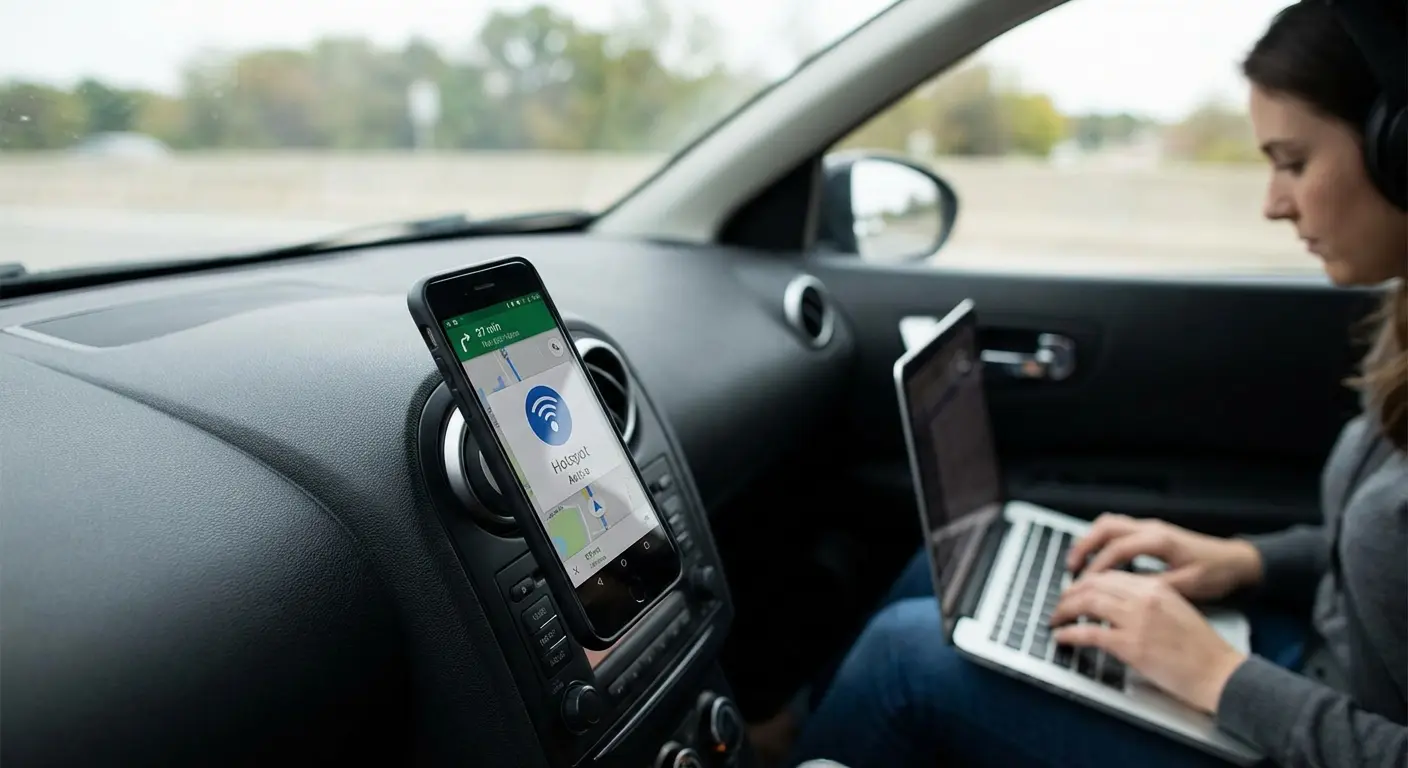
This physical placement problem gets worse in vehicles. You're using your phone's hotspot to give your passenger internet access, but you also need your phone mounted for navigation. Balancing a phone on your dashboard or in a cup holder while it runs hotspot isn't just inconvenient, it's a safety issue if the phone overheats or you need to interact with it while driving.
The solution involves proper mounting that keeps your phone accessible, visible, and cool while it operates as a hotspot. Rokform's magnetic mounting systems solve this specific problem by securing your phone in a fixed position (on your desk, in your car, on your bike) while maintaining full access to ports for charging and allowing airflow to prevent overheating. The magnetic attachment means you can quickly remove your phone when you need to use it handheld, then snap it back into position without fumbling with clips or cradles.
If you regularly use hotspot in your vehicle or at a desk setup, having a dedicated mounting solution prevents the awkward phone-placement dance and keeps your device running cooler during extended hotspot sessions.
What Actually Matters
Check your hotspot data before turning it on. Keep your phone plugged in if you can. Change the default password. Close background apps.
Do those four things and you'll avoid most hotspot problems. The rest is just details.
And if you're using hotspot for 8 hours a day, every day? Get real internet. Your phone wasn't built for that.

