


Table of Contents
Why This Fails More Often Than Anyone Admits
The Annoying Physics Behind Why Screens and Scanners Hate Each Other
Brightness and Angles: The Awkward Dance Everyone Does
Why Screenshots Work Better Than Apps (Usually)
Your Cracked Screen Is Making Everything Worse
What to Do When Your Phone Dies at the Gate
How to Scan a QR Code That's Already on Your Phone
Making This Work When Everything's Going Wrong
TL;DR
Look, here's what actually matters: Glare kills more scans than anything else. Screenshots are more reliable than opening apps. Your wallet app isn't helping as much as you think. Screen cracks create reflection patterns that confuse scanners. iOS and Android both have annoying quirks. Have a backup plan for when your battery dies. You can scan codes from your own phone with the right workaround. And most importantly, the scanner quality matters way more than anything you do with your phone.
Why This Fails More Often Than Anyone Admits
Last Tuesday I watched a woman in front of me at Gate 23 try to scan her boarding pass eleven times. ELEVEN. The gate agent's face went from helpful to dead inside. By attempt seven, someone behind us said "Jesus Christ" loud enough for everyone to hear.
This isn't rare. You've probably done some version of this dance yourself. You adjust the brightness. Tilt the phone. Move closer, then farther away. The line behind you grows longer and your embarrassment intensifies.
Nobody tells you this is normal. Most tutorials focus on creating QR codes or scanning them off paper, but they completely skip what happens when you need to show a code from your phone screen to an actual scanner in the real world. The friction between phone screens and scanners isn't occasional. It's constant.
QR codes were built for paper. Then everyone started putting them on glowing rectangles that refresh 120 times per second. Nobody thought about whether scanners could handle that.
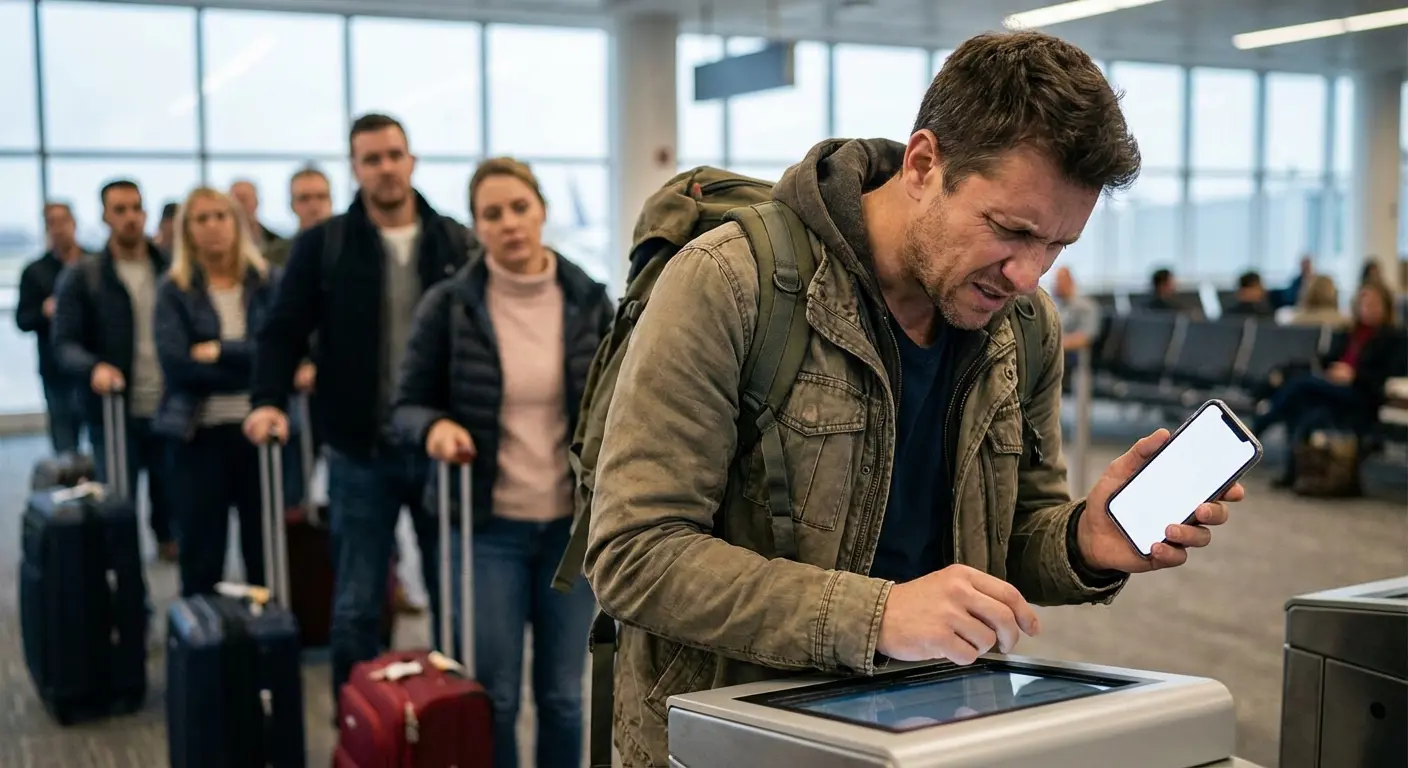
Think about boarding gates. You're fifth in line, watching person after person struggle. One passenger's screen is too dim. Another has notifications covering the code. A third can't get their wallet app to open. You've had time to prepare, and when you present your phone, the scanner still takes three attempts.
This isn't a technology problem in the traditional sense. It's a compatibility problem between emitted light and reflected light that nobody warned you about. While use of QR codes spiked during the COVID-19 pandemic, when restaurants and businesses started using them as touchless options, the infrastructure hasn't caught up to the reality that most codes are now displayed on screens rather than printed.
Scanners were designed to read QR codes on paper, not glowing screens. When you need to scan a QR code from your phone, you're asking the scanner to do something it wasn't originally built for.
The Annoying Physics Behind Why Screens and Scanners Hate Each Other
Okay, so here's the technical reason this happens. Scanners were built to read light bouncing OFF paper. Your phone SHOOTS light at the scanner. The scanner's basically like "what the hell is this" because it wasn't designed for glowing screens.
When you scan a QR code printed on paper, external light bounces off the surface and into the scanner's camera. The scanner was calibrated for this specific type of light interaction. It knows how to interpret the contrast between black and white squares when they're reflecting ambient light.
Your phone screen changes everything. Instead of reflecting light, it emits light through backlit pixels, creating interference patterns that some scanners struggle to interpret.
Screen refresh rates add another layer of complexity. Your phone's display refreshes 60 to 120 times per second, creating invisible flicker that your eyes don't detect but scanner cameras often do. This refresh rate can create moiré patterns, those weird rippling effects you sometimes see when photographing a digital screen. The scanner sees your QR code as slightly blurred or distorted, even though it looks perfectly clear to you.
Light Interaction Type |
How It Works |
Scanner Compatibility |
Common Issues |
|---|---|---|---|
Reflected Light (Paper) |
External light bounces off printed surface |
Optimized for this method |
Minimal, works in most conditions |
Emitted Light (Screen) |
Backlit pixels emit direct light |
Not originally designed for this |
Glare, refresh rate interference, moiré patterns |
Ambient + Screen Light |
Mixed light sources create complex patterns |
Varies by scanner quality |
Unpredictable results, angle-dependent |
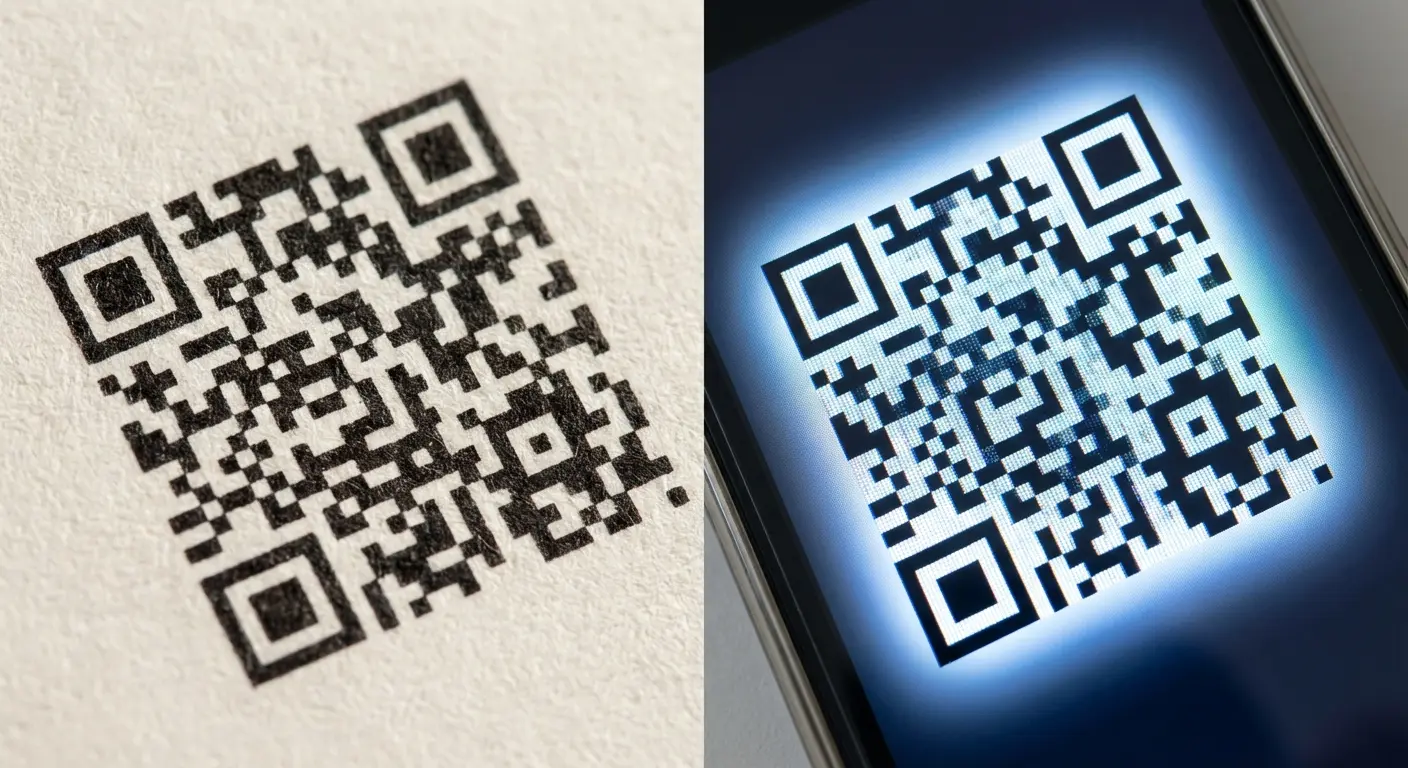
I had a crack right through my Coachella ticket last year. The scanner at the venue was older, probably installed before phone-based tickets became standard. The scanner's camera was calibrated to read high-contrast black-and-white patterns of printed tickets under controlled lighting. When you present your phone screen, the scanner's camera is trying to photograph another display. Your phone's screen refresh rate creates invisible flicker that the scanner's sensor picks up as interference.
The result? The scanner sees your QR code as slightly blurred or distorted, even though it looks perfectly clear to your eyes. This explains why rotating your phone 90 degrees sometimes works. You're changing the orientation of the pixel grid relative to the scanner's sensor array, potentially reducing the moiré effect.
And get this: higher resolution screens should be BETTER, right? Wrong. More pixels means more chances for weird interference patterns. The scanner might see patterns that don't exist in the code itself, artifacts created by the interaction between your screen's pixel grid and the scanner's sensor array. I hate that this makes no intuitive sense.
Brightness and Angles: The Awkward Dance Everyone Does
Why Your Phone Is Always Too Bright or Too Dim (Never Just Right)
Most people assume maximum brightness is best when displaying a QR code. We've all cranked our screens to 100% while approaching a scanner, thinking more light equals better visibility. This actually makes things worse more often than it helps.
Maximum brightness creates glare that overwhelms the scanner's camera. The scanner can't distinguish between the black and white squares of your QR code when everything is washed out in a bright glow.
The optimal brightness level for most environments sits around 70-85%. This provides enough illumination without creating the reflection issues that confuse scanners. When a scan fails, your instinct might be to increase brightness, but try reducing it to 60% first. This counter-intuitive move often solves the problem by reducing glare.
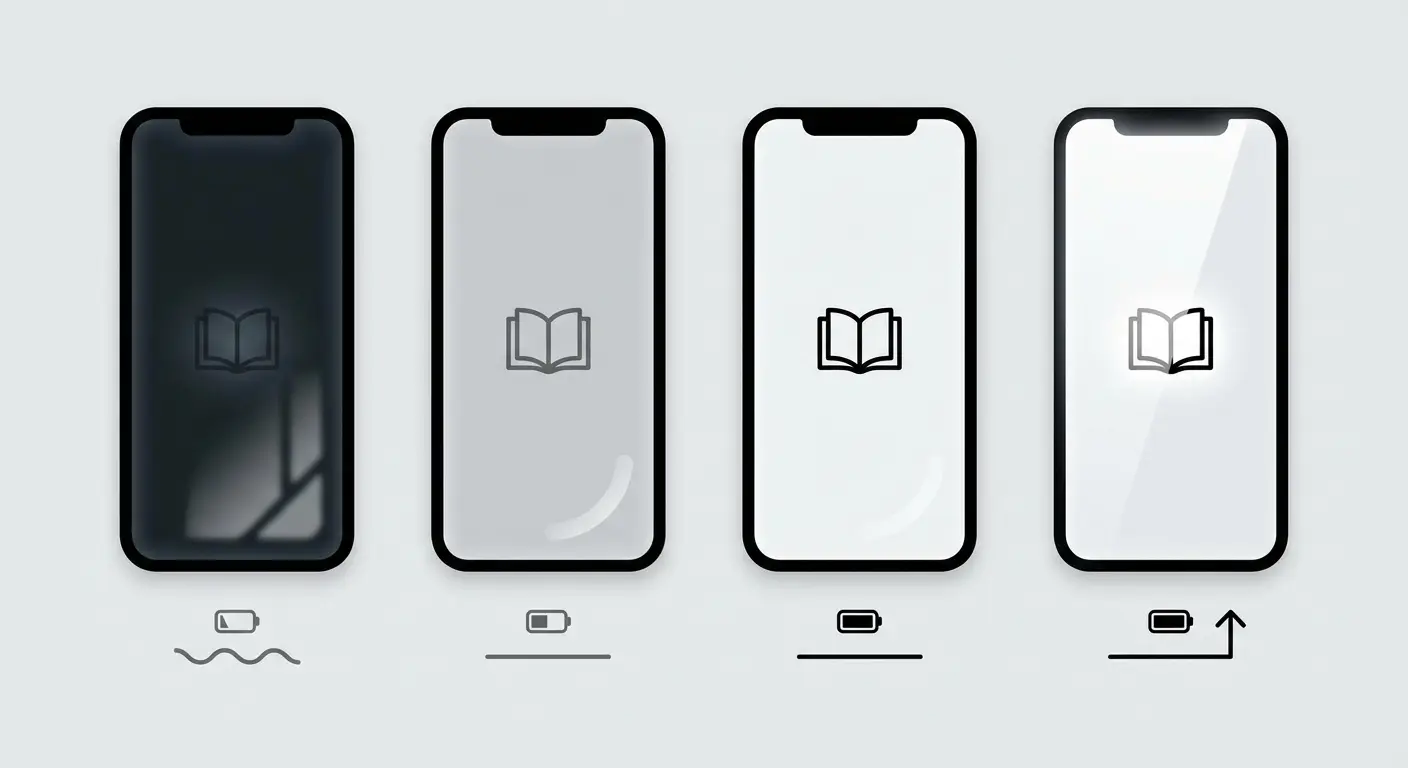
When it fails, try this: Drop to 60% brightness first. I know, counterintuitive as hell. Still nothing? Then go brighter. Watch the scanner's light. If it's flashing like crazy, you're too bright. If it's dead, too dim. Cup your hand around the edges like you're hiding your screen from someone. Hold still for a few seconds even though you feel stupid. Usually works by attempt three.
The scanner's indicator lights tell you what's happening. Rapid flashing usually means the scanner detects something but can't read it, often a glare problem. No response at all means the scanner isn't detecting anything, which points to insufficient brightness or positioning issues.
The Angle Game That No One Explains
Holding your phone perpendicular to the scanner seems logical, but it's often wrong. A slight tilt of about 15-20 degrees works better by reducing glare and changing how light reflects off your screen.
Handheld scanners want you close, like 2-4 inches, slight tilt. Those counter ones? Back up to maybe 6 inches. Overhead scanners, the ones at subway turnstiles, need your phone flat, not tilted at all. You're basically guessing until you figure out which type you're dealing with. The staff won't tell you because they assume you know.
Scanner Type |
Optimal Distance |
Best Angle |
Visual Cue |
|---|---|---|---|
Handheld Wand |
2-4 inches |
Slight tilt (15°) |
Red laser line visible on screen |
Fixed Counter Scanner |
4-8 inches |
Nearly flat, minimal tilt |
Green light illuminates when in range |
Overhead Scanner |
6-10 inches |
Completely flat |
Blue scanning light sweeps across |
Mobile Scanner (Staff Phone) |
6-12 inches |
20° tilt away from staff |
Staff will gesture closer/farther |
Watch for visual cues that tell you whether you're in the right position. Handheld scanners usually project a red laser line onto your screen when they're active. Fixed counter scanners often have a green light that illuminates when you're in range. Overhead scanners sweep a blue light across the scanning area. Staff using their phones will gesture to indicate whether you need to move closer or farther away.
You're often guessing in real-time, which is frustrating. The scanner type isn't always obvious, and you won't know the optimal distance until you try. Pay attention to the staff member's body language. They've seen hundreds of people scan QR codes and know what works with their specific equipment. If they're leaning forward, you probably need to move closer. If they're pulling back, you're too close.
Why Screenshots Work Better Than Apps (Usually)
Screenshots Just Exist (Which Is the Point)
Apps crash. Apps time out. Apps decide to update right when you need them. Screenshots just... exist. They're there in your photos, not doing anything fancy, which is exactly what you want when you're in a hurry.
Opening an app to display a QR code feels like the right approach. The app is designed for this purpose, after all. But screenshots eliminate several failure points that apps introduce: timeouts that dim your screen, automatic locks that kick in at the worst moment, notifications that pop over the code, and app crashes when you need them most.
Screenshots create a stable image that scanners read more consistently. There's no app running in the background, no automatic brightness adjustments, no risk of the app refreshing and temporarily hiding your code. You open your photo library, tap the screenshot, and the code stays exactly as it is until you close it.
The shift toward screenshot-based QR code management reflects a broader trend. According to recent research from Washington State University published in the International Journal of Hospitality Management, restaurants are exploring augmented reality elements to enhance digital menu experiences, but the study revealed that the average improvement in customer willingness to visit was only roughly 0.5 points higher than traditional formats.
This suggests that while businesses push for more complex digital interactions, users often prefer simpler, more reliable methods like screenshots that eliminate technical friction rather than adding layers of interactivity that can fail under real-world conditions.
Yeah, yeah, security. Don't screenshot your bank codes or 2FA stuff. Anything with a countdown timer is off limits. Concert tickets? Screenshot away. Those aren't getting hacked from your photo library.
Never screenshot banking payment codes, two-factor authentication codes, or anything that displays a countdown timer. These codes are designed to expire quickly for security reasons, and a screenshot defeats that protection. If the code says "expires in X minutes," keep it in the app where it belongs.
Getting Your Screenshots Organized (You Won't, But You Should)
Taking screenshots solves the reliability problem but creates an organization problem. You need to find that screenshot quickly when you're standing at a checkpoint with people waiting behind you. Frantically scrolling through hundreds of photos while boarding a plane is its own kind of nightmare.
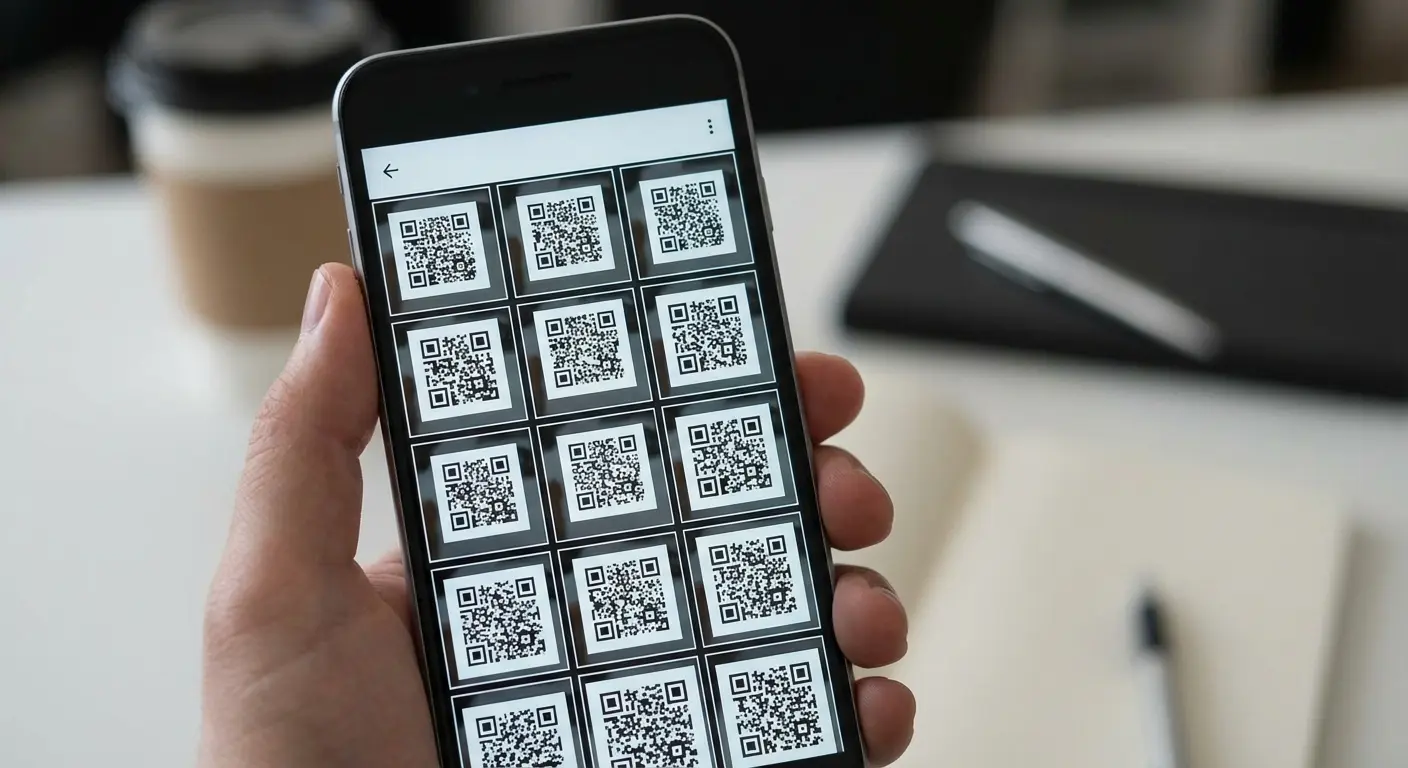
Look, you'll take screenshots and they'll disappear into your camera roll with 4,000 other photos. Make an album called "QR Codes" or "Important Shit" and actually move them there. I know you won't, but you should. At minimum, favorite the critical ones. Name them something you'll recognize like "Flight_AA123" not "Screenshot_2024_blahblah."
On iOS, open the Photos app, go to Albums, tap the plus icon, and create an album. Move your screenshots into this album as you take them. Tap the heart icon on critical codes to add them to Favorites for even faster access.
Android users can create a folder in their Gallery app by tapping the menu and selecting Create Album. Some Android versions allow pinning albums to the top of your gallery for quick access.
The naming convention matters more than you might think. When you're rushing to board a flight, you don't want to tap through five different QR code screenshots trying to remember which one is your boarding pass. Add a text note or rename the file immediately after taking the screenshot. "Flight_AA123_Jan15" is infinitely more useful than a random timestamp.
Wallet Apps Are Kind of Garbage for This
The Wallet App Promise Falls Apart Under Pressure
Wallet apps are supposed to be the solution. They're not. Half the time they're slower than just opening your photos. They look cleaner, sure, but I've had Apple Wallet freeze on me at a boarding gate enough times that I don't trust it anymore. Photos are dumb and simple. Dumb and simple wins.
Apple Wallet and Google Pay seem purpose-built for storing QR codes. They're accessible from the lock screen, organized by category, and designed specifically for this use case. Why wouldn't you use them?
The convenience factor comes with hidden trade-offs that most users don't discover until they're standing at a turnstile. According to scanning research from Be Connected, QR codes work much like traditional barcodes but with a crucial difference: barcodes can only store information along vertical lines, while QR codes use pixels across horizontal and vertical grids to hold significantly more information.
And here's what drives me insane about wallet apps: they compress the QR code to fit their little card template. Sometimes this compression makes the code unscannable. So the app designed specifically for this purpose makes it WORSE. Make it make sense.
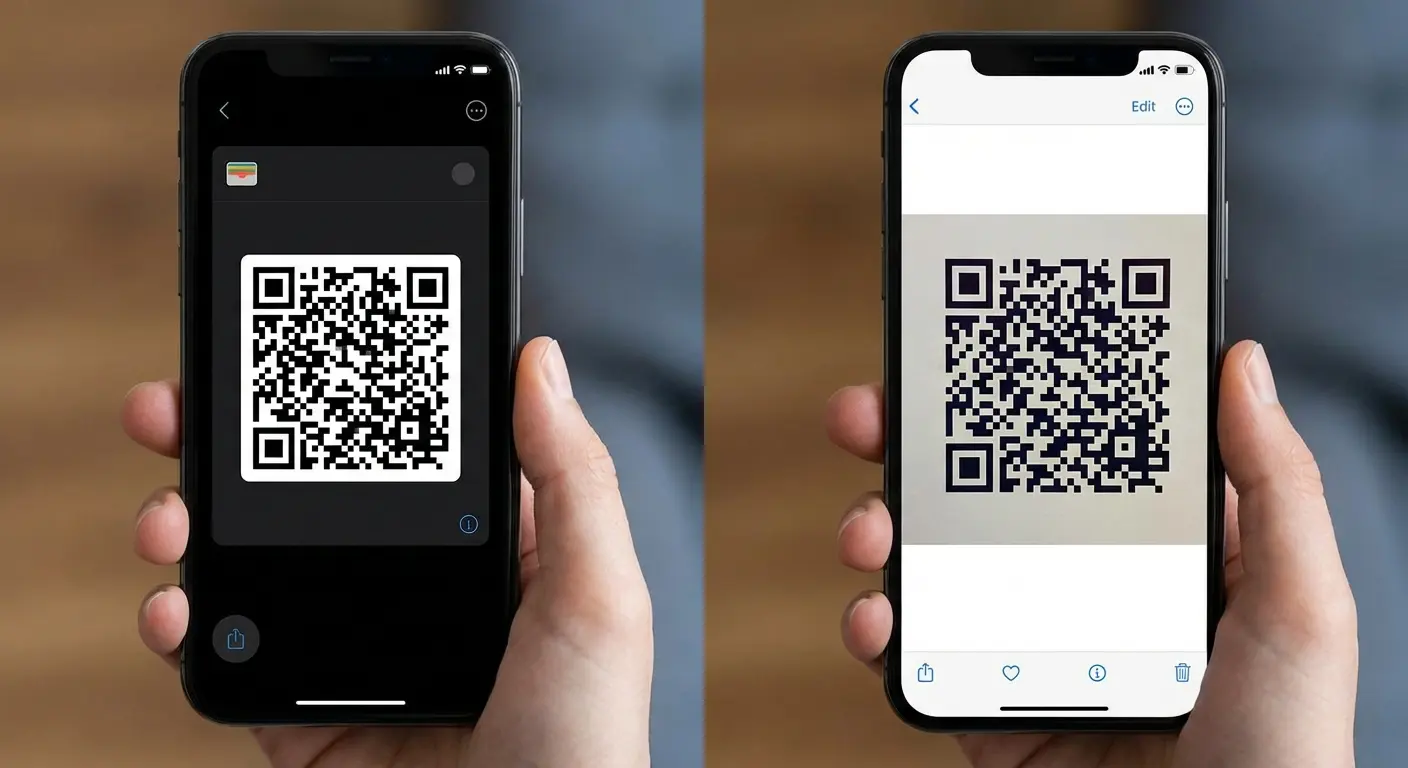
Wallet apps also introduce their own failure points. The app needs to load, which requires a working internet connection in some cases. If you're in a basement venue with no signal, your wallet app might not open. The app might crash, especially if you haven't updated it in a while.
Your Photo Library Works When Everything Else Fails
Your photo library works when everything else fails. No app to load, no internet connection required, no compatibility issues with different pass formats. You tap Photos, find your screenshot, and display it. The simplicity eliminates variables that cause problems under pressure.
This feels less elegant than wallet integration. There's no automatic organization by date or category, no lock screen shortcuts, no notifications reminding you when to use a pass. But reliability trumps aesthetics when you're trying to board a train and your wallet app decides to update itself.
Photo storage proves superior in specific scenarios. International travel with spotty service means wallet apps might not sync or load properly. Older phones with limited memory sometimes struggle with wallet app performance. When you need to show multiple codes in quick succession, maybe you're checking into a hotel, accessing the gym, and ordering room service, having everything in one photo album is faster than navigating between different wallet categories.
The photo library also serves as your universal backup. Even if you prefer using wallet apps for daily convenience, keeping screenshots in your photo library means you have a fallback when the wallet app fails.
Your Cracked Screen Is Making Everything Worse
How Screen Damage Kills QR Codes
Got a cracked screen? Welcome to hard mode. That spiderweb pattern looks cool until you need to scan a QR code and the scanner's trying to read the cracks as part of the code.
Many of us are walking around with cracked screens, scratches, or worn screen protectors. Replacing a phone isn't always financially feasible the moment damage occurs, which means we need to make QR codes work despite hardware imperfections.
Cracks that run through the code area create the most problems. Spiderweb patterns create multiple reflection points that confuse scanners. Edge cracks or minor scratches away from the code usually don't interfere with scanning. The question becomes: can you position the code to avoid the damaged areas?
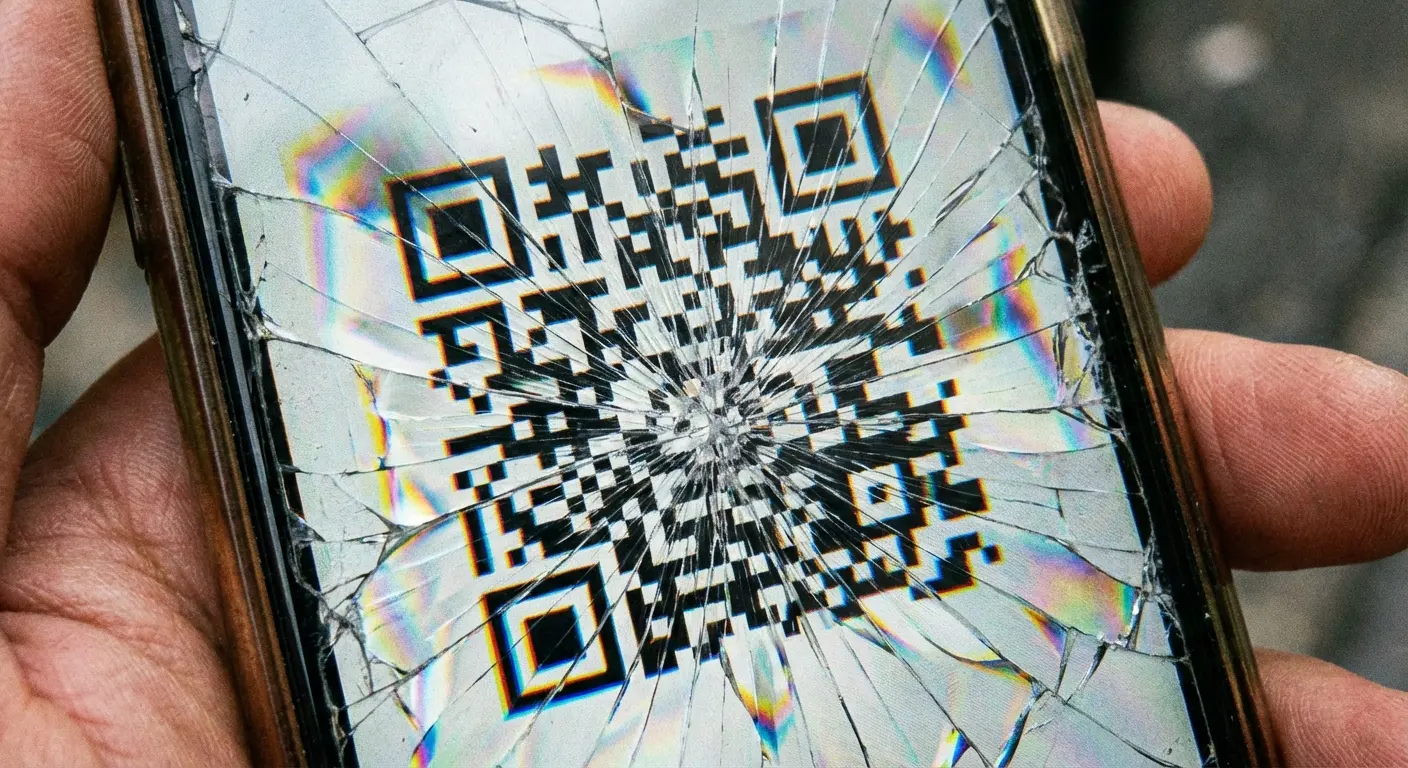
I had a crack right through my concert ticket last year. Zoomed way in on the code, move d it to a less-destroyed part of my screen, held my breath. Worked on try number four. The security guy said "You should really get that fixed." Thanks, man. Super helpful.
QR codes include built-in error correction that can compensate for up to 30% damage in some cases. This redundancy was designed for printed codes that might get dirty or torn, but it works for screen damage too. Zooming in and repositioning takes advantage of this error correction by ensuring the most critical parts of the code remain readable.
Brightness adjustments can also compensate for screen damage. Increasing brightness sometimes helps the scanner distinguish between the code and the crack patterns. Other times, reducing brightness minimizes the reflective interference from cracks. You'll need to experiment in the moment, which is frustrating but often successful.
Screen Protectors Add Another Layer of Problems
Screen protectors create an additional reflective layer between your QR code and the scanner. Tempered glass protectors are the worst offenders. They add thickness and create strong reflections that confuse scanners.
Matte screen protectors perform better for QR code display than glossy ones. The matte finish diffuses light and reduces glare, which helps scanners read the code more consistently. If you're choosing a new screen protector and frequently display QR codes, matte is worth considering despite the slight reduction in screen clarity for other uses.
Air bubbles or dust under protectors create dead zones where the code becomes unreadable. These imperfections scatter light in unpredictable ways. If you notice consistent scanning problems in the same area of your screen, check whether a bubble or dust particle sits in that spot.
You face a tactical decision when scanning fails repeatedly: remove the screen protector temporarily for important scans, or work around it with positioning adjustments. Removing a tempered glass protector isn't always practical. You might not be able to reapply it properly, and you're left with an unprotected screen. Positioning adjustments are usually the better choice: tilt your phone to change the angle of reflection, or cup your hand around the screen to reduce ambient light hitting the protector.
iOS and Android Both Have Annoying Quirks
iOS Does This Thing Where It Dims Your Screen Right When You Need It
iOS does this annoying thing where it dims your screen right when you need it brightest. Some "smart" brightness feature that's actually dumb. Android depends on your phone. Samsung's battery saver is aggressive as hell. Google Pixels are usually fine. OnePlus does whatever OnePlus does.
iOS devices introduce specific challenges when displaying QR codes. Apple's aggressive power management and interface design create friction points that Android users don't encounter.
Automatic brightness adjustment dims your screen right when you need it brightest. iOS monitors ambient light and adjusts your display accordingly, which makes sense for battery life but creates problems at scanning checkpoints. You've set your brightness to maximum, but iOS decides the environment is bright enough and dims your screen anyway. The scanner can't read your code because iOS is trying to save your battery.
Notification banners appear over codes at the worst moments. You're presenting your boarding pass when a text message slides down from the top, covering the QR code. The scanner can't read through the notification, and you're fumbling to dismiss it while people wait behind you.
Face ID attention detection can interfere with keeping your screen on. iOS dims or locks your screen if it doesn't detect you looking at it, which is problematic when you're holding your phone toward a scanner rather than toward your face.
According to Android's official QR code documentation, while scanning QR codes with a camera is straightforward, scanning QR codes already on a phone's screen "usually involves some tricky workarounds like scanning with a second phone, emailing a screenshot to another device or downloading a third-party scanner tool."
This platform-agnostic challenge becomes particularly pronounced on iOS devices where system-level features can dim screens, cover codes, or lock devices at precisely the wrong moment.
There's this thing called Guided Access buried in iOS accessibility settings. Triple-click to lock your screen on one app. Stops notifications from covering your code. Nobody knows about it. I only found it after the third time a text message blocked my boarding pass.
Go to Settings, Accessibility, Guided Access, enable it, then triple-click the side button when displaying your QR code. This prevents notifications from covering your code and stops you from accidentally swiping away from the app.
Disable auto-brightness temporarily by going to Settings, Accessibility, Display & Text Size and turning off Auto-Brightness. Set your brightness manually before approaching the scanner, then re-enable auto-brightness afterward to preserve battery life.
Keep your thumb on the screen without triggering any controls. Touch and hold a blank area of the screen to prevent auto-lock without accidentally tapping buttons or links.
Android Variables Across Manufacturers
"Android" isn't one thing. Samsung handles screen display differently than Google Pixel, which differs from OnePlus, Motorola, and other manufacturers. Each company adds its own interface layer on top of Android, creating manufacturer-specific behaviors that affect how you scan a QR code from your device.
Samsung's aggressive battery-saving features dim screens unpredictably, even when you've disabled the obvious power-saving modes. The phone decides you're not actively using it and reduces brightness to extend battery life. You'll need to tap the screen periodically to convince Samsung's software that you're still engaged.
Notification handling varies by manufacturer. Some Android versions stack notifications at the top of the screen, others use floating bubbles, and some create full-screen interruptions. Where your notifications appear determines whether they'll cover your QR code when it matters most.
Screen timeout settings differ across Android versions and manufacturers. Some default to 30 seconds, others to two minutes. Some respect your timeout settings consistently, others override them based on battery level or other factors. Check your specific device's display settings and increase the timeout before you need to display a QR code.
Different manufacturers also handle screen brightness controls differently. Some have quick-access brightness sliders in the notification shade, others require diving into settings. Some remember your brightness preference per app, others apply a global setting. Familiarize yourself with your specific device's brightness controls before you're standing at a checkpoint trying to figure it out under pressure.
What to Do When Your Phone Dies at the Gate
The Moment of Pure Panic
3%. You're at 3% and still 12 people from the front of the security line. You've been refreshing your boarding pass every five minutes like an idiot because anxiety. Now you're paying for it. Low power mode is on but it's too late. You're doing mental math on whether your phone will survive the next 8 minutes.
Watching your battery percentage drop as you approach a checkpoint creates specific panic. You've been using your phone to navigate, check flight updates, text friends, and kill time. Now you're at a critical moment, and you need to display a QR code that represents your $400 concert ticket or your boarding pass for a flight that leaves in 20 minutes.
The usual advice, carry a charger, doesn't help in this moment. You're in line, moving forward, with no outlet nearby and no time to charge even if you found one. The phone needs to survive the next five minutes, and you're not sure it will.
As Techpoint Africa recently reported, QR codes have evolved from "something only 'techy people' used" to everyday digital shortcuts found "on restaurant tables, product packaging, event tickets, posters, and even on your Wi-Fi router."
This ubiquity means your phone has become a single point of failure for multiple critical functions. Navigation, communication, and access credentials all draining the same battery. The popularity explosion after 2020, when contactless interactions became the norm, created a perfect storm where everyone simultaneously became dependent on phone-displayed codes without developing the backup strategies that paper tickets once made unnecessary.
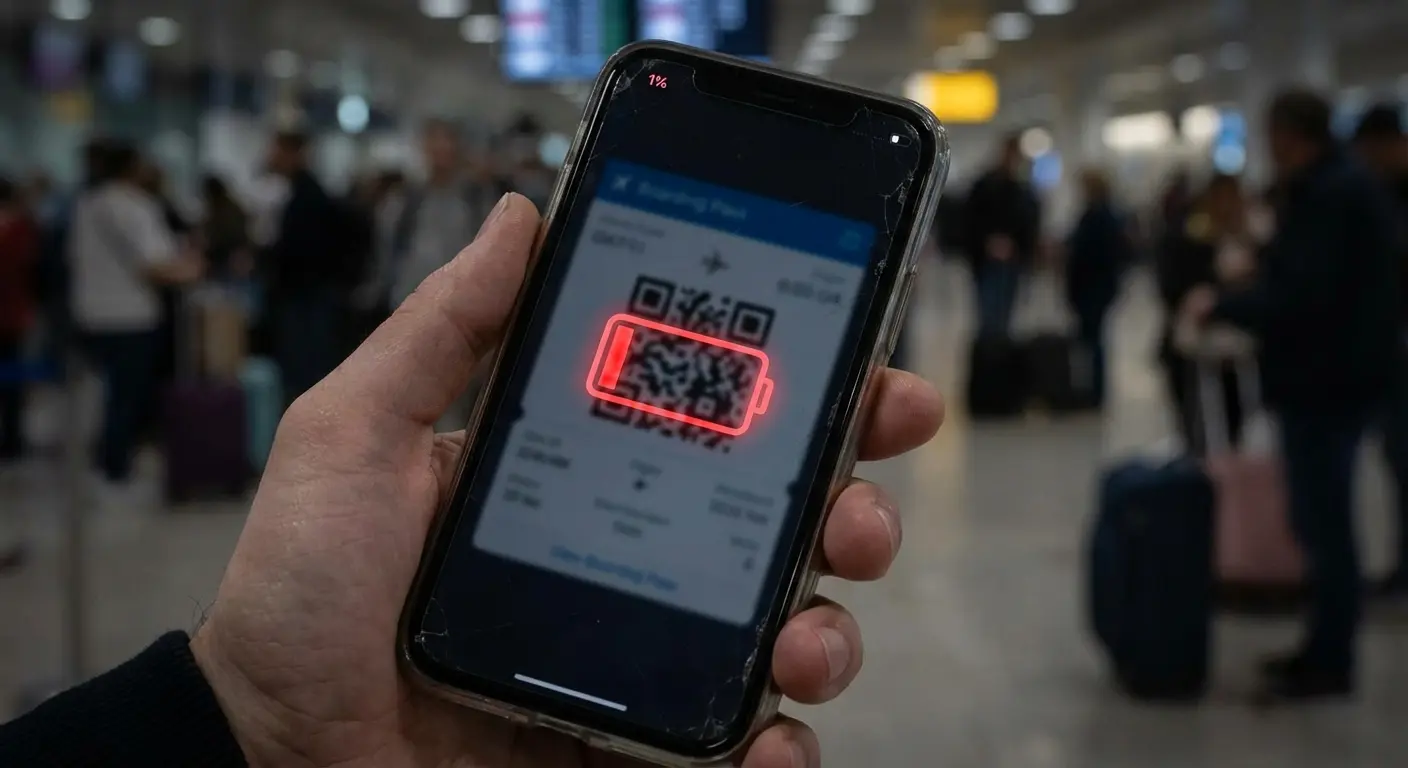
The night before doesn't help you now, but NEXT time: screenshot everything before you leave home. Email yourself backups. Print the important stuff. Yes, actually print it, like a caveman. Because this panic you're feeling? It's preventable and you'll forget this lesson in a week.
There's an underrated strategy for those final minutes: open your QR code and keep it displayed before your phone dies completely. Even after your phone is too dead to unlock, the screen might stay lit for a few extra minutes if you had it open when the battery died. This gives you a narrow window to scan the QR code even though your phone is technically dead.
Backup Methods That Actually Save You
Realistically? Take a screenshot. That's the one thing you'll actually do. Everything else, the printing, the emailing, the cloud backup, you'll mean to do it and forget. So at minimum, screenshot the important codes. That's your actual backup plan.
Print critical QR codes. Yes, really. Paper doesn't run out of battery. A printed boarding pass for an international flight costs you nothing and guarantees you can board even if your phone dies, gets stolen, or falls in a toilet. Keep it folded in your wallet or bag.
Email QR codes to yourself for access on other devices. If your phone dies, you can borrow someone's phone or use a computer to access your email and display the code. This works for any code that doesn't require real-time generation.
Understand which codes can be regenerated quickly and which cannot. Airline boarding passes can usually be reprinted at a kiosk or ticket counter. Concert tickets often cannot. If your phone dies and you didn't screenshot or print the ticket, you might be out of luck. Know which category your code falls into before you rely on it exclusively.
Here's your pre-trip backup protocol for critical QR codes:
24 Hours Before:
Screenshot all essential QR codes (boarding passes, event tickets, hotel reservations)
Email screenshots to yourself with subject line: "BACKUP [Event/Flight] [Date]"
Save copies to cloud storage (Google Drive, iCloud, Dropbox)
Share critical codes with travel companion via text or AirDrop
Print physical backup of most critical code (boarding pass for international flight)
1 Hour Before:
Charge phone to 100%
Enable Low Power Mode
Close all unnecessary apps
Open QR code and take screenshot of it already displayed
Keep one critical code open in a separate app as failsafe
If Battery Hits 10%:
Open most critical QR code immediately
Screenshot it one more time
Reduce brightness to 40% (you can increase at scanner)
Turn off all connectivity (airplane mode if already through security)
Keep screen awake manually, don't let it lock
How to Scan a QR Code That's Already on Your Phone
The Screenshot Workaround Nobody Tells You About
Screenshot the code, then use a QR reader app that can scan from your photos. Which sounds obvious but took me forever to figure out. Most scanner apps have a tiny gallery icon somewhere that lets you pick a photo instead of using the camera. It's never in the same place twice.
You need to scan a QR code that's displayed on your only device. Maybe it's a Wi-Fi password on a website, a verification code in an email, or a link someone sent you. You don't have a second phone or tablet, and you need to access whatever that code contains.
The screenshot method works: capture the code, then use a QR code reader app or website that can read codes from your photo library. Many free QR code reader apps include this feature but don't advertise it clearly. You'll usually find it as an option to "scan from photo" or "choose from gallery" within the app.
Here's the process: take a screenshot of the QR code, open your QR scanner app, look for an option to scan from your photo library (often a small gallery icon in the corner), select your screenshot, and the app will decode it. The entire process takes about 10 seconds once you know where to look.
Some QR reader websites offer this functionality too. You can upload an image of a QR code, and the site will decode it for you. This works from any device with a web browser, which makes it useful when you don't want to install an app.
Your Camera App Can Scan (But Not From Your Own Screen)
Modern phone cameras can scan QR codes directly without special apps. iOS has included this feature since iOS 11, and most Android phones added it in recent years. You open your camera app, point it at a QR code, and a notification appears with the decoded information.
This doesn't help when the code is on your own screen. Your camera can't focus on your own display. It's a hardware limitation, not user error. The camera needs distance to focus, and your screen is too close to the camera lens even if you could somehow point the rear camera at your own screen.
This feature shines when you encounter QR codes on computer screens, other people's phones, or any external display. Your phone's camera becomes the fastest scanning tool because you don't need to open a separate app. Point and scan.
If this feature isn't working by default, you might need to enable it. On iOS, go to Settings, Camera and ensure "Scan QR Codes" is toggled on. On Android, the setting location varies by manufacturer, but it's usually in the camera app's settings menu under something like "Scan QR codes" or "Smart features."
Making This Work When Everything's Going Wrong
High-Pressure Environments That Test Everything
Tried to get into Outside Lands at noon on a sunny day. Couldn't see my screen at all. The scanner definitely couldn't. Turned my back to the sun, cupped both hands around my phone like I was hiding porn from someone. Worked. Felt ridiculous. Worth it.
QR codes rarely fail during casual testing at home. You scan a code on your computer screen with your phone, and it works perfectly. Then you arrive at an outdoor music festival at 2 PM on a cloudless summer day, and suddenly nothing works.
Bright sunlight washes out your phone screen to the point where you can barely see it yourself, let alone expect a scanner to read it. The sun is directly overhead, creating the worst possible lighting conditions for screen visibility. The security staff member is already gesturing impatiently at the growing line behind you.
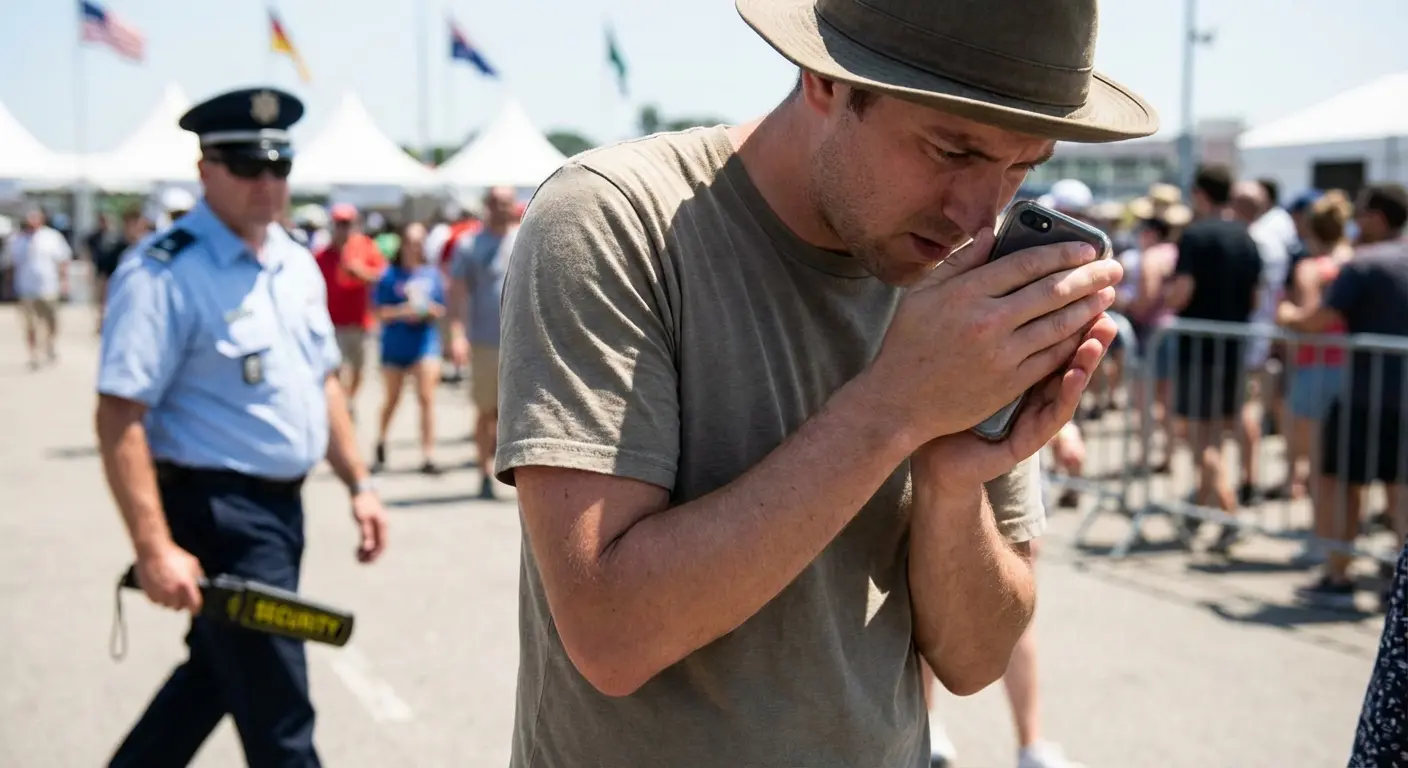
Your solution: turn your back to the sun, creating a shadow with your body. Cup both hands around your phone to create a makeshift hood that blocks ambient light. Increase brightness to maximum despite normally avoiding this, because in direct sunlight, glare is less of a problem than screen visibility. The scanner finally reads your code on the second attempt, not because the code changed, but because you created a micro-environment where the scanner's camera could detect the contrast between the QR code's black and white squares instead of seeing a washed-out gray rectangle.
Dim venues present the opposite problem. Concert halls, theaters, and basement bars often have minimal lighting. Your screen is bright enough, but the scanner struggles in low light conditions. Older scanners especially need adequate ambient light to function properly. You can't control the venue's lighting, but you can maximize your screen brightness and hold your phone steady for longer to give the scanner more processing time.
Crowded spaces create positioning challenges. You can't step back to find the optimal distance because people are pressed against you from all sides. You can't adjust your angle freely because you're wedged between other concertgoers or passengers. The scanner is mounted at an awkward height, and you're contorting your arm to reach it while maintaining the right angle.
Time pressure amplifies every problem. Staff members are trying to move lines quickly. Other customers are waiting. You feel rushed, which makes you fumble with your phone, which makes everything take longer.
In bright sunlight, create shade with your body and hands. In dim venues, use maximum brightness and hold position longer. In crowded spaces, establish your position first, then pull out your phone. Don't try to navigate the crowd while holding your phone out. Under time pressure, take a breath and move deliberately rather than frantically.
Sometimes the Scanner Just Sucks
Sometimes the problem isn't your phone. It's the scanner. You're doing everything right with brightness, angle, and positioning, but the scanner still won't read your code. The scanner might be old, poorly maintained, or misconfigured.
Older scanners were designed before phone-displayed codes became common. They expect paper tickets and struggle with emitted light from screens. These scanners often have visible wear: scratched lenses, faded indicator lights, or housings held together with tape. When you spot these signs, adjust your expectations and your strategy.
Poorly maintained scanners have dirty lenses that can't capture clear images. Dust, fingerprints, or scratches on the scanner's lens create the same problems that cracks on your screen create. They interfere with light transmission and pattern recognition. You can't clean the scanner yourself, but recognizing that the scanner is the problem helps you stay calm and try different approaches.
Some venues have scanners that work flawlessly while others seem to fail constantly. This isn't random. Venues that invested in modern scanning equipment and maintain it properly have higher success rates. Budget venues using old equipment or poorly trained staff have more problems.
When you recognize you're dealing with subpar equipment, be more patient. Try more extreme angles. Sometimes a 45-degree tilt works when nothing else does. Hold your position longer, giving the scanner extra processing time. Ask staff if they have suggestions. They know their equipment's quirks better than you do.
Know when to request manual entry rather than persisting with a scan that won't work. Most systems have backup procedures for scanning failures. Staff can type in a confirmation number, look up your booking by name, or use an alternative verification method. If you've tried three times with no success, asking for manual entry is reasonable.
The Social Awkwardness of Failing at Basic Technology
The person behind you is sighing. The staff member is doing that tight smile thing. You're sweating. Everyone's watching you fail at basic technology. Just ask for manual entry after try three. Your dignity isn't worth a fourth attempt.
The social dynamics of QR code failure create their own stress. You're holding up a line. People behind you are sighing or checking their watches. The staff member is trying to help but also trying to keep things moving. You feel embarrassed and rushed.
Staying calm helps more than any technical adjustment. Staff members have seen this scenario dozens of times today alone. Your scanning failure isn't unique or particularly memorable to them. They're not judging you. They're just trying to solve the problem and move to the next person.

"Should I adjust my brightness?" is code for "please help me, I'm dying here." Usually they'll either tell you what works with their scanner or just type in your confirmation number. Either way, you're not standing there tilting your phone at 47 different angles.
Communication strategies keep the interaction collaborative rather than adversarial. "Should I adjust my brightness?" invites the staff member to help troubleshoot. "I have the confirmation number if that's easier" offers an alternative solution. "This worked fine at home, any suggestions?" acknowledges the problem without blaming anyone.
Avoid defensive or apologetic language. "Sorry, I don't know why this isn't working" puts you in a subordinate position and doesn't solve anything. "My phone is terrible" blames your device when the problem might be the scanner. Stay neutral and solution-focused: "What usually works best with your scanner?"
Watch the staff member's body language for cues. If they're leaning in to look at your screen, they're engaged in helping you. If they're looking past you at the line, they're feeling pressure to move things along. If they're reaching for their keyboard or tablet, they're preparing to try manual entry. Adjust your approach based on these signals.
The people waiting behind you are less important than you think. They're annoyed at the situation, not at you personally. They've been in your position before and will be again. Don't let their impatience rush you into making mistakes. Take the time you need to get the scan working or switch to an alternative method.
When Technology Fails Completely
QR codes sometimes simply won't scan despite your best efforts. The scanner is old, your screen is cracked, the lighting is terrible, or some combination of factors creates an impossible situation. You need a fallback plan.
Have confirmation numbers memorized or easily accessible. Most booking systems generate alphanumeric codes that staff can use to look up your reservation. Write this number down, save it in a note on your phone, or memorize it for critical bookings. When scanning fails, you can provide this number for manual entry.
Know which information staff can use to verify your booking. Name and date usually work for hotel reservations. Email address often works for event tickets. Phone number might work for restaurant reservations. Different systems use different lookup methods, but most have alternatives to QR code scanning.
Understand when manual entry is an option versus when the QR code is truly required. Airline boarding passes usually require the barcode to scan because the system needs to verify seat assignments and track boarding. Event tickets might allow manual entry if staff can verify your purchase in their system. Ask directly: "Can you look this up manually, or does it need to scan?"
Some systems have no manual fallback. Parking garages with automated gates, subway turnstiles, or self-service kiosks might require a functioning QR code with no human override available. For these situations, your backup plan needs to be technical rather than social. Have a screenshot, have a printed code, or have the code accessible on a second device.
If you're dealing with QR code display issues because you're constantly juggling your phone while trying to hold it steady for scanning, the physical setup matters more than you might think. Rokform's phone mounts and magnetic cases create a stable platform that eliminates the wobble factor, especially useful when you're scanning in awkward positions or need to prop your phone at a specific angle. Their RokLock system means you can quickly mount your phone hands-free when you need both hands available or create a consistent scanning position that works. Check out their solutions at rokform.com if you're tired of the fumbling dance that happens every time you need to display a code under pressure.
Look, Here's What Actually Matters
QR codes on phone screens are a half-working solution that we've all accepted because the alternative is carrying paper like animals. The tech will get better eventually. Until then, you know the tricks: screenshots, brightness at 70%, slight tilt, backup plans for when your phone dies at the worst possible moment.
You've probably experienced every scenario in this piece at least once: the frantic brightness adjustment, the awkward angle negotiation, the sinking feeling as your battery hits 2% right before you need to board. The truth is that displaying QR codes from your phone screen shouldn't be this complicated, but the gap between how the technology is supposed to work and how it performs in real conditions creates these problems.
What matters most isn't memorizing every technical detail but understanding the core principles: screen glare is your primary enemy, screenshots often outperform live displays, and having a backup plan eliminates most anxiety. The next time you're approaching a checkpoint where you'll need to show a QR code, you'll know exactly which variables to control and which to adapt to.
And maybe, just maybe, print your boarding pass for international flights. Just that one thing. Trust me.

