


Quick question: Can your phone make QR codes?
Most people say no. Or they've never thought about it. They know their phone can scan those little squares (everyone learned that during COVID), but the idea that your phone creates them? That's not even on their radar.
Which is weird, because it's actually easier than scanning. And way more useful.
Let me show you what I mean.
Why You're Only Using Half Your Phone's QR Features
Remember 2020? Suddenly QR codes were everywhere. Restaurants, stores, even your dentist's office. We all figured out how to point our cameras at these things out of necessity. But here's what nobody tells you: while you were learning to scan, your phone could already make them just as easily.
This one-sided education left most people stuck in consumer mode, pointing their cameras at codes others made, never realizing they could be the ones solving problems.
The technology has moved way beyond its original inventory management purpose. Now it's everywhere - restaurant menus, concert wristbands, product packaging, business cards, and event materials. The pandemic made contactless everything normal, but most people still only know how to be on the receiving end.
Scanning vs. Making Your Own
You know what sucks? When someone asks for your WiFi password.
You either spell out "Tr0pic@lSunset2019!" letter by letter while they mistype it three times, or you grab a sticky note that inevitably gets lost. It takes forever and everyone's annoyed.
Here's what I do: I made a WiFi QR code once, saved it to my photos, and now I just show my screen to anyone who needs to connect. They scan, they're online, and we're done. The entire awkward exchange is gone.
This same thing works when a client asks how to reach you, when you're splitting a restaurant bill with friends, or when you're coordinating event information. I've been using QR codes for three years, and I only figured out most of this stuff last year when I accidentally discovered my phone had these features built in the whole time.
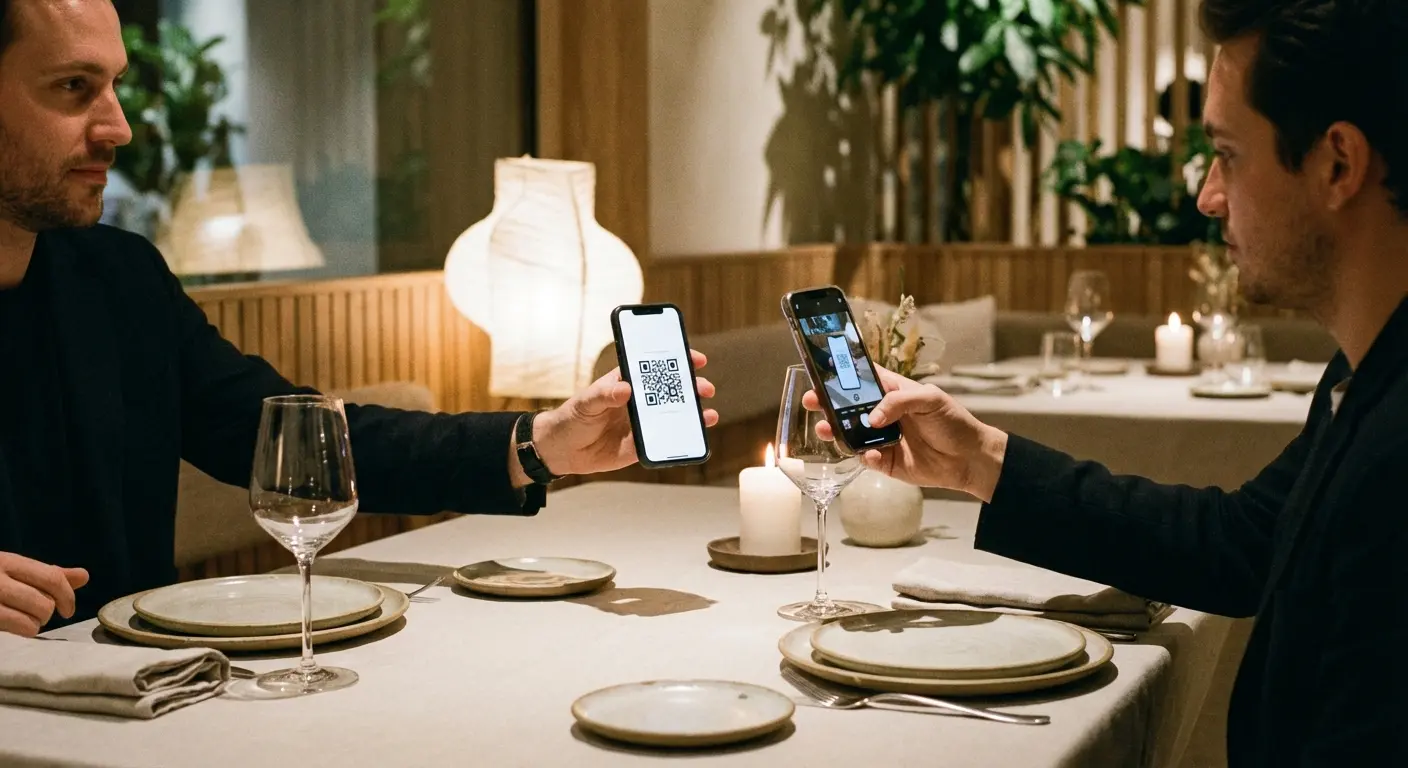
The difference shows up constantly:
Scanning is fine for:
Getting into someone else's WiFi
Reading a restaurant menu
Checking out at a store
Making your own codes is better for:
Sharing YOUR WiFi (do this, seriously)
Giving people your contact info
Splitting bills with friends
Running any kind of business where people need information
What Actually Happens When You Scan
Your phone does a bunch of stuff when it sees a QR code. Recognizes the pattern, figures out what kind of data it is, decides what app should handle it. Happens in like half a second.
What happens next? Depends on what's in the code. URLs open browsers, contacts open your address book, WiFi codes connect you to networks. Your phone knows what to do with each type.
Understanding this helps you spot when something's wrong. Also helps you know what to expect before weird stuff happens.
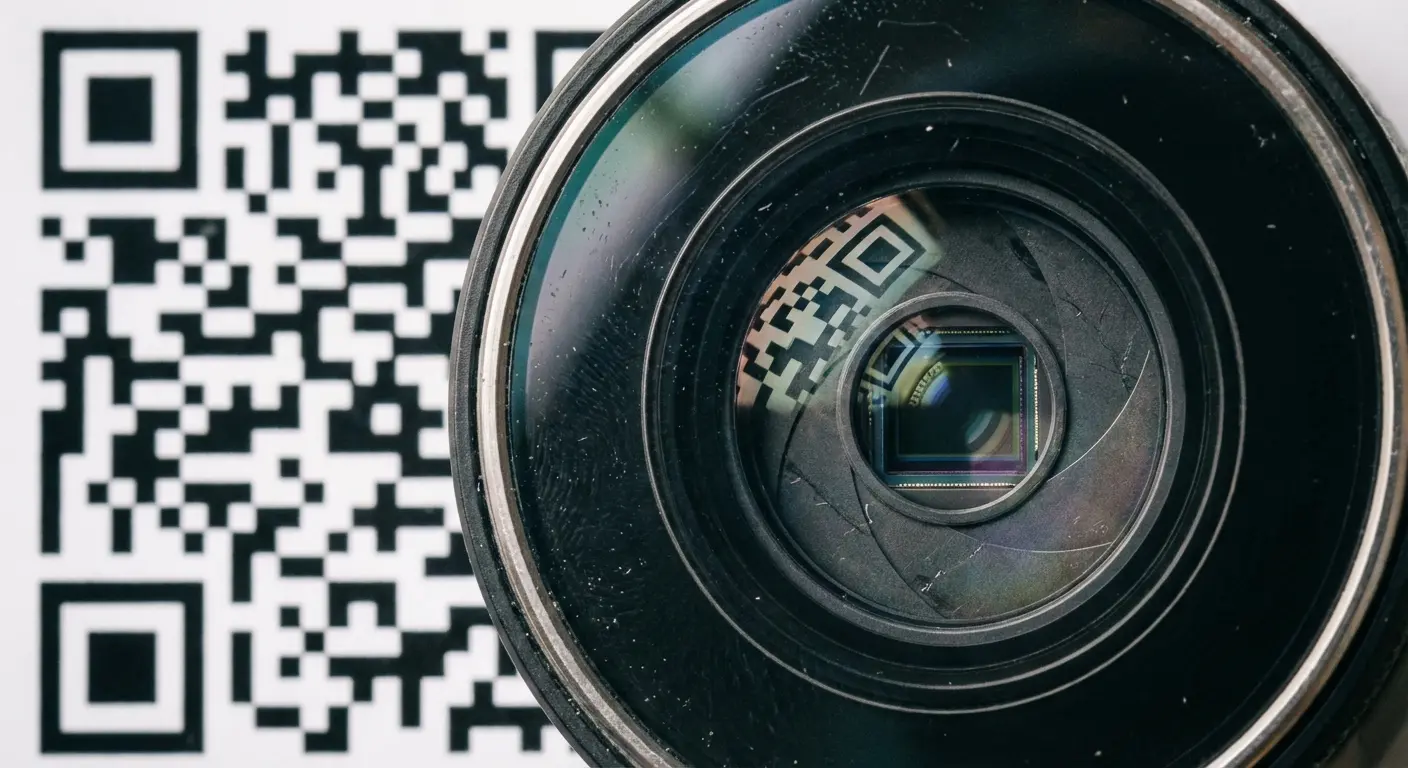
What Your Phone Recognizes
Different codes trigger different responses. Here's what to expect:
URLs (Website Links): The most common type. Your phone shows you the web address in a notification banner. Tap it and your browser opens. Pretty straightforward.
vCards (Contact Information): These have structured contact data - name, phone, email, address, company stuff. When you scan one, your phone offers to add everything to your contacts automatically. No typing.
WiFi Credentials: These contain your network name, password, and security type. Scan one and your phone just connects. No password typing required. (This is the one that changed my life. Sounds dramatic for a QR code, but I'm serious.)
Payment Information: Used by Venmo, PayPal, Cash App. Contains account info or payment requests. Automatically launches the right payment app if you have it installed.
Plain Text: Simple text strings that just display. Serial numbers, confirmation codes, short messages. You can copy them to your clipboard.
SMS/Phone Numbers: Contains phone numbers or pre-written text messages. Opens your messaging app with everything already filled in.
Calendar Events: Event details including title, date, time, location. Your phone offers to add it directly to your calendar.
Direct Action vs. Notification Types
Your phone handles codes two different ways, and the difference matters more than you'd think.
Direct action codes (mostly URLs) show you a preview but kind of push you toward tapping immediately. Your phone shows where you're going, but the design encourages quick action.
Notification-based codes like contact info or WiFi credentials give you a clear choice: "Add to Contacts" or "Join Network." There's a pause built in. You have to decide.
This split exists partly for user experience (you don't want to accidentally add a contact when you meant to preview it) and partly for security. When we get to security later, you'll see why treating even direct action codes with the same scrutiny matters. It can protect you from phishing attempts that exploit that split-second trust.
Your Phone Has 3 Scanners (You're Using the Wrong One)
Most phones have multiple ways to scan QR codes built in. Each one's good for different stuff. Most people default to whatever they discovered first, but choosing strategically saves time.
Native Camera App: What Everyone Knows
This is the method most people stumbled on first. Makes sense - it requires zero setup.
On both iPhone (iOS 11 or later) and Android, you just open your camera like you're taking a photo, point it at a QR code, and hold steady for a second. A notification banner appears showing what the code contains. Tap it and stuff happens.
The whole thing feels natural because you're using an app you already understand. When you scan a code, the camera focuses, recognizes the pattern, and presents your options. No extra steps.
The problems reveal themselves after a while. If you scan something useful (say, a restaurant's menu or a contact card at a networking event) and forget to save it immediately, it's gone. There's no history, no "recently scanned" list. The camera app treats each scan as a one-time thing with no memory.
This method also struggles in poor lighting. At least mine does. And you have to hold your phone weirdly steady. Any shake or blur prevents recognition. You just stand there waving your phone around like you're trying to get reception. For occasional use, these drawbacks barely matter. For frequent scanning, they add up.
Control Center Shortcuts: The Faster Option You're Ignoring
Most people have no idea this exists. It's built into both iOS and Android and shaves seconds off every scan. Instead of unlocking your phone, finding the camera app, opening it, and THEN pointing at a code, you access the scanner directly from your lock screen.
On iPhone, swipe down from the top-right corner (iPhone X or later) or swipe up from the bottom (iPhone 8 or earlier) to get Control Center, then tap the Code Scanner icon. It's a small square with a QR pattern inside. On Android, swipe down from the top for Quick Settings, then tap the scanner tile.
The interface is purpose-built for scanning. Full-screen, no camera mode switching, no photo-taking stuff cluttering the screen. Just a clean scanning environment.
For people who scan codes multiple times throughout their day (event staff, retail workers, frequent travelers), this becomes muscle memory. The time savings compound quickly.
When I discovered this shortcut, I was genuinely mad nobody told me about it earlier.
Adding it to Control Center on iPhone:
Open Settings, find Control Center, hit Customize Controls. Look for "Code Scanner" in the list and tap the plus sign. Done.
(If you can't find it, try searching "control" in Settings. Your phone might organize this differently depending on iOS version.)
Adding it to Quick Settings on Android:
Swipe down from the top twice to fully expand Quick Settings. Tap the pencil or edit icon. Find "Scan QR code" in the available tiles. Drag it to your active tiles section. Tap back or "Done."
Dedicated Apps: When You Need More
The built-in scanning options handle the basics fine. But certain situations demand more sophisticated tools. If you're running a small business and scanning customer loyalty codes dozens of times per day, coordinating an event where you need to track attendance, or managing inventory, a dedicated app stops being optional.
These apps transform your phone from a simple scanner into a data collection tool. The features usually include scan history with timestamps, the ability to organize scans into folders, batch scanning that processes multiple codes rapidly, and security features that analyze URLs before you open them. Some even generate reports showing scan frequency and patterns over time.
When evaluating whether you need a dedicated app, consider your scanning frequency and what you do with the information afterward. If you scan once or twice a week and immediately act on it, stick with your camera app. If you scan multiple times daily and need to reference that information later, or if you're scanning codes as part of a business process, a dedicated app justifies the storage space.
Features that actually matter:
Scan history with search: Find previously scanned codes by date, content type, or custom tags. This is the big one - being able to see what you scanned last week.
Offline capability: Works without internet connection and syncs data when reconnected.
Security URL preview: Shows full destination URL and flags suspicious links before opening. Pretty important.
Batch processing: Scans multiple codes in succession without manual resets between.
Export options: Sends scan data to spreadsheets, email, or cloud storage.
The rest (custom categorization, analytics, whatever) only matters if you're using this for work. For personal use, you don't need that stuff.
Why Scan History Matters
The single most valuable feature dedicated apps offer is the ability to revisit your scan history. Think about how often this happens: you're at a conference and scan someone's contact code, intending to follow up later. Or you scan a restaurant menu, browse it, and close it before deciding what to order. Or you scan a product info code while shopping, get distracted by a phone call, and forget which product you were researching.
With the camera app, all of that information vanishes the moment you navigate away. There's no "back" button, no history log, no way to retrieve it without scanning the physical code again.
Dedicated apps keep a list of everything you've scanned, with timestamps and thumbnail previews. You can re-open any previous scan with a single tap. This transforms your phone from a momentary scanner into a persistent research tool. You can scan now and decide later, collect information throughout a day and review it all at once, or build a reference library of codes you access repeatedly.
For business users, this history becomes a record of customer interactions or inventory checks. For personal users, it's just the peace of mind that comes from knowing useful information isn't lost the moment you look away.
Making Your Own Codes
Here's where we flip the script entirely. Most people don't realize they can generate QR codes directly from their phone.
Modern Android devices have made this particularly seamless - Circle to Search technology now allows users to scan QR codes without a camera by simply circling codes already on their phone screen, which shows how deeply integrated QR functionality has become. This same integration extends to generation, turning every smartphone into a two-way QR communication device.
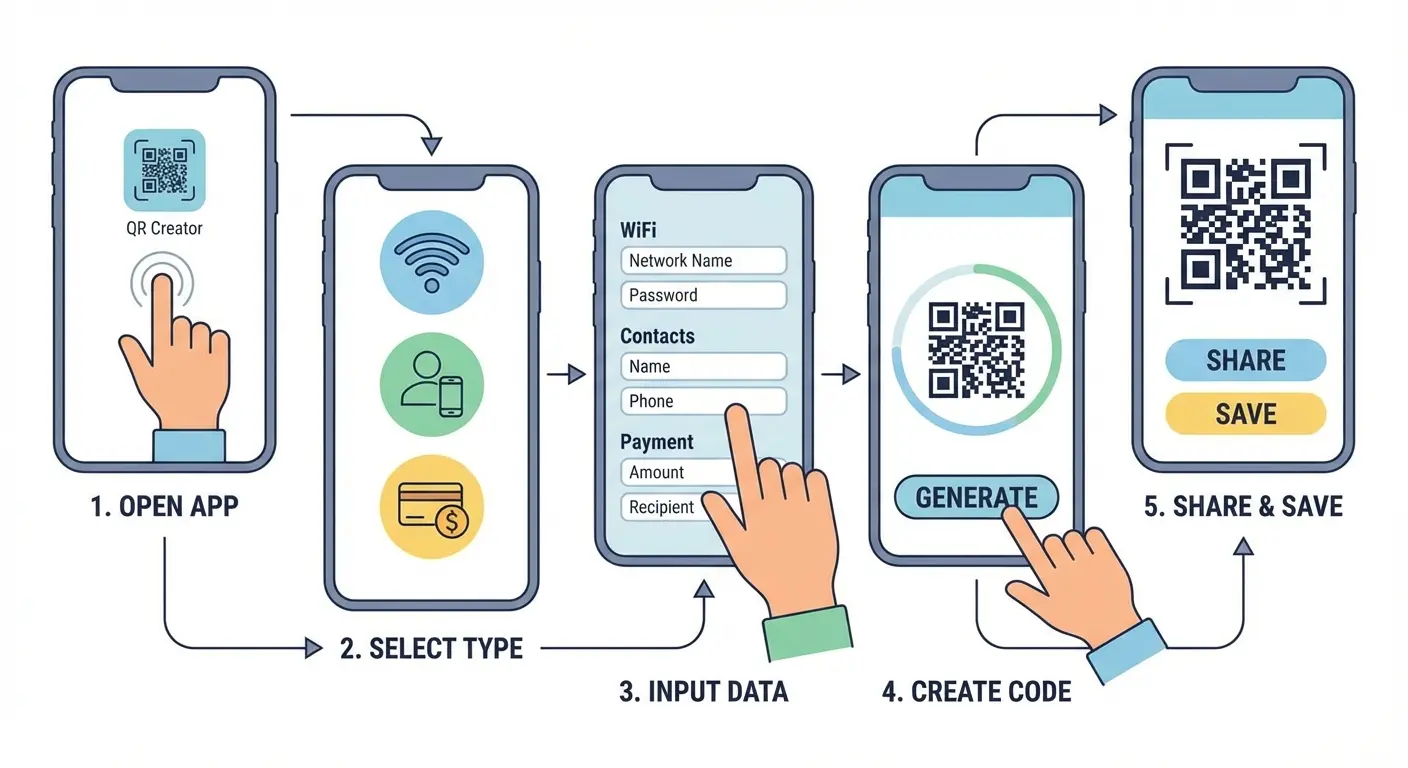
The WiFi Password Thing That Changed My Life
This single use case converts more people than any other because the problem it solves is so universally frustrating. Every host has experienced it: a guest asks for the WiFi password, and you either can't remember it yourself, or it's some impossible string like "K9$mPq2#vL8x" that your router generated years ago.
You're reading letters off the router sticker. "Capital T... no wait, lowercase... is that a 1 or an I? Hold on, let me get my glasses." Your guest is typing and deleting, typing and deleting. It takes five minutes and everyone's annoyed.
Both iOS and Android have built-in WiFi QR code generation that eliminates this entire ordeal. On iPhone (iOS 11 and later), when someone connects to your WiFi and you tap "Share Password," the system generates a QR code automatically that the other person can scan. On Android, go to Settings > Network & Internet > WiFi, tap your connected network, then tap "Share" to reveal a QR code anyone can scan to join instantly.
No password typing, no character confusion, no spelling it out loud while your neighbors listen.
Here's the smart part: take a screenshot of your WiFi QR code and save it to your phone's favorites or a dedicated "Home Info" album. Now, whenever guests visit, you just pull up that screenshot and let them scan it. You can even text it to guests before they arrive so they're connected the moment they walk through the door. Some people print the QR code and frame it near their entryway or place it on their coffee table.
Contact Info Exchange That Actually Works
Business cards suck. They get lost. They go through the washing machine. And even when you keep them, you still have to manually type everything into your phone. Which you never do. So they just sit in a drawer.
Asking someone to type your contact information into their phone while you're both standing there is awkward and time-consuming.
QR codes solve both problems by encoding your complete contact details (name, phone, email, company, address, social media profiles) in a format that populates all fields automatically when scanned.
On iPhone, you can generate a contact QR code using the Shortcuts app. Create a new shortcut, add the "Get My Contact" action, then add "Generate QR Code" action, and finally "Show Result." Run this shortcut whenever you need to share your information. On Android, many phone manufacturers include this feature directly in the Contacts app. Open your contact card, look for a QR code icon or "Share" option, and select QR code. If your phone doesn't have native support, free web tools like QR Code Generator or Flowcode let you create vCard QR codes by entering your information once.
Put it everywhere:
Add it to your email signature so every recipient can save your contact with one scan. Include it on your resume or portfolio so hiring managers can reach you instantly. Display it on your laptop during video calls so other participants can connect with you without interrupting the meeting. Print it on the back of your business cards. Some professionals even set their phone's lock screen wallpaper to display their contact QR code, turning every casual phone display into a networking opportunity.
My friend Sarah does graphic design. She went to some networking thing last month and showed me her trick. Someone asked for her contact info, she just flipped her phone over - she's got the QR code on a sticker on her case. Done. They had everything: her email, portfolio, Instagram, all of it. She said it's way better than business cards because people actually save it instead of losing it in their car.
Payment Without the Awkward Back-and-Forth
The restaurant bill arrives, everyone agrees to split it, and then comes the tedious username exchange: "I'm on Venmo, what's your handle?" "It's J-Smith... no wait, J-dot-Smith... actually it might be JSmith2019." Someone sends money to the wrong person. Someone else can't find you because your display name doesn't match your username. Five minutes later, you're still sorting out who owes what while the server hovers nearby.
Every major payment app (Venmo, PayPal, Cash App, Zelle) includes QR code functionality specifically designed to eliminate this friction.
In Venmo, tap the scan icon at the top of the home screen, then switch to "My Code" to display your personal QR code. Anyone can scan it to send you money instantly without knowing your username. Cash App works similarly: tap your profile icon, select "My Code," and your scannable payment code appears. PayPal users can generate payment QR codes for specific amounts, making it perfect for splitting bills: you create a code requesting $27.50, and everyone who owes that amount scans and pays in seconds.
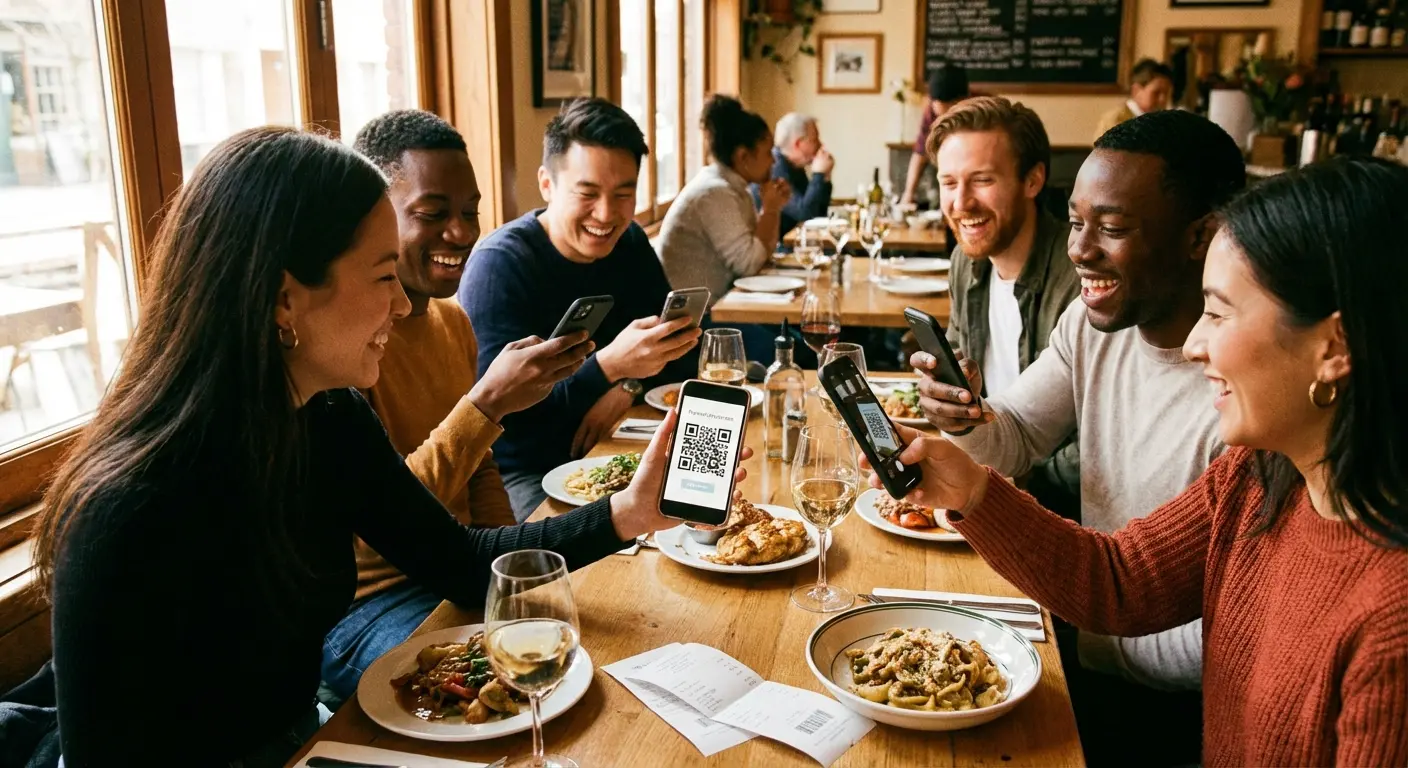
The group dinner scenario transforms completely. When the bill arrives, you quickly calculate each person's share, open your payment app, generate a QR code for that amount, and just hold your phone up so everyone at the table can scan it. No usernames exchanged, no typos, no sending money to strangers with similar names. Works for roommates splitting rent, friends reimbursing you for concert tickets, or small business owners accepting payments from customers.
Using Shortcuts and Tools You Didn't Know Existed
The real versatility reveals itself when you discover your phone's automation tools. iOS Shortcuts and Android's Tasker or similar automation apps can generate QR codes for literally any text, URL, or data string you can imagine. And they can do it on demand without opening a browser or third-party app.
This transforms your phone from a device that generates a few pre-set code types into a custom QR factory limited only by your creativity.
On iOS, the Shortcuts app includes a "Generate QR Code" action that accepts any input. You can create a shortcut that prompts you to enter text, then immediately generates a QR code for that text. Or you can create shortcuts that generate specific codes you use repeatedly: a shortcut that creates a QR code linking to your LinkedIn profile, another that generates a code containing your home address for delivery drivers, another that creates a WiFi code for your guest network. Run the shortcut, and the code appears instantly - no web tools, no app switching, no data entry.
The practical applications multiply quickly once you understand the possibilities. Create a shortcut that generates a QR code for your current location (useful for meeting friends in crowded venues). Build one that encodes your car's VIN and insurance information for accident documentation. Make one that generates a pre-written text message to your spouse saying "I'm leaving work now" that others can scan to send on your behalf.
The automation isn't just about convenience - it's about creating custom solutions for recurring situations that no pre-built app addresses.
Quick setup:
Figure out what you're sharing. Pick a method (I'll tell you which one in a sec). Make the code. Test it by scanning with a second device. Save the code image to your phone's photos. Optional: print it for physical distribution or set as wallpaper. Optional: create a shortcut for codes you'll generate repeatedly.
Sharing Content Through QR Codes
QR codes solve the problem of sharing complex information in physical spaces. Event organizers can distribute schedules, small business owners can share menus or product information, teachers can distribute resources. The emphasis is on solving real distribution problems.
The Event Organizer's Secret Weapon
Event organizers face a persistent challenge: getting information to attendees efficiently. Printing full schedules wastes paper and becomes outdated if anything changes. Announcing URLs from a microphone means people mishear them or don't write them down. Asking people to download a special event app creates friction - many attendees simply won't bother.
QR codes solve all three problems by turning every piece of event material into a portal for dynamic, up-to-date information.
Place a QR code on the event program that links to the live schedule - if a speaker cancels or a room changes, you update the web page and every code instantly reflects the change. Print codes on table tents at each session that link to speaker bios and presentation slides. Put a code on name badges that attendees can scan to exchange contact information with each other. Add a feedback code to exit signage so attendees can rate sessions while the experience is fresh.
Each code serves a specific purpose and eliminates a friction point that traditionally required staff intervention or attendee effort.
The generation process is straightforward even for large events. Use a free QR generator website to create codes for each URL you need (schedule page, feedback form, WiFi credentials, venue map). Download all the code images, then insert them into your event materials using any design software or even just Microsoft Word. Print everything at once. The entire process takes maybe an hour for a multi-day conference, and the payoff in attendee experience and data collection is substantial. Some organizers even create a single "master" QR code that links to a simple landing page containing links to all event resources - one code to rule them all.
Small Business Applications
Small business owners operate under constant resource constraints - limited budgets, minimal technical expertise, and never enough time. QR codes offer a rare trifecta of being cheap, easy to implement, and immediately valuable to customers.
Restaurants discovered this during the pandemic and many never went back to physical menus. A QR code on each table linking to a digital menu eliminates printing costs, allows instant updates when items sell out or prices change, and can even link directly to online ordering systems.
Retail stores place QR codes next to products linking to detailed specifications, customer reviews, or demonstration videos - information that would clutter a price tag but helps customers make informed decisions. Service businesses print codes on their windows that link to booking systems, so potential customers walking by after hours can schedule appointments immediately rather than making a mental note to call later (which they usually forget).
The technical barrier is basically zero. Create a simple Google Doc or website with your menu, product catalog, or service information. Generate a QR code linking to that URL using any free generator. Download the code image and insert it wherever customers need access - on printed table tents, window decals, business cards, or even your vehicle if you run a mobile business.
When information needs updating, you edit the original document; the QR code never changes. This separation of code and content means you can print codes once and update the information behind them infinitely.
The integration of QR codes into everyday business operations has expanded beyond simple information sharing. According to recent cybersecurity alerts from the University of Southern Indiana, businesses and individuals must now be cautious about unsolicited packages containing QR codes sent by cybercriminals attempting to steal personal information. This highlights how mainstream QR technology has become - and why verification of code sources matters more than ever.
Personal Networking Beyond the Business Card
Professional networking traditionally required physical tokens - business cards, brochures, portfolios carried to meetings. QR codes collapse all of that into a single scannable image you can place anywhere, and they connect people to far richer information than a business card ever could.
Instead of listing three pieces of contact information on a 3.5" × 2" card, a QR code can link to a landing page with your resume, portfolio, testimonials, social media profiles, calendar booking link, and contact form - everything someone needs to understand who you are and how to work with you.
The landing page itself doesn't require web development skills. A simple Linktree, Carrd, or Google Sites page takes fifteen minutes to set up and costs nothing. Add your professional headshot, a brief bio, and links to your LinkedIn, portfolio, email, and phone number. Generate a QR code linking to this page, and now you have a universal networking tool.
Set it as your phone's lock screen wallpaper so every time you check your phone in a meeting or coffee shop, it's visible. Print it on stickers and place them on your laptop, notebook, or car dashboard. Include it in your email signature and Zoom virtual background. Each placement is a passive networking opportunity that requires zero effort beyond the initial setup.
The advantage over traditional business cards is the ability to update your information without reprinting anything. Change jobs? Update your landing page and every QR code ever printed still works, now pointing to current information. Add a new portfolio piece? It appears instantly for anyone scanning your code.
This permanence makes QR codes ideal for situations where you can't update physical materials easily: printed conference programs, podcast show notes, YouTube video descriptions, or book author pages. The code remains static while the destination evolves with your career.
I was at my sister's wedding last month. Someone asked how to connect to the venue WiFi. I pulled up the QR code I'd made (because I'm that person who makes QR codes for other people's weddings, apparently). Ten people scanned it in like 30 seconds. Felt like a wizard.
Don't Get Scammed
The convenience of QR codes - their ability to execute actions with a single scan - is also their security vulnerability. Unlike a typed URL where you consciously see every character you're entering, QR codes obscure their destination until after you've scanned.
This creates opportunities for malicious actors to disguise dangerous links as legitimate ones. The good news is that your phone's built-in preview system gives you everything you need to make informed decisions. The key is using that preview instead of reflexively tapping every notification that appears.
The security risks have become sophisticated enough to warrant institutional warnings. The University of Southern Indiana's IT Security team recently issued an alert about cybercriminals sending unsolicited packages containing items of little value paired with QR codes designed to direct victims to fake websites that steal personal information or secretly install malware on devices. This demonstrates that QR-based attacks have evolved beyond simple phishing attempts into elaborate social engineering schemes.
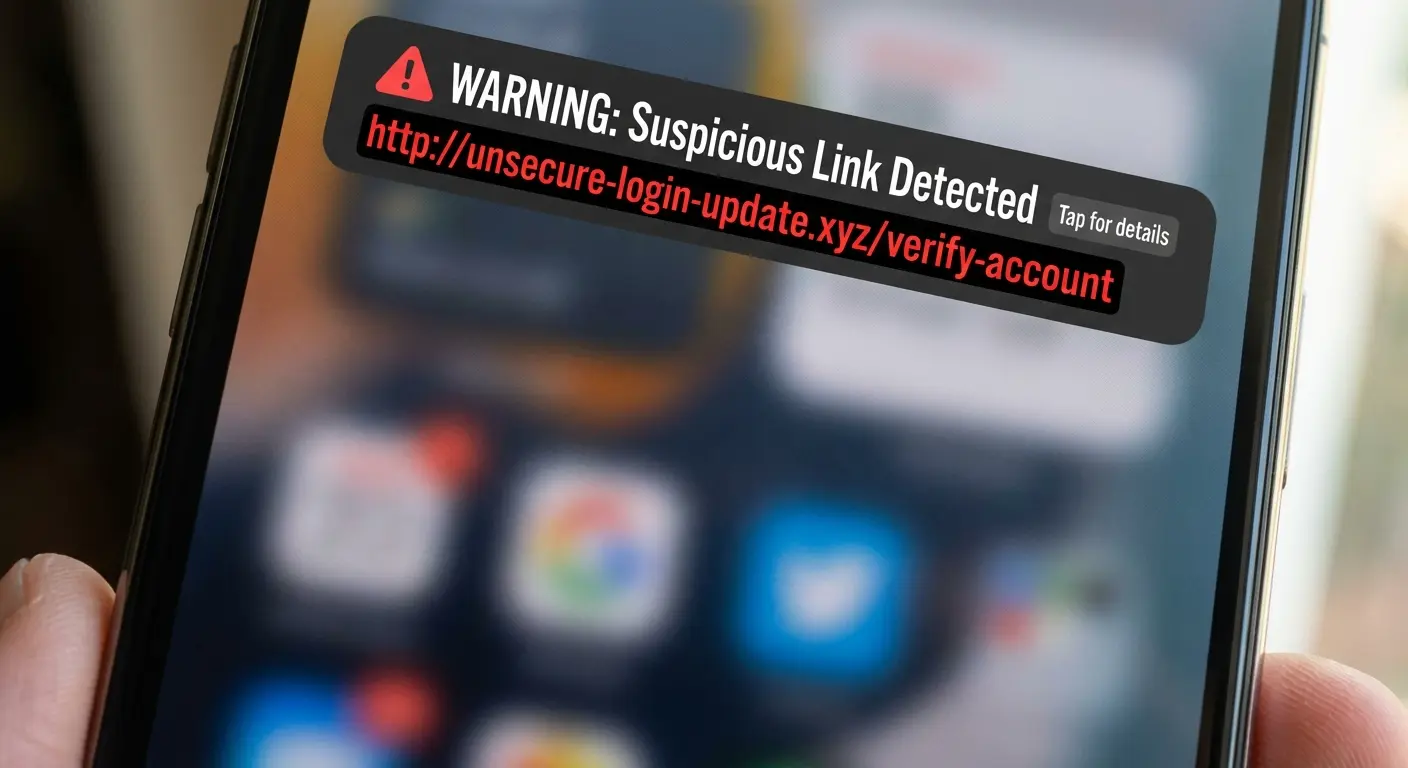
The URL Preview Is Your First Defense
Every modern smartphone displays a preview notification before executing a QR code action. This notification shows the actual URL or data the code contains, giving you a critical moment to evaluate before proceeding. This preview is your security checkpoint - treat it with attention rather than waving everything along automatically.
Look, I know you want to just tap and go. But read that preview. Takes two seconds. Could save you from some scammer stealing your credit card info.
I'm not trying to make you paranoid. Just... read it.
Look for domain mismatches first. If you're scanning a code on a Starbucks table tent, the URL should contain "starbucks.com" somewhere. If it shows "starbuckspromo.net" or "starbucks-rewards.co," that's a red flag. Legitimate companies use their actual domain names.
Phishing attempts often use domains that sound similar but aren't quite right: "amaz0n.com" with a zero instead of an 'o', or "paypa1.com" with a number one instead of an 'l'. These substitutions are obvious when you read the URL carefully but invisible when you're scanning quickly.
Watch for suspicious URL structures. Legitimate business QR codes usually lead to clean URLs like "company.com/menu" or "event.com/schedule." If you see a URL filled with random characters, excessive parameters, or IP addresses instead of domain names (like "192.168.1.1/redirect?user=x8kf"), be skeptical. While not all complex URLs are malicious, they warrant extra scrutiny. Similarly, be cautious with shortened URLs from services like bit.ly or tinyurl unless you trust the source completely - these services obscure the final destination, which is exactly what attackers want.
Before you tap:
Does the URL domain match the expected company or organization? Are there any character substitutions (0 for O, 1 for l) in the domain name? Is the URL structure clean and logical, or filled with random strings? If it's a shortened URL, do you trust the source that provided the code? Does the context make sense (restaurant code leading to menu, not payment)? Is the QR code on official material, or a sticker that could be covering something? If anything feels off, can you access the same information by typing the company's known URL?
Public QR Codes and the Sticker Problem
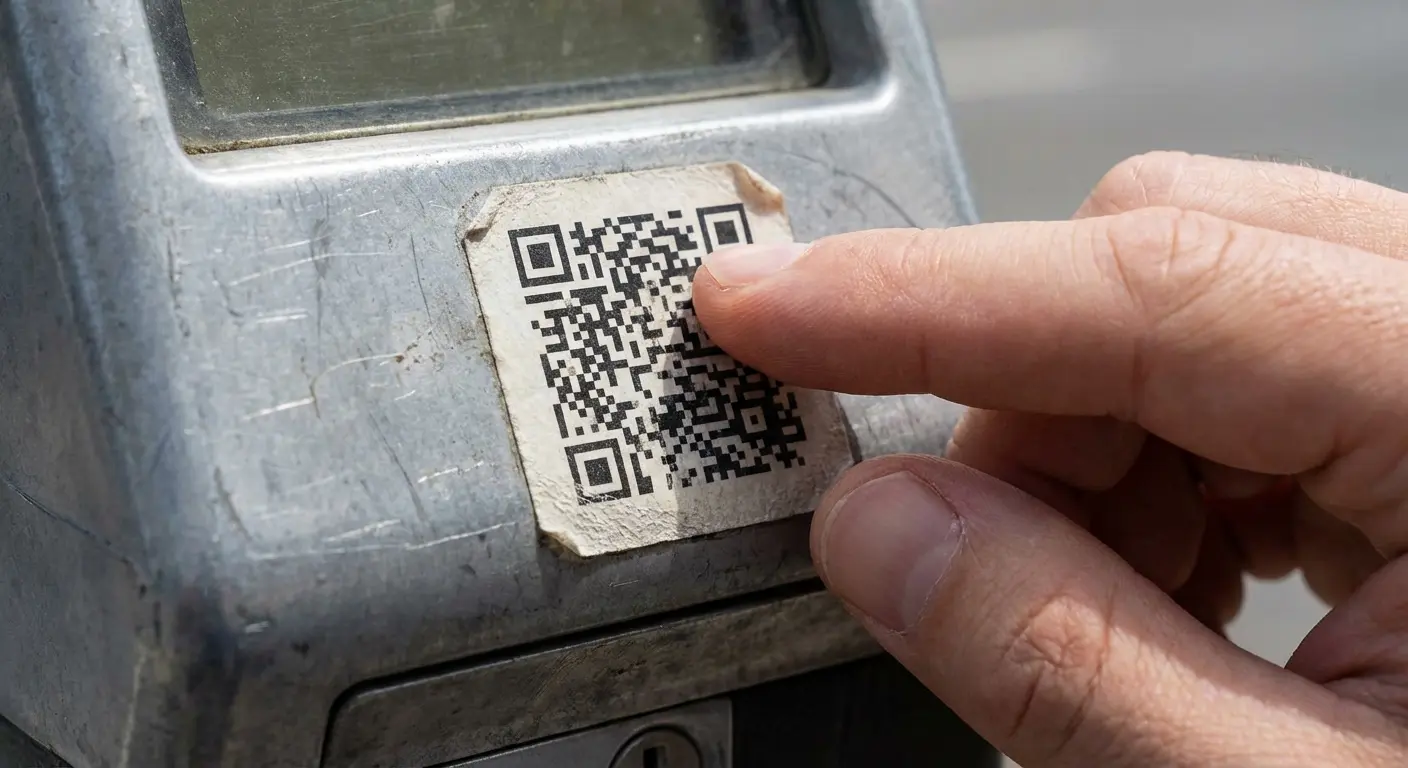
The sticker attack is elegantly simple and disturbingly effective. A scammer prints QR codes linking to phishing sites or payment scams, converts them into stickers, and places them over legitimate codes in public spaces.
You think you're scanning the restaurant's menu code or the parking meter's payment code, but you're actually scanning the attacker's code instead. The visual difference is often minimal - both codes look like black and white squares - but the destination is completely different.
Parking meters have become prime targets. The legitimate code leads to the city's parking payment system; the fraudulent sticker leads to a fake payment page that captures your credit card information without paying for parking. You discover the scam only when you return to find a ticket on your windshield. Restaurant tables are another common target, where fake menu codes lead to lookalike websites that harvest your personal information or prompt app downloads containing malware.
Physical inspection reveals most sticker attacks. Run your finger over the QR code - does it feel raised or textured like a sticker, or is it flush with the surface like a printed element? Look at the edges. Are there clear sticker boundaries, or does the code blend seamlessly into the material?
Check if the code seems newer or cleaner than the surrounding signage - a pristine QR code on a weathered sign suggests recent placement. If you're at a restaurant or business, compare codes on different tables or locations. If they look different or are positioned inconsistently, that's suspicious.
When in doubt, ask. Restaurant staff can show you the official menu code or direct you to their website. Parking meter payment systems usually have the official URL printed on the meter itself - type it manually rather than scanning an unknown code. For any payment-related QR code in a public space, extra caution is warranted. The thirty seconds you spend verifying legitimacy is infinitely better than the hours you'll spend dealing with identity theft or fraudulent charges.
When to Just Type the URL Instead
QR codes optimize for speed and convenience, but some situations demand the opposite: deliberate, verified action where you're absolutely certain of your destination. Any interaction involving money, passwords, personal identification, or account access falls into this category. The convenience of scanning doesn't outweigh the risk of credential theft or financial fraud.
Banking and financial services should trigger automatic skepticism. If you receive an email or text claiming to be from your bank with a QR code for "urgent account verification," don't scan it. Banks don't operate this way. Type your bank's URL directly into your browser or use their official app. The same principle applies to payment requests. If someone sends you a QR code demanding payment for a service or product, verify the request through a separate communication channel before scanning. Scammers impersonate delivery services, utility companies, and government agencies with fake payment codes.
Login credentials are similarly sensitive. If a QR code promises to log you into a service, be extremely cautious. Legitimate services like WhatsApp Web use QR codes for device pairing, but these codes are displayed within the official app or website you've navigated to intentionally - not sent via email or text. If you're unsure whether a QR login is legitimate, skip it and use traditional username/password authentication instead. The extra minute of typing is insignificant compared to the consequences of compromised credentials.
Here's my rule: the more sensitive the action, the less I trust QR codes from unexpected sources. Menu? Probably fine. WiFi access at a coffee shop? Likely safe. Payment request from an unknown sender? Type the URL manually. Account verification from your "bank"? Call your bank directly using the number on your card.
When Your Phone Won't Scan
Most scanning failures are physical or environmental, not software-related. Poor lighting, wrong distance from the code, dirty camera lens, case interference, damaged or low-quality printed codes, and disabled camera permissions cause the vast majority of problems.
Understanding the technical requirements helps troubleshoot most problems. According to research on QR code scanning mechanics, modern smartphone cameras require proper lighting and positioning to clearly identify QR codes, with poor lighting making scanning difficult and proper alignment being essential since codes positioned too closely or too distantly may not scan accurately. These physical factors cause the vast majority of scanning failures, not software glitches.
The Distance and Angle Problem
Camera focus has an optimal range, and QR codes have a minimum size requirement for pattern recognition. These two factors create a scanning "sweet spot" that most people discover through trial and error.
When you hold your phone too close to a QR code, the camera can't focus properly - the code appears blurry, and the pattern recognition algorithm can't distinguish individual modules. Hold it too far away, and the code becomes too small in the frame for the algorithm to detect the corner markers and decode the pattern.
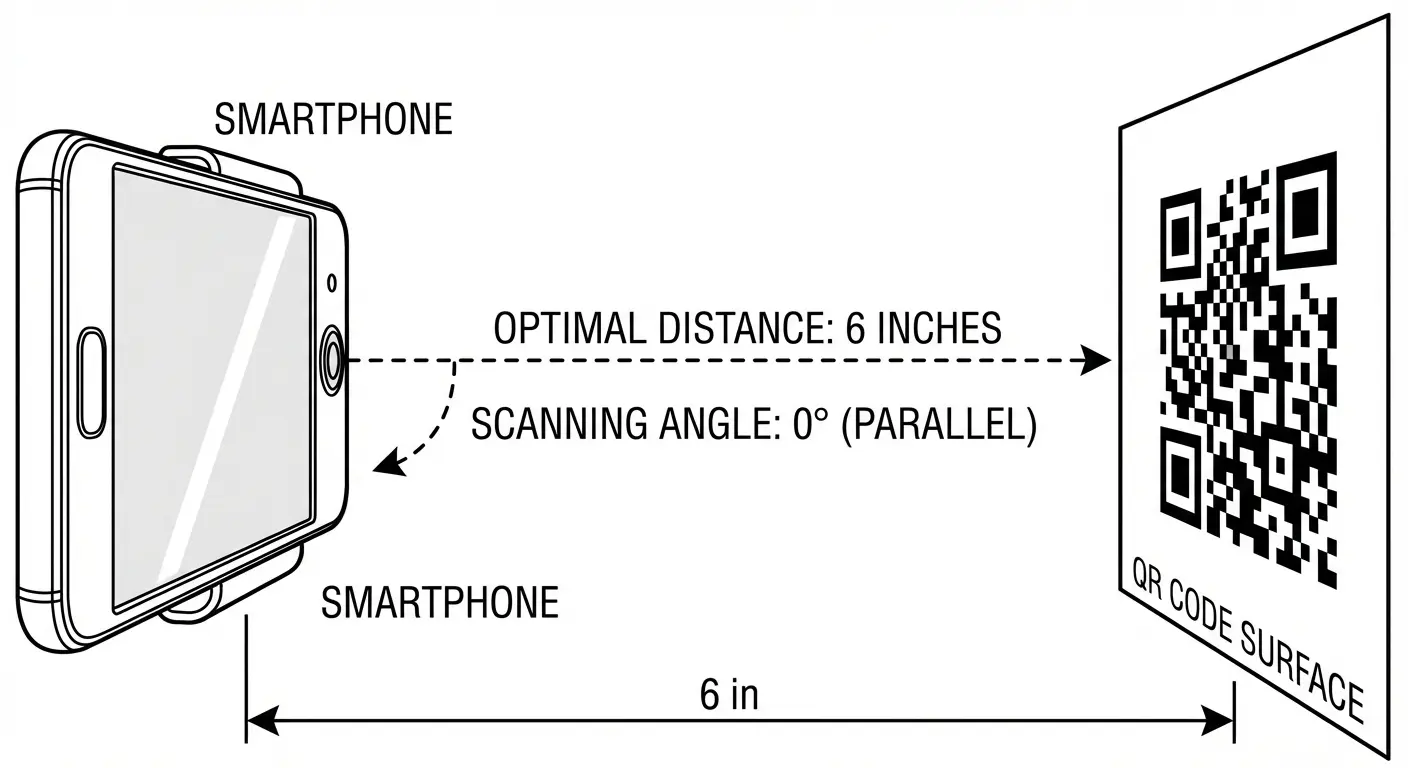
Usually works best around 4-8 inches away. Your phone might be different. Start at about 6 inches and adjust based on your phone's response. If nothing happens after two seconds, move slightly closer or farther until the notification appears. Once you find the sweet spot for your particular phone, that distance becomes muscle memory.
Angle matters as much as distance. QR codes are designed to be readable from multiple angles, but extreme tilts create distortion that confuses recognition algorithms. Hold your phone parallel to the surface containing the code - if the code is on a flat table, your phone screen should be parallel to that table, not tilted at 45 degrees. If you're scanning a code on a wall poster, face the poster straight-on rather than from the side.
When scanning fails repeatedly, try this: start at 6 inches away with your phone parallel to the code. Hold steady for two full seconds - recognition isn't instant. If nothing happens, move one inch closer and hold again. Still nothing? Move back to 8 inches. Adjust angle to ensure you're facing the code directly.
When Your Phone Case Is Blocking the Camera
Protective cases serve an essential purpose - they prevent expensive screen replacements and keep your phone functional after drops. But some cases, particularly rugged or military-grade options, create unintended consequences for camera-dependent features like QR scanning. The problem manifests in two ways: physical obstruction and shadow casting.
Physical obstruction occurs when a case's raised bezel around the camera cutout extends high enough to block the camera's field of view at certain angles. When you hold your phone parallel to a QR code (the optimal scanning angle), this raised edge can intrude into the frame, particularly if the code is small or you're scanning at close range. The camera sees the code, but it also sees the case edge, which disrupts pattern recognition.
Shadow casting happens when the case's raised elements block ambient light from reaching the QR code at close distances. Even in a well-lit room, the case creates a localized shadow exactly where you need light for scanning.
If you're experiencing consistent scanning problems despite following all the positioning and distance guidelines, remove your case temporarily and try again. If scanning suddenly works perfectly, your case is the problem. This doesn't mean you need to go case-free - it means you need a case designed with camera functionality in mind.
My phone case was blocking my camera for like two weeks and I thought my camera was broken. Felt like an idiot when I figured it out.
Beyond QR codes, case interference affects regular photography, especially macro shots or scanning documents. If you've noticed your photos seem slightly darkened at edges or you struggle with close-up focus, case interference might be the culprit.
Software Settings That Disable QR Scanning
Even when your camera hardware works perfectly and your positioning is optimal, software settings can silently disable QR scanning functionality. This is particularly common after phone updates, factory resets, or when setting up a new device - the default settings don't always enable every feature.
On iPhone, open Settings, scroll down to Camera, and look for the "Scan QR Codes" toggle. If this is disabled, your camera app simply won't recognize QR codes no matter how perfectly you position them. Enable it, and scanning starts working immediately.
On Android, the path varies by manufacturer, but generally: open your Camera app, tap the settings gear icon, and look for "Scan QR codes" or "QR code scanning" in the options. Some Android phones bury this setting under "Useful features" or "Smart features" rather than directly in camera settings.
Camera permissions create a different problem. If you're trying to use a third-party QR scanning app and it's not working, check whether you've granted camera access. On iPhone: Settings > Privacy > Camera, then verify the app has permission. On Android: Settings > Apps > [App Name] > Permissions > Camera, and ensure it's set to "Allow." Without camera permission, the app can't access your camera hardware at all, let alone scan codes.
One often-overlooked setting is the "Suggestions" or "Siri Suggestions" feature on iPhone, which powers some of the automatic QR recognition in photos and screenshots. If you've disabled Siri or its suggestions to preserve privacy, you might have inadvertently disabled features that make QR scanning more convenient.
Advanced Uses: Turning Your Phone Into a QR Distribution Tool
For readers who want to go beyond basics, we'll explore using your phone to create dynamic QR codes (codes that can be edited after creation without changing the image), tracking scan analytics, creating codes with custom designs or logos, and setting up automated QR generation for recurring tasks.
Dynamic vs. Static QR Codes
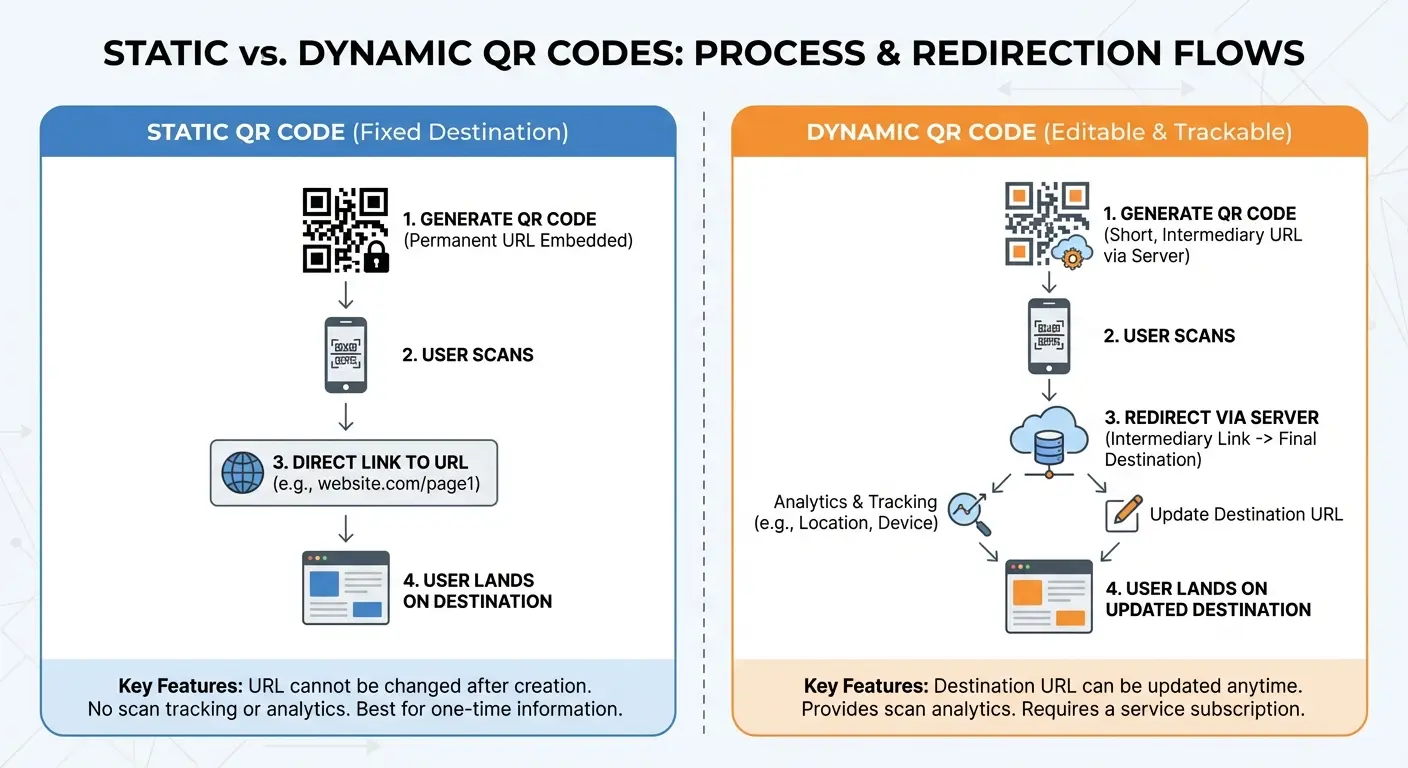
The QR codes you generate from your phone's built-in tools are almost always static codes - the information is encoded directly into the pattern itself. Scan a static WiFi code, and the password is literally embedded in those black and white squares. This permanence is perfect for information that never changes: your contact details, a permanent website URL, or WiFi credentials that you'll keep indefinitely. Once generated, these codes work forever without requiring any server or service to remain active.
Dynamic QR codes work fundamentally differently. The code itself contains only a short redirect URL pointing to a service that then forwards to your actual destination. When someone scans the code, they hit the redirect service first, which then sends them to whatever URL you've configured.
Here's why this matters: you can change the destination URL anytime without changing the QR code image itself. Print 10,000 codes on product packaging, and if you need to update the linked information, you simply change the redirect destination - all those printed codes instantly point to the new content.
The catch? Dynamic codes cost money usually. And if the service shuts down, your codes die. Static codes work forever and they're free, but you can't edit them.
When to use static: personal use cases (contact info, home WiFi), situations where the information truly never changes, codes you're sharing digitally rather than printing (easy to regenerate if needed), and when you want zero ongoing dependencies or costs.
When to use dynamic: business applications where information updates frequently (menus, pricing, event schedules), any situation involving printed materials with long lifespans (product packaging, permanent signage, published books), when you need scan analytics to measure engagement, and when you're running marketing campaigns that require A/B testing different destinations.
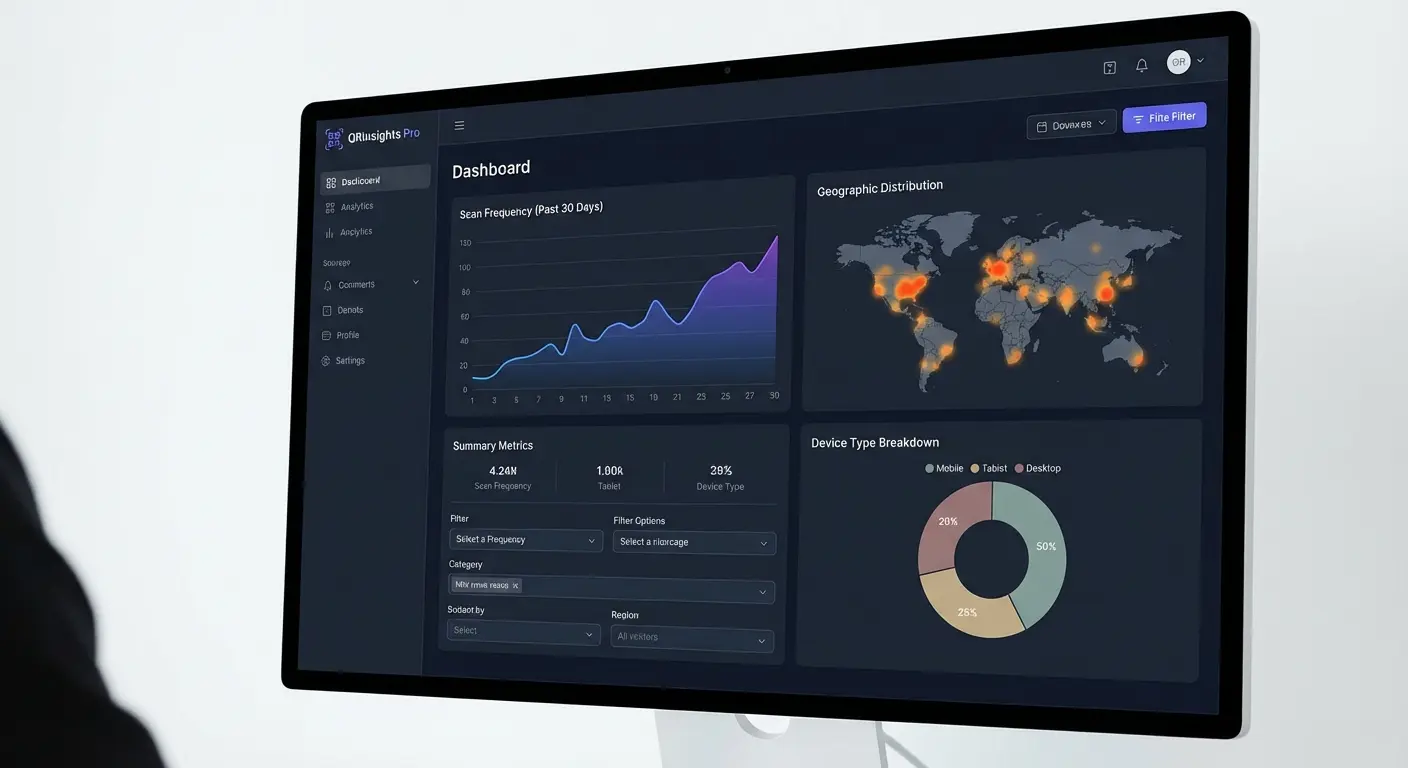
Analytics: Knowing Who Scanned What and When
The moment someone scans your QR code, a story begins - a story that static codes can never tell you but dynamic codes with analytics capture in detail. You learn how many people scanned the code, what time of day scanning peaks, what geographic regions show the most engagement, what devices people use (iOS vs. Android), and whether people scan once or return multiple times. This data transforms QR codes from simple information delivery tools into measurable marketing channels.
For business owners, these analytics answer critical questions. You place QR codes on table tents at your restaurant - analytics reveal which tables get scanned most frequently, suggesting optimal placement for promotions. You print codes on product packaging linking to assembly instructions - scan data shows whether customers access the information or just throw it away, informing whether you need clearer calls-to-action. You run a print ad campaign with a QR code offer - analytics prove whether anyone engaged with it, justifying (or questioning) the ad spend.
Event organizers gain even more value. Track which sessions at a conference generate the most QR scans for speaker information, revealing which topics resonate most. Monitor real-time scanning of event check-in codes to understand arrival patterns and adjust staffing. Compare scan rates across different promotional materials to optimize future event marketing. The data isn't just interesting - it's actionable intelligence that improves decision-making.
Free services like QR Code Generator, Flowcode, and Bitly offer basic analytics even on free tiers: total scans, scan timing, and general location data. Paid tiers add device type, unique vs. repeat scans, and integration with tools like Google Analytics for deeper analysis. The key is deciding what metrics matter for your use case. If you're just sharing your contact info, analytics are overkill. If you're running a business or event, they're invaluable for understanding engagement and ROI.
Customizing QR Codes Without Breaking Them
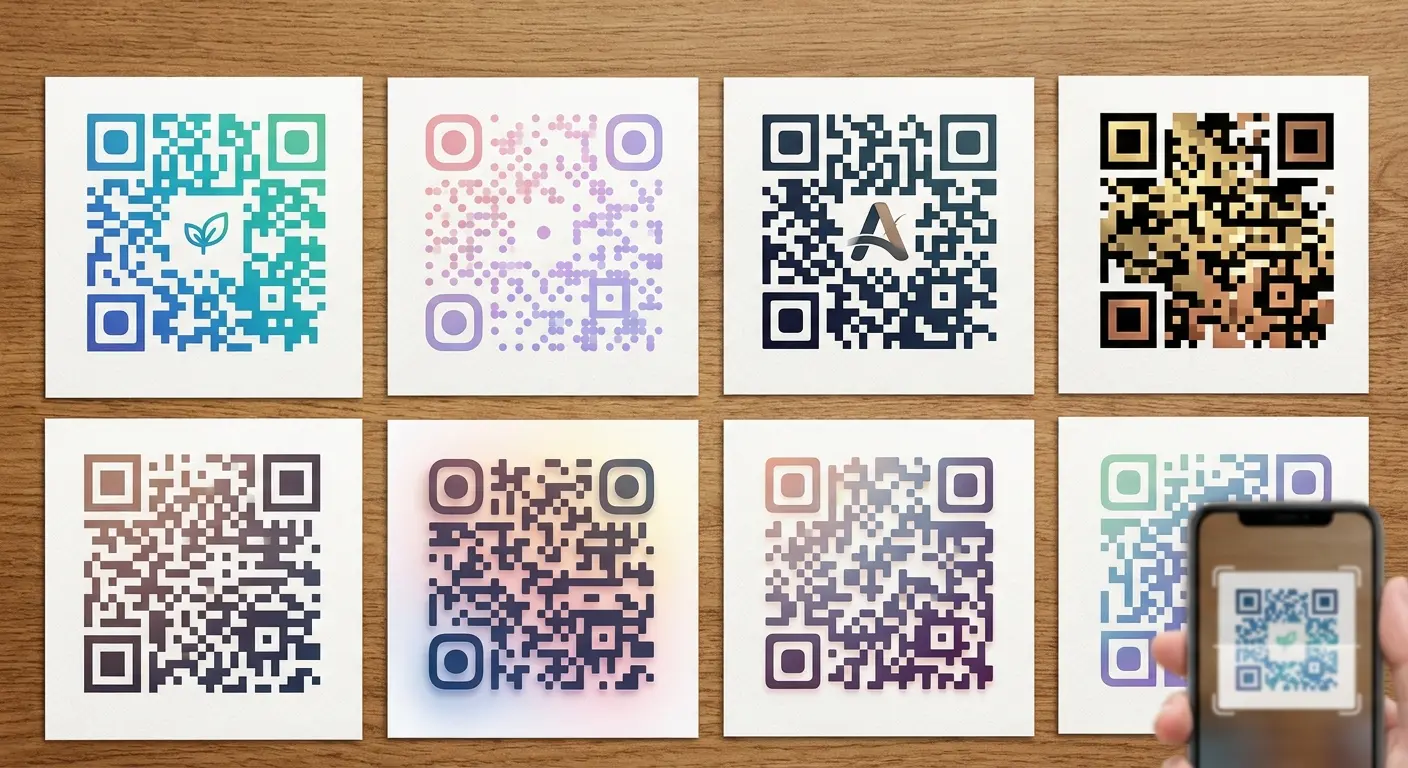
Standard QR codes are functional but visually boring - black squares on white backgrounds that scream "technical element" rather than blending with your brand identity. Customization transforms these utilitarian squares into design elements that feel intentional and professional. You can change colors, add gradients, incorporate your logo, round the corners, and adjust the pattern style - all while maintaining scannability if you understand the constraints.
The fundamental rule is contrast. QR scanners detect patterns by distinguishing dark modules from light backgrounds. As long as sufficient contrast exists, the specific colors don't matter. A navy blue code on a cream background scans just as well as black on white. Where people break their codes is using low-contrast combinations: light gray on white, or dark colors on dark backgrounds. The scanner can't distinguish the pattern, so it fails. Aim for at least a 3:1 contrast ratio, though higher is safer.
Logo placement requires care. QR codes have built-in error correction that allows up to 30% of the code to be damaged or obscured while remaining scannable. This error correction lets you place a logo in the center of the code - the most visually prominent position - without breaking functionality. The key is size: your logo should cover no more than 20-25% of the code's total area, and it should have a light border or background so it doesn't blend with the code pattern. Many QR generators include logo upload features that automatically size and position logos safely.
Pattern customization offers subtler branding opportunities. Instead of standard square modules, you can use rounded dots, circles, or even custom shapes. You can style the three corner position markers differently from the data pattern. You can add gradients that transition from one brand color to another. These modifications maintain scannability as long as the basic structure remains intact: clear corner markers, sufficient module contrast, and recognizable pattern differentiation.
I tried making a custom QR code once and made it too fancy. Looked cool but nobody's phone could scan it. Had to redo it with boring colors.
Test every customized code before printing or distributing. Scan it with multiple devices (iPhone and Android), in different lighting conditions, and at various distances. If any combination fails, your customization has gone too far. You want codes that are both beautiful and functional - neither attribute should compromise the other.
Wrapping This Up
Look, here's what I want you to remember: your phone makes these things. Not just scans them. Makes them.
Most people will keep doing what they've always done. Just scanning stuff. That's fine. But you can do more now.
Next time you're spelling out your WiFi password, remember: you don't have to do this. Make a code. Save yourself the hassle.
The WiFi password thing is what makes people get it. Everyone hates spelling out passwords. Start with that. It's easy and you'll use it immediately. Everything else - contact cards, payment codes, whatever - you can figure out later if you want.
Or don't. I'm not your boss.
But seriously, the WiFi thing. Do that one.
Anyway, that's everything I know about QR codes. Which is probably too much. But now you know it too.
If you try this and it doesn't work, I don't know what to tell you. Email me or something.
Good luck with your WiFi password situation.

