


Table of Contents
Your Phone's AI Is Hiding From You
The Background Stuff That's Already Running
Voice Commands: Which Ones Actually Work?
Stop Getting Distracted Before It Starts
Make Your Phone Do Stuff Automatically (It's Easier Than You Think)
Your Camera's AI Does More Than You Think
Turn Your Phone Into a Research Tool That Actually Helps
Privacy Settings You Should Probably Check
The Offline Stuff Nobody Knows About
When to Turn It All Off and Trust Yourself
TL;DR
Your phone can do way more than you're using it for. That's not your fault - phone makers hide all the good AI features because they're scared of overwhelming you. But now nobody can find anything. Most of the AI stuff runs in the background whether you configured it or not. Voice commands stop being gimmicky once you chain them into actual workflows. AI filtering can protect your attention before notifications even hit your screen. Privacy trade-offs matter more than ever, and you should know what's happening on your device versus in the cloud. Offline AI features work better than you'd expect. And sometimes the smartest move is turning features off and doing it yourself.
Your Phone's AI Is Hiding From You
The Problem Nobody Mentions
You've used AI on your phone maybe 20 times today. You just didn't notice. That's the whole point - seamless integration, invisible AI, all that marketing stuff. But here's the problem: you can't use features you don't know exist.
This isn't theoretical. Trying to find out what's available on devices like the Pixel 10 Pro XL is like a hidden objects game, where you have to constantly dig through the interface to uncover features, and if you're lucky, you'll find a few you'll end up using.
Here's the thing: phone makers are terrible at this. They bury the good features because they're scared of overwhelming people. But you know what? Now nobody can find anything useful. Great job, guys.
Most people never move past asking Siri for the weather or using predictive text. Meanwhile, their devices contain actually useful capabilities hidden in settings menus and third-party integrations that they'll never discover.
This isn't about lacking technical knowledge. The whole interface is designed to be simple, which means they hide all the good stuff. Power users get frustrated. Casual users have no idea what they're missing.
Tech companies face this weird paradox when building AI features. Make them too visible, and users feel overwhelmed. Hide them too well, and nobody discovers anything. Most manufacturers choose the second option, which means your phone contains powerful AI capabilities that never surface unless you go hunting.
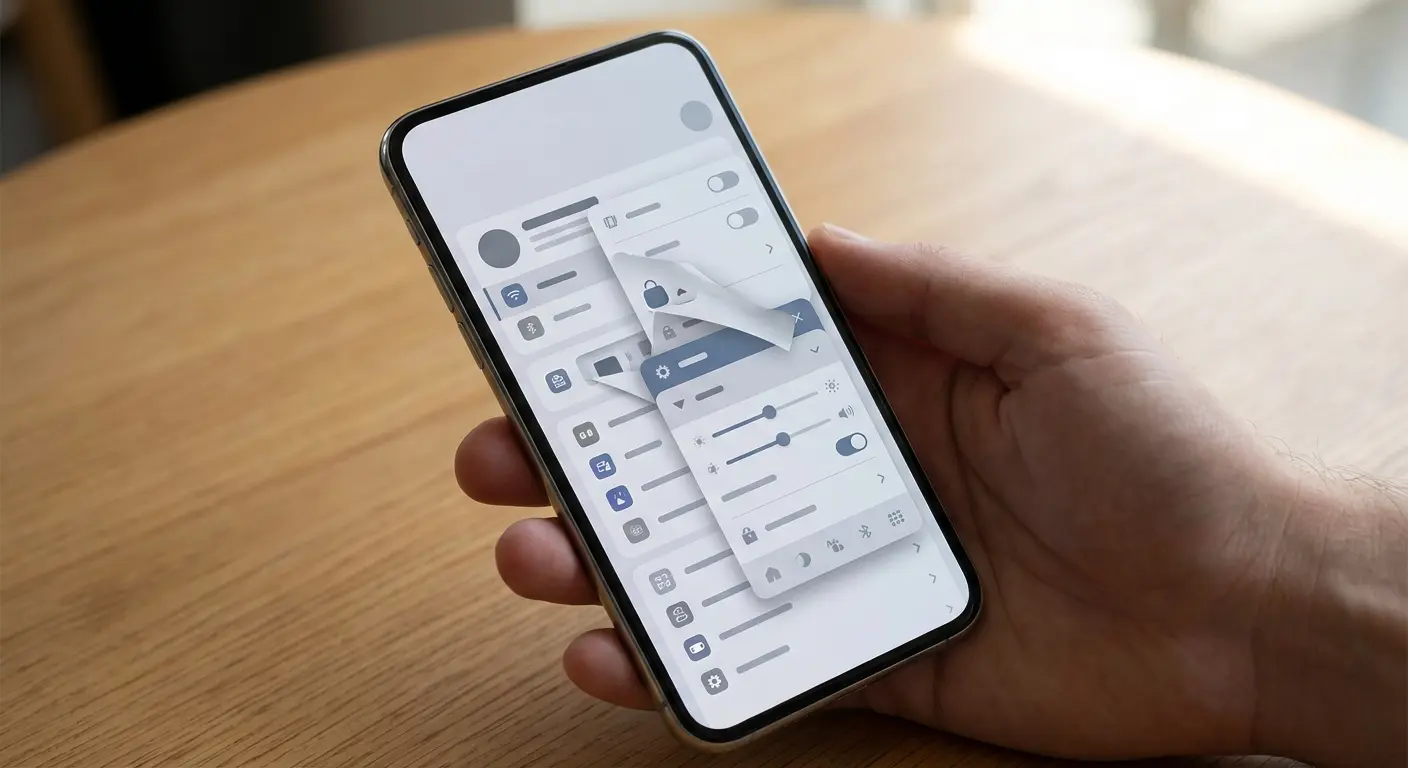
The problem has gotten so bad that manufacturers are finally rethinking their approach. Samsung's Galaxy AI makes it extremely easy to see which features are available on your phone, organizing them in a way that prioritizes accessibility over hidden power features. This shift acknowledges what users have been experiencing: having advanced Samsung AI capabilities means nothing if people can't find them. Understanding how to use AI on your phone effectively starts with knowing where these features live and how to access them without endless menu diving.
The Assistant Trap
Your relationship with phone AI probably started with voice assistants. Siri, Google Assistant, Alexa - they've trained us to think of AI as something we talk to for simple tasks. Set a timer. Check the weather. Play a song.
That mental model is limiting. When you think "AI equals voice commands," you miss the dozens of machine learning processes running silently in your camera app, keyboard, battery management system, and notification handler.
We need to reframe this. AI isn't the assistant. It's the entire substrate of intelligence woven through your operating system, making micro-decisions hundreds of times per day about what to show you, when to show it, and how to optimize your device's performance. Understanding phone settings on Android can help you uncover these hidden AI processes and take control of them.
The Background Stuff That's Already Running
Notification Intelligence That Learns
Your phone's notification system uses AI to rank incoming alerts. It's doing this right now, whether you configured it or not.
Most people never touch their notification settings. They just turn stuff on or off. But here's what you're missing: your device is watching which notifications you open, which ones you ignore, how fast you respond. After a few weeks, it builds this profile of what matters to you. Then it uses that to decide what shows up on your lock screen.
My friend Sarah manages projects and gets absolutely hammered with Slack notifications. When she got a new phone, she kept dismissing shopping app spam immediately - like, the second it appeared - but always opened anything from her boss.
After maybe three or four weeks, her phone figured it out. Work messages started showing up front and center. Shopping stuff got buried in some "less urgent" folder she never looks at. She didn't set up any rules. The phone just watched what she did and learned.
Kind of creepy when you think about it. Also useful.
You can train this system faster by being consistent. Dismiss unimportant notifications immediately. Open critical ones right away. The AI adapts when you give it clear signals. Within a few weeks, you'll notice urgent messages surfacing while promotional emails stay buried. If you're still wondering how do I use AI on my phone for better notification management, start by being intentional about which alerts you engage with and which you dismiss.
Battery Management That Predicts Your Day
Adaptive battery features use machine learning to understand your usage patterns and restrict background activity for apps you rarely open. This isn't just about extending battery life (though that's nice). It's about reducing the mental overhead of managing app permissions manually.
Your phone knows you check email obsessively between 9 AM and 5 PM but rarely after dinner. It knows you open your meditation app every morning at 6:30 AM. It knows which apps you've installed but never use.
That knowledge powers decisions about which processes get priority access to system resources. You can help this by reviewing your battery usage stats monthly and uninstalling apps that consume resources without providing value. The AI can optimize what's there, but it can't fix a cluttered app drawer.
Keyboard Predictions Beyond Autocorrect
Your keyboard doesn't just fix typos anymore. It's trying to predict entire phrases based on who you're texting and how you usually talk to them. After using it for a while - six months, maybe? - it might predict half of what you're trying to say.
It's weird the first time your phone finishes your sentences accurately.
You've probably noticed your keyboard suggests different language when texting your boss versus your best friend. That's contextual AI at work, analyzing your message history to match tone and vocabulary to the situation. The more you accept accurate predictions and correct bad ones, the better this system becomes. It's a feedback loop that compounds over time.
Voice Commands: Which Ones Actually Work?
Chaining Commands Into Workflows
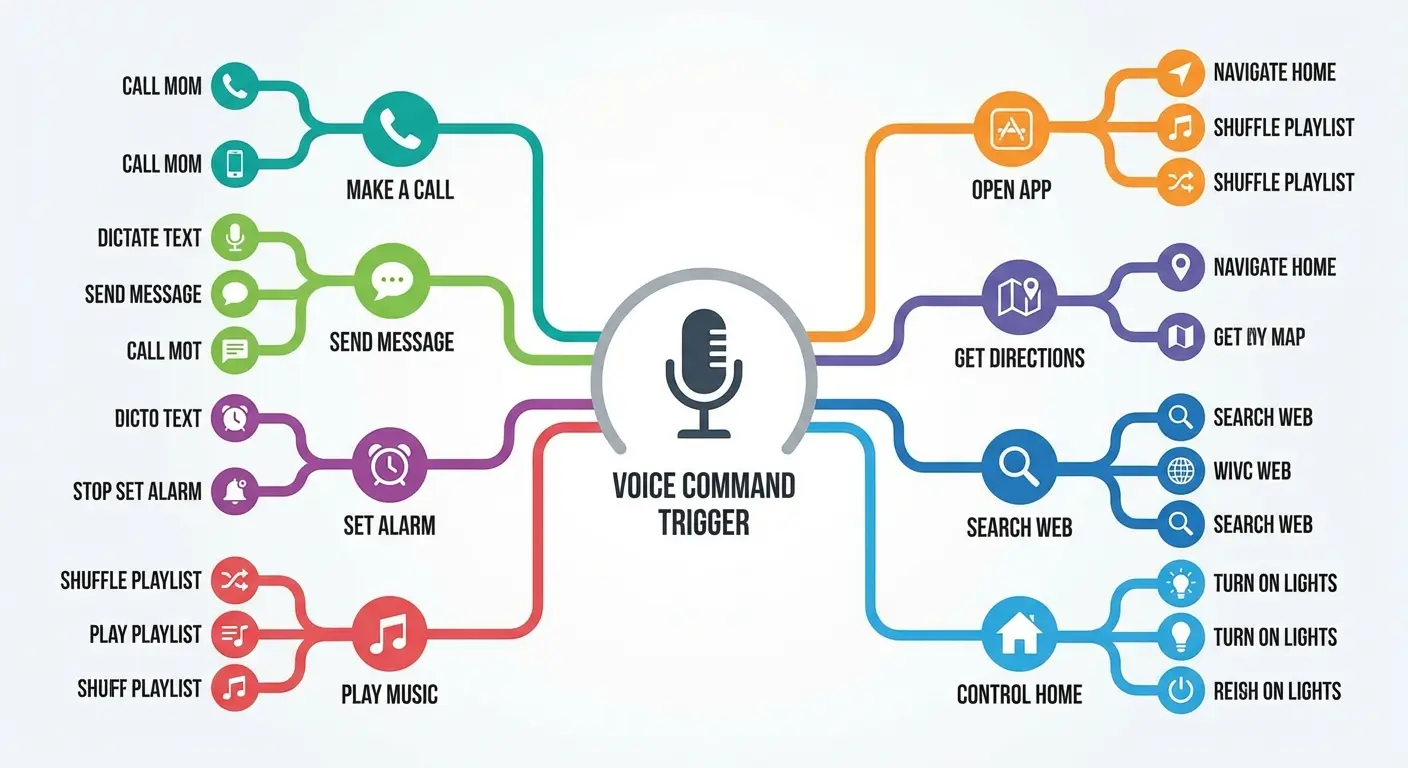
Single-step voice commands (set a timer, call mom) barely scratch the surface. The real power emerges when you chain multiple actions into custom routines.
I know a sales guy who set up a voice command for client meetings. Took him forever to configure - maybe 20 minutes of messing around - but now when he says "client meeting," his phone silences everything except calls, opens his CRM, starts recording, and sets a timer. Does he save two hours a month? I don't know, maybe? He says it's worth it.
You can create a "leaving work" command that texts your partner your ETA, starts navigation home, and queues up your favorite podcast. Or a "focus mode" trigger that silences notifications, opens your task manager, and starts a two-hour timer. These shortcuts require upfront configuration (usually 10-15 minutes per routine), but they eliminate dozens of manual taps daily. The payoff becomes obvious within a week.
Voice Routine Type |
Setup Time |
Daily Time Saved |
Best Use Cases |
|---|---|---|---|
Single-app workflows |
5 minutes |
30-60 seconds |
Morning routines, bedtime prep, workout starts |
Multi-app sequences |
10-15 minutes |
2-5 minutes |
Commute transitions, meeting prep, focus sessions |
Location-triggered chains |
15-20 minutes |
3-7 minutes |
Arriving home/work, entering gym, leaving office |
Time-based automations |
10 minutes |
1-3 minutes |
Daily standup prep, lunch breaks, end-of-day shutdown |
Commands That Understand Context
Newer AI assistants can handle follow-up questions without requiring you to repeat context. You can ask "What's the weather tomorrow?" followed by "What about the weekend?" and the system understands the second question refers to weather.
This makes talking to your phone feel less stupid.
The trick is figuring out which contextual references your specific assistant understands. Google Assistant handles time stuff (tomorrow, next week, last month) better than Siri. Siri handles personal relationships (my wife, my boss, my dentist) more reliably than Alexa. Test the boundaries of your particular system.
Stop Getting Distracted Before It Starts
Smart Email Sorting That Goes Beyond Tabs
Your phone's email app probably offers AI-powered categorization that sorts messages into Primary, Social, Promotions, and Updates. Most people either ignore these categories entirely or find them too aggressive.
You can train these filters to match your specific needs. Mark misclassified emails correctly for a few weeks, and the system adapts. The AI learns that newsletters from specific senders count as "primary" for you, even if they're promotional in format.
Better yet, set up rules that automatically archive entire categories. If you never read promotional emails on your phone (you probably shouldn't), configure your app to skip the inbox entirely for that category. They're still accessible if needed, but they don't compete for your attention.
Focus Modes That Learn Your Tolerance
iOS's Focus modes and Android's Digital Wellbeing features use AI to suggest which apps and contacts should break through during different contexts (work, personal time, sleep).
The default suggestions are generic, but the system improves as you manually allow or deny interruptions. After a month of corrections, your phone develops a surprisingly accurate model of who can reach you when.
You can create multiple focus profiles for different contexts: deep work, meetings, family time, exercise. Each one learns independently, so your "deep work" mode might allow calls from your manager while blocking everything else, whereas "family time" permits your kids' school but silences work Slack.
Focus Mode Training (First 2 Weeks)
Day 1-3: Manually approve or deny every interruption that breaks through
Day 4-7: Note which apps you consistently silence versus engage with
Week 2: Review notification log and adjust allowed contacts list
Week 2: Set up at least 3 distinct focus profiles for different contexts
Week 2: Test location-based triggers (home, work, gym)
End of Week 2: Compare interruption frequency to Week 1 baseline
Ongoing: Correct misclassified interruptions within 5 seconds of receiving them
For professionals who need to manage notifications while staying accessible, check out our guide on managing notifications on iPhone for advanced filtering techniques.
Make Your Phone Do Stuff Automatically (It's Easier Than You Think)
Location Triggers That Work
Your phone knows where you are (with your permission), and you can use that data to automate routine tasks. When you arrive at the gym, your phone can automatically open your workout app and start your playlist. When you leave the office, it can text your partner and disable work email notifications.
These automations require apps like Shortcuts (iOS) or Tasker (Android), but they're more accessible than they used to be. You don't need to write code anymore. You're filling out a form: "When I arrive at [location], do [action]."
The reliability has improved dramatically in the past two years. Location-based triggers used to fire randomly or not at all. Current implementations use geofencing that's accurate to about a block or so, which is tight enough for practical use.
Time-Based Routines That Flex With Your Schedule
You can configure your phone to automatically enter Do Not Disturb during your typical meeting hours, but smarter implementations use calendar integration to adjust based on your schedule.
If your Monday morning meeting gets rescheduled to Tuesday afternoon, your phone's AI recognizes the calendar change and shifts your focus mode accordingly. You're not locked into rigid time blocks. The automation flexes with your reality.
This requires granting calendar access to your automation app, which some people resist for privacy reasons (we'll address that concern later). The trade-off is convenience versus data sharing, and only you can decide where that line falls.
Your Camera's AI Does More Than You Think
Processing That Happens Before You Tap the Shutter
Your phone's camera app uses AI constantly, not when you apply filters afterward. It's analyzing the scene in real-time, adjusting exposure, focus, and color balance before you even take the shot.
Modern smartphones capture multiple frames every time you press the shutter button, then use AI to merge them into a single optimized image. This happens in milliseconds, completely invisibly. You think you're taking one photo. Your phone is taking a dozen and synthesizing the best elements from each.
You can influence this process by understanding what your camera's AI prioritizes. Most systems favor faces (they'll expose for skin tones even if it means blowing out the background). If you're shooting landscapes or architecture, you might get better results by tapping to set focus on a specific area, overriding the AI's assumptions.
Camera AI Feature |
What It Does |
When to Override |
How to Control It |
|---|---|---|---|
Face prioritization |
Exposes for skin tones automatically |
Shooting landscapes, architecture, or products |
Tap to focus on non-face elements |
HDR auto-processing |
Merges multiple exposures for balanced lighting |
High-contrast artistic shots |
Disable HDR in camera settings |
Scene detection |
Adjusts settings based on recognized subjects (food, sunset, pets) |
When you want manual control |
Switch to Pro/Manual mode |
Object and Text Recognition
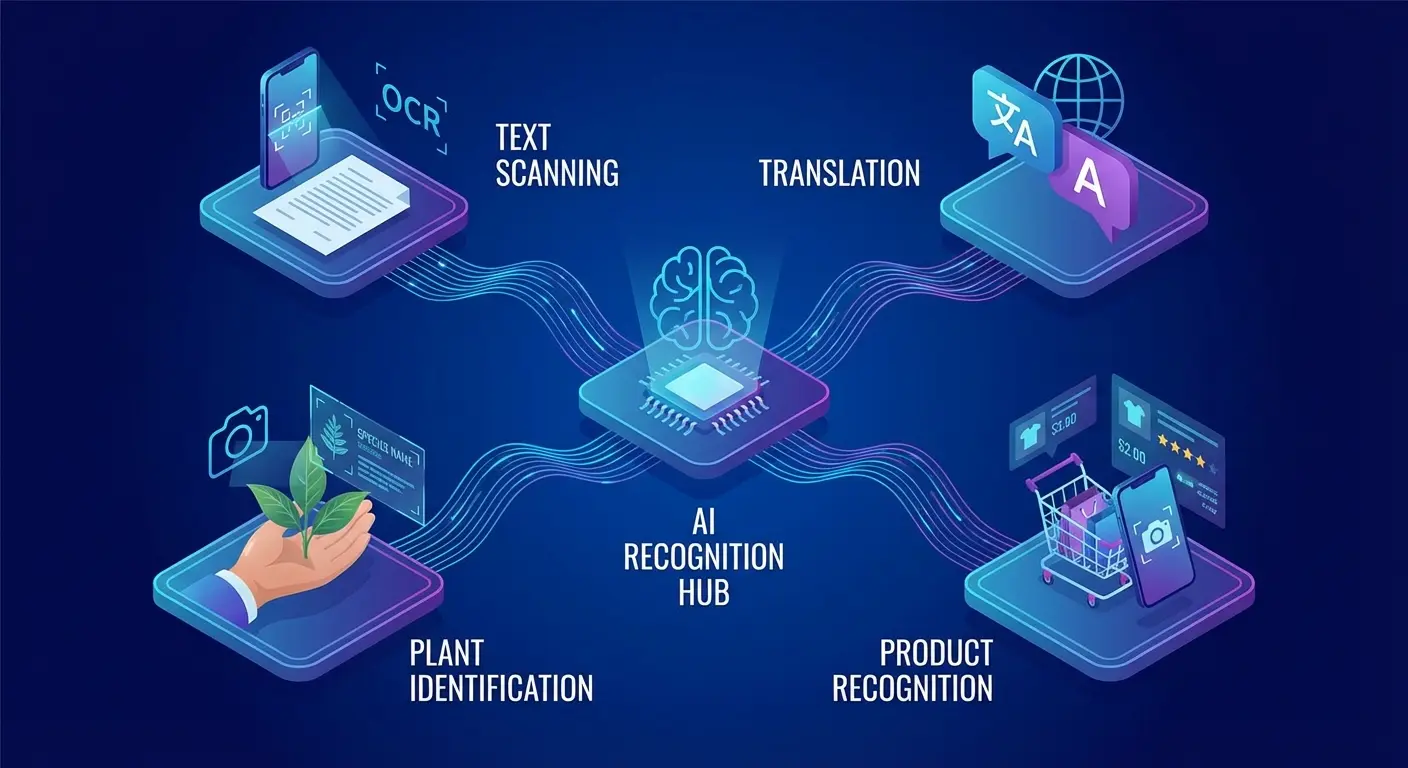
Point your camera at a phone number, and your device offers to dial it. Point it at a restaurant menu in another language, and it translates in real-time. Point it at a plant, and it identifies the species.
These features rely on on-device AI models that recognize patterns without sending images to the cloud. That's a big privacy advantage (your photos aren't being uploaded for analysis), and it works even when you're offline. If you're wondering how do I get AI on my phone, many of these features are already built into your camera app - you just need to enable them.
The offline capabilities have expanded in recent months. Google's experimental AI Edge Gallery app now lets you use AI on your phone without the internet, downloading necessary models and files to carry out tasks like asking questions and analyzing images entirely offline.
The accuracy varies wildly depending on what you're trying to recognize. Text recognition (OCR) works reliably for printed material. Handwriting recognition is hit-or-miss. Plant identification is surprisingly good. Product recognition (point at an item to find where to buy it) feels creepy and works maybe 60% of the time.
Turn Your Phone Into a Research Tool That Actually Helps
Search That Understands Questions
You don't need to use keywords anymore when searching your phone. Modern AI search understands questions phrased naturally: "Where did I park last Tuesday?" or "Show me photos of my dog from last summer."
Your phone indexes more data than you probably realize. Messages, emails, notes, calendar events, photos, web history, app usage, and location data all become searchable through natural language queries. This is powerful when you remember a detail but not where you stored it.
The catch: this comprehensive search requires giving your phone's AI access to all those data sources. You're trading privacy for convenience again. Most people don't think about this trade-off explicitly. They enable features and move on.
Smart Replies That Save Time
Your messaging apps offer AI-generated reply suggestions based on the content of incoming messages. "Sounds good," "Thanks!" or "On my way" appear as tappable options.
These suggestions feel simplistic at first, but they're contextually aware. The AI analyzes the message content, your relationship with the sender, and your typical response patterns to generate appropriate options. For routine exchanges (confirming plans, acknowledging messages), they eliminate typing entirely.
You can help this by occasionally choosing the suggested response even if you'd normally type something similar. That signals to the AI that its suggestions are on-target, which improves future recommendations.
Jennifer, a real estate agent I know, initially dismissed smart replies as too generic for client communication. But after accepting suggestions for simple confirmations ("I'll be there at 3") and quick acknowledgments ("Got it, thanks"), her phone started suggesting more nuanced responses that matched her professional tone. Within two months, she was using AI-generated replies for maybe 30% of her client texts, saving her probably 20 minutes daily while maintaining her communication standards.
For professionals who spend a lot of time responding to messages, learning the best apps for productivity can complement your phone's built-in AI features.
Privacy Settings You Should Probably Check
On-Device Processing Versus Cloud Analysis
Not all AI features are created equal from a privacy perspective. Some processing happens entirely on your device, meaning your data never leaves your phone. Other features require uploading data to company servers for analysis.
Here's what nobody explains clearly: some AI features keep everything on your phone. Your data never leaves. Other features upload everything to company servers for processing.
You should probably know which is which before you turn everything on.
On-device stuff: Face ID, keyboard predictions, photo organization. That stays local. Cloud stuff: voice assistant queries, advanced photo search, real-time translation. That goes to company servers.
Check your privacy settings to see which apps have permission to use cloud-based AI services. You might be surprised how many have access by default. Revoke permissions for apps that don't need them, and you'll reduce your data exposure without losing much functionality.

Privacy Audit: AI Features Edition
On-Device Features (Keep Enabled)
Face/fingerprint unlock
Basic keyboard predictions
Local photo organization
Offline voice typing
Battery optimization
Cloud Features (Review Carefully)
Voice assistant queries: Enabled? Yes/No | Necessary? _____
Cloud photo backup with AI search: Enabled? Yes/No | Necessary? _____
Real-time translation: Enabled? Yes/No | Necessary? _____
Smart home integrations: Enabled? Yes/No | Necessary? _____
Third-party AI apps: List all installed: _____
Action Items
Apps to disable cloud access: _____
Features to switch to on-device alternatives: _____
Permissions to revoke: _____
Next review date: _____
What Your Phone Learns About You
Every AI feature on your phone builds a model of your behavior. That model lives somewhere (on your device, in the cloud, or both), and you should know where.
Apple emphasizes on-device learning, keeping behavioral models local and encrypted. Google uses a hybrid approach, with some learning happening locally and some in the cloud. Android manufacturers vary in their implementations. Samsung AI features, for example, employ a combination of on-device and cloud processing depending on the specific functionality you're using.
You can usually reset these behavioral models through privacy settings, giving yourself a fresh start with AI features. This is useful if you've gone through major life changes (new job, moved cities, different routines) and want your phone's AI to relearn your patterns without historical bias.
The Offline Stuff Nobody Knows About
Voice Typing Without Internet
Your phone's voice-to-text feature probably works offline now, though many people don't realize it. Recent AI models are small enough to run locally, which means you can dictate messages, notes, and documents without connectivity. Thanks to on-device AI, you can use AI on your phone offline, with on-device AI running directly on your smartphone and providing fast, private, and real-time functionality.
The offline models aren't quite as accurate as cloud-based ones (they have smaller vocabularies and less context awareness), but they're close enough for most purposes. The privacy benefit is huge: your voice data never leaves your device.
You need to download language packs for offline voice typing. This happens automatically on some devices, but others require manual download through keyboard settings. Check yours, because it's a useful capability when you're in areas with poor signal.
Photo Editing Without Cloud Processing
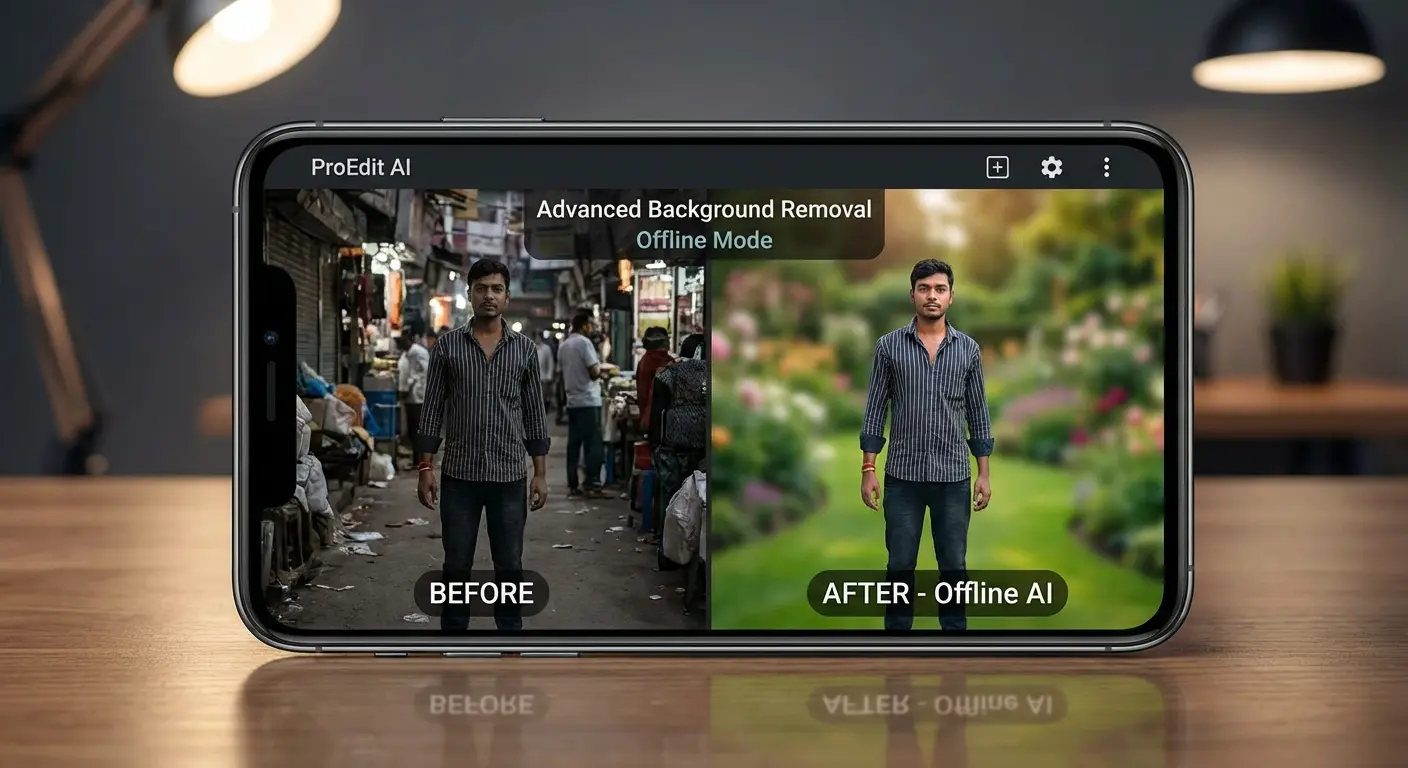
Advanced photo editing features (background removal, object selection, style transfer) used to require uploading images to powerful servers. Current AI models run these processes locally on your phone's processor.
This means you can remove backgrounds from photos, apply complex filters, and even do basic object removal without an internet connection. The processing takes a few seconds longer than cloud-based alternatives, but the privacy trade-off is worth it for many people.
These features drain battery faster than simple edits because they're computationally intensive. Use them when you need them, but don't leave AI photo enhancement running constantly in the background.
When to Turn It All Off and Trust Yourself
The Optimization Trap
AI recommendations optimize for patterns, which means they reinforce your existing behaviors. Your music app suggests songs similar to what you already listen to. Your maps app routes you along familiar paths. Your news feed shows articles that match your previous reading.
This optimization creates filter bubbles that narrow your experience over time. You stop encountering new ideas, places, or perspectives because the AI has learned what you "like" and gives you more of it.
Deliberately ignore AI suggestions sometimes. Take a different route home. Listen to a genre you've never explored. Read articles from sources outside your usual bubble. This isn't just about personal growth (though that matters). It's about preventing your phone's AI from turning your life into an optimized loop.
Privacy Moments That Deserve Manual Control
Some situations warrant turning AI features off entirely, even if they're convenient. Sensitive conversations, confidential work projects, personal health matters - these contexts deserve manual control over what your phone records, analyzes, or suggests.
You can temporarily disable voice assistants, pause location tracking, and turn off predictive features when needed. The friction is intentional. Taking manual control reminds you that your phone's AI is a tool you choose to use, not an always-on surveillance system you can't escape.
Create a habit of checking which AI features are active before important meetings, medical appointments, or personal conversations. It takes 30 seconds and gives you confidence that your private moments stay private.
When AI Conflicts With Your Goals
Your phone's AI optimizes for engagement, not necessarily for your wellbeing. It might suggest opening social media when you're bored, even if you're trying to reduce screen time. It might recommend a fast-food restaurant when you're trying to eat healthier.
The AI doesn't understand your long-term goals unless you explicitly configure features to support them. Digital Wellbeing tools, app timers, and content restrictions exist specifically to override default AI behavior that works against your interests.
Review your usage patterns monthly and ask yourself: are these AI suggestions helping me or keeping me engaged? If an app's recommendations consistently pull you away from your goals, either adjust its settings or remove it from your phone entirely. The AI serves you, not the other way around.

Building Friction Where You Need It
Sometimes the best use of AI is creating intentional obstacles. You can configure your phone to require extra steps before opening certain apps, force a 10-second delay before sending messages when you're angry, or hide distracting apps from your home screen.
These friction points use AI to protect you from your own impulses. Your phone learns when you're likely to make decisions you'll regret (late-night online shopping, anyone?) and can prompt you to pause before proceeding.
This requires setting up Digital Wellbeing or Screen Time features with specific triggers. The configuration takes effort upfront, but it's one of the most valuable applications of phone AI: using intelligence to support self-control rather than undermine it.
Making Your Phone Work With Your Hands-Free Life
Voice commands and AI automation become way more useful when you can't physically hold your phone. Driving, cycling, cooking, exercising - these situations demand hands-free interaction, but they're also when your phone is most likely to be inaccessible or insecure.
You've probably experienced the frustration: you're mid-workout and want to skip a song, but your phone's in your pocket. You're driving and need navigation adjustments, but your phone keeps sliding off the dashboard mount. You're following a recipe and need to see the next step, but your phone screen times out every 30 seconds.
AI features solve the interaction problem (voice commands mean you don't need to tap), but they don't solve the visibility and security problem. You still need to see your screen for navigation, timers, and visual feedback. You still need your phone positioned where you can glance at it without breaking focus from your primary activity.

This is where a secure mounting system becomes essential rather than optional. Rokform's magnetic mounting solutions keep your phone accessible and visible during activities where holding it isn't practical. Whether you're using AI navigation while mountain biking or following voice-guided workout instructions at the gym, a reliable mount means your phone's AI features enhance your activity instead of creating fumbling interruptions.
The magnetic system works with protective cases that don't interfere with wireless charging or NFC features (important for contactless payments and some AI-powered smart home controls). You can position your phone at optimal angles for Face ID recognition, which matters when you're using voice commands that require authentication.
Check out Rokform's mounting options if you're serious about integrating AI features into active parts of your life. The investment pays off the first time you successfully navigate a new trail or adjust your workout playlist without stopping what you're doing.
For cyclists who want to leverage AI navigation and fitness tracking, explore our guide to the best phone mount for bikes to keep your device secure and accessible.
Final Thoughts
Look, your phone can do way more than you're using it for. That's not your fault - phone makers are terrible at showing you what's actually possible.
You don't need to become a power user or spend hours in settings. Just pick one thing that's annoying about your phone and fix it. Notification overload? Start there. Typing the same stuff over and over? Fix that. Takes maybe 15 minutes to set up, then you forget about it.
Give new features at least two weeks before you decide they're useless. AI needs time to learn your patterns, and you need time to stop fighting the new workflow.
And here's the thing nobody says: the best AI features are the ones you eventually forget are even running. They just become part of how your phone works. That's the goal - not to become obsessed with optimization, but to set things up once and then move on with your life.
Every notification you don't see because AI filtered it correctly is mental space preserved for focus. Every routine task automated is time returned to your day. The most powerful AI features work quietly in the background while you focus on everything else.

