


TL;DR
Digital wallets work great until your phone dies at dinner and you realize your actual wallet is at home. Keep a backup card somewhere, know which stores have terminals that hate your phone, and don't expect this to replace your regular wallet completely.
Why Your Phone Wallet Feels Half-Baked
So you added a card to your phone once. Used it maybe twice. Then went right back to your regular wallet because the phone thing felt weird and you weren't sure if it actually worked.
That's normal. Most guides treat phone wallets like they're just a digital version of your physical cards, but they're really not. Apparently 74% of people have tried mobile payments (according to some Federal Reserve report), but most of us still carry regular wallets because phone payments feel unreliable.
Your physical wallet doesn't need charging. It doesn't randomly require a software update. Cashiers don't look at you like you're trying to pay with Monopoly money when you pull it out.
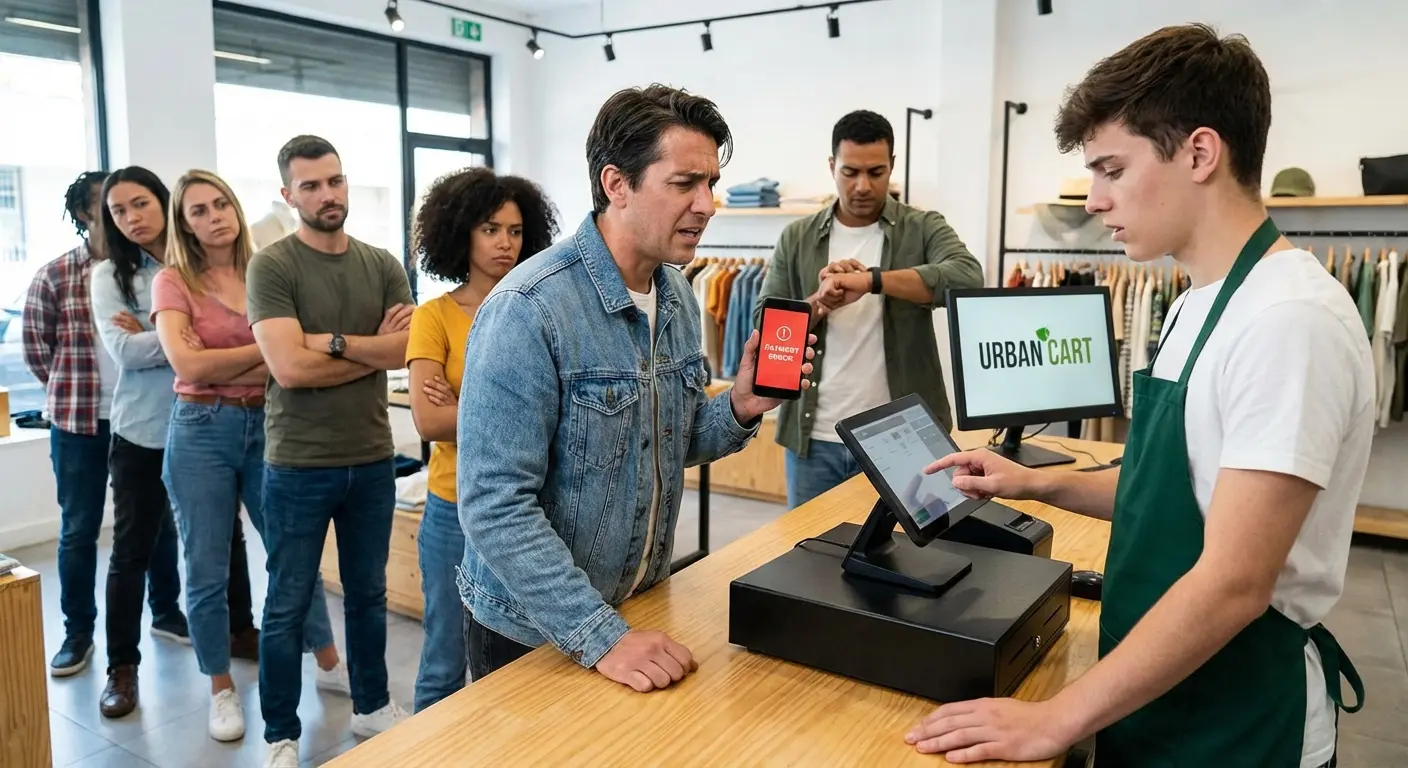
Digital wallets need a different approach. They work best when you understand their limitations upfront, not when you discover them while standing at a checkout counter with a dead battery and five people behind you radiating impatience.
The technology itself is fine. Apple Pay, Google Wallet, and Samsung Pay have processed billions of transactions without the world ending. But there's a huge gap between "technically functional" and "actually useful in my daily life," and that's where most tutorials completely fail you.
We're going to focus on the scenarios that trip people up. Not the happy path where everything works perfectly, but the annoying edge cases that determine whether you'll actually stick with this or give up after one frustrating experience at Chipotle.
Look, the real question isn't whether digital wallets work. They do. The question is whether they'll work for YOUR specific habits, in YOUR specific situations, with YOUR specific tolerance for technology randomly deciding not to cooperate. We're going to answer that by preparing you for what goes wrong, because that's what actually matters.
The Real Setup: What Most Guides Skip
Adding Your Card Is Easy, Everything After Is Where People Mess Up
Open your wallet app. Tap the plus sign. Point your camera at your card. Wait for verification.
You've seen these instructions everywhere. They're fine, but they skip the important part.
The real setup happens in the next five minutes, when you're making decisions about authentication methods and default cards. Most people rush through this part because they're in a hurry or they just accept whatever defaults the app suggests. Those defaults will annoy you later.
I watched someone spend five minutes at a coffee shop trying to pay with their phone because they'd rushed through setup and picked the wrong authentication setting. The barista eventually just gave them the coffee for free out of pity.
Start with authentication. Your phone offers multiple options: Face ID, fingerprint, passcode, or even no authentication for small purchases.
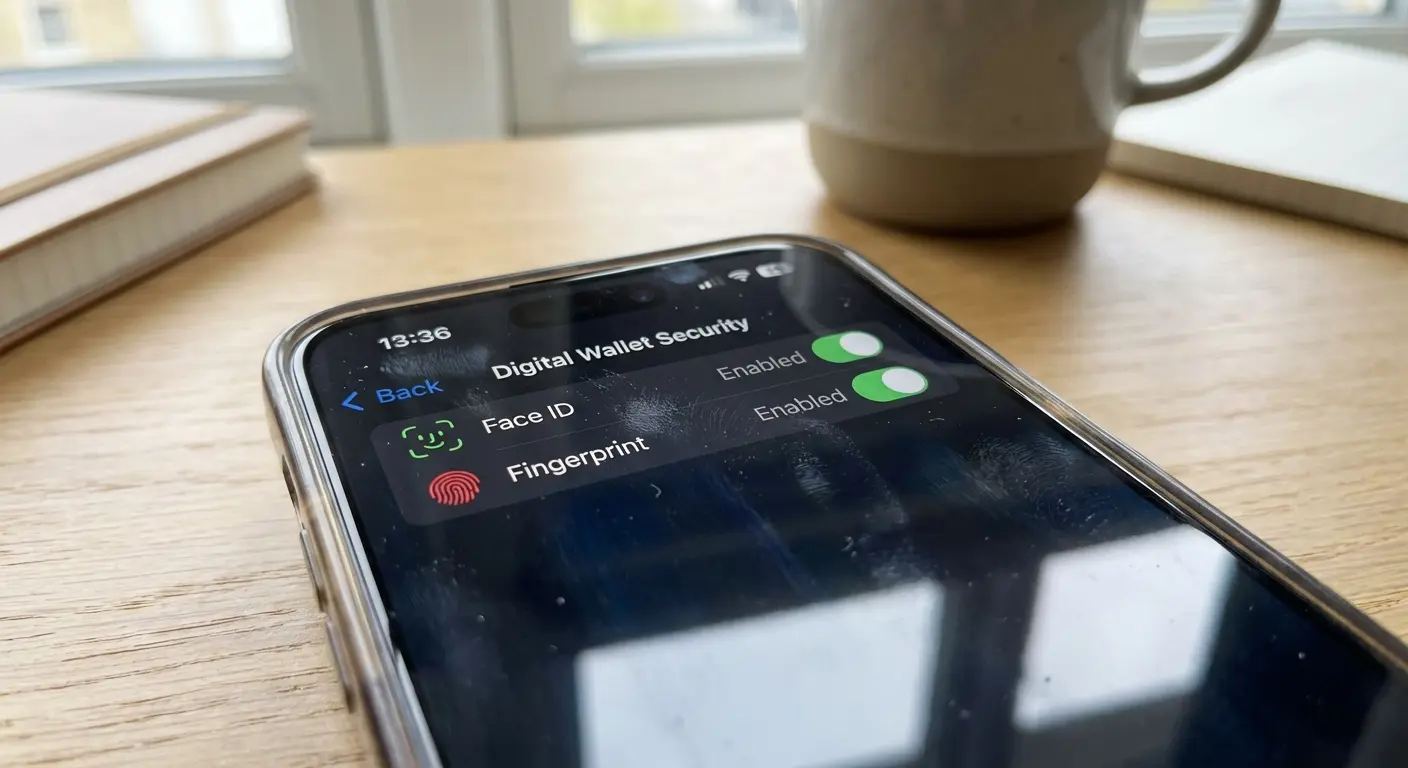
Nobody mentions this, but choosing "no authentication for purchases under $25" sounds convenient until you're standing in a store, tapping your phone repeatedly while the terminal stays silent. Some merchants' systems don't communicate the transaction amount to your phone before authentication, so your "convenient" setting becomes an obstacle.
Just set it to always require authentication. It's one extra step, but at least it's consistent. Consistency beats convenience when you're still figuring this out.
The Default Card Thing Everyone Gets Wrong
You can add multiple cards to your mobile wallet. Your phone will ask which one should be default.
Here's where people screw up: they pick their favorite card without thinking about which one they need fastest access to.
Your default card appears instantly when you double-click your power button (iPhone) or open your wallet app (Android). Every other card requires additional taps and swipes to access. When you're standing at a register with people waiting, those extra taps feel like an eternity.
If you travel a lot, make your travel card the default. If you're optimizing for rewards, pick whichever category you use most. If you're bad at remembering to use certain cards, make those the default so you don't forget. It's not complicated.
But here's the thing: you can change your default card anytime, and you should. Going on a trip? Switch your default to your travel rewards card that morning. Big shopping day at a store that gives bonus points with a specific card? Change it before you leave.
The thirty seconds you spend adjusting your default card saves you from fumbling through your mobile wallet at checkout, trying to remember which card you wanted to use while someone behind you sighs audibly.
Notifications: Just Turn Most of Them Off
Your wallet app will try to spam you with notifications.
Transaction confirmations? Useful. You'll know immediately if a payment went through or failed.
"New feature available" announcements? Noise.
The critical notification is the one confirming each transaction amount and merchant. This tells you the payment succeeded (eliminating that nagging uncertainty of "did it work?"), and it creates an immediate fraud alert system. You'll notice suspicious charges within minutes instead of days later when you check your statement.
Turn on transaction confirmations and fraud alerts. Turn off literally everything else. Done.
Configure your notifications to show on your lock screen for the first few weeks. Once you've built confidence that your mobile wallet works reliably, you can move them to notification center only.
Security Theater vs. Actual Security
Your Phone Is Actually Safer Than Your Physical Card
Your physical card has your full card number printed on it. Anyone who finds it, photographs it, or steals it has everything they need to make fraudulent purchases.
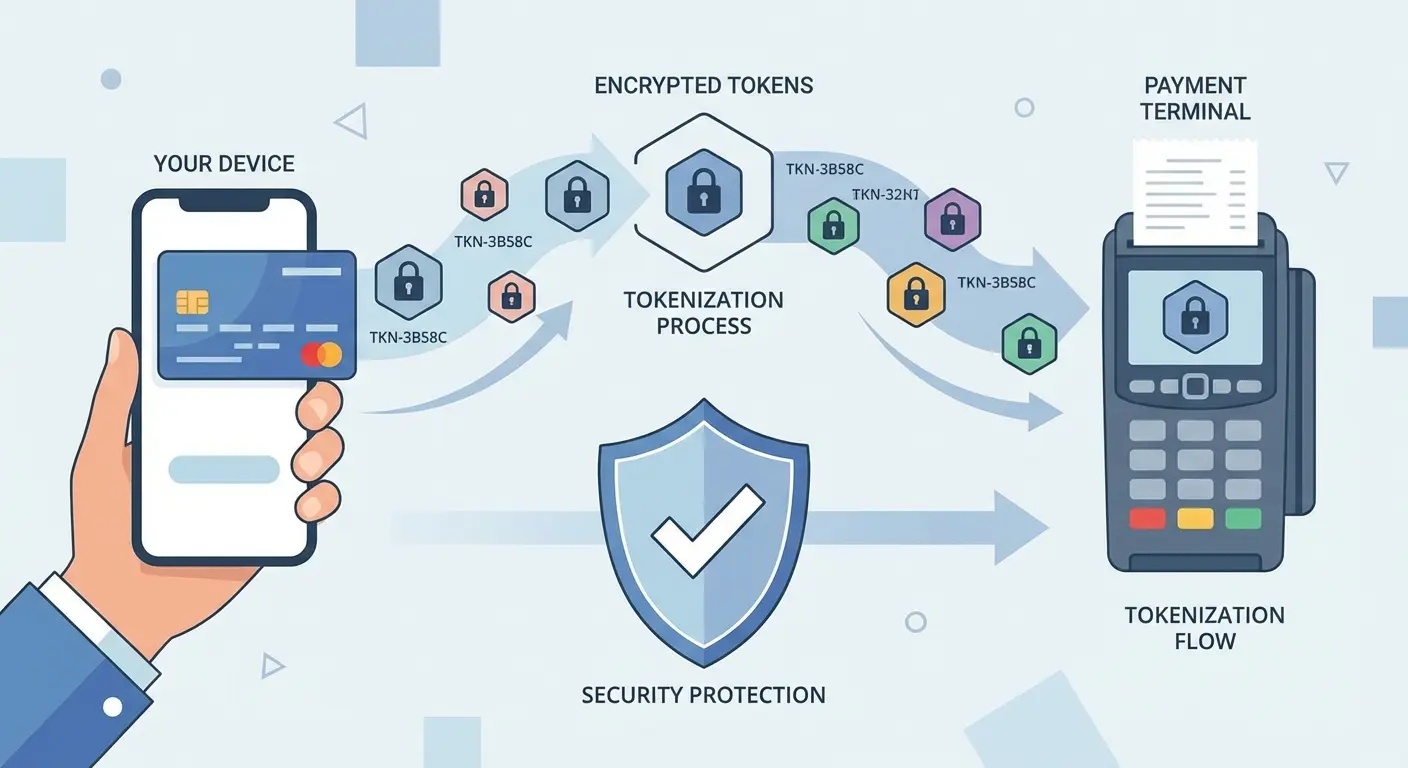
Your phone wallet doesn't store your card number. It generates a unique token for each transaction.
Even if someone intercepts the payment data (they won't, but hypothetically), they'd capture a one-time code that's useless for any other purchase.
Your bank never sends your card number to your phone. They send a device-specific token that only works with your specific phone, for that specific merchant, at that specific moment. As Capital One explains, digital wallets use tokenization to encrypt your card's details so your actual card number is not shared with merchants.
Lose your phone? You can remotely wipe your wallet through your bank's website or your phone's find-my-device feature. The person who found your phone still can't use your cards without your face, fingerprint, or passcode.
Lose your physical wallet? You're calling your bank to cancel cards and waiting 5-7 business days for replacements.
The security advantage of digital wallets isn't theoretical. It's built into how these systems actually work.
Biometric Authentication Is Faster Than You Think
Biometric authentication (your face or fingerprint) beats passcodes for phone wallet usage.
Not because passcodes are insecure. They're fine. But biometric auth is faster and you can't forget your face at home.
The speed matters more than you'd think. Payment terminals have a timeout window. Take too long entering a passcode, and the terminal gives up, forcing you to start over.
Face ID or fingerprint scanning happens in under a second. You authenticate while raising your phone to the terminal.
But you need a backup plan for the 2% of times when biometric auth fails. Bright sunlight can confuse Face ID. Wet hands interfere with fingerprint sensors.
Set a passcode you can enter quickly. Six digits, not four. Four-digit codes are too easy for someone to observe over your shoulder, and you're entering this code in public spaces.
A friend of mine uses his phone wallet at the gym every morning. One day, his hands were still sweaty from his workout and his fingerprint sensor wouldn't recognize his thumb. He tried four times before realizing he needed his passcode, but he'd set some complex 8-digit thing during setup and couldn't remember it under pressure. The line behind him grew. He eventually had to step aside, dry his hands completely, and try the fingerprint sensor again. A simple 6-digit numeric passcode would have solved this in five seconds.
What Happens When Your Phone Gets Stolen
Someone steals your phone. You have three immediate actions, in this order:
First, use another device to access your phone's remote management (Find My iPhone or Android Device Manager). Lock your phone remotely. This immediately disables wallet access.
Second, log into your bank's website and check recent transactions. You're looking for charges in the last hour, before you locked the device.
Third, contact your bank only if you see unauthorized charges. Otherwise, your cards are already secured by the remote lock.
You don't need to cancel your cards unless you see fraudulent activity. The remote lock prevents new transactions, and your card numbers were never stored on the phone anyway.
Compare this to physical wallet theft: you're canceling every card immediately, replacing your driver's license, and hoping the thief doesn't have time to run up charges before you notice it's missing.
When Your Phone Becomes Your Only Wallet (Spoiler: It Shouldn't)
The Gradual Transition That Actually Works
Going fully digital overnight is a recipe for standing at a gas pump at 11pm, discovering that this particular station's reader doesn't support phone payments, with no physical card as backup.
Start by adding your most-used card to your phone. Keep the physical card in your wallet.
For the next week, use your phone to pay everywhere that you'd normally use that card. You're not testing whether the technology works (obviously it works). You're testing if it fits how you actually live.
Do you frequently pay in situations where pulling out your phone feels awkward? Some people find it easier to hand a card to a server at a restaurant than to hand over their phone.
Do you shop at stores with older payment terminals that don't support contactless payments? More common than you'd think, especially at small businesses.
After a week, you'll know which cards make sense to use digitally and which scenarios require physical cards. This gradual approach prevents the all-or-nothing mentality that causes most people to abandon mobile wallets after one bad experience.
The Cards You Should Never Remove From Your Wallet
Your driver's license isn't going digital anytime soon in most states. Keep the physical version.
A backup credit card from a different network (if your primary is Visa, keep a Mastercard) stays in your wallet. Payment network outages are rare but real.
Any card you might need to give someone else. You're not handing your unlocked phone to a valet or a family member running an errand.
Insurance cards (health, auto, dental) technically have digital versions, but the person checking them often needs to photocopy or scan them. Your phone doesn't work for that.
Membership cards for gyms, libraries, or warehouse stores often have barcodes that work better on physical cards. Phone screens crack, get smudged, and have glare that interferes with barcode scanners.
Building Confidence Through Repetition
Your brain trusts physical cards because you've used them thousands of times. You know exactly how they work, what to expect, and how to recover from errors.
Phone wallets feel unreliable because you've used them maybe a dozen times, and two of those experiences were frustrating.
You need repetition in controlled situations. Use your mobile wallet for coffee, lunch, and small purchases where you have your physical card as immediate backup.
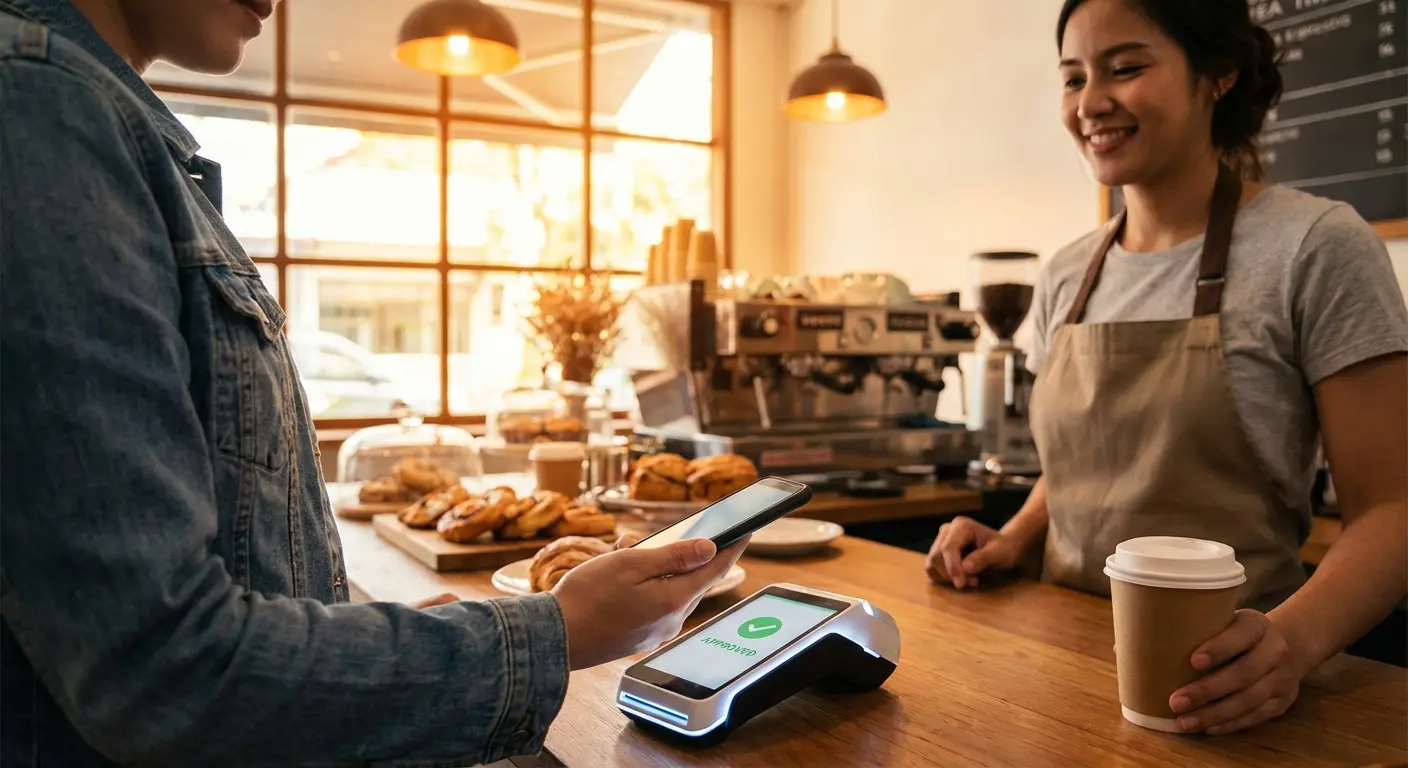
You're not just testing the technology. You're building muscle memory for the physical movements (double-click power button, authenticate, hold near reader) and training your brain to recognize the successful payment signals (haptic feedback, screen confirmation, terminal beep).
After you've done it a few dozen times, it stops feeling weird. That's when you can start leaving physical cards at home for routine errands.
The Backup Plan Nobody Talks About
When Your Phone Dies at the Worst Possible Time
Your phone battery dies. You're at dinner, the check arrives, and your wallet is at home.
This scenario terrifies people away from phone wallets more than any other. The fear is legitimate, but the solution is simpler than you think.
Prevention: if your phone is below 20% battery and you're leaving home, bring a physical card. That's it.
Backup: keep one physical card in your car, gym bag, or another location you access regularly but not daily. Not in your phone case (we'll address that shortly), but somewhere you can retrieve it within 30 minutes.
Most "dead phone" scenarios happen when you're near home or your car. You're not stranded in an unfamiliar city. You're at the grocery store fifteen minutes from your house, or at a restaurant where you parked in the lot.
The backup card handles the immediate transaction. You're mildly inconvenienced, not helpless.
Software Updates That Break Everything
Your phone updates overnight. You wake up, head out, and discover at checkout that your wallet app needs to "verify your cards" before you can pay.
This happens. Not often, but often enough that you need a plan.
The verification process usually takes 30 seconds to two minutes. You have cellular service, you're not rushing to catch a flight, and you can wait.
But sometimes the verification fails, or you don't have service, or you're in a hurry. Physical backup card solves this immediately.
The pattern to watch for: major OS updates (iOS 17 to iOS 18, Android 13 to Android 14) occasionally require wallet re-verification. Don't schedule these updates the night before important travel or events.
Minor updates (iOS 17.4 to 17.5) rarely affect wallet functionality. You can install these without concern.
Merchant Systems That Don't Cooperate
The terminal has the contactless symbol. You tap your phone. Nothing happens.
You try again. Still nothing. The cashier shrugs and says "the contactless thing never works."
This isn't your phone's fault or your card's fault. The terminal supports contactless payments in theory but hasn't been configured correctly, or the merchant disabled it, or the software hasn't been updated in three years.
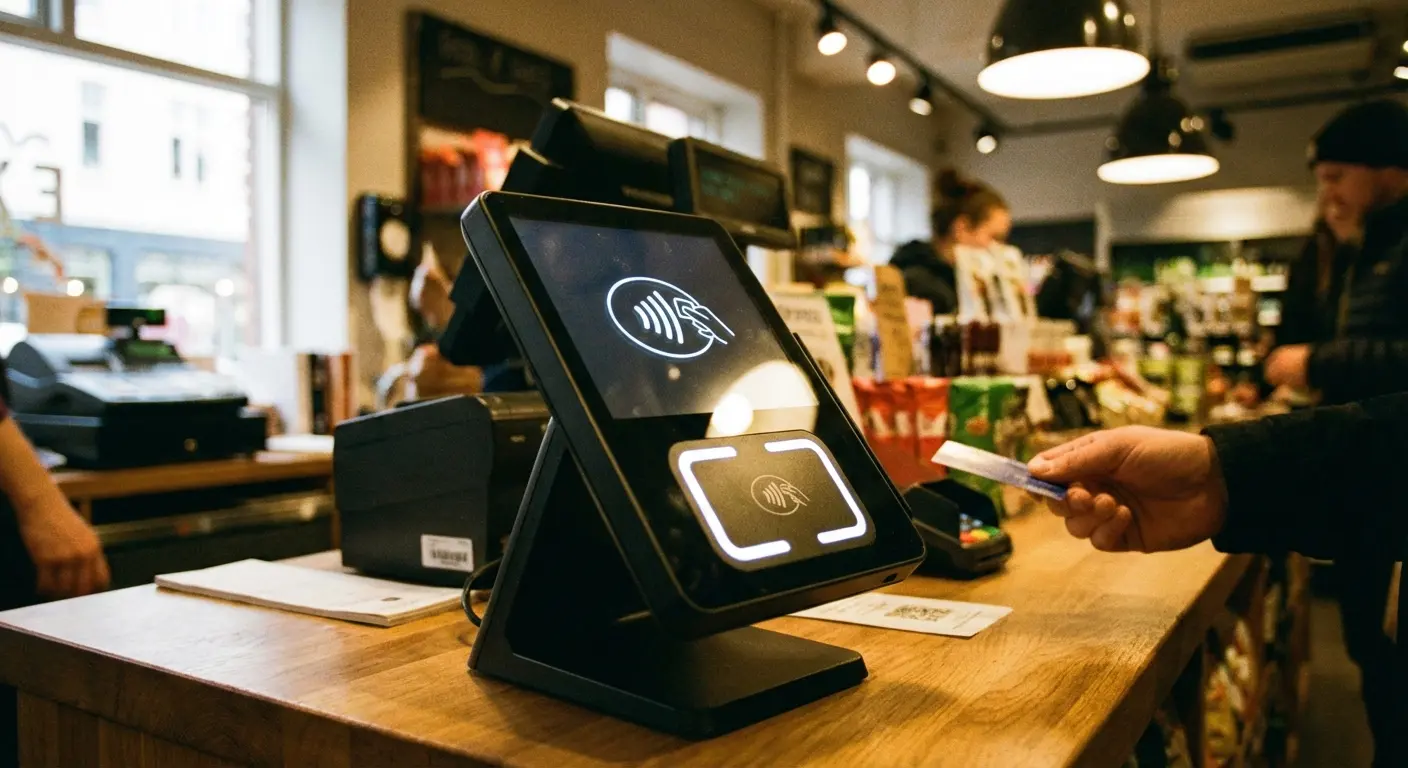
You'll encounter this at small businesses more than chains. Gas stations are hit-or-miss. Restaurants with tableside payment devices often have older hardware that doesn't support phone payments despite having contactless symbols.
When a terminal fails twice, switch to your physical card immediately. Don't tap a third time. You're not going to fix the terminal through persistence, and you're holding up the line.
Make a mental note of which merchants have unreliable terminals. Your corner store that never accepts phone payments? Bring your physical card every time.
For those who need reliable mounting solutions while on the go, explore car mounts that keep your phone accessible for quick payments.
The Physical Card in Your Phone Case Is a Trap
Keeping a physical card in your phone case feels like the perfect compromise. Your backup is always with you, and you don't need to carry a separate wallet.
Two problems with this approach:
Your phone case becomes a single point of failure. Lose your phone, and you've lost your backup card too. The entire point of a backup is that it's stored separately.
Some phone cases (especially those with magnetic closures or metal components) interfere with contactless payments. You'll tap your phone, and the terminal reads the physical card in your case instead of your digital wallet, or it reads both and gets confused, or it reads neither.
Better option: keep your backup card in your car's center console or a bag you carry regularly. Separate storage, still accessible when you need it.
Making It Work in the Real World
The Situations Where Phone Wallets Excel
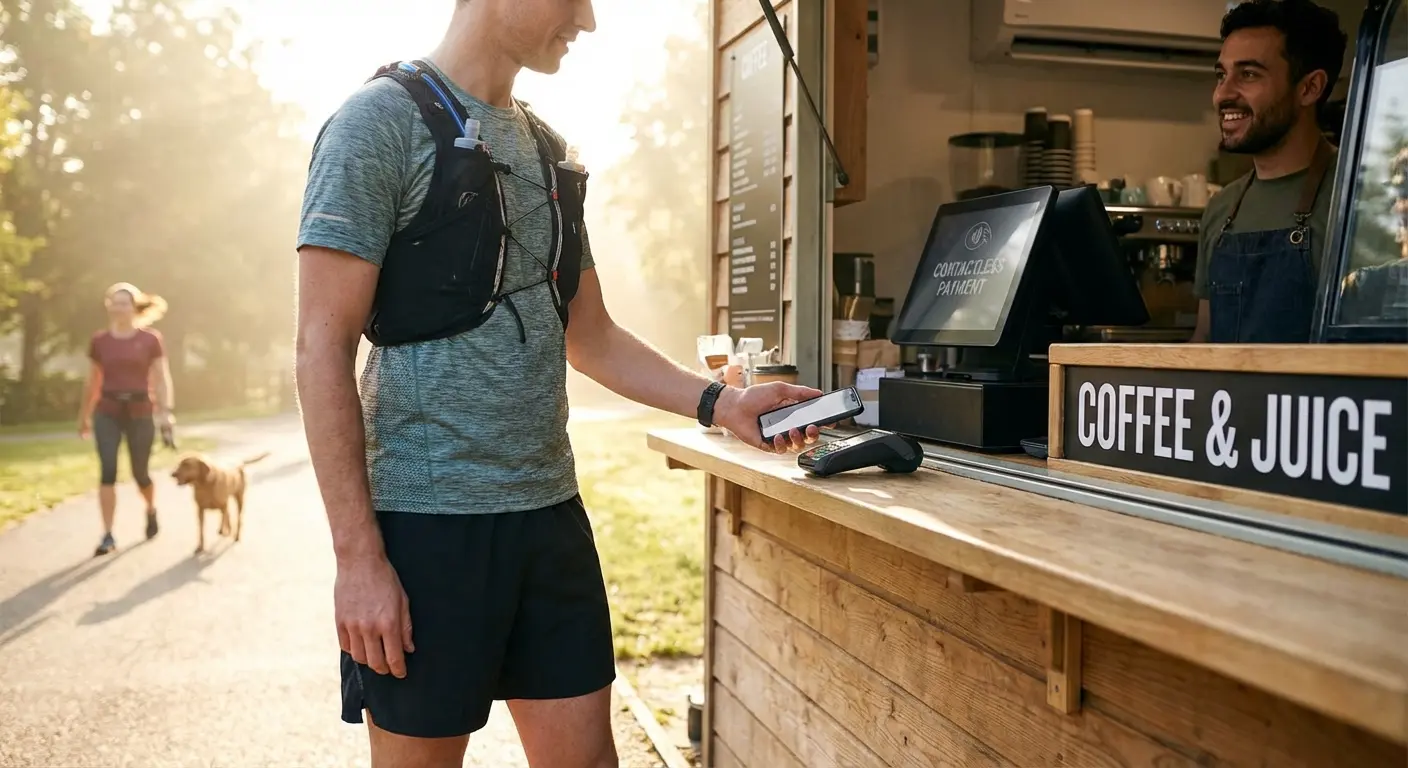
You're out running and want to grab coffee on your way home. Your phone is in your armband. Your wallet is at home.
Phone wallet shines here. You're not carrying anything extra, and the payment happens in seconds.
Public transportation in major cities increasingly supports mobile wallet payments. You tap your phone on the turnstile instead of fumbling for a transit card or exact change.
Online shopping with saved payment methods. Many retailers now support Apple Pay or Google Pay for checkout. You authenticate with your face or fingerprint instead of typing a 16-digit card number.
Splitting bills at restaurants. Venmo and similar apps integrate with your phone wallet. You can settle up immediately instead of dealing with cash or IOUs.
Any situation where you're already holding your phone. Paying for parking through an app, ordering ahead at a coffee shop, or checking out at a store where you're using your phone to compare prices anyway.
In a significant update rolling out as of March 2025, Google Phone introduced personal Calling Cards (Android Authority), allowing users to create customized screens that appear when they call contacts. While not directly payment-related, this represents the broader trend of phones replacing traditional wallet functions—business cards, contact information, and payment methods are all consolidating into a single device. The update rolled out on March 3, 2025, though access is staggered and may take time to reach all devices.
Reading the Payment Terminal Correctly
Payment terminals communicate poorly. They show cryptic messages, beep ambiguously, and provide minimal feedback about what they want you to do.
"Present card" means the terminal is ready. Hold your phone within an inch of the contactless symbol. Don't tap and remove quickly. Hold it there for 1-2 seconds.
Your phone will vibrate and show a checkmark. That's confirmation from your phone that it sent payment information. It does NOT confirm the terminal received it.
Wait for the terminal to beep, print a receipt, or display "approved" before putting your phone away. The transaction isn't complete until the terminal confirms it.
"Processing" or a spinning icon means the terminal is communicating with your bank. This takes 2-10 seconds. Don't tap again or you risk creating a duplicate charge.
"Declined" or "Try another card" means something went wrong. Could be insufficient funds, could be a network issue, could be the terminal misreading your phone. Try once more. If it fails again, use your physical card.
Terminal says "present card"? Hold your phone near the reader for a couple seconds. Says "processing"? Wait. Says "declined"? Try one more time, then give up and use your actual card. That covers 95% of situations.
Handling the Awkward Moments
Half the time the cashier will look at you like you're trying to pay with Monopoly money. "We don't have an app." Yeah, I'm not using your app, I'm using the same tap thing as contactless cards. But explaining this while people wait behind you? Not worth it.
Just say "Apple Pay" and point at the contactless symbol. If they still look confused, use your regular card and save yourself the headache.
Some cashiers will swear up and down their system doesn't take it. They're wrong, but you're not going to win this argument. Pull out your physical card and move on.
Small business owners sometimes get weird about phone payments, muttering about fees or whatever. Not your circus, not your monkeys. Use your card.
The worst is when someone behind you sighs loudly and you start panic-tapping your phone, which obviously makes it worse. Take the extra three seconds to do it right. They can wait.
The adoption challenges aren't just user-side. According to Chase's 2025 payment education resources (Chase), merchants must ensure their Near Field Communication (NFC) technology is properly enabled for tap-to-pay to function. Physical obstructions, thick phone cases, incorrect device positioning, and outdated payment terminal software can all cause failures even when the technology theoretically supports contactless payments. This explains why the contactless symbol on a terminal doesn't guarantee your mobile wallet will work—the infrastructure gap between "supports contactless" and "contactless functions properly" remains significant in 2025.
International Travel Considerations
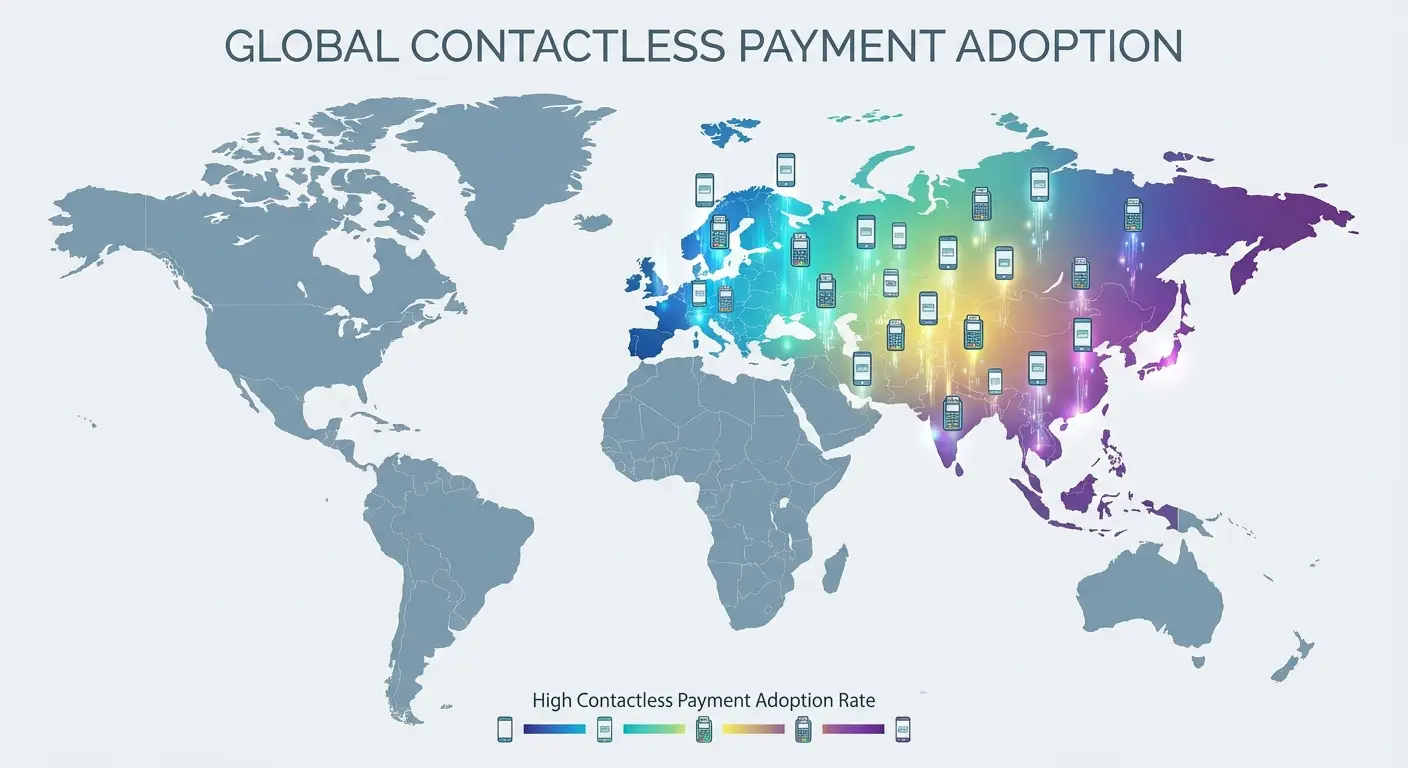
Phone wallets work internationally anywhere that takes contactless. The currency conversion just happens—your bank handles it the same way they would with your physical card.
Honestly, phone payments work better in London or Tokyo than they do in half of America. Europe and Asia are way ahead on this stuff.
But it's hit or miss—cities are fine, rural areas not so much.
Your backup strategy for international travel: bring at least two physical cards from different payment networks. Keep them in separate locations (one in your wallet, one in your luggage).
Tell your bank you're traveling before you leave, or they'll freeze your cards thinking someone stole them. This applies to your phone wallet too.
Places like Germany and Japan still run on cash for small stuff. That neighborhood ramen shop isn't taking your phone. Carry local currency.
More than half of Millennials (53 percent) and Gen Z (52 percent) make payments through digital wallets, according to a 2024 consumer brief by the Federal Reserve, suggesting generational differences in adoption rates that may affect merchant acceptance patterns internationally.
The Airplane Mode Thing
Here's something nobody realizes: phone payments don't need internet. The NFC chip works offline.
Airplane mode doesn't turn off NFC. You can pay for airport coffee while waiting for your flight, even with airplane mode enabled.
But airplane mode does prevent your wallet app from syncing with your bank. If you added a new card or changed settings, those updates might not be available until you're back online.
I once tried to add a new card right before a flight, then spent six hours in airplane mode. When I landed, the card hadn't synced yet and I couldn't use it until I found WiFi. Not the end of the world, but annoying. Add cards when you have service.
Final Thoughts
Look, phone wallets aren't going to replace your regular wallet. Stop trying to make that happen.
They're just another option. I use my phone for everyday stuff and physical cards for travel. Your setup will probably be different.
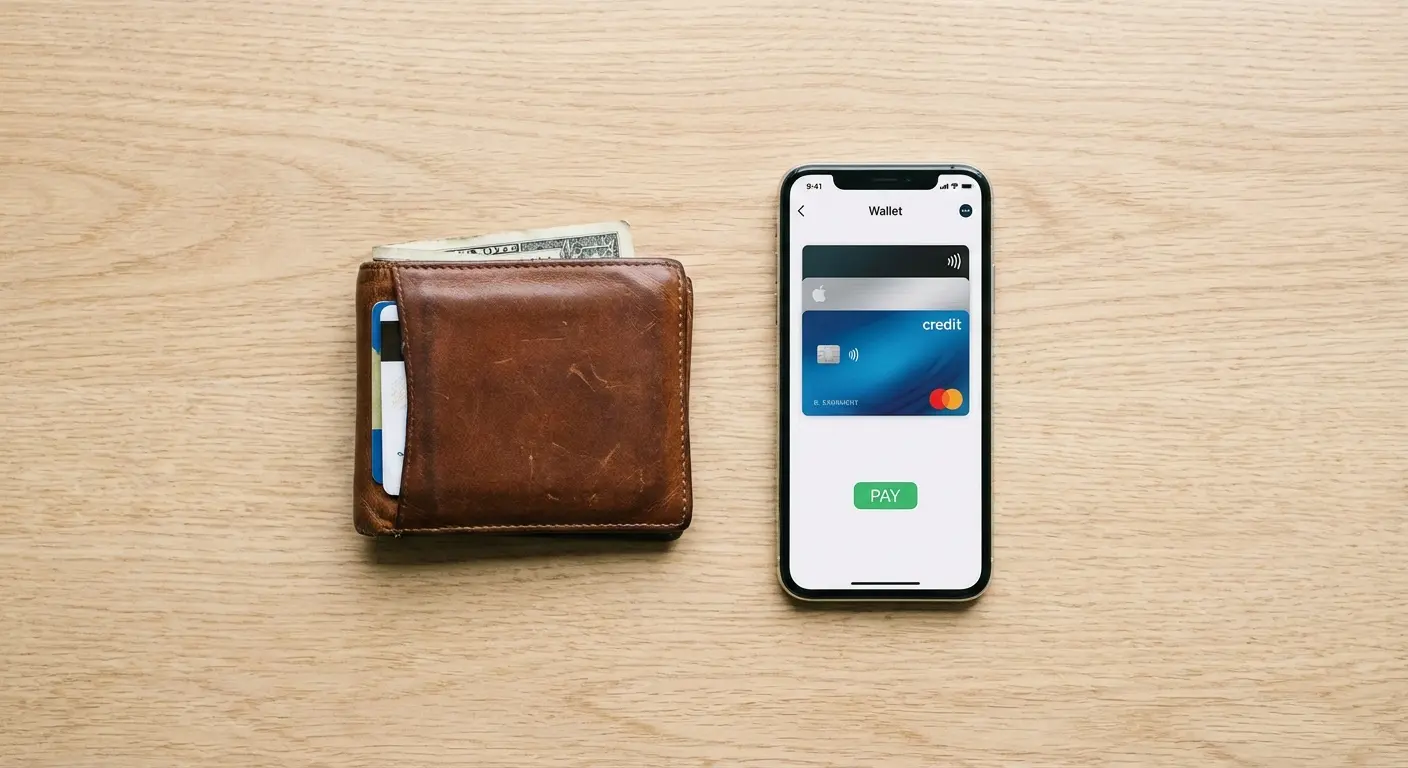
The technology works fine. Whether it works for YOU depends on whether you plan for the times it doesn't.
Start with one card. Use it at places you go regularly. Don't try to go fully digital on day one—that's how people give up on this stuff.
Your regular wallet isn't going anywhere. Your phone is just another option.
The awkward moments get less frequent as more people use this stuff and cashiers figure it out.
As you build confidence with mobile payments, explore top cell phone accessories that enhance your entire mobile experience.
That's it. Add a card, keep a backup, and don't expect it to work everywhere. If you can handle that, you're good to go.

