


Table of Contents
Why Most Hotspot Guides Miss the Real Problem
Understanding What Actually Happens When You Enable Hotspot Mode
Why Your Battery Dies So Fast (And What You Can Do About It)
Data Consumption: The Hidden Cost of Casual Hotspot Use
iPhone Hotspot Setup: Beyond the Basic Toggle
Android Hotspot Setup: Navigating Manufacturer Differences
Security Settings That Actually Matter
Connection Management: When Multiple Devices Compete for Bandwidth
The Temperature Problem and Your Phone's Lifespan
Troubleshooting When Devices Won't Connect
Strategic Hotspot Use for Road Trips and Remote Work
When You Shouldn't Use Your Phone as a Hotspot
TL;DR
Quick version:
Your phone becomes a router, modem, and broadcast tower all at once when you enable hotspot. This murders your battery (3-5x faster drain), generates heat that'll shorten your phone's lifespan, and burns data faster than you think.
HD streaming eats 3GB per hour. Your "unlimited" plan probably caps hotspot at 15-30GB before throttling you to unusable speeds. WPA2 security isn't enough anymore. Use WPA3 if your phone supports it.
Heat matters more than most people realize. Extended hotspot sessions without ventilation will cook your battery and you'll feel it in your overall battery life months later.
The settings matter, but not the ones most guides focus on. Carrier throttling treats hotspot data differently than phone data, even on "unlimited" plans. Connection prioritization isn't automatic. You need to manually manage which devices connect and what they're doing.
Why Most Hotspot Guides Miss the Real Problem
Look, you already know how to turn on your phone's hotspot. That's not what this is about.
The real question is why your battery's dead in 90 minutes, why you blew through your data cap by the 15th, and why your phone's hot enough to fry an egg. Most guides treat hotspot like a simple on/off switch. They walk you through Settings, show you the toggle, and call it done.
That approach ignores everything that matters.
When you learn how to use your phone as a hotspot, you're not just enabling a feature. You're transforming your phone into a router, a modem, and a broadcast tower simultaneously. It's running multiple radios at full power, managing connections, routing data packets, and generating heat. Your device wasn't primarily designed for this (even though it's capable of it). According to Verizon, most smartphones today include a built-in mobile hotspot function that allows you to connect multiple devices on a 5G or 4G LTE capable smartphone, with the phone creating its own secure Wi-Fi network for your devices to join.
Understanding what's happening inside your phone changes how you use the feature. We're not here to show you where to tap. You need to understand the trade-offs you're making every time you enable that connection.
Understanding What Actually Happens When You Enable Hotspot Mode
The Radio Power Surge You Can't See
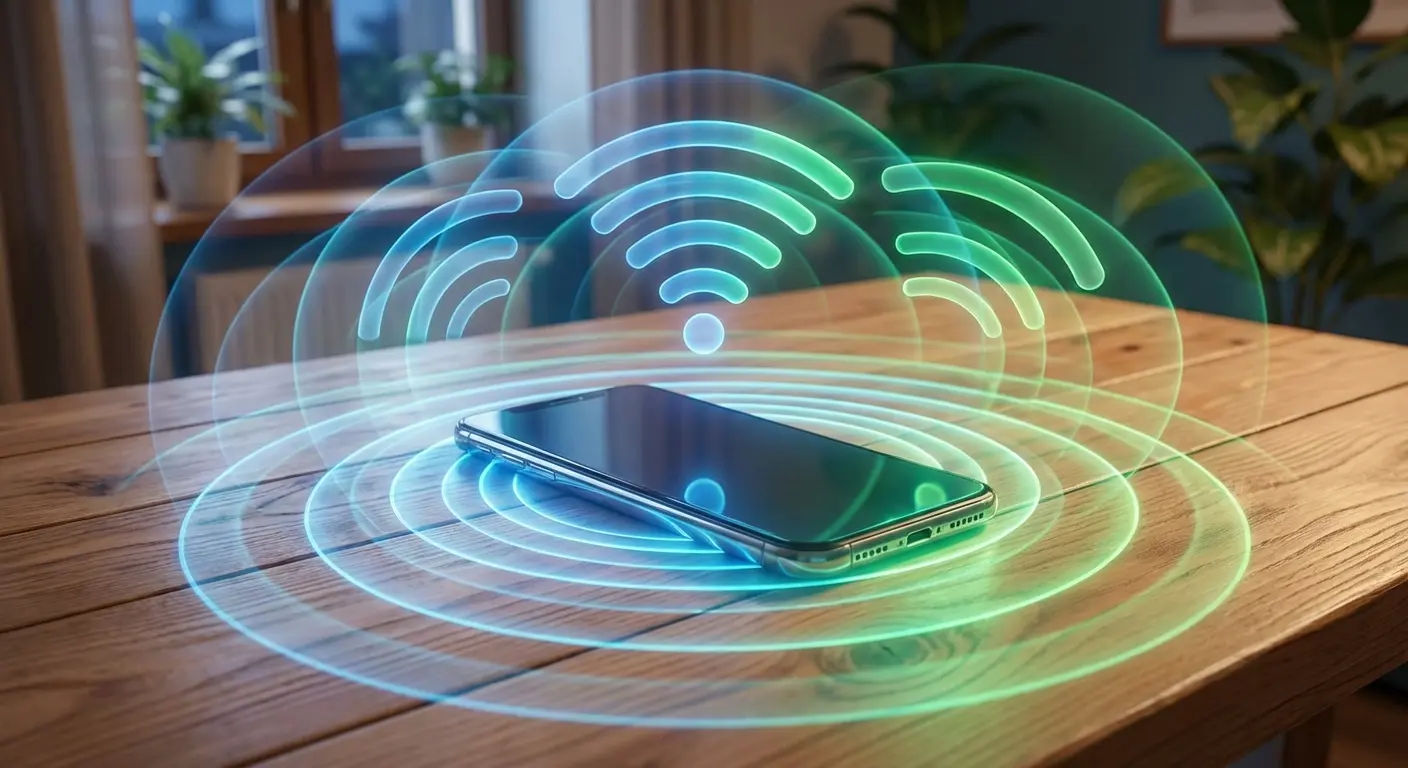
Turn on your hotspot and your phone immediately starts juggling two radio connections. One pulling data from your carrier, another broadcasting Wi-Fi to your devices. Both running full blast.
Your cellular connection works harder because it's pulling data for multiple devices instead of just your phone's apps. Your Wi-Fi radio operates in access point mode, which demands more power than simply connecting to an existing network.
Here's the part nobody mentions: this dual-radio operation continues non-stop while personal hotspot mode is active, even if no devices are connected. You're burning resources just by having the feature enabled, regardless of whether anyone's using it. The wi-fi sharing capability requires constant broadcast power to remain discoverable.
The processor also increases its workload. It's managing network traffic, handling connection requests, routing data between radios, and maintaining security protocols. This computational overhead adds another layer of power consumption and heat generation.
I watched someone learn this the hard way. Remote worker who enabled hotspot at 9 AM for a quick email check, then forgot to disable it. By noon, their phone battery had dropped to 40% despite minimal usage. The hotspot remained active for three hours, broadcasting continuously and maintaining cellular connectivity even though no devices were connected after that initial five-minute email session. Those three hours of idle hotspot operation consumed roughly 30% of the battery. Power that could have sustained an entire afternoon of normal phone use.
Why Your Phone Gets Hot
Heat is your phone telling you it's working at capacity. The combination of dual radios, increased processor activity, and battery discharge creates thermal load that exceeds normal usage patterns.
Lithium-ion batteries generate heat during discharge. The faster you drain the battery, the more heat it produces. Hotspot mode accelerates discharge rates by 3-5x compared to typical phone use, which means way more thermal output from the battery itself.
Your phone's thermal management system tries to compensate. It may dim the screen, reduce processor speed, or limit charging rates. These are protective measures, not glitches. Your device is preventing damage to internal components.
Repeated exposure to elevated temperatures degrades battery chemistry. Heat kills batteries. That's just chemistry. A battery that regularly operates at high temperatures loses maximum capacity faster than one that stays cool. This means your phone's overall battery life (not just during hotspot use) diminishes more quickly if you frequently run extended hotspot sessions without thermal management.
Why Your Battery Dies So Fast (And What You Can Do About It)
What You're Actually Looking At for Battery Life
Your phone's battery life in hotspot mode depends entirely on what the connected devices are doing. One laptop downloading email occasionally? You might get 4-5 hours. Two devices streaming video simultaneously? Maybe 90 minutes.
Screen-off hotspot use extends battery life way more than you'd think. Your display typically consumes 20-30% of battery power during normal use. Enabling hotspot, locking your phone, and putting it aside eliminates this drain. You're still running the radios hard, but you've removed one major power consumer.
Battery health matters more in hotspot mode than regular use. A battery that's degraded to 80% capacity will struggle to maintain hotspot for reasonable periods. You're asking more from a battery that has less to give.
Temperature affects discharge rates. A cold phone battery drains faster than one at optimal temperature (68-72°F or 20-22°C). Running hotspot in your car during winter or in direct sunlight during summer accelerates battery depletion beyond the already-elevated baseline.
Activity Type |
Connected Devices |
Estimated Battery Life |
Data Consumption per Hour |
|---|---|---|---|
Email & light browsing |
1 laptop |
4-5 hours |
60-150 MB |
Video calls (720p) |
1 laptop |
2-3 hours |
500 MB - 1.5 GB |
HD video streaming |
1 device |
90-120 minutes |
3 GB |
Multiple devices streaming |
2+ devices |
60-90 minutes |
5-6 GB |
Idle hotspot (no active use) |
0 devices |
8-10 hours |
Minimal |
Extension Strategies That Actually Work
Reduce the number of connected devices. Each additional connection increases processor load and radio power consumption. If you need internet on your laptop, don't also connect your tablet just because you can.
Disable Bluetooth and location services if you're not using them. Your phone's already running two radios at full power. Every additional radio you can turn off reduces total power consumption.
Enable Low Power Mode (iOS) or Battery Saver (Android) before activating hotspot. These modes reduce processor speed, limit background activity, and adjust screen brightness. You'll sacrifice some phone performance, but you'll extend hotspot availability.
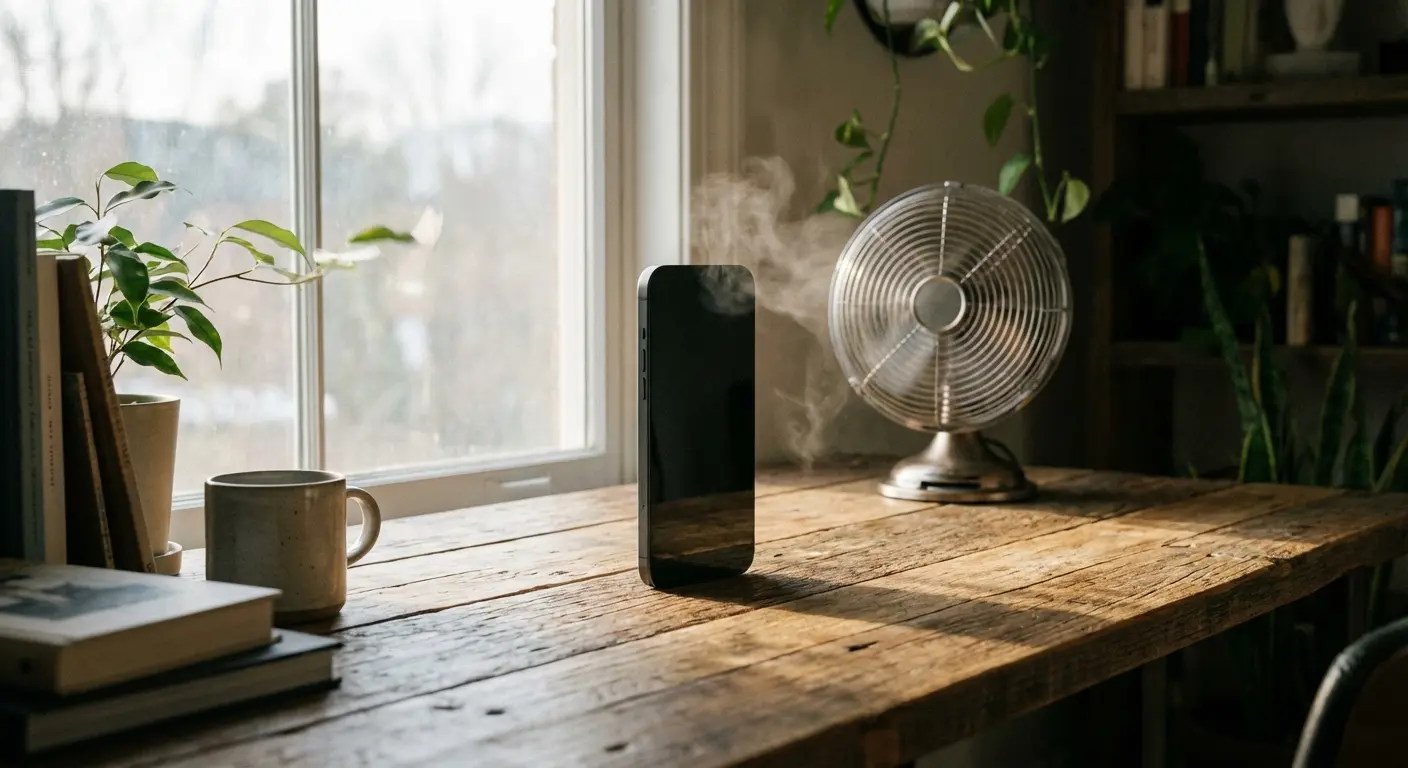
Position your phone strategically. Placing it near the device that needs internet reduces the Wi-Fi radio's power requirements. The closer the connection, the less power needed to maintain signal strength.
Use an external battery, but position it correctly. Charging while running hotspot generates additional heat. If you're using a power bank, keep your phone in a position where air can circulate around it. Don't sandwich it between the battery pack and a couch cushion.
Cool-down periods matter. If you're running an extended work session, disable hotspot every 60-90 minutes for 10-15 minutes. This break protects battery health and prevents thermal throttling from degrading your connection speeds.
Before you turn on hotspot for anything longer than a quick email check:
Start with at least 60% battery (trust me)
Flip on Low Power Mode / Battery Saver
Kill Bluetooth if you're not using it
Turn off location services for stuff that doesn't need it
Close any apps eating bandwidth in the background
Take your case off if you're going longer than an hour
Put your phone somewhere it can breathe (hard surface, not fabric)
Set screen timeout to minimum (30 seconds)
Dim that screen all the way down
Have a battery pack ready if you've got one
Data Consumption: The Hidden Cost of Casual Hotspot Use
How Fast You're Burning Through Your Plan
Video streaming will destroy your data plan. Three gigs per hour for HD video (1080p). Watch a two-hour movie and you've burned through 6GB, and you probably didn't even think about it until you got the overage warning text. Standard definition (480p) uses about 700MB per hour, which is better but still adds up fast.
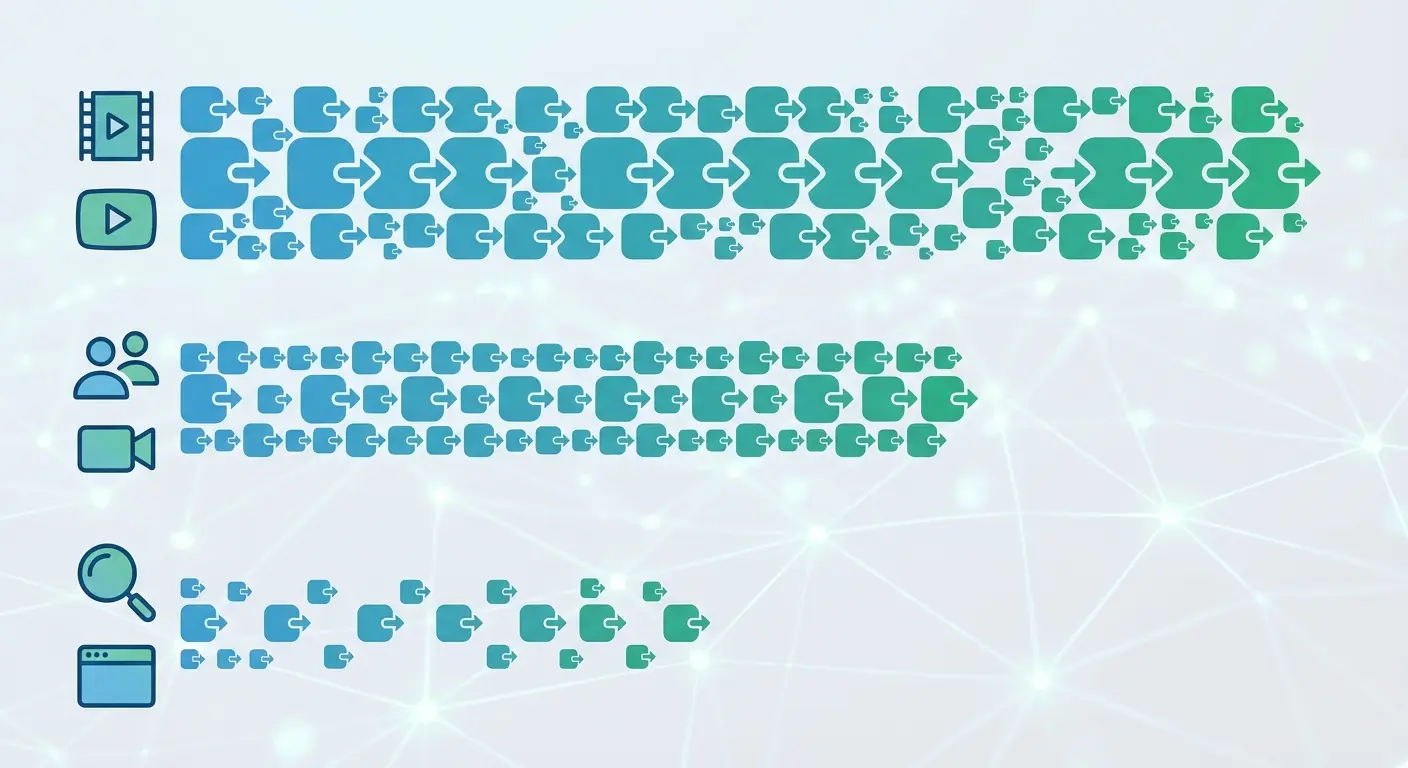
Video calls sit in the middle of the consumption spectrum. A one-hour Zoom call uses roughly 500MB to 1.5GB depending on video quality settings. That's manageable for occasional use, but daily video meetings through your hotspot will drain your monthly allowance quickly.
Web browsing and email are relatively light. You might use 60-150MB per hour of typical browsing. Email without large attachments barely registers. This is where hotspot use makes sense for extended periods without destroying your data plan.
File downloads and cloud syncing are the surprise data killers. Your laptop's automatic cloud backup, software updates, and photo syncing continue running when you connect to your hotspot. These background processes can consume gigabytes without you actively doing anything.
Watched a graphic designer torch 7GB at a coffee shop once. She was just editing photos (local files, no internet needed). But Creative Cloud auto-synced 4GB of project files, Dropbox uploaded 2GB of finished work, and Windows decided that moment was perfect for a security update. She thought she'd used maybe 200MB. Her carrier sent her an overage warning that afternoon.
Carrier Throttling and the "Unlimited" Plan Myth
Your unlimited data plan probably isn't unlimited for personal hotspot use. Most carriers separate phone data from hotspot data in their terms of service.
According to Verizon's hotspot guidelines, when a device is connected to your phone's Mobile Hotspot feature, data usage is applied to your data plan's monthly allowance, and after exceeding your plan's monthly high-speed allowance, you can either move to a plan with a higher monthly hotspot data allowance or continue to use your mobile hotspot at a lower speed.
Typical unlimited plans include 15-30GB of high-speed personal hotspot data. After you exceed that threshold, your carrier throttles your hotspot speeds to 600Kbps or slower. That's barely functional for web browsing and essentially useless for video streaming or video calls.
You need to check your specific plan details. Don't assume. Carriers bury these limitations in fine print because they know most customers don't read them until after they've experienced throttling.
Some carriers offer hotspot add-ons that increase your high-speed allotment. These typically cost $10-15 per month for an additional 10-20GB. If you regularly use hotspot, these add-ons may be necessary rather than optional.
Side note: carrier "unlimited" plans are the biggest scam in tech. They're unlimited until they're not, and the fine print is buried six pages deep in your contract.
iPhone Hotspot Setup: Beyond the Basic Toggle
Settings That Change Performance
Personal Hotspot lives in Settings on your iPhone. You know this already. What matters is the configuration beneath the toggle.
"Allow Others to Join" controls whether devices can connect automatically if they've connected before. Disabling this forces manual approval each time, which increases security but adds friction. Enable it only for devices you control and connect regularly.
Your iPhone generates a default password when you first enable Personal Hotspot. This password is typically a dictionary word with a number, which is more vulnerable to brute-force attacks than you'd want. Change it to something with mixed case, numbers, and symbols. Make it at least 12 characters.
The "Maximize Compatibility" option appears when you enable Personal Hotspot. Turning this on forces your hotspot to use the 2.4GHz band instead of 5GHz. The 2.4GHz band has better range but slower speeds and more interference. Only enable this if you're having connection problems with older devices.
Actually, scratch that. Here's the better way to think about it: set your hotspot to 5GHz for speed if you're sitting right next to your device. But if you're more than 10 feet away, use 2.4GHz. 5GHz is faster but it doesn't go through walls worth a damn.
Family Sharing allows family members to join your hotspot automatically without entering a password. This is convenient if you regularly share your connection with your kids' devices, but it also means you can't control when they connect and start consuming your data.
For iPhone users who frequently enable personal hotspot, understanding battery performance across different iPhone models can help you plan your hotspot sessions more effectively.
The Continuity Feature Most People Don't Use
Instant Hotspot works between Apple devices signed into the same iCloud account. Your Mac or iPad can connect to your iPhone's hotspot without you manually enabling it on the phone.
Your iPhone detects when your other Apple device requests a connection and activates Personal Hotspot automatically. The connection appears in your Mac's Wi-Fi menu with your iPhone's name, and your iPhone shows a blue bar indicating an active hotspot connection.
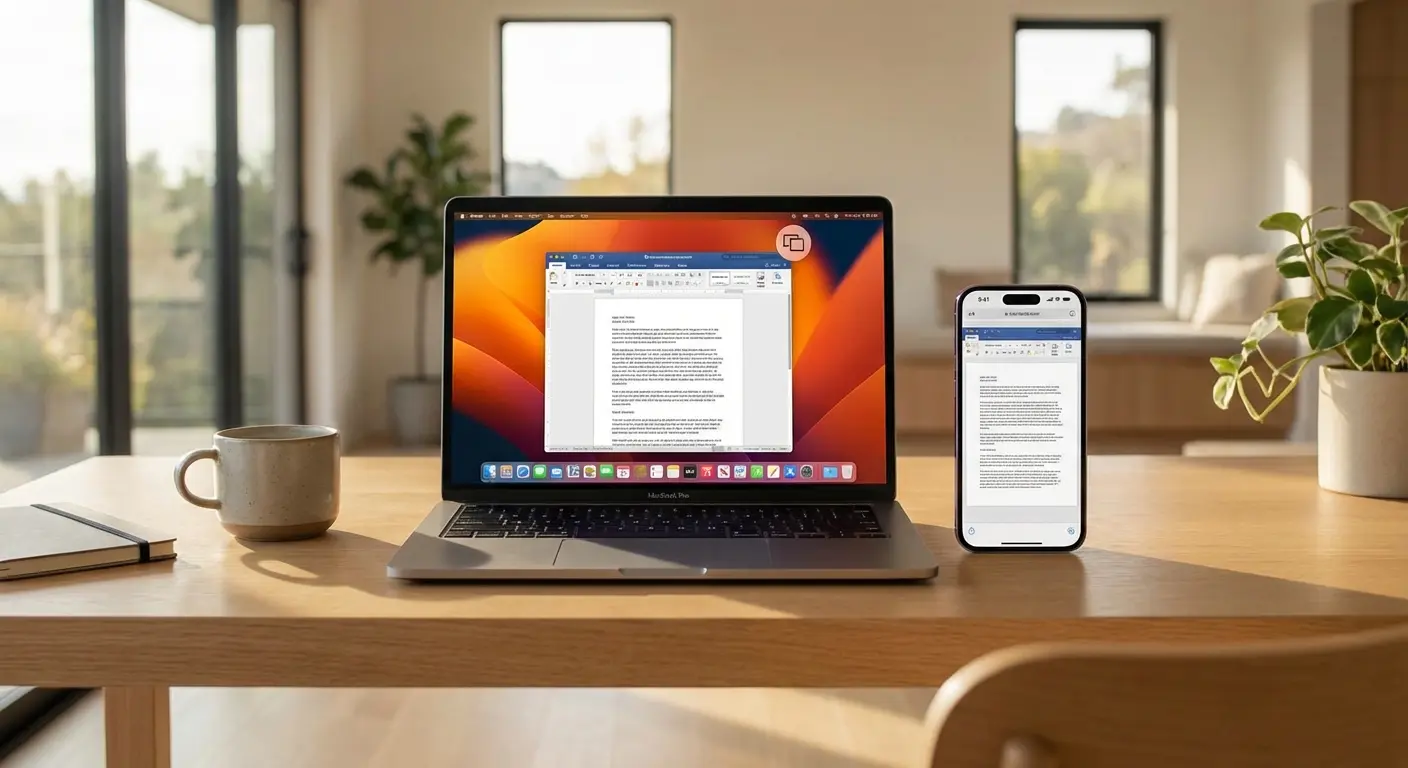
This feature is convenient when you need quick internet access on your laptop. You skip the step of unlocking your phone and toggling hotspot on. Your Mac connects, you do what you need, and when you disconnect, your iPhone's hotspot disables automatically after a few minutes of inactivity.
But here's what'll bite you: your Mac might auto-connect to your iPhone's hotspot when you open it, and suddenly your phone's running hotspot mode all morning without you realizing it. You might wonder why your battery's draining faster than usual, not realizing your laptop has been pulling data through your phone since breakfast.
You can disable Instant Hotspot by turning off Bluetooth on either device, or by removing devices from your iCloud account. If you want the feature available but not automatic, adjust your Mac's Wi-Fi settings to ask before joining your iPhone's hotspot rather than connecting automatically.
Android Hotspot Setup: Navigating Manufacturer Differences
Why Your Settings Menu Looks Different
Android hotspot settings vary by manufacturer, but the core stuff remains consistent. You're looking for terms like "Mobile Hotspot," "Tethering," "Portable Hotspot," or "Hotspot & Tethering."
Most Android phones place these settings under Network & Internet, Connections, or a dedicated Tethering menu. If you can't find it, use your phone's settings search function. Type "hotspot" and it'll take you directly there.
Samsung phones separate Wi-Fi hotspot from USB tethering and Bluetooth tethering in the Connections menu. Google Pixel devices combine them under Network & Internet > Hotspot & Tethering. OnePlus uses a similar structure to Pixel. The names change, but you're configuring the same underlying feature.
What you're looking for across all Android devices: network name (SSID), password, security type, AP band (2.4GHz vs 5GHz), and maximum number of connections allowed. These settings exist on every Android phone, even if they're organized differently.
Advanced Settings Worth Configuring
AP band selection determines whether your hotspot uses 2.4GHz, 5GHz, or automatically switches between them. The 5GHz band offers faster speeds but shorter range and doesn't penetrate walls as effectively. The 2.4GHz band is slower but reaches farther and works better through obstacles. Automatic switching sounds ideal but can cause connection drops when your phone switches bands while devices are connected.
Set the band manually based on your use case. If you're sitting with your laptop right next to your phone, use 5GHz for maximum speed. If you're in a car with your phone in the front and someone using the connection in the back seat, 2.4GHz provides better coverage.
Maximum connections allowed lets you limit how many devices can join your hotspot simultaneously. Reducing this number from the default (usually 8-10) doesn't really improve battery life, but it prevents friends from connecting additional devices without asking.
Auto-disable timeout controls how long your hotspot stays active without connected devices. Set it to 5 minutes. Or 10. Whatever. Just not "never." Your battery will thank you.
USB tethering offers an alternative worth considering. Connect your phone to your laptop with a cable, enable USB tethering, and your laptop gets internet through the physical connection. This method uses way less battery than Wi-Fi hotspot because you're not running the Wi-Fi radio, and the USB connection charges your phone while providing data. The obvious downside is you're tethered to a cable.
As highlighted in a recent Vi mobile connectivity guide, USB tethering not only provides reliable connectivity but also charges your phone simultaneously, ensuring you don't run out of battery while using mobile data. Makes it particularly valuable for extended work sessions where battery longevity matters most.
Android users can benefit from understanding powerful Android settings that complement hotspot functionality and improve overall device performance.
Security Settings That Actually Matter
Why WPA2 Isn't Good Enough Anymore
Your hotspot broadcasts a Wi-Fi network that anyone within range can see. The only thing preventing unauthorized access is your password and encryption protocol.
Use WPA3 if your phone has it. WPA2 isn't terrible, but WPA3 is better at stopping someone from cracking your password or snooping on your traffic. It encrypts data individually for each connected device, protects against offline password-guessing attacks, and provides forward secrecy (meaning even if someone cracks your password, they can't decrypt previously captured traffic).
Most phones from 2019 or newer support WPA3. Check your hotspot security settings for options labeled WPA3, WPA3-Personal, or WPA2/WPA3 (which allows both for compatibility).
The compatibility issue is real. Older laptops, tablets, and IoT devices might not support WPA3 and won't be able to connect to your hotspot if you enable it exclusively. The WPA2/WPA3 mixed mode solves this by allowing both connection types, but you lose some security benefits.
If you're working in public spaces regularly (coffee shops, airports, hotels), WPA3 matters more. You're broadcasting in environments where people have the tools and motivation to attempt unauthorized access. At home, the risk is lower but the protection is still worthwhile.
Password Rotation and Network Name Strategy
Your hotspot's network name (SSID) broadcasts to everyone within range. Using "John's iPhone 14" tells potential attackers exactly what device you're running and gives them your name. This information helps them target specific vulnerabilities.
Choose a generic, non-identifying SSID. Something like "Guest Network" or a random word that means nothing. You want your hotspot to be anonymous in a list of available networks.
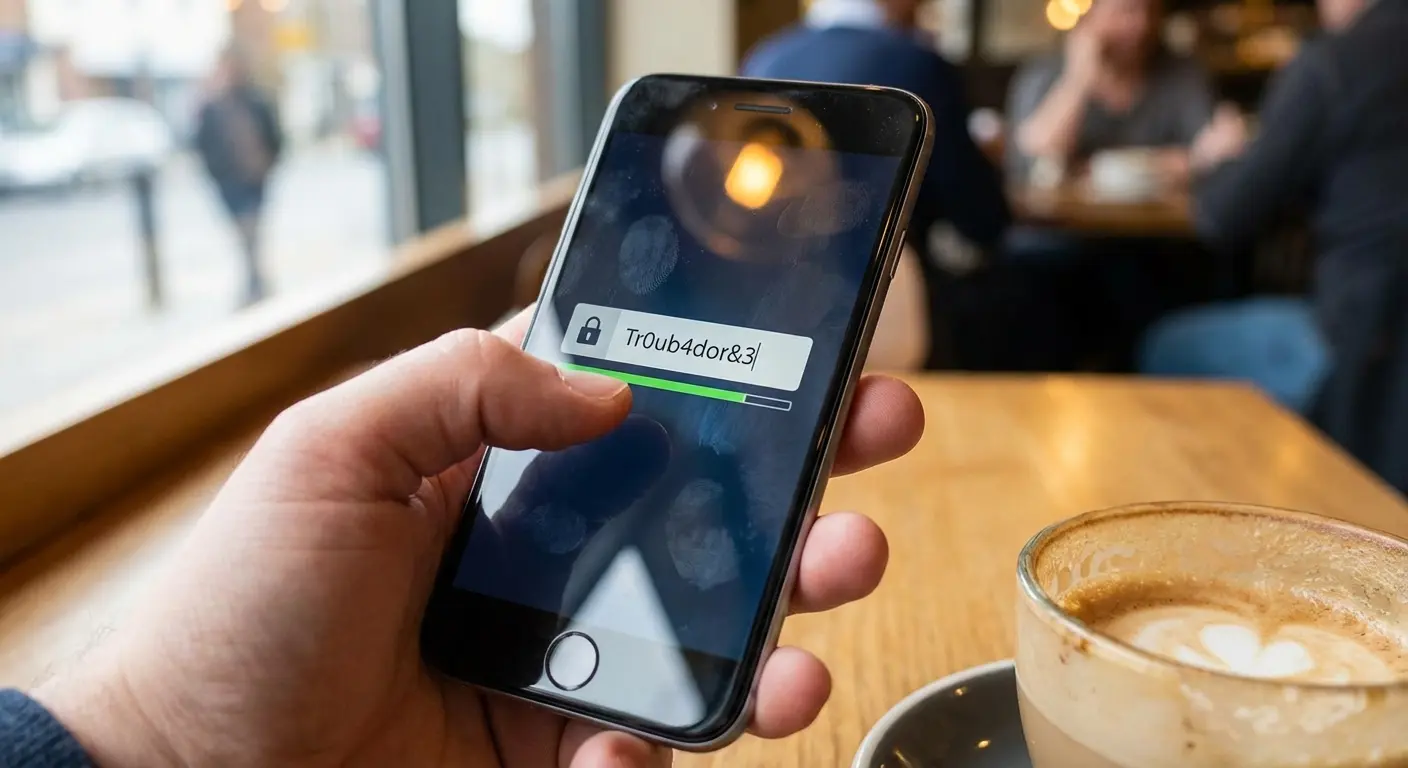
Quick rant: why do phone manufacturers set such terrible default passwords? "Sunshine123" isn't security.
Password rotation matters if you frequently enable hotspot in public spaces. Someone sitting near you in a coffee shop could potentially capture your password through various methods (shoulder surfing, packet sniffing with specialized tools, social engineering). Changing your password monthly reduces the window of vulnerability.
The practical balance is rotating passwords quarterly if you use hotspot regularly, monthly if you use it in public daily. More frequent rotation creates friction that might push you toward weaker, easier-to-remember passwords, which defeats the purpose.
When you change your password, you'll need to reconnect all your trusted devices. This is annoying but necessary. Save the new password in your laptop's password manager rather than trying to memorize it.
According to a recent analysis on BGR, when using hotel Wi-Fi through your phone's hotspot feature, it's critical to remember that hotel Wi-Fi is not inherently safe to use. Just like other public Wi-Fi networks, it can be susceptible to bad actors who want to siphon off your browsing data and personal information, making strong passwords and encryption protocols essential even when routing through your mobile hotspot.
Connection Management: When Multiple Devices Compete for Bandwidth
The Bandwidth Allocation Problem
Your phone splits available bandwidth among all connected devices roughly equally. It doesn't prioritize your work video call over someone else's YouTube stream. Both devices get approximately the same share of your cellular connection's capacity.
This equal distribution creates problems when you're doing bandwidth-intensive tasks. A video call needs consistent, reliable bandwidth to maintain quality. If someone else starts streaming video through your hotspot mid-call, your available bandwidth gets cut in half. Your call quality degrades immediately.
You can't configure bandwidth prioritization on most phones. Enterprise routers have Quality of Service (QoS) settings that let you prioritize certain types of traffic or specific devices. Your phone's hotspot doesn't offer this level of control.
The solution is manual management. Before starting a video call or other critical task, check what devices are connected to your hotspot. Disconnect anything that isn't essential. Ask the person using the tablet to wait until your call is finished.
Some Android phones show you which devices are currently connected and let you block specific devices without changing your password. This feature lives in your hotspot settings under Connected Devices or Manage Devices. Use it to remove devices that are consuming bandwidth you need elsewhere.
Here's how bandwidth splits when you've got multiple devices connected:
Number of Connected Devices |
Typical Bandwidth per Device (4G LTE) |
Suitable Activities |
Not Recommended |
|---|---|---|---|
1 device |
20-40 Mbps |
HD streaming, video calls, large downloads, gaming |
None (full bandwidth available) |
2 devices |
10-20 Mbps each |
SD streaming, video calls, web browsing, email |
4K streaming, large simultaneous downloads |
3 devices |
7-13 Mbps each |
Web browsing, email, music streaming, SD video |
HD streaming, video calls on multiple devices |
4+ devices |
5-10 Mbps each |
Light browsing, email, messaging |
Any video streaming, video calls, downloads |
Background Data and Automatic Updates
Your laptop doesn't know your hotspot is different from your home Wi-Fi. It sees an internet connection and proceeds to do everything it normally does: download updates, sync files, back up photos, and run background processes.
Windows 10 and 11 can consume gigabytes through automatic updates if you don't intervene. The OS downloads feature updates, driver updates, and Windows Store app updates automatically. These downloads happen in the background while you're working.
Set your hotspot connection as metered on Windows. Go to Settings > Network & Internet > Wi-Fi > select your phone's hotspot > toggle on "Metered connection." This tells Windows to limit background data usage and pause automatic updates.
Mac computers are less aggressive about automatic downloads, but iCloud Photo Library, Time Machine backups, and app updates still run by default. You need to manually pause these services before connecting to your hotspot.
Cloud storage services (Dropbox, Google Drive, OneDrive) are particularly problematic. They see an internet connection and immediately start syncing any pending changes. If you've taken 50 photos on your phone that are queued for upload, they'll start uploading the moment your laptop connects to your hotspot.
Pause these services before connecting. Most cloud storage apps have a pause sync option in their menu bar or system tray icon. Use it every time you connect to your hotspot, then remember to resume when you're back on regular Wi-Fi.
Before connecting your laptop to hotspot:
Set Windows connection as "Metered" (or verify it's already set)
Pause Windows Update (Settings > Windows Update > Pause updates)
Pause Dropbox/Google Drive/OneDrive sync
Disable iCloud Photo Library sync (Mac)
Pause Time Machine backups (Mac)
Close Steam, Epic Games, or other game launchers (they auto-update)
Disable Adobe Creative Cloud auto-sync
Check for pending large downloads and cancel/pause them
After disconnecting:
Re-enable Windows Update
Resume cloud storage sync
Re-enable iCloud services
Resume Time Machine backups
The Temperature Problem and Your Phone's Lifespan
What Heat Does to Battery Chemistry
Heat kills your battery's chemistry. There's technical stuff about SEI layers and electrode degradation, but what matters is this: keep your phone hot regularly and it'll hold less charge within months. Not a little less. Noticeably less.
Your phone's battery operates optimally between 62-72°F (16-22°C). Extended operation above 95°F (35°C) accelerates degradation way more than you'd think. Hotspot mode can push internal temperatures above this threshold, especially in warm environments or when your phone is in direct sunlight.
The degradation is cumulative and permanent. Each hour spent at elevated temperatures reduces your battery's maximum capacity slightly. You won't notice the difference day-to-day, but after six months of regular hotspot use, you might find your phone's battery lasting noticeably less time even during normal use.
Battery health metrics on your phone show this degradation. iOS shows battery health under Settings > Battery > Battery Health. Android phones vary by manufacturer, but most show battery health in Settings under Battery or Device Care. A new phone shows 100% maximum capacity. After a year of normal use, you might see 95-98%. After a year of frequent hotspot use, you might see 85-90%.
I killed an iPhone battery in 18 months using hotspot 2-3 hours daily. Didn't realize heat was the culprit until the Genius Bar guy asked if I ran hotspot a lot.
This doesn't mean you shouldn't use hotspot. It means you should be aware of the trade-off you're making. If hotspot is essential to how you work or travel, plan for more frequent battery replacement or device upgrades.
Cooling Strategies That Don't Damage Your Device
Position your phone away from heat sources. Don't leave it in direct sunlight while running hotspot. Don't place it on a car dashboard in summer. Don't bury it under papers or cushions. These seem obvious, but people do them constantly.
Remove your phone case during extended hotspot sessions. Most cases insulate your phone, trapping heat inside. The protection a case offers matters less than thermal management when you're running hotspot for hours.
Place your phone on a cool surface with good airflow. A wooden or metal desk works well. A glass surface works even better because it conducts heat away from your phone. Don't use fabric surfaces (beds, couches, car seats) that insulate and trap heat.
Never put your hot phone in the freezer or refrigerator. The rapid temperature change can cause condensation inside your phone, which damages internal components. It can also thermal shock the battery, creating safety risks.
Your phone will tell you when it's too hot. Listen to it. iOS displays a temperature warning screen and stops functioning until it cools down. Android phones show a warning notification and may throttle performance or disable certain features. If you see these warnings, stop using hotspot immediately and let your phone cool naturally. Don't try to push through the temperature warning.
Yes, I'm telling you to point a fan at your phone. It sounds ridiculous. It also works. A small USB-powered fan pointed at your phone during extended hotspot sessions can drop operating temperature quite a bit. This sounds excessive, but if you regularly work remotely and depend on hotspot, it's a practical solution that extends both session length and device lifespan.
I've seen this blow up mid-presentation. Guy's phone overheated 90 minutes in, shut down the hotspot, and he had to scramble to the hotel's terrible Wi-Fi while clients waited. Meanwhile, another consultant I know runs similar sessions with the phone case removed, placed on a glass conference table near the AC vent. Phone stays warm but functional. After the presentation, they disable hotspot and let the phone rest for 20 minutes before using it again.
Troubleshooting When Devices Won't Connect
The Visibility Problem
Your laptop sees the hotspot. You type the password. It thinks about it. "Unable to join network." You know the password is right (you just set it). You try again. Same thing. This is where people start swearing at their devices.
First, verify hotspot is actually enabled on your phone. Check for the visual indicator: iOS shows a blue bar at the top of the screen, Android shows a notification icon. Don't assume it's on just because you remember turning it on. Phones sometimes disable hotspot automatically after periods of inactivity. Yeah, you should turn off hotspot when you're done. Obvious. But how many times have you left it on all day by accident?
Check that your phone isn't in airplane mode. Some phones let you enable Wi-Fi while in airplane mode, which makes it seem like everything should work, but hotspot requires cellular connection. Airplane mode disables that connection.
Maximum connections might be reached. If you've set your hotspot to allow 3 devices and 3 devices are already connected, a fourth device won't see your network or won't be able to connect even if it sees it. Disconnect an existing device first.
Special characters in your network name can cause visibility problems. Stick to letters, numbers, and basic punctuation. Avoid emojis, accents, or unusual symbols in your SSID.
Frequency band incompatibility prevents some older devices from seeing 5GHz networks. If your hotspot is set to 5GHz only and you're trying to connect a device from 2012, it might only support 2.4GHz. Switch your hotspot to 2.4GHz or automatic band selection.
Authentication and Password Failures
Forget the network on your connecting device and start over. Your device might have cached incorrect connection information from a previous attempt. On most devices, you can forget a network by long-pressing it in the Wi-Fi list or finding it in saved networks and selecting "Forget."
Autocorrect changes your password as you type it. This is particularly common on mobile devices. If your hotspot password includes a real word, your device might capitalize it or add punctuation. Type carefully and watch what you're entering, not what you meant to enter.
Security protocol mismatch prevents connections on older devices. If your hotspot is set to WPA3 only and your laptop only supports WPA2, the connection will fail even with the correct password. Switch your hotspot to WPA2/WPA3 mixed mode.
Some devices struggle with long passwords. While there's no technical reason a 20-character password shouldn't work, some older devices have implementation bugs that cause problems with passwords longer than 15-16 characters. If you're having persistent connection problems, try temporarily shortening your password to test if this is the issue.
Restart both devices. This is the "did you try turning it off and on again" solution, but it genuinely works. Your phone might have a stuck process preventing new connections. The connecting device might have a Wi-Fi driver issue. A restart clears these problems.
Strategic Hotspot Use for Road Trips and Remote Work
The Road Trip Scenario
Road trip hotspot sounds great until you're on I-80 through Nevada and your connection drops every five minutes because you're switching cell towers at 75mph. Your kids are screaming because their show keeps buffering, and you're wondering why you didn't just download Netflix shows before you left.
Phone placement in vehicles affects signal strength and connection quality. Keep your phone near a window rather than buried in a center console or glove compartment. Metal and plastic body panels interfere with cellular signals.
Connection stability degrades at highway speeds. Your phone constantly switches between cell towers as you move, and each handoff can cause brief interruptions. Passengers streaming video will experience buffering. Video calls become nearly impossible. Web browsing and music streaming work reasonably well because they can buffer content.
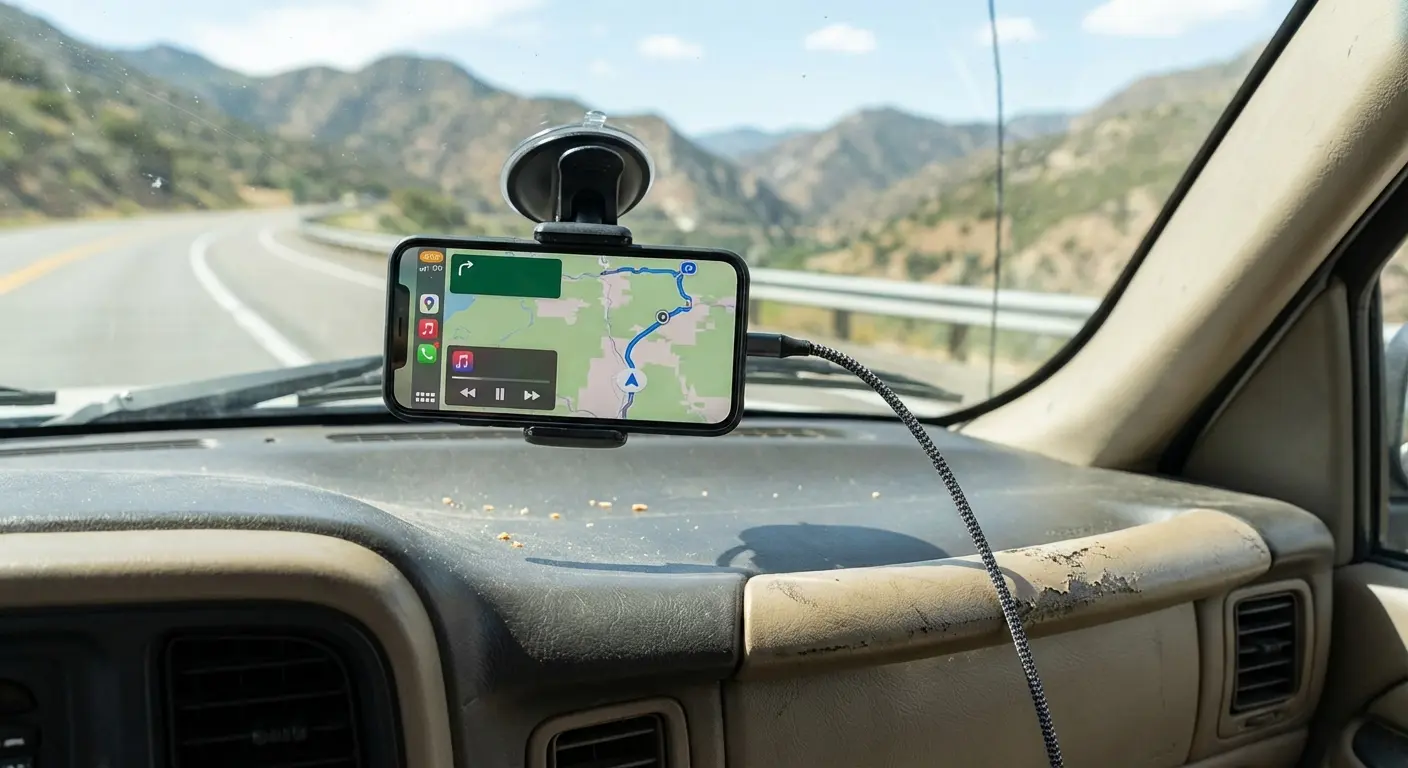
Car charging is essential for road trip hotspot use. Your phone will drain completely within 2-3 hours of continuous hotspot operation. Use a high-quality car charger (at least 18W) to keep up with the power consumption. Cheap chargers might not provide enough current to charge your phone while it's running hotspot, meaning your battery slowly drains even while plugged in.
Coverage gaps will interrupt your connection. Rural highways have dead zones where cellular service disappears completely. Mountains, valleys, and remote areas mean periods without any internet access. Set expectations with passengers that the connection won't be constant.
Consider your data plan before enabling hotspot for a long drive. Six hours of passengers streaming content can consume 20-30GB of data. Make sure you have enough high-speed hotspot data remaining in your billing cycle.
As noted by Verizon, many monthly phone plans and certain prepaid plans let you use Mobile Hotspot on capable devices for no additional monthly charge, though when a device is connected to your phone's Mobile Hotspot feature, data usage is applied to your data plan's monthly allowance. Makes it crucial to monitor consumption during extended road trips.
For road trip hotspot use, you need your phone mounted somewhere with airflow. I use a magnetic mount that lets me stick it to the dash and pull it off when I need to check something. Keeps it cool and accessible. Having a reliable car phone mount ensures your device stays positioned for optimal signal strength and cooling.
Remote Work Reality Check
Your phone's hotspot can sustain remote work for short periods or emergencies. It's not a long-term replacement for home internet.
Email, document editing, and web-based tools work fine through hotspot. Google Docs, Microsoft 365, Slack, and similar cloud-based work tools function normally. You won't notice big differences from your home internet for these tasks.
Video calls are the challenging use case. A single hour-long video call might use 1-1.5GB of data and drain 20-30% of your battery. Daily video meetings through hotspot will exhaust your data plan and require constant charging. Audio-only calls consume far less data and battery while maintaining communication.
Large file transfers aren't practical. Uploading a 2GB video file or downloading a large dataset through hotspot works, but it's slow and consumes a lot of data. If your work regularly involves moving large files, hotspot is a poor solution.
Reliability matters more for work than casual use. When your home internet goes down and you have a meeting in 30 minutes, hotspot saves you. For daily remote work, the stress of wondering whether your connection will hold during important calls isn't worth it. This isn't abstract. This is your phone dying during navigation when you need it most. This is the difference between your phone lasting through a full day or needing a charger by 2 PM.
Have a backup plan. Know where the nearest coffee shop with Wi-Fi is located. Keep a list of coworking spaces in your area. If you're in a critical meeting and your hotspot fails, you need somewhere to go immediately.
If you're using hotspot to avoid paying for home internet, do the math. You'll replace your phone battery a year earlier ($80-100), you might hit data overages ($10-15/GB), and you'll probably need to upgrade your phone plan ($10-20/month for more hotspot data). You're not saving money. You're just moving it around.
When You Shouldn't Use Your Phone as a Hotspot
Situations Where Hotspot Creates More Problems
You're about to drive somewhere unfamiliar and need your phone for navigation. Running hotspot drains your battery 3-5x faster than normal use. If you enable hotspot for passengers during a road trip, your phone might die before you reach your destination. Navigation matters more than passenger entertainment.
Your data plan is nearly exhausted and you're only halfway through the billing cycle. Hotspot will accelerate data consumption and push you into overage charges or throttled speeds. Wait until your plan resets or find Wi-Fi instead.
You're giving an important presentation or attending a critical meeting. Hotspot reliability doesn't match dedicated internet connections. Connection drops, speed fluctuations, and unexpected data limits can derail important professional moments. Use the venue's Wi-Fi or hardwired connection instead.
Better internet access is available. If you're sitting in a coffee shop with free Wi-Fi, using your hotspot instead makes no sense. You're burning battery and data for no benefit. Save your hotspot capability for situations where you actually need it.
Your phone is already hot from other use. If you've been using GPS navigation, taking photos in bright sunlight, or running other intensive tasks, adding hotspot pushes your phone into thermal throttling territory. Give it time to cool down first.
The Battery Health Trade-off
Regular hotspot use shortens your phone's useful lifespan. This isn't a minor effect. It's measurable and significant.
Someone who uses hotspot for 2-3 hours daily will see battery health decline to 80-85% capacity within 12-18 months, compared to 90-95% for someone who doesn't. That difference means replacing your phone or battery 6-12 months earlier than you otherwise would. This is why your two-year-old phone feels like it's dying when your friend's same-age phone is fine.
Calculate whether hotspot is worth this cost. If it enables remote work that earns you money, the trade-off makes financial sense. If you're using it because you don't want to pay for internet at a coffee shop, you're not actually saving anything.
Occasional hotspot use has minimal impact. Using it once or twice a week for an hour doesn't accelerate battery degradation much. The damage comes from sustained, repeated use that keeps your phone at elevated temperatures regularly.
You can mitigate some degradation through thermal management, but you can't eliminate it. Even with perfect cooling and optimal settings, running hotspot regularly works your phone harder than it's designed to be worked continuously.
If you've got an unlimited plan with 50GB of high-speed hotspot data, half this advice doesn't matter to you. You're in the minority, though.
Keeping Your Setup Accessible While You're Connected
Your phone needs to stay visible and accessible while running hotspot. You're monitoring battery level, checking which devices are connected, and watching for overheating. Laying it flat on a desk or burying it in a bag doesn't work.
Positioning matters for signal strength and thermal management. Your phone performs best when it's upright, has airflow around it, and isn't covered or insulated. You also want it within easy reach to disable hotspot when you're done or to check notifications.
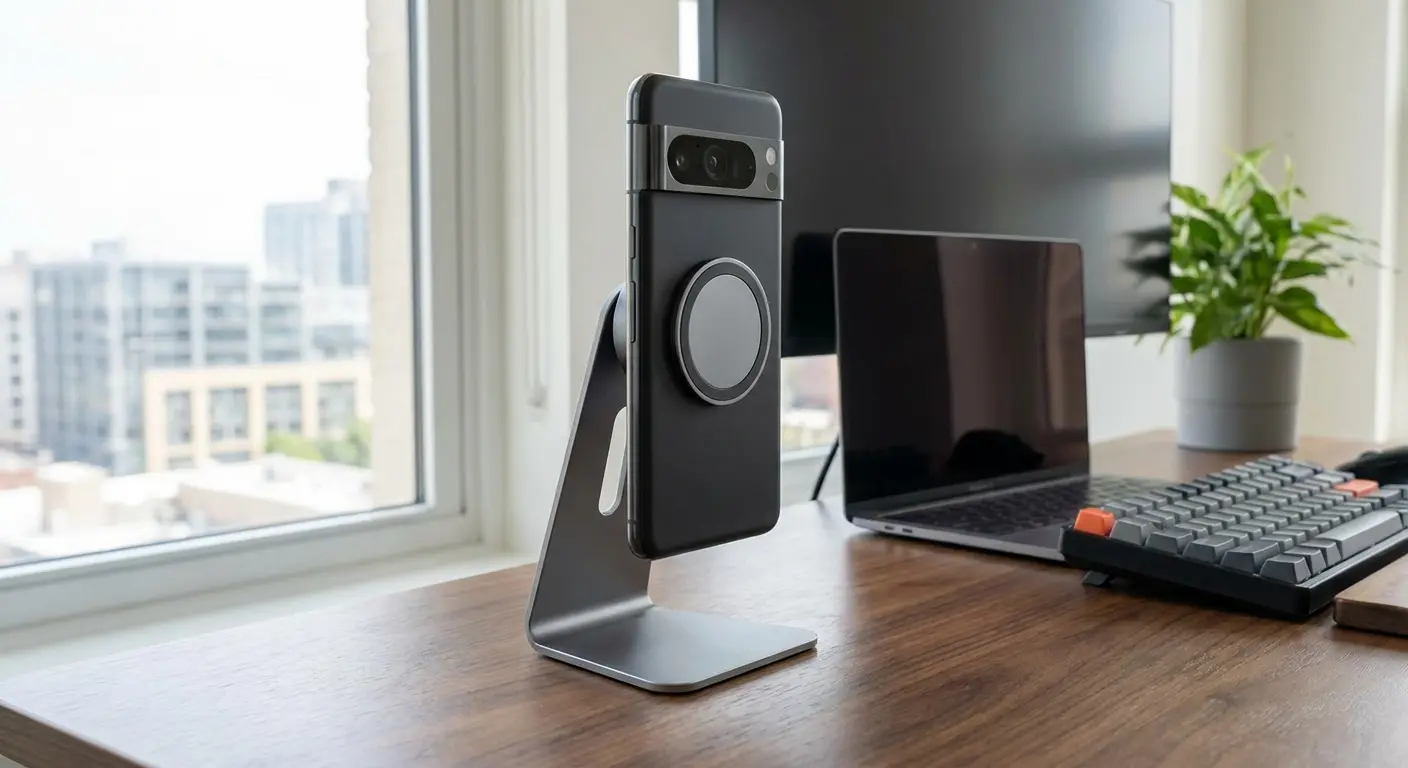
This is where a proper mounting system makes a difference. The magnetic system means you can quickly attach and remove your phone without fumbling with clips or clamps when you need to check something or move to a different location.
For vehicle use specifically, a windshield or vent mount keeps your phone accessible to passengers who might need to reconnect or troubleshoot, while keeping it out of the way of the driver. The phone stays cool with air circulation and remains visible for monitoring battery and connection status.
Turn off hotspot when you're done. I forget constantly and wonder why my battery's at 30% by lunch. Set that auto-disable timeout. Future you will appreciate it.
Bottom Line
Your phone can be a hotspot. It's genuinely useful when you need it. But it's not free. You're trading battery life, data, and long-term phone health every time you turn it on.
Use it smart. Turn it off when you're done. Watch your data. Keep your phone cool. Don't run it for hours daily unless you're planning to replace your battery sooner than you'd like.
It's a backup internet solution, not your primary connection. Treat it that way and it'll save you when you actually need it.
Look, if you're using hotspot daily for remote work, you need to know this: it's going to cost you in battery degradation, and you'll feel it within a year. Plan accordingly. Maybe invest in a dedicated mobile hotspot device if this is a regular thing. Or just get proper internet.
Spent three months hitting my data cap before I figured out Windows Update was downloading gigabytes through my hotspot. First time my phone overheated and shut down mid-video call with a client, I learned about thermal management the hard way. You don't have to make the same mistakes.
The settings and configurations we've covered aren't about squeezing marginal improvements from your hotspot. They're about making it sustainable for the situations where you genuinely need it. Security settings protect you when broadcasting in public spaces. Thermal management extends your device's lifespan. Data monitoring prevents billing surprises.
You now understand what's happening inside your phone when you enable hotspot mode. That knowledge changes how you use the feature. You'll make different decisions about when to enable it, how long to run it, and what devices to connect. You'll recognize the warning signs of problems before they become critical.
Hotspot works best when you treat it as the backup solution it's designed to be rather than the primary internet connection it's not. Use it strategically, manage it actively, and your phone will provide reliable internet access exactly when you need it most.

