


You're on the subway. Volume step 3 on your Pixel is too quiet to hear over the train. Volume step 4 makes you wince. There's no in-between, and you're about to throw your phone.
There's a hidden Android setting causing this. It's called Absolute Bluetooth Volume, and it's probably ruining your audio right now.
Look, Google thought they were being helpful. Two volume controls (one on your phone, one on your headphones) seemed like one too many. So they synced them together. Problem solved, right? Except now your volume jumps from whisper-quiet to uncomfortably loud with nothing in between. Or your Bluetooth stutters randomly. Or your car stereo just... doesn't work right anymore.
I'm going to show you how to disable this feature. It lives in Developer Options (yes, really, for a volume problem). But first, you need to understand what's actually happening here, because this isn't just about volume. It's about why your Bluetooth experience feels broken.
Why Absolute Bluetooth Volume Exists (And Why It Fails You)
Google introduced absolute Bluetooth volume to solve what seemed obvious: managing two separate volume controls. The idea was simple enough. Sync them together, and you'd never have to fumble with multiple adjustments. The feature became standard on all Android devices running Android OS 6.0 or later, making it nearly universal across the ecosystem according to Android Police's technical analysis.
And then it all falls apart.
Because Samsung interprets the Bluetooth spec one way, JBL does it differently, and your 2018 Honda? Completely different rulebook. They're all trying to sync, but they're not speaking the same language.
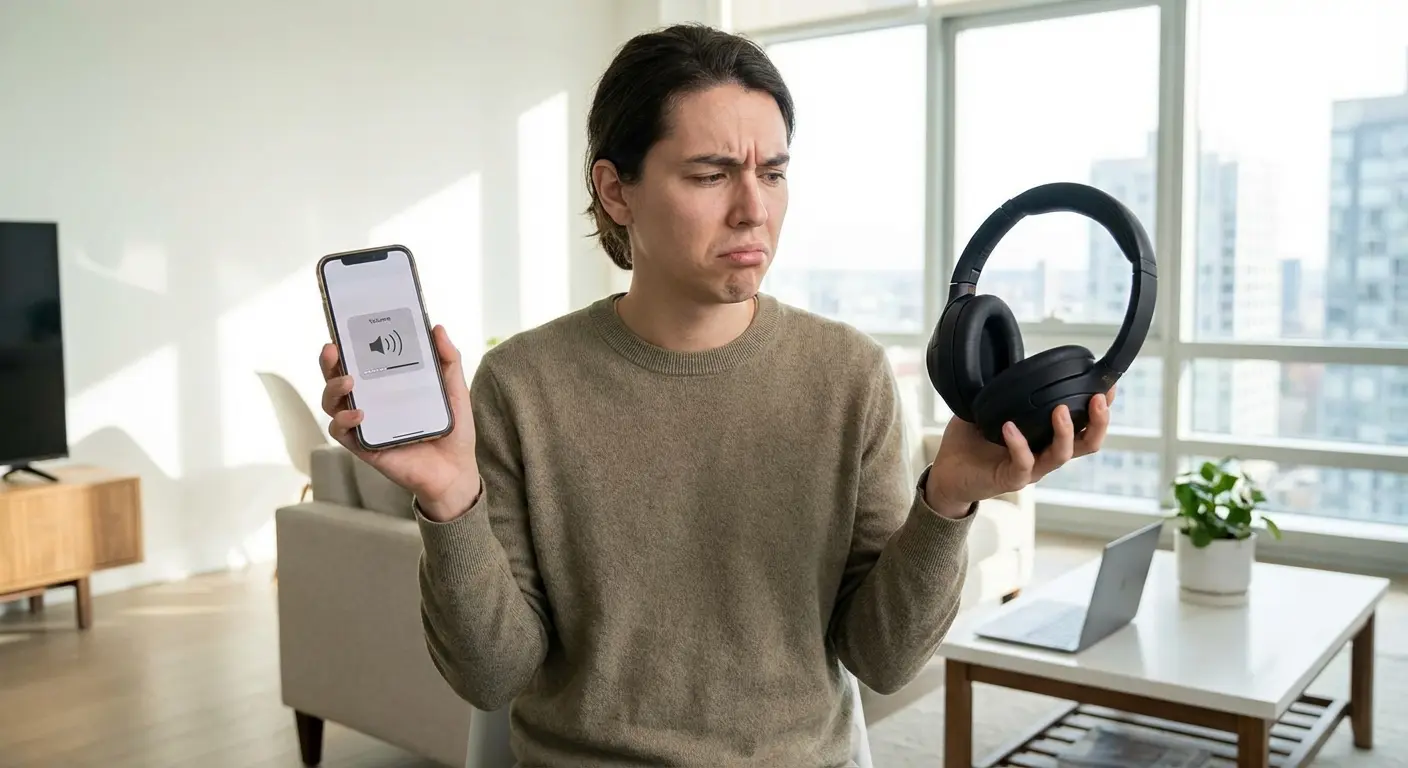
You've probably noticed this. Your volume is maxed on both devices but the audio is still barely audible. Or maybe you've experienced the opposite: the volume is set to 30% but it's blasting at uncomfortable levels. That's absolute volume creating a translation error between your devices.
I watched my friend struggle with this on his Pixel 2 XL. Volume 3 was inaudible. Volume 4 was painful. He thought his headphones were broken. They weren't. This exact issue has been documented extensively by Pixel users on XDA forums, where frustrated owners describe the maddening gap between consecutive volume steps that makes finding a comfortable listening level nearly impossible.
The feature assumes a perfect world where every Bluetooth device follows the same standards. We don't live in that world. We live in a world where you've got a five-year-old car stereo, last year's wireless earbuds, and a brand-new Android phone all trying to cooperate.
The result? Audio chaos.
The Volume Range Mismatch
Your phone might have a volume scale from 0 to 15. Your Bluetooth speaker might have a range from 0 to 100. Absolute volume tries to map these together, but the math doesn't always work cleanly.
Here's what happens. When your phone is at volume step 1 (which is 6.67% of its range), your speaker might jump to 7% of its range, or 3%, or some other arbitrary number the manufacturer decided on. This creates dead zones where multiple clicks on your phone's volume button do absolutely nothing. You're moving through steps that don't have a corresponding change on the receiving device.
Device Type |
Typical Volume Steps |
Common Range Mapping Issues |
|---|---|---|
Android Phone |
15-30 steps |
Linear scale, evenly distributed |
Bluetooth Earbuds |
10-16 steps |
Often logarithmic curve with compressed low end |
Car Stereo |
30-40 steps |
Legacy scaling, inconsistent step size |
Bluetooth Speaker |
50-100 steps |
High granularity creates dead zones when synced |
Premium Headphones |
16-32 steps |
Manufacturer-specific curves, may include safety limits |
It's maddening when you're trying to find that perfect volume level and the adjustment feels broken or unresponsive.
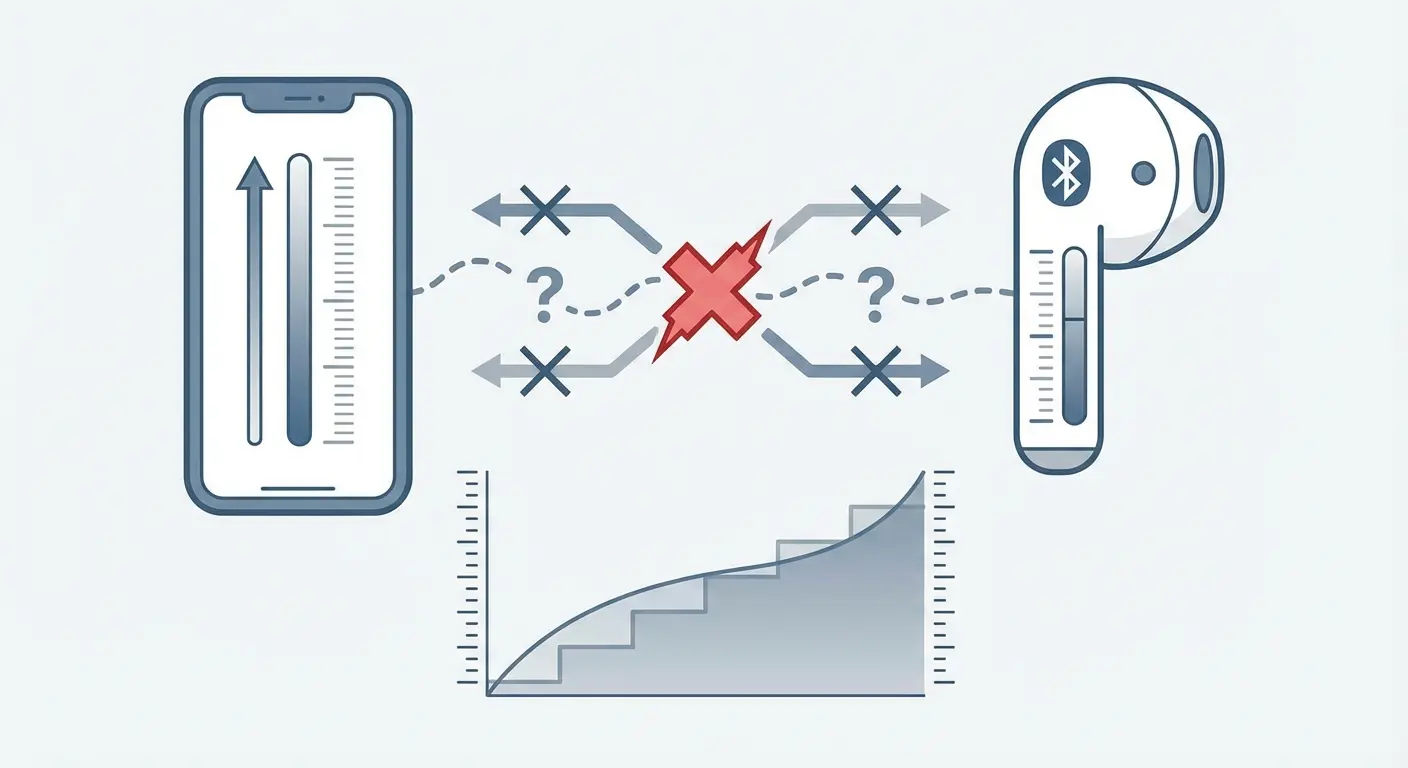
Some devices try to compensate by implementing their own volume curves. Your phone might increase volume logarithmically while your headphones expect a linear scale. The disconnect creates an experience where the first three volume steps are whisper-quiet, and step four suddenly jumps to uncomfortably loud. There's no middle ground, and it's not your imagination.
The Latency Problem You Didn't Know Existed
Absolute volume introduces a communication delay. Every time you adjust volume, your phone has to send a command to your Bluetooth device, wait for acknowledgment, then update the UI. This happens in milliseconds, but you can feel it. The volume change lags behind your button press just enough to feel unnatural.
(And yes, I know that sounds minor, but once you notice it, you can't un-notice it. Sorry.)
For most casual listening, you won't care. But if you're trying to quickly lower volume during a phone call, or you're adjusting audio while using GPS directions in your car, that split-second delay becomes genuinely annoying. You press the button, nothing happens, you press it again, and suddenly the volume drops two steps instead of one.
Worse, some devices queue these commands. You rapidly press volume up three times, and the device processes them sequentially with a delay between each. You've moved on with your life, but your speaker is still catching up, gradually increasing volume in steps while you wonder if it's broken.
The Real Problem Nobody's Talking About: Device Handshake Conflicts
The volume issue is obvious. You notice it immediately when your audio is too quiet or too loud. What you don't notice is how bluetooth absolute volume affects the initial connection between your devices. Recent analysis from BGR's audio optimization guide reveals that bluetooth absolute volume "ties your phone's volume control to the connected headphones or audio device," but more critically, this synchronization can "sometimes act as a bottleneck to the audio device's performance" during the connection handshake process.
Every time your phone connects to a Bluetooth device, they exchange information about capabilities. Which audio codecs do you support? What's your battery level? Do you support hands-free calling? Can we sync volume controls?
That last one? It fails more often than it should.

Your phone asks: "Can we use absolute volume?" Your device responds: "Sure, I think so." But "I think so" isn't a guarantee. Some devices report that they support bluetooth absolute volume when they don't, or they support it inconsistently. The connection establishes anyway, but now both devices are operating under false assumptions about how volume control should work.
This creates instability beyond just volume levels. Some users report that when you disable absolute volume, you can improve connection reliability. Their devices pair faster, maintain connections better, and experience fewer random disconnections. The volume feature was interfering with the entire Bluetooth stack.
Codec Selection Gets Messy
When absolute volume is negotiating during connection, it can interfere with audio codec selection. Your phone might default to a lower-quality codec (like SBC) instead of a higher-quality option (like aptX or LDAC) because the absolute volume handshake is consuming negotiation bandwidth or creating conflicts in the capability exchange.
You might never realize you're getting worse audio quality. It's not dramatically different, just subtly less clear or slightly more compressed.
When you disable absolute volume, you can sometimes allow your devices to negotiate a better codec because there's one less feature trying to establish itself during connection. This particularly affects devices that support multiple codecs. The negotiation process has to prioritize which features to enable, and absolute volume sometimes wins over audio quality because it's seen as a core functionality rather than an enhancement.
Battery Drain From Constant Communication
Absolute volume requires ongoing communication between devices. Every volume adjustment, every status check, every sync operation uses a tiny amount of battery. On its own, this is negligible. But when you're dealing with a device that constantly sends volume status updates (some car stereos are notorious for this), the cumulative effect adds up.
Some poorly implemented Bluetooth devices send volume status updates multiple times per second, even when nothing has changed. Your phone has to process and respond to each one. This keeps the Bluetooth radio active at a higher power state than necessary, preventing it from entering low-power modes during playback.
How to Disable Absolute Bluetooth Volume on Android
You need Developer Options for this. (I know, I know. For a volume setting. It's absurd.)
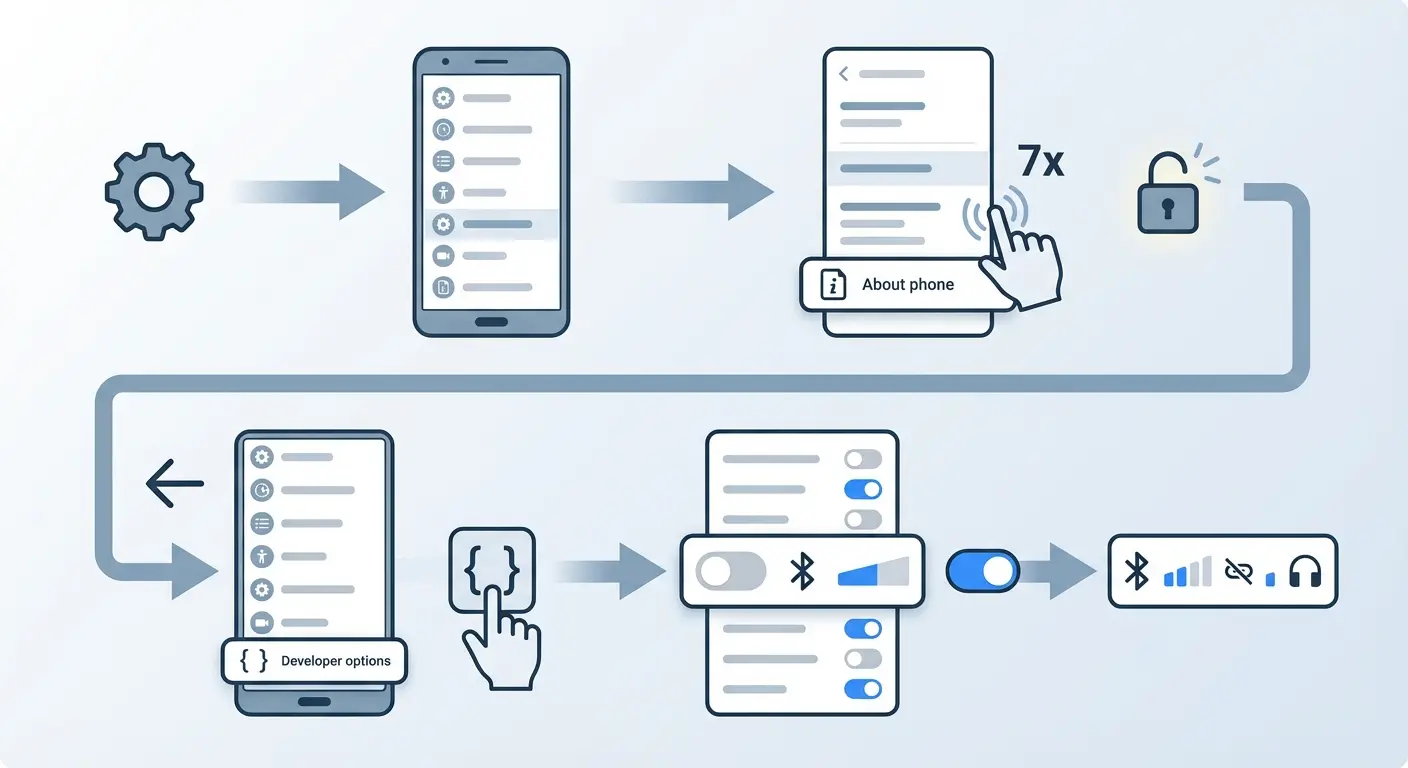
Takes ten seconds. Tap "Build Number" seven times in your About Phone settings. You'll feel like you're hacking the Matrix. You're not. You're just unlocking a menu Google hid from normies.
Before you do this, make sure your Bluetooth device has physical volume controls. You'll need them. And maybe disconnect everything first. I've seen weird things happen when you toggle this while connected. Also verify your Android version is 6.0 or later (Settings > About Phone > Android Version), and charge your phone to at least 50% battery. Not required, but recommended for any system changes.
Unlocking Developer Options
Open your Settings app and scroll to "About phone" (on Samsung devices, this might be under "About device"). Look for "Build number" or "Software information" followed by "Build number." The exact location varies by manufacturer, but it's always in the About section somewhere.
Tap "Build number" seven times rapidly. You'll see a countdown appear after the third or fourth tap: "You are now 3 steps away from being a developer." Keep tapping until you see "Developer mode has been enabled" or similar confirmation message.
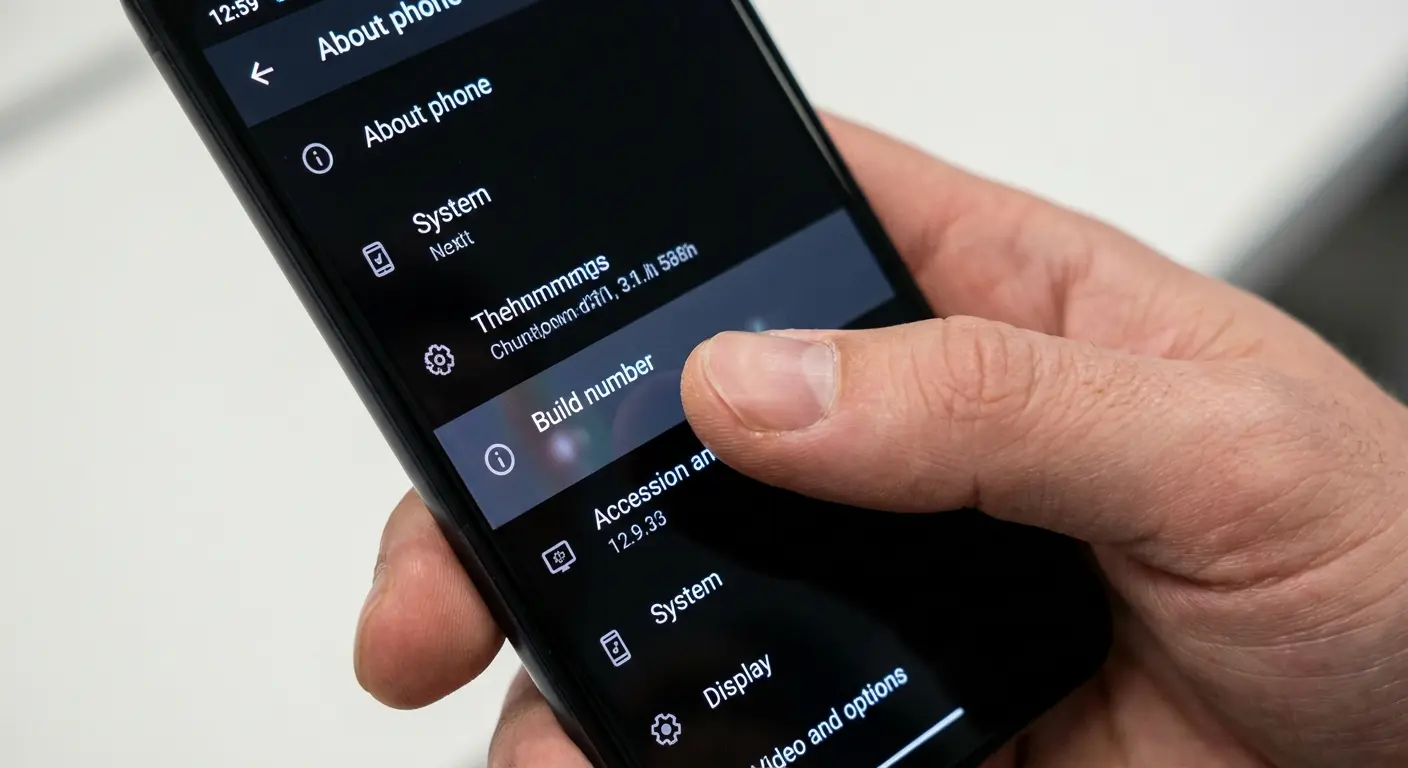
Some devices require you to enter your PIN or password after the seventh tap. This is a security measure to prevent someone from casually enabling developer settings on your unlocked phone. Enter your credentials and you're done.
Go back to your main Settings menu. You should now see "Developer options" as a new menu item, usually near the bottom of the list or under "System" depending on your Android version.
Finding the Absolute Volume Setting
Open Developer options. You'll see a long list of technical settings. You're looking for one specific toggle, and you can ignore everything else.
Scroll down until you find "Disable absolute volume" (the wording is consistent across most Android versions, though some manufacturers phrase it slightly differently). It's usually in the Networking or Bluetooth section of Developer options, roughly two-thirds of the way down the list.
The toggle is OFF by default, which means absolute volume is ENABLED. This confuses people constantly. The setting is phrased as a negative (disable), so turning it ON means you're disabling the feature.
Think of it this way: you're enabling the disabling of absolute volume. Yeah, it's backwards. Welcome to Android.
Tap the toggle to turn it ON (it should turn blue or green depending on your theme). You'll see "Disable absolute volume" now shows as enabled.
The Restart Requirement
Here's the part most guides bury or forget to mention: you MUST restart your phone for this change to take effect. Just toggling the setting doesn't immediately change how your Bluetooth stack operates. The setting is read during system boot, not applied dynamically.
Hold your power button and select "Restart." Wait for your phone to fully reboot. This takes 30 seconds to a minute depending on your device.
After the restart, reconnect to your Bluetooth device. You might need to manually pair again, though usually the connection remembers your device. Once connected, test your volume controls. You should now have independent volume adjustment on your phone and your Bluetooth device.
Manufacturer-Specific Variations
Samsung devices sometimes label this setting slightly differently or place it in a different section of Developer options. On One UI, you might find it under "Bluetooth audio codec" settings or in a separate "Bluetooth" subsection within Developer options. They also sometimes call it "Bluetooth absolute volume control" instead of "Disable absolute volume."
Google Pixel phones follow the standard Android implementation, so the setting is exactly where you'd expect it. OnePlus and other near-stock Android devices are similar.
Xiaomi's MIUI and other heavily customized Android skins occasionally move this setting or remove it entirely from the UI. If you can't find it after unlocking Developer options, your manufacturer may have hidden it. Some custom ROMs and third-party launchers restore access to these hidden settings, but that's a whole other rabbit hole.
What Actually Happens When You Turn It Off
Your phone and Bluetooth device now operate with completely independent volume controls. When you press volume up on your phone, only your phone's output level changes. Your Bluetooth device maintains its own volume setting separately. According to technical documentation from Beebom, Bluetooth Absolute Volume "acts as a middle-man between your Android's DAC (Digital to Analog Converter) and the audio that goes to your earphones," and when you disable absolute volume, you remove this intermediary processing layer entirely.
This means you're now managing two volume controls again, which sounds like a step backward.
But here's what you gain: granular control. You can set your phone to 80% and your headphones to 40%, creating a combined volume level that might not have been possible when the volumes were locked together.
The Volume Range Suddenly Expands
You'll immediately notice you have access to volume levels that were previously impossible. Remember those dead zones where clicking volume up or down did nothing? Gone. Every step on your phone's volume scale now produces a noticeable change because it's not trying to map to your Bluetooth device's scale.
Your minimum volume might be usable now. With absolute volume enabled, the lowest setting on many devices is still uncomfortably loud because the synced minimum is a compromise between both devices' ranges. With independent control, you can set your phone to minimum and your headphones to 20%, achieving a genuinely quiet listening level.
A real-world example from Android Central forums illustrates this perfectly: one user discovered that their Bluetooth earbuds had a minimum volume that was far too loud for bedtime listening. After they android disable absolute bluetooth volume, they could lower their phone's output while keeping the earbuds at a moderate setting, finally achieving a comfortable volume for falling asleep without disturbing their partner.
The maximum volume ceiling might increase too. If your Bluetooth device was limiting the synced maximum to protect hearing (some do this), when you disable absolute volume, you remove that restriction. You can push both devices to their actual maximum if you want (though your ears might regret it).
Audio Quality Might Improve
Some users report clearer audio after they android disable absolute bluetooth volume. This isn't placebo. When absolute volume is enabled, some Android devices apply additional processing to the audio signal to manage the synced volume control. This processing can introduce artifacts or reduce dynamic range.

With independent volume control, your phone outputs a cleaner signal at a fixed level, and your Bluetooth device handles its own amplification. This separation can reduce distortion, particularly at higher volumes where the compounding effects of two volume controls create clipping or saturation.
You might also notice better bass response or clearer highs. This happens because your Bluetooth device's native volume curve is no longer being overridden by your phone's interpretation of what the volume should be. The device can use its optimized amplification path instead of accommodating the synced control.
Connection Behavior Changes
Your devices might pair faster. Without the bluetooth absolute volume handshake, the initial Bluetooth connection has one less negotiation step. This saves a fraction of a second, which you probably won't notice consciously, but the connection feels snappier.
Some devices maintain more stable connections. If your Bluetooth was dropping randomly or stuttering during playback, when you disable absolute volume, you might reduce or eliminate these issues. The constant volume sync communication was potentially interfering with audio data transmission, and removing it frees up bandwidth.
Battery life could improve marginally. Your phone isn't constantly sending and receiving volume status updates, so the Bluetooth radio can spend more time in low-power states. Don't expect a dramatic difference, but you might see an extra 15-30 minutes of playback time on a full charge.
Troubleshooting When Disabling Doesn't Solve Your Audio Issues
You've learned how to android disable absolute bluetooth volume, restarted your phone, reconnected your device, and the audio is still problematic.
The issue might not have been absolute volume at all.
Before you start blaming other things, run through this: Move away from Wi-Fi routers and other 2.4 GHz devices (minimum 10 feet). Test in a different room to rule out location-specific interference. Check if the issue occurs with multiple Bluetooth devices or just one. Verify your Bluetooth device is fully charged (low battery can cause audio issues). Clear Bluetooth cache by going to Settings > Apps > Show System Apps > Bluetooth > Clear Cache. Unpair and re-pair your Bluetooth device completely. Test with a different phone to isolate whether the problem is device-specific. Check for pending Android system updates or Bluetooth device firmware updates.
Interference Is Sabotaging Your Signal
Your Bluetooth is trying to work in the 2.4 GHz range, which is basically the digital equivalent of a crowded bar. Your router's yelling, your microwave's screaming, your wireless mouse is trying to get a word in. It's chaos.
Move away from obvious interference sources. If you're experiencing issues while standing next to your Wi-Fi router or in a room with multiple wireless devices, try a different location. Bluetooth has limited range (typically 30 feet for most devices), and obstacles or interference can reduce this dramatically.

Some Android phones allow you to change the Bluetooth frequency band in Developer options. Look for "Bluetooth AVRCP version" or "Bluetooth audio codec" settings. Switching to a different codec (like AAC instead of SBC) can sometimes avoid congested frequency channels and improve stability.
Your Device Has Hardware Limitations
No software setting can overcome fundamental hardware limitations. If your Bluetooth speaker has a weak amplifier or your headphones have small drivers, they simply can't produce loud, clear audio regardless of how you configure volume controls.
Check your device's specifications. Some budget Bluetooth accessories have maximum volume levels that are genuinely quiet by design. They're built for close-range personal listening, not filling a room or competing with background noise.
Your phone's Bluetooth transmitter also has quality variations. Older devices or budget models might have weaker Bluetooth radios that can't maintain high-quality codec connections or strong signals. This manifests as audio that's quiet, compressed, or prone to cutting out.
Codec Compatibility Isn't Optimal
Your phone and Bluetooth device might both support high-quality codecs, but they're defaulting to the lowest common denominator during connection. This happens when the codec negotiation fails or when one device doesn't properly advertise its capabilities. According to BGR's recent audio optimization guide, "even though newer Bluetooth audio devices support high-resolution audio codecs, your phone might be configured to use the default one" like SBC or AAC, when superior options like LDAC could deliver significantly better bitrate and audio quality.
Force a specific codec in Developer options. Scroll to "Bluetooth audio codec" and try selecting aptX, AAC, or LDAC manually instead of leaving it on "System selection." Disconnect and reconnect your Bluetooth device after changing this setting to force a new negotiation.
Some devices lie about codec support. They claim to support aptX or other advanced codecs but implement them poorly, resulting in worse audio than the basic SBC codec would provide. If forcing a higher-quality codec makes your audio worse, switch back to SBC or AAC.
Bit depth and sample rate settings also live in Developer options. You'll find "Bluetooth audio sample rate" and "Bluetooth audio bits per sample." Try different combinations if your audio sounds muddy or distorted. Higher isn't always better if your device can't handle the data rate.
The Problem Is Your Source Audio
You're playing low-bitrate streaming audio or heavily compressed files. Bluetooth can't improve source quality. If you're streaming at 128 kbps or lower, the audio will sound thin and lacking in detail regardless of your volume settings or codec selection.
Check your streaming app's quality settings. Spotify, YouTube Music, and other services default to lower quality when you're on mobile data to save bandwidth. Switch to high or very high quality in the app settings (this usually requires a premium subscription).
Think about someone streaming music through Spotify's free tier on mobile data. The app defaults to "Normal" quality (96 kbps), then compresses it again through SBC Bluetooth codec (maximum 328 kbps but typically operating at 220-240 kbps effective rate). The cumulative compression from source to transmission creates noticeably thin audio with weak bass and muffled highs. Switching to Spotify Premium's "Very High" setting (320 kbps) and forcing LDAC codec (up to 990 kbps) in Developer Options can transform the same headphones from mediocre to impressive.
Downloaded files might be compressed more than you realize. MP3s at 128 kbps or 192 kbps sound noticeably worse than 320 kbps or lossless formats, especially over Bluetooth where additional compression occurs during transmission.
The Hardware Side of the Equation
Software settings only take you so far. The physical relationship between your phone and Bluetooth device matters more than most people realize.
Phone Positioning Affects Signal Strength
Bluetooth is radio frequency transmission, and your body blocks radio signals. If your phone is in your pocket and your wireless earbuds are in your ears, your torso is standing between the transmitter and receiver. This causes dropouts and reduced range.
Keep your phone on the same side of your body as your earbuds when possible. If you're wearing earbuds in your right ear, keep your phone in your right pocket. This minimizes the amount of tissue the signal has to penetrate.
Metal objects interfere with Bluetooth signals. Your phone case, belt buckle, keys in your pocket, or even the metal frame of your phone itself can create interference or reflection that degrades signal quality. This is physics, not something you can disable in settings.
Car Mounting Creates Connectivity Problems
You've probably experienced this: your phone connects fine to your car's Bluetooth when it's sitting in the cup holder, but when you mount it on the dashboard, the connection becomes unstable or the audio quality drops.
Dashboard mounting often positions your phone farther from the car's Bluetooth receiver (usually located in the head unit behind the dashboard). The increased distance, combined with the metal dashboard frame and other interference, weakens the signal enough to cause problems.
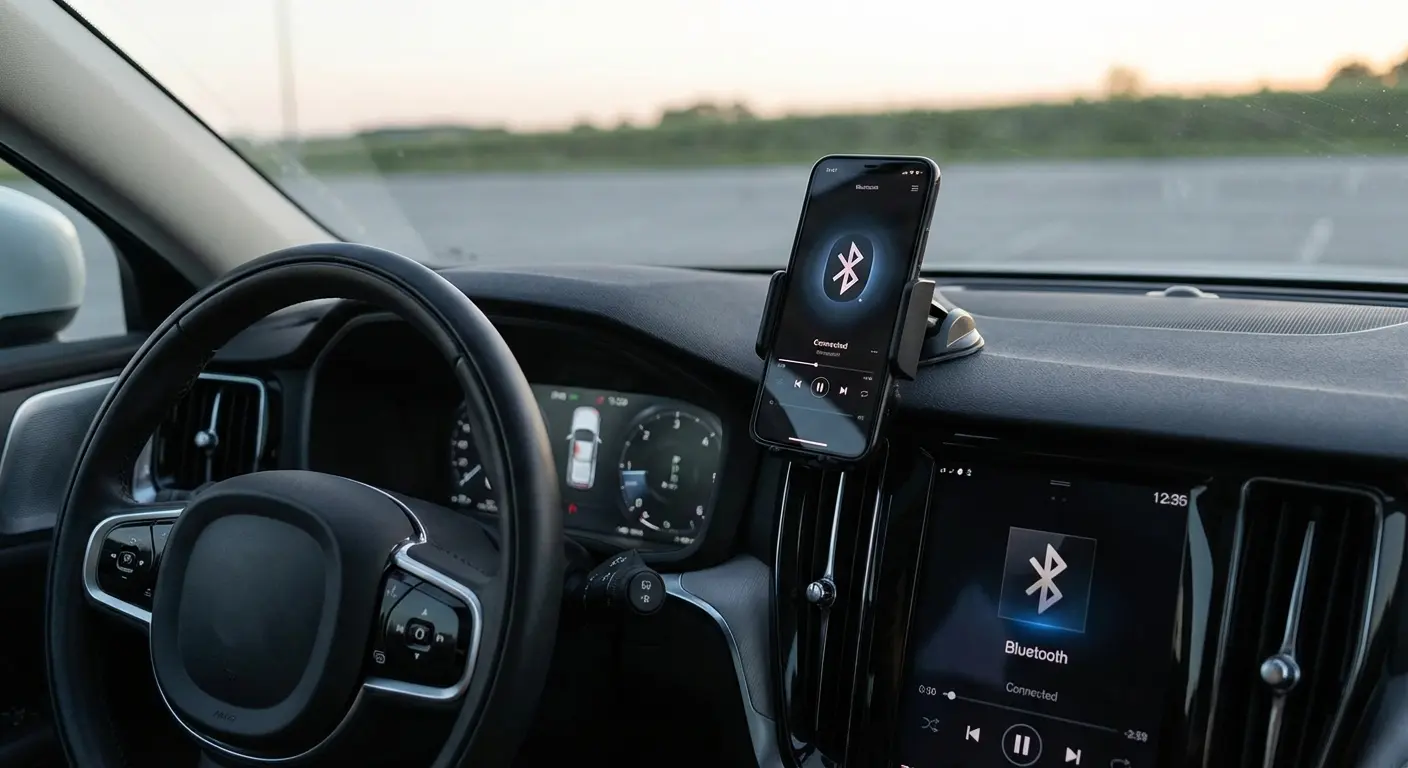
Your mounting solution might be part of the issue. Cheap magnetic mounts or metal clips can create interference patterns that disrupt Bluetooth transmission. You're essentially surrounding your phone's Bluetooth antenna with metal, which acts as a Faraday cage reducing signal strength.
Look, I've got to mention Rokform here because I actually use their mounts and they don't screw with my Bluetooth like the cheap Amazon ones did. The magnetic positioning matters more than you'd think. Their RokLock twist-lock system keeps your phone secure without surrounding it with signal-blocking metal. You get stable mounting without sacrificing Bluetooth performance, which matters when you're relying on both navigation audio and phone calls during your commute. If you're having connection issues with a mounted phone, your mount might be the problem.
Check out Rokform's vehicle mounting solutions if you're tired of choosing between secure mounting and reliable Bluetooth connectivity.
Protective Cases Block More Than Impacts
Heavy-duty cases with metal components or thick materials can attenuate Bluetooth signals. Your phone's antenna is usually located near the top or bottom edge, and cases that cover these areas with metal or dense materials reduce transmission strength.
Remove your case temporarily and test your Bluetooth connection. If performance improves dramatically, your case is the problem. You'll need to choose between protection and connectivity, or find a case designed with antenna cutouts or non-interfering materials.
When to Keep Absolute Volume Enabled (Yes, Really)
When you disable absolute volume, you're not always getting a universal fix. Some devices and use cases work better with it enabled. This is particularly true for users running Android 13 or later, where Google has significantly refined the implementation to address many of the historical compatibility issues that plagued earlier versions.
Premium Headphones With Proper Implementation
High-end wireless headphones from Sony, Bose, Sennheiser, and similar manufacturers usually implement bluetooth absolute volume correctly. They follow the Bluetooth specification precisely, and their volume curves are designed to work with synced control.
You'll get a better experience with bluetooth absolute volume enabled on these devices. The volume adjustment feels natural, the range is appropriate, and you don't encounter the dead zones or mapping issues that plague cheaper accessories. The manufacturers tested extensively to ensure their implementation works properly.
These devices often have companion apps that further refine the volume control experience. The app and absolute volume work together to create a seamless adjustment curve that wouldn't be possible with independent controls.
Newer Android Devices and Accessories
Android 13 and later versions improved bluetooth absolute volume implementation. Google refined the handshake process, improved codec negotiation compatibility, and fixed several bugs that caused connection instability in earlier versions.
If you're running Android 13+ and connecting to devices manufactured in the last two years, bluetooth absolute volume probably works as intended. The ecosystem has matured enough that the benefits (unified control, better UI feedback, faster adjustments) outweigh the historical problems.
Devices that support Bluetooth 5.2 or later have better absolute volume support built into the specification itself. The protocol handles volume sync more efficiently with less overhead and fewer opportunities for miscommunication between devices.
Hearing Safety Features Require It
Some Bluetooth headphones implement volume limiting for hearing protection. They won't exceed certain decibel levels regardless of the volume setting, protecting your ears from long-term damage.
These safety features often depend on absolute volume being enabled. With independent volume control, you can bypass the headphone's safety limits by maxing out both the phone and headphone volumes simultaneously, potentially causing hearing damage.
If you use headphones with active hearing protection (common in professional audio monitoring or industrial settings), keep absolute volume enabled. The safety features are designed around synced volume control and might not function properly otherwise.
Accessibility Features Work Better
Users who rely on Android's accessibility features for volume control often have better experiences with absolute volume enabled. Screen readers and voice control systems interact more predictably with a single unified volume control than with independent phone and device volumes.
The accessibility UI shows one volume slider instead of requiring navigation between multiple controls. For users with limited mobility or vision impairment, this simplification is genuinely valuable and worth any minor audio quality tradeoffs.
Some hearing aid Bluetooth accessories require absolute volume to function properly. They're designed around the assumption that volume is synced, and disabling it can cause the hearing aid to operate at fixed output levels that aren't appropriate for different environments.
So What Now?
Disable it. Try it for a week. If your audio gets worse, toggle it back on.
But for most of you dealing with volume problems, this thirty-second fix will solve something you've been cursing at for months.
I've had this setting disabled for two years. I'm not going back. But I've also got cheap headphones and a car from 2017. Your setup might be different. Only one way to find out.
The broader lesson here is that Bluetooth audio remains imperfect. We're wirelessly transmitting high-quality audio between devices from different manufacturers using a protocol that leaves room for interpretation. Sometimes the convenience is worth the occasional frustration. Other times, you'll wonder why you didn't just use wired headphones.
(Okay, that's a lie. Nobody's going back to wired. We've been spoiled.)
Your specific situation determines whether you should disable absolute volume to help. Test your audio with different devices and in different environments. If it improves your experience, keep it disabled. If it makes things worse or doesn't change anything, turn it back on.
The setting exists in Developer Options for a reason. It's not meant for everyone, and Google doesn't advertise it as a user-facing feature. But for those dealing with volume problems that seem unfixable through normal settings, it's worth exploring.
You now know more about Bluetooth volume control than 99% of Android users. You know how to android disable absolute bluetooth volume, why it causes problems, and when to leave it alone. That's more than most people will ever learn about the wireless audio stack running in the background of their daily listening.

