


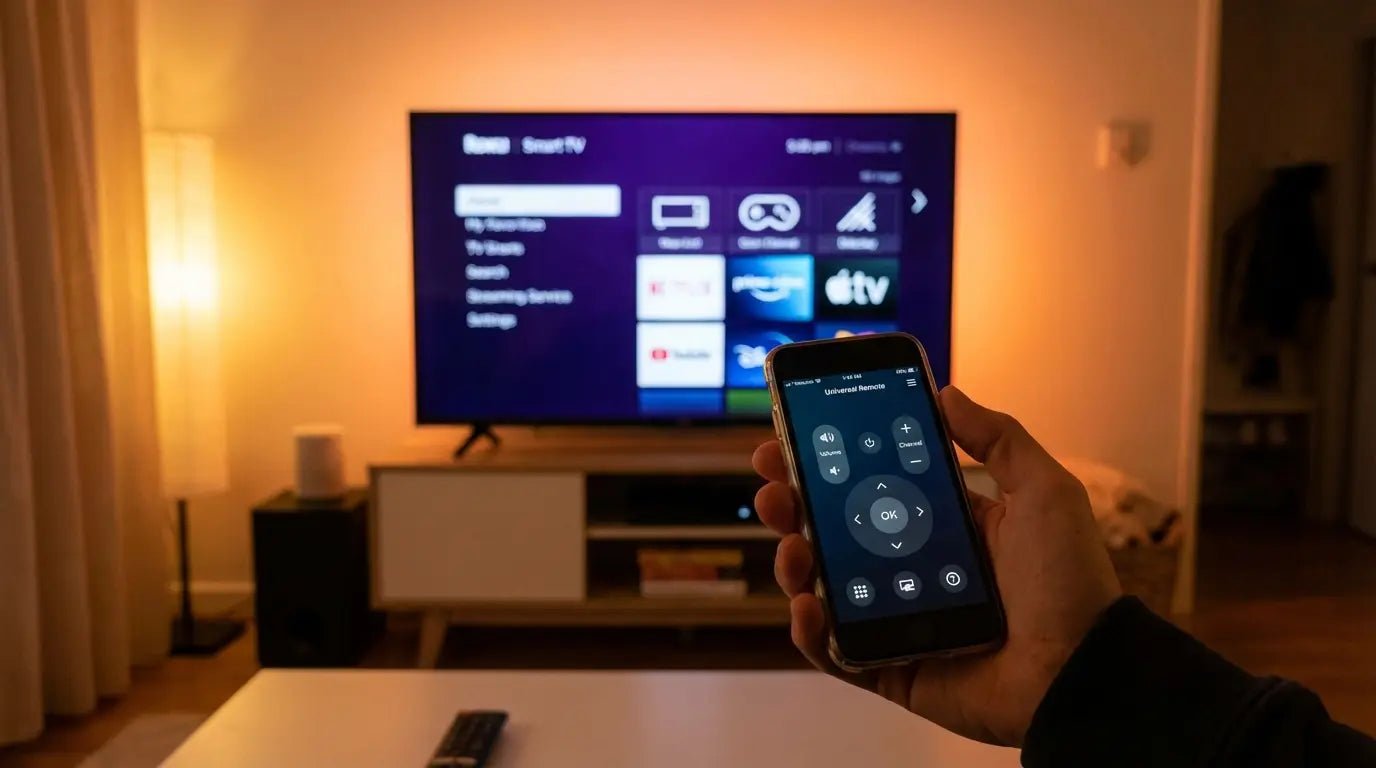
You've done this before. Downloaded some highly-rated remote control app, tapped through the setup, and ended up with something that works... when it feels like it. When the planets align just right.
Look, other guides won't mention this, but the app is the least important part of getting this working.
Most tutorials focus on the download-and-tap experience because it's easy to write about. They walk you through pressing buttons and pairing devices, completely ignoring the foundational stuff that actually determines whether your phone-as-remote setup will work reliably or become another abandoned experiment gathering digital dust.
I've watched people struggle with this over and over. Commands lag, connections drop, devices disappear from control interfaces. People blame themselves or the app when these aren't user errors or bad apps at all. They're symptoms of skipping the boring groundwork nobody wants to talk about.
The thing is, Splashtop's remote access technology is used by more than 20 million users worldwide, yet most guides fail to address why these solutions work for some people and fail spectacularly for others. The difference isn't the app. It's everything that happens before you download it.
Successful remote control is like 80% preparation and 20% execution. Most tutorials do it backward, which is why we're starting with the infrastructure you need rather than the apps you'll eventually use. Your frustration with unreliable connections ends when you build the right foundation first.
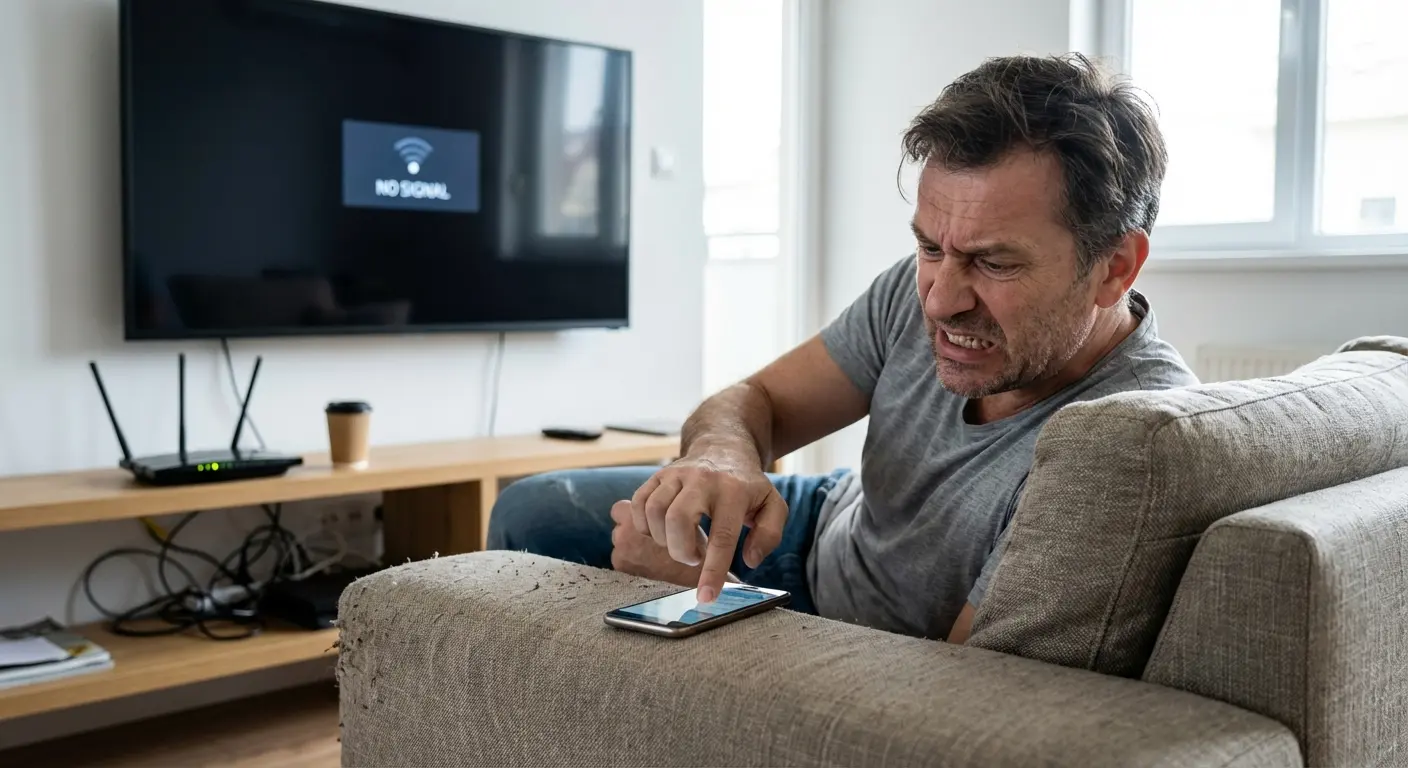
The Infrastructure Problem Everyone Ignores
Your Router Placement Isn't Just About Internet Speed
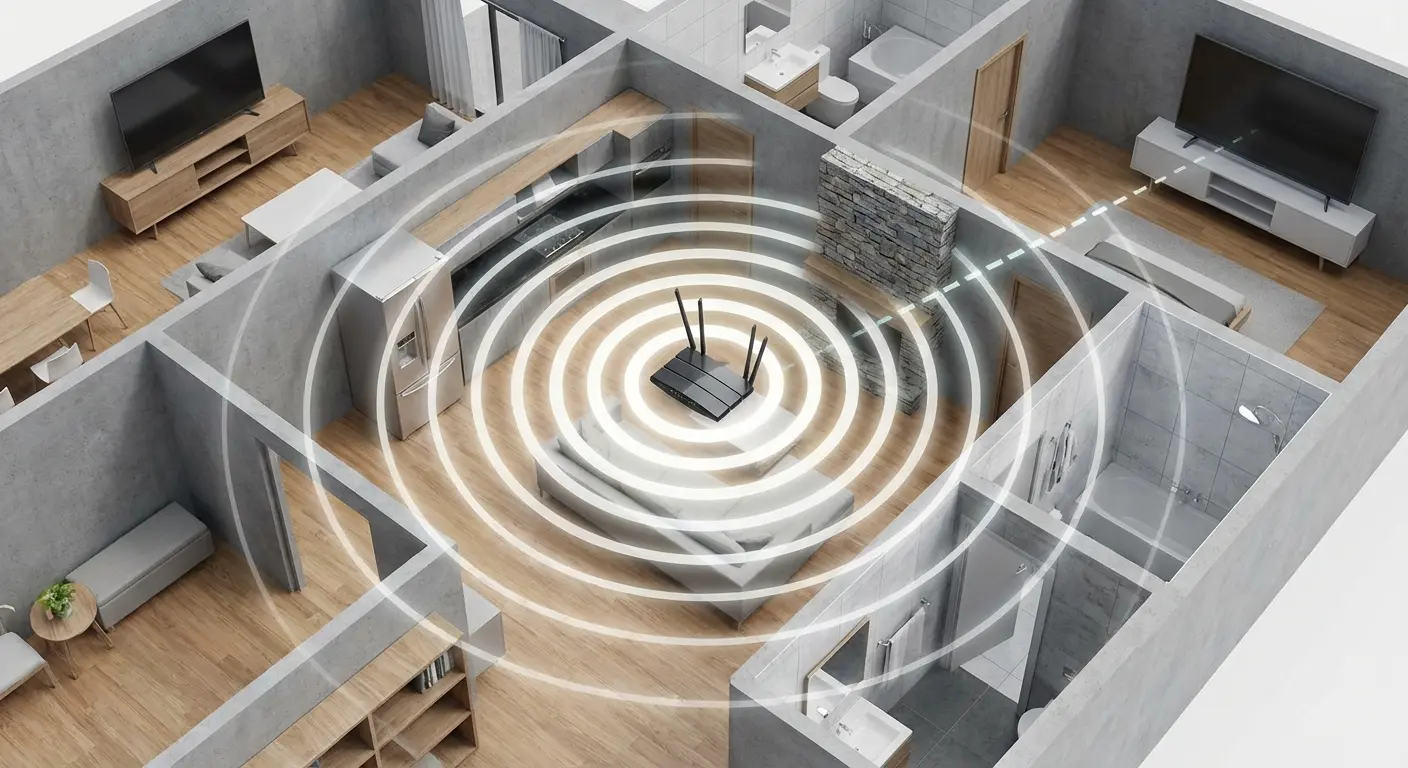
Where you put your router affects signal strength to both your phone and whatever you're trying to control. And I'm not talking about general Wi-Fi advice here. This is specifically about control signal reliability, which behaves totally differently than bandwidth-heavy stuff like streaming.
Walls, interference sources, and distance create dead zones that make remote control spotty. You might have excellent internet speed for streaming but terrible control responsiveness because these are fundamentally different network demands. Control signals are tiny but time-sensitive. They need consistent connection quality, not high bandwidth.
Picture your living room for a second. Your router's in the office at the front of the house because that's where Comcast installed it three years ago. Your TV is mounted in the family room at the back. And you're trying to control everything from a couch that's somehow in the worst possible spot for Wi-Fi coverage. Your phone shows full bars, but control commands to your TV take three seconds to register, or don't work at all.
The issue isn't your phone or the app. It's that your control signals are traveling through two walls and a hallway with significant interference. Testing signal strength specifically from your couch (not just running a speed test) reveals the problem: you're sitting in a marginal coverage zone where connection quality fluctuates constantly.
Check signal strength in the exact spots where you'll actually use your phone as a remote. Sit on your couch, lie in bed, stand at your kitchen counter - wherever you'll be when you want to pause something or dim the lights. If coverage sucks in those spots, you've got three options: move the router (rarely practical), add mesh network nodes or access points in strategic locations, or accept that certain control positions won't work reliably.
Most people can't or won't move their router, and that's fine. Mesh systems have gotten affordable and actually work now. Place nodes between your router and your primary control locations, focusing on eliminating dead zones in the spaces where you'll be when you reach for your phone.
The 2.4GHz vs. 5GHz Decision That Breaks Most Setups
Here's the thing: most smart home devices only work on 2.4GHz networks. Your phone defaults to 5GHz when available. This creates connection failures that people interpret as app problems when they're actually network configuration issues.
When your phone connects to 5GHz and your smart TV is on 2.4GHz, they're on different network bands. Some routers handle cross-band communication well. Many don't. The result? Devices that appear offline or commands that never reach their destination.
Modern routers offer dual-band configuration with two approaches: unified SSID (one network name for both bands) or separate SSIDs (different names for each band). Unified SSIDs are convenient - your phone automatically switches to the best band - but this automatic switching breaks smart home connections when your phone jumps from 2.4GHz to 5GHz.
Separate SSIDs give you control. You manually choose which network your phone connects to, keeping it on the same band as your controllable devices. This takes more setup and occasional manual network switching, but it eliminates the vanishing device problem.
Network Band |
Range |
Device Compatibility |
Best Use Case |
Common Issues |
|---|---|---|---|---|
2.4GHz |
Longer range, better wall penetration |
Most smart home devices, older equipment |
Whole-home device control, IoT devices |
Congestion from neighbors, interference from microwaves/Bluetooth |
5GHz |
Shorter range, faster speeds |
Modern phones, tablets, computers |
High-bandwidth activities, same-room control |
Poor wall penetration, devices disappear when phone switches bands |
Dual-band (unified SSID) |
Varies by device |
All compatible devices |
Convenience for mobile devices |
Phones switch bands automatically, breaking smart home connections |
Dual-band (separate SSIDs) |
Full control over connections |
All compatible devices |
Reliable smart home control |
Manual network switching required, more complex setup |
Check your router settings. If you're using a unified SSID and experiencing connection issues, create separate SSIDs for each band. Connect your smart home devices to the 2.4GHz network and keep your phone on that same network when you need reliable control.
Bandwidth Allocation and Quality of Service Settings
When your network is busy, control signals can get deprioritized. This creates lag or dropped commands that make phone-based control feel unreliable.
Last Tuesday I tried to dim the lights for movie night. My kid was on a Zoom call upstairs, my wife was streaming something in the bedroom, and my phone just... gave up. Spinning wheel of death. Your control commands are entering a congested network where they're competing with sustained, high-bandwidth activities. Without QoS configuration, your router treats a lighting control packet (tiny, time-sensitive) the same as video streaming data (large, tolerant of slight delays). The result: your control signals wait in queue behind streaming data, creating the lag that makes phone-based control feel unreliable during peak usage hours.
Quality of Service (QoS) settings fix this. Access your router's admin panel and look for QoS, traffic prioritization, or bandwidth management settings. The exact location varies by router brand (because why would they be consistent?), but the concept stays the same: you're telling your router which types of traffic matter most.
Set up QoS to prioritize small, frequent packets over large data transfers. Some routers let you prioritize specific devices (your phone, your smart home hub) or specific types of traffic (control protocols, local network communication). Turn these on and test control responsiveness during peak network usage.
This explains why your controls work great at 2pm but crap out at 8pm when everyone's home. Network congestion during peak hours delays time-sensitive control signals unless you've configured QoS to prioritize them.
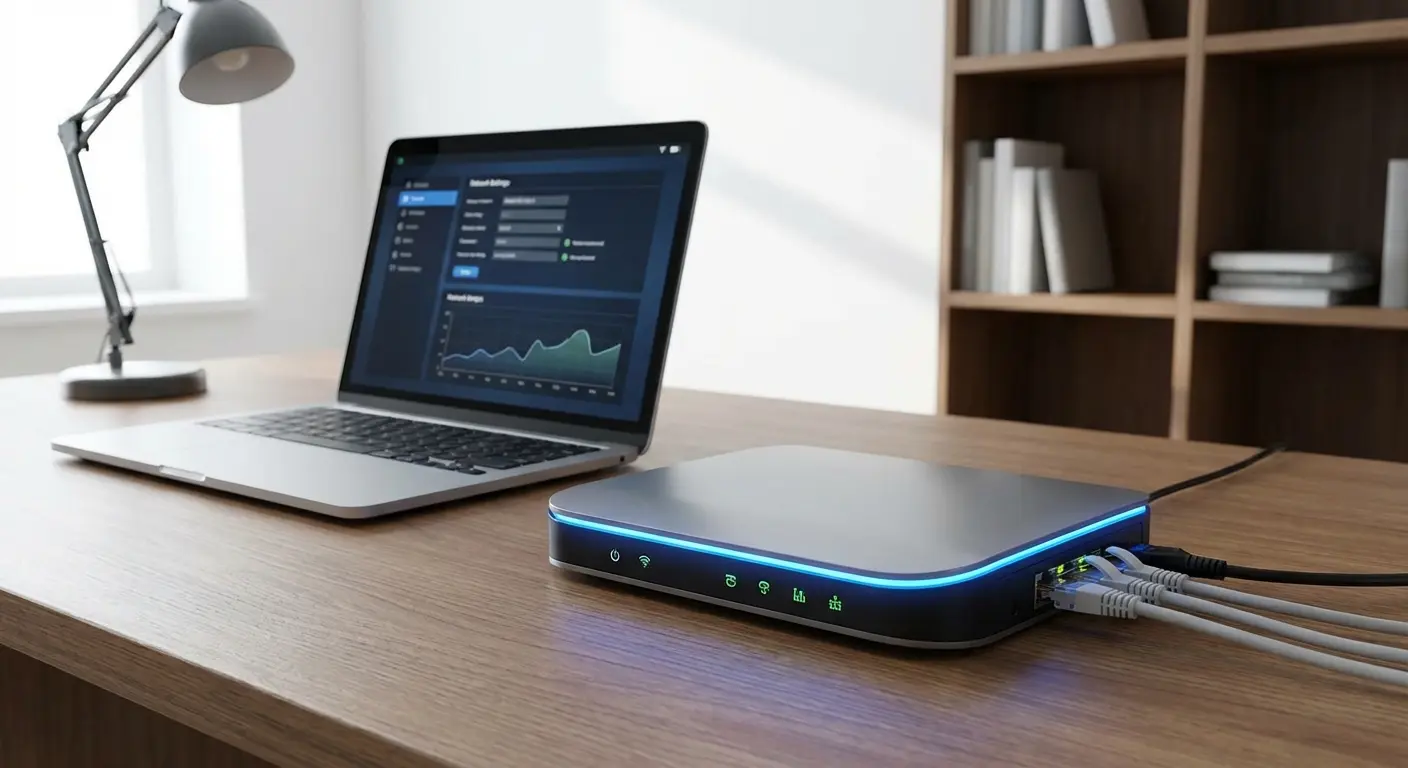
Getting Your Network Ready for Remote Control
DHCP Reservations Prevent the Vanishing Device Problem
Devices that get new IP addresses every few days disappear from your phone's control apps, requiring constant re-pairing. This happens because most routers assign IP addresses dynamically through DHCP, and these assignments expire and change periodically.
Static IP assignments through DHCP reservations solve this permanently. You're binding each device's MAC address (its unique hardware identifier) to a specific IP address, so it always gets the same address when it connects.
Setting up DHCP reservations isn't hard. Log into your router (probably 192.168.1.1, maybe 192.168.0.1 if you have an older one). Find DHCP settings - might be under "LAN Settings," "Network," or buried in "Advanced" because router interfaces are terrible. Look for the list of connected devices.
Your smart TV is in there somewhere. Might be listed as "Samsung-TV" or "unknown-device-47" because naming is apparently hard. Note its MAC address and current IP. Create a reservation binding that MAC address to its current IP. Save. Done.
Reboot your router if you're paranoid. I usually do.
After creating reservations, verify devices reconnect with their reserved IPs. Check that control apps can still find everything. Document these reserved IPs somewhere—you'll thank yourself later when you need to diagnose connection issues.
Seriously, IP reservations matter more here than anywhere else. Control apps are dumb about this. They cache device locations, so when IP addresses change, apps can't find devices without manual intervention.
Network Segmentation for Reliability
Guest networks and IoT-specific network segments improve both security and performance for phone-based control. Isolating smart home devices on a separate network prevents them from being affected by other network traffic and security issues.
You're probably thinking this sounds complicated. It's really not.
Your phone on the primary network can still communicate with devices on the IoT network through properly configured router settings. Here's a simple network setup that works for most homes: main network for computers and phones, separate segment for controllable devices, guest network for visitors. This isolates different types of traffic and security requirements without creating control barriers.
Network Segment |
Connected Devices |
SSID Configuration |
Security Level |
Control Access |
|---|---|---|---|---|
Primary Network |
Phones, tablets, computers, trusted devices |
Main SSID, WPA3/WPA2, strong password |
Highest |
Full access to all segments |
IoT/Smart Home Network |
Smart TVs, speakers, lights, thermostats, streaming devices |
Separate SSID (2.4GHz), WPA2, unique password |
Medium-High |
Isolated from primary network, accessible by control apps |
Guest Network |
Visitor devices |
Guest SSID, WPA2, simple password |
Medium |
No access to other segments, internet only |
Management VLAN (optional) |
Hubs, bridges, network equipment |
Hidden or no SSID |
Highest |
Administrative access only |
Create an IoT network on 2.4GHz with a separate SSID. Connect all your smart home devices to this network. Set up your router to allow communication between your primary network and IoT network while blocking IoT devices from accessing your primary network resources.
This prevents a compromised smart bulb from accessing your computer files while still letting your phone control that bulb. As homes add more connected devices, this segmentation becomes increasingly necessary for both security and performance.
Choosing the Right Protocol (Not Just the Right App)
IR Blasters Still Matter (And When You Actually Need One)
Older TVs, cable boxes, and AV receivers need infrared control. Modern phones don't have IR blasters anymore, which means you need additional hardware to control these devices.
IR is necessary when your equipment predates Wi-Fi and Bluetooth connectivity. If your TV remote uses infrared (you can test this by pointing it at your phone's camera - if you see a light when pressing buttons, it's IR), your phone won't control it without an external IR blaster.
External IR blasters connect to your phone or network and emit infrared signals on command. Some plug into your phone's headphone jack or USB-C port. Others connect to your Wi-Fi network and receive commands from apps. Network-connected IR blasters work better because they don't require your phone to be physically present and pointing at devices.
Is buying an IR blaster worth it? Depends. One old cable box? Sure, spend the $30. Five devices from 2010? Maybe just upgrade your stuff.
Wi-Fi or Bluetooth alternatives work better when available. They're more reliable, don't require line-of-sight, and integrate more seamlessly with phone control apps. Check whether your devices support these protocols before investing in IR solutions.
Wi-Fi Control and Why App Choice Matters Less Than You Think
Wi-Fi-enabled devices often work with multiple control apps, but the underlying protocol determines reliability. Understanding whether devices use proprietary protocols versus open standards helps you choose equipment and apps that will actually work reliably.
Some devices communicate directly with your phone over your local network. Others route through manufacturer cloud servers, which creates latency and dependency on internet connectivity. Cloud-dependent control fails when your internet is down, even though your phone and devices are on the same local network.
Check device specifications for local control capabilities. Look for terms like "local API," "LAN control," or "works without internet." These indicate devices that communicate directly with your phone rather than routing through cloud servers.
Android Police recently highlighted how apps like BT Remote are addressing this limitation by using Bluetooth instead of Wi-Fi, allowing users to control their smart TVs even when their phone is connected to a different network or when their TV is running through a VPN for streaming foreign content.
Protocol compatibility matters more than feature lists. An app with extensive features but poor protocol support will frustrate you. An app with basic features but solid protocol implementation will work reliably.
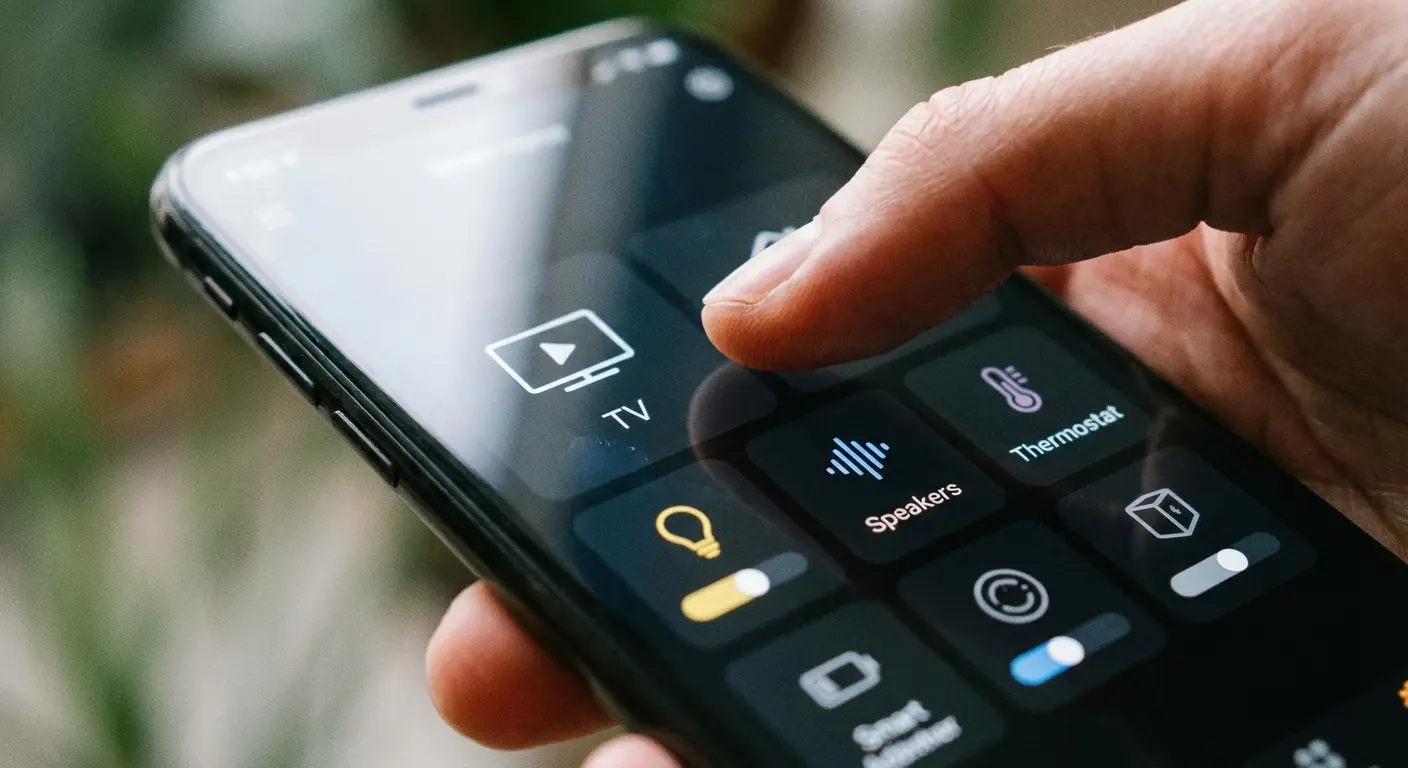
Bluetooth LE and the Proximity Limitation
Bluetooth remote control works well within range but fails unpredictably at distance. Practical range for Bluetooth LE is about 30 feet in open space, but walls and interference reduce this significantly.
Walls affect Bluetooth differently than Wi-Fi. A wall that barely impacts Wi-Fi signal might cut Bluetooth range in half. Metal objects, other Bluetooth devices, and even your body position can interfere with Bluetooth control signals.
Bluetooth makes sense for specific use cases. Controlling a bedroom speaker from bed works well because you're close to the device. Whole-home control from a central location doesn't work well because you'll exceed Bluetooth range to some devices.
XDA Developers recently covered how free, open-source apps like Bluetooth Remote are gaining traction because they offer more responsive control than traditional Wi-Fi-based solutions, with users reporting that Bluetooth connectivity often proves more reliable than their physical TV remotes, particularly when dealing with unresponsive Android TV operating systems.
Bluetooth mesh networks extend range and reliability for compatible devices. If you're building a Bluetooth-based control system, check whether your devices support mesh networking. Mesh-capable devices relay signals to each other, extending effective range beyond what a single device could achieve.
Use Bluetooth for same-room control and Wi-Fi for whole-home control. This hybrid approach uses the best parts of each protocol while avoiding their weaknesses.
Device-Specific Remote Strategies That Actually Work
Smart TV Control Beyond the Manufacturer App
TV manufacturer apps are often slow and limited. They take 10 seconds to connect when you just want to pause something, and they frequently lose connection for no apparent reason.
Protocols like HDMI-CEC, Roku's external control API, and Android TV's native casting create better control experiences. These protocols bypass manufacturer apps entirely, communicating directly with your TV through more reliable channels.
HDMI-CEC (Consumer Electronics Control) allows devices connected via HDMI to control each other. Turn it on in your TV settings - it might be called Anynet+, Bravia Sync, Simplink, or Viera Link depending on brand. Once enabled, apps can send control commands through HDMI-connected devices, which often responds faster than Wi-Fi-based manufacturer apps.
Network remote control settings exist in most modern TVs but are disabled by default. Why? No idea. Check your TV settings under Network or General for options like "Network Remote Control," "External Device Manager," or "IP Control." Turn these on to allow third-party apps to communicate with your TV.
Wake-on-LAN capability means your phone can turn on your TV from standby mode without waiting for the TV to wake up and connect to Wi-Fi first. This eliminates the frustrating delay where you press power and nothing happens for several seconds.
Third-party apps that use these protocols often outperform manufacturer apps significantly. Test response time improvements after enabling protocols and switching apps. You're looking for instant response, not a noticeable delay.
Turn off TV sleep modes that disconnect the network. Many TVs enter deep sleep to save power, which breaks network connectivity and requires several seconds to reconnect when you try to control them. Quick start mode keeps network connectivity active while still reducing power consumption.
Streaming Device Control Hierarchies
Roku, Fire TV, Apple TV, and Chromecast each offer different control methods with varying reliability. Understanding the control hierarchy for each platform helps you choose the most reliable method.
Roku devices respond best to their official app using the External Control Protocol (ECP). This protocol is well-documented and reliable, which is why third-party Roku apps often work better than TV manufacturer apps. The Roku app itself is responsive and rarely loses connection if your network is configured properly.
Fire TV devices work well with Amazon's app but also support HDMI-CEC control. If you have a Fire TV connected to a TV with CEC enabled, you can control both through a single interface. Fire TV also supports ADB (Android Debug Bridge) control for advanced users willing to enable developer options.
Apple TV integrates tightly with iOS devices through AirPlay and Home app control. If you're in the Apple ecosystem, control is seamless. Android users have fewer options - third-party apps exist but lack the integration iOS users enjoy. If you're on Android, you're basically screwed with Apple TV.
Chromecast relies on casting rather than traditional remote control. You're not sending button presses; you're telling the Chromecast what to play. This works well for content selection but poorly for traditional remote functions like pause and volume. Google TV devices (newer Chromecasts with remote controls) support more traditional control methods.
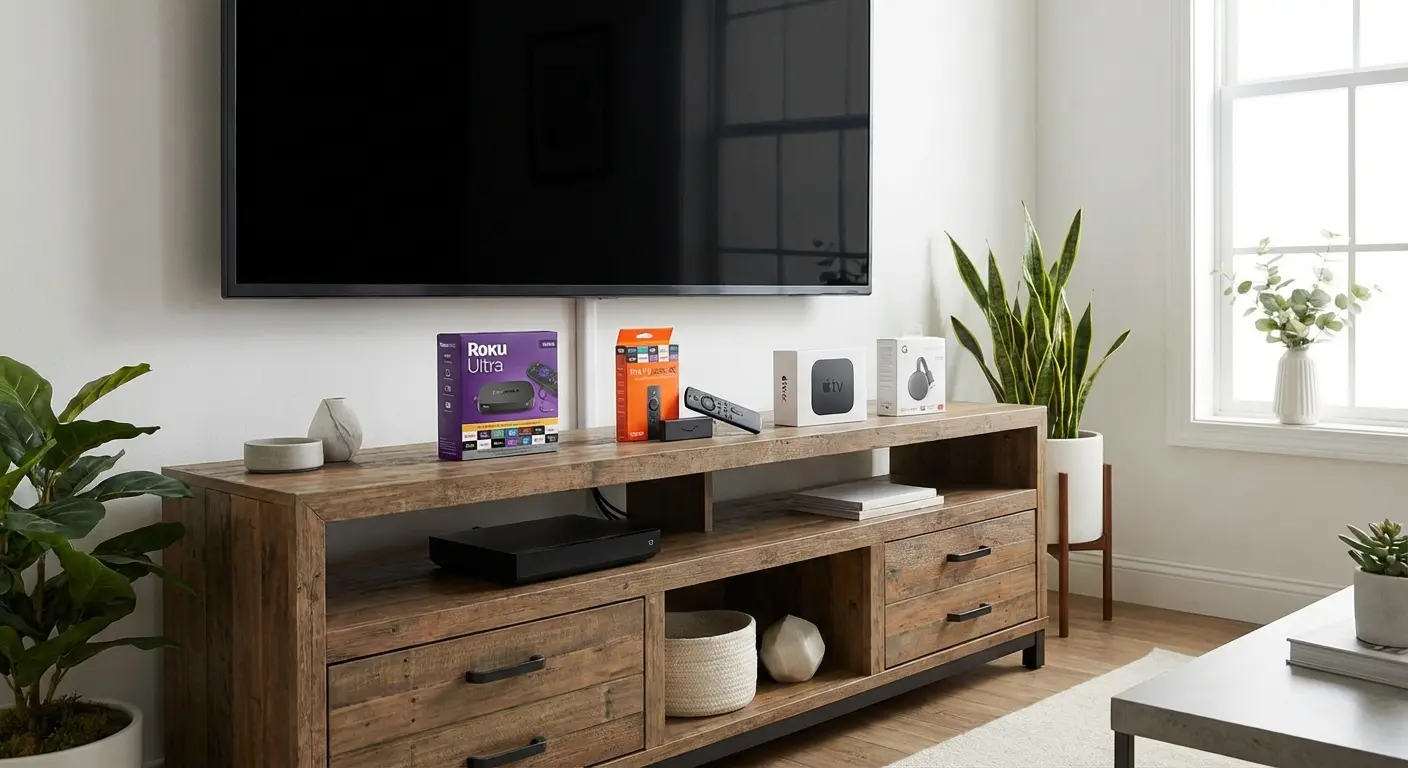
For multi-platform households, unified control apps exist but with limitations. Apps like AnyMote or SURE Universal Remote attempt to control multiple streaming platforms, but they work best with devices that support open protocols. Proprietary ecosystems remain challenging to unify.
Choose your primary streaming platform based partly on control reliability. If phone-based control matters to you, platforms with open protocols and responsive apps should influence your purchasing decisions.
Audio System Control and the Multi-Room Challenge
Controlling audio across multiple rooms requires understanding how different systems handle zones and grouping. Sonos, Bluetooth speakers, AirPlay devices, and traditional receivers each approach multi-room audio differently.
Sonos costs a fortune, but their app actually works, which is more than I can say for most smart home stuff. The Sonos app handles grouping, individual room control, and synchronized playback reliably. If you're building a multi-room audio system with phone control as a priority, Sonos sets the standard.
Bluetooth speakers don't support true multi-room control because Bluetooth is a point-to-point protocol. You can connect to one speaker at a time, or use proprietary apps from manufacturers who've built multi-speaker systems (like JBL Connect or Ultimate Ears PartyUp). These work but with limitations—you're controlling multiple speakers through a manufacturer's ecosystem, not through universal protocols.
AirPlay 2 supports multi-room audio for Apple ecosystem users. You can group AirPlay 2 speakers and control them from your iPhone with native iOS controls. This works seamlessly if you're all-in on Apple devices. Android users need manufacturer apps for each speaker brand, which fragments the control experience.
Traditional receivers with zone capabilities require either IR control (if older) or network control (if newer). Network-enabled receivers from Denon, Yamaha, and Onkyo support control apps that handle multi-zone audio. These apps vary in quality—test them before committing to a receiver based on phone control capabilities.
Audio sync issues plague multi-room setups when mixing protocols. Bluetooth has inherent latency. Wi-Fi-based systems have variable latency depending on network conditions. Playing the same audio across Bluetooth and Wi-Fi speakers simultaneously results in noticeable echo because signals arrive at different times.
Stick with one protocol for synchronized multi-room audio. If you need to mix protocols, use them for different rooms rather than trying to sync them together.
The Physical Setup: Where You Place Your Phone Changes Everything
Control Surface Positioning and Response Time
Where you physically place your phone while using it as a remote affects both usability and connection reliability. Distance from controlled devices, obstacles between phone and device, and phone orientation impact control signal strength.
You're often controlling devices from a couch or bed—positions where you're relaxed and don't want to move. Check control reliability from these actual usage positions, not from standing next to devices. Sit where you normally sit, lie where you normally lie, and verify commands work consistently from those positions.
Phone orientation matters for Bluetooth and IR control. Bluetooth antennas in phones are directional to some degree. Pointing your phone toward the device you're controlling can improve signal strength. IR control requires direct line-of-sight, so phone orientation is critical.
Wi-Fi control is less sensitive to orientation but still affected by distance and obstacles. A phone lying flat on a coffee table might have weaker signal than a phone held upright because the antenna position relative to your router changes.
Surface materials matter too. Placing your phone on a metal surface can interfere with wireless signals. Wood, plastic, and fabric surfaces don't create interference. If you're mounting your phone or placing it on a specific surface for control purposes, avoid metal.
Mounting Solutions That Keep Your Phone Accessible
A phone that's always within reach but doesn't take up surface space becomes a more effective remote. Different mounting positions serve different control scenarios.
Arm-of-couch mounting keeps your phone accessible while watching TV without occupying the coffee table or getting lost in cushions. You've probably experienced the frustration of your phone sliding between couch cushions right when you need to pause something, or being just out of reach when you want to dim the lights without getting up. Rokform's mounting systems work particularly well here because they're designed for quick attachment and removal, meaning your phone stays accessible for remote control but detaches instantly when you need to take it with you.
Bedside mounting positions your phone for nighttime control without fumbling on a nightstand. Controlling lights, adjusting thermostat, or starting white noise from bed becomes effortless when your phone is mounted at arm's reach.
Kitchen counter mounting serves a different purpose - controlling music or podcasts while cooking without getting your phone dirty or wet. Mounting keeps it visible for recipe reference while maintaining control access.
Don't mount expensive phones in vulnerable positions where they're visible from windows or easily grabbed. Choose mounting locations that serve your control needs while keeping devices secure.
Security Configurations You Actually Need
Network Security That Doesn't Block Control
Overly restrictive firewall settings and security configurations can prevent phone-to-device communication on your own network. You need to set up router security settings that protect against external threats while allowing internal device communication.
AP isolation (also called client isolation or wireless isolation) prevents devices on your network from communicating with each other. This security feature protects against compromised devices attacking other devices on your network, but it also prevents your phone from controlling anything. Turn off AP isolation on networks where you need device control.
Check this setting in your router's wireless security configuration. It might be labeled "AP Isolation," "Client Isolation," "Wireless Isolation," or "Station Isolation." Disable it for your primary and IoT networks, but keep it enabled for guest networks.
Port blocking can prevent specific control protocols from working. Some routers block common ports by default for security. If you're having trouble with specific control apps, check whether the ports they use are blocked in your router's firewall settings.
UPnP (Universal Plug and Play) simplifies device discovery and control but creates security vulnerabilities. Many security guides recommend disabling UPnP, which is good advice for preventing external attacks. However, some control apps rely on UPnP for device discovery. If disabling UPnP breaks your control setup, you'll need to weigh the security risk against functionality.
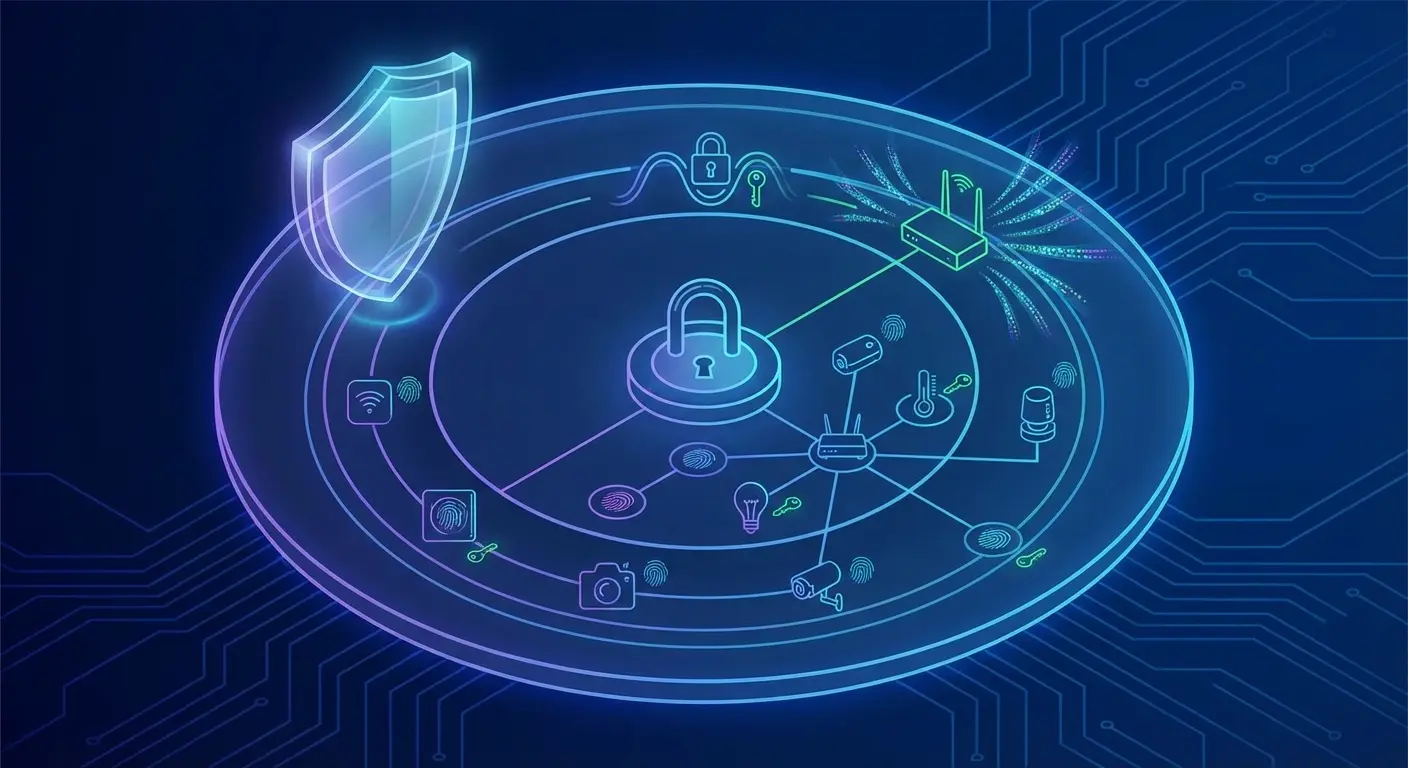
Security best practices for remote access recommend implementing multi-factor authentication (MFA) and strong, unique passwords to ensure that only authorized users can access devices remotely, while maintaining logs to detect suspicious activity or unauthorized access attempts.
App Permissions and Local Control
Many control apps request extensive permissions, but some are necessary for functionality while others are data collection. Understanding which permissions enable remote control features helps you make informed decisions.
Local network access permission allows apps to discover and communicate with devices on your network. This is essential for control functionality—deny this permission and the app can't find your devices.
Bluetooth permission is necessary for Bluetooth-based control. Location permission seems unrelated to remote control, but some protocols (including Bluetooth on Android) require it because Bluetooth can be used to determine location. Deny location permission and Bluetooth control might not work.
Storage permissions are often unnecessary for control functionality. Apps request them for caching data or storing logs, but control works without them. Start with minimal permissions and see what breaks.
Background activity permission determines whether apps can maintain connections when you're not actively using them. For control apps, this affects how quickly they respond when you open them. Apps without background activity permission need to reconnect every time you open them, creating delay.
Grant permissions strategically. Start with minimal permissions and add more only when functionality breaks. This approach protects your privacy while ensuring control features work.
Cloud Dependency and Offline Control Capabilities
Control apps that require internet connectivity fail when your internet is down, even though your phone and devices are on the same local network. Identifying apps that support local control and configuring them to work offline improves reliability.
Check app descriptions and reviews for mentions of local control or offline functionality. Apps that work without internet access communicate directly with devices over your local network rather than routing through cloud servers.
Cloud features like remote access from outside your home require internet connectivity. This is a legitimate use of cloud infrastructure—you can't control your home devices from work without cloud routing. But basic control from inside your home shouldn't require internet access.
Set up apps for local control when possible. Some apps offer both cloud and local control modes. Choose local control for better response time and reliability. Use cloud control only when you need remote access from outside your network.
Test offline functionality by disconnecting your router from the internet (not from power—you need your local network active). Verify which control functions work without internet access. This reveals which apps and devices support true local control versus which are cloud-dependent.
Cloud features are cool until your internet dies. Decide which devices need cloud connectivity and which should be configured for local-only control. Security cameras might justify cloud connectivity for remote viewing. Light switches probably don't.
Troubleshooting Connection Drops Before They Happen
Proactive Network Monitoring
Monitoring your network health prevents most connection issues before they affect remote control. Simple monitoring tools and apps alert you to network problems, device disconnections, and signal strength issues.
Fing is a free network monitoring app that scans your network and identifies connected devices. Run it periodically to verify all your controllable devices are online and have the IP addresses you expect. Fing alerts you when devices disconnect or when new devices appear on your network.
Router admin panels often include basic monitoring tools showing connected devices, bandwidth usage, and error logs. Check these logs when experiencing control issues - they often reveal the source of problems.
Signal strength monitoring apps help identify weak coverage areas. Walk through your home with a Wi-Fi analyzer app, noting signal strength in locations where you control devices. Weak signals in control positions explain intermittent connection issues.
Look for devices that disconnect and reconnect frequently, signal strength that fluctuates significantly, bandwidth spikes that correlate with control failures. These patterns reveal underlying issues before they become persistent problems.
Free tools work well for basic monitoring. You don't need expensive monitoring systems for home remote control—built-in router features and free apps provide sufficient visibility into network health.
Device Firmware and App Update Strategies
Outdated firmware causes compatibility issues and connection failures, but auto-updates sometimes break working configurations. Approaching updates strategically maintains stability while incorporating important fixes.
Read update notes before installing firmware updates. Look for changes that might affect control functionality: protocol updates, security changes, network behavior modifications. If an update mentions changes to network communication or device discovery, proceed cautiously.
Test updates on less critical devices first. If you have multiple smart bulbs, update one and verify control still works before updating the rest. This prevents a bad update from breaking your entire lighting system simultaneously.
Maintain backups of working configurations when possible. Some devices allow you to export settings before updating. If an update breaks functionality, you can restore previous settings without reconfiguring from scratch.
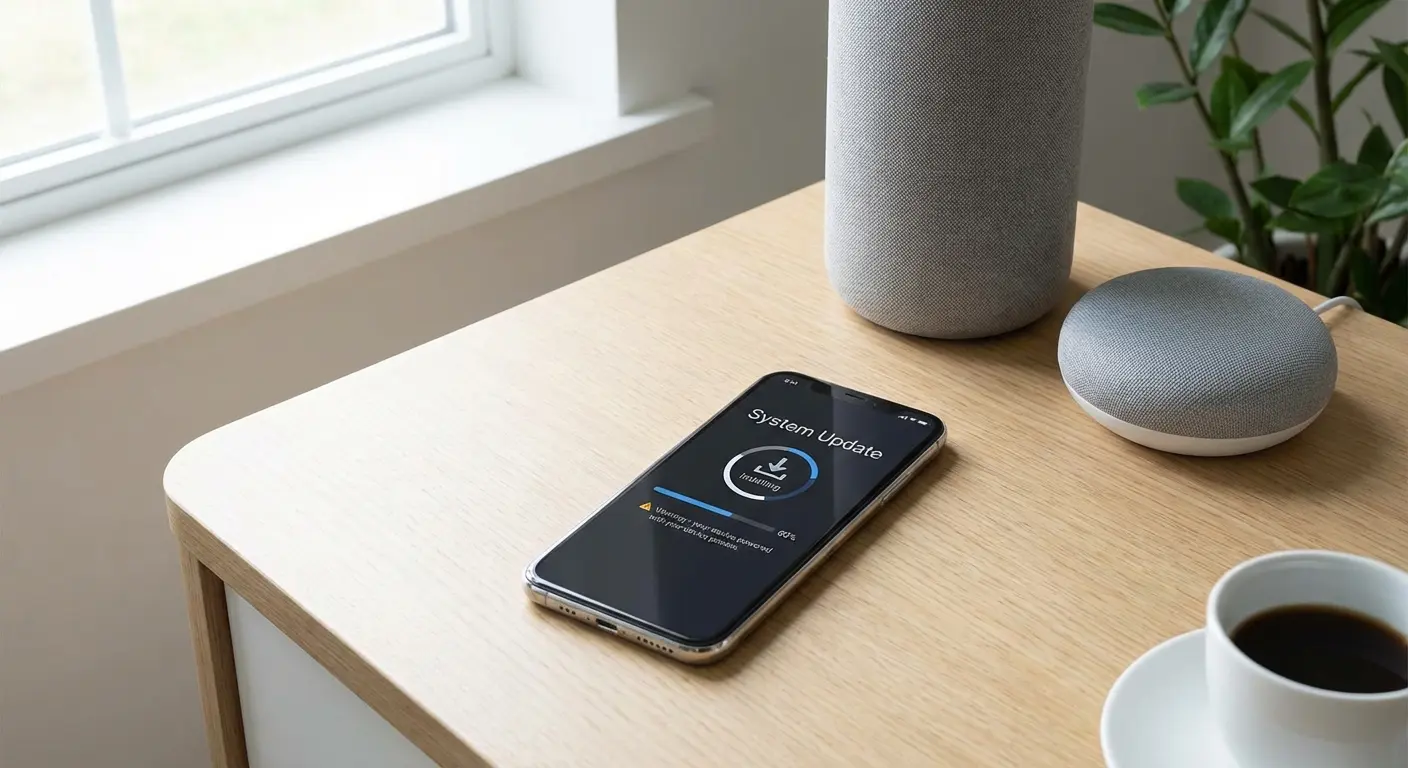
Auto-updates aren't always the right approach for home control systems where stability matters more than new features. Disable auto-updates for critical devices and update manually when you have time to troubleshoot if something breaks.
App updates follow similar logic. New app versions sometimes introduce bugs or change behavior. If your control setup works reliably, consider whether you need the latest app version or whether stability is more valuable than new features.
The Reset and Reconfigure Protocol
When connection issues persist, systematic reset and reconfiguration solves most problems. The order matters - resetting devices in the wrong sequence can create new issues.
Reset your router first. Power it down completely for 30 seconds, then power it back up. Wait for it to fully boot before proceeding. This clears temporary issues and reestablishes clean connections.
Reset controlled devices next, one at a time. Power cycle each device and verify it reconnects to your network with its reserved IP address. If devices don't reconnect properly, the issue is likely in your DHCP reservations or network configuration.
Reset phone network settings last, and only if device resets don't solve the problem. This clears cached network information that might be causing connection issues. You'll need to reconnect to your Wi-Fi networks after resetting network settings.
Document settings before resetting so reconfiguration goes smoothly. Write down your DHCP reservations, QoS settings, network segmentation configuration, and any custom settings you've applied. During troubleshooting sessions that require multiple device resets and reconfigurations, having your phone readily accessible without juggling it between tasks becomes critical. Phone accessories designed for hands-free operation let you maintain control access while documenting settings or physically accessing router equipment.
This systematic approach prevents the common mistake of resetting everything simultaneously and then not knowing which device or setting was causing the problem.
Advanced Multi-Device Control Workflows
Scene and Automation Setup That Reduces Manual Control
The best remote control is the control you don't have to do manually. Scenes and automations handle common control sequences without requiring you to open apps and press buttons.
Movie mode might dim lights, close smart blinds, turn on your TV and sound system, and set your thermostat to a comfortable temperature—all triggered by a single command or automatically when you start streaming. This beats manually controlling each device separately.
Bedtime routine could turn off lights throughout your home, lock smart doors, adjust the thermostat for sleeping temperature, and start white noise—triggered by voice command or scheduled time. You're not reaching for your phone multiple times; you're executing a complete routine with one action.
Morning startup might gradually increase light brightness, adjust thermostat, start coffee maker, and begin playing news or music—all happening automatically at your wake time. Your home responds to your schedule without manual intervention.
Design automations that work reliably without requiring constant adjustment. Overly complex automations with multiple conditions and dependencies break frequently and create frustration. Simple, predictable automations that handle specific scenarios work better than elaborate systems trying to anticipate every possibility.
Focus on automations that genuinely reduce daily friction. Automations that turn on lights when you arrive home save you from fumbling for switches in the dark. Automations that adjust temperature based on time of day maintain comfort without manual thermostat adjustments. These solve real problems rather than demonstrating technical capability.
Test automations thoroughly before relying on them. Run through each automation multiple times, verifying it executes correctly under different conditions. An automation that works 90% of the time creates more frustration than not having automation at all because you can't predict when it will fail.
Cross-Platform Integration Strategies
Controlling devices from different ecosystems - Apple, Google, Amazon, proprietary systems - from a single phone requires strategic integration. Hub solutions and integration platforms can unify control without requiring complete ecosystem replacement.
Home Assistant is an open-source platform that integrates thousands of devices and services. It runs on dedicated hardware (Raspberry Pi, old computer, or purpose-built server) and provides unified control for mixed ecosystems. The learning curve is steep, but the integration capabilities are unmatched.
Don't buy a Raspberry Pi for Home Assistant unless you have 20+ devices. It's overkill otherwise.
SmartThings offers simpler integration for Samsung and compatible devices. It works well if your devices support SmartThings integration, but coverage isn't universal. Check device compatibility before committing to SmartThings as your integration platform.
HomeKit is Apple being Apple—works perfectly in their walled garden, useless everywhere else. If you're iOS-based and your devices support HomeKit, it's the most seamless integration available. Android users need alternative solutions.
IFTTT (If This Then That) connects services and devices through simple conditional logic. It's less comprehensive than Home Assistant but much easier to set up. Use IFTTT for basic cross-platform automations when you don't need deep integration.
Some stuff just won't play nice together. Manufacturers suck like that. You might achieve 80% unification, with a few devices requiring their native apps for full functionality.
Evaluate whether investing in integration infrastructure makes sense for your specific device mix. If you have three devices from three different ecosystems, integration platforms might be overkill. If you have twenty devices across five ecosystems, integration becomes valuable.
Voice Control as Remote Backup
Voice assistants provide hands-free control when your phone isn't accessible, creating redundancy in your control system. Alexa, Google Assistant, and Siri each offer voice control capabilities that complement phone-based control.
Voice works better in specific scenarios. When your hands are full cooking, voice control adjusts music volume or sets timers without requiring you to wash your hands and grab your phone. In a dark room, voice commands turn on lights without fumbling for your phone.
Phone control remains superior for precise adjustments and quiet environments. Adjusting TV volume by exact increments works better with phone controls than voice commands. Controlling devices late at night without waking others requires phone control rather than speaking commands aloud.
Set up voice and phone control to work together seamlessly. Use the same naming conventions for devices and scenes across both control methods. This prevents confusion about which name triggers which device.
Voice control requires additional hardware - smart speakers or displays - positioned throughout your home. Place them in rooms where hands-free control provides genuine value: kitchen, bedroom, bathroom. You don't need voice control in every room.
Train voice assistants to recognize your specific commands and preferences. Most assistants learn over time, improving recognition accuracy and response appropriateness. Invest time in this training for better long-term results.
When voice control isn't practical and you need tactile feedback for precise adjustments, having your phone mounted at the optimal viewing angle makes all the difference. Car mounting solutions designed for navigation translate perfectly to home control scenarios where you need constant screen visibility without holding your device.
Final Thoughts
Look, I know this wasn't the "download this app and you're done" guide you probably wanted.
But here's the truth: the app doesn't matter if your network is trash. I've seen people blame apps, buy new phones, and waste hours troubleshooting when the real problem was their router configuration or their 2.4GHz/5GHz setup.
Start with your network. Get that right. Then the app part is easy.
Your phone has the capability to control virtually everything in your home, but that capability only becomes practical when the underlying systems support it properly. Network configuration, protocol understanding, and physical setup determine whether you'll use your phone as a remote or give up and go back to juggling multiple physical remotes.
Check your control reliability from the positions where you'll use it. Choose apps based on protocol compatibility and local control capabilities, not just feature lists or app store ratings.
The goal isn't to control everything from your phone because you can. The goal is to reduce friction in your daily routines, eliminate the remote shuffle, and make your home respond to you more naturally. Phone-based control achieves that when it's built on solid infrastructure and configured thoughtfully, not when it's treated as a simple app download.
And if you're thinking "this sounds like too much work"—fair. It is work. But it's work you do once, and then your phone actually controls stuff reliably instead of being another thing that pisses you off.
Pick one area—maybe network configuration or device-specific setup—and work through it systematically. Don't try to implement everything simultaneously. Build your control infrastructure incrementally, testing reliability at each stage.
When something doesn't work, check the troubleshooting sections. Most issues trace back to network configuration, protocol mismatches, or security settings blocking communication. Systematic diagnosis reveals the source.
Get this working right and you'll never dig through couch cushions for the Roku remote again. That alone makes it worth the setup time.

