


Table of Contents
Your Phone Works Way Better Offline Than You Think
The Five-Minute Setup That Changes Everything
Navigation Without Data (GPS Is Weirdly Independent)
Entertainment That Actually Works Offline
Communication When the Network Dies
Battery Life Gets Insane in Airplane Mode
Your Phone Works Way Better Offline Than You Think
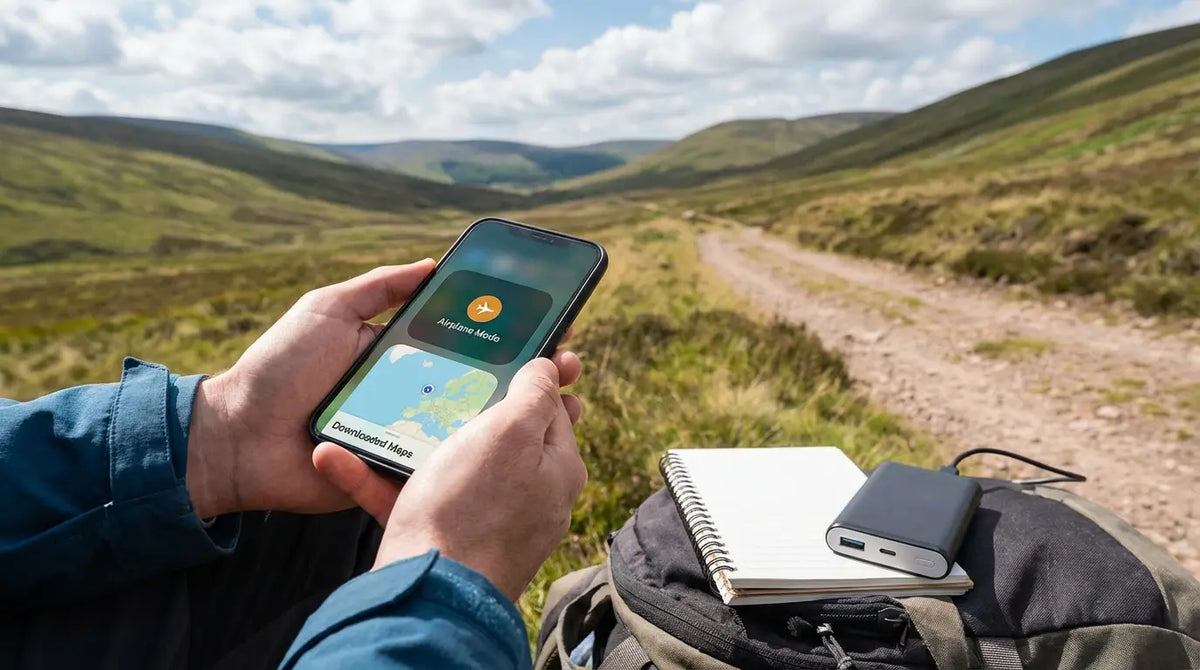
Last summer I was hiking in the Adirondacks when my phone hit a complete dead zone. No service, no WiFi, nothing. And you know what? I navigated 15 miles of trails, listened to three podcasts, edited a bunch of photos, and still had 58% battery when I got back to my car.
Look, we all panic when we see "No Service" pop up. I used to get that same mini heart attack. But here's the thing—your phone isn't actually useless without internet. We just think it is because nobody's ever shown us what still works.
The assumption that smartphones are useless without connectivity is deeply ingrained, yet completely wrong. While we often mistakenly assume we can only use our smartphones for internet access or mobile services, there are many other ways to utilize them, including offline music apps, games, note-taking apps, HD cameras, and downloaded maps that require no connection whatsoever.
That helpless feeling when service drops? It's not about your phone's actual capabilities. It's about preparation. Your camera works exactly the same. GPS satellites are still tracking your location (more on this in a minute—it blew my mind when I learned how this works). Downloaded stuff plays perfectly. Most of your apps function normally.
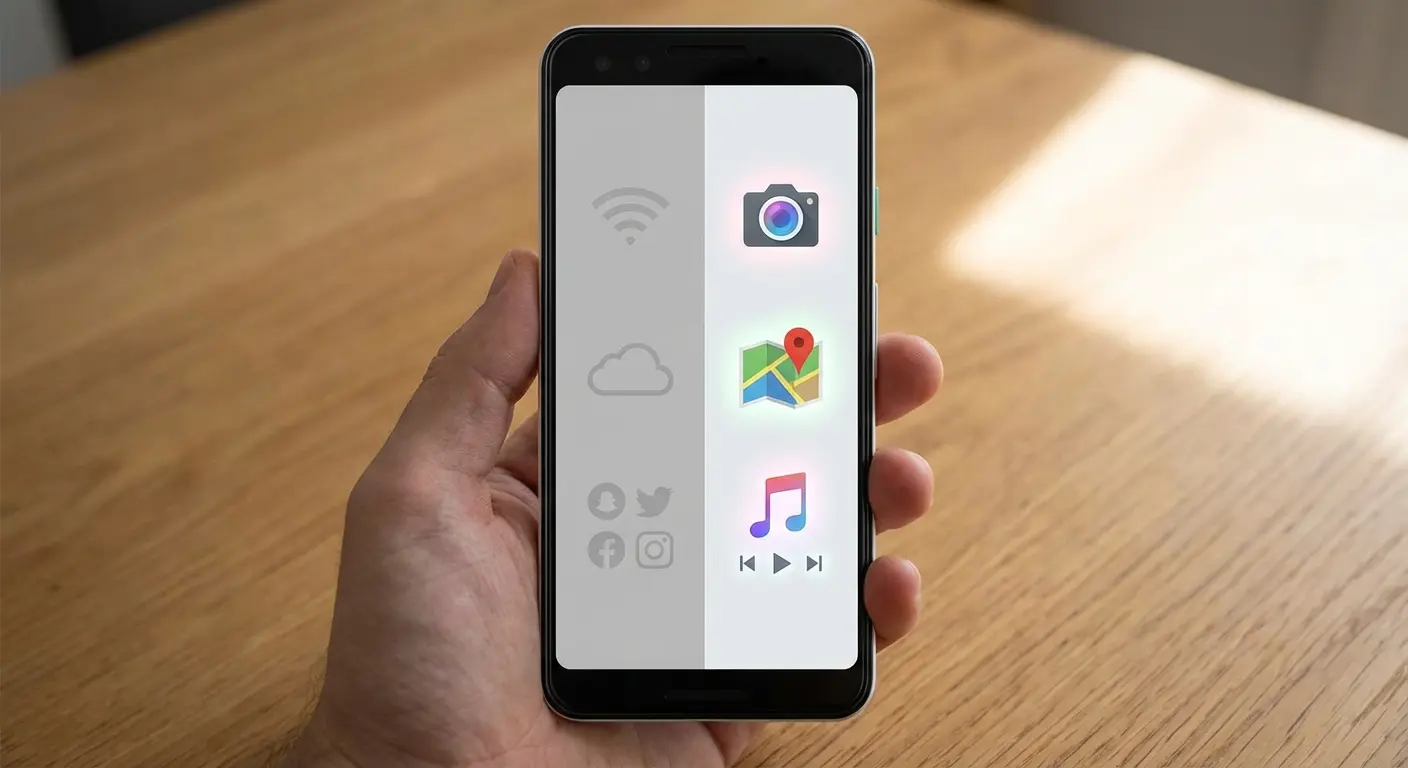
The difference between feeling stranded and confidently handling your day comes down to knowing what's available and setting it up before you need it.
This isn't about "making do with less." Your phone was designed as a capable standalone device that just gets even better when connected. The connectivity is the bonus feature, not the foundation. Navigation, entertainment, emergency functions—all of it works independently. You just need to flip a few switches first.
Throughout this guide, I'm going to show you what actually remains available with proper setup. The capabilities are already sitting in your pocket. Most people just have no idea they're there.
The Five-Minute Setup That Changes Everything
Download Everything Before You Need It (Obviously)
Storage fills up faster than you'd think. A detailed city map can eat 200-500MB. High-quality songs average 5-10MB each. Podcast episodes run 50-100MB. And video? A single movie can demolish 1-2GB of your space.
This is why you can't just download everything. I learned this the hard way trying to prep for a flight to Denver—ran out of storage halfway through downloading my second movie and had to delete a bunch of photos to make room.
Think about your actual scenario. Three-hour flight? You need different stuff than a week-long camping trip. Daily commute through spotty service areas? Different prep than international travel.
What to download before going dark:
Maps for your destination plus surrounding areas (check the file size first—seriously), 3-5 playlists for different moods, a few podcasts or audiobooks that match how long you'll be offline, maybe 10-15 articles saved in Pocket or Instapaper, important documents like confirmations and tickets and addresses, any work files you might need to reference, and some entertainment like a couple games or ebooks or downloaded shows.
Prioritize based on what you absolutely can't replace offline. Navigation data is irreplaceable, so download way more map area than you think you'll need. Entertainment matters but you can always re-read something or listen to music you've heard before. Work documents fall somewhere in between.
Turn On Offline Mode While You Still Have Connection
Here's something nobody tells you: "available offline" and "downloaded" aren't the same thing. Some apps cache stuff you recently looked at, making it temporarily available offline. But that cached content can get overwritten or cleared.
When you explicitly download something—where you specifically tell the app to save it for offline use—it's protected and prioritized.
App Category |
What You Need to Do |
What Works Offline |
What Doesn't Work |
|---|---|---|---|
Google Maps |
Download specific map areas |
Navigation, location viewing, saved places |
Traffic updates, business hours, reviews |
Spotify/Apple Music |
Enable offline mode, download playlists |
Playing downloaded content |
Discovery, radio, sharing |
Google Docs |
Enable offline mode in settings |
Viewing and editing synced docs |
Collaboration, comments, new docs |
Podcasts |
Download episodes individually |
Playing downloaded episodes |
Browsing new episodes |
Quality settings create a direct tradeoff. Music at highest quality sounds noticeably better but uses three times the storage. Map detail affects both clarity and file size. Video resolution? Huge impact on storage. Figure out your priorities before you start downloading.
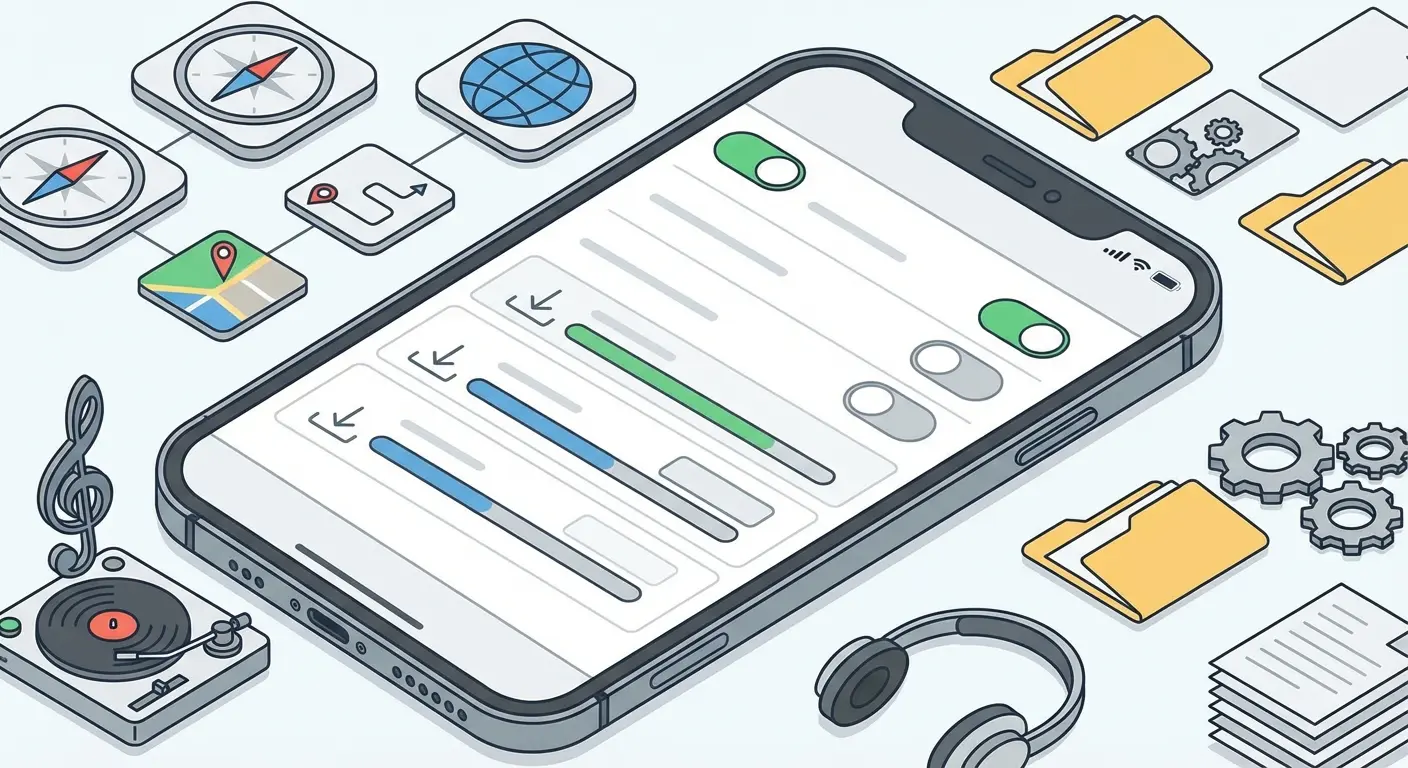
Some apps have offline capabilities you wouldn't expect. Gmail can work offline through Chrome if you set it up. Lots of note apps sync content that stays available even if you never turned on an "offline mode." Weather apps often cache recent data. Calculator, timer, system utilities—obviously they work offline but people forget about them when they're focused on what doesn't work.
The critical step: sync everything one final time before you go offline. Calendars, contacts, notes, recent documents, photos. Make sure you've got the most current version stored locally.
Update Everything Before Going Dark
Picture this: you're already in a remote area with no service when your navigation app crashes. Turns out it needed a critical update. And now you have no way to fix it. This happened to my friend Sarah on a road trip through Utah and it was a disaster.
Check for OS updates first since those affect how everything else runs. Then app updates, especially anything you'll depend on offline—navigation, media players, productivity tools, games. Don't just blindly update though. Read what's included. Sometimes updates add offline features you didn't know existed.
This is also your last chance to sync cloud services. Google Drive, iCloud, Dropbox, OneDrive—make sure they've finished syncing so you're working with current file versions. Photo libraries should be backed up. Any docs you edited recently should be confirmed as saved and synced.
The frustration of dealing with a broken app while offline, knowing you could've prevented it with a quick update check? Completely avoidable. Make this part of your routine.
Navigation Without Data (GPS Is Weirdly Independent)
Mapping Apps Beyond Google Maps
The recent AT&T outage that affected customers across the United States showed how quickly people can find themselves without cellular connectivity. According to FOX News coverage of the outage, while cellular networks were down, GPS-based navigation could still function if users had properly downloaded maps beforehand. A lot of people learned that lesson the hard way.
Google Maps is where most people start, but it's just one option. For urban navigation and road trips, it works fine. But venture into backcountry terrain, international spots with limited map data, or specialized activities, and you'll quickly hit its limits.
Gaia GPS specializes in topographic mapping with offline access to multiple map layers—satellite imagery, terrain data, trail systems. It's built for backcountry use where roads don't exist and elevation matters. AllTrails focuses specifically on hiking, with crowd-sourced trail info, difficulty ratings, and user reviews that download with the map data.
For outdoor enthusiasts who need reliable navigation in remote areas, understanding the best apps for planning hiking routes becomes essential when cellular service isn't available.
Maps.me excels for international travel, particularly in regions where Google's coverage is incomplete. It uses OpenStreetMap data, which is often more detailed in developing countries and remote areas. OnX Hunt combines property boundaries with topographic data for hunters and outdoor people who need to know land ownership info alongside navigation. Travelling abroad adds its own traps, which I cover in using your phone overseas without extra charges.
Each app records your route as you move, creating a breadcrumb trail that works completely independently of any network. This is invaluable for retracing your steps or sharing your route with others once you reconnect.
Save Locations and Drop Pins Everywhere
Dropping a pin takes three seconds. Naming it descriptively takes another ten. This fifteen-second investment becomes super helpful when you're trying to navigate back without service.
Before going offline, mark everything that might matter. Where you parked, your campsite, the trailhead, water sources, emergency meeting points, places you want to visit. Give each waypoint a clear name. "Car - North Parking Lot" is way more useful than "Dropped Pin" when you're scrolling through a list.
Most mapping apps let you organize waypoints into collections. Create one for your specific trip so you can view all relevant locations together without scrolling through every pin you've ever dropped. This seems unnecessary until you're offline with dozens of saved locations and can't remember which one marks where you need to go.
Share these waypoints with others in your group while you still have connection. If you get separated, everyone has the same reference points and can navigate to predetermined meeting spots. GPS coordinates are universal—they work across different apps and devices.
The coordinates that define your waypoints function completely independently of network connectivity. Save them while you can look up locations and search addresses. Access them later when all you have is GPS satellites and downloaded maps.
Here's Something That Blew My Mind: GPS Works Without Cell Service
The confusion makes sense. Your phone shows "No Service" and you assume nothing works, including location tracking. But GPS operates on a completely different system that has nothing to do with your cellular carrier.
GPS satellites orbit Earth, continuously broadcasting timing signals. Your phone receives signals from multiple satellites at once and uses the time differences to calculate your exact position through something called trilateration.
This happens independently of cellular networks, WiFi, or any other connectivity. The GPS chip in your phone is a receiver, not a transmitter. It listens to satellites without needing to send anything back.
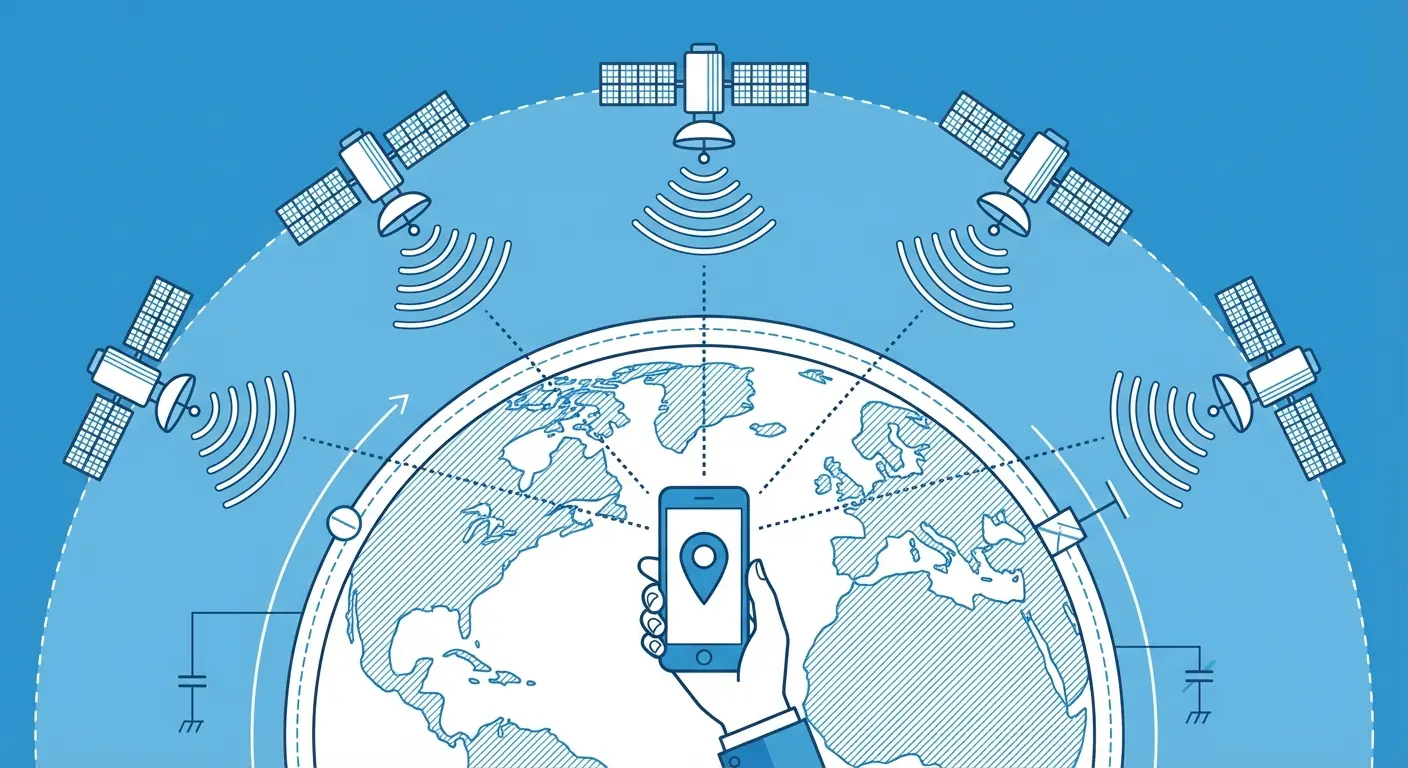
So you can see exactly where you are on a downloaded map even in complete cellular dead zones. The blue dot showing your location updates in real-time as you move because your phone is continuously receiving GPS signals and calculating position. That's why offline navigation actually works rather than just showing you a static map image.
The limitation? Context. GPS tells you your coordinates with remarkable precision—usually within 15-30 feet. But coordinates alone don't tell you how to get where you're going or what's around you. That's where downloaded map data becomes essential. GPS provides your position. The map provides meaning to that position.
Understanding this separation between positioning (GPS satellites) and mapping (downloaded data) clarifies why preparation matters. The positioning system is always available. The map that makes that position useful must be downloaded in advance.
Entertainment That Actually Works Offline
Build a Media Library That Covers Different Moods
The mistake I always make is downloading only my current favorites. Then I go offline and realize I'm not in the mood for any of it. When you can't browse or discover new stuff, the content you have needs to cover a range of moods.
Create playlists for different contexts. High-energy music for workouts, calming stuff for relaxation, focus-friendly instrumental music for work, engaging podcasts for long stretches. Include familiar comfort content alongside newer albums or episodes you've been meaning to check out. The variety prevents the frustration of being stuck with content that doesn't match your current state of mind.
Podcasts and audiobooks provide longer entertainment that's particularly valuable during extended offline periods. A three-hour flight or day-long hike needs different content than a 30-minute commute. Download episodes or books that match your expected offline duration, and add a buffer. You might be offline longer than planned.
The psychology of limited choice is real. When you know you can't access anything else, the content you have becomes more precious. Download more variety than you think you'll need. That genre you rarely listen to might be exactly what you want when you can't scroll through unlimited options.
Offline Gaming Is Actually Better
Mobile gaming offline delivers an unexpectedly superior experience. The ads that normally interrupt gameplay every few minutes can't load without internet, leaving you with uninterrupted play sessions. The notifications that constantly pull you away disappear. You get the pure gaming experience that existed before everything became connected.
Puzzle games, strategy games, and story-driven single-player games work perfectly offline. Titles like Monument Valley, Alto's Adventure, Stardew Valley, or classic card games function identically with or without connection. The gameplay is entirely local to your device.
Multiplayer games, anything with daily challenges, and titles built around social features won't work offline. Games that stream content, require authentication checks, or use server-side processing need connectivity. App store descriptions don't always make this clear, so test games while you still have connection to confirm they work offline.
During a cross-country flight last year, I downloaded several games before boarding. The typical free puzzle game that bombards you with 30-second video ads every few levels? Played completely ad-free at 35,000 feet. What's normally a frustrating, interruption-filled experience became genuinely enjoyable gaming without the constant commercial breaks.
The irony is that offline gaming often provides the focused, uninterrupted experience that gaming is supposed to deliver. No ads. No notifications. No social pressure. Just you and the game.
Reading Apps and Ebooks
Your phone remains a fully capable reading device offline, and you can read various types of books on your mobile device without using the internet, including PDF files using applications like Adobe Acrobat or Google Chrome, along with ebooks downloaded in advance and stored directly on your device.
Kindle, Apple Books, Google Play Books—they all support downloading books for offline reading. The content lives on your device, accessible anytime. Reading apps like Pocket and Instapaper let you save articles from across the web, creating a personalized reading queue that works without connection.
News apps increasingly offer offline modes. The New York Times app, for example, automatically downloads recent articles for offline reading. Many magazine apps let you download entire issues.
Kiwix provides offline access to Wikipedia and other reference content. Download the database while connected (it's large—several gigabytes for English Wikipedia), and you have a comprehensive encyclopedia available without internet.
Reading consumes way less battery than video streaming, gaming, or even music playback. The screen is the primary power draw, and reading apps often support dark modes that reduce power consumption further on OLED screens. When you're managing limited battery life offline, reading becomes both entertainment and a practical choice for extending your device's useful life.
Communication When the Network Dies
Bluetooth and Peer-to-Peer Stuff
The distinction between cellular service and local communication became critically important during recent carrier outages. When AT&T experienced a massive nationwide outage in early 2024, FOX News reported that while normal calls and texts were unavailable, users could still communicate and share files over Wi-Fi networks and through local device-to-device protocols that don't rely on cellular infrastructure.
Bluetooth creates direct device-to-device connections without any network infrastructure. AirDrop on iOS and Nearby Share on Android use Bluetooth (and WiFi Direct) to transfer files between nearby devices at surprisingly fast speeds. Photos, documents, contact info, even location data moves seamlessly between devices without touching any network.
The range limitation is real but often good enough. Standard Bluetooth reaches 30-100 feet in open spaces, less through walls or obstacles. Newer versions extend this to 300+ feet. For sharing content with people in your immediate vicinity—hiking partners, travel companions, family members—this range works perfectly.
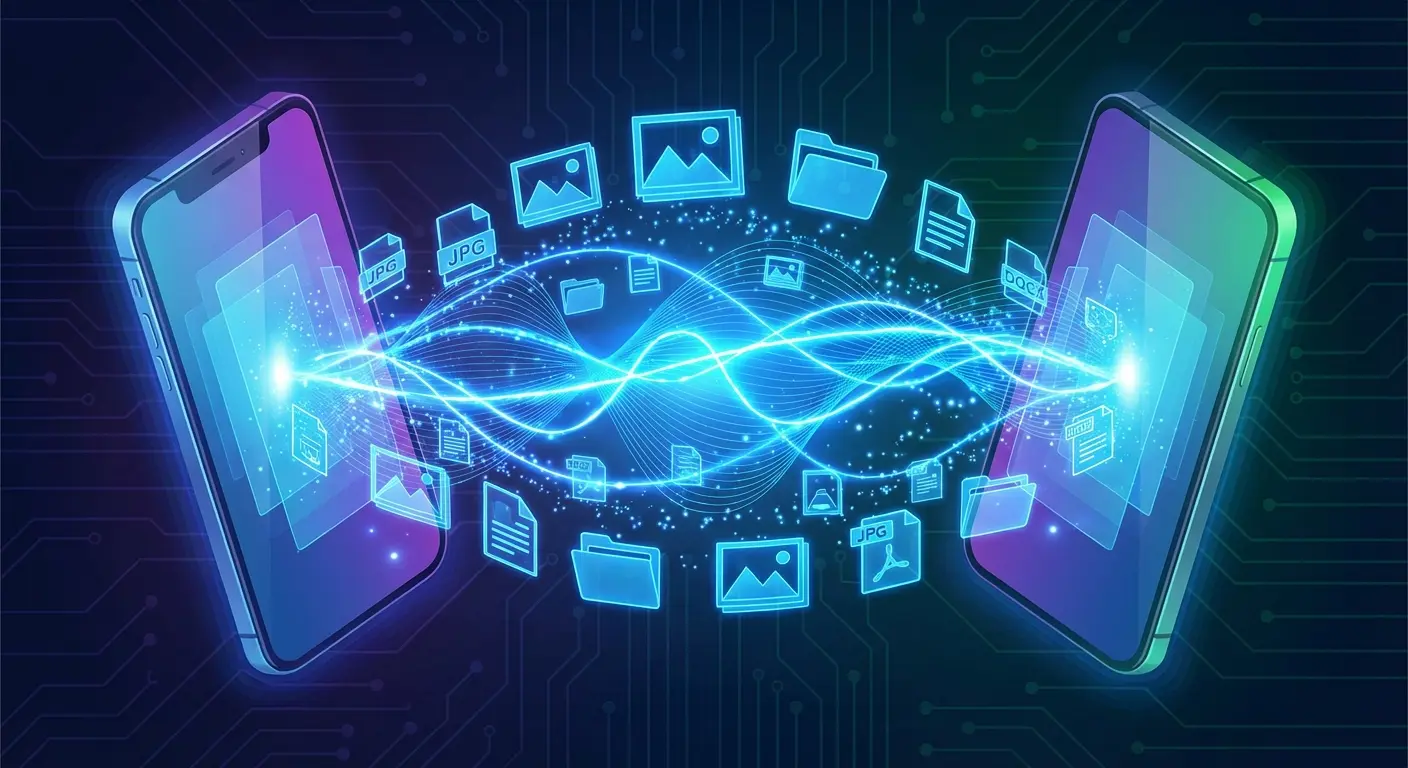
Practical use cases multiply once you know this exists. Share GPS coordinates of your location with others in your group. Transfer photos from a hike so everyone has copies. Move documents between devices when cloud services aren't available. Exchange contact info at events in areas with poor service.
This reframes offline communication. You're not completely isolated—you're limited to local, short-range interaction. For many situations like group travel, events, or outdoor activities with companions, that's entirely sufficient.
WiFi Direct for Big File Transfers
WiFi Direct creates direct connections between devices using WiFi protocols but without requiring a router or internet connection. Think of it as devices creating their own temporary network for direct communication. The speeds far exceed Bluetooth—often reaching 50+ MB/s—making it practical for transferring large video files or entire photo libraries.
The confusion around hotspots is common. Turning on your phone's personal hotspot without cellular data or WiFi connection doesn't magically create internet access. But it does create a local network that other devices can join. This enables file sharing and local communication between devices, just not internet access.
Practical applications are narrower than Bluetooth but valuable for specific needs. Moving a large video file from your phone to a laptop when you're away from WiFi infrastructure. Creating a local network for multiple devices to communicate. Transferring entire photo libraries between devices without cloud services.
Setup is less seamless than AirDrop or Nearby Share, often requiring manual configuration. Not all devices fully support WiFi Direct. But for situations requiring fast transfer of large files without infrastructure, it's your best option offline.
Mesh Messaging Apps (For Specific Scenarios)
Mesh networking apps represent a fundamentally different approach to communication. Instead of messages routing through cell towers or internet infrastructure, they hop directly from device to device, creating a network of users who relay messages for each other.
Bridgefy, Briar, and FireChat pioneered this approach. If you're trying to reach someone 500 feet away but out of direct Bluetooth range, your message might hop through three other users' devices to reach them. Each device acts as both a receiver and a relay point, extending the network's reach beyond any single device's range.
The catch? This only works when multiple people nearby are using the same app. In everyday situations with reliable service, these apps provide no advantage. But in specific scenarios—large gatherings like festivals or conferences, protests or demonstrations, natural disasters disrupting infrastructure, or coordinated group activities in remote areas—they enable communication when traditional methods fail.
During Hong Kong's 2019 protests, demonstrators used mesh networking apps to coordinate movements and share information when authorities disrupted cellular service. Messages hopped between thousands of devices, creating a communication network that functioned independently of any infrastructure that could be shut down.
These apps won't replace your normal messaging for daily use. But understanding they exist and having them installed before you need them provides a communication option in scenarios where everything else fails. The key is coordinating with your group to install the same app before you're in a situation where you need it.
Photography and Content Creation in Airplane Mode
Your Camera Works Exactly the Same
Your phone's camera represents one of the most sophisticated pieces of technology you carry, and it requires absolutely zero connectivity to function. Every camera mode—portrait, night mode, panorama, video recording, time-lapse—works identically offline. The processing happens entirely on your device.
Airplane mode actually improves photography in ways most people don't consider. Notifications can't interrupt you while you're composing shots. Apps can't pull focus away at critical moments. Battery life extends significantly, giving you more shooting time. The focused, uninterrupted creative space that airplane mode creates often produces better results than shooting while connected.
For those serious about mobile photography, exploring iPhone photography tips can help you maximize your camera's capabilities whether you're connected or not.
Built-in editing tools work completely offline. Crop, adjust exposure, modify colors, apply filters—all the basic editing happens locally on your device without touching any network. Organize photos into albums while you're offline, making them easier to find and share once you reconnect.
The psychological shift matters. You're creating content for later rather than sharing immediately. This changes how you approach photography, often in positive ways. You're shooting for yourself and for the moment, not for immediate social validation. The content doesn't disappear just because you can't share it instantly—you're building a library to share when you choose to reconnect.
Editing Apps That Process Everything Locally
Modern smartphones contain enough processing power to handle sophisticated photo and video editing entirely locally. Apps like Snapseed, VSCO, Adobe Lightroom Mobile, and video editors like iMovie or LumaFusion process everything on your device without requiring cloud servers.
Snapseed offers professional-grade editing tools completely offline. Selective adjustments, healing tools, perspective correction, and detailed color grading all happen locally. VSCO provides filters and editing tools that work without connection, though downloading additional filter packs requires connectivity beforehand.
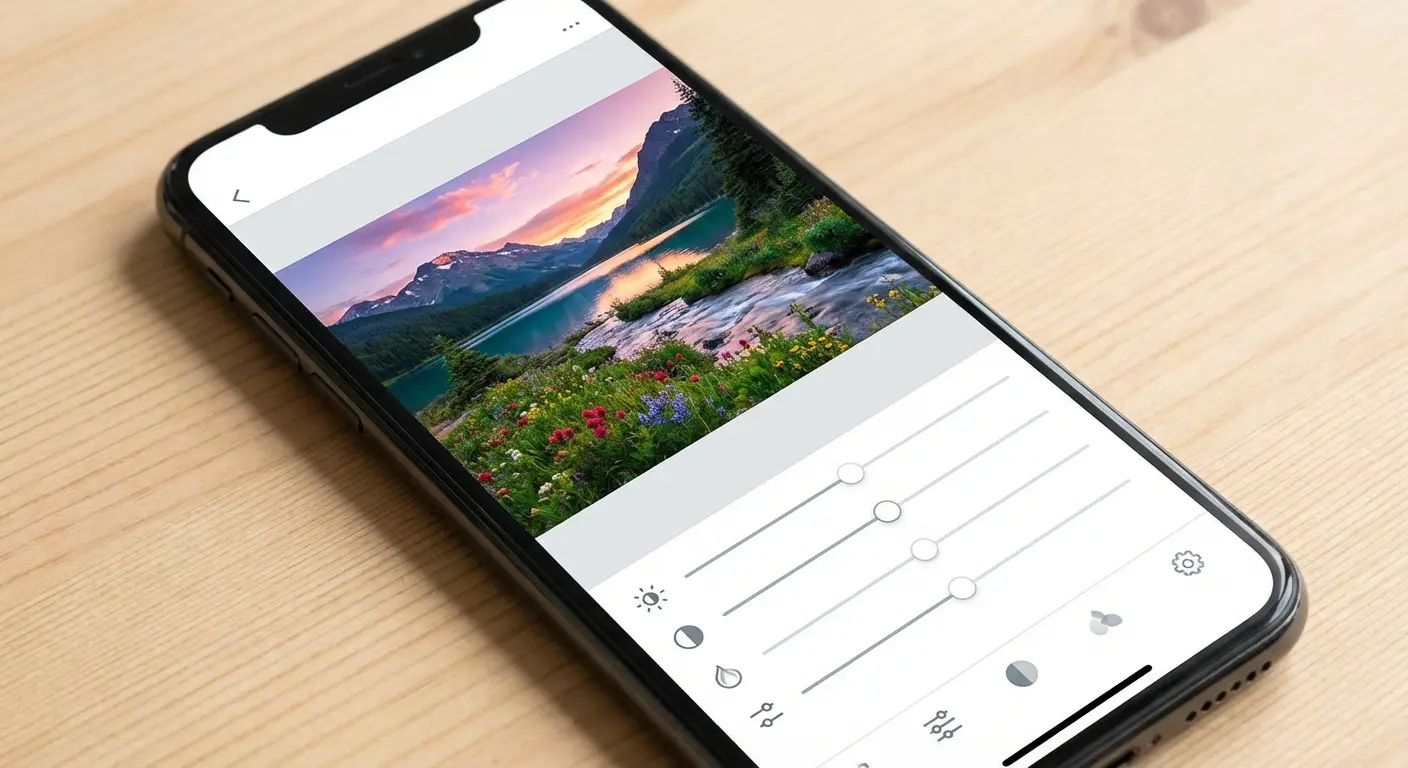
Adobe Lightroom Mobile works offline with an important caveat: download any presets you want to use before going offline. The app's core editing functionality processes locally, but accessing cloud-synced presets or AI-powered features requires connection. Plan ahead by downloading preset collections while connected.
Video editing apps like LumaFusion and iMovie handle everything locally, including rendering final exports. Editing 4K video on a phone would've seemed absurd a few years ago, but current devices handle it smoothly. The limitation is storage—video editing requires significant space for source files and rendered exports.
What won't work offline: cloud presets you haven't downloaded, AI tools that use server-side processing, direct export to social media, and anything requiring account authentication or license verification. But the core editing functionality—the creative work—happens entirely on your device.
Prepare by downloading any assets you'll need. Preset packs, filters, fonts for text overlays, or music for video projects. Once you have everything local, you can create and edit content as if you were fully connected.
Note-Taking and Voice Memos for Capturing Ideas
Your phone excels as a capture device, and capturing ideas requires zero connectivity. Voice memos record thoughts, observations, or reminders without any network. Note-taking apps document information, create lists, or journal experiences. Video recording captures moments or creates verbal notes with visual context.
Apple Notes, Google Keep (with offline mode enabled), Notion (with previously synced pages), and Evernote all function offline. Create new notes, edit existing ones, add photos, or organize information. Everything saves locally and syncs automatically once you reconnect.
Voice memos deserve special attention. They're faster than typing for capturing detailed thoughts, perfect for documenting experiences while hiking or traveling, and useful for recording information you might forget. The built-in voice memo app works flawlessly offline, and recordings can be transcribed later when you have connection.
The practical value multiplies in specific scenarios. Travelers documenting experiences in remote areas. Hikers recording trail observations or safety information. Anyone brainstorming ideas during a flight. Professionals capturing meeting notes in locations with poor service. Your phone becomes a reliable capture tool that never depends on connectivity.
Productivity Tools That Work Offline
Document Editing and Cloud Services in Offline Mode
Major productivity platforms support offline work, but only if you've configured them properly while still connected. Google Docs requires enabling offline mode in settings, then specifically making documents available offline. Microsoft Office mobile apps download documents for offline editing. Apple's iWork suite (Pages, Numbers, Keynote) handles offline work seamlessly with iCloud-synced documents.
The workflow is straightforward: edit documents offline, and all changes save locally to your device. Once you reconnect, everything syncs automatically to the cloud. Your work isn't lost or stuck offline—it's simply waiting to sync.
Limitations center on collaboration. You can't see others' changes, respond to comments, or share documents while offline. Real-time collaboration features obviously require connection. But solo work—writing, editing, creating presentations, building spreadsheets—continues normally.
Before going offline: enable offline mode in Google Docs (Settings > Offline), open and sync all documents you might need to edit, download any reference documents or PDFs, sync cloud storage services (Google Drive, Dropbox, OneDrive), ensure Microsoft Office apps have downloaded documents for offline access, check that recent changes to all documents have synced to cloud, and download any templates or assets you might need.
The best practice is syncing everything you might need before going offline. You can't access documents you haven't specifically made available offline, and you can't search your entire cloud storage to find something. Open and sync documents while connected, ensuring they're cached locally for offline access.
Calendar, Reminders, and Task Management
Calendar apps, reminders, and task managers function completely offline once they've synced. View your schedule, check upcoming appointments, review tasks, and plan your time without any connection. Built-in calendar apps on iOS and Android work seamlessly offline, showing all synced events and allowing you to create new ones that sync later.
Task management apps like Todoist, Things, Microsoft To Do, and TickTick support offline work. Check off completed tasks, add new ones, reorganize priorities, and plan projects. Everything saves locally and syncs when you reconnect.
The limitation is coordination. You won't receive calendar invitations, see updates to shared calendars, or get notifications about schedule changes while offline. Your personal organization system works perfectly, but collaborative scheduling requires connection.
Offline time often proves more productive for planning and organization. Without constant interruptions from new emails, messages, or notifications, you can focus on reviewing your schedule, planning upcoming work, and organizing tasks thoughtfully. You're working with what you have rather than constantly checking for updates.
Set reminders while offline and they'll trigger normally. Plan your day, week, or month using your existing calendar data. Reorganize task lists and priorities. The organizational work continues independently of connectivity, with all changes syncing automatically once you're back online.
Reference Materials and Saved Documentation
Reference materials require the most foresight because you need to anticipate what you'll need before you can't look anything up. Save PDFs of important documents, take screenshots of confirmation numbers or addresses, download manuals or guides, and prepare any reference information you might need offline.
For travelers, this means saving flight confirmations, hotel addresses with directions, important contact numbers, and any reservation details. Screenshots work perfectly for this—they're searchable, always accessible, and don't require specific apps. Create a dedicated photo album for reference screenshots so they're easy to find.
Students and professionals benefit from downloaded reference documents, research papers, manuals, or guides. PDFs open in multiple apps and remain accessible offline. Technical documentation, study materials, or work references become available anywhere without requiring connection to access.
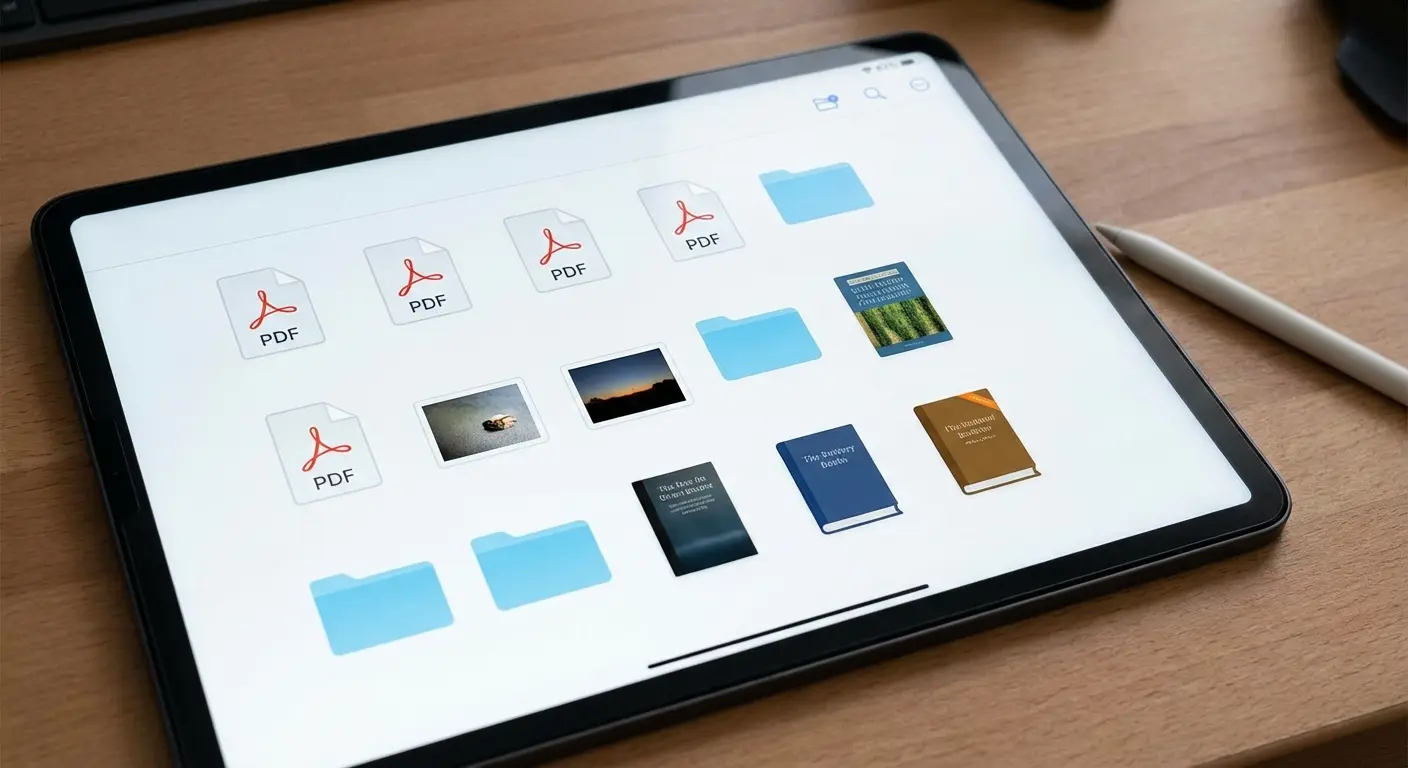
Kiwix provides offline Wikipedia access and other reference databases. Download the database while connected (it's large—several gigabytes for English Wikipedia), and you have comprehensive reference information available offline.
A software developer I know was traveling to a remote cabin for a work retreat and downloaded technical documentation for the programming languages and frameworks she'd be using. When she encountered a problem that would normally require searching Stack Overflow or official documentation, she had comprehensive reference materials available offline. What could have stalled her work for hours until she could get connectivity was solved immediately with properly prepared reference materials.
Think through your offline scenario and what information you might need. Save it deliberately rather than assuming you'll remember to look it up or that you'll be able to access it later. A few minutes of preparation saves hours of frustration when you need specific information and have no way to access it.
Emergency Functions That Never Need Connection
911 and Emergency Services Work Without Active Service
Emergency calling represents the most critical offline function your phone provides. Even without a SIM card, mobile phones can dial emergency numbers, connecting to any available network in the area to place the emergency call—a safety feature that works regardless of your service plan or carrier coverage.
When you dial 911 (or 112 in Europe, or other regional emergency numbers), your phone attempts to connect to any available cellular tower, regardless of which carrier operates it. Even phones with no active service plan, no SIM card, or no relationship with any carrier will connect for emergency calls if any tower is in range.
The technical implementation prioritizes emergency access over commercial relationships between carriers. Your phone doesn't check whether you're a customer or whether you're in your carrier's coverage area. It simply connects to the strongest available signal and places the emergency call.
Access emergency calling from your locked screen without entering a passcode. Both iOS and Android provide emergency call buttons on the lock screen, ensuring you can call for help even if you can't unlock the device. This is crucial if someone else needs to use your phone in an emergency.
Keep old phones charged as emergency backups even without active service. A phone sitting in your car, backpack, or emergency kit can still call 911 if it has battery power. This provides redundancy—if your primary phone is lost, damaged, or dead, the backup can still summon help.
The limitation is coverage. Emergency calling still requires some cellular tower within range. In areas with absolutely no coverage from any carrier, emergency calls won't connect. But in most populated areas and along major routes, multiple carriers provide coverage, meaning emergency calling works even when your specific carrier doesn't have service.
Medical ID and Emergency Information
Medical ID on iOS and Emergency Information on Android provide life-saving information accessible from your locked phone. First responders, medical personnel, or anyone helping you in an emergency can access critical medical details without your passcode.
Setting this up takes five minutes and could genuinely save your life. Include blood type, known allergies, current medications, medical conditions, and emergency contacts. This information becomes available to anyone who needs it during a medical emergency, even when you're unconscious or unable to communicate.
To access Medical ID on a locked iPhone, press the side button five times to bring up the emergency screen, then tap "Medical ID." On Android, tap "Emergency" on the lock screen, then "Emergency Information." Anyone can access this without unlocking your device.
Information to include: medical conditions (diabetes, heart conditions, epilepsy, etc.), allergies (medications, foods, environmental), current medications and dosages, blood type, emergency contacts with relationships, organ donor status, and any other information medical personnel should know.
This offline feature works regardless of connectivity, service plans, or device status. Even a phone with a cracked screen, dead SIM card, or no service plan displays Medical ID information.
The five minutes spent setting this up could mean the difference between first responders having critical information or making potentially dangerous assumptions about your medical needs. This isn't preparation for going offline—it's essential safety configuration everyone should complete regardless of how they use their phone.
Flashlight, Compass, and Basic Utility Tools
Basic utility tools built into smartphones work completely independently and become surprisingly valuable in specific situations. The flashlight is brighter than most people expect—often 50-100 lumens or more, comparable to dedicated small flashlights. It's always with you and doesn't require separate batteries or maintenance.
The compass app uses your phone's built-in magnetometer to provide genuine directional information. It's not as precise as a dedicated compass, and it requires calibration, but it provides reliable directional information for navigation. Combined with GPS and downloaded maps, it creates a functional navigation system.
Level tools built into iOS (in the Measure app) and available through Android apps use your phone's accelerometer to function as a carpenter's level. Measuring apps use the camera and augmented reality to estimate distances and dimensions.
Calculator, timer, stopwatch, and alarm functions work completely offline and independently. These seem obvious, but they're genuinely useful tools that people sometimes forget are available when they're focused on what doesn't work without connectivity.
The value of these basic tools multiplies in specific scenarios. Power outages where you need a reliable flashlight. Outdoor activities where compass direction matters. Practical tasks requiring measurement or leveling. Emergency situations where simple tools become essential.
Battery Life Gets Insane in Airplane Mode
How Much Longer Your Phone Lasts
The battery life improvement from airplane mode is dramatic and measurable. Disabling cellular, WiFi, and Bluetooth radios can extend battery life by 40-60% depending on usage patterns and signal conditions. A phone that normally lasts 8 hours of active use might last 12-14 hours in airplane mode with similar usage.
Your phone constantly searches for signals, maintains network connections, syncs data in the background, and receives notifications—all of which consume power. The cellular radio is particularly power-hungry, especially when signal is weak or intermittent. Searching for signal in low-coverage areas drains battery faster than maintaining a strong connection.
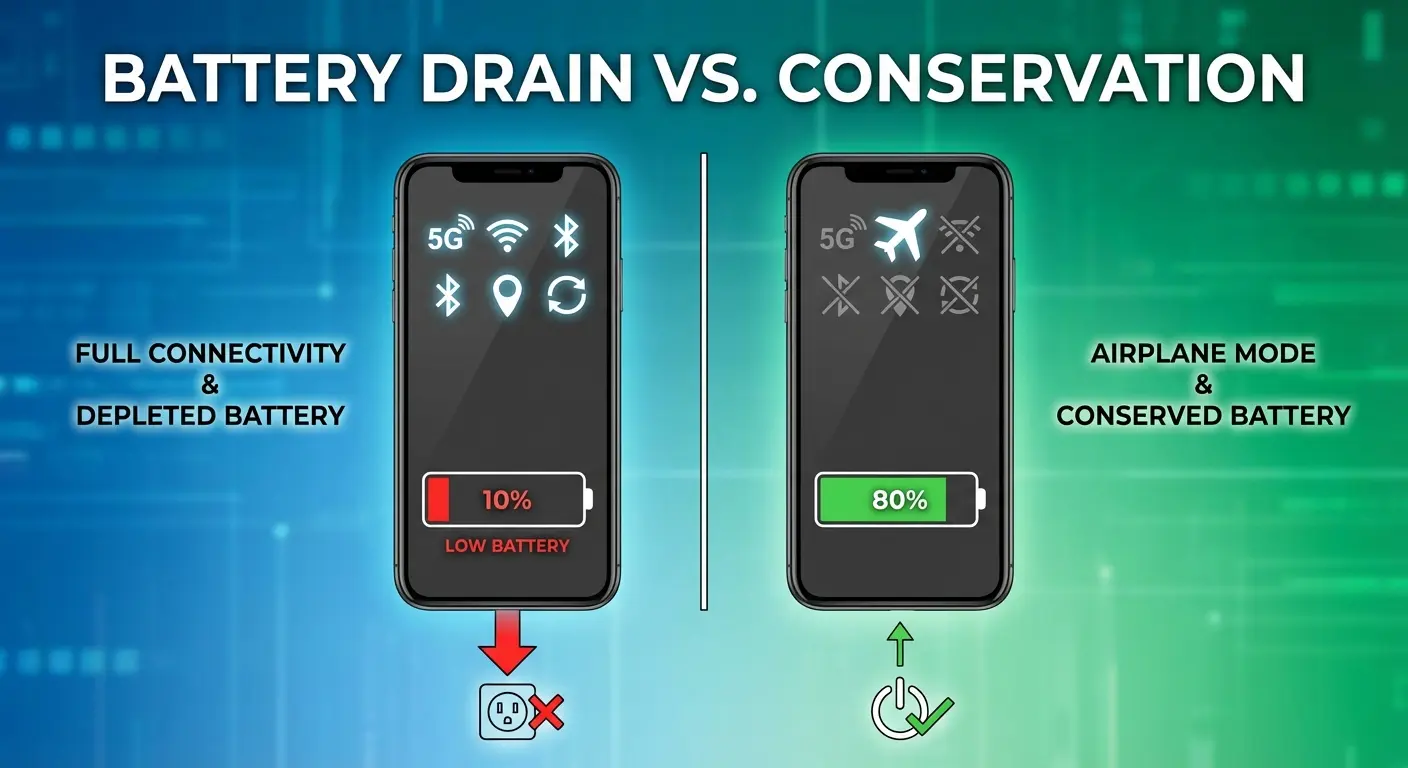
Airplane mode eliminates all this background activity. The radios shut down. Background syncing stops. Push notifications can't arrive. The only power consumption comes from your usage—screen time, app processing, and GPS if you're using navigation.
The improvement is most noticeable in low-signal areas. When your phone is constantly searching for connection, battery drains rapidly. Airplane mode eliminates this drain entirely, making your battery last significantly longer in remote areas, underground locations, or anywhere with poor coverage.
Practical context matters. A phone that normally dies by evening might last through the next morning in airplane mode. A device that barely survives a long flight with normal use might have 40-50% battery remaining in airplane mode. This transforms battery anxiety into battery confidence.
Selective Connectivity for Maximum Efficiency
Airplane mode doesn't have to be all-or-nothing. You can enable airplane mode to disable cellular and WiFi, then selectively re-enable Bluetooth for headphones or GPS for navigation. This granular control maximizes the functionality you need while minimizing battery drain from features you don't.
The cellular radio consumes the most power, especially when searching for signal. Disabling it through airplane mode provides the biggest battery savings. But Bluetooth uses relatively little power, and GPS is surprisingly efficient for passive location tracking. You can keep these active while still gaining most of airplane mode's battery benefits.
Practical scenarios where selective connectivity makes sense: long flights where you want Bluetooth headphones but don't need cellular or WiFi, hiking with GPS navigation but no need for connectivity, working offline but using Bluetooth keyboard or headphones, managing battery life in low-signal areas while maintaining specific functionality.
Configure this by enabling airplane mode first, which disables all radios. Then manually re-enable the specific features you want: toggle Bluetooth back on for headphones, or enable location services for GPS navigation. The cellular radio stays off, providing the primary battery savings, while you maintain the specific functionality you need.
This approach gives you control over the tradeoff between connectivity and battery life. You're not blindly disabling everything or leaving everything active. You're making intentional choices about which features matter for your current situation and which are draining battery unnecessarily.
Offline Mode as Intentional Digital Minimalism
The skills and tools for offline phone use apply even when connectivity is available. Choosing airplane mode intentionally creates focused time free from constant interruptions, notifications, and the compulsive urge to check for updates. The battery life benefit becomes almost secondary to the mental space created by disconnecting.
Airplane mode eliminates distractions completely. No notifications can arrive. No calls can interrupt. No messages demand immediate attention. You're working with what you have on your device rather than constantly context-switching to new inputs. This focused environment often proves more productive and relaxing than always-connected time.
The psychological difference is significant. When you can't check something, the urge to check gradually diminishes. When notifications can't arrive, you stop anticipating them. The mental energy spent monitoring for new information gets redirected to whatever you're doing. This creates genuine focus that's increasingly rare in always-connected environments.
Applying offline skills intentionally means preparing the same way you would for forced offline time. Download content you'll want. Sync documents you'll need. Configure apps for offline use. Then choose to disconnect, knowing you have everything necessary for focused work or intentional relaxation.
Your phone becomes more useful, not less, when you understand how to use it without constant connectivity. The preparation and skills covered throughout this guide enable both forced offline scenarios and intentional disconnection for focus, productivity, or mental health.
Keeping Your Device Secure When It Matters Most
You're depending on your phone for navigation, emergency access, and documentation in places where there's no backup plan if something goes wrong. Dropping your device on a trail or losing it during a remote road trip isn't just inconvenient when you're offline—it's potentially dangerous.
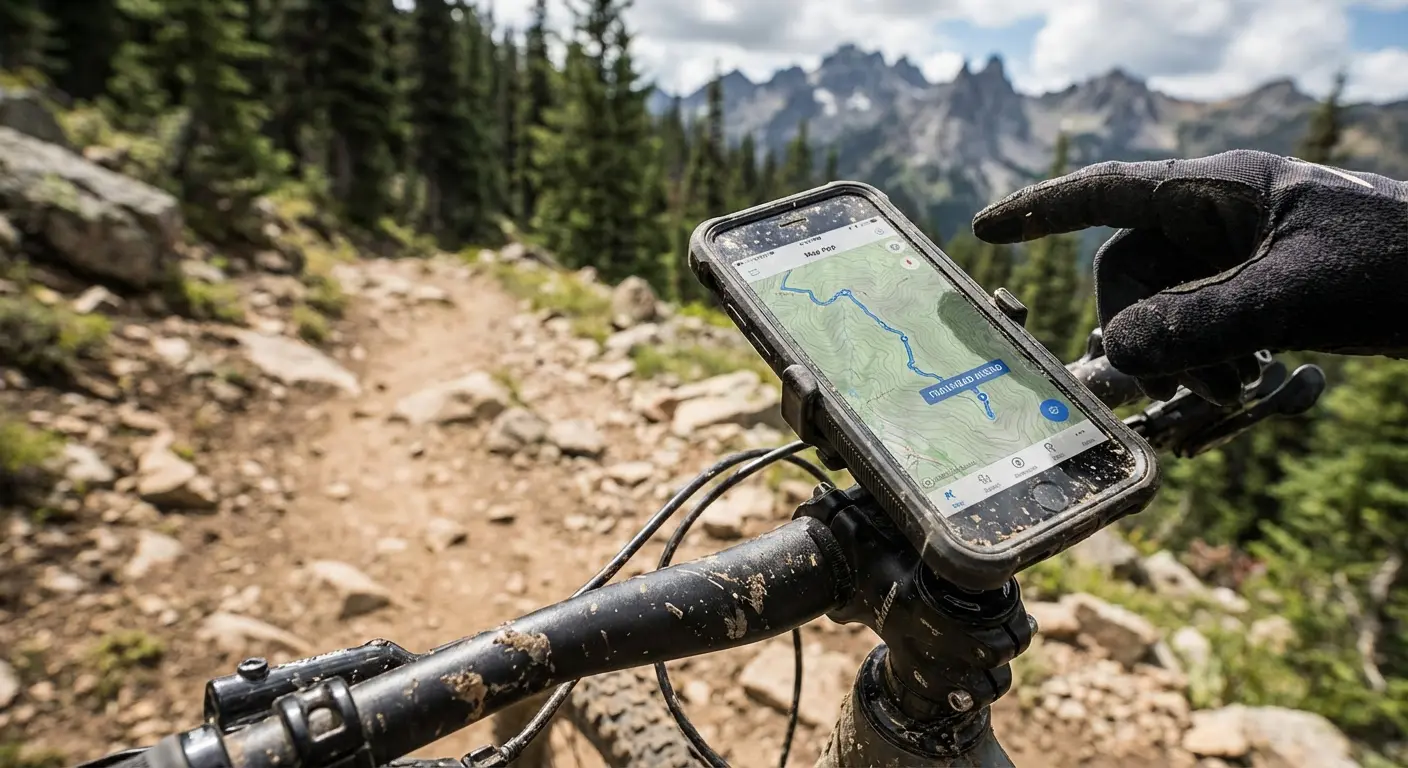
When you're relying on your phone as your primary navigation and safety device in remote locations, having the best phone mount for bikes ensures your device stays secure and accessible throughout your journey.
Rokform's magnetic mounting systems and rugged cases are built specifically for situations where your phone needs to be both protected and accessible. Whether you're mounting to your bike for GPS navigation, securing it in your vehicle for offline maps, or just ensuring it stays protected in your pack, having the right mounting solution matters more when you can't simply order a replacement or call for help.
For motorcycle riders who depend on their phones for navigation in areas without service, exploring motorcycle phone mounts becomes essential for keeping devices secure and viewable.
Drivers who frequently travel through areas with poor connectivity benefit from reliable car phone mounts that keep navigation accessible without fumbling with devices.
Check out Rokform's mounting solutions designed for the exact scenarios where offline phone use becomes essential.
Final Thoughts
Your phone contains way more offline capability than most people will ever use. The difference between feeling stranded when service drops and confidently continuing with your plans comes down to maybe five minutes of preparation.
None of this is complicated. You're not learning new skills or buying specialized equipment (beyond what you already own). You're just turning on features that are already built into your device and thinking ahead about what you'll need when you can't access anything else.
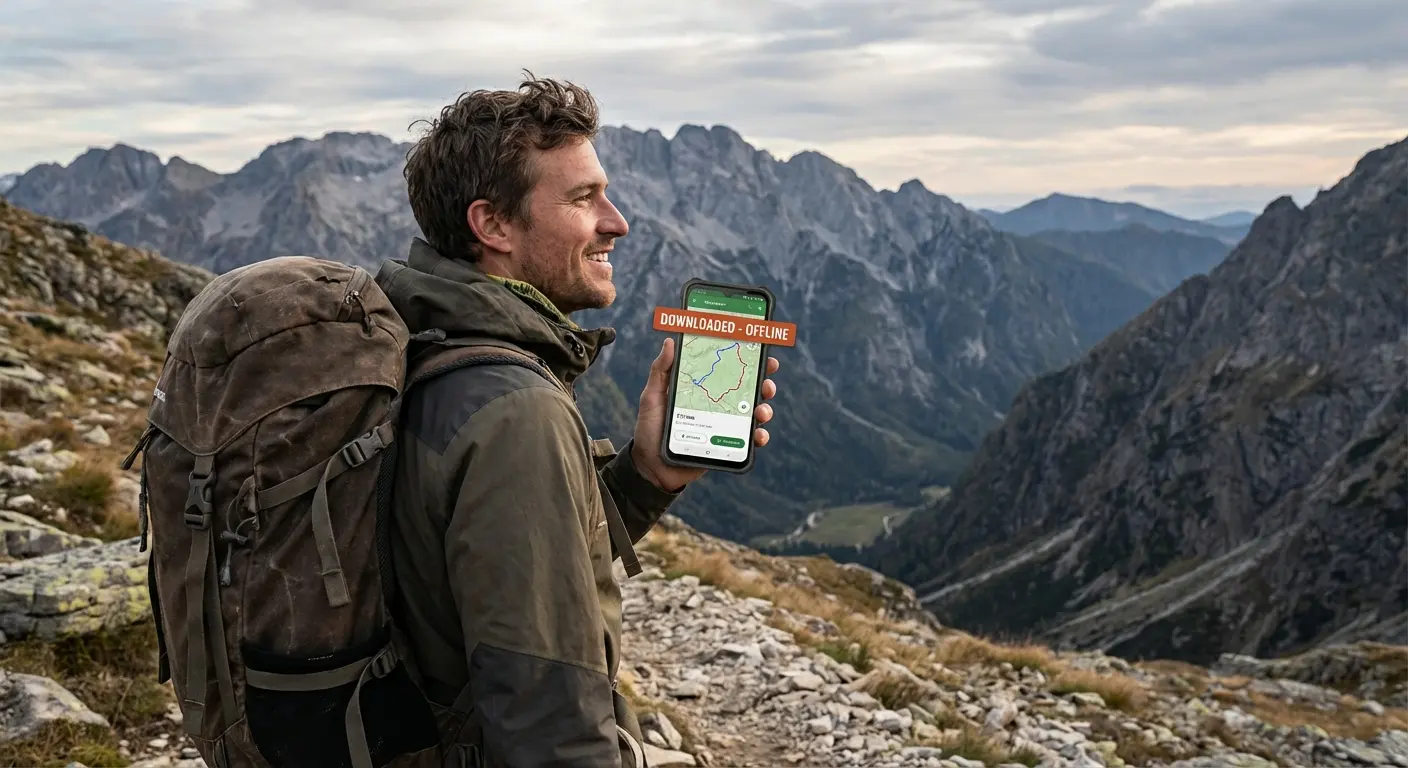
Next time you're heading somewhere with questionable service, or you just want to disconnect intentionally, you'll know exactly how to make your phone work for you instead of feeling limited by what you can't access. That shift from dependency to capability changes how you think about connectivity entirely.
Download your maps. Set up your apps. Save what matters. Your phone is way more useful than you think, even when it's completely disconnected.

