


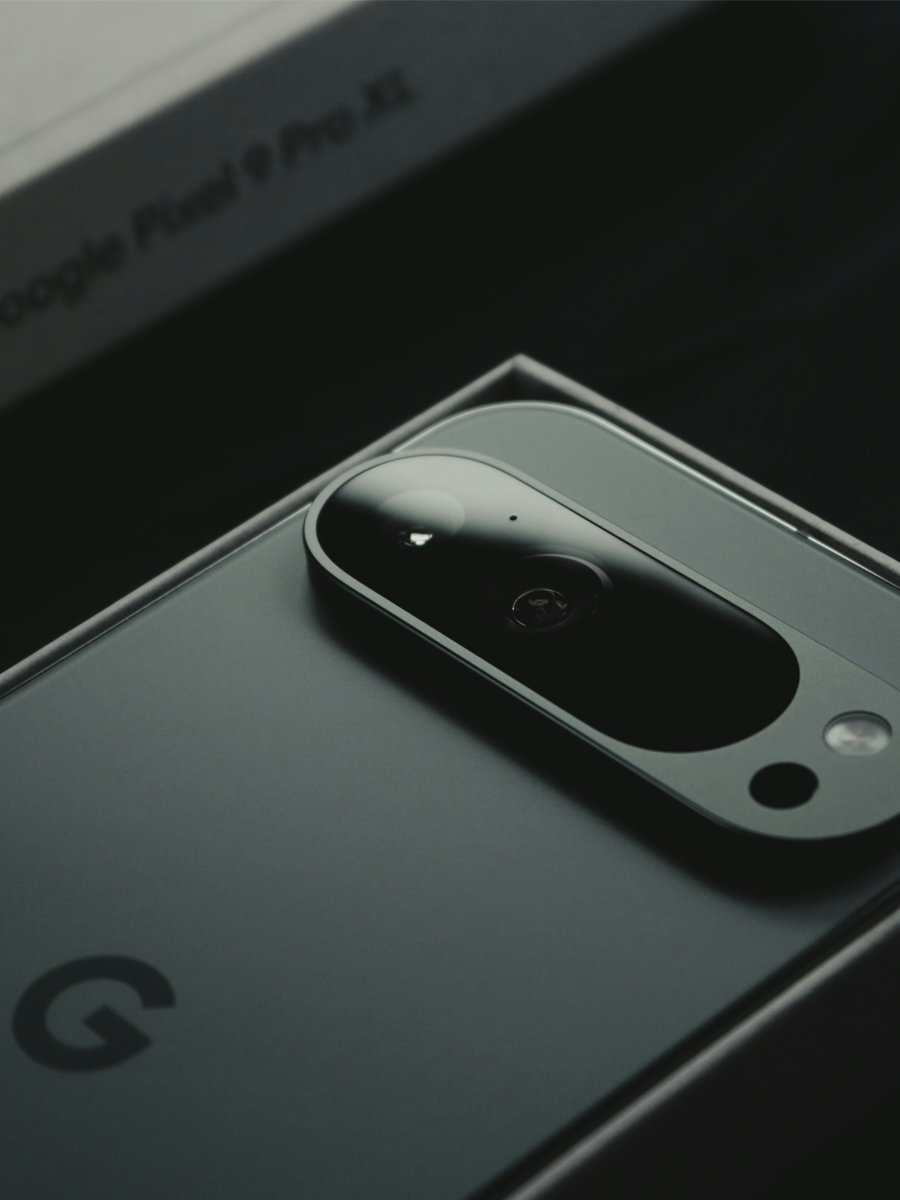
Pixel to Pixel transfer doesn’t have to be complicated. Luckily, Google made this whole thing pretty straightforward. It’s easy enough to walk through it in a way that actually makes sense. The Google Pixel 10 rumors came and went (since it’s finally out). This means a smooth Pixel to Pixel transfer is the only thing standing between you and enjoying that upgrade.
So, whether you’re upgrading from an older Pixel to the brand-new Pixel 10, or switching over from a Samsung device, you’ve got options.
In this post, we’re going to give you the inside scoop on how to transfer data from Pixel to Pixel without stress, guesswork, or confusing steps. By the end, you’ll be using your new Pixel like you’ve had it forever. Let’s get started:
Quick Links
TL;DR
Pixel to Pixel transfer can happen during setup or whenever you want with Pixel 9 and later
Wired transfers are faster and more reliable than wireless options
You get to pick what moves over or let everything come along for the ride
Not everything transfers automatically (we'll tell you what stays behind)
Samsung users have a pretty smooth path to Pixel
iPhone folks can make the switch too - it's easier than you'd think
Post-setup transfers on Pixel 9 don't erase what's already there; they just add to it
Your phone's battery and storage space matter when moving data
Google built this tool right into your Pixel, so there's no extra software needed
Why Switch Between Pixels in the First Place

If you’ve ever scrolled through Google Pixel vs iPhone debates, you already know Pixel owners care about clean software and easy upgrades, and that’s exactly what this whole transfer flow is built around.
Upgrading Gets Real When You Hold a New One
Google Made This Stupid Easy
The Cable Method: Your Speed Champion
Plug In and Let Google Work
Here's the real talk straight from Google: plugging your phones together is the fastest way to move your data over. It's not fancy, but it works better than anything else you could try. You'll need a USB-C cable - the same one that charges your Pixel.
During setup, when your new Pixel asks if you want to copy data, tap that screen and look for the wired transfer option. Then follow what pops up on both phones. Your old device will ask you to trust the connection - hit yes, and you're rolling.
Why Wired Wins Every Time
The cable method is solid because it doesn't rely on your Wi-Fi connection. If your internet's being sketchy or you're just not feeling the wireless vibe, this is your answer. Your data moves faster this way too. We're talking minutes instead of potentially an hour or more with wireless transfer.
Plus, you can actually see the progress and know exactly what's happening. There's something reassuring about watching that progress bar fill up and knowing your stuff is safely making its way over.
The Setup Process Step by Step
Getting your Pixel toPixel transfer started with a cable is super simple. Here’s the quick play-by-play you can follow without overthinking it:
Charge both phones so they don’t die mid-transfer
Plug them together with a USB-C cable (the same one you use to charge)
On your new Pixel, say yes when it asks if you want to copy data from another device
Choose the cable option instead of wireless when it pops up
Approve the connection on your old phone when it asks for permission
Pick what you want to bring over on your new Pixel’s screen, then hit continue
Set both phones down and let them do their thing until the transfer bar is done
Going Wireless: Freedom Without the Hassle
If you’ve checked out any Pixel vs Samsung breakdowns, you’ve probably seen how much love Pixel gets for “it just works” moments like this, even when you go fully wireless.

No Cables Needed, Just Good Wi-Fi
Not feeling the cable situation? Wireless transfer works too, and honestly, sometimes it's more convenient. Both phones need to be on and ready to talk to each other through your Wi-Fi connection. Your new Pixel will scan a QR code from your old phone, and boom - they're connected. The data starts flowing without any cables getting in the way or taking up space.
Wireless is perfect when you're sitting on your couch and don't feel like hunting for a cable. Maybe you're at a coffee shop or at a friend's place. It's the vibe when you want flexibility.
The Catch With Going Wireless
When Wireless Actually Makes Sense
Wireless transfer is your move if you're transferring during setup and you literally don't have a cable handy. It's also the way to go if you've already set up your new phone and you want to grab more data later from your old device. In those cases, wireless is probably easier because you're not trying to keep both phones connected physically.
Pixel 9 and Later Changed the Game
Transfer Whenever You Want, Not Just at Setup
This is the part where Google actually made things way better. On the Pixel 9, Pixel 10, and everything newer, you don't have to transfer everything during that initial setup moment. You can wait until later and pick up more stuff whenever you're ready. That means you can transfer data from Pixel to Pixel after setup when it actually fits your day, instead of cramming everything into that first boot-up moment.
Maybe you forgot about a folder of photos or realized you wanted your old music back. Just hop into settings and grab it whenever the mood strikes.
Instead of rushing through setup, you can take your time with your new phone, get it feeling right, and then go back for more data if you need it.
Post-Setup Transfer Without Losing Your Setup
How to Grab More Data Later
When you're ready to get more stuff from your old phone, just:
Open Settings on your new Pixel
Look for the transfer section
Pick your old device, scan the QR code, and you're good to go
You get to decide what comes over and what stays behind. It's totally in your control.

Coming From Samsung? No Sweat
If you’re switching from any of the Samsung phones, you’ll still see your contacts, photos, and most apps slide right over like they’ve always belonged on Pixel. Moving between platforms is messier, which I cover in switching from Android to iPhone.
The Process Is Almost Identical
If you’re wondering how to transfer data from Samsung to Pixel, you're in luck. The process is almost identical to moving between two Pixels. During setup, your new Pixel will ask what device you're transferring from - just pick Android, and you're good to go.
The transfer data from Samsung to Pixel setup works with pretty much any Samsung phone, whether you're on a Galaxy S series or something older. Your contacts, photos, messages, and most of your apps will make the jump. Some Samsung-specific stuff might stay behind because it's built just for Samsung phones, but the core of what matters to you travels with you to your Pixel.
What Comes Over From Samsung
Your Google Accounts transfer first, which is the foundation for everything else. Then comes your contacts - all of them, from every place you stored them. Your photos and videos are coming too, assuming they were on your actual phone and not just in Samsung Cloud. Messages and call history also move over. Plus, you’ll see Apps you downloaded from Google Play absolutely transfer.
Your home screen layout might not come over exactly the same because Samsung and Google organize things differently, but you'll rebuild that in like five minutes anyway.
What Might Stay Behind
Samsung's own apps like Samsung Health, Samsung Notes, or Samsung Internet might not come along. Samsung Themes and Samsung-specific widgets probably stay put too. But here's the thing: Google has its own versions of most of that stuff. For health and wellness, you've got Google Fit. Then, Google Keep exists (which is your notes and lists). And of course, Google Chrome is your browser now. You're not really losing functionality. You're just switching to Google's version of things.
If you've got stuff in Samsung Cloud or Samsung's own backup system, that won't automatically import into Google's system. You might need to manually grab those things if they matter to you. But for most people, the stuff that comes over is way more important than what gets left behind.
Making the Jump From iPhone
It's Different, But Not Harder
Coming from an iPhone is more of an adventure than switching from Android, but it's absolutely doable. The flow to transfer data from iPhone to Pixel is built right into setup, so you’re never left guessing what to tap next.
During setup, when asked what device you're transferring from, pick iPhone or iPad. You'll use a cable or Wi-Fi connection just like you would with Android, but some things work a bit differently because of how Apple does things.
The good news is Google made this process pretty smooth.
What Moves From iPhone
Your messages, photos, contacts, and calendar events all move over without much drama. Your mail accounts transfer. Your bookmarks from Safari come along. Even your home screen layout might transfer over, though it'll look a little different on the Android side of things.
Apps might not come along automatically since Apple and Google don’t have the same app stores. This means you'll probably need to download those from the Play Store. It's a small extra step, but worth it for the freedom you're getting with Android.
What Stays Behind on iPhone
iMessage threads won't transfer as iMessages - they'll come over as regular text messages instead. That's a limitation of Apple's ecosystem, not Google's fault. Your photos in Apple's ecosystem should come over, but anything stored exclusively in iCloud might need manual attention. Some Apple Music playlists and certain Apple Books with extra restrictions don’t always move over cleanly
But honestly, the stuff that doesn't come over is pretty minimal. You're gaining way more than you're losing when you switch to Android. Plus, if you ever get into a snag, there are plenty of tips to help you take over your phone life.
Pro Moves to Make It Stick
Prep Your Old Phone First
Before you even unbox that new Pixel, take a few minutes to back things up on your old phone. Sync your apps with your Google Account, make sure your photos are in Google Photos if they're important, and make sure you know your passwords.
Go through and delete anything you absolutely don't need anymore. Think about old downloads, screenshots you forgot about, random files taking up space. If you haven't looked at something in two years, do you really need it on your new phone?
Check Your Storage Situation
Check your storage space before you start moving data. If your old phone is totally maxed out, the transfer might get stuck. Same goes for your new Pixel: make sure it's got breathing room for everything coming in. A quick look at Settings can show you exactly how much space you're working with.
You want at least a few gigabytes free on both phones. If you're sitting at 95% full on either phone, clear some stuff out first.
Battery Life Matters
During the transfer, keep both phones plugged in or at least charged up. Running out of battery in the middle of moving your entire digital life is not the vibe. If you're going wireless, at least have them near chargers. If you're going wired, just plug them both in while they're connected.
Battery failure during a transfer is rare, but it's a pain if it happens to you. Don't let it.
Leave Them Alone While They Work
Don't mess with either phone while the transfer is happening. Let it do its thing. Patience pays off here. The transfer needs both phones' full attention to work properly.
Go grab a coffee, maybe scroll through your social media on a different device. Or heck, you can even watch a show. Give it 30 minutes to an hour to do its thing, and you'll come back to a phone that's all yours and ready to go.
When Things Go Sideways
Connection Issues
Transfer timing out? Your phones got disconnected? It happens. If your connection drops mid-transfer, you might be able to pick it back up, but sometimes you'll need to start over. Check your Wi-Fi connection if you went wireless, make sure both phones still have battery, and try again.
If you're using wireless and it keeps dropping, switch to wired transfer instead. Your Wi-Fi might just not be strong enough to handle the data flow.
Storage Running Out
Sometimes Google's transfer tool will tell you that your storage is full - that's actually a real blocker. Delete some stuff on your new phone, or move photos to Google Photos to free up space, then try again. You don't need to delete huge amounts. Even a few hundred megabytes of breathing room can help.
If you keep hitting this wall, think about what you actually need to transfer right now and what can wait. Use post-setup transfer to grab less critical stuff later when you've had time to clean up your new phone.
When You Need Extra Help
If you're still hitting walls, Google's support site has some deeper troubleshooting steps that might help. But honestly, most transfers go smoothly. Hiccups are pretty rare when you've got everything prepped right.
Make sure both phones are fully charged, you're on a strong Wi-Fi connection, both have plenty of storage, and you're not trying to do ten other things at the same time.

Gear Up Your New Pixel With Rokform
Protect That Beautiful New Phone
Keep Your Hands Free on the Road
Everything Else You Didn't Know You Needed
Final Thoughts
Pixel to Pixel transfer is genuinely one of the easiest phone moves you can make. Google built this right into your Pixel because they know you're not going to sit around all day waiting for your life to transfer.
Take your time with the setup, keep your phones charged, and don't overthink it. Your new Pixel's ready to be your new best friend, and everything that matters to you is coming along for the ride.
Once your Pixel to Pixel transfer is wrapped up, grab a Rokform case and check out our Pixel phone mounts so your new setup feels locked in whether you’re on the road, at the gym, or just chilling at home.

