


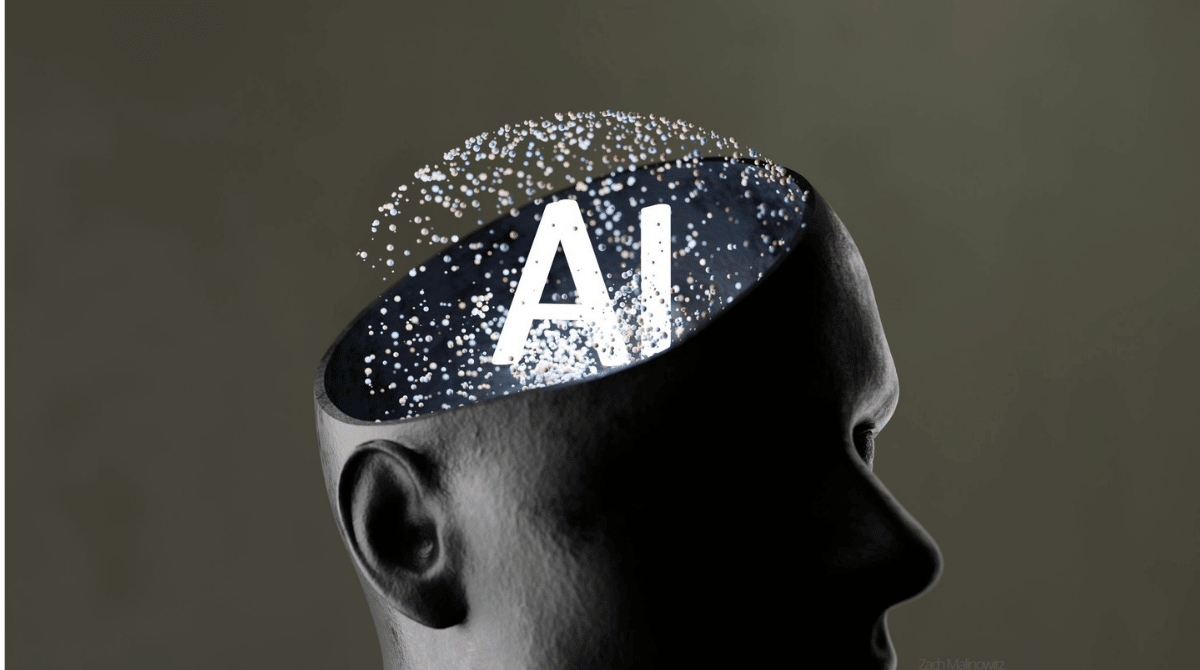
If you’re serious about how to remove AI from your phone, you can’t stop at settings. You’ll uninstall apps, turn off assistants, and still feel like the phone’s steering the interaction.
If you use AI on Android, you’ve probably spent hours tweaking settings, disabling features, and uninstalling apps to get AI out of your digital life. Here’s what most guides miss. The real problem isn’t just the software you delete. It’s the way the phone’s built to live in your hand, against your face, and in your pocket all day.
Phone makers built AI around that constant physical contact. Every time you grab the phone, you invite something “smart” to jump in. When you start breaking that habit with mounts, stands, and parking spots for your phone, you naturally cut AI touchpoints without babysitting menus every morning.
This isn’t about going full off grid. It’s about giving yourself enough physical space from the device for AI removal to actually stick.
Quick Links
TL;DR
Breaking physical phone dependency so AI isn’t invited into every interaction
Using mounts and fixed spots to cut down constant handling and “just checking” moments
Shutting down voice assistants across all layers, not just the main toggle
Turning off predictive text, autocorrect, and keyboard suggestions that run local AI
Minimizing camera AI and using RAW or ProRAW for less processed shots
Locking down app permissions so AI gets less data even when apps stay installed
Reshaping notifications to reduce AI driven engagement and impulsive phone checks
Using offline modes and airplane plus WiFi to starve cloud based AI features
Opting out of system level AI like Apple Intelligence instead of trusting defaults
Swapping to third party Android launchers for deeper AI removal than stock home screens
Verifying AI removal with battery, network, and storage checks instead of guessing
Why Physical Phone Dependency Makes AI Removal Nearly Impossible
If you’re trying to figure out how to remove AI from my phone, start with how often you’re actually touching it. We don’t just “own” phones anymore, we carry them like extra limbs. Every grab, swipe, and pocket check gives AI another shot at predicting, suggesting, or “improving” something on your screen.
If you don’t use AI on iPhone and have already gone through the settings dance, you know it never fully sticks. You can turn off assistants, kill suggestions, and still trigger something by bumping the side button or brushing the screen through your pocket. That’s muscle memory working against you, not just software misbehaving.
The fix starts with physical separation, not another hidden menu. When your phone isn’t permanently within arm’s reach, all those micro interactions AI depends on simply stop happening. Mount it in the car, park it on a stand at your desk, leave it on the counter instead of in your hand. Once you break that dependency cycle, understanding how to remove AI from my phone becomes a lot less about wrestling with settings and a lot more about changing how you carry the thing.

The Mount-First Strategy for Reducing AI Touchpoints
If you’re trying to turn off AI but your phone still lives in your hand, you’re fighting uphill. Mount your phone first, then start flipping switches. You’ll see fast which features you actually use and which ones were just babysitting boredom.
Our Magnetic Dash Car Charger keeps your phone locked in one spot so navigation and charging happen in the background instead of in your grip. A Tesla phone mount could be the missing piece in your ride when you want the map in your line of sight without juggling the phone at every light. And universal car mounts are awesome if you bounce between vehicles or share your setup with friends but still want something that actually stays put.
Once the phone’s mounted, all the “helpful” AI shortcuts lose their edge. You’re not picking it up fifteen times a drive to change songs, answer texts, or chase notifications anymore. That built in friction means you don’t have to white knuckle your way to turn off AI habits. The hardware does half the work for you.
Which AI Features Require Constant Phone Handling (And How to Break That Cycle)
Predictive Text and Keyboard AI
Your keyboard is basically a tiny AI coach that never stops taking notes. Every word you type, every typo you fix, every slang word you keep is feeding a local model on iOS and Android. That’s why it feels like the phone “knows” what you’re about to say.
Here’s the quick breakdown of what’s running and how to shut it down:
AI keyboard feature |
What it tracks |
How to disable iOS |
How to disable Android |
Predictive text |
Word patterns, common phrases, typing rhythm |
Settings > General > Keyboard > Toggle off Predictive |
Settings > System > Languages and Input > Gboard > Text Correction > Disable Next word suggestions |
Auto correction |
Spelling mistakes, custom dictionary additions |
Settings > General > Keyboard > Toggle off Auto Correction |
Settings > System > Languages and Input > Gboard > Text Correction > Disable Auto correction |
Personalized suggestions |
Contact names, addresses, learned vocabulary |
Settings > General > Keyboard > Toggle off Check Spelling |
Settings > System > Languages and Input > Gboard > Text Correction > Disable Personalized suggestions |
Sentence completion |
Writing style, common sentence structures |
Covered when you kill Predictive |
Settings > System > Languages and Input > Gboard > Suggestions > Toggle off Show suggestion strip |
Yeah, you’ll type slower for a week. Then your accuracy catches up because you’re not fighting some robot that keeps “fixing” words you meant to type.
App Suggestions and Predictive App Loading
This is the part nobody thinks about when they ask how to disable AI on their home screen. Your phone tracks when and where you open specific apps, then quietly preloads them so they’re ready before you even tap. That’s why it feels instant and why your battery sometimes melts for no obvious reason.
AI and productivity can coexist, but only if you’re the one calling the plays instead of your phone. iOS uses App Library Suggestions and Siri Suggestions. Android calls it App Predictions and Adaptive Battery. To shut them down:
iOS: Settings > Siri and Search, disable Suggestions in Search, Suggestions in Look Up, and Suggestions on Lock Screen, then head to Settings > Home Screen and toggle off Show App Library in Spotlight
Android: Settings > Apps > Default Apps > Digital Wellbeing and Parental Controls, disable App Predictions
The result is a static home screen. Icons stay where you put them. Nothing pops in because an algorithm decided “you’ll probably want this right now.” You spend less time swiping through AI curated panels and more time opening exactly what you came for.
For pros who’d rather rely on muscle memory than machine guesses, solid phone accessories like stands, mounts, and cases let you park the phone where you work and keep AI out of the decision loop.

Smart Notification Grouping and Prioritization
Notification AI is the quiet sniper in this whole setup. It watches which alerts you tap, how fast you respond, and how long you stay in the app afterward, then reshuffles what you see first. You can’t fully rip it out, but you can take away its steering wheel.
iOS: Settings > Notifications > Scheduled Summary, turn it off, then set each app to Immediate Delivery or just cut notifications entirely
Android: Settings > Notifications > Notification History, turn it off, then open each app’s notification settings and pick Default instead of Smart or Adaptive
Now you decide what’s allowed to interrupt you. AI doesn’t get to promote “maybe you’ll like this” alerts to the front of the line. Learning how to disable AI in your notification system is really just learning how to say “no” before your phone says “yes” for you.
Voice Assistant Removal: Beyond Just Turning Siri Off
If you want to really turn off AI, you can’t stop at “Hey Siri” and “OK Google.” Voice assistants live in three layers that all have to go.
First layer is wake word detection. Your phone’s low power chip is always listening for trigger phrases so it can wake the assistant without touching anything. Second layer is contextual activation, where motion, time of day, and location auto fire the assistant when you raise the phone, start driving, or plug into a car system. Third layer is app level voice hooks, where Android AI apps and iOS apps bake their own voice commands in even if the main assistant switch looks “off.”
iOS voice assistant complete removal checklist
Settings > Siri and Search > toggle off Listen for Hey Siri
Settings > Siri and Search > toggle off Press Side Button for Siri
Settings > Siri and Search > toggle off Allow Siri When Locked
Settings > Accessibility > Siri > toggle off Type to Siri
Settings > Screen Time > Content and Privacy Restrictions > Allowed Apps > toggle off Siri and Dictation
Settings > Siri and Search > scroll app by app and disable Learn from this App, Show in Search, Show in Spotlight, and Suggest App for every app you don’t want using Siri hooks
Android voice assistant complete removal checklist
Settings > Google > Search, Assistant and Voice > Google Assistant > General > toggle off Google Assistant
Settings > Apps > Default Apps > Digital Assistant App > select None
Settings > Privacy > Permission Manager > Microphone > review and revoke anything that doesn’t truly need audio
Settings > Apps > See All Apps > Google > Disable
Settings > Apps > See All Apps > Google Assistant > Disable if it shows as a separate app
Now do the part everyone skips. Try to wake the assistant five ways in a row: wake word, long press on buttons, earbuds voice button, from the lock screen, and any in app voice shortcut you remember. If anything still answers, hunt that path down and kill it.
Once the main assistant is gone, finish with a microphone permission audit. Every app with mic access should get one question from you: does this app actually need audio to do its main job. If the answer is anything short of a hard yes, pull the permission. That’s how to turn off AI audio analysis that keeps listening long after the “assistant” is supposedly off.
Disabling Predictive AI Without Losing Core Functionality
Search Without Predictive Results
On iOS, keep Spotlight but strip out the mind reading. Kill every Siri Suggestion so your search box goes back to old school text matching instead of “we think you meant this.” If you’re on iOS 18 or beyond, jump into Settings > Apple Intelligence and Siri and toggle off Apple Intelligence so the system isn’t pre loading results before you even finish typing.
On Android, replace the Google search widget with a plain app drawer search or a launcher that doesn’t phone home for every query. The trade is simple. You type full words instead of tapping a prediction row. Search takes a few seconds longer, but your phone stops building a behavioral model around every string you enter.
Maps and Navigation Without AI Routing
If you’re serious about how to remove AI from my phone, maps is a big one. Google Maps and Apple Maps both lean hard on AI to guess where you’re going, when you’ll leave, and what you might want to stop for on the way.
Instead, download offline regions in the places you actually drive. When you fire up directions, open Route Options and shut off Best Route along with all the “smart” filters like Avoid Tolls or Avoid Highways unless you truly need them. Then pick a route manually from the list.
You can also bail on AI routing completely and use apps like OsmAnd or Maps.me, which use algorithm based routing off OpenStreetMap data without training on your history. You pick the coffee shop, you pick the street, you pick the turn. The app just follows orders. Pair that with a solid car mount so the map stays visible without you palming the phone, and you’ve cut another big AI touchpoint out of your drive.

Photos Without AI Organization
Your photo app quietly runs its own AI lab in the background, scanning faces, places, and scenes so it can auto build albums and memories. If that feels off, you don’t have to live with it.
On iOS, head to Settings > Photos and toggle off Show Featured Content and Show Holiday Events, then open People and Places inside Photos and clear those sets. On Android, stop Google Photos backup so shots aren’t heading to the cloud for analysis, then clear app data so local indexing resets. Swap to a simple gallery app that just shows files in time order with no “memories” tab on top.
Everything still works. You just organize what you want, when you want, instead of letting AI stack your life into auto generated highlight reels.
App-Level AI Removal That Sticks
Deleting an app feels like you just delete AI too, but a lot of the time you’ve only cut off the front door. System services, shared models, and background APIs can keep doing their thing unless you prep the ground first.
Start with a permission audit before you delete anything. On iOS, open Privacy and Security, walk category by category, and flip apps you’re about to uninstall to Never or Don’t Allow for everything they used to touch. On Android, hit Permission Manager, pick a sensor or data type, and set each app to Don’t Allow or Ask Every Time before you uninstall it. That’s the only way to make sure no AI flavored background hooks stay wired in after the icon is gone.
Next, watch out for the “utility” apps that sneak AI in under the radar. Weather apps that “personalize” alerts, keyboards that “learn” your typing, launchers that “adapt” to your habits, email clients with smart inboxes, and calendars that auto build events are all running machine learning in the background.
The Big Picture
Here’s what to keep in mind:
Weather with AI becomes a simple browser bookmark to a straight forecast when you’re serious about delete AI
Fancy keyboards drop back to a stock layout with all the AI toggles off
Android launchers that guess what you want get swapped for something like KISS Launcher or Lawnchair with prediction stripped out
Smart email and calendar apps get replaced with clients that just sort by time and let you do the thinking
Social apps are their own beast because the AI lives on the server, not your phone. You can’t rip the model out of their stack. Your only real moves are to run them in a browser with fewer hooks, or bail on the accounts entirely if you really want to delete AI from that part of your life.
System apps are the final awkward piece. Messages, Phone, and a few others ship with AI baked in for spam filtering, smart replies, and content detection. You can’t fully strip those without rooting or jailbreaking, but you can turn off previews, read receipts, and rich content so those models see a lot less.
The Offline Fallback System Your Phone Won't Tell You About
If you’re looking for a quiet cheat code on how to turn off AI without smashing your phone, it’s this: run more of your life offline than the designers expect.
Phones ship with the assumption you’re always connected. That’s what keeps cloud AI humming, recommendations fresh, and background models fed with data. But core stuff like calls, SMS, camera, downloaded music, offline maps, notes, and alarms all run fine without a single byte of live data.
A simple move is airplane mode with selective WiFi. Flip airplane mode on to kill cellular and Bluetooth, then manually turn WiFi back on. Now apps can’t quietly chew through mobile data in the background, location gets fuzzier, assistants can’t hit the cloud, and a lot of predictive features just stall out. You still get what you actually need over WiFi on your terms.
Layer on a downloaded content strategy and AI recommendations start starving. Save playlists and podcasts instead of streaming the feed. Cache maps before trips. Download videos instead of living inside autoplay. With no live stream coming in, there’s nothing fresh for the algorithm to optimize.
Finally, watch network activity like a hawk. Check per app data usage on iOS and Android, and look for anything hammering background data even when you’re not opening it. Kill background refresh or background data on those apps and you’ve just cut another pipe feeding AI systems while your phone sits in your pocket.

Final Thoughts
Removing AI from your phone isn’t just about finding the right toggle. It’s about changing how you carry the thing so those “smart” systems never get a clean shot at you in the first place. When you focus on how to remove AI from my phone through physical separation, you stop playing whack a mole in settings and start starving the system where it actually lives your habits.
At Rokform, that’s our lane. We build rugged cases, mounts, and Android & Apple phone accessories that let you park your phone where the work happens instead of gluing it to your hand. Car mounts that keep maps visible without constant tapping, desk stands that turn your lock screen into background noise, bike and moto mounts that keep notifications in their place all of that hardware makes it way easier to delete AI touchpoints because you’re not picking the phone up every thirty seconds.
If you want a next move, here’s the play. Lock in one solid mount for your car, one for your main workspace, and a case that can take real world hits. Then run the software steps you just read with your phone already parked. You’ll spend less time fighting pop ups and more time actually using your phone like a tool. And if you’re ready to go hands free and brain on, Rokform’s here for that build, not to turn you into another notification zombie.

