


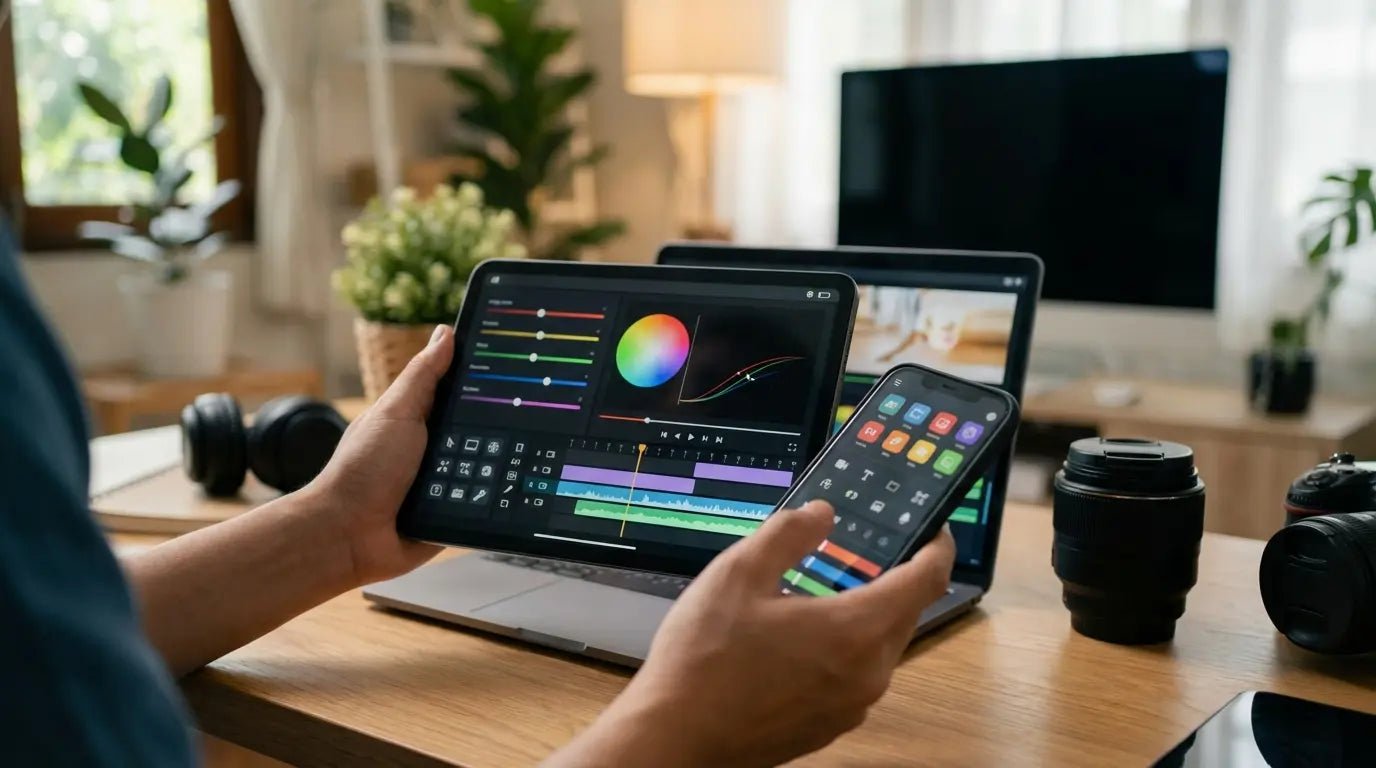
We’ve all been there. It’s 2 AM, your eyes are burning, and you’re staring at a monitor trying to manually cut out every single "um" and "uh" from a thirty-minute interview. It’s exhausting. That’s why I was floored when I realized that the new wave of text-based editing features can essentially speed up post-production by 3x or more.
The reality is that video editing has changed. Software doesn't just cut clips anymore; it listens, generates, and automates. Whether you're a pro or just trying to get a Reel up, the tools you use matter.
Below, we’re cutting through the noise to look at the top 25 apps available right now, from industry standards to the AI tools that are shaking things up.
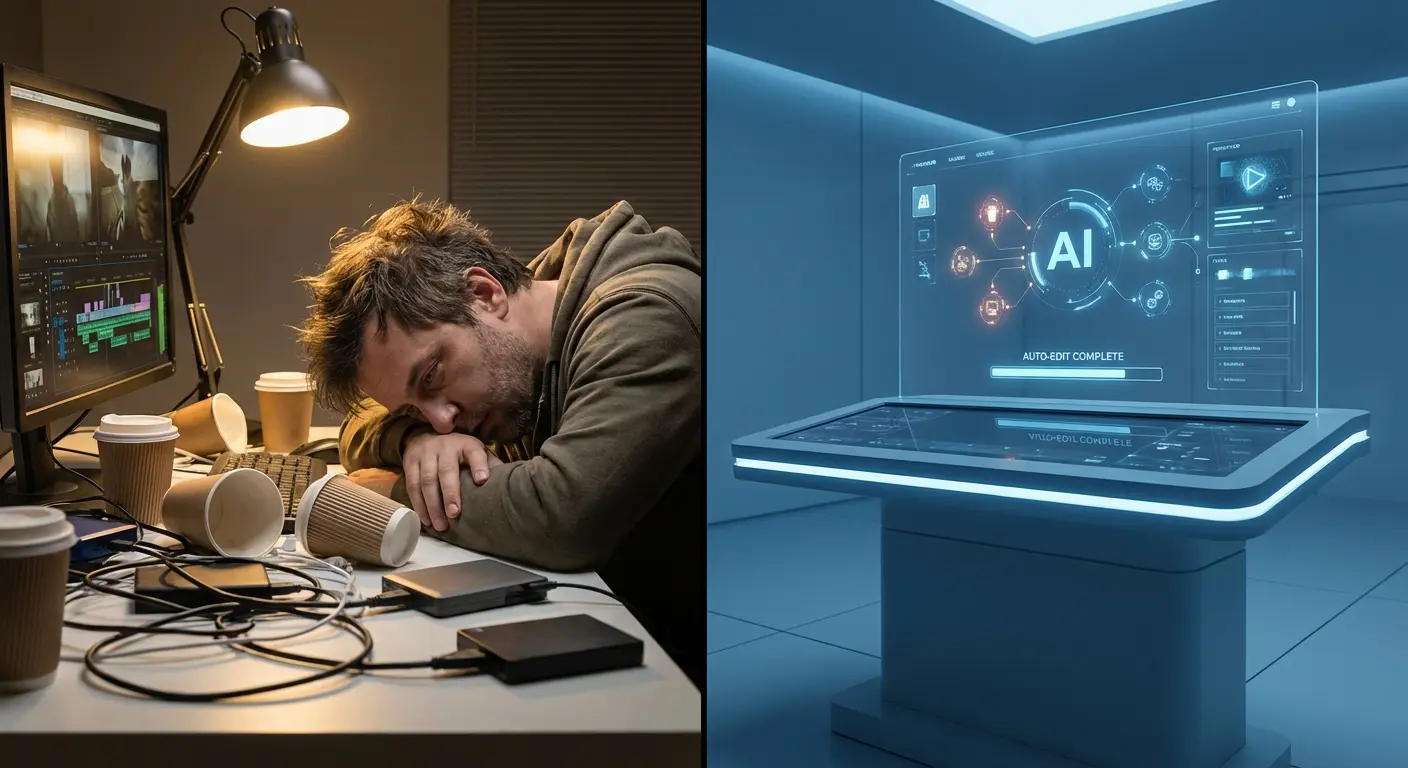
Table of Contents
There is a lot of software out there, so I’ve broken this down by "use case" so you can jump straight to what fits your style. We’ll cover the software first, and then talk about the hardware you need to actually capture the footage.
Criteria: How to Pick Your Tool
The Heavy Hitters: Desktop Pros
The Viral Makers: Mobile & Social
The Time Savers: AI-Driven Tools
The Easy Entry: Beginner Friendly
The Budget Savers: Free & Open Source
The Hardware Connection: Capturing Better Footage
The Short Version (TL;DR)
In a rush? Here is the gist of the current state of video editing.
While software is vital, remember that mastering a few smartphone video tips will ensure your source footage is actually usable before you even open your laptop.
AI is standard now: If your editor can't auto-caption or remove silence, it's behind the curve.
Mobile is professional: Apps like LumaFusion mean you don't always need a desktop.
Hardware matters: 4K footage is heavy. You need a good rig to edit it, and a stable mount to shoot it.
Ecosystems are key: Being able to start an edit on your phone and finish on your Mac is a huge workflow win.
Free is actually good: Tools like DaVinci Resolve offer Hollywood features for $0.
How to Choose Your Weapon
Before we look at names, let's set some ground rules. Not everyone needs color grading nodes, and not everyone wants a "simple" interface that lacks control. Here is how you should evaluate these tools based on what you actually do.
Editor Type |
Priority Feature |
Hardware Needs |
Best For |
|---|---|---|---|
The Professional |
Color Grading & Multicam |
High-End GPU/CPU |
Films, TV, Client Work |
The Influencer |
Speed & Trending Templates |
Modern Smartphone |
TikTok, Reels, Shorts |
The Solopreneur |
AI Automation |
Mid-Range Laptop |
Marketing, Vlogs, Podcasts |
The Student |
Free Licensing |
Basic Laptop |
Learning, Personal Projects |
Platform & Ecosystem
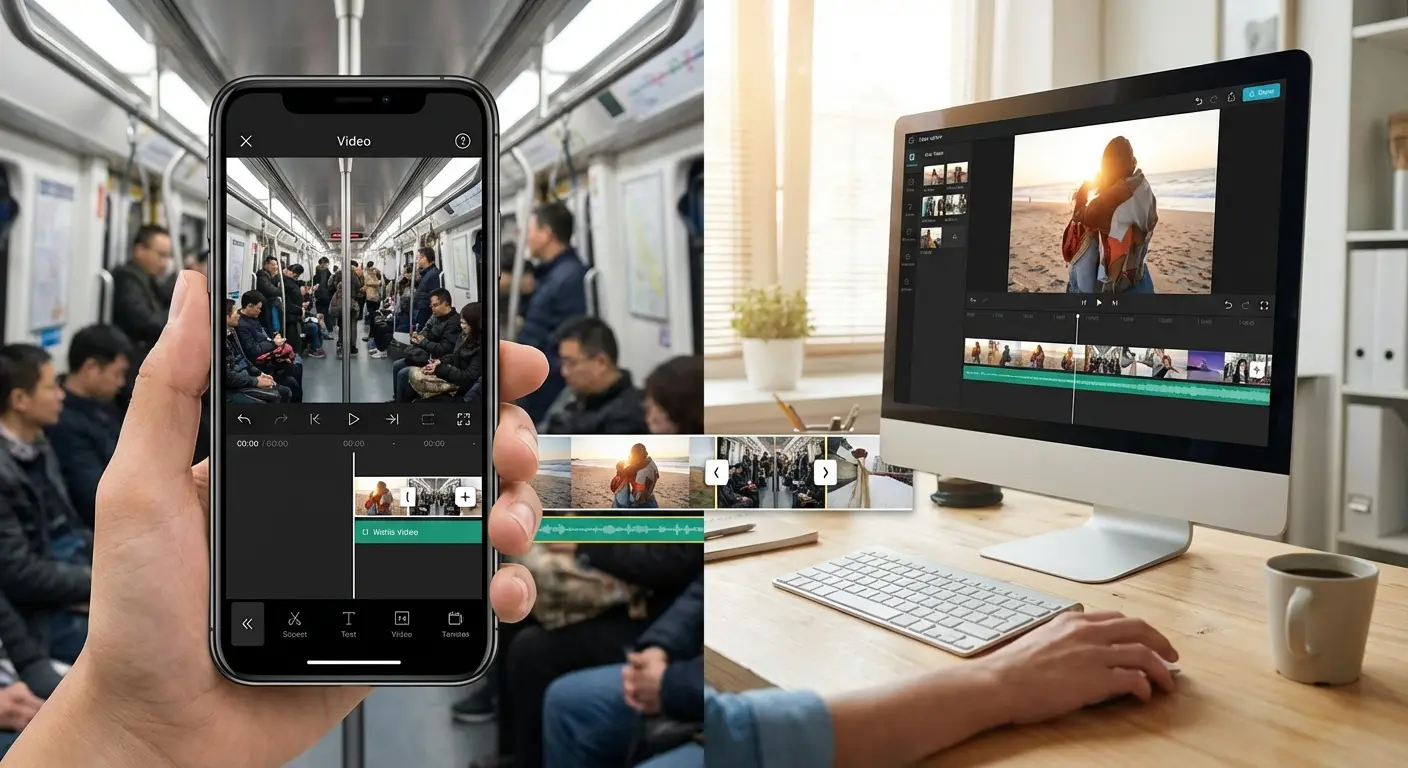
You need to know where you’ll be working. Some of you edit exclusively on a phone during a commute (brave souls), while others sit at a dedicated desk. Cross-platform sync is becoming a massive factor—starting a rough cut on mobile and polishing it on desktop is a workflow many creators now demand.
Skill Level vs. Learning Curve
Be honest about your patience. Professional tools offer limitless freedom but often require weeks of tutorials (and hair pulling) to master. Conversely, AI-driven apps give instant results but might frustrate you if you want granular control over a specific frame.
Budget & Licensing
We have to talk about money. Do you want another monthly subscription, or do you prefer a one-time purchase? Many tools are "freemium," but keep an eye out for watermarks or essential features locked behind a paywall.
The Top 25 Editing Apps
I’ve categorized these to help you find your fit. Whether you are cutting a feature film or a family slideshow, the answer is likely on this list.
The Heavy Hitters (Desktop Pros)
These are the tools I look toward when the project demands perfection. They are the industry standards used for films, TV, and high-end YouTube production.
Real World Example: A wedding videographer might use Premiere Pro for the ceremony edit (to link with After Effects for titles), but switch to DaVinci Resolve for the reception footage to fix the grainy low-light shots.
1. Adobe Premiere Pro
The industry standard for a reason. It now features text-based editing (delete the text, delete the clip), and deep integration with the rest of the Adobe suite. It requires a subscription and a decent computer, but if you are in the Adobe ecosystem, it’s unbeatable.
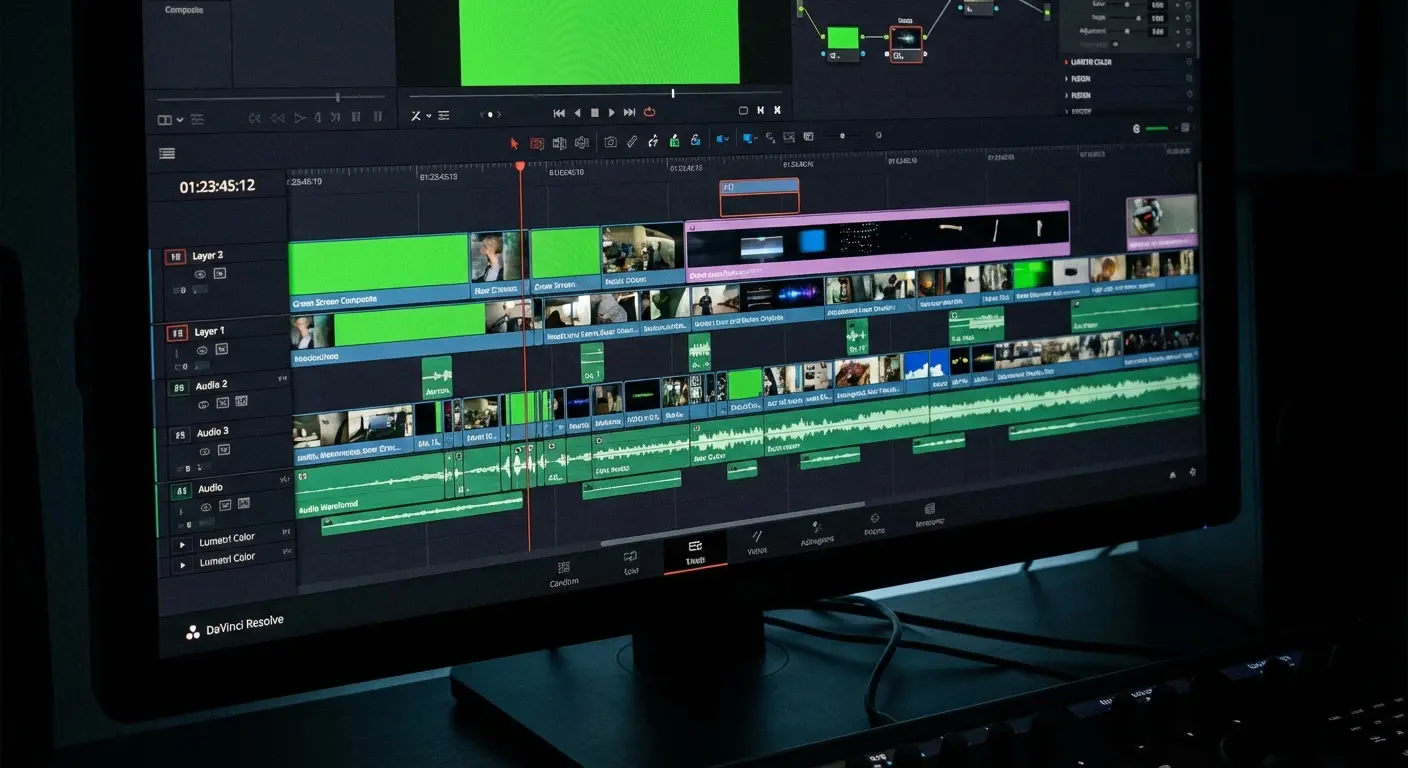
2. DaVinci Resolve Studio
Resolve is the king of color grading. It uses "nodes" rather than layers, which allows for incredibly complex visual effects. The free version is shockingly robust, but just be aware: it eats GPU power for breakfast.
3. Final Cut Pro (FCP)
Apple’s pro software is famous for the "Magnetic Timeline," which prevents sync issues and speeds up assembly. It renders lightning-fast on Apple Silicon chips. It’s a one-time purchase, making it a favorite for Mac users tired of subscriptions.
4. Avid Media Composer
The Hollywood standard for feature films. It excels at handling massive projects with thousands of assets. It’s expensive and has a steep learning curve, but for industrial-strength reliability, it stands alone.
5. Sony Vegas Pro
Vegas Pro is known for great audio features and an interface that bridges the gap between consumer and pro. It’s a Windows-only platform with a perpetual license—a solid choice if you want power without the monthly fee.
The Viral Makers (Mobile-First)
Speed is the name of the game here. These apps are designed for vertical content, allowing you to shoot, edit, and post without ever touching a computer.
If you're looking for the best app for video editing on iPhone or Android, you want intuitive tools that streamline the process.
App Name |
Best For |
Pricing Model |
|---|---|---|
CapCut |
Viral Trends & Effects |
Free / Sub |
LumaFusion |
Pro Multi-track Editing |
One-time Fee |
InShot |
Quick Resizing & Layouts |
Freemium |
Splice |
Action & Beat Sync |
Subscription |
6. CapCut
CapCut is the current king of social content. You can shoot a video, and it automatically syncs the cuts to the beat of a trending song while adding auto-captions. It’s incredibly easy to use.

7. InShot
InShot is the go-to for resizing a landscape video into a square for Instagram or adding a blurred background. Simple, effective, and great for quick edits on the fly.
8. VN Video Editor
VN is a clean multi-track editor for mobile that allows for "J-cuts" (audio before video) without a cluttered interface. It’s one of the best free editors because it doesn't force a watermark on you.
9. Splice
Splice is excellent for automatically syncing action footage to energetic music. It operates on a subscription model and is very intuitive for action sports enthusiasts.
10. LumaFusion
LumaFusion is basically a desktop editor on an iPad. It supports multiple video tracks, keyframing, and color correction. It has a higher learning curve than CapCut, but it delivers professional results for a one-time fee.
The Time Savers (AI-Driven)
These tools use generative AI to handle the boring parts of editing so you can focus on the story.
Real World Example: A podcaster records a 60-minute interview. Instead of manually finding clips, they upload the file to Opus Clip. The AI finds the viral moments, crops them to vertical, and adds captions automatically.
11. Descript
You edit the video by editing the text transcript. If you delete a sentence in the word doc, it cuts that clip from the video. It even includes "Overdub" to fix spoken errors using an AI clone of your voice.
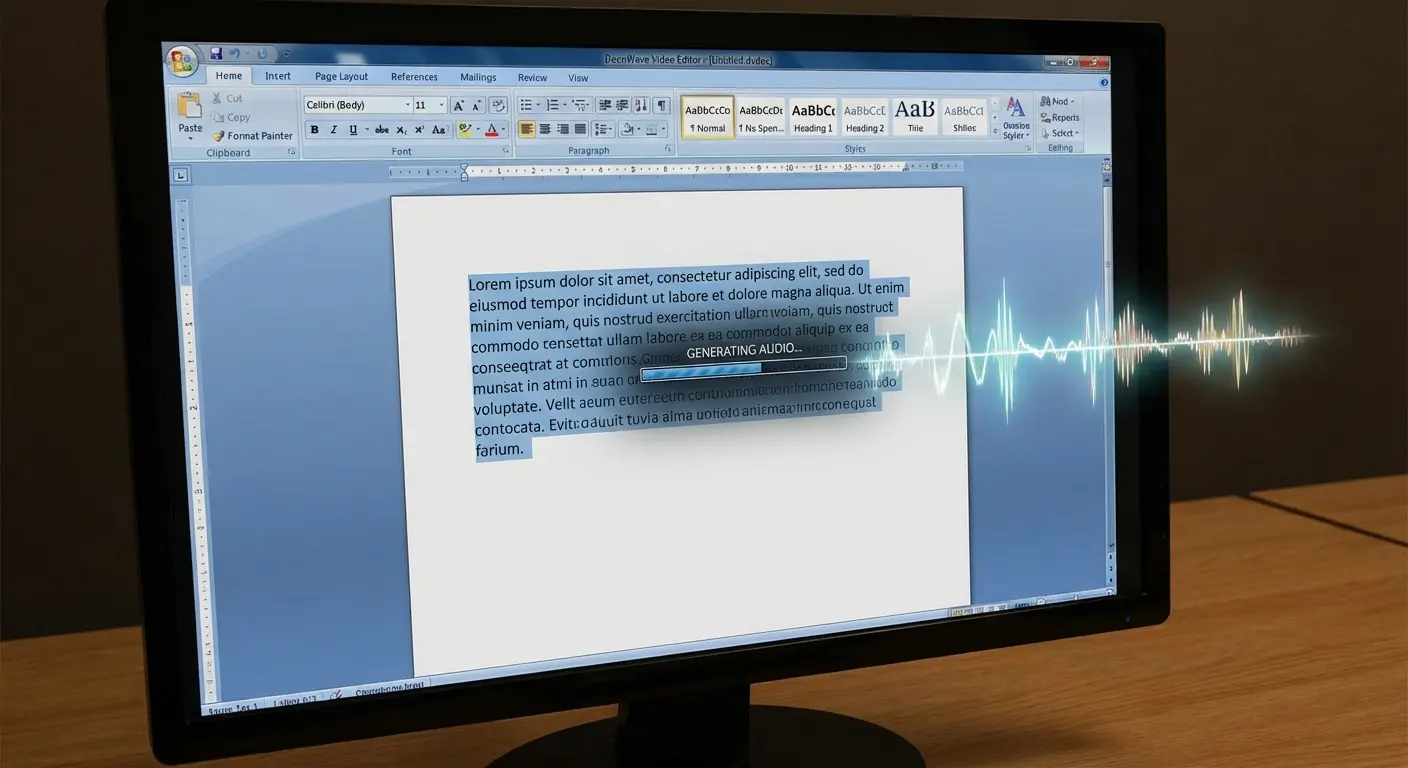
12. Opus Clip
Upload a long video, and Opus Clip uses AI to find the hooks, crop them, and give them a "virality score." Essential for repurposing long-form content.
13. Runway
Runway focuses on generative video and high-end AI VFX. You can use tools to remove backgrounds instantly or remove objects from video, all within a browser.
14. Adobe Premiere Rush
Rush allows you to shoot on your phone, start the edit, and finish it on your laptop. It uses Adobe Sensei AI to auto-duck music when you speak.
15. Wisecut
Wisecut automatically identifies and removes long pauses and silence in your footage to create "jump cuts" without manual work. A massive time-saver for vloggers.
The Easy Entry (Beginner & Browser)
These tools require no installation and offer drag-and-drop simplicity. Perfect if you need to create branded assets quickly without learning a timeline.
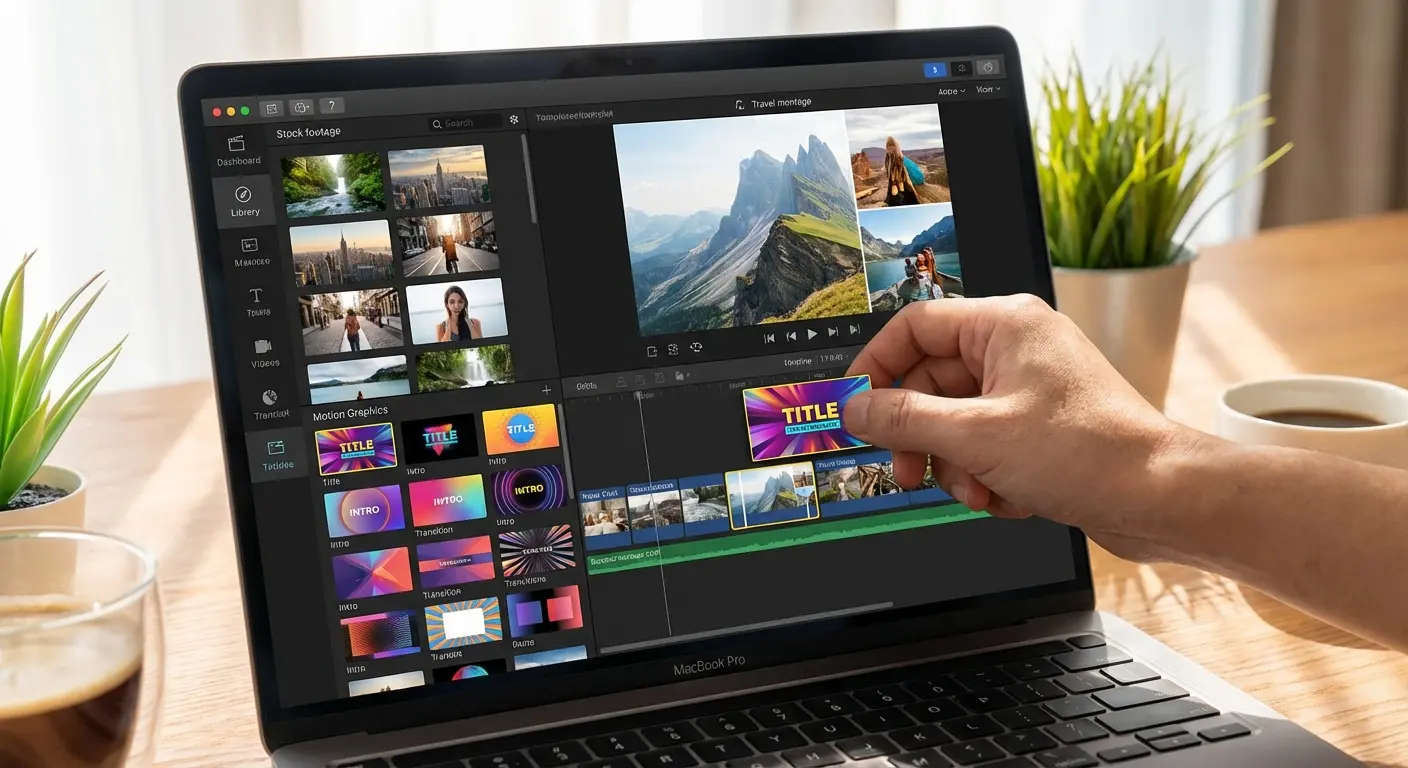
16. Canva
Canva lets you drag a video clip into a pre-made marketing template, add animated text, and export. It’s the best tool for non-editors who need to make branded assets.
17. Clipchamp
Now the default editor for Windows 11. It offers a timeline experience in the browser with good stock libraries. A great entry-level tool for PC users.
18. Vimeo Create
You select a mood, upload a few clips, and let the software build a promo video for you. Geared strictly toward small business marketing.
19. Animoto
Animoto turns a folder of photos and short clips into a slideshow set to music. Extremely low learning curve.
20. Kapwing
Kapwing is like Google Docs for video—collaborative and online. Great for teams making memes or social clips.
The Budget Savers (Open Source & Free)
You don't always need to pay top dollar to get capable tools.
Software |
Key Strength |
Export Limit (Free) |
Watermark? |
|---|---|---|---|
DaVinci Resolve |
Pro Color Grading |
Up to 4K UHD |
No |
Shotcut |
Format Support |
No Limit |
No |
iMovie |
Ease of Use (Mac) |
4K |
No |
Lightworks |
Industry Interface |
720p |
No |
HitFilm |
VFX Compositing |
Varies |
Yes (some features) |
21. Shotcut
Shotcut supports a wide range of formats. The interface is a bit dated, but it is open source and powerful.
22. OpenShot
Simple drag-and-drop for combining clips. Very easy to learn and a solid choice for students.
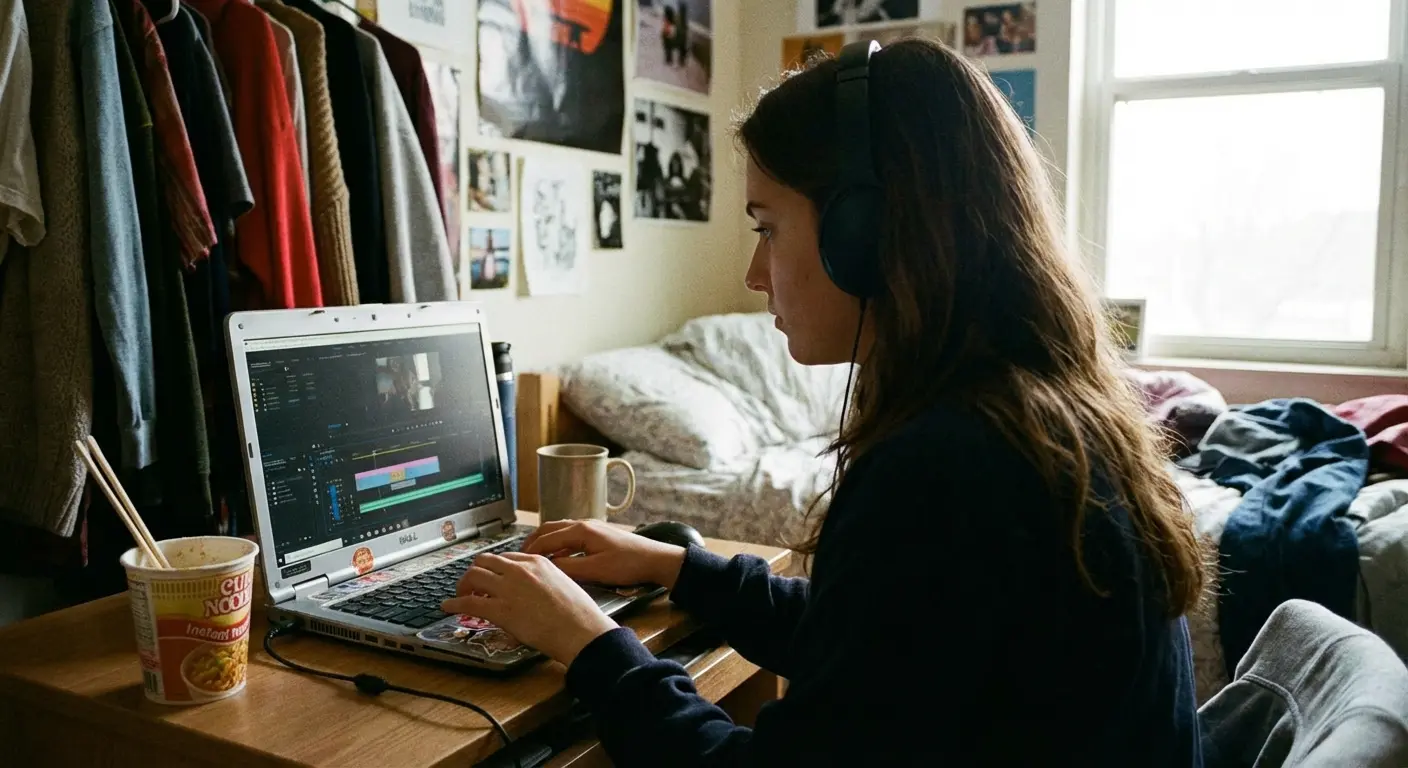
23. HitFilm
A unique mix of editing and VFX compositing. The free tier is generous, making it a great starting point for aspiring VFX artists.
24. iMovie
The classic. The "Trailer" templates allow you to plug in footage to create a Hollywood-style trailer in minutes. Gold standard for free Mac software.
25. Lightworks
Used to edit major Hollywood films. The free version is powerful but limits export resolution (usually 720p), which is the main drawback.
The Hardware Connection: Capturing Better Footage
We’ve talked a lot about software, but here is the truth: even the best AI tools can't fix shaky, unusable footage. The "capture" phase is where the magic happens. You need your phone to be accessible and stable to get the shots that make your edits stand out.
This is where we come in.
Secure Capture for Action Edits
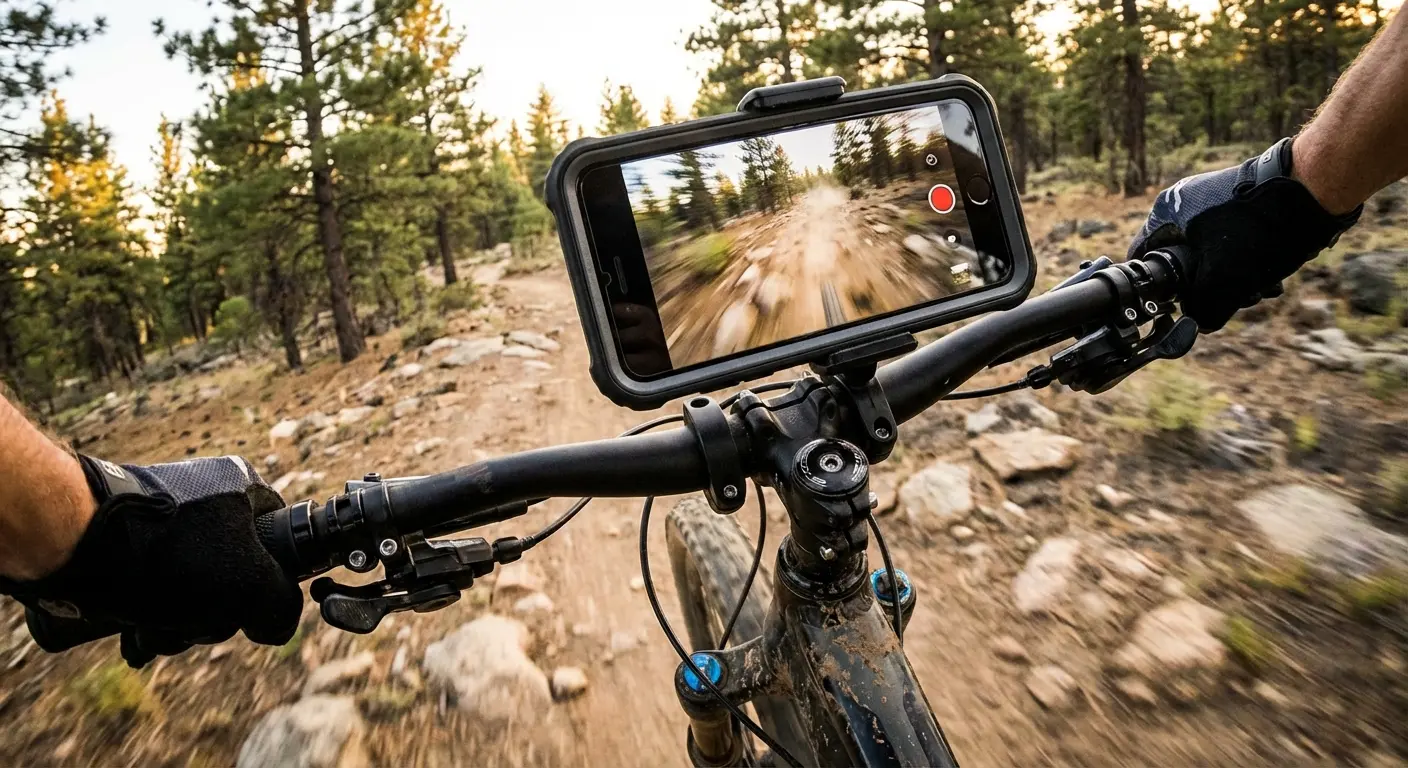
If you’re using apps like Splice or GoPro Quik, you’re likely shooting in rugged environments. You can't afford to drop your device while chasing a shot. Our Rugged cases use military-grade polycarbonate and a patented RokLock™ twist lock system, allowing you to mount your iPhone or Samsung securely to a motorcycle, golf cart, or bike.
We design the most protective phone cases to ensure you can capture stable POV footage without fear of damaging your device.
Magnetic Mounting for Viral Content
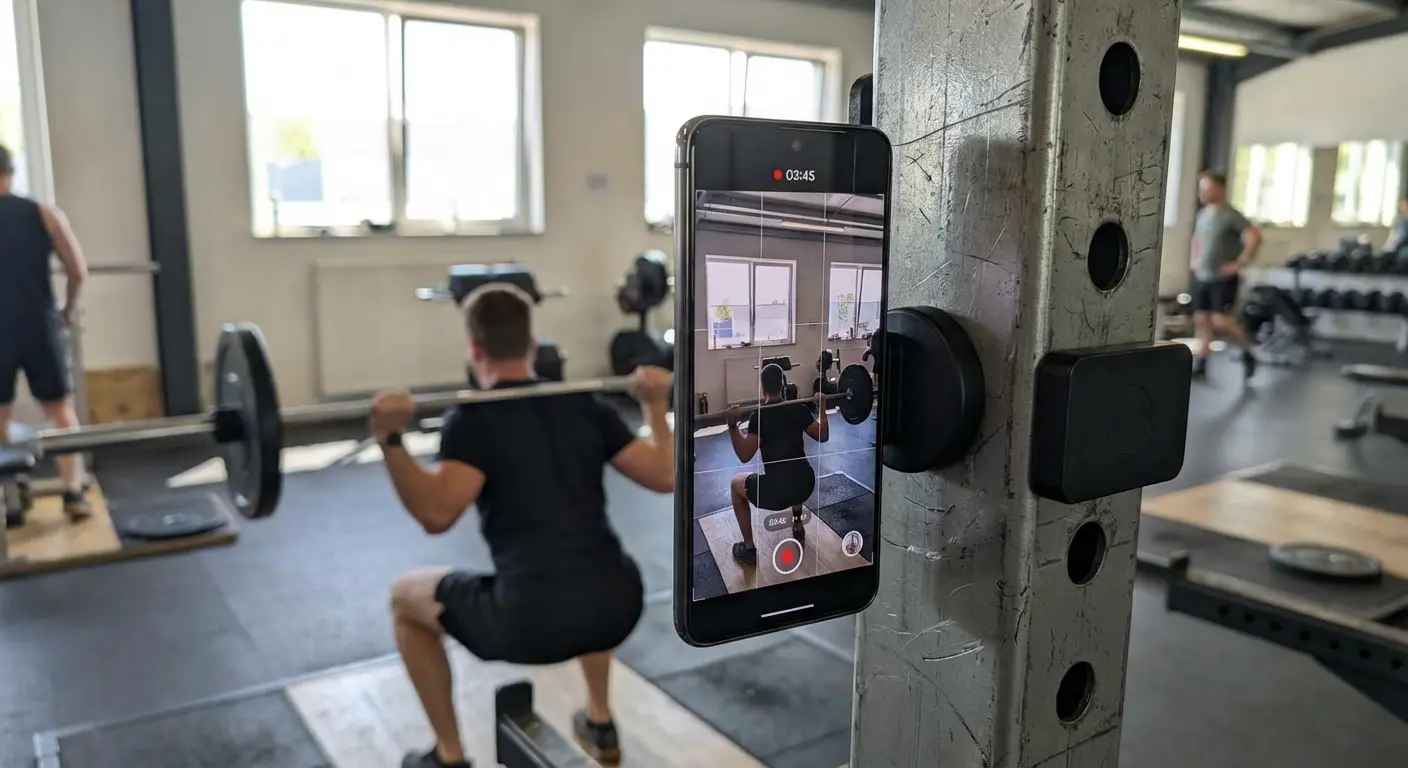
For creators using CapCut or TikTok, our MAGMAX™ technology is a game-changer. You can stick your phone instantly to any magnetic surface—a gym rack, a car hood, or a fridge—to get unique angles without carrying a bulky tripod.
The "Solo Gym" Workflow: Imagine filming a deadlift set for TikTok. Instead of asking a stranger to film or balancing your phone on a water bottle, you use a MagSafe-compatible case to magnetically attach your phone directly to the squat rack. You film the set, immediately open CapCut, and edit the footage during your rest period.
If you do need a specific angle, our magnetic tripod phone mount allows for quick adjustments, ensuring you get steady source material ready for your editor.
Workflow Efficiency
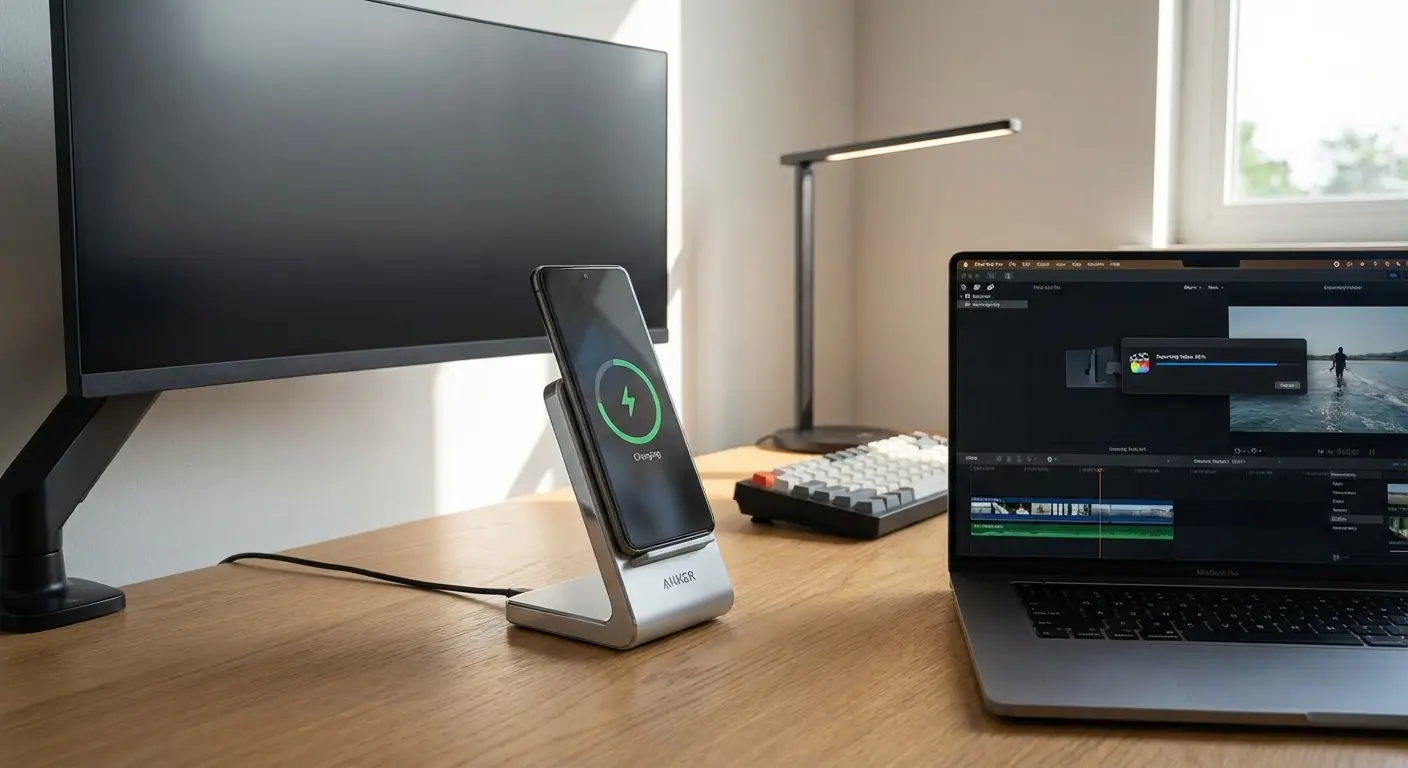
After a long day of shooting, you need to keep the battery alive while you export your 4K edits. Our MagSafe® compatible accessories ensure that you can snap your phone onto a magnetic wireless charging stand and keep the workflow moving without fumbling for cables.
Final Thoughts
The landscape of video editing is shifting rapidly. Whether you choose a desktop powerhouse or a mobile-first AI tool, the barrier to entry has never been lower. The most important step is to pick a tool that fits your current skill level and just start creating. Don't let the technology paralyze you; grab the right gear, pick your software, and tell your story. and nothing else

