


We are absolutely drowning in visual noise. Seriously, think about how fast you scroll through your feed. You skip past content instantly if it looks cluttered or amateurish. I actually missed a genuine opportunity recently—an invitation to a friend's gallery opening—because the typography was so bad I assumed it was junk mail. The text was slapped onto a busy photo with zero contrast, and my brain filtered it out as "noise" before I even read a single word.
That’s the risk of bad design. You have milliseconds to grab someone's attention. If you don't have the right tools on your phone or tablet, you’re leaving your impact up to chance. You need software that gives you professional control, not just a random font generator. Finding the best apps for creative typography is essential to making sure your message actually lands. Whether you're a pro designer or running social media for a small brand, mastering creative typography on mobile is pretty much a mandatory skill at this point.

Table of Contents
Here’s how I’ve broken this down so you can jump straight to the section that matters for your current project—whether you need heavy-duty vector tools or just a quick layout for Instagram.
Considerations for Selecting the Best Apps
Professional Vector & Graphic Design Tools
Instant Layouts & Social Media Generators
Hand-Lettering & Illustration Platforms
Photo Overlays & Aesthetic Effects
Motion & 3D Typography Engines
Summary of Considerations
Protecting Your Creative Workflow
Final Thoughts
TL;DR
If you're in a rush and just need the high-level takeaways, I’ve stripped the advice down to the essentials. Read this before you download anything.
Control vs. Speed: Decide if you need to manually adjust kerning (Illustrator) or if you need a finished layout in five seconds (Typorama).
File Types Matter: You have to use vector-based apps for logos so they scale; raster apps are strictly for social media and web images.
Top Pick for Pros: Adobe Illustrator and Affinity Designer 2 are really the only choices for desktop-grade vector work on mobile.
Top Pick for Artists: Procreate dominates the hand-lettering space because the brush engine is unmatched.
Future Proofing: Apps like Adobe Aero are introducing Augmented Reality, which is where the industry is heading.
Hardware Safety: Mobile design happens everywhere, so rugged protection and magnetic mounting are critical for keeping your device safe and functional.
Considerations for Selecting the Best Apps for Creative Typography
Let's break down exactly what separates a professional tool from a toy. You need to know what to look for so you don't waste storage space on apps that can't deliver high-quality results. We’ll cover customization, file types, and how these fit into your actual workflow.
Customization Depth (The "Control" Factor)
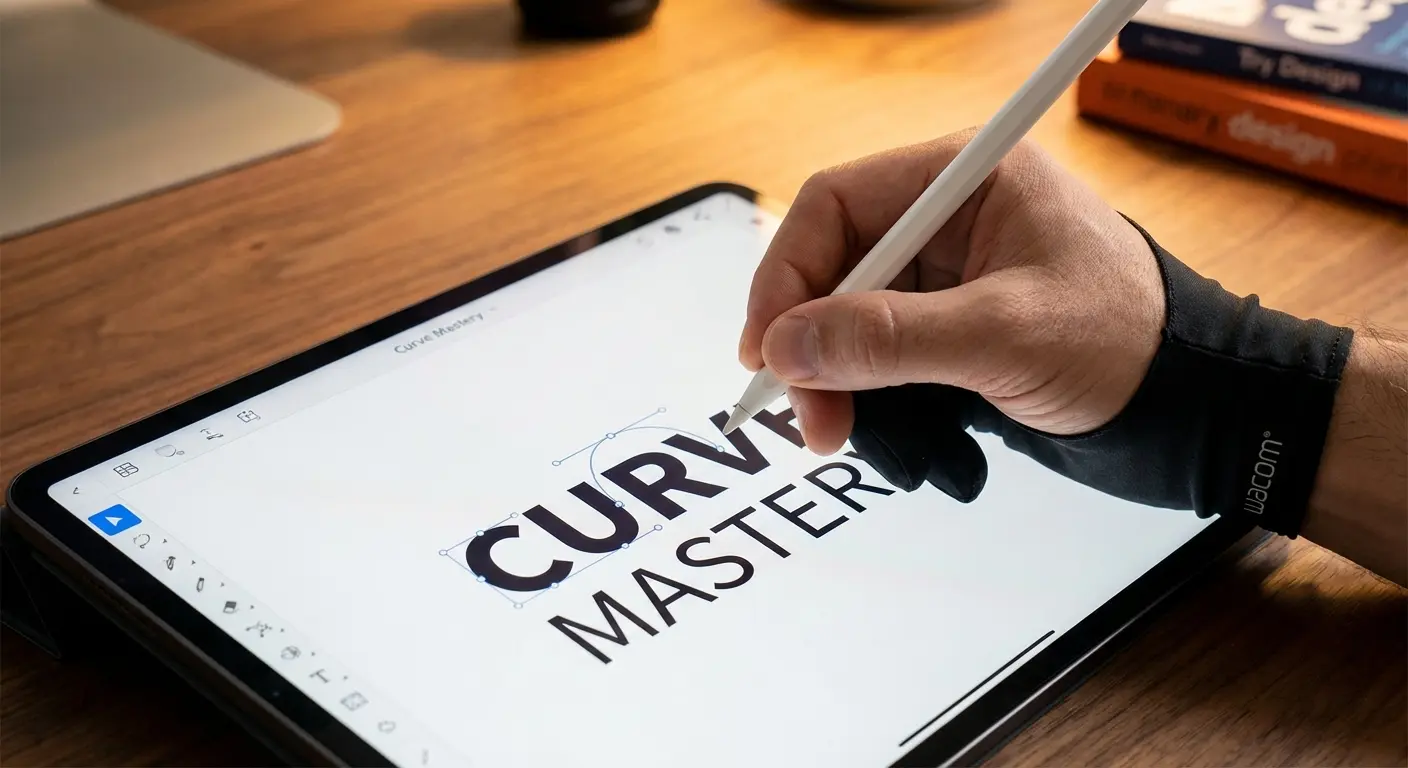
"Good enough" usually isn't enough when it comes to spacing. Manual control over the space between letters and lines is often the main difference between amateur and professional work. A "best" app has to allow for fine-tuning. You can't just rely on default spacing.
You need the ability to adjust kerning (the space between individual letters), leading (line height), and tracking (overall spacing). If an app only lets you pick a font and change the color, it’s not a professional typography tool. It’s a toy.
Font Library & Import Capabilities
Relying on a pre-installed library kills brand consistency, so importing custom files is a non-negotiable feature. A robust internal library is nice, but it’s rarely enough. You likely have specific brand fonts or licensed typefaces you use for clients. The ability to import your own .otf or .ttf files is crucial. You can't maintain brand consistency if you're forced to use a generic substitute just because you’re working on an iPad.
Practical Example: The Rebranding Trap
Imagine you're mocking up a social media post for a client like "Coffee Co." whose brand relies on the typeface 'Helvetica Now'. You're on the train and decide to use an app that only offers 'Arial' or 'Roboto'.
Without Import: You create the design with the wrong font. The client rejects it immediately because it feels "off-brand," wasting your time.
With Import: You load the 'Helvetica Now .otf' file into the app. The mockup looks identical to your desktop work, and the client approves the concept instantly.
Vector vs. Raster Output
Using the wrong format can ruin a project. If you're designing a logo, you need vector output. Vectors allow for infinite scalability without quality loss. If you design a logo in a raster (pixel-based) app, it's going to look blurry when blown up for a banner. However, if you're making a social post for Instagram, raster output is perfectly fine. Know your end goal before you start.
Feature |
Vector (e.g., Illustrator) |
Raster (e.g., Procreate/Picsart) |
|---|---|---|
Primary Building Block |
Mathematical paths and anchor points |
Pixels (dots of color) |
Scalability |
Infinite (Business card to Billboard) |
Limited (Pixelates when enlarged) |
Best Used For |
Logos, Icons, Print Typography |
Digital Painting, Photo Editing, Social Posts |
File Sizes |
Generally smaller |
Can get very large with high resolution |
Editability |
Shapes remain editable indefinitely |
Harder to edit once layers are merged |
If you are primarily editing photos to serve as backgrounds for your text, make sure you check out our guide on the 6 best iOS apps for editing photos to ensure your base image is as high-quality as your typography.
Template vs. Canvas
Some users need a typography template for speed. Social media managers often don't have time to build a layout from scratch; they need to plug in text and go. Illustrators and designers need a blank canvas. They need the freedom to place nodes and curves exactly where they want them without a template dictating the structure.
Workflow Integration
Your app needs to play nice with other software. You rarely work in a vacuum. Does the app support layers? Can it export transparent PNGs so you can overlay your text on video later? Does it sync with cloud services like Adobe Creative Cloud or iCloud? If you can't easily move your file from your phone to your desktop, the app is just going to become a bottleneck.
The 25 Best Apps for Creative Typography (Categorized)
Here is the definitive list. I’ve categorized these 25 apps into five distinct groups so you can find the specific tool that fits your workflow, whether you're doing heavy vector design or quick social posts.
Category A: Professional Vector & Graphic Design
These are the heavy hitters. I’m focusing on apps that bring desktop-level power to your mobile device, specifically for designers who need absolute control over vectors.
1. Adobe Illustrator (iPad)
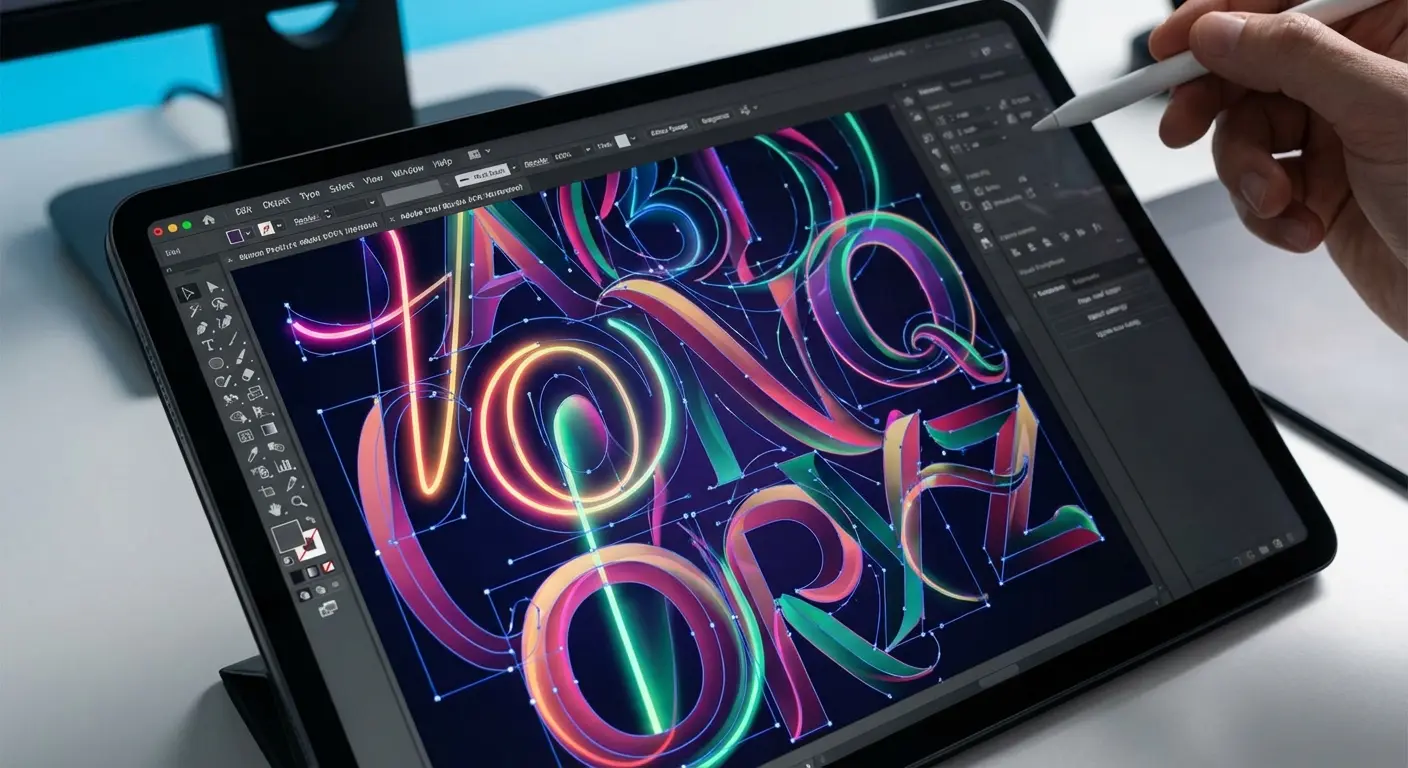
This is the industry standard for vector graphics, optimized for touch and Apple Pencil. It offers unmatched customization. You get full vector support, layer management, and cloud syncing. It’s complex, but if you already use Adobe on desktop, this is the most powerful tool you can put on your iPad.
If you are investing in a high-end tablet for this level of design work, you need to protect that investment. Read our comparison on the rugged iPad case vs. other cases to see why heavy-duty protection is vital for mobile designers.
2. Affinity Designer 2
Affinity is a powerhouse that offers a one-time purchase model rather than a subscription. It rivals Adobe in power. It works great for handling complex typography and importing custom fonts. The learning curve is steep, but the professional output is worth the effort.
3. Linearity Curve
Formerly Vectornator, this is an intuitive vector design tool that relies heavily on gesture controls. It strikes a great balance between ease of use and power. It includes a feature called "Auto Trace" that turns sketches into vectors instantly, and it’s completely free of subscription bloat.
4. Amadine
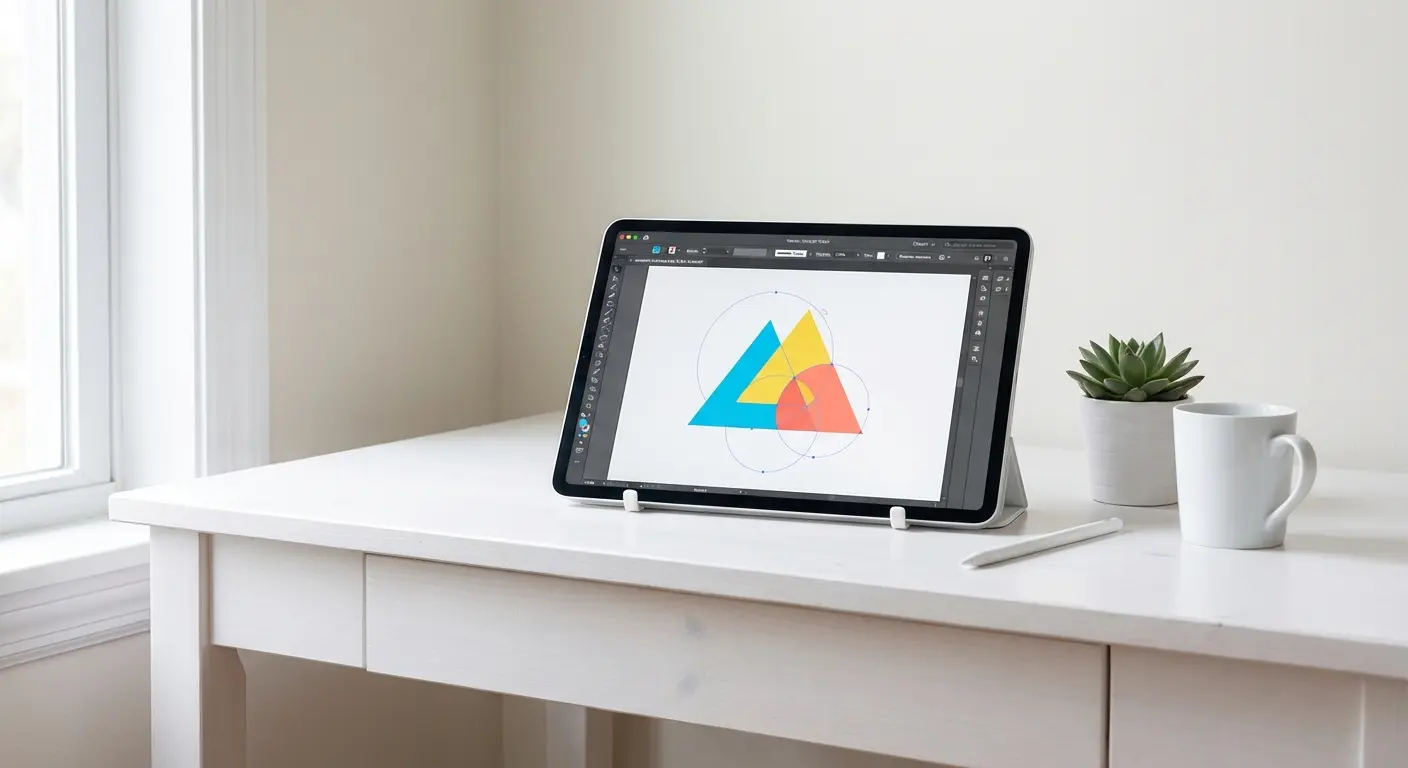
This is a user-friendly vector drawing app perfect for illustration and UI design. It has a simplified interface compared to Illustrator but retains essential typography controls like path text and customized kerning. Illustration is a different craft, and I covered the apps for digital painting in their own guide.
5. Canva (Pro)
While often seen as just a template tool, recent updates have added robust typography manipulation and "Magic" AI tools. It’s incredibly easy to use. The typography template library is massive. It lacks deep vector manipulation but excels in workflow and speed.
App Name |
Best For |
Pricing Model |
Learning Curve |
|---|---|---|---|
Adobe Illustrator |
Creative Cloud Subscribers & Pros |
Subscription |
High |
Affinity Designer 2 |
One-time purchase power users |
One-time Fee |
High |
Linearity Curve |
Gesture-based design & Tracing |
Freemium/Sub |
Medium |
Amadine |
UI Design & Vector Illustration |
One-time Fee |
Low-Medium |
Canva |
Speed & Non-designers |
Freemium/Sub |
Low |
Category B: Instant Layouts & Social Media
This section is for the "Type-on-Photo" crowd. I’m targeting content creators who need to generate visually pleasing text layouts instantly without manual design work.
6. Typorama
This app is specifically designed to automatically generate complex layouts. You type the text, and it cycles through random typographic arrangements. Typorama offers low customization on specific letter spacing, but incredible speed for generating visually pleasing lockups instantly. For users who need a polished look without design skills, Typorama is often the first choice.
Practical Example: The "Open House" Flyer
You're a real estate agent who just took a photo of a new listing. You need to post it to Instagram Stories immediately.
The Problem: You don't know how to pair fonts or balance text weight.
The Typorama Fix: You type "Open House Sunday 2-4pm." You tap the screen five times. Typorama automatically sizes "Open House" to be large and bold, and tucks the time underneath in a complementary script font. You export and post in under 60 seconds.
7. Phonto
A classic, no-nonsense tool for adding text to photos. It looks a bit dated, honestly, but it is functionally robust. It is the easiest way to install hundreds of custom fonts on a mobile device. You get high control with low template reliance.
8. Word Swag
Think of this as a "designer in your pocket." It automates the design process with a focus on fashion and lifestyle aesthetics. It’s great for non-designers, but keep in mind the output is generally raster-only.
9. GoDaddy Studio
Formerly Over, this is a branding powerhouse that allows for masking and blending text behind objects. It is best-in-class for mobile masking (making text look like it's behind a person) and has an extensive library of graphics and fonts.
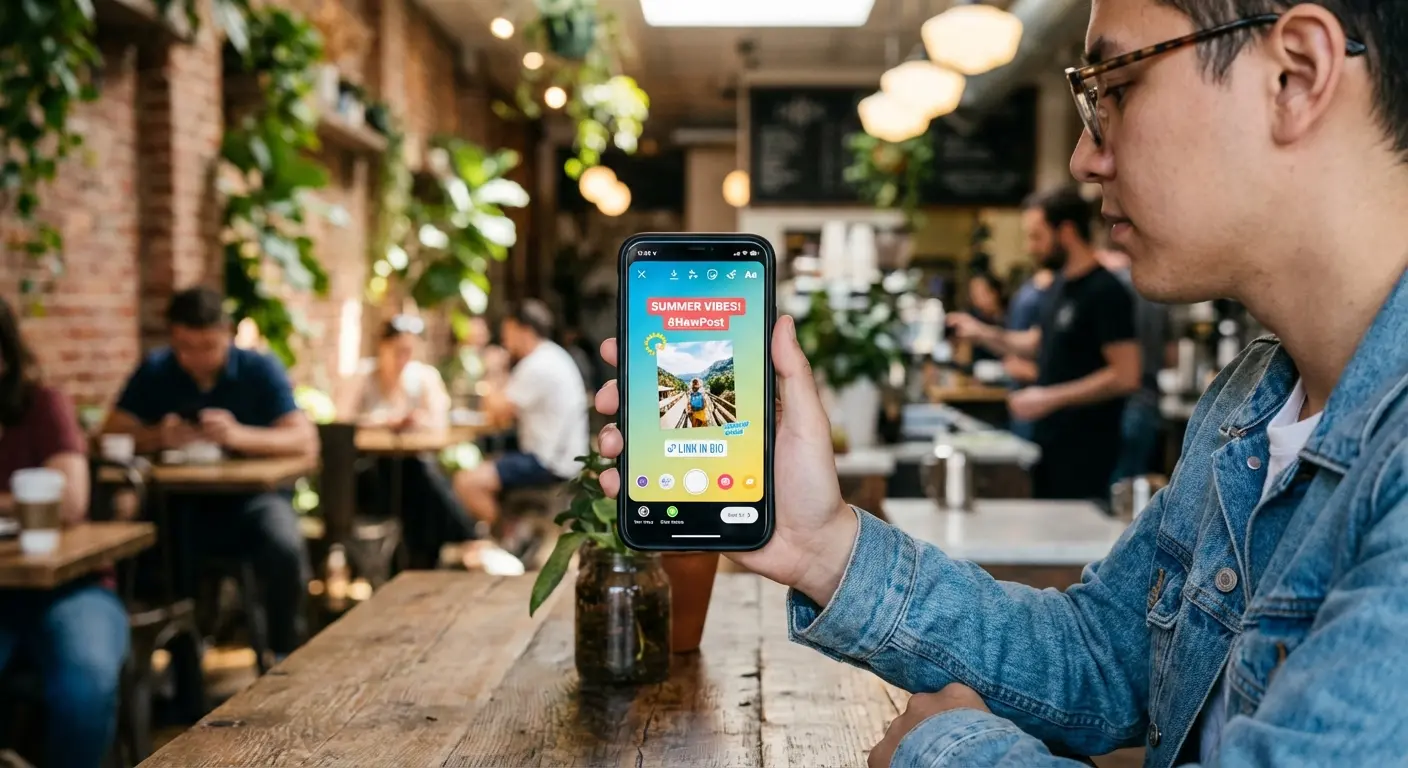
10. Spark (Adobe Express)
This is Adobe’s answer to Canva. It features deep integration with Adobe Fonts. If you already use Adobe typefaces, this is the best app for creative typography in terms of font access.
Category C: Hand-Lettering & Illustration
I’m shifting focus to artists who draw their letters. These apps are about the brush engine and the organic feel of the stroke rather than typing on a keyboard.
11. Procreate
The gold standard for raster illustration on iPad. While not a "type tool" in the traditional sense, its brush engine makes it the #1 choice for hand-lettering artists. It now supports text layers and font imports.
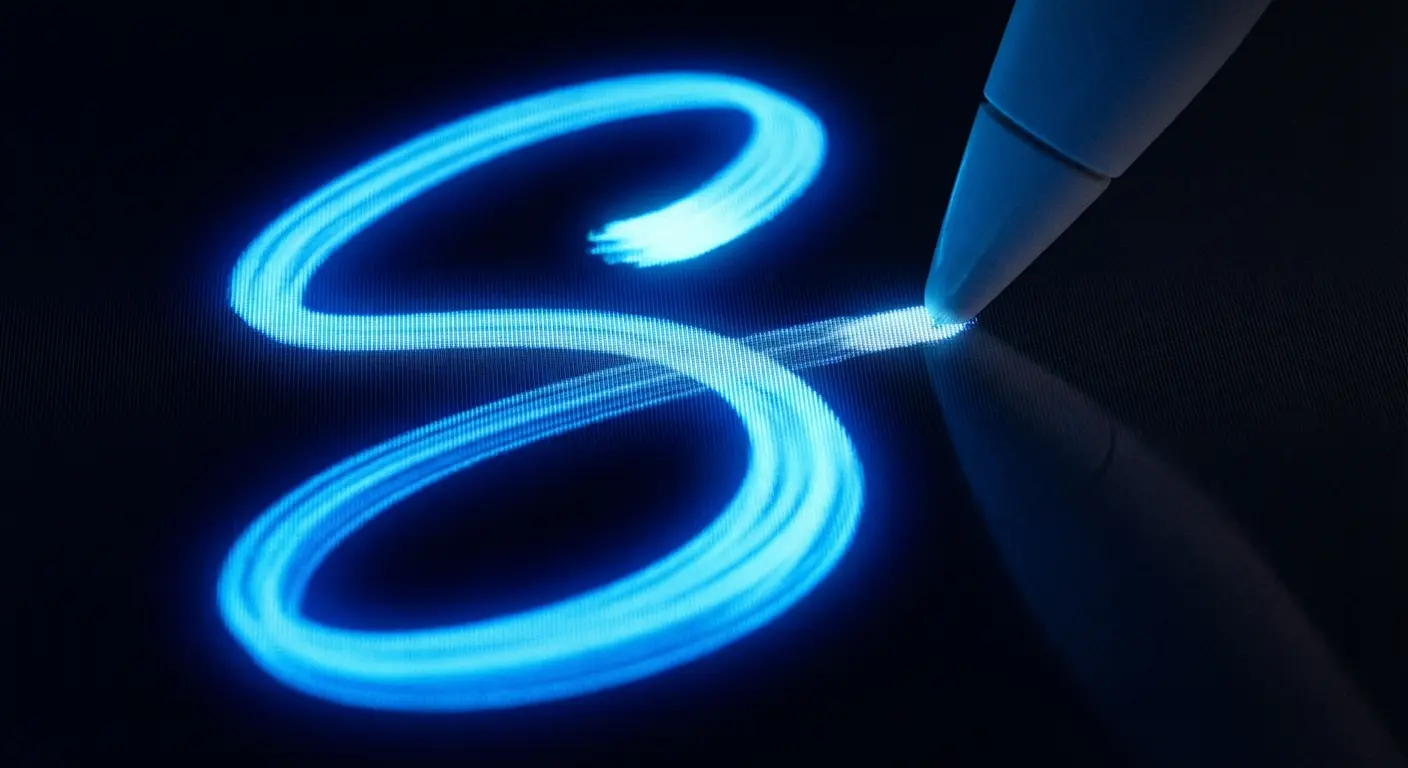
To get the most out of Procreate's brush engine, you'll need the right stylus setup. Check out our guide on how to connect Apple Pencil to iPad to ensure you have the precision required for professional lettering.
12. Adobe Fresco
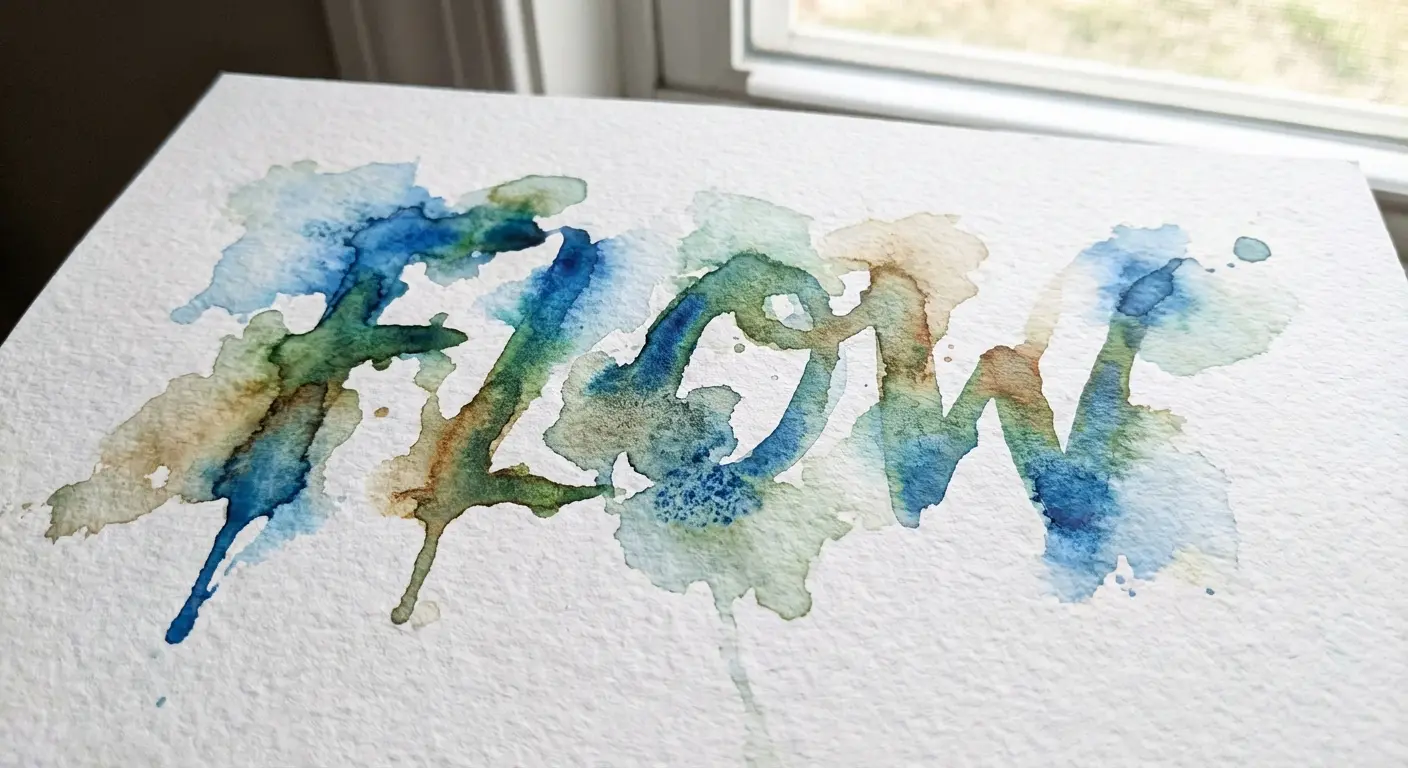
Fresco combines vector and raster brushes in one canvas. Its unique "Live Brushes" mimic real watercolor and oil, allowing for messy, organic typography that scales infinitely (if using vector brushes).
13. Concepts
An infinite canvas sketching app. It features vector-based sketching. If you hand-draw a logo here, you can stretch it to the size of a billboard without losing quality
Practical Example: The Billboard Sketch
You have an idea for a handwritten logo, but you're worried about resolution.
Raster Workflow: You draw it in a pixel-based app. When the client asks to blow it up for a billboard, the edges get jagged and blurry. You have to redraw it entirely in Illustrator.
Concepts Workflow: You sketch naturally in Concepts. Because the strokes are vector data, you can export that same sketch as an SVG file. It scales perfectly to any size—from a business card to the side of a building—without losing a single detail.
14. Paper by WeTransfer
A minimalist journaling and sketching app. Extremely limited tools (pen, pencil, marker) force creativity. It is best for roughing out typographic concepts before moving to pro software.
15. Calligraphy Handbook
A niche app specifically for practicing digital calligraphy strokes. It has high educational value. It doesn't just let you draw; it teaches you the structure of letterforms, making it a unique typography app for education.
Category D: Photo Overlays & Aesthetic Effects
These apps treat text as a texture. These are for designers who want to warp, distort, or apply retro effects to their typography.
16. Picsart
A massive suite of editing tools including dispersion, clones, and text wrapping. It takes the "Kitchen Sink" approach. You can bend, warp, and apply textures to text easily. Good for surrealist typography.
17. Distortion
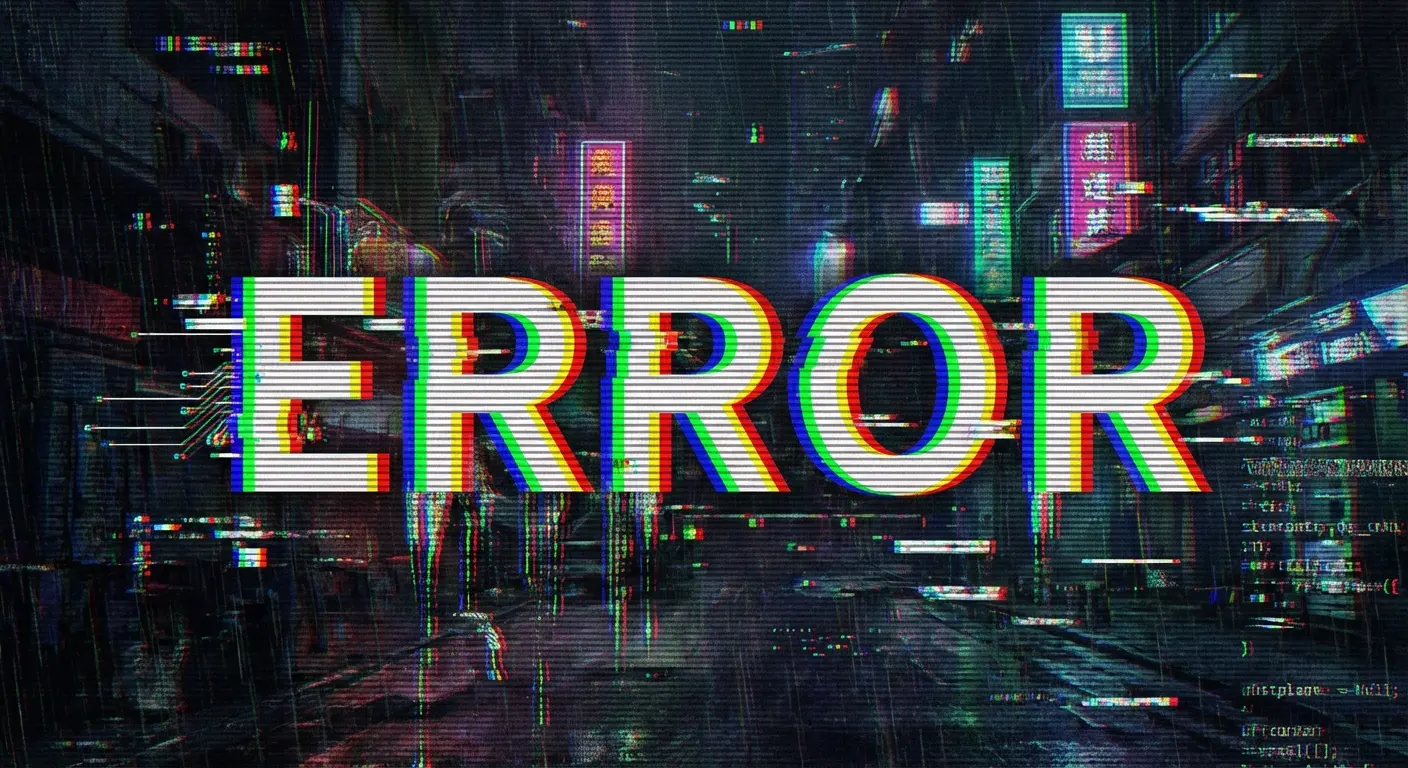
Specifically for glitch art and text distortion. This is a niche use case. If you want a cyberpunk aesthetic text, this handles the chromatic aberration and noise effects perfectly.
18. Retromatic
Focuses on 1950s retro styles and badges. It has a heavy reliance on templates, but specific to the "retro" aesthetic. Great for quick vintage logos.
19. A Design Kit
Focuses on realistic brushes and modern stickers. Very popular with influencers. The typography tools feel "analog" and textured rather than digital and clean.
20. Font Candy
Allows you to mask photos inside the text captions. It performs one specific trick (photo-in-text) done very well. Simple workflow.
Category E: Motion & 3D Typography
Static text is out; moving, 3D text is in. These apps help you animate your typography for video.
21. CapCut
A video editor with a surprisingly deep text animation engine. Essential for TikTok/Reels. The preset text animations are industry standard for social video.
If you are looking to expand your video editing toolkit beyond just typography, take a look at our breakdown of the best apps for video editing on iPhone to find the perfect companion for your motion text projects.
22. Alight Motion
The closest thing to After Effects on a phone. It has a high learning curve. You can animate keyframes for individual letters. Professional motion graphics on mobile.
23. Art Text 4 (iPad)
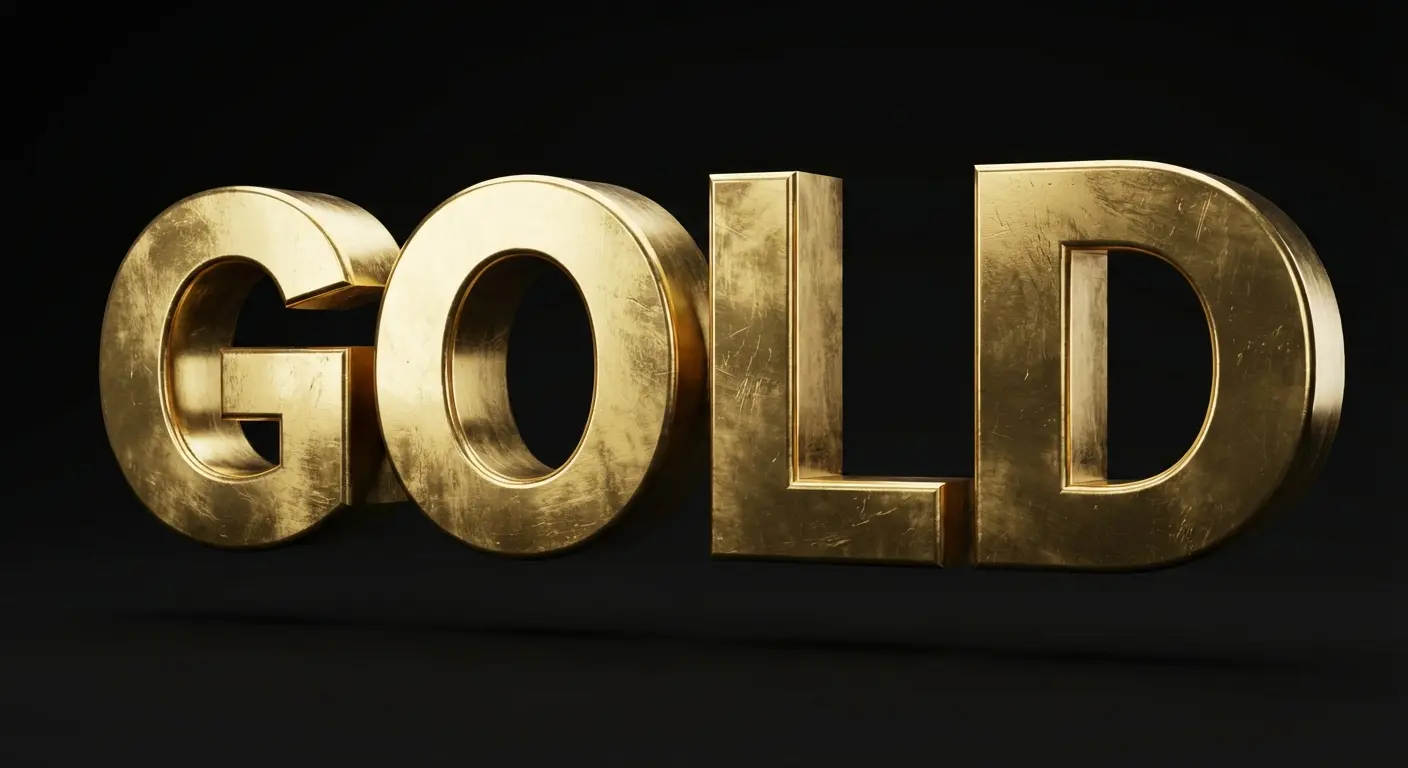
Specialized for creating 3D text, shading, and materials. If you need text that looks like gold, wood, or inflated balloons, this is the tool.
24. Hype Type
Automatically animates text over video clips. Similar to Typorama but for video. Quick, template-based motion.
25. Adobe Aero
Augmented Reality (AR) creation. Allows you to place your typography in the real world (viewed through a camera). The frontier of creative typography.
Creating stable AR content often requires a steady hand or a fixed position. For content creators using these advanced tools, we recommend checking out the best phone tripods for TikTok creators to keep your AR typography anchored perfectly in your scene.
App |
Animation Style |
Difficulty |
Output Format |
|---|---|---|---|
CapCut |
Presets & Effects |
Low |
Video (MP4) |
Alight Motion |
Keyframes (Manual) |
High |
Video/GIF |
Art Text 4 |
3D Materials/Lighting |
Medium |
PNG/Video |
Adobe Aero |
Augmented Reality |
High |
AR Experience |
Application of Considerations
To help you decide, here is how the top contenders stack up against the criteria. I’ll group the winners by what you actually need—control, speed, hand-drawn style, or motion—so you can make a fast choice.
For Total Control: Adobe Illustrator and Affinity Designer 2 win. They score highest on customization and vector output but lowest on ease of use.
For Speed: Typorama and Word Swag win. They rely on the typography template model to save time but sacrifice granular control.
For Hand-Drawn Style: Procreate is the undisputed king. It offers the best creative freedom but requires drawing skills.
For 3D/Motion: Alight Motion and Art Text 4 provide capabilities that static image apps cannot touch.
Protecting Your Creative Workflow
Creative typography isn't just happening at a desk anymore; it's happening on the subway, at coffee shops, and on construction sites for architectural signage. Your mobile device is now your primary canvas. If you're investing time into these apps, you need to protect your hardware and enhance your workflow. This is where Rokform bridges the gap between technology and utility.
The Rokform Advantage for Designers
We solve physical workflow problems with rugged cases and magnetic mounting. You can't design if your phone is broken or if you can't see your reference material.
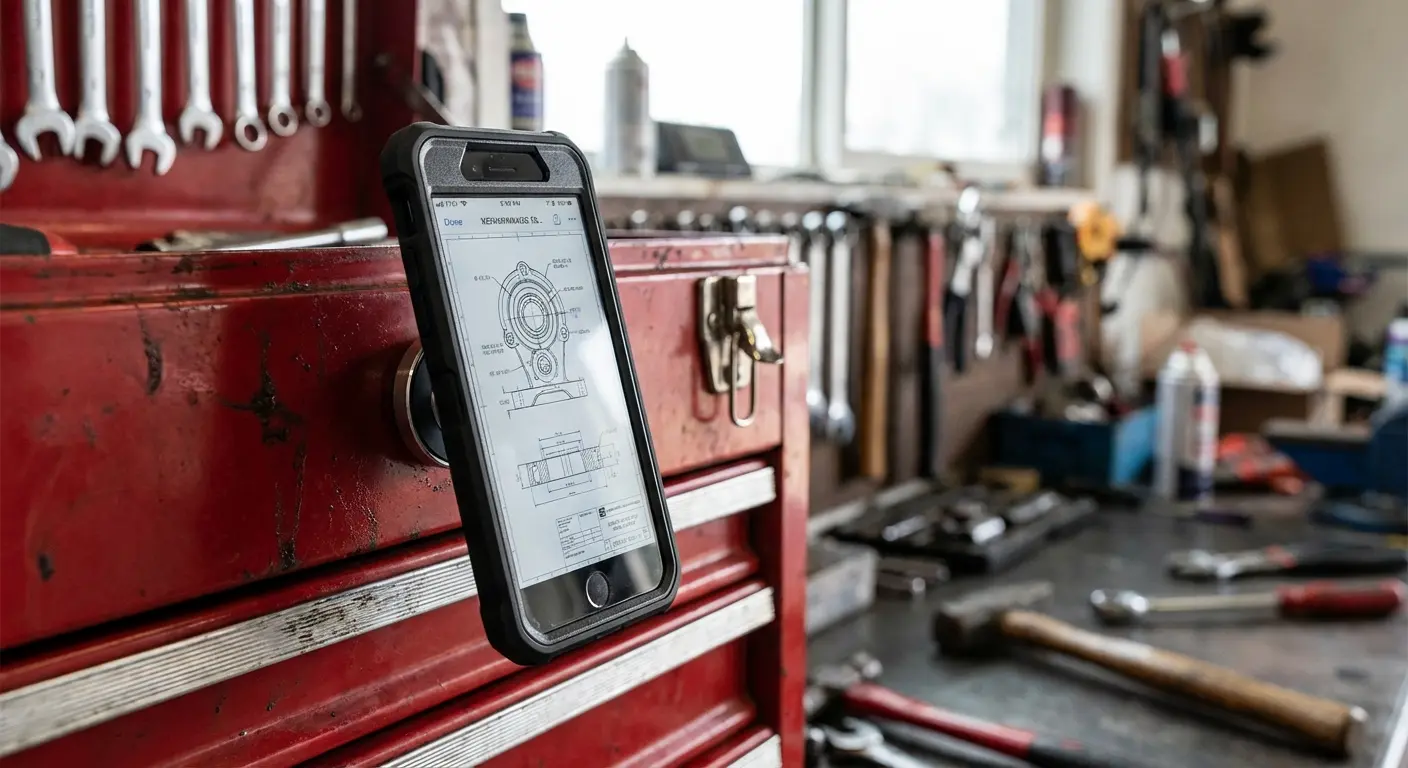
Magnetic Mounting for Reference: Whether you're using Procreate to sketch or CapCut to edit, screen real estate is vital. Rokform’s MAGMAX™ technology allows you to magnetically mount your phone to a whiteboard, tool chest, or fridge. This creates an instant "second monitor" setup where you can view reference typography while working on your tablet or laptop.
Rugged Protection for Expensive Tech: High-end devices like the iPhone 16 Pro Max or S25 Ultra are expensive investments. Rokform cases use military-grade polycarbonate and offer 6-sided, 360-degree protection. If you drop your phone while capturing textures for a design project, Rokform has you covered.
MagSafe® Compatibility: Many of the apps listed above drain battery heavily during rendering (especially the 3D and Motion apps). Rokform cases are designed to work seamlessly with MagSafe® wireless chargers, ensuring your creative flow is never interrupted by a dead battery.
Ready to secure your mobile studio? Shop Rokform cases and mounts today.
Final Thoughts
The line between desktop and mobile design has blurred to the point of invisibility. You have the power to create professional, scalable, and animated typography right in your pocket. Don't let the abundance of tools paralyze you. Pick the one that fits your specific need—whether that's vector precision or instant social speed with Typorama—and start creating.

