


"Modern smartphones often rival standalone cameras in terms of video quality, and with their powerful processors, you can do a surprising amount of editing right on your device" (Flocksy). I learned this the hard way when my laptop battery died five minutes before a deadline. I had to cut a promo video in the back of a cab, sweating bullets. That panic turned into pure relief when I saw the final export—it looked just as sharp as my desktop edits.
We put this guide together to help you find the tool that actually fits your workflow so you never feel limited by a smaller screen. Whether you need to handle heavy 4K footage or just want to slap together some clips for social, we’ve got you covered. It really just comes down to matching the software to your creative ambition.
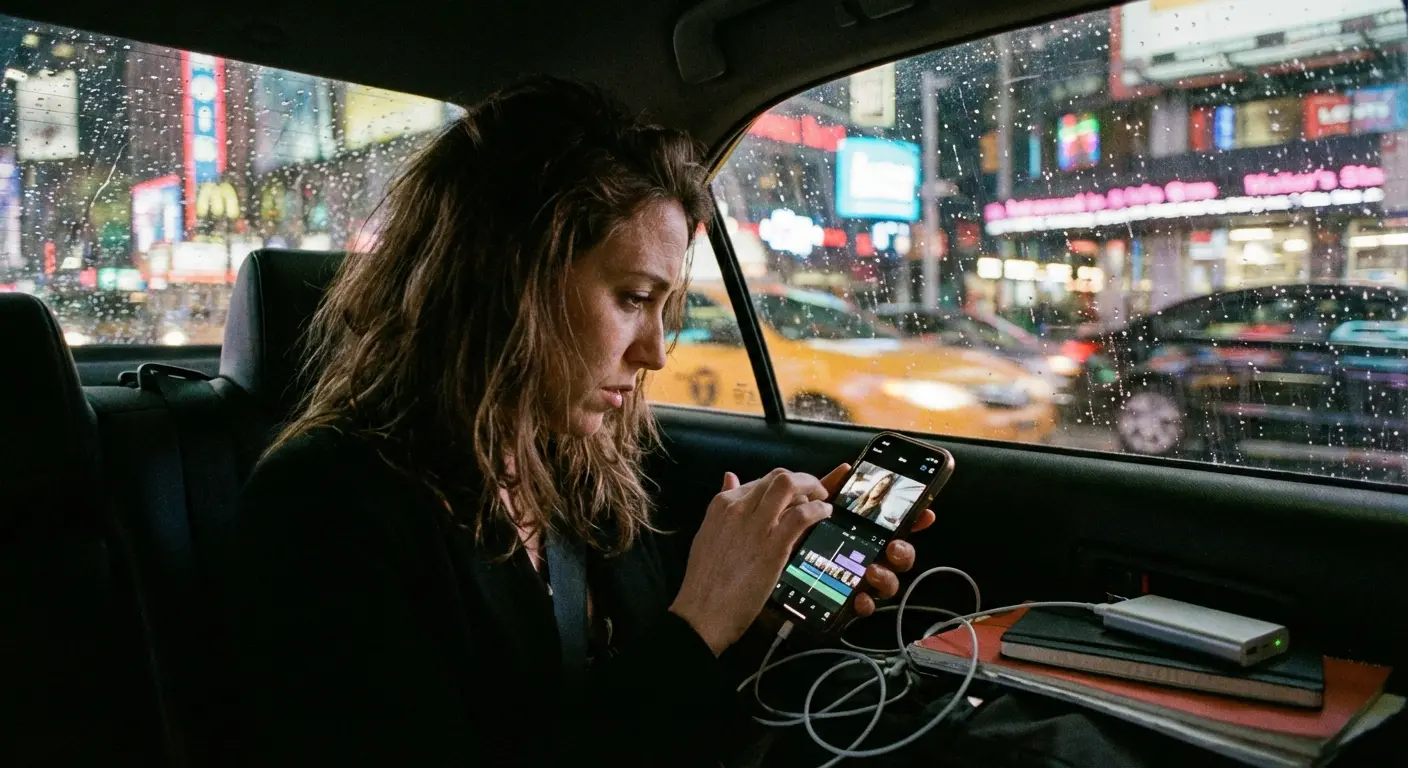
Table of Contents
Here is the roadmap for the article. We’ll look at the criteria for picking an app, the full list of 25 apps broken down by how you’ll actually use them, and why your physical gear matters just as much as the software you download.
What Separates a Good App from a Great One
-
The 25 Best Video Editing Apps for iPhone
Pocket-Sized Hollywood Studios (Pro Suites)
Viral Content Creators (Social Media)
The "Work Smarter" Tools (AI & Automation)
The Perfect Middle Ground (All-Rounders)
Stylized and Specific (Niche Editing)
Matching the Tool to Your Workflow
Why Your Gear Matters as Much as Your App
Start Cutting
TL;DR
In a rush? Here is the cheat sheet. If you want to skip the deep dive and just grab the right app for the job, check the highlights below.
Pro Power: LumaFusion and DaVinci Resolve are the heavy hitters. They offer desktop-grade performance if you're serious about filmmaking.
Social Speed: CapCut and InShot run the game for quick, trendy edits made for TikTok and Reels.
AI Assistance: GoPro Quik and Wisecut automate the boring stuff, saving you hours of tedious trimming.
Hardware is Key: High-end software needs a stable, protected phone. Rokform cases and mounts make sure your mobile studio doesn't break when you drop it.
Future Proofing: Look for apps that support 4K export and multi-track capabilities so you aren't looking for a new app next year.
Category |
Top Pick |
Best For |
The "Why" |
|---|---|---|---|
Professional |
LumaFusion |
Filmmakers & Journalists |
Multi-track magnetic timeline & external drive support. |
Social Media |
CapCut |
TikTok/Reels Creators |
Viral templates and auto-beat sync. |
AI/Automation |
Wisecut |
Podcasters |
Auto-removal of silence and "umms." |
Color Grading |
DaVinci Resolve |
iPad/Pro Users |
Desktop-class color correction tools. |
Animation |
Stop Motion Studio |
Animators |
Onion skinning and frame-by-frame control. |
What Separates a Good App from a Great One
Phones are powerful enough now that "mobile editing" doesn't have to mean "bad editing." When you're shopping around, look for workflow efficiency (especially for vertical video), multi-track capabilities (so you can layer audio and video), and smart AI features. You also want to make sure the app can handle high-res footage without crashing and export it clearly to your platform of choice.
Before you get lost in the software, though, you need good raw materials. Check out our top 6 smartphone video tips to make sure your footage is solid before you even open an editor. Even the best app in the world can't fix a bad shot.
Finally, think about your wallet. Do you want a one-time purchase or a monthly subscription? Subscriptions usually come with cloud storage, but paying once for a robust app often saves you money in the long run.
The 25 Best Video Editing Apps for iPhone
We’ve broken these down into five buckets to help you navigate. Whether you’re an indie filmmaker, a social media manager, or just someone trying to make a vacation recap that doesn't look boring, there’s a tool here for you.
Pocket-Sized Hollywood Studios
These are for the people who want total control. We’re talking desktop power in your pocket. We’ve been tracking these tools for years—if you look back at our analysis of video editing on iPhone 13, you can see how crazy the jump in technology (like ProRes support) has been.
If you need to handle multi-cam workflows or serious color grading, these are the apps you want. Just be warned: with great power comes a steeper learning curve.
1. LumaFusion
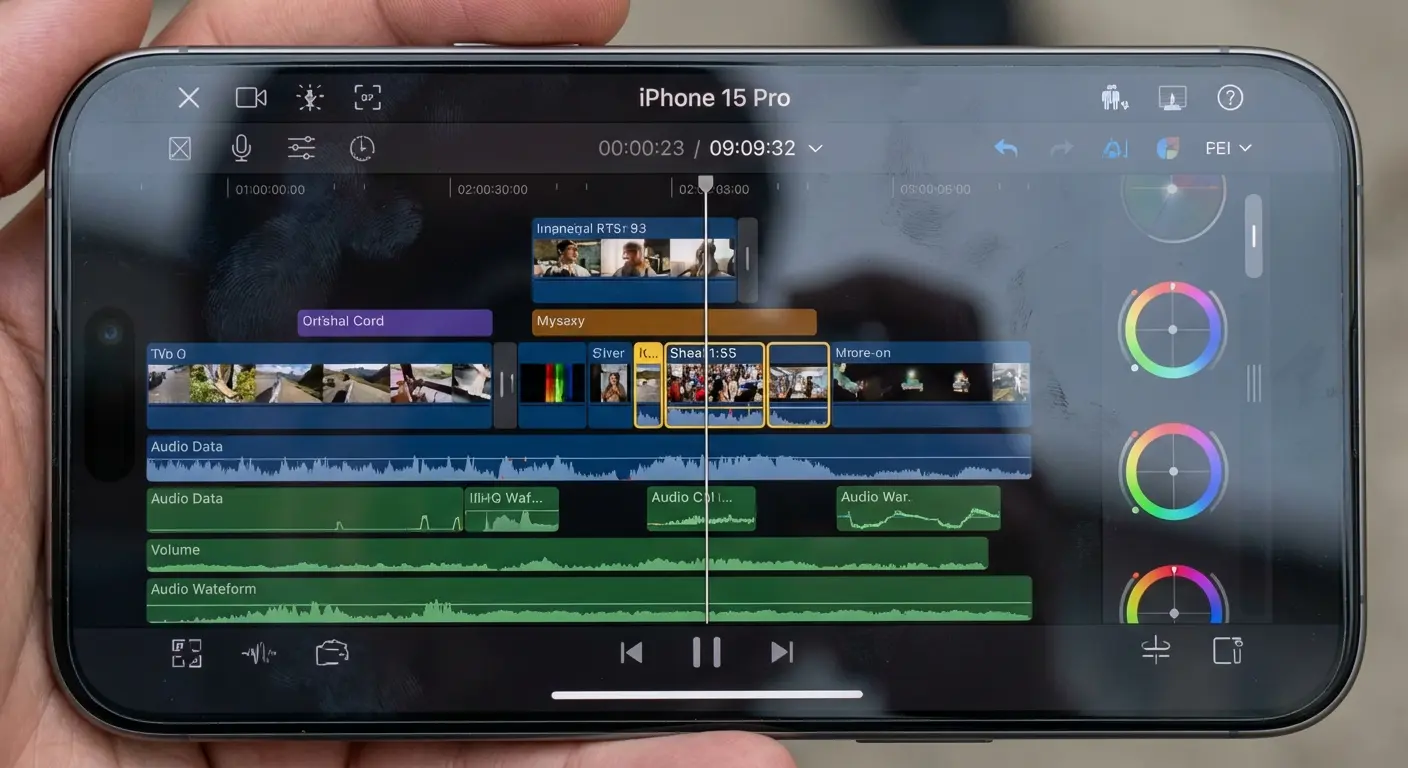
LumaFusion is still the king of the hill for mobile editing. It has a magnetic timeline, six tracks for video/audio, and it lets you edit directly off external drives. It takes a minute to learn, but the one-time price tag makes it a steal compared to Adobe subscriptions. I keep a longer list of video editing apps for iPhone as well.
2. DaVinci Resolve for iPad/iPhone
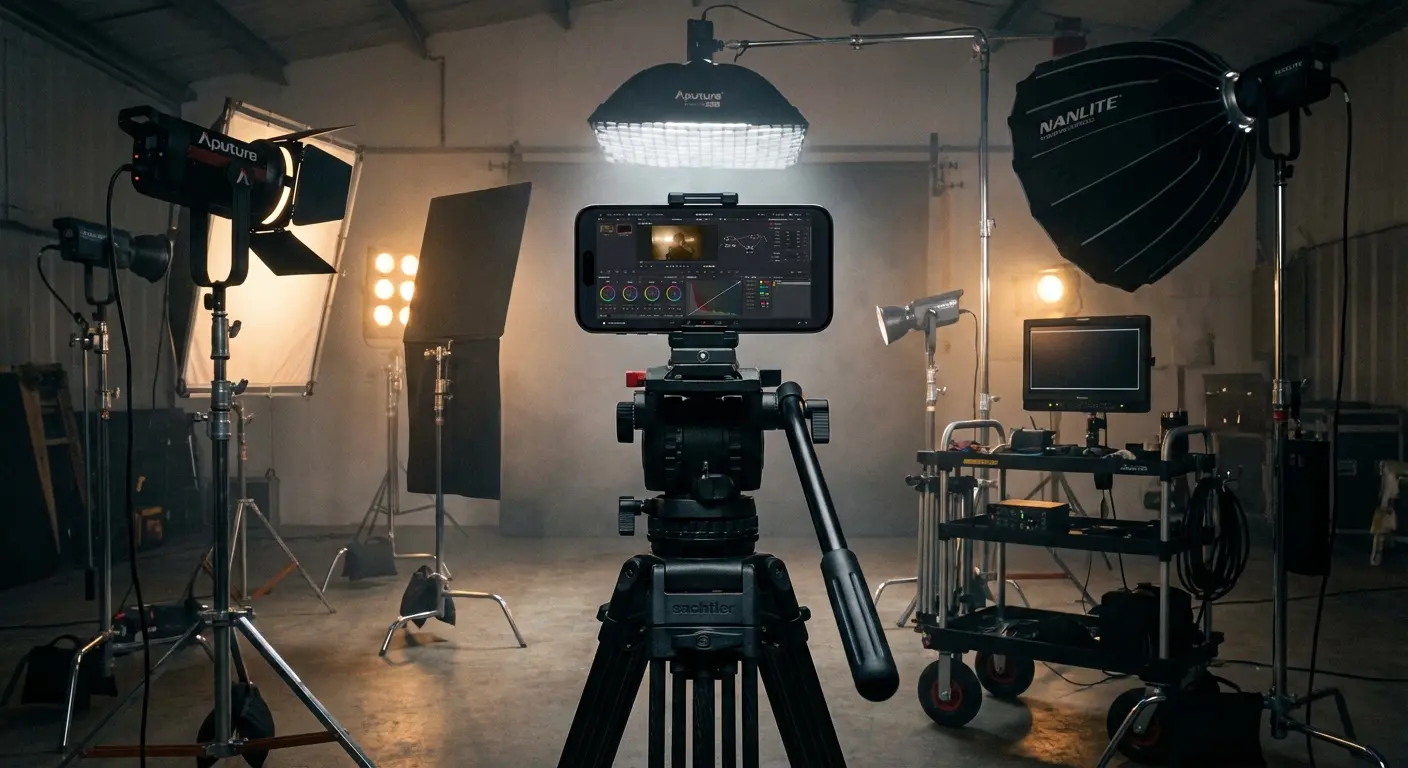
This brings Hollywood-level color correction straight to your phone. It includes the "Cut Page" for speed, making it the top choice for grading. Ideally, you want a newer iPhone model for this one, or it might struggle to render.
Pro Workflow: Picture a documentary filmmaker using an iPhone 15 Pro Max to shoot ProRes Log footage. With DaVinci Resolve on their phone, they can slap on a conversion LUT immediately to check exposure on set, rather than waiting hours to transfer footage to a laptop.
3. Adobe Premiere Rush
Rush is great because it plays nice with your desktop. You can start an edit on the train and finish it on your Mac at home. It’s perfect if you already have a Creative Cloud subscription, though it’s a bit simpler than the full desktop Premiere.
4. Final Cut Pro (Mobile)
Apple’s own contender. It’s touch-optimized with cool "Live Drawing" features and a huge library of assets. It’s a subscription model, but if you live in the Apple ecosystem, it feels very natural.
5. Node Video
Node Video is a beast for compositing. It offers node-based editing and 3D rendering. Honestly, this is strictly for the technical editors who love nitty-gritty details. If you don't know what a "node" is, maybe skip this one.
Viral Content Creators
These apps are all about vertical video, trends, and speed. If you're trying to go viral, you don't need a magnetic timeline—you need good templates and stable footage. (By the way, using a solid phone tripod helps a ton with that).
Speed is the name of the game here. You want to go from shooting to posting in minutes, catching the trend wave while the music is still hot.
6. CapCut
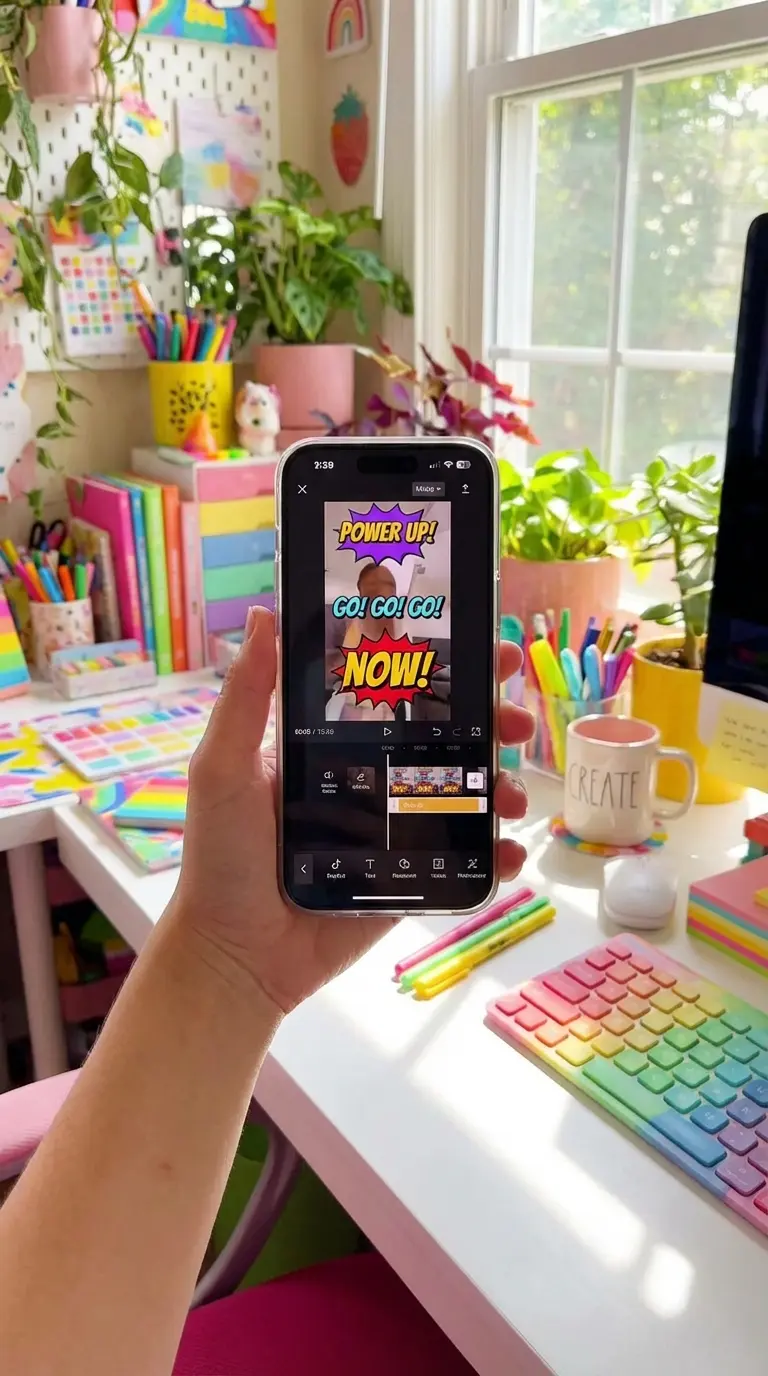
CapCut is basically the default browser for TikTok creators. It has the trending templates, the auto-beat sync, and it just works. The free version is incredibly generous, though some people are wary of the data privacy aspect.
7. InShot
InShot is the OG for resizing videos. If you have a landscape video you need to fit into a vertical Story, this is the app. It’s super easy for stickers and voiceovers, though the free version has ads that can get annoying.
Feature |
CapCut |
InShot |
VN Video Editor |
|---|---|---|---|
Best For |
TikTok Trends |
Instagram Resizing |
Clean Vlog Edits |
Watermark |
Yes (Removable at end) |
Yes (Removable with Ad) |
No |
Music Library |
Massive (Copyright risks) |
Moderate |
Standard Stock |
Interface |
Busy & Trendy |
Simple & Colorful |
Clean & Professional |
8. VN Video Editor
VN is a hidden gem. It lets you make "vlog" style edits with speed ramps, and crucially, it has no watermark. It’s a great balance of pro features without a cluttered screen.
9. Splice
Splice is fantastic for syncing footage to a beat, making it a favorite for travel reels. It’s a bit pricey, but the royalty-free music library is high quality, which keeps your videos from getting muted on Instagram.
10. Mojo
Mojo isn't really a timeline editor; it’s a design tool. If you want those animated, high-end Instagram Stories with cool typography, this is the one.
The "Work Smarter" Tools
These apps use AI to do the heavy lifting. If you make tutorials or app reviews, knowing how to record your iPhone screen gives these AI bots great raw material to chop up.
Sometimes the best editor is the one that does the work for you. These tools remove the drudgery of cutting silence or syncing clips so you can focus on the creative stuff.

11. Magisto
Magisto is simple: upload photos and videos, pick a style, and let the app make a music video. You don't get much control, but it’s fast.
12. GoPro Quik
Quik pulls highlights from your footage automatically. It’s essential for GoPro users, obviously, but it actually works surprisingly well with standard iPhone camera roll footage for making fast, energetic cuts.
13. Adobe Express
Great for branding. Express uses AI to remove backgrounds and slap your logo on things quickly. It's a hybrid design/video tool.
14. Wisecut
Wisecut is a lifesaver for podcasters. It automatically cuts out the silence and the "umms" and "ahhs." It turns a rough recording into a punchy video without you having to make a single manual cut.
Efficiency Example: You record a 45-minute interview. Instead of listening to the whole thing to cut out the awkward pauses, you upload it to Wisecut. It automatically chops 8 minutes of dead air, giving you a tight final cut in minutes.
15. LightCut
Optimized for DJI drones and gimbals, LightCut offers one-tap editing. It’s free and lightweight—perfect for a quick edit in the field.
The Perfect Middle Ground
These apps sit right in the Goldilocks zone—more powerful than a template maker, but not as intimidating as LumaFusion. They grow with you as your skills improve.

16. KineMaster
KineMaster is a classic. It supports multiple layers and chroma key (green screen). The interface is landscape-only, which some people prefer, though the subscription prompts are a bit aggressive.
17. PowerDirector
Known for speed. PowerDirector renders fast and has great stabilization tools. The interface is a little busy, but it gets the job done.
18. Videoleap
Videoleap is fun. It uses a "mixer" style for editing that makes doing double exposures and special effects really intuitive.
19. VLLO
VLLO is great because it doesn't force a watermark on you. It offers precise frame-by-frame splitting and is super clean to use. A favorite for casual vloggers.
20. Filmmaker Pro
Good old-school tools like an audiometer and Ken Burns effects. The asset library feels a little dated, but the core tools are solid.
Stylized and Specific
Sometimes you don't need a general editor; you need a specific look, like retro film or stop motion.
21. Stop Motion Studio Pro
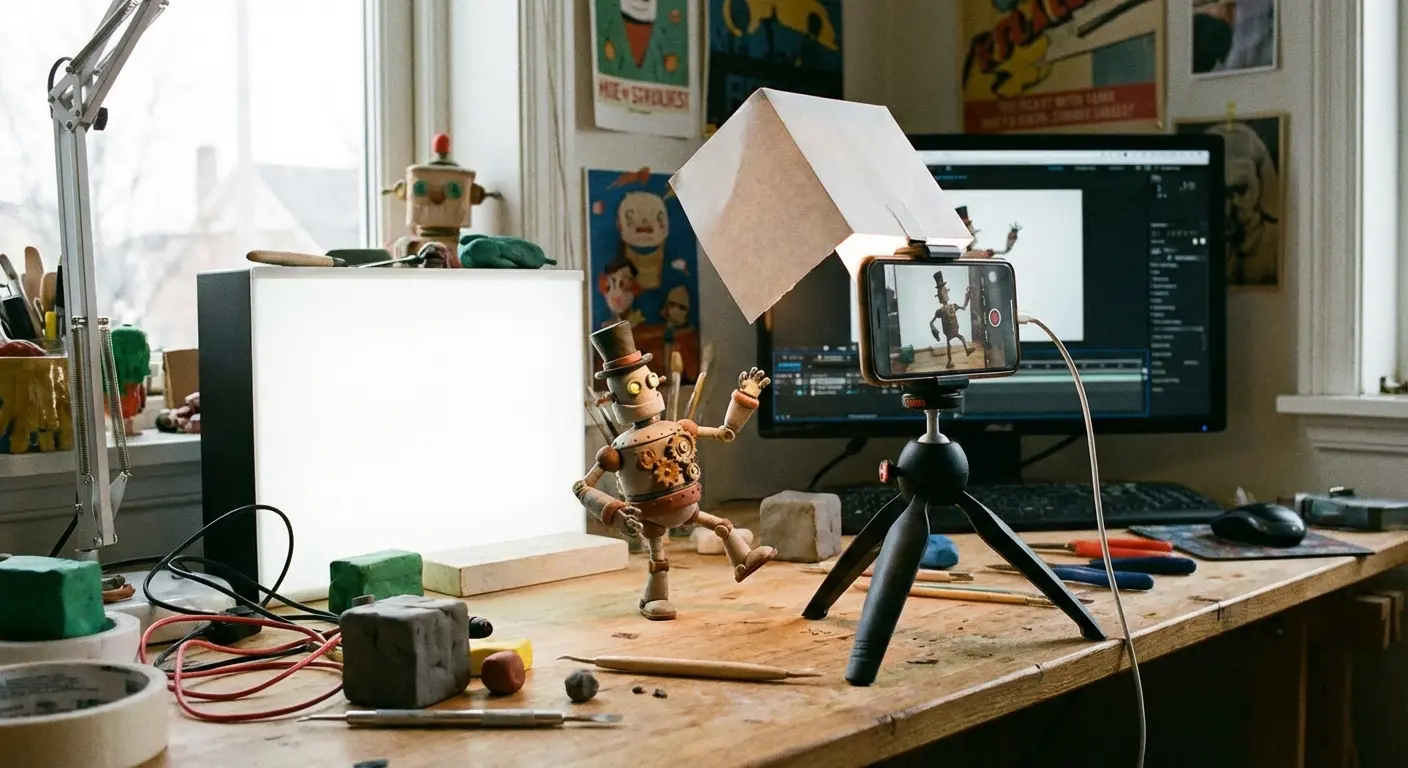
The industry standard for making LEGO movies or claymation on your phone. It has "onion skinning" so you can see where your character was in the last frame.
22. Alight Motion
This is basically After Effects for your phone. It does motion graphics and vector animation. Steep learning curve, but you can make things here that other apps can't touch.
23. Prequel
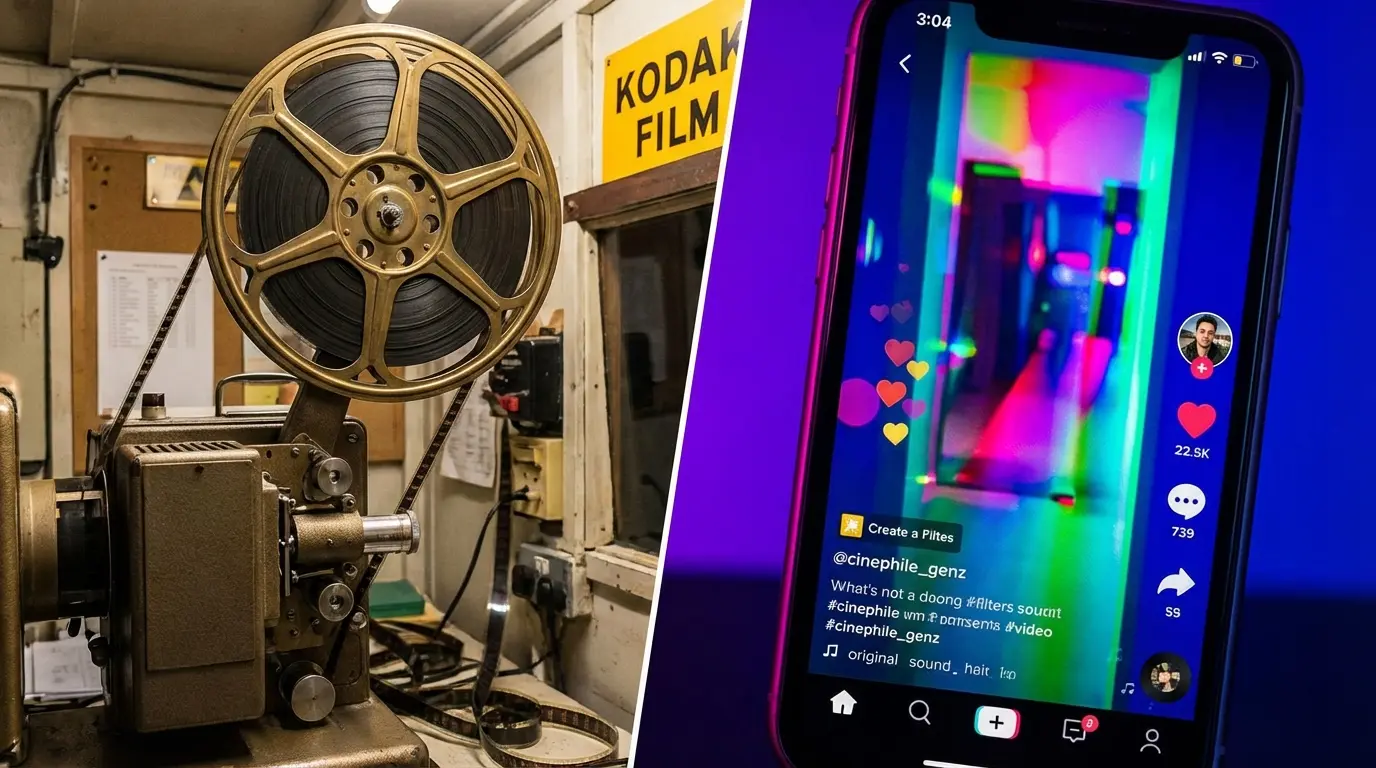
Prequel is all about the #aesthetic. It’s not for cutting; it’s for applying that "Miami Glow" or "VHS" filter to your finished video.
24. VSCO
If you use VSCO for photos, you’ll love it for video. It applies those same moody film presets to your clips so your whole Instagram feed matches.
25. Funimate
Targeted at a younger crowd, this is all about flashy loops and fan-edit transitions. It’s more about visual flair than storytelling.
Matching the Tool to Your Workflow
Let's simplify this. For raw power, go LumaFusion. For daily social posting, CapCut is your best friend. If you hate editing and just want results, let AI tools like Wisecut handle it. And if you just want to look cool, use Prequel.
Ultimately, are you telling a complex story, or just selling a vibe?
Your Goal |
The App You Need |
Why? |
|---|---|---|
"I'm editing a wedding film." |
LumaFusion / DaVinci |
Precision audio and color grading are non-negotiable here. |
"I want to go viral on TikTok." |
CapCut |
Fastest access to the sounds and memes everyone is using. |
"I'm editing a podcast clip." |
Wisecut |
It cuts out the silence for you. Huge time saver. |
"I want my feed to look aesthetic." |
VSCO / Prequel |
Best-in-class filters. |
"I need to animate a logo." |
Alight Motion |
Vector editing capabilities you can't get elsewhere. |
Why Your Gear Matters as Much as Your App
Software is critical, but let's be real: if you drop your phone on a shoot, it doesn't matter what app you have installed. When you're filming action shots or editing on the go, you need protection. This is where the physical side of things comes in.
A cracked screen makes precise trimming impossible. That’s why we always recommend pairing your device with a glass screen protector to keep your display flawless.
Secure Your Studio
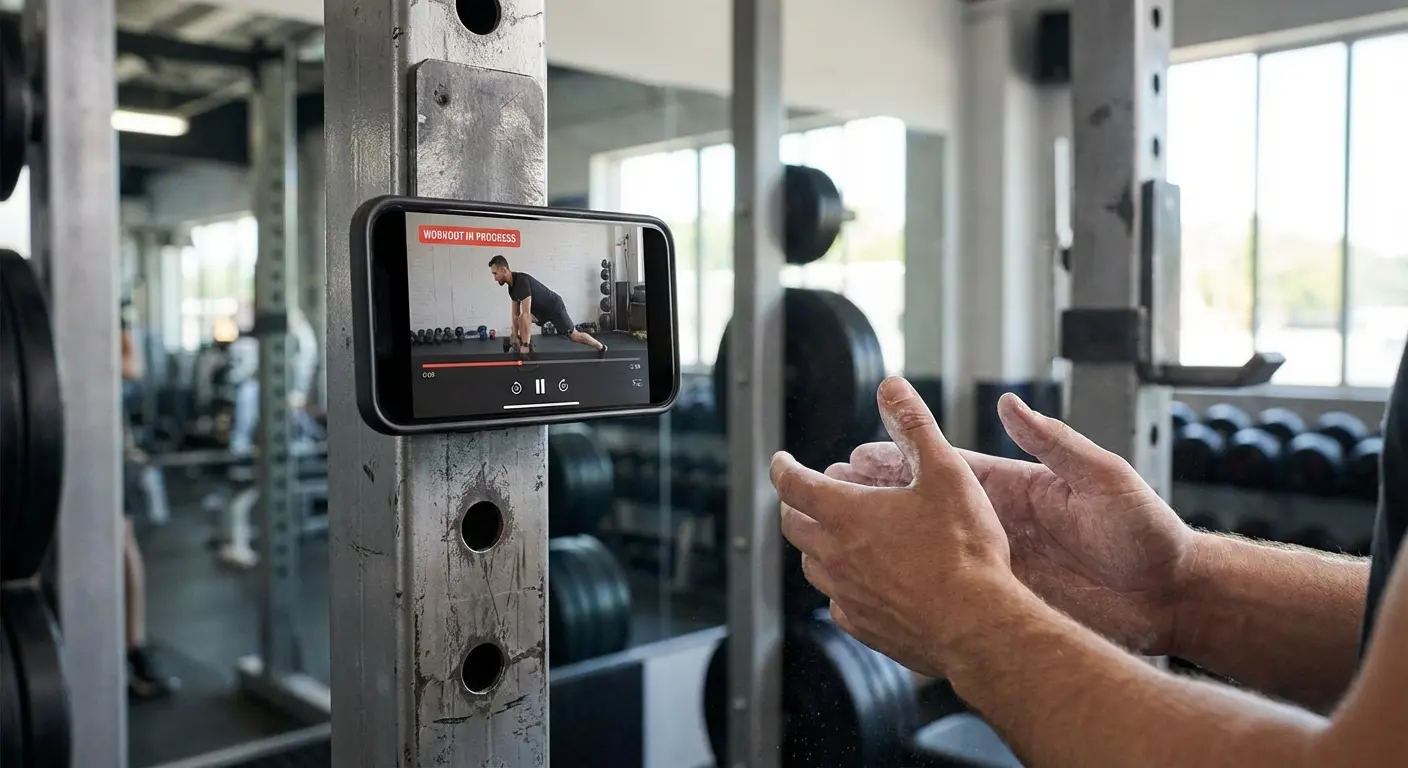
Editing on a train or at the gym is a pain if you have to hold the phone the whole time. Our MAGMAX™ technology lets you magnetically stick your iPhone to almost any metal surface—a gym rack, a fridge, a car hood—so you can review footage or edit hands-free.
Protect the Asset
If you’re using these apps, you’re probably rocking a high-end iPhone. Our Rugged cases offer military-grade protection. A cracked screen means downtime, so keeping your device in a proper case ensures your workflow doesn't stop just because gravity happened.
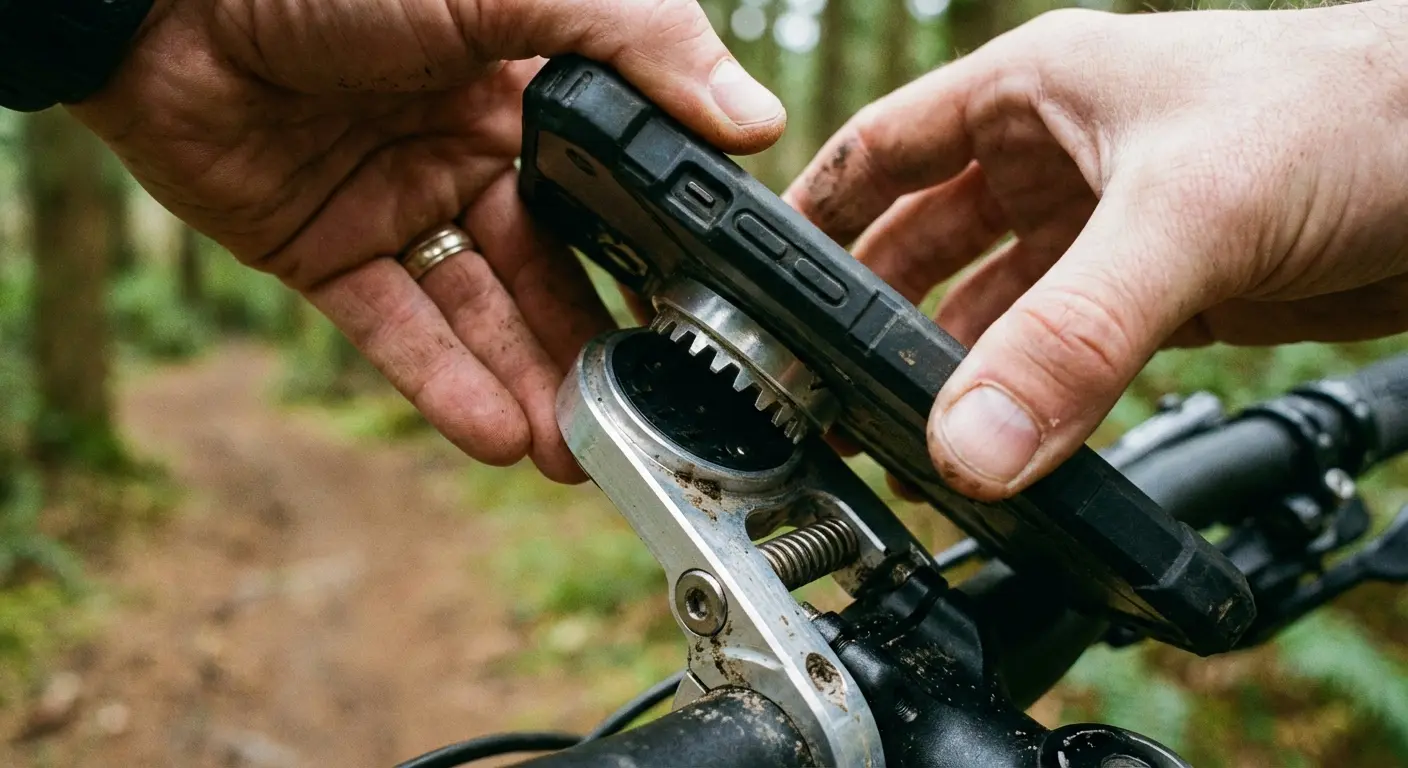
Real-World Scenario: You’re filming a mountain biking reel and need to make a quick edit on the trail. You fumble the phone and it hits a rock. With a standard case? Screen shattered, shoot over. With a Rokform Rugged Case? You pick it up, dust it off, and finish the cut.
The Ecosystem
The RokLock™ twist lock system lets you move your phone from a bike mount to a car dash mount instantly. It keeps your "production studio" ready to go wherever you are.
Start Cutting
You’ve got the list, you know what to look for, and you know how to protect your gear. The only thing left is to actually download an app and start creating. Don't let the "analysis paralysis" stop you. Pick the one that fits your vibe and start editing your next masterpiece.
Remember, the best app isn't the most expensive one—it's the one you actually use. Get out there and make something.

