


I nearly choked on my coffee when I read that a full Adobe Lightroom subscription can now run you up to $143.88 a year. That is a steep price to pay just to tweak the exposure on a sunset photo. I remember downloading an app last week just to remove a photobomber, only to be hit with a "Start Free Trial" screen the moment I tried to save the image. It’s incredibly frustrating. You shouldn't have to empty your wallet just to get professional-looking photos on your iPhone.
That’s exactly why I put together this guide to the best free photo editing apps for iphone available right now. While we’ve talked about the best iOS apps for editing in the past, the landscape has shifted. Old favorites have gone behind paywalls, and some surprisingly good new tools have popped up.
Table of Contents
TL;DR: The Quick Snapshot
What to Look for Before You Download
The "All-Rounders" (Essential Editing)
Creative & Aesthetic Filters
Social Media, Design & Layout
Retouching & Portraiture
Advanced & Specialized Tools
Protection Before Perfection: The Hardware Factor
Final Thoughts
TL;DR: The Quick Snapshot
In a rush? Here is the gist of what you need to know. The "Freemium" reality is annoying, but navigable if you know what to look for.
True "Free" is Rare: Most apps operate on a "Freemium" model. Knowing which tools are actually free (like Snapseed) versus which are just free to download is vital.
AI is Essential: Look for apps that offer AI-assisted adjustments in their free tier. It speeds up the workflow massively.
Hardware Matters: Even the best software cannot fix a shattered phone or a blurry shot caused by shaky hands. Stabilizing and protecting your device is step one.
Privacy Counts: Be wary of apps that ask for full library access or account logins just to edit a single photo.
What to Look for Before You Download
Before you start downloading everything in sight, there are five key things you need to weigh up. The definition of "free" has changed in 2026, and things like RAW support and privacy are non-negotiable for serious mobile photographers.
The "Freemium" vs. Truly Free Balance
Very few apps are 100% free anymore. You’re mostly going to run into the "Freemium" model. The trick is figuring out if the free version includes the essentials—exposure, contrast, basic healing—or if the app holds your final image hostage with a giant watermark until you pay up.
Feature Category |
"Truly Free" (e.g., Snapseed) |
"Freemium" (e.g., Lightroom) |
"Pay-to-Save" (Avoid These) |
|---|---|---|---|
Basic Adjustments |
Unlimited access to exposure, contrast, structure. |
Unlimited access to light and color sliders. |
Often free to edit, but paid to export. |
Export Quality |
Full resolution, no watermarks. |
Full resolution, usually no watermark. |
Low resolution or massive watermarks. |
Advanced Tools |
Curves, healing, and selective edits included. |
Masking, AI removal, and geometry locked. |
Any advanced tool triggers a paywall. |
Ads |
None. |
Sometimes in the menu, usually subtle. |
Aggressive pop-ups between every action. |
AI Integration
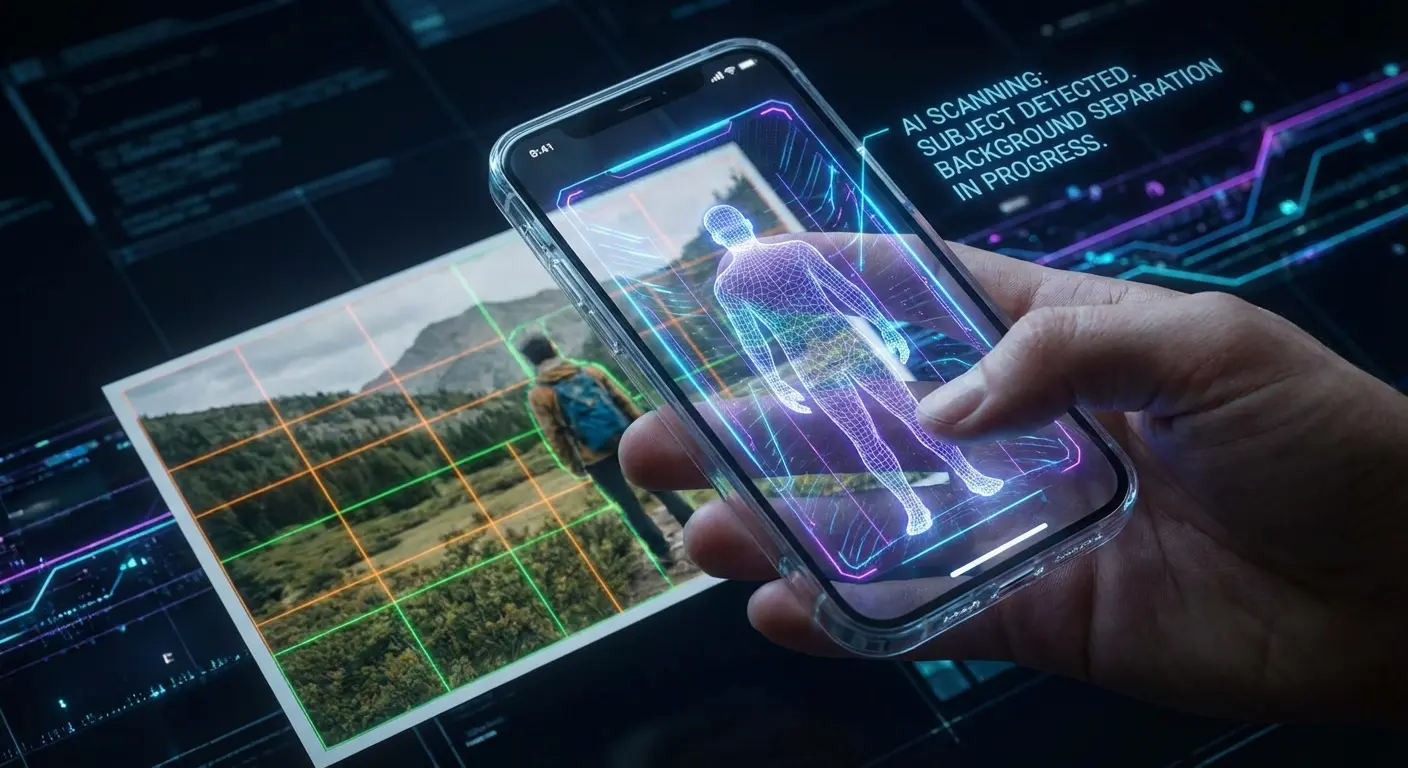
AI isn't just a buzzword; it's standard now. A quality app should offer at least some AI-assisted adjustments, like auto-sky replacement or subject selection, without forcing you to upgrade.
User Interface (UI) & Learning Curve
The interface needs to match your vibe. Are you a casual shooter who just wants one-tap filters, or are you looking for curves and selective edits?
RAW Support
If you shoot in Apple ProRAW, the app has to handle those large files without crashing or ruining the quality on export. Of course, editing is way easier when you start with a solid source image, so make sure you are getting the most out of your camera settings before you even open an app.
Privacy & Permissions
A lot of free apps harvest data. Always pause and think: does this app really need a login or full library access just to crop one photo?
The "All-Rounders" (Essential Editing)
These are the heavy hitters—the apps that can handle everything from basic exposure tweaks to complex color grading. If you only download one app, make it one of these.
1. Snapseed
This is still the gold standard for completely free editing. It features "Stacks" for non-destructive editing, curves, and specific brushes. You can use the "Selective" tool to brighten just a face in a dark room without blowing out the background.
It wins on the "Truly Free" criteria—no ads, no subscriptions. The UI is a bit utilitarian, but it’s powerful and supports RAW fully.
Practical Workflow: The "Ambience" Rescue
If you have a photo that looks flat and lifeless, don't just crank up the saturation. Open Snapseed and go to Tools > Tune Image. Instead of brightness, adjust the Ambience slider to +30. This uniquely balances the light in the photo, brightening shadows and softening highlights at the same time. It gives the image immediate depth without making it look fake.
2. Adobe Lightroom Mobile
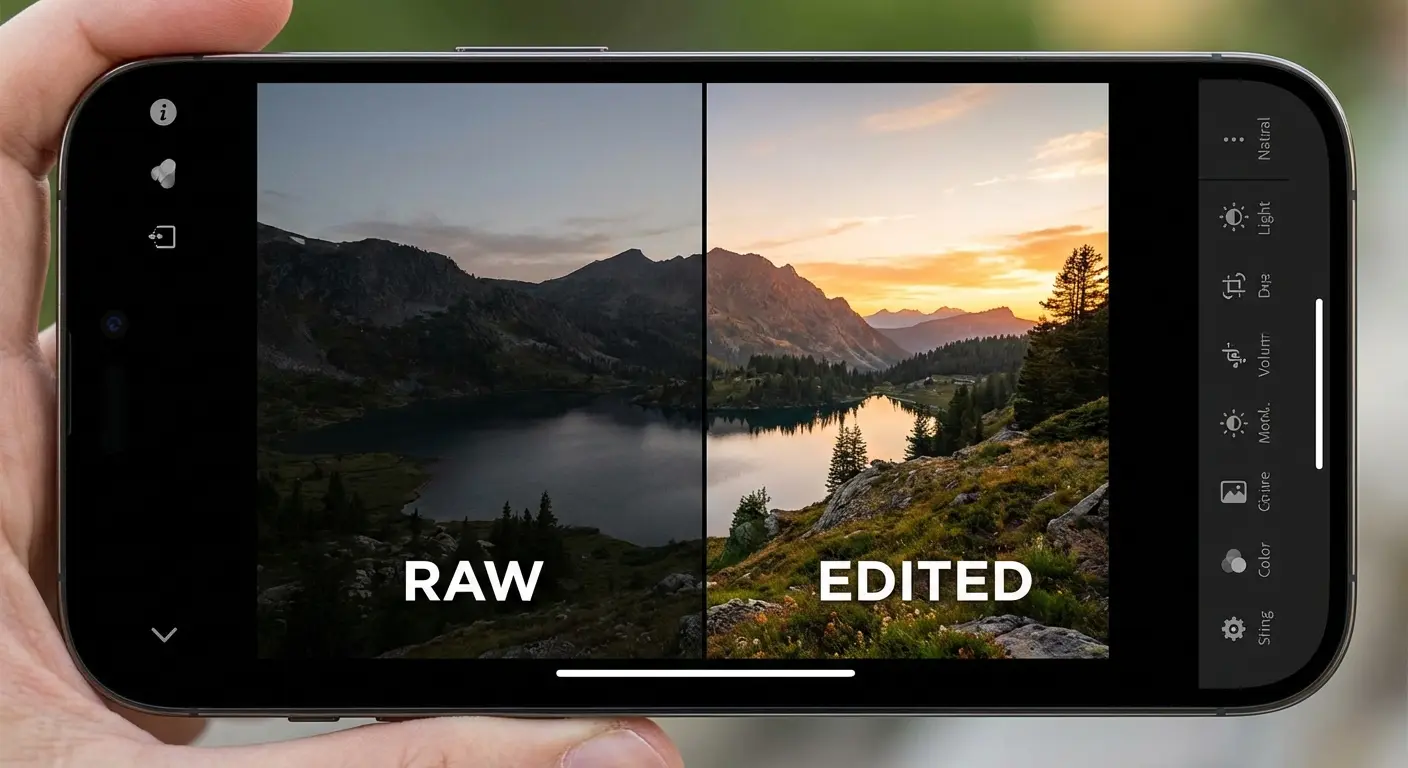
Lightroom offers industry-standard color grading. The free version allows extensive light and color manipulation. You can use the "Color Mix" tab to change a green forest to an autumnal orange. Among the various photo edit apps available, Lightroom is usually the go-to for photographers who need precise color control.
It has a higher learning curve but delivers pro results. The "Freemium" wall is thick—masking and AI tools usually require a sub—but the core editing tools are free and excellent.
3. Apple Photos (Built-in)
Don't sleep on the app that's already on your phone. You can change the depth of field (f-stop) on a Portrait Mode photo after you’ve taken it. It is 100% free and private. While it lacks crazy creative filters, for basic light and color correction, it works perfectly.
4. Google Photos
Excellent for cloud storage and quick AI edits. The "Magic Eraser" or "Pop" slider instantly fixes dull photos. It requires a Google account, and while the AI tools are strong, be aware that some advanced features are locked behind Google One subscriptions.
5. Darkroom
This is a library-free editor, meaning it edits photos directly in your camera roll so you don't have to import them. You can batch edit 10 photos from a vacation with the same filter instantly. The free version is generous, but video processing and premium filters are paid. The UI is incredibly sleek.
Creative & Aesthetic Filters
Sometimes you don't want "accurate"—you want a vibe. These apps are designed for film emulation, artistic rendering, and vintage effects.
6. VSCO
Famous for film-emulation presets. Applying the C1 filter gives a vibrant, chromatic look perfect for street photography. However, they have heavily pivoted to a subscription model. You get a handful of free presets, but most are locked. It's good for quick vibes, but bad for granular editing without paying.
7. Prisma
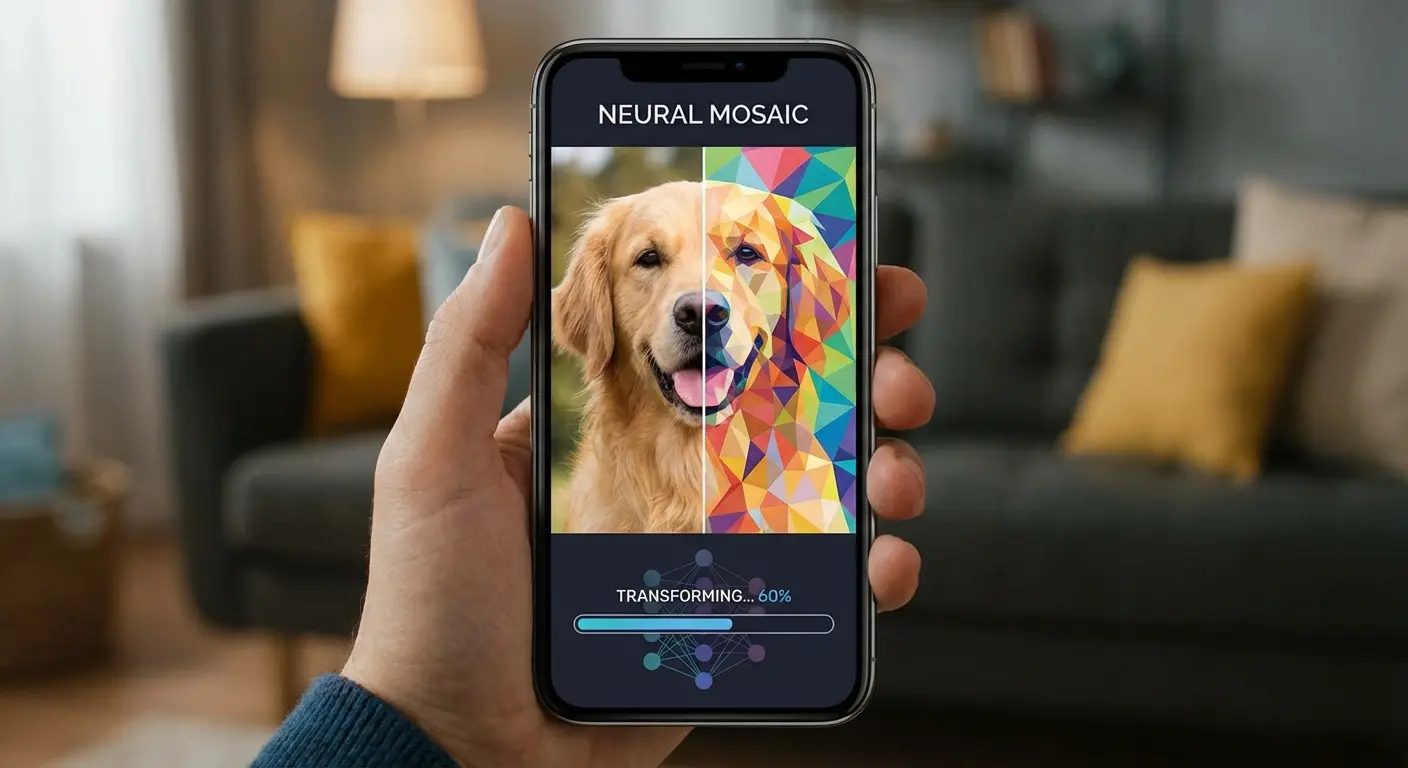
Turns photos into art using neural networks. You can transform a selfie into a mosaic or a watercolor painting. If you are looking for inspiration on how far you can push mobile photography, take a look at these stunning iPhoneography examples for creative ideas.
Great for artistic flair, not for standard correction. Just a heads up: the free version has ads and slightly slower processing speeds.
8. 1998 Cam
A vintage disposable camera simulator. You can add a date stamp (i.e., '98 04 25) and light leaks to a modern photo. It's super easy to use. The free version covers most vintage effects, though some specific film stocks are paid.
9. Dazz Cam
Focuses on realistic retro film/video emulation. The "CPM35" effect mimics 35mm cinema film and is very popular on social media right now. The UI actually mimics a physical camera. Some cameras are free; others require a one-time purchase.
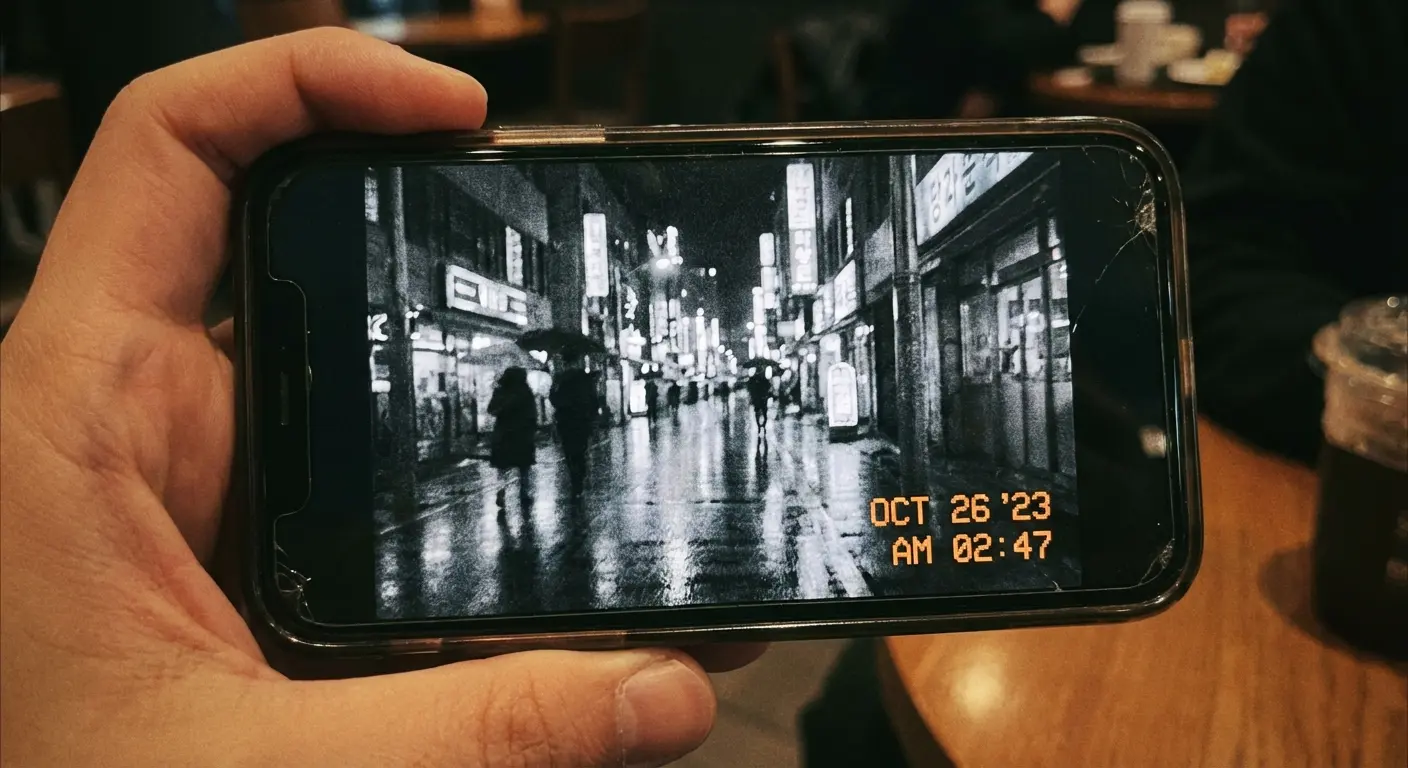
10. Huji Cam
Simulates a specific 1998 disposable camera experience. You look through a tiny viewfinder to shoot, and the "development" adds random light effects. It's an extremely simple point-and-shoot interface. You have limited editing control, but the aesthetic is free.
11. Hypocam
Dedicated exclusively to Black & White photography. You can use the color-channel mixer to darken blue skies into a dramatic black. It has a niche appeal, but the free version is excellent for monochrome lovers.
Social Media, Design & Layout
For creators who need more than just photo correction, these apps help with layout, text overlays, and background removal. Essential for Instagram Stories and marketing materials.
12. Canva
A design powerhouse. You can take a photo and instantly place it into an Instagram Story template with text overlays. Once you start creating more content, you might need tips on organizing your massive photo collection so you can actually find your assets in Canva.
Essential for creators. The free version offers thousands of assets. The UI is drag-and-drop friendly.
13. Adobe Express
Adobe’s answer to Canva. You can remove a background instantly and add branded fonts. It requires an Adobe login, but it has excellent AI text-to-image features in the free tier (with credit limits).
App Name |
Best Used For |
Key Free Feature |
Watermark? |
|---|---|---|---|
Canva |
Instagram Stories & Flyers |
Thousands of templates & elements. |
No (unless premium assets used). |
Adobe Express |
Quick Branding |
One-tap background removal. |
No. |
Unfold |
Minimalist Aesthetics |
Elegant "film strip" frames. |
No. |
Photoroom |
Product Photography |
Studio-quality white backgrounds. |
Yes (small corner logo). |
14. Unfold
A minimalist story maker. You can create a "film strip" layout for three photos with elegant typography. The free templates are stylish but limited in number. The export quality is high.
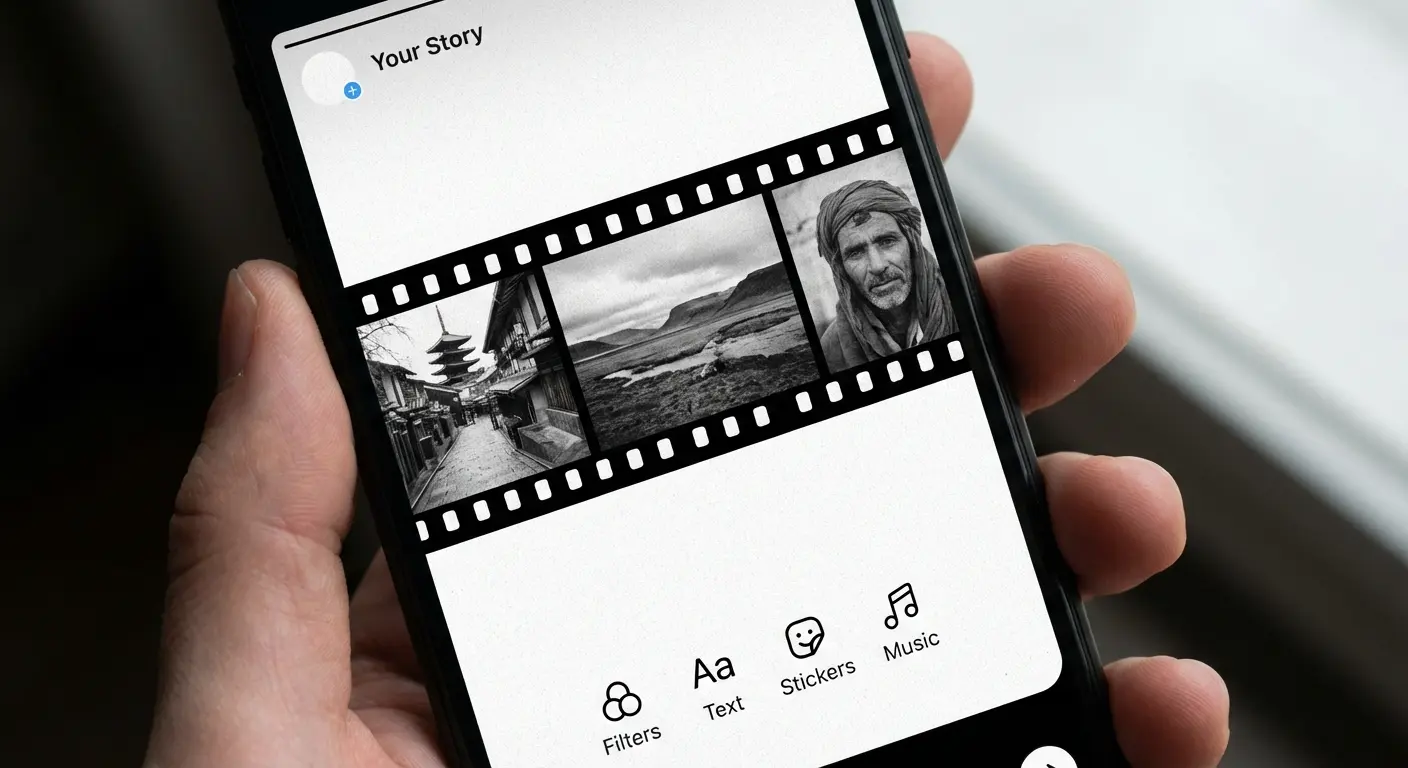
15. Layout from Instagram
Purely for collages. You can mirror an image or stitch four images into a square. Completely free, no ads, very simple. It does one thing and does it well.
16. Photoroom
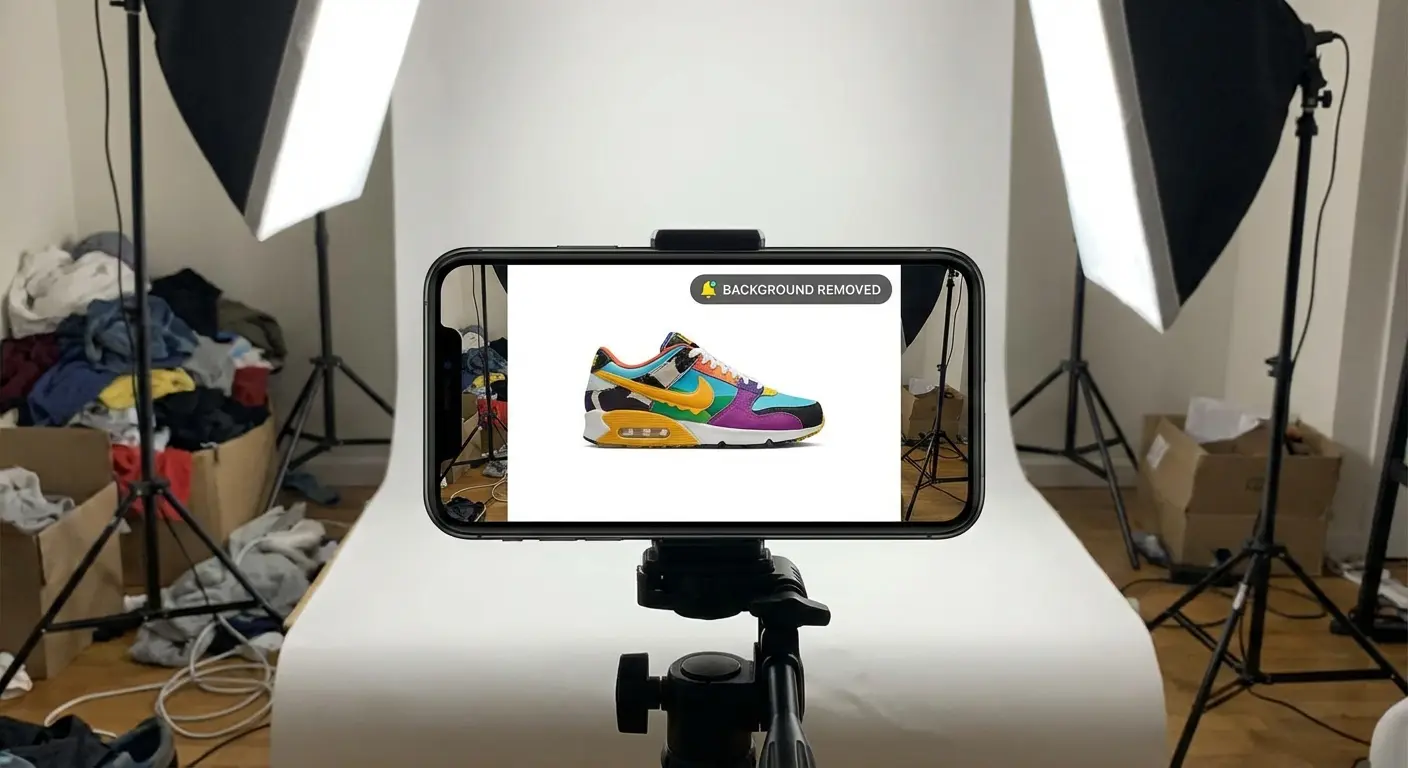
The king of background removal and product photography. You can take a picture of a sneaker and place it on a pure white studio background instantly. The free version places a small watermark on the image, but the AI performance is incredible for sellers.
17. Instasize
A resizing tool to avoid cropping. You can fit a panoramic landscape into a square Instagram post by adding colored borders. It's heavy on the freemium model and pushes the "Premium" subscription aggressively, but it's good for resizing.
Retouching & Portraiture
Let's talk about apps specifically built for enhancing selfies and portraits. Whether you want to smooth skin texture or remove a blemish, these are the tools.
18. Facetune (Basic)
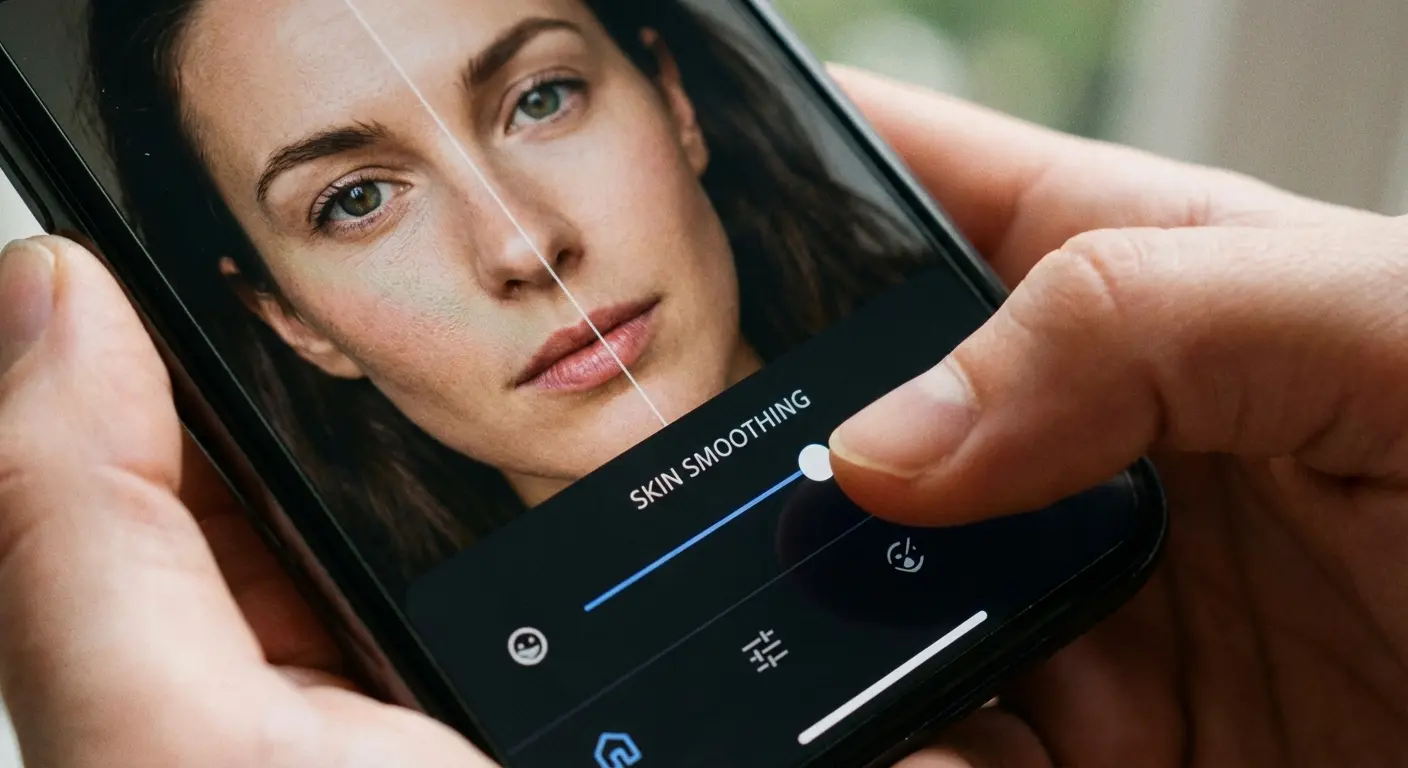
The original selfie editor. You can smooth skin texture or whiten teeth. The free version is now very limited compared to the "VIP" version, but basic smoothing is still accessible.
19. AirBrush
A more natural approach to retouching. The "Acne" tool removes blemishes without blurring the skin texture entirely. The UI is intuitive. Many of the best "makeup" features are paid, but structural edits are often free.
Practical Workflow: The "No-Filter" Look
To retouch a portrait without looking fake, avoid the global "Smooth" slider. Instead, use the Acne/Blemish tool in AirBrush to tap only on specific spots. Then, use the Brighten tool specifically on the eyes (at about 20% intensity). This keeps the natural skin texture while making the subject look awake and refreshed.
20. Peachy
Body and face reshaping. You can adjust height or head size in a full-body shot. These are powerful tools that can easily be overused, so go easy. The free version has ads.
Advanced & Specialized Tools
This final category highlights apps that offer specialized functions like layers, weather effects, and HDR. These are for when you want to push your mobile photography beyond standard limits.
21. Picsart
A messy but massive creative suite. You can add stickers, lens flares, and drawing layers over a photo. The UI is cluttered with ads in the free tier, but the sheer volume of tools (remixing, drawing, layers) is unmatched.
22. Photoshop Express
A mobile-friendly version of Photoshop. Use the "Dehaze" tool to fix foggy landscapes. Requires Adobe ID. It's a good middle ground between Lightroom (color) and Photoshop (manipulation).
Tool Type |
App Recommendation |
Free Tier Capability |
Paid Tier Unlock |
|---|---|---|---|
Layers & Masking |
Pixlr |
Basic double exposure blending. |
Unlimited layers & AI cutouts. |
Weather Effects |
Lens Distortions |
5 free effects per category (Fog, Rain). |
Full library of 400+ effects. |
Dehaze/Clarity |
Photoshop Express |
Full "Dehaze" slider access. |
Advanced noise reduction. |
Stickers/Art |
Picsart |
Millions of community stickers. |
Ad-free experience & premium fonts. |
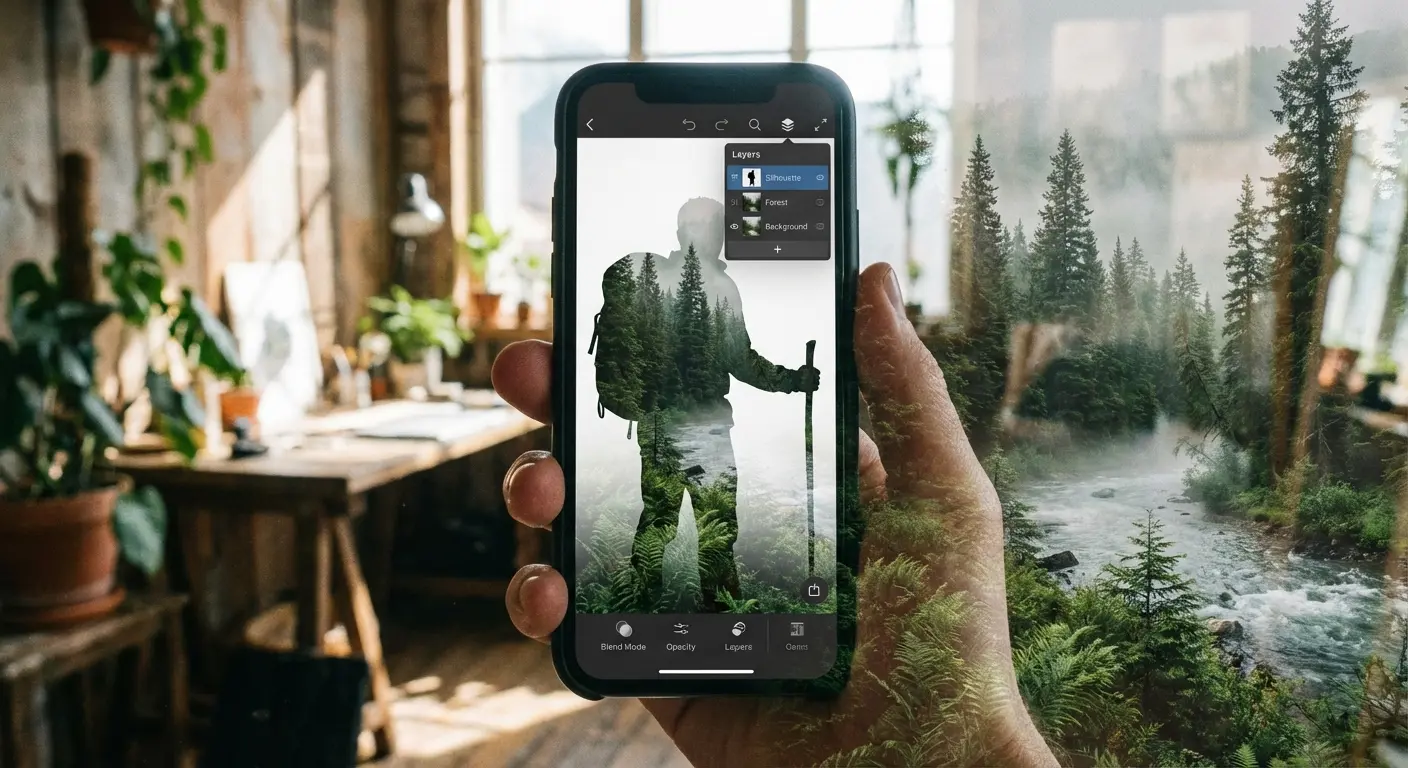
23. Pixlr
Classic layer-based editing. You can create double exposure effects by blending two photos together. Good for graphic design hybrids. Ad-supported in the free tier.
24. Fotor
Focuses on "One-Tap Enhance." You can use HDR effects that balance shadows and highlights instantly. Great for beginners who don't want to fiddle with sliders.
25. Lens Distortions (LD)
Adds cinematic weather effects. You can add realistic rain, fog, or sun rays to a moody landscape. High-end quality. The free version gives you 5-10 effects per category; the rest are paid.
Practical Workflow: Creating Mood with LD
If you have a landscape shot taken on an overcast day, it can look flat. Open Lens Distortions and select the "Classic Fog" pack. Layer a subtle fog effect at the bottom of the frame and lower the opacity to 40%. This adds immediate depth and a cinematic "moody" atmosphere that standard contrast sliders just can't achieve.
Protection Before Perfection: The Hardware Factor
We can talk about apps all day, but software is only half the battle. If your phone is shaking or the lens is cracked, Snapseed can't save you.
Stability Equals Clarity
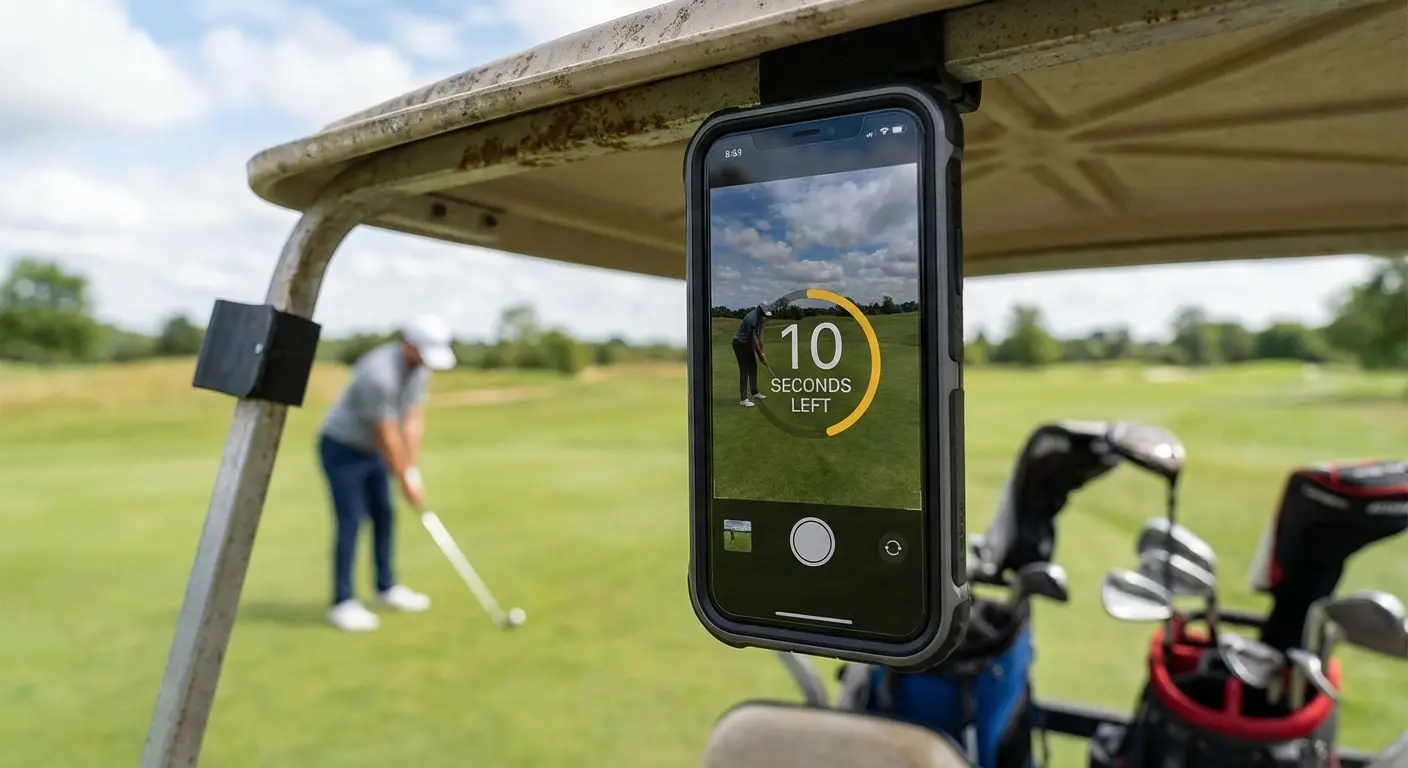
Many of the apps listed above are used to fix blurry or poorly lit photos, but it's better to get the shot right the first time. Our magnetic mounting technology (MAGMAX™) allows you to mount your iPhone securely to gym equipment, golf carts, or cars. This stability ensures your source photo is crisp, reducing the need for heavy sharpening edits later. You can even check out some photography hacks using a magnetic case to see how mounting can unlock new creative angles.
Workflow Protection
Editing photos, especially RAW files in apps like Lightroom, drains battery and requires a firm grip. Our cases are designed to be fully MagSafe® compatible, meaning you can snap on a battery pack or charger without removing the case. Furthermore, our military-grade protection ensures that if you drop your phone while trying to get a high-angle shot, your screen—and your ability to edit—remains intact.
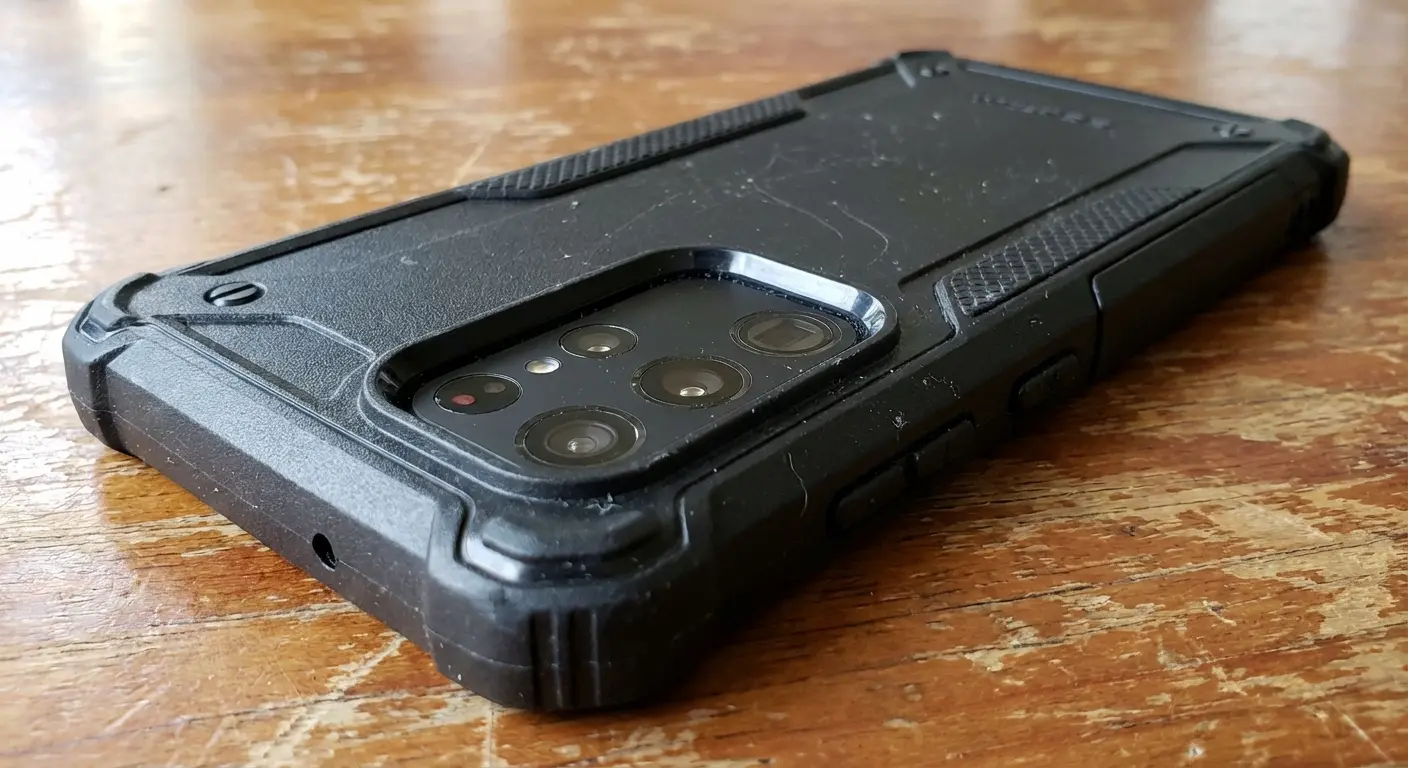
Whether you are a golfer analyzing your swing or a creator editing on the go, pairing these top apps with the utility and protection of a Rokform case ensures your mobile photography workflow is seamless from capture to export.
Final Thoughts
The world of mobile photography changes fast, but the need for quality tools stays the same. The good news is you don't need to subscribe to every service to get great results; you just need to know which free photo editing apps for iphone deliver on their promises. Download a few from this list, test them out on your next shoot, and see which interface clicks with you.

