


Table of Contents
Check the Last Known Location Before Battery Death
Use Find My Network's Offline Finding Feature
Retrace Your Steps Using Apple Maps Timeline
Ask Siri on Another Device to Ping Your Phone
Check Your Connected Bluetooth Devices List
Review Recent Photo Locations in iCloud
Search Your Car's Bluetooth Connection History
Use Family Sharing Location History
Call Your Number and Listen for Vibration
Check Security Cameras Along Your Route
Use a Bluetooth Tracker Paired to Your Phone
Search Common "Auto-Pilot" Drop Zones
Check Your Apple Watch's Last Connection Point
Review Your iPhone's Significant Locations Data
Ask Nearby Devices to Check AirDrop Availability
Use Your Mac's Handoff History
Check Lost and Found Databases Online
Review Your Credit Card or Apple Pay Transactions
Use Third-Party Bluetooth Scanning Apps
TL;DR: Your Dead iPhone is Still Findable (But Not the Way You Think)
iPhones 11 and newer send Bluetooth signals even when dead. Check Find My every hour for surprise location updates.
Your phone left data everywhere: photos, Apple Watch, car Bluetooth, even your Mac. Mine all of it.
Most people find their phone in "autopilot zones," that spot you always set it without thinking.
Try methods #1, #2, #7, and #12 first. The rest are backup plans.
Next time: turn on Find My Network NOW and get a magnetic mount so this doesn't happen again.
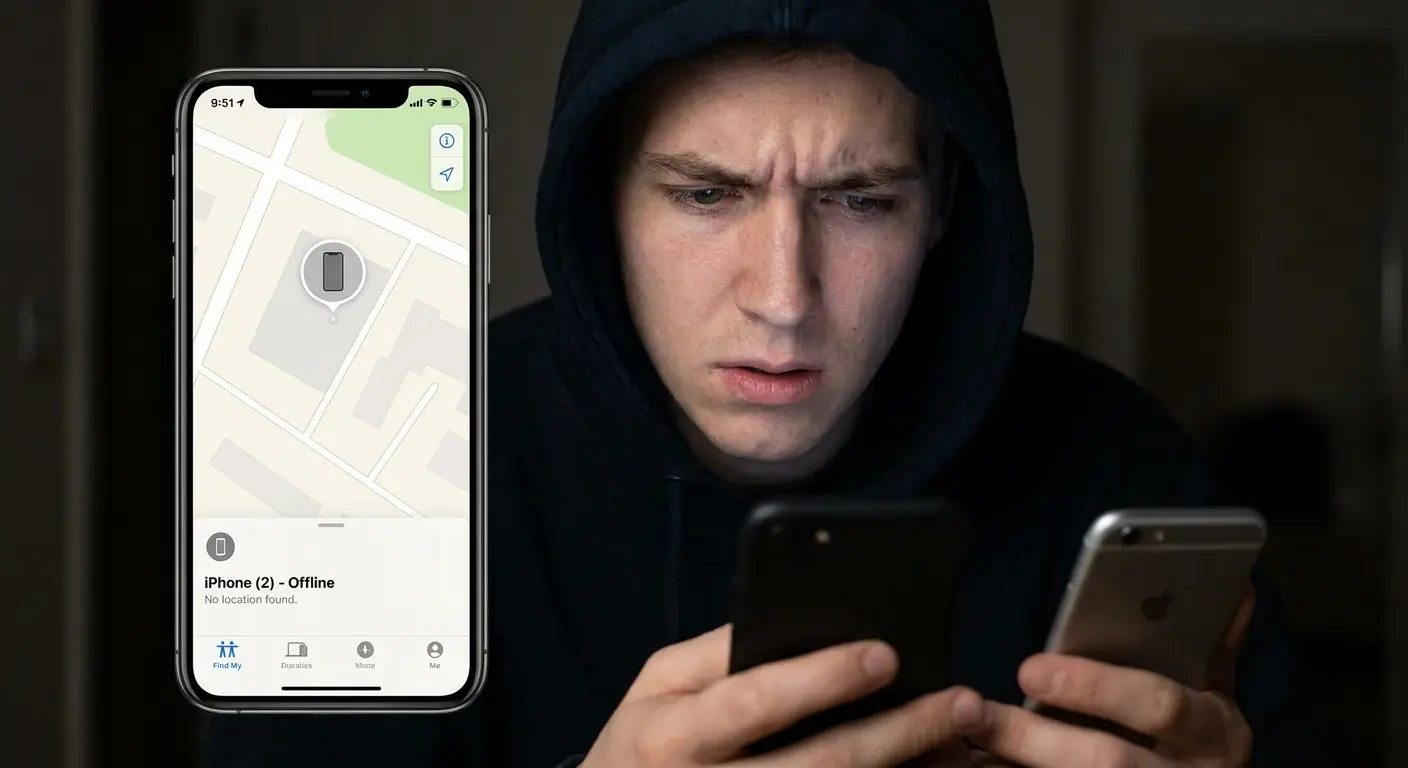
So your iPhone's dead. Like, completely dead. And you have no idea where it is.
You've already checked Find My. It's useless. Every article online assumes your phone has at least 2% battery left, but yours died hours ago. You're stuck staring at a map showing where your phone *was* at 3 PM, and it's now 9 PM. Cool. Super helpful.
I get it. I've been there. So has literally everyone on our customer service team at Rokform, which is why we've become accidental experts at this specific nightmare scenario. Last month alone, we helped someone find their iPhone in a movie theater seat gap using car Bluetooth history, talked another customer through recovering theirs from a Lyft using transaction records, and had one guy find his in his own freezer (I'll explain that one later).
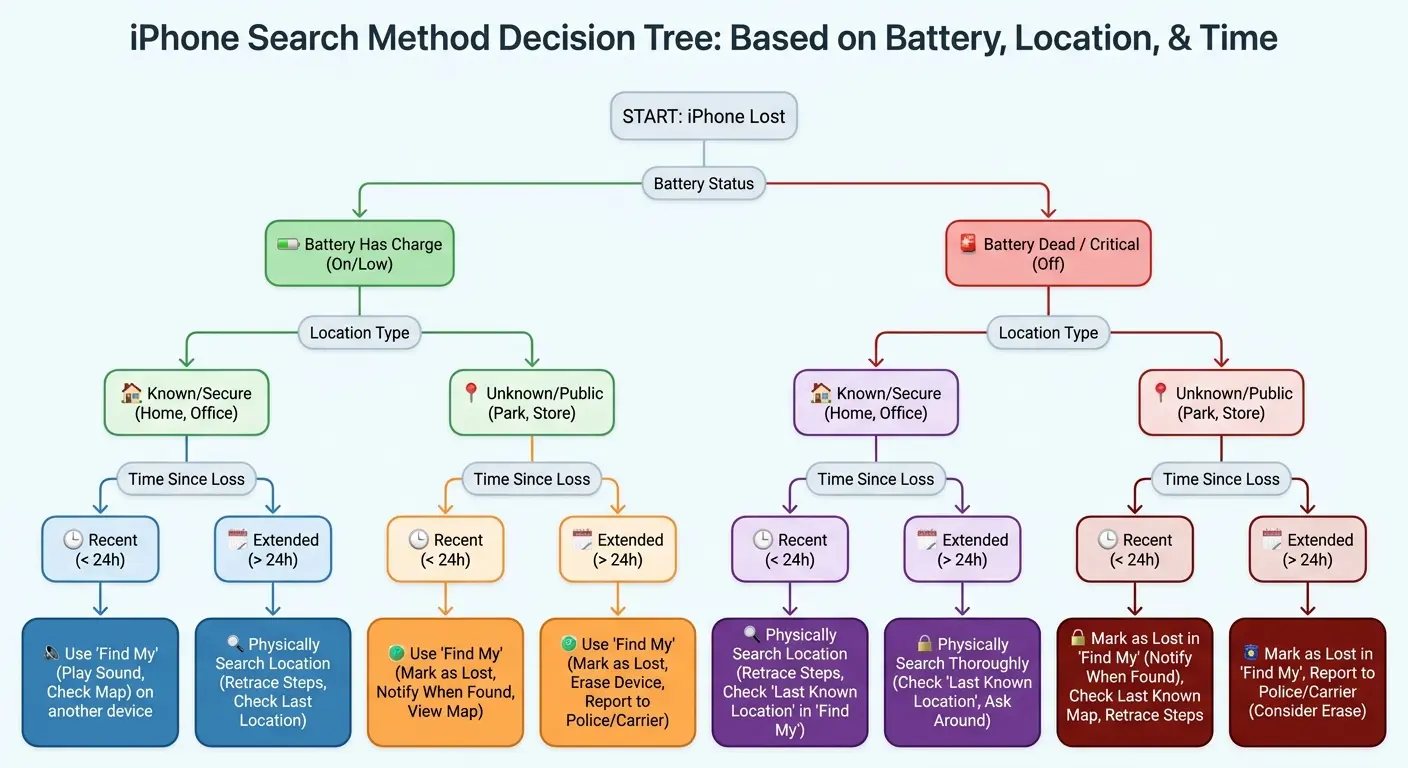
This isn't magic. You're going to combine detective work with the digital breadcrumbs your phone left before it died. Some methods work better than others depending on your situation, but I'm walking you through all of them, starting with the highest success rates. Finding a dead iPhone means thinking beyond the standard "find my phone" features everyone recommends.
Real talk: you probably have 30 minutes of patience for this, max. So here's the priority order.
Try these first (15 minutes):
Method #1: Last known location
Method #2: Find My Network
Method #12: Your autopilot zones
If those fail (next 30 minutes):
Method #7: Car Bluetooth
Method #9: Call and listen for vibration
Method #13: Apple Watch disconnection
Hail Marys (if you're desperate):
Everything else on this list
Most people find their phone in the first three methods or not at all. But I'm including the rest because sometimes the Hail Mary connects.
Your Dead Phone Left Clues Everywhere (Here's Where to Look)
Your iPhone doesn't just exist in the present moment. It creates a continuous trail of data points, timestamps, and location logs across multiple Apple services. iCloud stores these traces even after your battery dies, and they're sitting on your other connected devices right now. Every app and service basically keeps its own diary of where you've been.
The trick is knowing where to look and how to read what you find. Some logs are obvious, others hide in settings menus you've never opened. We're going to dig through every corner of the Apple ecosystem to find clues about your phone's final moments of activity.
1. Check the Last Known Location Before Battery Death
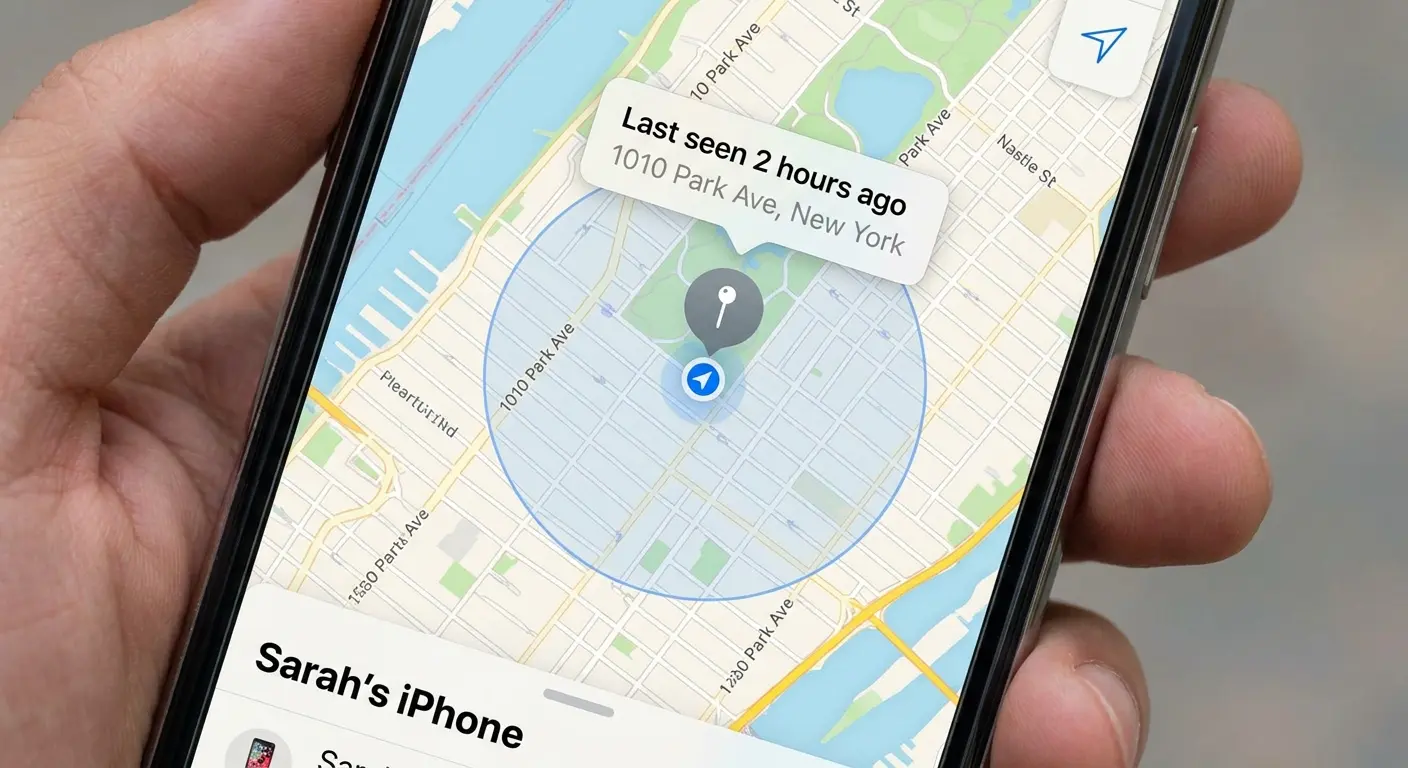
Okay, first thing: Find My device probably already showed you the last place your phone pinged before dying. You've looked at this 47 times already, I know. But look at the *timestamp* under that location pin.
If it says your phone died at 2:47 PM and it's now 8 PM, that's a 5+ hour gap where your phone could've moved (in someone's car, in a lost and found box, whatever). If it died 20 minutes ago? Get in your car right now and drive to that spot.
The location accuracy depends on whether your phone was using GPS, WiFi, or cellular triangulation when it died. GPS gives you accuracy within a few meters. Cell towers alone? You're looking at a several-hundred-meter radius. Note which one you're seeing because it changes how you search.
Screenshot this location and timestamp immediately. You'll reference it multiple times as you work through other methods. The time tells you whether you were stationary or moving, which narrows down where to focus your physical search.
2. Use Find My Network's Offline Finding Feature
Here's something most people don't know: if you've got an iPhone 11 or newer, your phone sends out a little Bluetooth signal *even when it's dead*. Like, actually powered off.
Other people's iPhones pick up that signal and report your phone's location to iCloud, totally anonymously. They never know they helped. It's honestly kind of creepy but also amazing when you need it.
Your dead iPhone can be found through other people's Apple devices without them knowing. The Find My network uses Bluetooth Low Energy signals that your phone emits even when powered down (if you have an iPhone 11 or later with the feature enabled).
Check Find My device every hour or so. If someone walks past your dead phone, you'll get a location update out of nowhere. This feature only works if you enabled "Find My network" before losing your device. Go to Settings > [Your Name] > Find My > Find My iPhone on any of your other devices to verify it was active. If you see "Send Last Location" toggled on, your phone tried to send its position as the battery died.
3. Retrace Your Steps Using Apple Maps Timeline
Apple Maps quietly logs your movements if you've used it for directions or have location services enabled. On another device: Maps app > your profile pic > Settings > Significant Locations. You'll get a timeline of everywhere you went that day.
The timeline shows arrival and departure times, which helps you pinpoint when your phone disappeared. If you see a location where you arrived but the departure time seems wrong, that's likely where you lost it.
The system logs this data even when you're not actively using Maps for navigation. Significant Locations requires specific privacy settings to function. If you've restricted location tracking, this data might be sparse or you'll see gaps. The feature also bundles frequent locations together rather than showing every single stop, so you might need to fill in gaps with memory.
4. Ask Siri on Another Device to Ping Your Phone
Siri can sometimes reach your iPhone even when Find My can't, especially if your phone isn't completely dead but just too low to power the screen. Use any device signed into your Apple ID and say "Hey Siri, where's my iPhone?"
If your phone has even a tiny amount of residual battery, it might play a sound. This works better than you'd expect because the sound alert requires less power than displaying the screen. I've seen phones that won't turn on still respond to Siri. It's weird.
Try this method multiple times throughout your search, especially if you're in a quiet environment where you could hear a faint ping. The command also works through HomePods, Apple Watches, and Macs. Each device sends the request through different network paths, so one might succeed where others fail. Don't assume failure after one attempt.
5. Check Your Connected Bluetooth Devices List
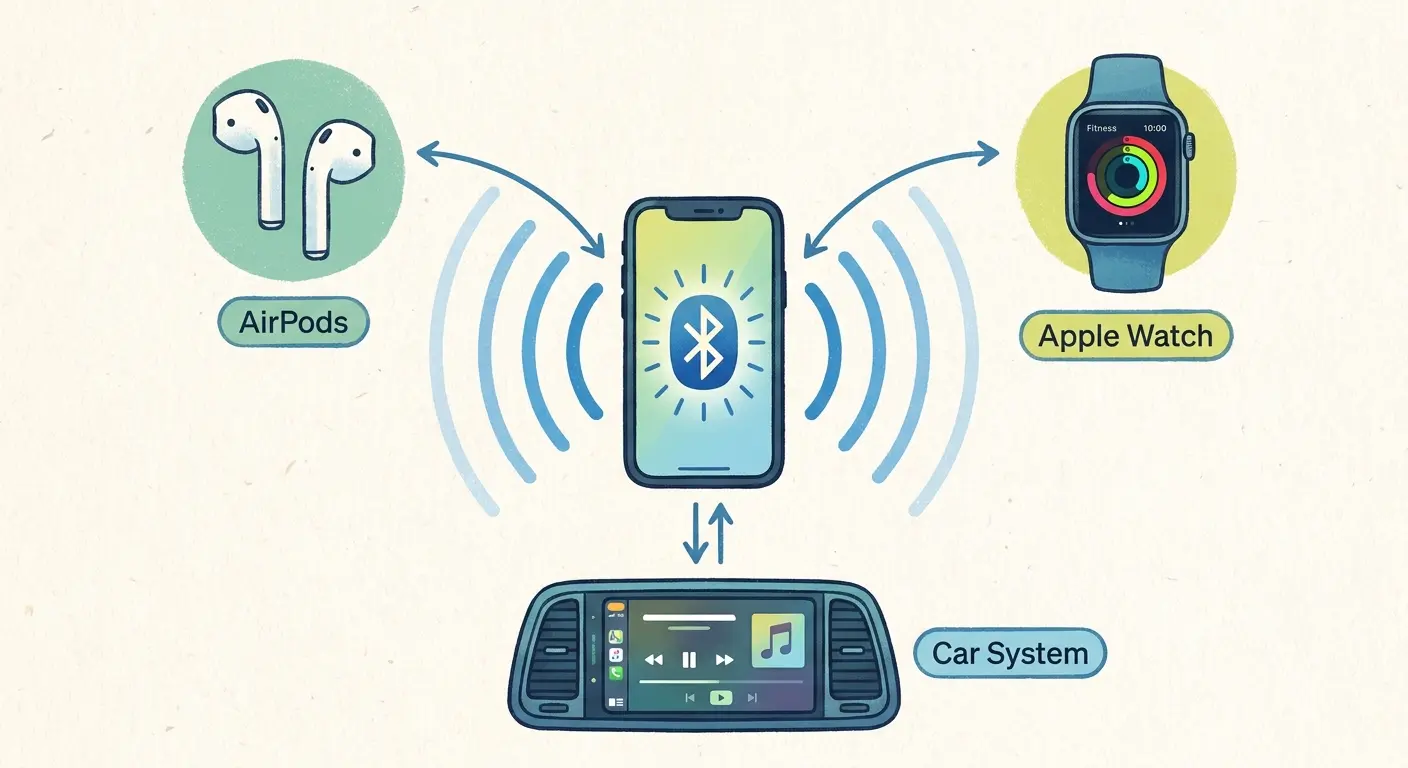
Your phone connects to stuff via Bluetooth all day: your Watch, AirPods, car, whatever. Each connection logs a timestamp.
Here's why that matters: if your AirPods show they disconnected at 3:47 PM but your Watch stayed connected until 4:15 PM, your phone died somewhere between those times. That's a 28-minute window to work with.
Check the Bluetooth settings on your Mac, iPad, or Apple Watch to see when your iPhone last connected. Cross-reference these times with your calendar or memory of that day's activities. Bluetooth range typically maxes out around 30 feet, though walls and interference reduce this significantly. When a device disconnects, you were either moving out of range or your phone was dying. The pattern of disconnections across multiple devices reveals which scenario occurred.
6. Review Recent Photo Locations in iCloud
Every photo your iPhone takes includes location metadata if you have location services enabled for the Camera app. Open Photos on another device, select the most recent pictures taken before you lost your phone, and swipe up to see the map location.
Photos often capture locations that other tracking methods miss because you take pictures at specific moments and places. If your last photo shows a coffee shop you don't remember visiting, that's a strong lead. My coworker Sarah left hers in a Target cart in the parking lot. Found it three hours later using this method because her last photo showed the exact parking space number in the background.
The timestamp on the photo is precise, giving you an exact moment to work backward from. iCloud syncs photos almost immediately when you're connected to WiFi, so even if you lost your phone shortly after taking a picture, that image should be accessible. Sort your photo library by date and look for any gaps that seem unusual. A sudden stop in photos might indicate when you lost the device.
All Your Apple Devices Talk to Each Other (Use That)
Apple's ecosystem creates a web of interconnected devices that constantly communicate with each other. Every handoff, every shared service, every cross-device feature generates logs and timestamps. These connections exist for convenience, but they double as a tracking system when you need to reconstruct your phone's final active moments.
Most people never explore these connection histories because they work invisibly in the background. Now you're going to dig into every handoff log, every shared location, every ecosystem feature that might tell you where your phone was before it died.
7. Search Your Car's Bluetooth Connection History
Your car's infotainment system remembers every time your iPhone connected and disconnected. Access your vehicle's Bluetooth settings and look for connection history or device logs. Most modern cars display timestamps for the last several connections.
If your car shows your phone disconnected while you were still driving, you likely left it somewhere before getting in the vehicle. If it disconnected after you parked, the phone might be in the car, fallen between seats or under floor mats. Check the timestamp against your arrival time at your destination.
Some vehicles store more detailed logs than others. Teslas and newer BMWs keep detailed logs with timestamps and signal strength. Toyota and Honda? Not so much. Check your car's Bluetooth settings either way, but don't expect miracles if you're driving an older model. If your car's system is still trying to connect to your phone, that means Bluetooth is active, suggesting your phone isn't completely dead yet.
8. Use Family Sharing Location History
Family Sharing creates multiple viewpoints of your device's location. Ask family members to open Find My on their devices and check for your iPhone. Sometimes location data appears on their devices even when it doesn't show on yours (particularly if they opened the app closer to when your phone died).
Family members who have shared their locations with you might also have timeline data showing when they were near you. If your spouse's location history shows you were together at a specific store, but your own data is unclear, that collaboration fills in the gaps.
Cross-referencing multiple people's timelines creates a more complete picture. This method works best when you've previously enabled location sharing with family members through Find My Friends. The system keeps separate logs for each user, so data corruption or sync issues on your account won't affect theirs.
9. Call Your Number and Listen for Vibration
This one feels stupid until it works: call your phone and just *listen* for the vibration.
I know, I know. Your phone's dead. But vibration uses way less battery than the screen. I've seen phones that won't turn on still buzz when called. It's weird.
Works best if you're searching somewhere quiet. That buzzing sound travels through hard floors like crazy. I found my phone once because it was vibrating against the metal leg of my desk chair. Sounded like an angry bee trapped under there.
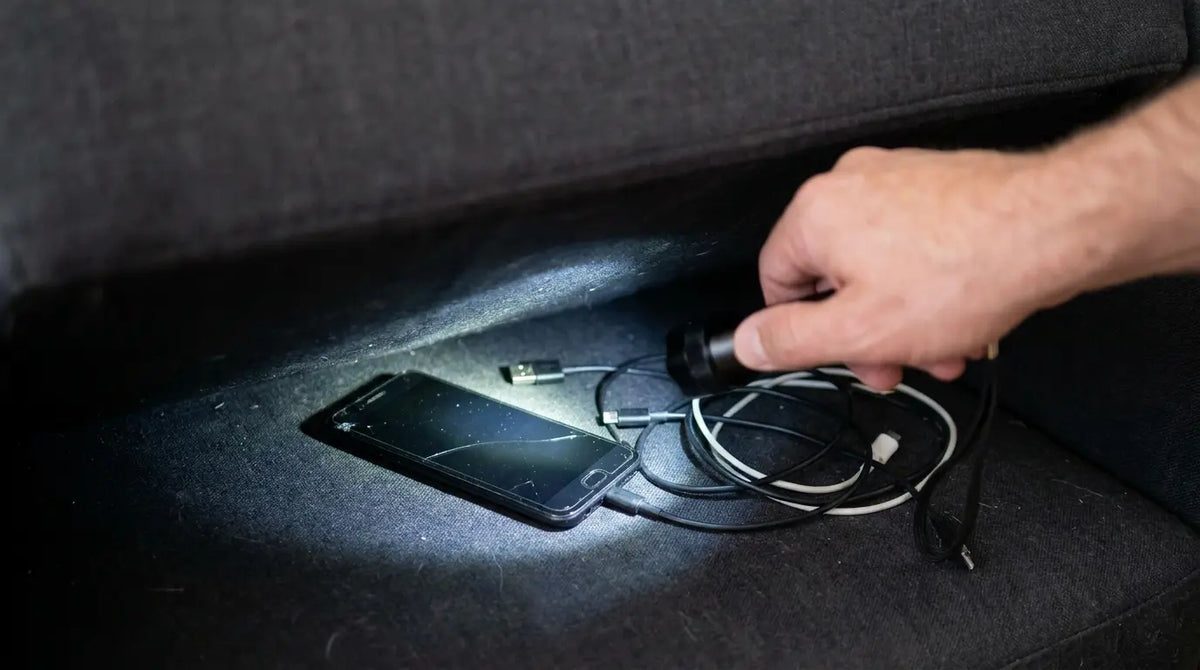
Move systematically through each room or area, calling every few minutes. Vibration sounds different depending on the surface. It's loud and rattling on hard floors, muffled on carpet or fabric. Check under couch cushions, inside jacket pockets, and anywhere the phone could be face-down against a solid surface. If you have a protective case on your iPhone, vibration might be dampened or amplified depending on the case design. Rigid cases often amplify the sound, while soft silicone cases absorb it. A rugged phone case with a solid backing tends to create more audible vibration than flexible alternatives.

10. Check Security Cameras Along Your Route
Businesses and residences along your route likely captured you on camera. Identify which stores, restaurants, or buildings you visited before losing your phone, then contact them to request footage review.
Most systems overwrite recordings after 24 to 72 hours, so act quickly. Don't call and ask over the phone. Go in person. Explain your situation clearly and offer to review footage yourself. Bring identification and any proof that the phone is yours (like your Apple ID or purchase receipt). Many businesses are willing to help, especially if you can narrow down the timeframe.
Ring doorbells and similar home security systems might have captured you walking past. If you're comfortable doing so, knock on doors in neighborhoods you walked through and politely ask if homeowners would check their camera footage. People are often more helpful than you'd expect.
Your Phone is Somewhere You Put It (Without Thinking)
Humans are creatures of habit. We follow the same routes, place items in the same spots, and perform actions on autopilot without conscious awareness. These patterns create predictable loss locations that have nothing to do with technology and everything to do with psychology.
Your phone isn't randomly lost. It's somewhere your body placed it while your mind was focused on something else. Understanding your own behavioral patterns helps you search more effectively than any app ever could.
11. Use a Bluetooth Tracker Paired to Your Phone
If you have AirTags or other Bluetooth trackers attached to your keys, wallet, or bag, their location history might reveal where your phone is. These trackers log their own positions, and if your phone was nearby when they last updated, you can infer your phone's location.
Some tracker apps show connection history with your iPhone. If your AirTag disconnected from your phone at a specific location, your phone either died there or you moved out of Bluetooth range.
Check the tracker's last known location against your own memory of movements. Tile and other third-party trackers offer similar functionality. Their apps keep separate location logs that might contain data your iPhone's Find My app doesn't show. This redundancy across different tracking systems increases your chances of finding useful location data.
12. Search Common "Auto-Pilot" Drop Zones
Real talk: you probably put your phone down in the same dumb spot you always do.
Everyone has these autopilot zones. Mine's the kitchen counter next to the coffee maker. I set my phone there every single morning while making coffee, then forget it there approximately 40% of the time. Weirdest one we've heard: a customer found his iPhone in his washing machine. He always empties his pockets onto the washer lid, and it slid off into the open door.
Check your autopilot spots first:
Bathroom counter (especially if you were getting ready to go out)
That table right inside your front door where mail piles up
Your nightstand, under whatever book or water bottle is covering it
Car cup holder, center console, or that little tray thing near the gear shift
Your body knows where your phone is even if your brain doesn't. Trust your first instinct about where to look. These micro-routines create patterns you don't actively remember but your body follows consistently. Check underneath and behind items in these zones. Phones slip behind couch cushions, under mail piles, or inside bags you set down in your usual spots.
13. Check Your Apple Watch's Last Connection Point
Your Apple Watch keeps a detailed log of when it connected to and disconnected from your iPhone. Open the Watch app on another iPhone or check your Watch's Settings > Bluetooth to see connection history. The disconnection timestamp pinpoints when your phone either died or moved out of range.
Watches typically stay connected up to 30 to 40 feet from your iPhone, though this varies with obstacles. If your Watch disconnected while you were stationary, your phone's battery likely died at that exact location.
If you were moving, you either left it behind or it fell out of your pocket. Some Watch features like Handoff and Activity sharing create their own connection logs. Check the Activity app to see if workout data was still syncing from your phone. A sudden stop in data transfer indicates the moment your phone became unreachable.
14. Review Your iPhone's Significant Locations Data
Significant Locations tracks more than just where you've been. It identifies patterns in your movements and assigns frequency scores to locations you visit regularly. Access this through Settings > Privacy > Location Services > System Services > Significant Locations on any device signed into your iCloud account.
The system categorizes locations as home, work, or frequent visits. If your phone died at a location you visit regularly, it will appear in this list with timestamps.
You might discover you stopped at a store you don't consciously remember visiting, but the data doesn't lie. This feature learns your behavior over time, so it's particularly useful for finding phones lost during routine activities. If you always stop at the same gas station on Tuesday mornings, and your phone disappeared on a Tuesday, that location deserves extra attention even if you don't specifically remember going there.
Search Method |
Effective Range |
Battery Required |
Best Use Case |
Success Rate |
|---|---|---|---|---|
Find My (standard) |
Unlimited (with network) |
Yes |
Phone still has charge |
High when active |
Find My Network |
Unlimited (crowdsourced) |
No (iPhone 11+) |
Dead phone in populated area |
Medium-High |
Bluetooth scanning |
30-100 feet |
Minimal |
Close-range physical search |
Medium |
Vibration detection |
20-40 feet |
Minimal |
Quiet indoor environments |
Low-Medium |
Apple Watch disconnection |
30-40 feet |
No |
Pinpointing last active location |
High |
Photo metadata |
Unlimited |
No |
Retracing steps from hours before |
Medium |
15. Ask Nearby Devices to Check AirDrop Availability
AirDrop detection works independently from Find My and can sometimes locate phones that aren't showing up in tracking apps. Ask people in the area where you lost your phone to open their sharing menus and check if your device appears as an AirDrop option. Android users should follow my find my phone guide for Android instead.
Your iPhone broadcasts its AirDrop availability via Bluetooth and WiFi even when battery is critically low. If someone's device shows your phone as available, you're within roughly 30 feet of it. This method works in offices, restaurants, or any location where you can ask staff or patrons for help.
AirDrop visibility depends on your sharing settings. If you have it set to "Contacts Only," only people in your contacts will see your device. "Everyone" makes it visible to any nearby iOS device. Check your settings on another device to know which mode your lost phone was using.
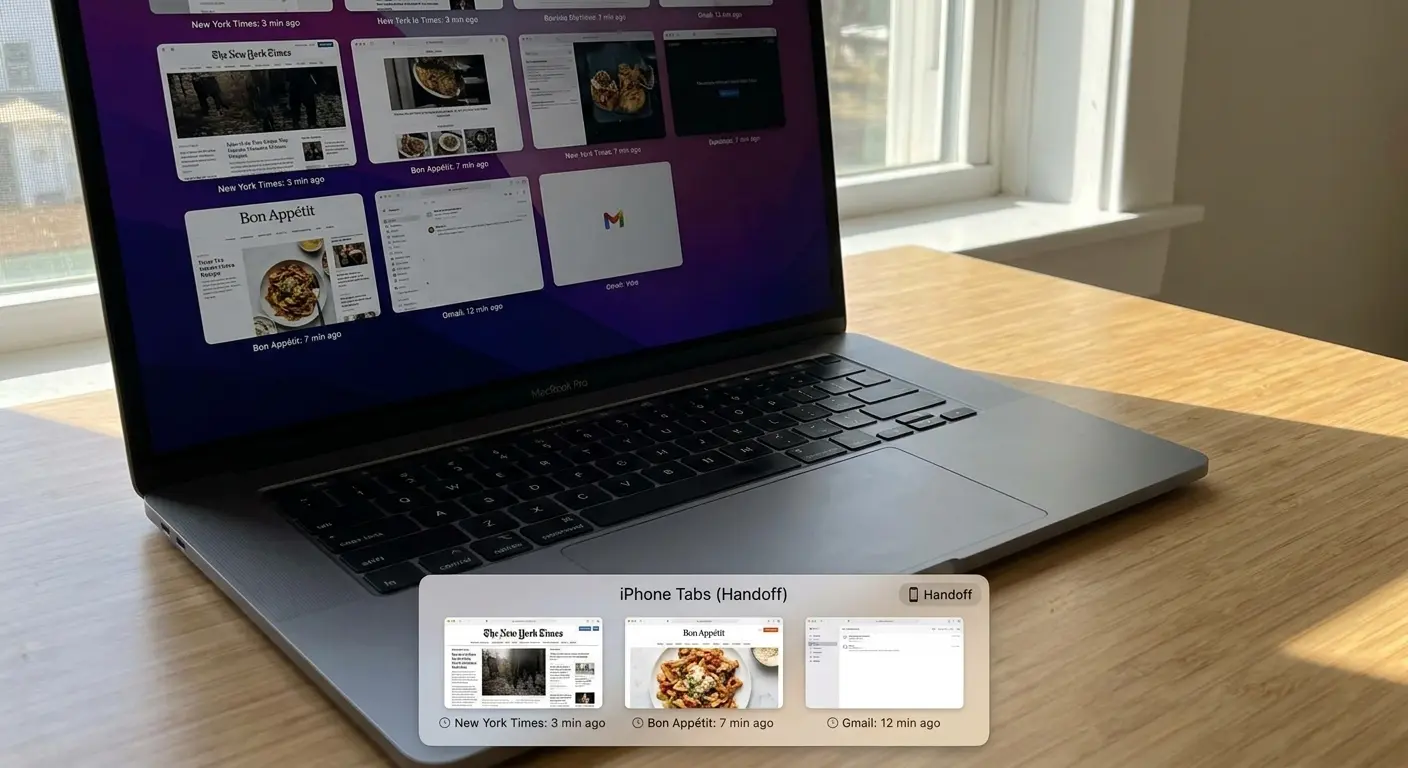
16. Use Your Mac's Handoff History
Your Mac attempts Handoff connections whenever your iPhone is nearby and you're actively using apps that support the feature. Check your Mac's Bluetooth preferences and recent items menu to see when your iPhone last connected for Handoff purposes.
Safari on Mac shows tabs that were open on your iPhone through Handoff. If you see recent tabs from your iPhone, note the timestamp. That's when your phone was last active and near your Mac.
Email drafts, Notes, and other apps that support Handoff create similar breadcrumbs. Failed Handoff attempts are equally valuable. If your Mac tried to connect to your iPhone for Handoff but failed, that attempt has a timestamp. Your phone was either out of range or dying at that moment, which narrows down the timeframe and location.
When Technology Fails (And What Actually Works)
Sometimes technology fails completely. Your phone might be truly gone, stolen, or destroyed. Other times, the solution comes from sources outside your personal ecosystem: databases maintained by transit authorities, businesses, or community members who found your device and want to return it.
Prevention deserves equal attention to recovery. We've designed every product at Rokform with the understanding that the best way to find your phone is to never lose it in the first place.
17. Check Lost and Found Databases Online
Multiple online databases aggregate lost and found reports from businesses, transit systems, and good samaritans. Search sites like LostMyStuff, Chargerback, and local Facebook groups dedicated to lost items in your area. Many cities have subreddit communities where people post found items.
Transit authorities keep their own lost and found databases. If you used public transportation before losing your phone, check your local bus, train, or subway system's website.
Most update their databases daily and keep items for 30 to 90 days. When searching these databases, provide your phone's serial number or IMEI (accessible through your Apple ID account online). This helps verify ownership if someone turned in your device. Include details about your case or any distinguishing features that make your phone identifiable.
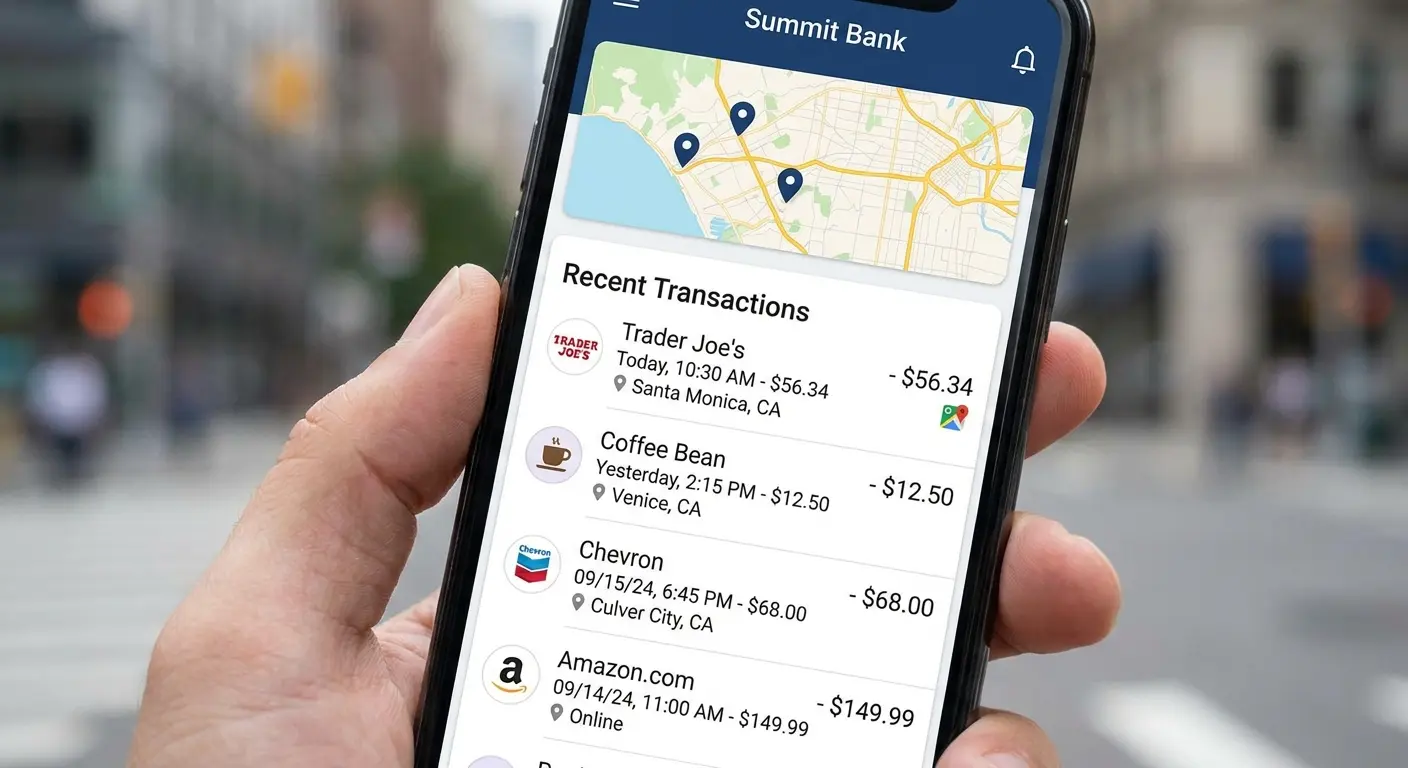
18. Review Your Credit Card or Apple Pay Transactions
Your credit card and Apple Pay transactions create a timestamped map of where you've been. Log into your banking app or credit card account and review charges from the day you lost your phone. Each transaction shows a location and exact time.
Apple Pay transactions include even more detailed location data. Check Wallet on another device to see not just where you paid, but the specific terminal or register.
This precision helps you remember which part of a store you were in, narrowing your search area if you return to look. I once tracked mine to a restaurant using Apple Pay transactions, went back, and the hostess had it in a drawer. She'd been waiting for someone to call. Transactions reveal gaps in your timeline too. If you have a purchase at Store A at 2 PM and Store B at 4 PM, but no memory of the two hours between, focus your search on locations you might have visited during that window.
19. Use Third-Party Bluetooth Scanning Apps
Third-party Bluetooth scanner apps can detect your iPhone's Bluetooth signal even when the phone appears dead to Find My. Apps like BLE Scanner, LightBlue, or Bluetooth Finder scan for all nearby Bluetooth devices and display their signal strength.
These apps work by detecting the low-energy Bluetooth beacon your iPhone emits. Walk through areas where you might have lost your phone while running the scanner. As you get closer to your device, the signal strength increases. This hot-and-cold approach helps you zero in on the exact location.
The method has limitations. Bluetooth signals bounce off walls and interfere with each other in crowded areas. You'll detect dozens of devices, and identifying which one is your iPhone requires checking MAC addresses or device names. Your iPhone's Bluetooth name (usually "iPhone" followed by your name) should appear in the scan results if you're within range.
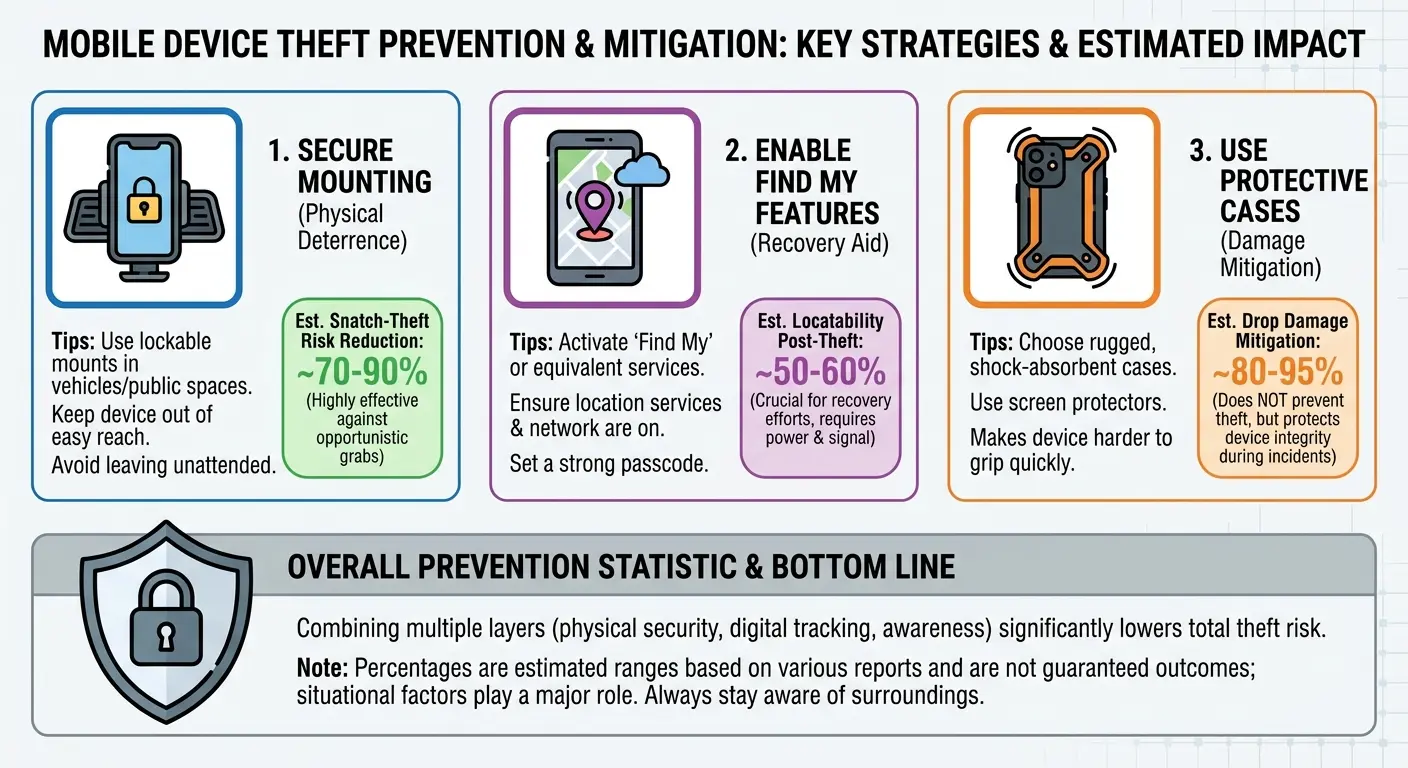
I work for a company that makes mounts and cases, so obviously I'm going to mention our magnetic mounting systems. But honestly? The reason we designed them is because I personally lost two iPhones in one year. One fell out of my pocket on a bike ride, another slid off my car dashboard and under the seat where I didn't find it for three days. Magnetic mounts aren't sexy, but they work. Your phone clicks in and stays there. A case with a reliable mount prevents the loss before it happens, which beats any recovery method.
What Won't Work (Stop Wasting Time on These)
Before you spend hours on dead ends, here's what doesn't work:
Calling Apple Support: They'll just tell you to check Find My. They can't track your phone beyond what you can see in the app.
Those "Find My iPhone" apps in the App Store: They're just reskinned versions of Apple's Find My. Save your $4.99.
IMEI tracking services: Scams. Your phone's IMEI doesn't broadcast its location. That's not how cell networks work.
Asking your carrier to ping it: They can't and won't. Even if they could, they wouldn't do it for a lost phone.
I'm telling you this because I've watched people waste hours on these dead ends. Skip them.
If You Never Find It (The Honest Reality)
Here's the truth: you might not find your phone.
I hate ending on that note, but after trying all these methods, some phones just stay lost. Stolen, destroyed, dropped in a lake, whatever.
But try the first five methods on this list before you give up. Those are the ones that actually work most often. The rest? They're Hail Marys, but sometimes Hail Marys connect.
What to do if it's really gone:
File an insurance claim if you have coverage. Mark your phone as lost in Find My so it gets bricked and nobody can use it. Change your passwords immediately, especially for banking apps and email. Enable two-factor authentication on everything if you haven't already.
Check your homeowner's or renter's insurance. Many policies cover lost phones under personal property coverage. You might have a deductible, but it's better than paying full price for a replacement.
Review what was on your phone. If you weren't backing up to iCloud, those photos and messages are gone. I'm sorry. That's the worst part of losing a phone, not the device itself but the irreplaceable stuff on it.
Prevention (So This Never Happens Again)
When you get your replacement, do these things immediately:
Turn on Find My Network. Settings > [Your Name] > Find My > Find My iPhone. Enable both "Find My iPhone" and "Find My network." This lets your phone be tracked even when dead.
Enable Send Last Location. Same menu. Your phone will automatically send its location to Apple when the battery is critically low.
Set up location sharing with someone you trust. A spouse, parent, or close friend. If you lose your phone, they can help track it from their device.
Back up to iCloud regularly. Or use a computer if you don't want to pay for iCloud storage. Just back up your stuff. Automatic backups save you when the worst happens.
Get a case with a secure mount. I'm biased because I work for Rokform, but I'm also the idiot who lost two phones before I started using magnetic mounts. Your call.
Treat your phone like you treat your wallet. Check for it before leaving any location. Develop a routine: phone, keys, wallet. Pat your pockets. Make it automatic.
Don't announce on social media that you lost your phone and where. That's how phones get stolen instead of returned. Tell people privately, but don't broadcast it to the world.
Look, Here's the Bottom Line
I've thrown 19 methods at you, but here's what actually happens most of the time:
You either find your phone in the first three places you look (Find My last location, your car, or that spot you always put it), or you don't find it at all.
The rest of this list? It's for when you're desperate and willing to try anything. And sometimes, not often, but sometimes, Method #14 or #18 pulls off a miracle.
If you don't find it after trying everything here, file an insurance claim, mark it as lost in Find My so it gets bricked, and change your passwords. Losing a phone is the worst. The device is expensive, sure, but it's the photos and messages that really hurt.

