


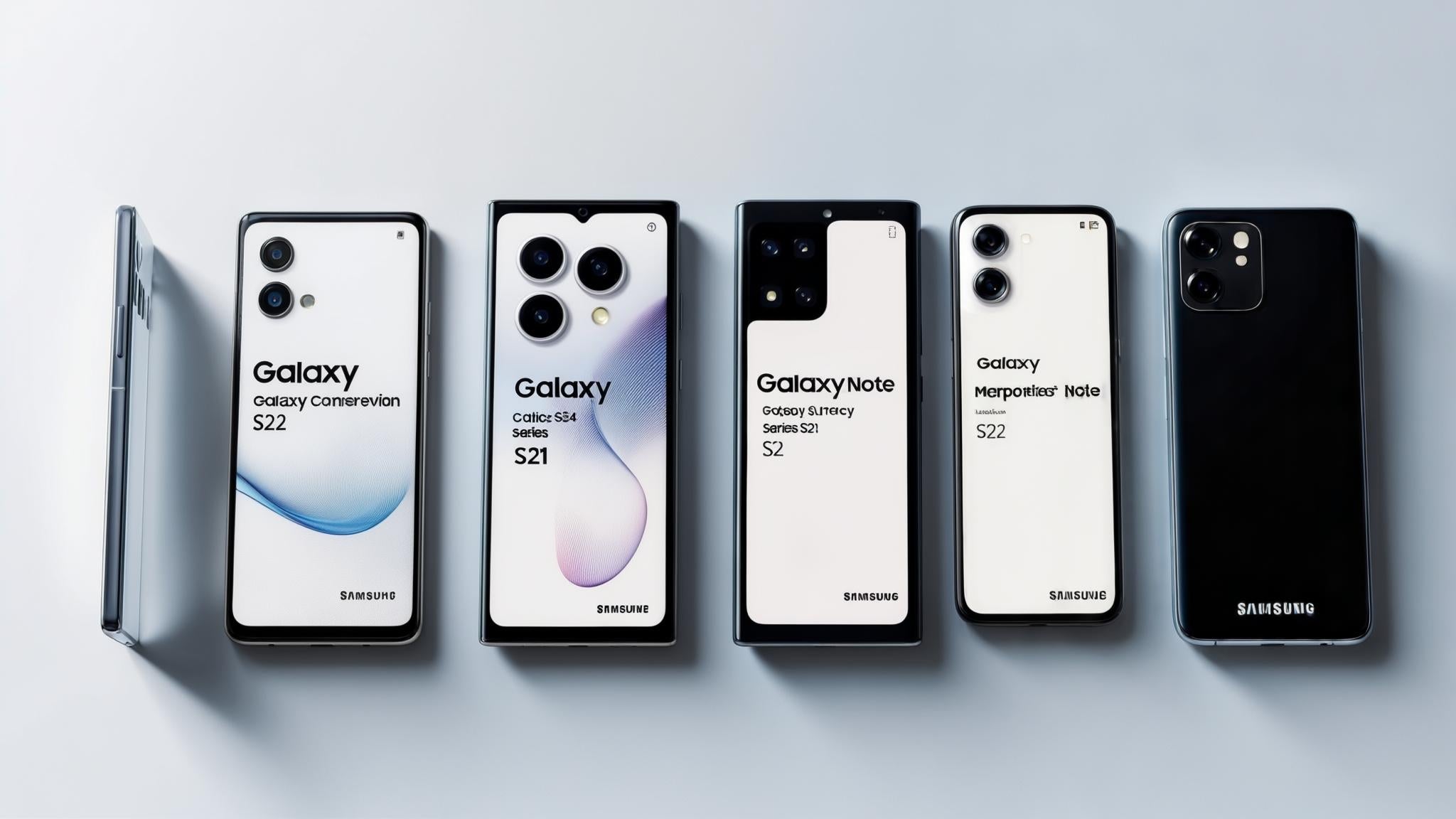
So there I was at Best Buy, holding what I thought was a Galaxy S21, trying to buy a screen protector. The salesperson asked which exact model I had, and I just stood there like a deer in headlights. Turns out there's a huge difference between an S21, S21+, and S21 Ultra - and they all need different accessories. That embarrassing moment sent me on a mission to figure out every possible way to identify these phones.
According to Android Authority, you can find your Samsung phone's model information through the Settings app by navigating to About phone > Status information for the full model code. But honestly, there are way more methods than just that one, and some work better depending on your situation.
Table of Contents
Why This Actually Matters (More Than You Think)
The Easy Methods (When Your Phone Works Fine)
Physical Detective Work (For When Things Go Wrong)
Online Sleuthing Techniques
Geeky Technical Approaches
Visual Comparison Tricks
When All Else Fails: Get Professional Help
Which Method Works Best When
How Rokform Enhances Your Galaxy Experience
Final Thoughts
TL;DR
Knowing your exact Galaxy model isn't just phone nerd stuff - it affects everything from cases to software updates
If your phone works, start with Settings > About phone - it's usually the most reliable
When your screen is busted, check the SIM tray or back panel for printed model numbers
IMEI lookup works even when your phone is completely dead
Apps like CPU-Z reveal detailed specs that help tell similar models apart
Samsung service centers can identify anything, even if it's been through a blender
Different methods work better depending on whether your phone is working, broken, or somewhere in between
Why This Actually Matters (More Than You Think)
Here's why this actually matters (and it's not just being a phone nerd): Get the wrong case and it won't fit. Download the wrong software update and you might brick your phone. Try to claim warranty on the wrong model? Good luck with that.
We've all been there - you think you know which Galaxy you have until you need to buy an accessory or get help from customer service. Samsung uses these cryptic alphanumeric codes like SM-G998U that determine everything from which cases fit to which updates you'll get.
The thing about Samsung phones is they look really similar from the outside, but the devil's in the details. Camera placement, port locations, even the exact dimensions can vary just enough to make accessories a nightmare if you guess wrong. I learned this the hard way when I ordered a "Galaxy S22" case that turned out to be for the regular S22, not my S22+. The camera cutouts were completely off.
And don't get me started on software updates. Samsung pushes different firmware to different model numbers, even within the same phone series. Regional variants get updates at different times, and some features might not work if you're running the wrong version.
When it comes to warranty and resale value, knowing your exact specs matters big time. Service reps need precise model numbers for warranty claims, and buyers want to know exactly what they're getting - storage capacity, RAM, regional variant, the works.
The Easy Methods (When Your Phone Works Fine)
Look, if your phone is working fine, start with these built-in methods. They're dead simple and usually give you exactly what you need without downloading anything extra.
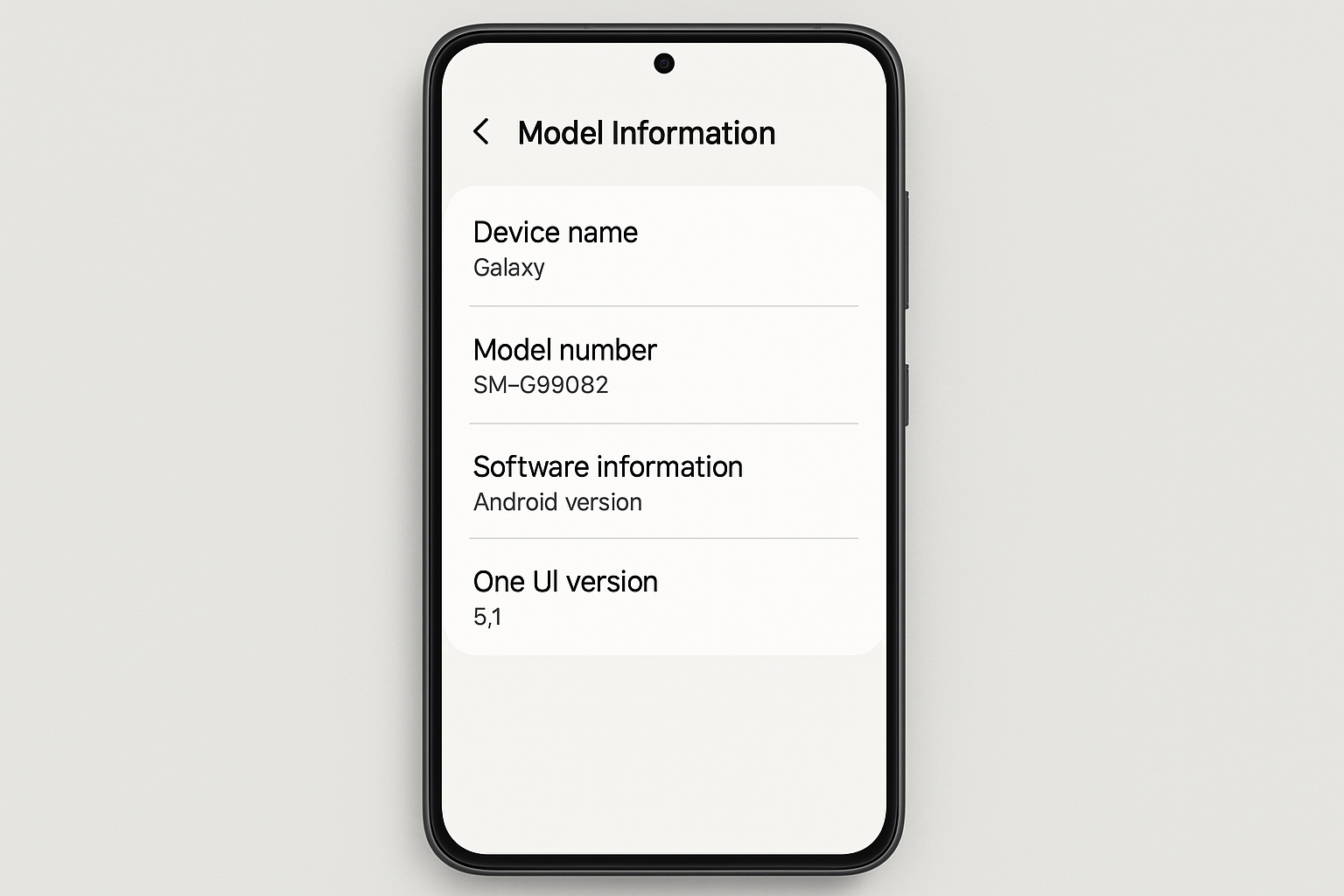
1. Settings Menu - About Phone
Just go to Settings, then About phone - it's usually buried in there somewhere depending on your Android version. You'll find your model name, that cryptic model number (like SM-G998U), Android version, and other key specs laid out pretty clearly.
This works pretty much every time, assuming your phone isn't completely toast. The "Model number" shows Samsung's official code, while "Device name" gives you the marketing name like Galaxy S21 Ultra. The software info includes build numbers that help figure out regional variants and carrier modifications. I show how to tell which Samsung phone you have step by step.
I just checked my S23 Ultra while writing this - had to dig through like three different menu screens because Samsung loves hiding this stuff. Finally found it under "About phone" where it says SM-S918U. Why can't they just put this info somewhere obvious?
2. Dial Code Method
Open your phone app and try dialing `*#1234#` or `*#12580*369#`. These codes bypass the normal menus and sometimes spit out detailed device info immediately.
Half the time when I try these dial codes, nothing happens. Some carriers block them, some phones ignore them. It's hit or miss, but worth a shot since it only takes 30 seconds to try.
3. Samsung Members App
If you've got the Samsung Members app installed (it usually comes pre-loaded), check "Get help" > "Interactive checks" > "Device care." You'll get detailed specs including model, storage, RAM, and diagnostic info.
This one requires a Samsung account, which is annoying if you don't already have one set up. But it does give you Samsung-verified info plus some diagnostic features that can be handy.
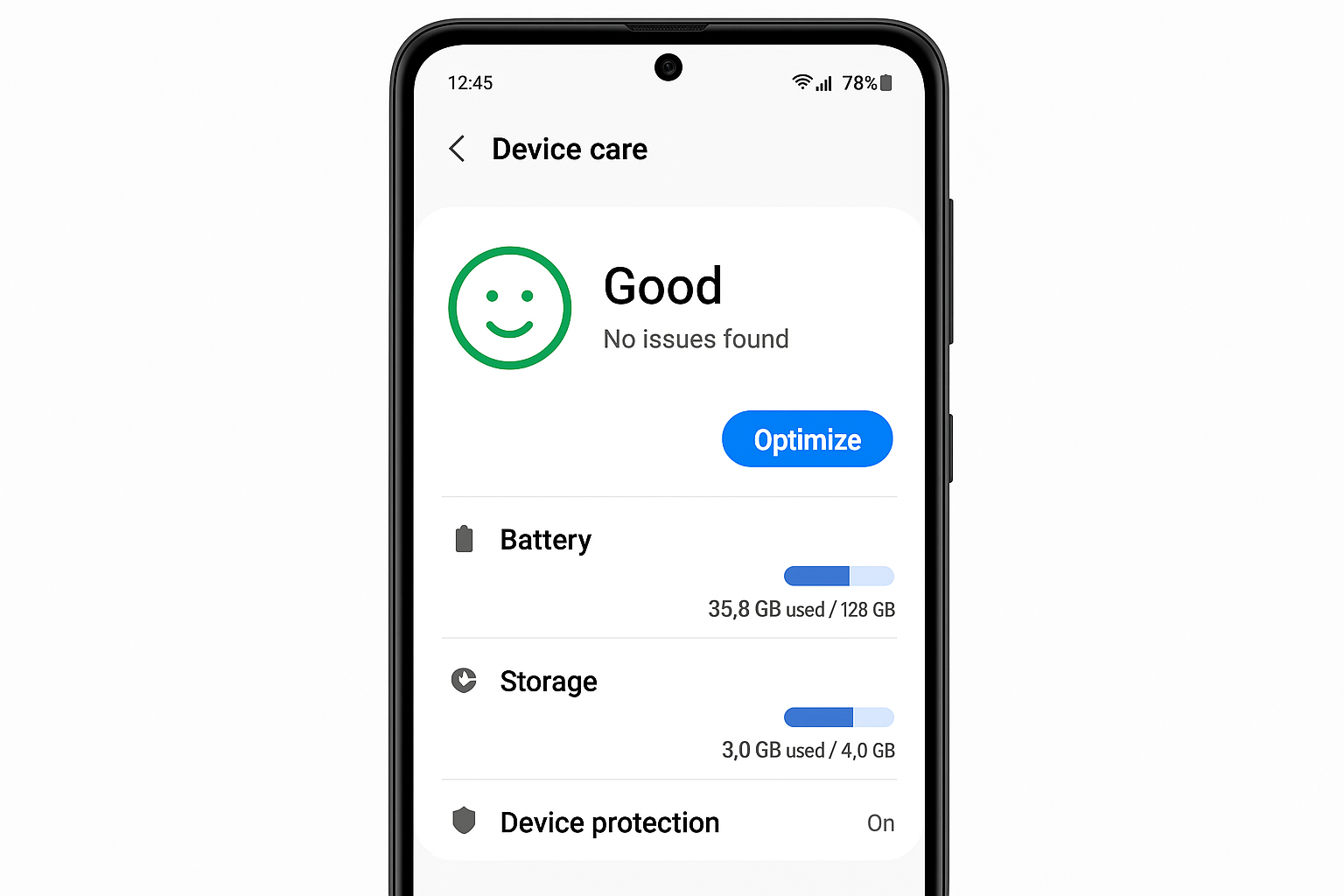
4. Device Care Section
Go to Settings > Device care, tap those three dots in the corner, then Storage > Advanced. This shows detailed storage info and model specs that help identify your specific variant.
The Device Care section is great for showing storage and RAM configurations, which is super helpful when you're trying to tell apart models that look identical but have different internal specs.
5. Software Information Menu
Navigate to Settings > About phone > Software information for build numbers, Android version, security patch level, and kernel details. This technical stuff is gold for identifying regional variants and carrier modifications.
This is more for tech nerds, but the software information helps developers and advanced users figure out precise firmware versions and regional differences that affect functionality and update timing.
6. Google Play Console
Check "My devices" in your Google Play Store settings to see registered device models tied to your Google account. This cloud-based approach shows your device's official model name and sometimes purchase history.
You need an active Google account for this, obviously, but it's useful for double-checking other methods since it's independent of your device's current condition.
Method |
How Reliable |
How Fast |
Works When Locked |
Tech Skills Needed |
|---|---|---|---|---|
Settings > About Phone |
Very reliable |
1-2 minutes |
Nope |
Basic |
Dial Codes (*#1234#) |
Hit or miss |
30 seconds |
Sometimes |
Basic |
Samsung Members App |
Pretty good |
2-3 minutes |
Nope |
Basic |
Device Care Menu |
Decent |
1-2 minutes |
Nope |
Basic |
Software Information |
Very reliable |
1-2 minutes |
Nope |
Intermediate |
Google Play Console |
Decent |
2-3 minutes |
Yes |
Basic |
Physical Detective Work (For When Things Go Wrong)
When your phone is acting up, won't turn on, or the screen is toast, you've got to go old school and look for physical clues. These methods work regardless of whether your device is functional.
7. Back Panel Examination
Pop off your case and flip your phone over. Samsung usually prints the model number in tiny text somewhere on the back - you might need to squint or use a flashlight to see it. It's typically near the bottom edge with all the regulatory symbols.
This works even on pretty banged-up phones, though the text can be small and sometimes wears off with heavy use. But when it's there, it's completely accurate since it's printed right from the factory.
8. SIM Tray Inspection
The SIM tray thing sounds easy until you realize you've lost that tiny ejector tool. Pro tip: a paperclip works just fine, but don't tell Samsung I said that. Remove the tray and check for model numbers printed on the tray itself or visible in the slot.
This method is clutch for broken screens since the SIM tray stays protected inside the device. The info usually stays clearly visible even on heavily used phones because it's tucked away from daily wear and tear.
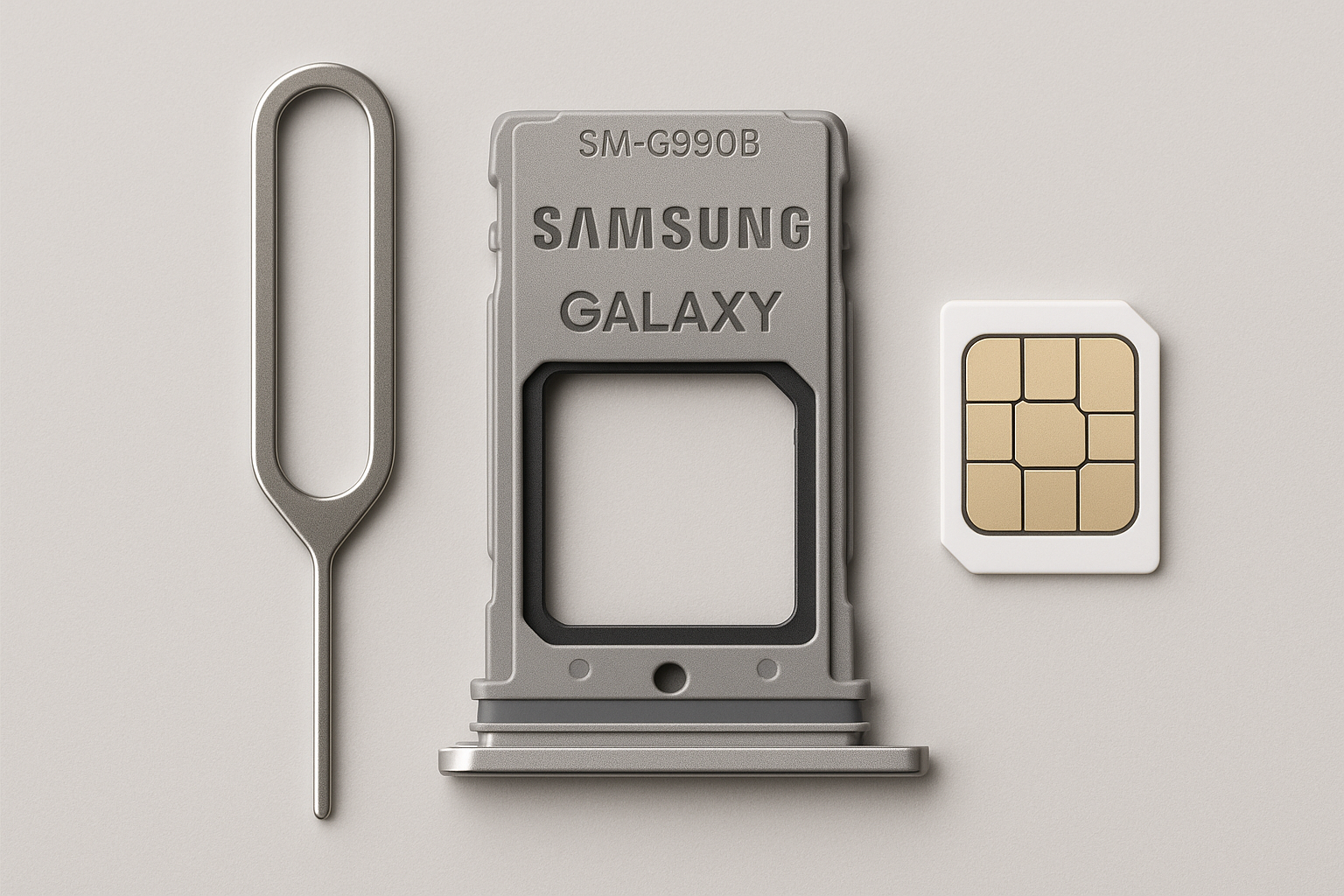
My friend's Galaxy Note 20 took a dive off a balcony - screen was completely shattered and wouldn't respond to anything. But popping out the SIM tray revealed "SM-N981U" printed clear as day on the inner edge, immediately telling us it was the US unlocked 5G variant.
9. Original Packaging
If you're one of those people who keeps boxes (and honestly, good for you), check the retail packaging for model numbers, IMEI, and complete specs. The box labels show both the marketing name prominently and the exact model number on the bottom stickers.
This gives you perfect accuracy when available, but let's be real - most people toss the box after a week. If you've got it though, it includes comprehensive specs like storage capacity, RAM, and regional variant details.
10. Battery Information (Older Models)
For older Galaxy models with removable batteries, you can check the label under the battery for model number, serial number, and manufacturing date. This only applies to phones from before Samsung went all-in on sealed designs.
Battery labels include comprehensive device info that stays protected from wear and damage. But this method is pretty much useless for anything newer than the Galaxy S5 era.
11. Purchase Documentation
Dig through your email or paperwork for receipts, invoices, or purchase confirmations. These usually have the exact model you bought, storage capacity, and color variant listed.
Digital receipts often have more detailed specs than printed ones, and official Samsung or carrier purchases typically include comprehensive model information. The accuracy depends on how good the retailer's record-keeping is, but it's usually solid.
Online Sleuthing Techniques
When you can't rely on the device itself, the internet becomes your friend. These methods work independently of your phone's condition and can provide verification through multiple sources.
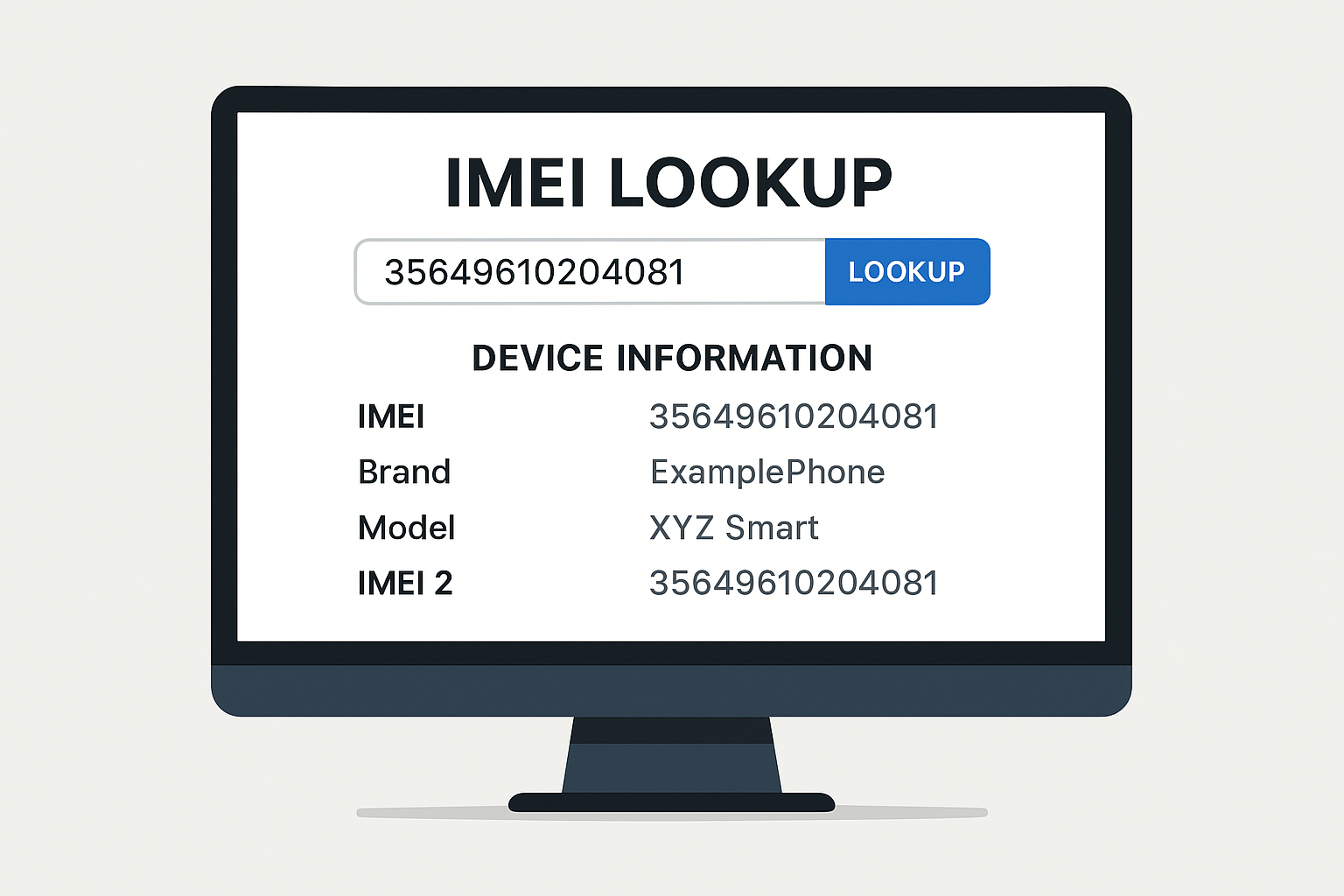
12. IMEI Lookup Services
Dial `*#06#` to get your IMEI (this works even with some broken screens), then plug that number into online services like IMEIpro or CheckMEND. These databases can tell you detailed device specs just from the IMEI.
The accuracy varies between different lookup services - some are more comprehensive than others. But it's super useful when your phone is completely dead or locked since you can sometimes get the IMEI from other sources like your carrier account.
13. Samsung Official Website
Samsung's support site has device lookup tools where you can enter serial numbers or model numbers for official verification. When it works, you get guaranteed accurate info straight from Samsung's databases.
The catch is you need some existing device info to input, but once you're in, you get access to official specifications, support docs, and warranty information.
14. Carrier Account Information
Log into your mobile carrier's website or app to see what device they have registered for your account. Carrier portals usually show exact device models, purchase dates, and specs for insurance and upgrade purposes.
This works great for phones you bought through your carrier, but obviously won't help if you bought unlocked or switched carriers. Still, it's worth checking since carriers keep pretty detailed records.
15. Samsung Account Device Management
Head to account.samsung.com and look at "My devices" to see all registered Samsung devices with specific model numbers and registration dates. This requires having a Samsung account set up, but it shows comprehensive device history.
You'll see all Galaxy devices connected to your Samsung account with official model designations, plus registration dates and associated services. Pretty handy if you've got multiple Samsung devices.
16. Google Account Device Activity
Visit myaccount.google.com/device-activity to see all devices tied to your Google account, including specific Galaxy model names and last activity dates. This cloud-based method works regardless of your device's current condition.
Google's device activity shows comprehensive device history including model names, last activity, and sometimes location info. You need Google account access, but it provides verification across multiple devices.
17. Insurance/Warranty Records
Check your device protection plan documents for model specs and coverage details. Insurance records usually include exact model info required for claims processing and replacement procedures.
This requires having active protection plans or warranty coverage, but these records often include purchase information and detailed device specifications. Worth checking if you've got coverage.
Geeky Technical Approaches
Fair warning - this section gets pretty technical. These methods provide the most detailed device information but require some comfort with apps and advanced system stuff.
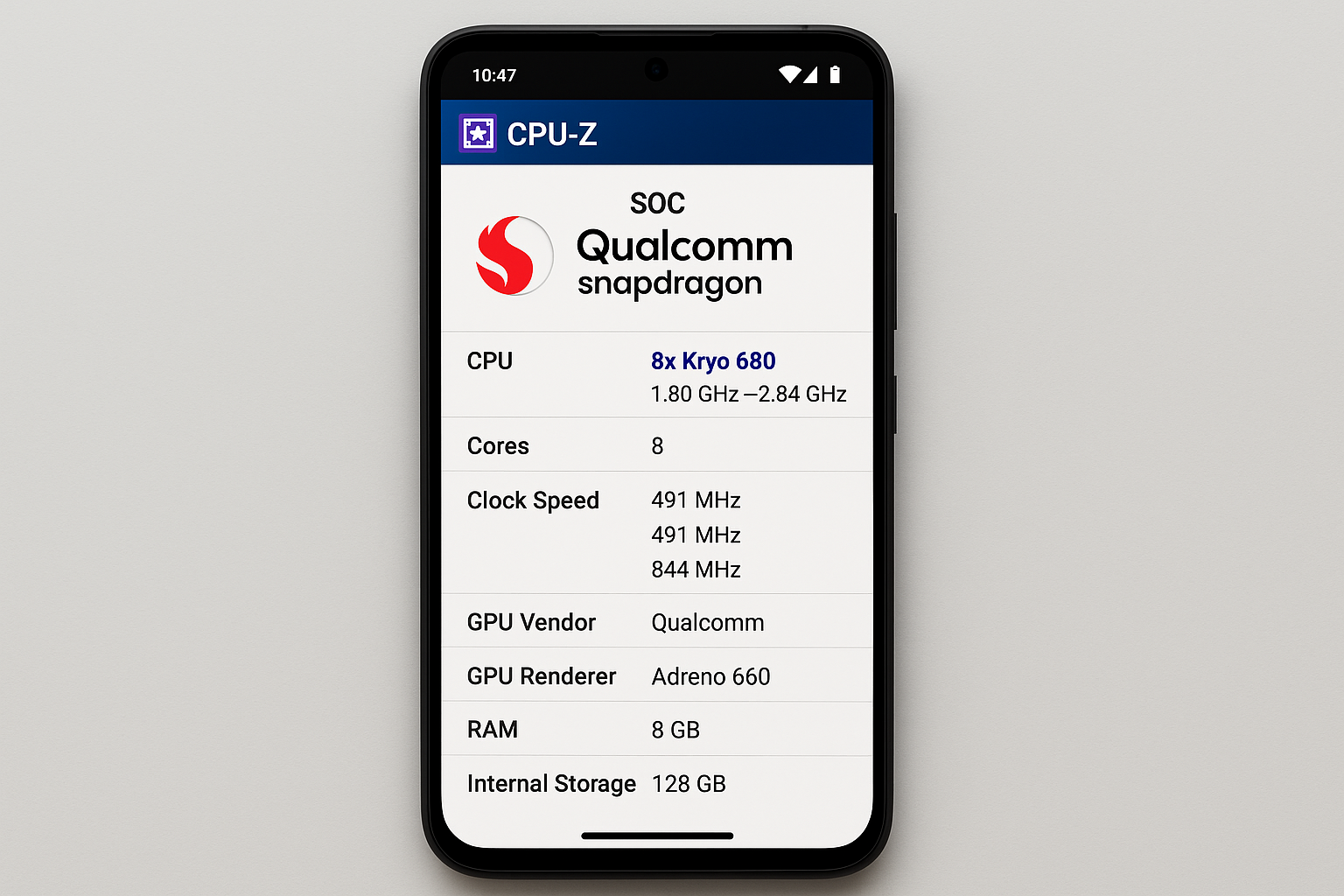
18. CPU-Z Hardware App
Download CPU-Z from the Play Store for comprehensive hardware specs including chipset, model number, RAM, storage, and detailed technical information. It's free and gives you way more info than you probably need.
CPU-Z is excellent for revealing technical specs that help tell apart similar-looking models with different internal hardware. The app shows processor details, memory configurations, and sensor info unique to specific Galaxy variants.
19. ADB Shell Commands
Fair warning - this ADB stuff is pretty geeky. You'll need to connect your phone to a computer and type commands that look like gibberish. Only go this route if you're comfortable with tech stuff or really desperate.
Commands like `adb shell getprop ro.product.model` give you precise system-level information including build properties and regional variant details. But honestly, unless you're a developer, this is probably overkill.
20. Device Info HW App
Install Device Info HW for detailed hardware analysis showing model numbers, chipsets, sensors, cameras, and specs that distinguish between similar Galaxy models. This app goes deep into technical details beyond basic identification.
The app reveals granular hardware information including memory types, storage specs, and sensor configurations. You'll get detailed technical data that helps identify regional differences and hardware variants.
I used Device Info HW on two Galaxy S22 devices that looked identical - one showed "Snapdragon 8 Gen 1" processor (US model SM-S901U) while the other displayed "Exynos 2200" (International model SM-S901B). That's how I figured out they were different regional variants.
21. Terminal Emulator Commands
Use terminal emulator apps to run commands like `getprop ro.product.model` and `getprop ro.product.name` for system-level device identification. This is advanced stuff that requires command knowledge.
Terminal commands give you direct access to system properties without needing a computer connection. But you need to be comfortable with Android system commands and terminal app usage, so it's not for everyone.
Technical Method |
How Deep It Goes |
Setup Difficulty |
Works Offline |
Best For |
|---|---|---|---|---|
CPU-Z App |
Deep |
Easy |
Yes |
Hardware specs |
ADB Commands |
Very Deep |
Hard |
No |
Developer stuff |
Device Info HW |
Very Deep |
Easy |
Yes |
Everything |
Terminal Emulator |
Deep |
Medium |
Yes |
System properties |
Visual Comparison Tricks
Sometimes you just need to look at your phone and compare it to pictures online. These visual methods help when you can't access software or when you're trying to distinguish between similar-looking models.
22. Samsung Visual Comparison Tool
Samsung's website has visual comparison tools where you can match your device's appearance, button placement, camera setup, and size against official product images. It's basically playing "spot the difference" with your phone.
This works well for recent Galaxy models with obvious design differences, but can be tricky with subtle variants or older models that look really similar. You need decent eyesight and access to Samsung's official resources.
23. Camera Configuration Analysis
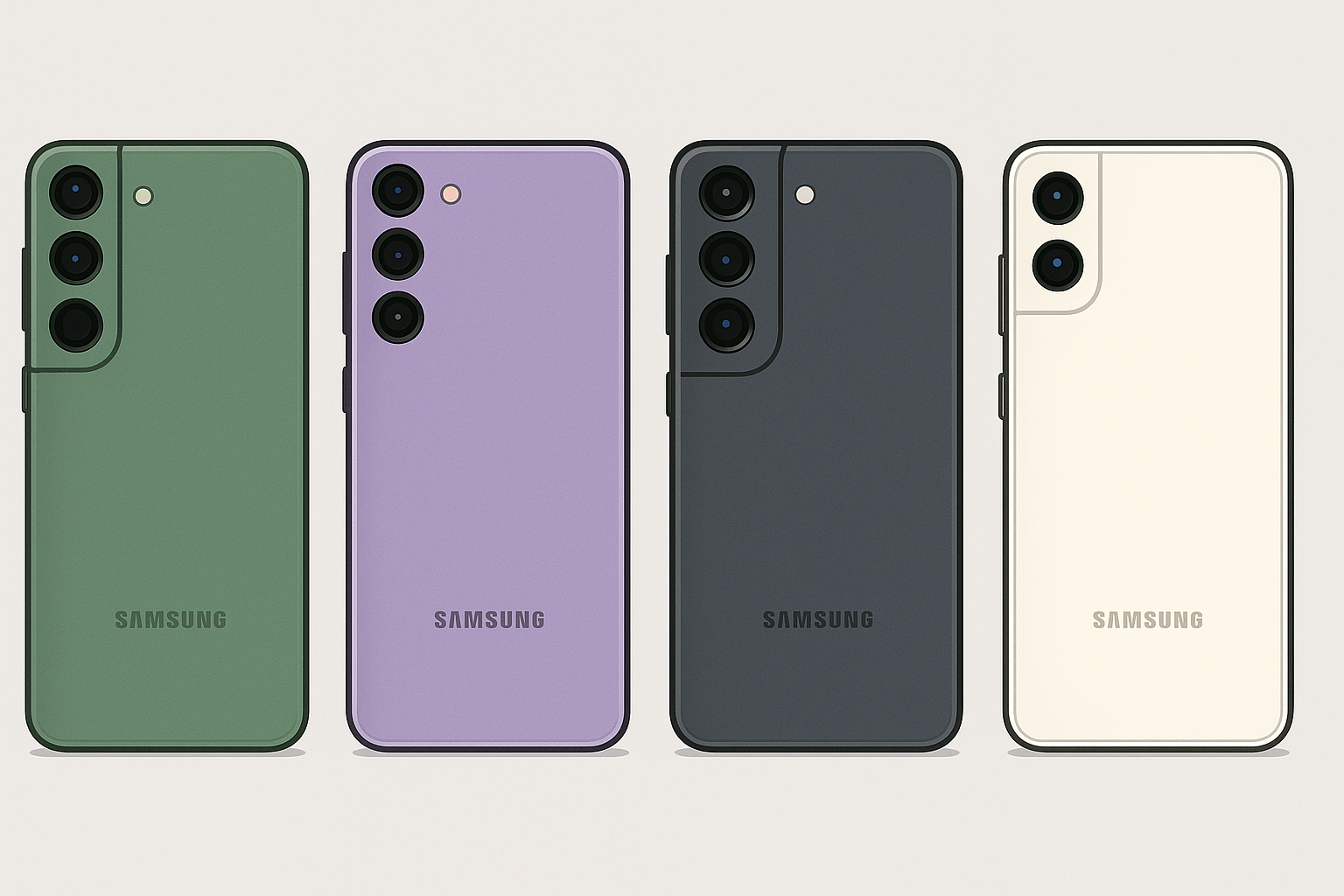
Look at your camera setup - how many lenses, how they're arranged, where the flash is - and compare that against Samsung's official specs. Camera layouts are pretty distinctive identifiers for different Galaxy models.
Recent Galaxy models have unique camera configurations that make visual identification pretty straightforward. But this gets less useful for older models with similar camera setups, or when cases hide the camera details.
24. Physical Dimension Measurement
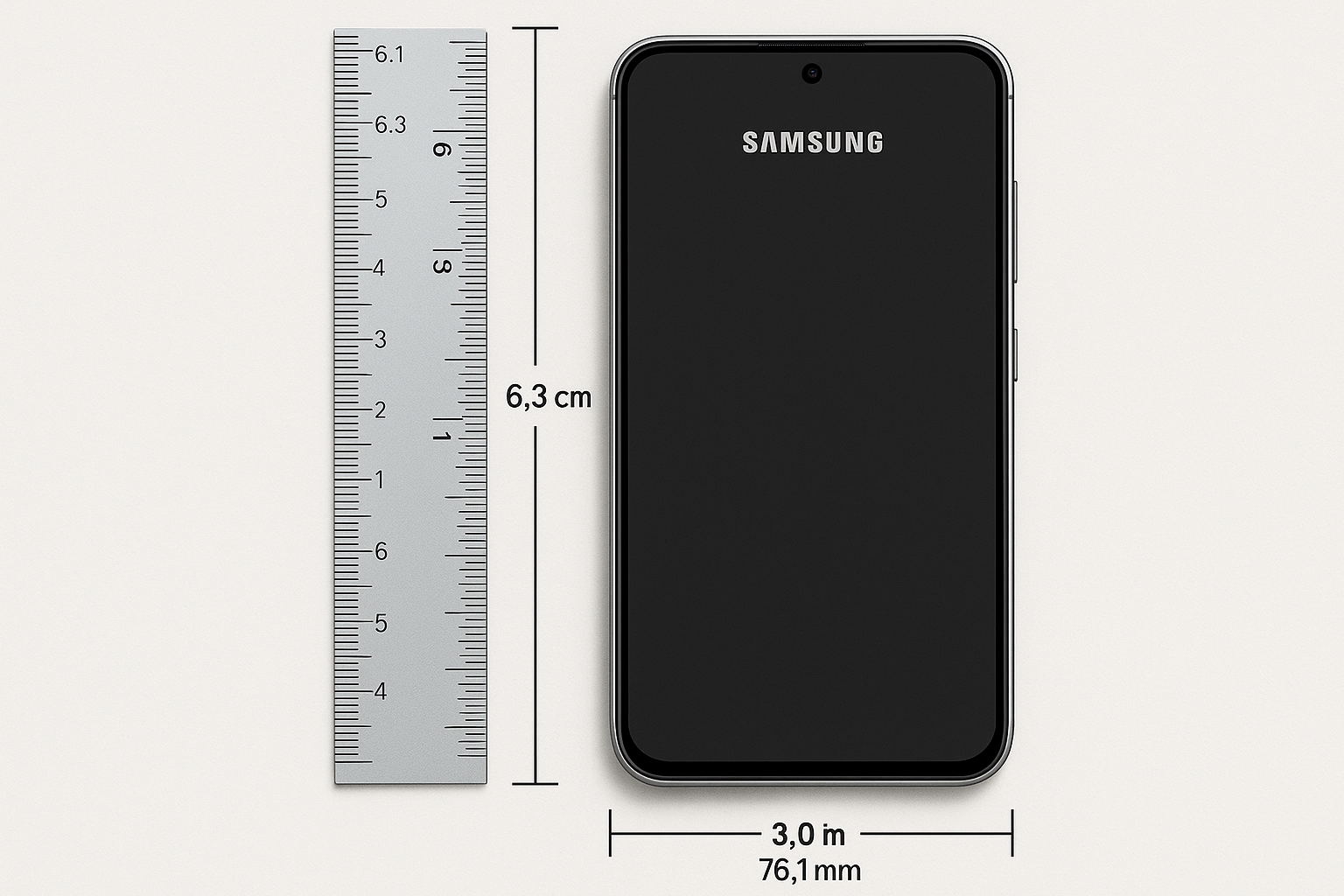
Get out a ruler and measure your phone's length, width, and thickness, then compare those measurements against Samsung's official specifications. Physical dimensions help distinguish between similar-looking models with different sizes.
This gives you objective data for identification, but you need precise measurement tools and access to official specs for comparison. It works well for telling apart regular, Plus, and Ultra variants though.
When All Else Fails: Get Professional Help
Sometimes you just need to throw in the towel and let the experts handle it. Professional help guarantees accurate results and works even when your phone has been through the wringer.
25. Samsung Service Center Assessment
When nothing else works, head to an authorized Samsung service center. The technicians have diagnostic tools and expert knowledge to identify pretty much anything, even if your phone looks like it went through a blender.
Service center assessment is especially clutch for severely damaged or completely non-functional devices that can't be identified any other way. Yeah, you'll need to make an appointment and probably drive somewhere, but you'll get guaranteed accurate results for warranty claims, insurance, or when you absolutely need to know for sure.
The techs can also give you additional info like repair history and warranty status, which can be super valuable if you're buying used or dealing with insurance claims.
Which Method Works Best When
Look, different situations call for different approaches. Here's the real talk on when to use what method based on what's actually happening with your phone.
Software methods are your best bet when your phone is working normally. Settings menu navigation gives you official Samsung info with basically zero technical knowledge required, and it's usually spot-on reliable.
When your screen is busted or your phone won't turn on, physical identification becomes your lifeline. SIM tray inspection works great even on severely damaged units - I've seen it work on phones that looked like they'd been run over by a truck.
What's Wrong |
Try This First |
How Well It Works |
How Long It Takes |
Backup Plan |
|---|---|---|---|---|
Phone Works Fine |
Settings > About Phone |
Really well |
1-2 minutes |
Dial Codes |
Screen is Broken |
Check SIM Tray |
Pretty well |
2-3 minutes |
IMEI Lookup |
Phone is Locked |
Look at Back Panel |
Okay |
3-5 minutes |
Carrier Records |
Water Damage |
Find the Box |
Perfect (if you have it) |
1 minute |
Service Center |
Mystery Phone |
Use CPU-Z App |
Really well |
3-4 minutes |
Visual Comparison |
External verification methods work no matter what condition your phone is in. IMEI lookup services are clutch when screens are completely dead, and Samsung's official website gives you the most accurate info if you can get to it.
For distinguishing between really similar variants, the technical apps are your friend. They reveal detailed hardware specs that help identify regional differences and internal configurations you can't see any other way.
Situational Effectiveness Guide
Choosing the right method really depends on what's going on with your phone, what resources you have available, and how comfortable you are with technology.
For damaged phones with broken screens or completely dead interfaces, stick with physical examination and IMEI lookup services. SIM tray inspection and back panel examination work regardless of screen condition, while IMEI databases give you comprehensive info using just the device's ID number.
Locked devices are tricky - sometimes those emergency dial codes still work even when normal access is blocked. But physical identification becomes your main option, with external verification methods as valuable backup.
When you're dealing with unknown or newly acquired devices, comprehensive app analysis gives you detailed specs that help distinguish between similar models. Visual comparison tools help spot obvious design differences, while professional assessment ensures accuracy for important decisions.
If you're in a hurry, go for the fastest methods - dial codes (*#1234#) for instant results or Settings > About phone for quick access to comprehensive information. These approaches usually give you reliable identification in under 30 seconds when phones are functional.
How Rokform Enhances Your Galaxy Experience
Once you figure out exactly which Galaxy you have, you'll want a case that actually fits it properly. I've been using Rokform cases for a while - they're built tough and have this magnetic mounting system that's pretty slick for car use. But honestly, any case designed for your specific model beats trying to force a generic one.
After all that detective work to identify your Samsung Galaxy model, protecting that investment becomes pretty important. Rokform's rugged cases are engineered specifically for different Galaxy models, taking into account exact camera placement, port accessibility, and optimal fit for Samsung's varying device dimensions.
Their MAGMAX™ magnetic technology and RokLock™ twist-lock system turn your identified Galaxy device into a versatile tool for secure vehicle mounting, hands-free video calls, and professional applications. First responders and military personnel trust Rokform's Samsung Galaxy cases because proper device identification leads to superior protection.
Rokform's magnetic wireless charging solutions deliver fast charging while maintaining the security of powerful magnetic mounting - but that compatibility requires knowing your exact Galaxy model. Whether you need the best car phone mounts or motorcycle phone mount solutions, their precision-engineered accessories work seamlessly with your identified Galaxy device.
For professionals who demand reliability, their cases provide protection that first responders trust in the field. The 2-year warranty and 60-day money-back guarantee ensure your investment in both device identification and protection delivers lasting value.
Ready to protect your newly identified Galaxy device? Explore Rokform's complete Samsung Galaxy collection and discover why precision identification deserves precision protection.
Final Thoughts
Look, I get it - this seems like way more work than it should be just to figure out which phone you own. But trust me, spending five minutes now saves you from headaches later when you're trying to buy accessories or get support.
The 25 methods we've covered range from simple settings navigation to advanced technical analysis, so you've got options regardless of your phone's condition or how tech-savvy you are. Pick whichever method seems easiest for your situation and just get it done.
Remember that different situations call for different approaches - software methods work best for functional devices, while physical examination and external verification become essential when dealing with damaged or locked units. The key is matching the right method to your specific circumstances and comfort level.
Your Galaxy device represents a significant investment, and knowing exactly what you have opens doors to proper software updates, compatible accessories, and effective warranty support. Whether you go with the quick Settings menu approach or dive deep with technical analysis apps, accurate identification empowers you to make informed decisions about your device's future and select the most protective phone cases for your specific model.
Future you will thank you when that screen protector actually fits.

