


Check your data usage right now. Go ahead. I'll bet you're higher than you thought you'd be, and you have no idea why. You're not streaming more. You didn't download anything big. But somehow you're at 80% with ten days left in your cycle, and the math isn't mathing.
I've been at Rokform for years now, and this question comes up constantly. Everyone assumes it's YouTube or Spotify. It's not. It's all the crap running in the background that you turned on once and forgot about. Or worse, that your phone turned on without asking.
The biggest data hogs aren't the apps you're actively using. They're the ones running quietly in the background, the settings you enabled once and forgot about, and the features your phone manufacturer turned on by default.
Table of Contents
Background App Refresh Is Draining You Dry
Your Photos Are Uploading Over Cellular (Yes, Really)
Auto-Updates and Downloads You Never Approved
Location Services That Never Sleep
Streaming Quality Nobody Can Actually See
The Settings Your Phone Hides From You
Background App Refresh Is Draining You Dry
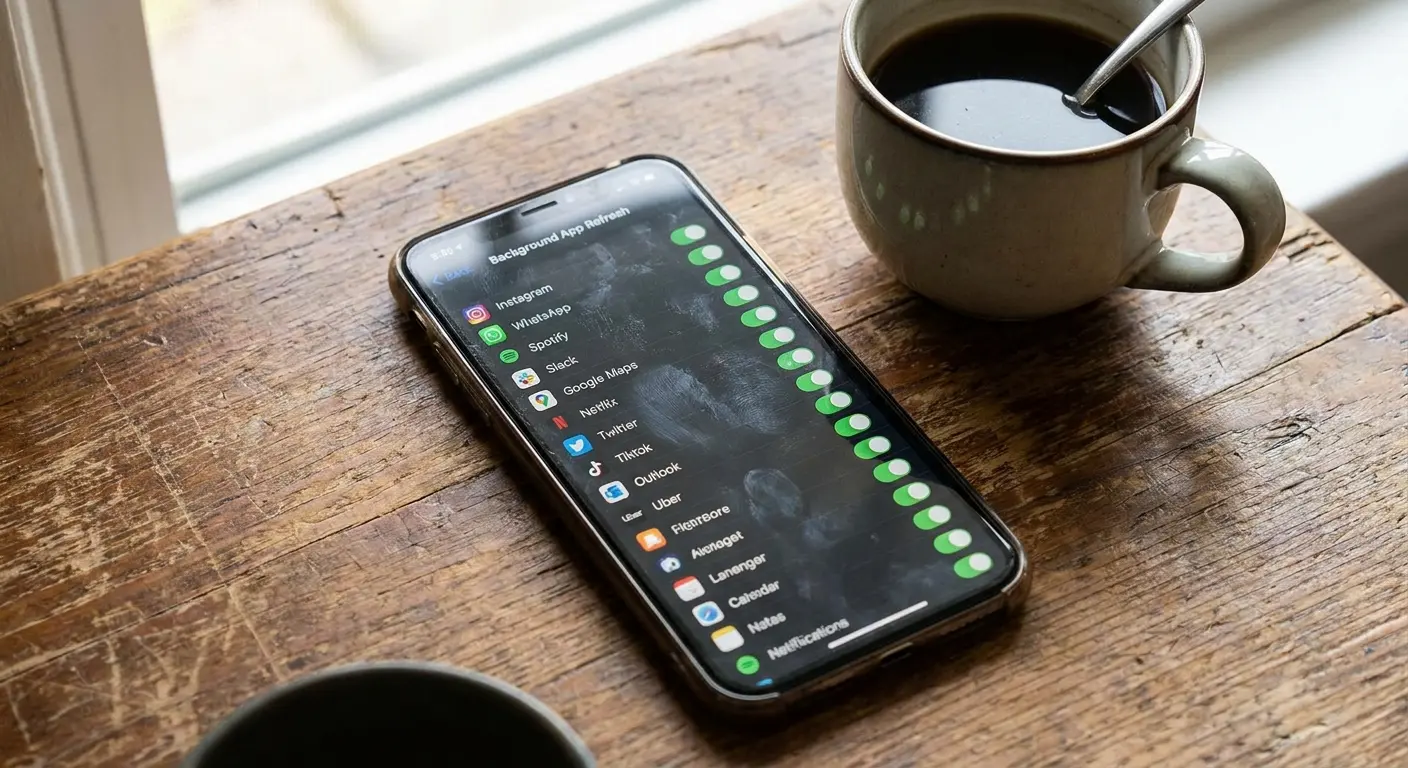
Background App Refresh. Right now, you probably have 40+ apps with permission to use data whenever they want. Go check. I'll wait.
Most of them don't need it. That recipe app from three months ago? Doesn't need to refresh at 3 AM. The shopping app you opened once? Doesn't need hourly deal updates. But they're all doing it anyway, because you never turned it off.
Each refresh is tiny. Maybe a few kilobytes. But 50 apps checking in every few hours? You're looking at hundreds of megabytes a week. And some apps refresh way more than they admit to.
My friend Sarah was burning 8GB a month. Couldn't figure out why. I had her check Background App Refresh.
67 apps.
She used maybe 10 of them. The rest? A recipe app (opened twice, ever), a dead New Year's fitness tracker, four shopping apps for one-time discounts. All refreshing constantly.
She killed everything except Messages and Maps. Next month: 4.5GB. Same phone, same habits, half the data. If you're wondering why is my phone using so much data, Background App Refresh is probably your answer.
The Only Apps Worth Keeping Enabled
Keep it on for:
Messages, WhatsApp, anything you need instant notifications from
Maps, Waze (for traffic updates)
Music streaming if you use it regularly
Banking apps if you use mobile deposit
Kill it for:
Everything else
News apps can load when you open them. Games don't need to refresh unless they're multiplayer. Fitness apps can sync when you launch them. Shopping apps definitely don't need real-time updates.
Check your battery settings to see which apps are using the most background activity. Apps burning battery in the background are almost certainly burning data too.
Do This Tonight
Don't just turn off Background App Refresh entirely at the system level. Some apps genuinely need it, and you'll miss important notifications.
Go through your app list individually. Disable refresh for any app you use less than weekly. Disable it for all games unless they're multiplayer. Disable it for shopping apps, recipe apps, and anything that doesn't deliver time-sensitive information.
Here's your checklist:
Settings > General > Background App Refresh
Kill everything you use less than weekly
Kill all shopping, recipe, and game apps
Review monthly
Set a calendar reminder. Apps you downloaded with good intentions sit there refreshing data for content you'll never see.
Your Photos Are Uploading Over Cellular (Yes, Really)
You took 47 photos last weekend. Each one is 3-4MB. Your phone uploaded all of them over cellular because that's the default setting.
Do the math: 47 × 3MB = 141MB. And that's one weekend. iCloud Photos and Google Photos will absolutely destroy your data plan if you don't tell them to stop.
Here's what nobody tells you: these services default to cellular uploads. Not Wi-Fi only. Cellular. Apple and Google assume you want your photos backed up immediately, and they're willing to use your data to make it happen.
A weekend trip might generate 200 photos and a dozen videos. At full resolution, you're looking at 1-2GB of uploads. Take a few trips per month, add daily snapshots, and you could burn through 5GB monthly just on photo backups.
The Sync Problem Nobody Explains
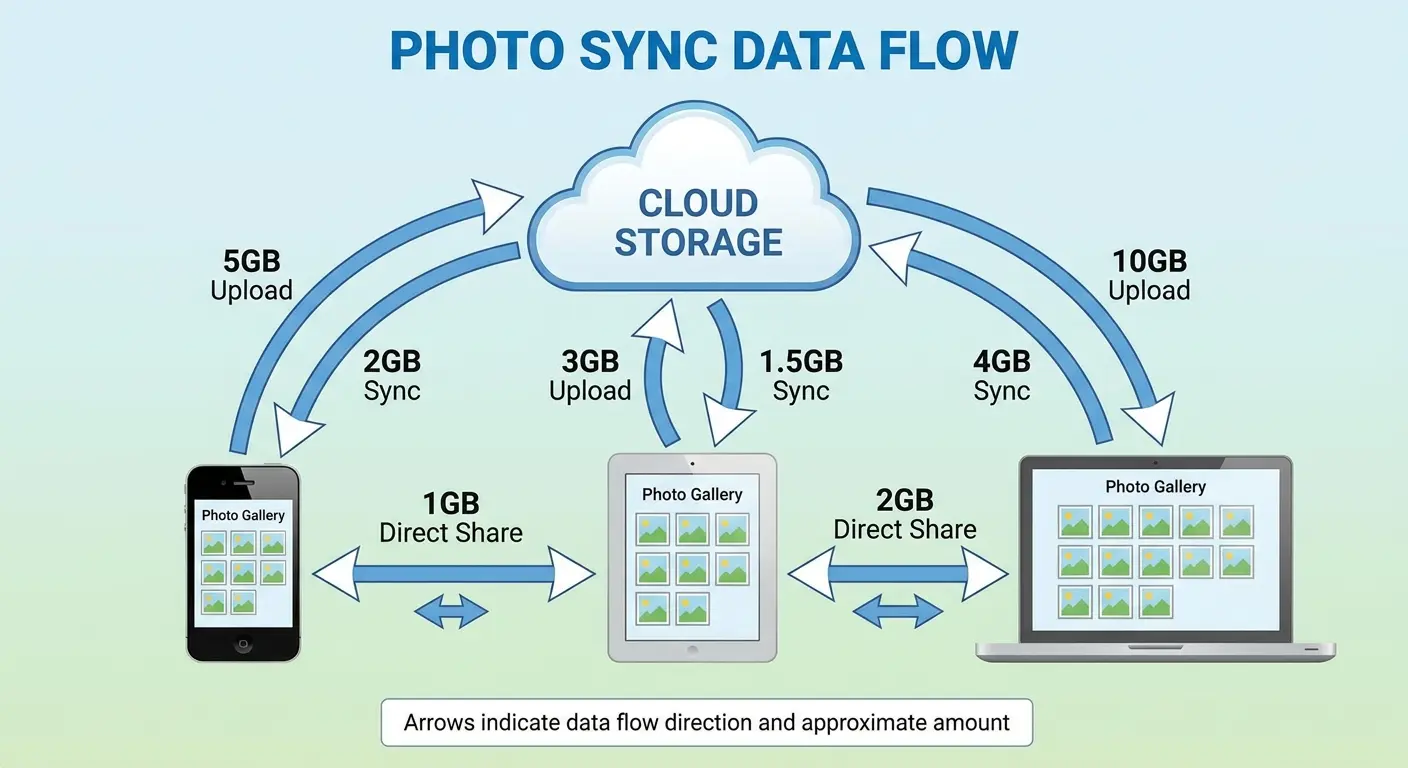
Backup and sync aren't the same thing, but most services blur the distinction. When you enable sync on your iPad and laptop, your phone uploads photos over cellular, then your other devices download them. If your iPad is on cellular too, you're paying twice for the same data transfer.
The "optimize storage" feature makes this worse. When your phone's storage gets full, it replaces local full-resolution photos with smaller versions, then downloads the full version from the cloud when you view them. Over cellular, this means downloading photos you already took and uploaded.
Quick breakdown:
Weekend trip (200 photos + 10 videos): 1.5-2GB
Monthly usage (active photographer): 4-6GB
One photo viewed after "optimization": 3MB re-download of something you already uploaded
Fix It Right Now
Every major photo service has a setting to restrict uploads to Wi-Fi only. Finding it requires digging into settings most people never open.
For iCloud Photos, you need to disable "Cellular Data" under the iCloud Photos settings, not just in the general cellular settings. For Google Photos, the option hides under "Back up & sync" settings with a toggle for "Back up using cellular data."
Set up these restrictions immediately after enabling any cloud photo service. Better yet, disable automatic upload entirely and manually trigger backups when you're on Wi-Fi. This gives you control over when and what uploads.
Consider using a lower quality setting for automatic backups if you must keep cellular uploads enabled. Most services offer a "high quality" option that compresses images slightly while saving enormous amounts of data. You won't notice the quality difference on a phone screen.
Auto-Updates and Downloads You Never Approved
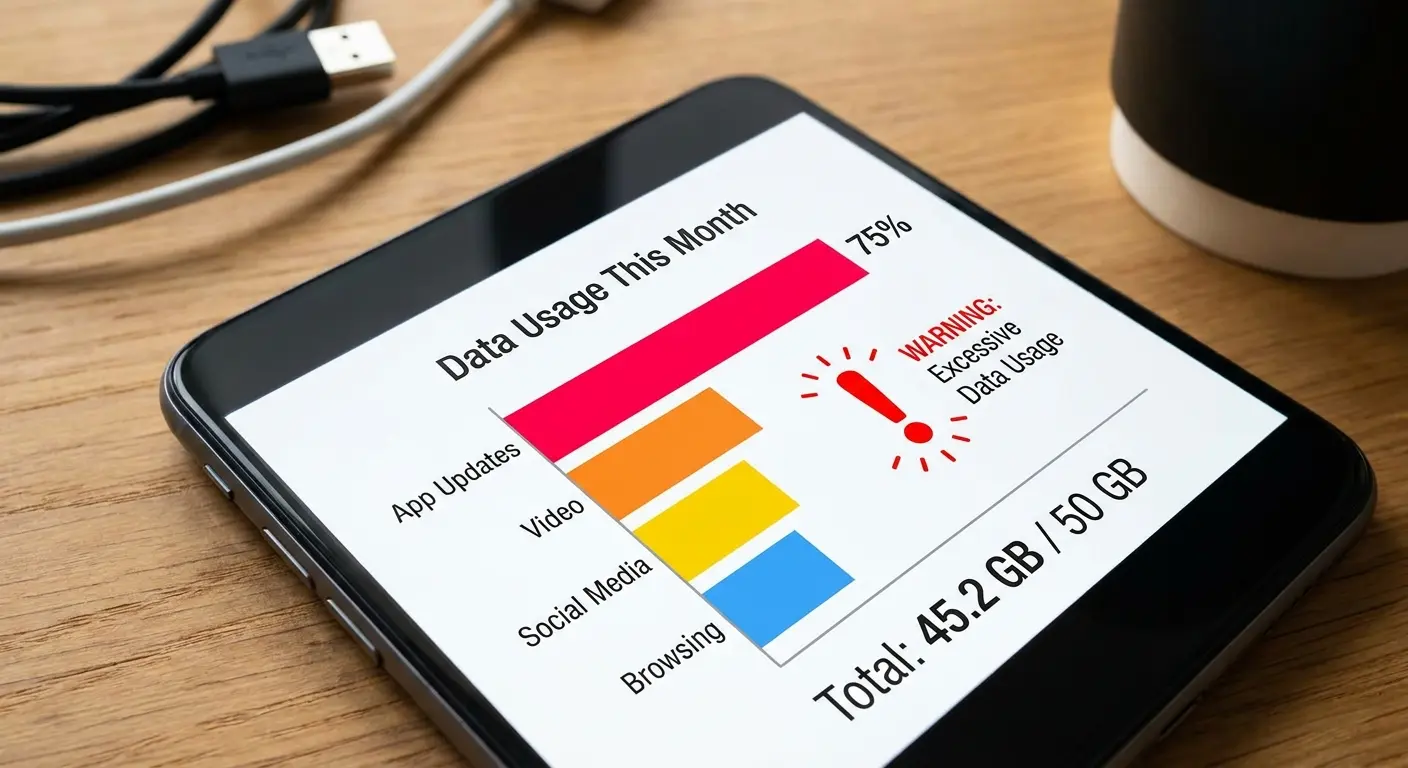
Your phone downloaded a 487MB system update last Tuesday at 2 PM. You were at work, connected to cellular data, and had no idea it was happening until you checked your data usage that evening.
Automatic updates serve a good purpose. They patch security vulnerabilities and fix bugs. They also consume massive amounts of data if you don't restrict them to Wi-Fi only.
iOS updates range from 500MB for minor patches to 5GB for major version upgrades. Android updates vary by manufacturer but fall in similar ranges. App updates are smaller individually but add up quickly when you have 100+ apps installed.
The App Store Doesn't Ask Permission
The App Store and Google Play Store both default to updating apps automatically. On iOS, this includes downloads over cellular for apps under 200MB. On Android, the limit varies by device and carrier.
Here's the problem: dozens of apps release updates weekly. Even if each update is only 50-100MB, you're looking at several gigabytes monthly in app updates alone. Games are worse, with some updates exceeding 1GB for content additions.
Your phone doesn't ask permission. It sees an update, checks if it's under the cellular limit, and downloads it. You find out later when you're wondering where 3GB disappeared.
Michael travels for work. Sales manager. Noticed 4.2GB gone over two weeks. Couldn't figure out why. Turns out his phone downloaded 23 app updates over cellular, including an 890MB game update for something his kids played occasionally.
The game added "seasonal content." His phone saw the update, saw it was under the cellular limit, and just downloaded it. While he was in a client presentation.
He disabled cellular downloads that night.
Lock Down Auto-Downloads Now
iOS: Settings > App Store > turn off "App Downloads" under Cellular Data
Android: Play Store > Profile > Network Preferences > "Over Wi-Fi only"
Do this right now. I'm serious. This one setting can save you gigabytes.
System updates require separate settings. On iOS, you can disable "Automatic Downloads" under Software Update settings. Android varies by manufacturer, but most have similar options in System Update settings.
This doesn't mean ignoring updates entirely. Security patches matter, especially for banking apps and anything handling sensitive data. Schedule a weekly check for updates when you're on Wi-Fi, or enable automatic updates only when connected to trusted Wi-Fi networks.
Family Sharing Makes It Worse
Family Sharing is useful for sharing app purchases and subscriptions. The automatic download feature assumes you want every app any family member downloads. Most families don't want this.
Your teenager downloads three new games trying to find one they like. All three download to your phone over cellular. Your partner downloads a work app. It downloads to your phone. Each family member's app experiments become everyone's data consumption.
The setting hides in App Store preferences under "Automatic Downloads." You can disable "Apps" while keeping "App Updates" enabled if you want updates but not new downloads.
The Offload Trap
"Offload Unused Apps" sounds like a data-saving feature. It removes apps you haven't used recently to free up storage space while keeping their data and settings. When you tap the app icon, it re-downloads automatically.
The problem? When you tap an offloaded app while on cellular, your phone downloads the entire app again. Often several hundred megabytes. Just because you accidentally tapped an icon.
Jennifer had "Offload Unused Apps" enabled to save storage. Over three months, she accidentally tapped offloaded apps 14 times. Each tap re-downloaded the whole app over cellular. 2.1GB in accidental reinstalls before she figured out what was happening.
Disable "Offload Unused Apps" if you have sufficient storage. Manually delete apps you're truly done with. If you need the storage space, at least disable cellular data for the App Store to prevent automatic reinstalls over cellular.
Location Services That Never Sleep
Location services don't just pinpoint where you are. They constantly download map data, traffic information, nearby points of interest, and location-based content for dozens of apps you've given permission to track you.
GPS itself doesn't use data. It receives signals from satellites. The data usage comes from everything your phone does with that location information. Apps download map tiles for your current area. They query servers for nearby restaurants, gas stations, stores. They update traffic conditions. They trigger location-based notifications.
Weather apps download forecasts for your exact location. Social media apps tag your posts and show you local content. Shopping apps display nearby store inventory. Each of these actions requires a data connection, and they happen constantly when location services are enabled. If you're asking why is my android phone using so much data, location services running in the background for multiple apps could be the answer.
Always vs. While Using
Your phone offers three location permission levels: Always, While Using the App, and Never. Most apps request "Always" permission because it's more valuable for them, not because they need it.
A weather app doesn't need "Always" access. It can check your location when you open the app and show you the forecast. A navigation app needs "While Using" access to guide you, but doesn't need to track you when you're not navigating. A social media app definitely doesn't need "Always" access unless you're constantly posting location-tagged content.
Apps with "Always" permission check your location even when you're not using them. They download location-based data in the background. They build profiles of where you go, when you go there, and how long you stay. All of this consumes data continuously.
Here's what it costs you:
Weather apps with "Always" permission: 50-100MB/month for no reason
Social media with "Always": 150-300MB/month
Shopping apps with "Always": 80-150MB/month (why does Target need to know where you are 24/7?)
Navigation apps: 200-400MB/month (but you're actually using this)
Messaging apps with "Always": 30-60MB/month
Games with "Always": 100-200MB/month
Everything should be "While Using" except maybe navigation.
Review your location permissions monthly. Change everything possible to "While Using the App." You'll barely notice a difference in functionality, but you'll see a significant drop in background data usage.
System Location Features You Never Enabled
Scroll to the bottom of Location Services. See "System Services"? Your phone has a dozen location features running that you never turned on. "Significant Locations" tracks everywhere you go. "Location-Based Suggestions" downloads content based on where you are. "Location-Based Apple Ads" or "Google Ads" serve you targeted content. Various analytics services collect data.
These system services don't appear in your regular app list. Each one has a toggle, and most are enabled by default.
Disable any system location service you don't actively use. Most people don't need location-based suggestions or ads. Keep emergency services and Find My Phone enabled. Everything else is optional and consuming data for minimal benefit.
Streaming Quality Nobody Can Actually See
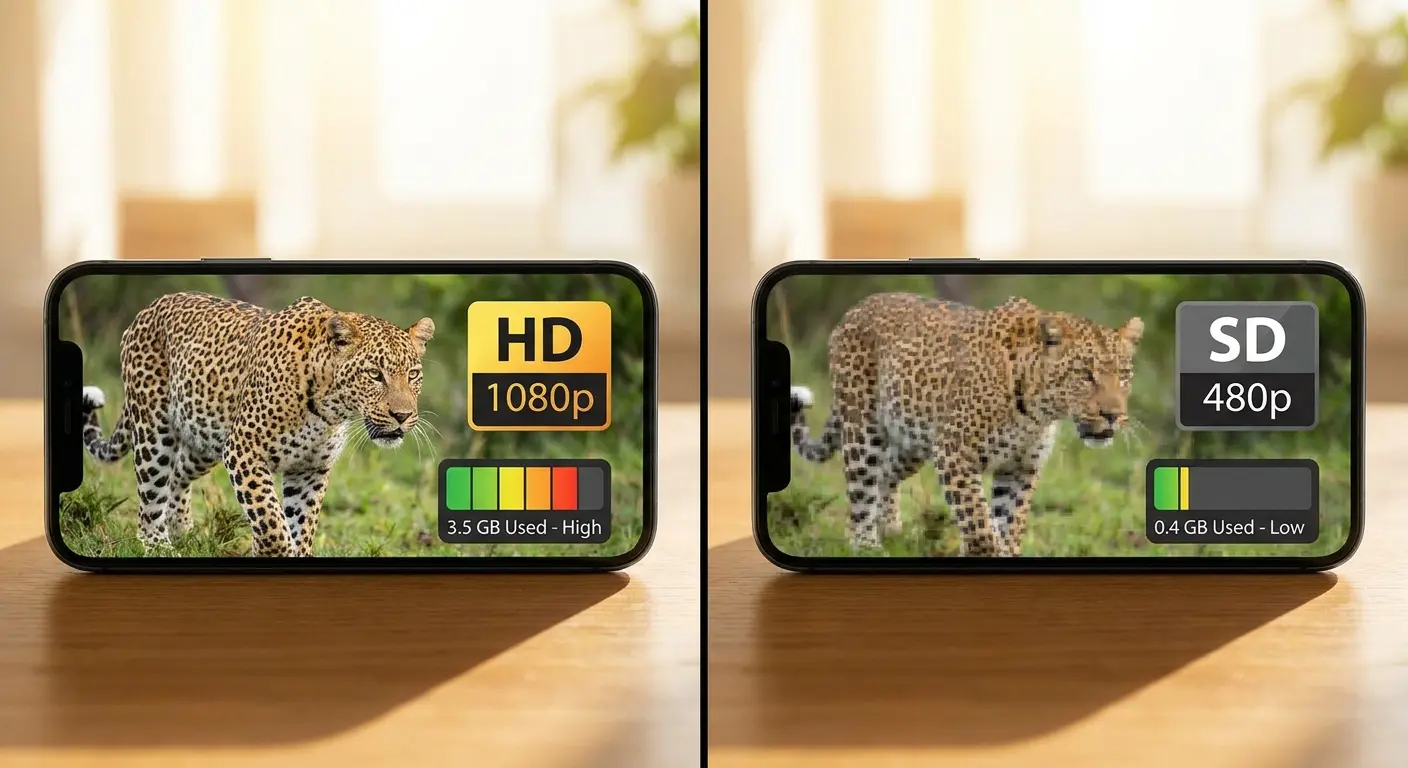
Netflix streams at up to 1080p on cellular by default if your plan supports it. Your phone screen can't display the difference between 1080p and 480p at typical viewing distances. You're burning 3GB per hour for quality improvements you literally cannot see.
Streaming services set high-quality defaults because it creates a better first impression. Users who experience buffering or low quality often blame the service and cancel subscriptions. Services would rather you burn through your data plan than risk you seeing a pixelated video.
The Math on Video Quality
Standard definition (480p) uses roughly 700MB per hour. HD (720p) jumps to 1.5GB per hour. Full HD (1080p) consumes 3GB per hour. 4K streaming, which some services now offer on phones that support it, can burn through 7GB hourly.
Your phone screen is 6 inches diagonal. You hold it 12-18 inches from your face. The pixel density at this viewing distance makes 480p and 1080p virtually indistinguishable for most content. You're paying a 4x data premium for imperceptible quality gains.
YouTube defaults to "Auto" quality, which often selects 720p or higher on cellular. TikTok and Instagram default to high quality for smoother scrolling. Streaming apps assume you want the best quality available
YouTube defaults to "Auto" quality, which often selects 720p or higher on cellular. TikTok and Instagram default to high quality for smoother scrolling. Streaming apps assume you want the best quality available, regardless of your data situation.
Music Streaming Wastes Data Too
Spotify streams at up to 320kbps on cellular by default for Premium users. That's roughly 150MB per hour of listening. Apple Music similarly defaults to high quality streaming at 256kbps AAC.
Most people can't hear the difference between 128kbps and 320kbps on phone speakers or even decent earbuds. The acoustic limitations of mobile listening environments mask the quality differences. You're downloading twice the data for improvements your ears can't detect.
Podcast apps often download entire episodes automatically over cellular. A 90-minute podcast at standard quality is 60-80MB. If you subscribe to several podcasts that release daily, you could be downloading 500MB+ weekly without actively choosing to.
Fix Your Streaming Settings
Set video streaming to 480p or lower on cellular. Every major streaming service has cellular-specific quality settings.
Key settings:
Netflix: Settings > App Settings > Cellular Data Usage > "Save Data" mode
YouTube: Profile > Settings > Data saving > Enable
Spotify: Settings > Data Saver > Enable (reduces to around 96kbps)
Apple Music: Settings > Music > Cellular Data > High Quality Streaming OFF
Podcasts: Settings > Only download on Wi-Fi
For music streaming, drop to 128kbps or "Normal" quality on cellular. Save "High" or "Extreme" quality for Wi-Fi listening when you're using high-end headphones in quiet environments where you might actually hear the difference.
Disable automatic downloads in podcast apps. Download episodes manually when you're on Wi-Fi, or stream them at lower quality settings. Many podcast apps default to downloading every new episode from subscribed shows, which becomes unsustainable if you follow more than a few podcasts.
Consider downloading content while on Wi-Fi for later viewing. Netflix, YouTube Premium, and most music services let you download for offline playback. This requires planning ahead but eliminates streaming data usage entirely.
The Settings Your Phone Hides From You
This section covers all the sneaky stuff your phone does without telling you. Wi-Fi Assist, system services, social media preloading, push email. All the background processes that eat data while you're not looking.
Wi-Fi Assist Burns Data When You Think You're Safe
You're home on Wi-Fi. Your router hiccups for three seconds. Your phone switches to cellular and downloads 200MB before switching back.
You never noticed. You just lost data.
That's Wi-Fi Assist.
It's supposed to help when Wi-Fi is bad. In practice, it burns cellular data during brief Wi-Fi interruptions. And it doesn't tell you when it activates.
Wi-Fi Assist doesn't activate just because Wi-Fi is slow. It activates when Wi-Fi connectivity drops below a certain quality threshold that varies by activity. Streaming video triggers it more readily than browsing text content.
Your router might struggle for 10 seconds while someone else in your house starts a video call. Wi-Fi Assist sees the degradation and switches to cellular. The Wi-Fi recovers, but your phone already downloaded 50MB over cellular.
Public Wi-Fi triggers Wi-Fi Assist frequently. Coffee shop Wi-Fi, airport Wi-Fi, and hotel Wi-Fi often have inconsistent performance. Your phone switches to cellular repeatedly during a single session, potentially using more cellular data than if you'd just stayed on cellular the entire time. Many users wonder why is my phone using so much data even when they're connected to Wi-Fi at home. This feature is often the hidden culprit.
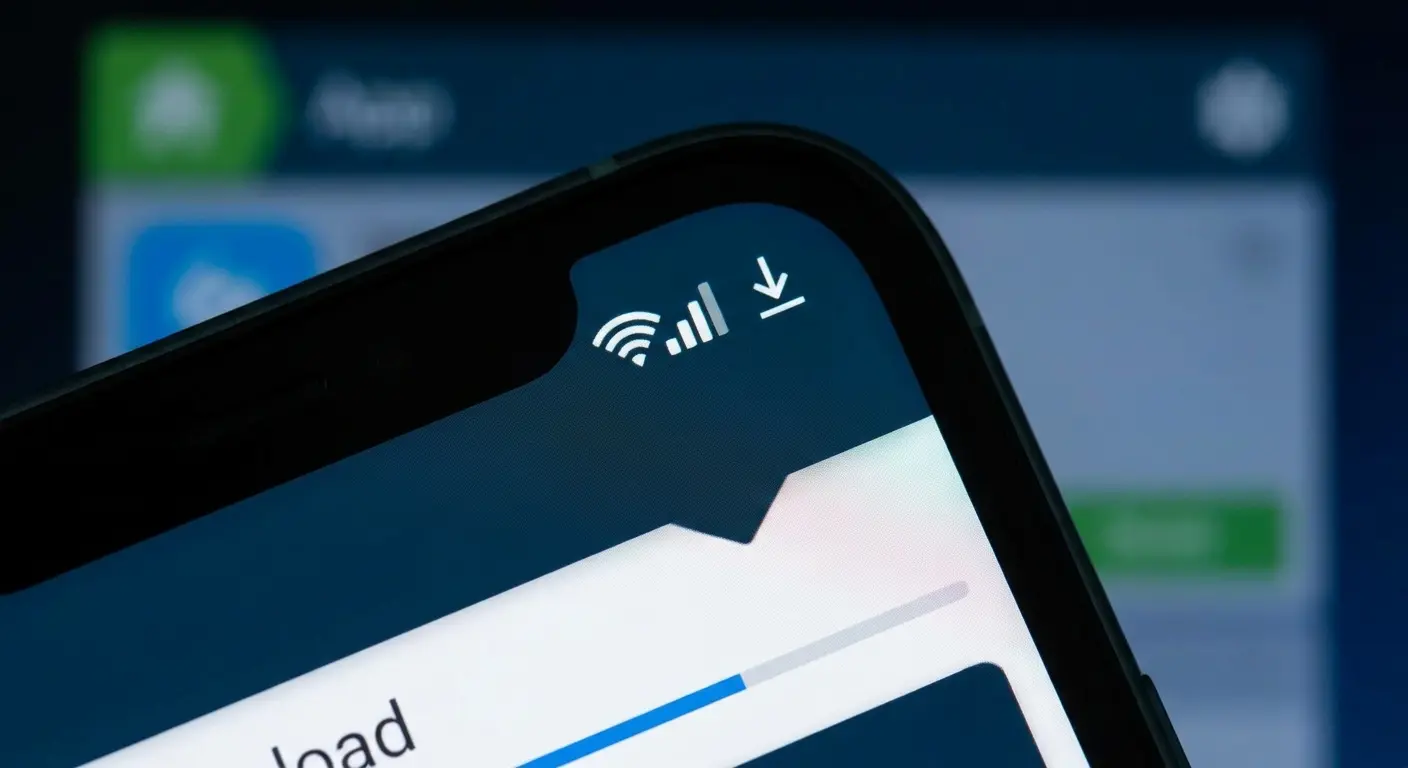
Wi-Fi Assist is expensive during large downloads. If you start downloading an app update on Wi-Fi and the connection weakens, Wi-Fi Assist switches to cellular and continues the download. You might download 500MB of a 1GB update over cellular without realizing it.
Background processes trigger Wi-Fi Assist too. Apps refreshing in the background don't care whether they're on Wi-Fi or cellular. If Wi-Fi Assist activates while apps are refreshing, those refreshes happen over cellular instead.
The feature provides no clear notification when it activates. You might see the cellular indicator appear briefly, but if you're not watching your status bar, you'll miss it.
Settings > Cellular > scroll all the way down > turn off Wi-Fi Assist
Done.
The trade-off is worth it for most people. Brief Wi-Fi slowdowns are annoying but manageable. Unexpected cellular data usage is expensive and can push you over plan limits. You can always manually disable Wi-Fi if it's performing poorly.
Android handles this differently across manufacturers. Some have explicit cellular failover settings. Others switch automatically without user controls. Check your network settings for options related to "Switch to mobile data" or "Smart network switch."
Social Media Preloading You Never Asked For
Facebook preloads the next 10-15 posts before you scroll to them. Videos download before you see them. Images load at full resolution before you decide if you want to look.
You scroll past 80% of it. But your phone already downloaded it. Because smooth scrolling keeps you engaged, and Facebook doesn't care about your data plan.
Instagram, Facebook, Twitter, and TikTok all autoplay videos as you scroll. The videos start playing (usually muted) before you stop scrolling to watch them. This requires downloading the video data before you've decided whether you're interested.
TikTok's entire experience depends on preloading. Videos start instantly as you swipe because the app downloaded them before you swiped. Smooth, addictive, and devastating for data usage. An hour of TikTok can consume 1-2GB depending on video quality settings.
Instagram Stories preload the next several stories in a sequence. If you watch one story from a friend, the app downloads their next five stories assuming you'll keep watching. You often don't. The data was wasted.
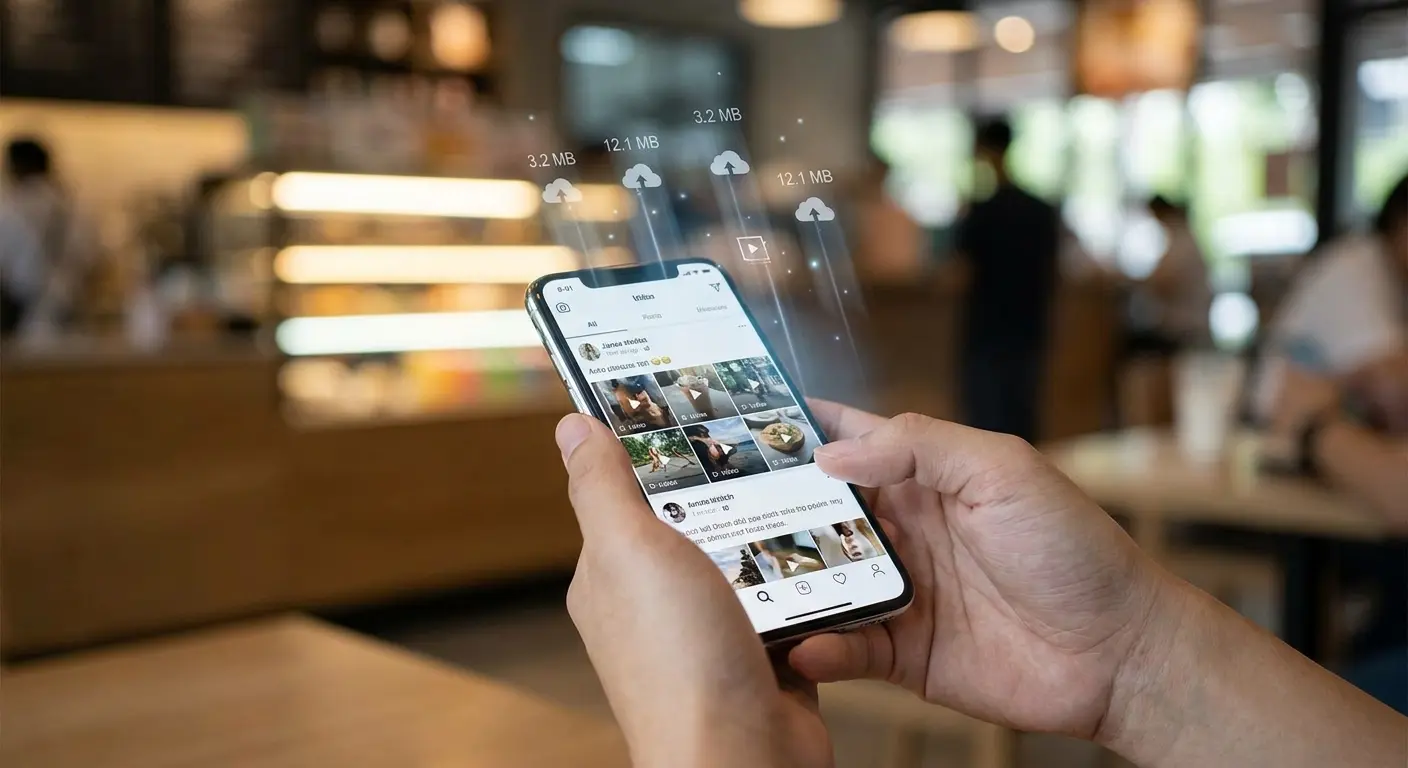
Social media apps download images at higher resolution than necessary for initial display. They want images to look crisp if you tap to view them full-screen. This means downloading 2-3MB images for photos you'll see as thumbnails in a feed.
The platforms also preload images for posts below the fold. You haven't scrolled to them yet, but they're downloading. This creates the illusion that the feed is infinite and always ready, while consuming data for content you might never reach.
Some apps download content even when you're not actively using them. If you leave Facebook open in the background, it continues refreshing the feed and downloading new posts. You're not even looking at the app, but it's consuming data to stay current.
Every social platform has data-saving modes hidden in settings. Instagram's "Use Less Data" reduces preloading and video quality. Facebook's "Data Saver" mode limits preloading and autoplay. TikTok has "Data Saver" that reduces video quality.
These modes aren't perfect. They reduce data usage but don't eliminate preloading entirely. The platforms still need some preloading to function smoothly, but they can dramatically reduce how much content they download speculatively.
Disable autoplay entirely if you want maximum data savings. This means videos won't play until you tap them, which creates a slightly less smooth experience but gives you complete control over what downloads. Most platforms let you set autoplay to "Wi-Fi only" as a middle ground.
Consider limiting social media use on cellular entirely. These apps are designed to be addictive and data-hungry. The most effective data-saving strategy is simply using them less when you're not on Wi-Fi.
Push Email vs. Fetch: The Constant Connection Problem
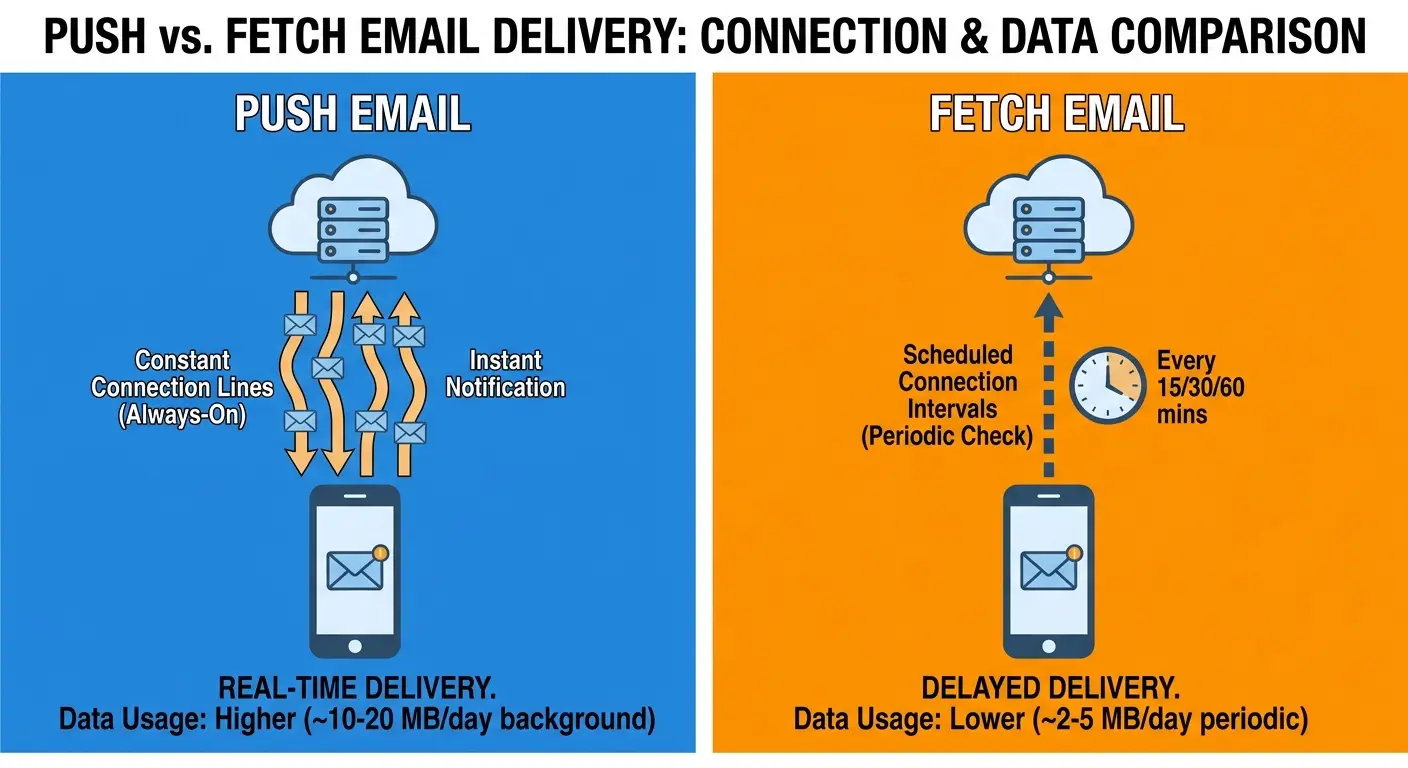
Push email keeps an open connection to your email server at all times. The server pushes new messages to your phone instantly. This requires your phone to maintain a constant data connection, sending small packets of data every few minutes to keep the connection alive.
Fetch email checks the server on a schedule you set. Every 15 minutes, every 30 minutes, hourly, or manually. Your phone connects, downloads new messages, and disconnects. No constant connection, no keep-alive packets, significantly less data usage.
The difference seems minor until you do the math. Push email sends keep-alive packets roughly every 3-5 minutes. That's 300+ small data transmissions daily, adding up to 10-50MB weekly depending on your email provider's implementation. Fetch email might only connect 50-100 times daily, using a fraction of the data.
Most people have 2-4 email accounts on their phone. Work email, personal email, maybe a secondary personal account or a shared family account. Each account using push email maintains its own constant connection.
Four email accounts on push means four separate data connections running simultaneously. The keep-alive packets multiply. The data usage quadruples. You're potentially using 200MB monthly just to keep email connections alive, before counting the actual email downloads.
Fetch eliminates this multiplication. You can set different fetch schedules for different accounts. Check work email every 15 minutes during work hours. Check personal email hourly. Check that rarely-used account manually only.
Switch to fetch for any email account that doesn't require instant notifications. Work email might need push if you're expected to respond immediately. Personal email rarely needs instant delivery.
Set fetch schedules based on actual need, not anxiety. Checking email every 15 minutes creates the illusion of responsiveness while still saving significant data compared to push. Hourly checks work fine for most personal accounts.
Use manual fetch for low-priority accounts. Email from that online store you shopped at once can wait until you decide to check it. You don't need automatic downloads for newsletters and promotional emails.
Disable "Load Remote Images" in email settings. Images in emails consume far more data than the text content. Loading them only when you choose to view them can save hundreds of megabytes monthly if you receive image-heavy newsletters or promotional emails.
System Services Using Data Without Permission
Check your data usage. See "System Services"? That's analytics, diagnostics, crash reports. Stuff that helps Apple and Google improve their products. It's using your data.
Both iOS and Android collect analytics data about how you use your phone. Which apps you open, how long you use them, which features you access, where crashes occur, and dozens of other data points. This information uploads to Apple or Google servers periodically.
Each upload is small, maybe a few megabytes. They happen regularly, sometimes daily. Over a month, analytics can consume 50-100MB of data. You receive no direct benefit from this data collection. It helps manufacturers improve future software versions.
Settings > Privacy > Analytics & Improvements > turn everything off
Your phone works exactly the same. You just stop helping Apple/Google collect data on your dime.
Disabling analytics doesn't harm your phone's functionality. You're just opting out of helping manufacturers collect usage data. Your phone works identically whether analytics are enabled or disabled.
Siri Suggestions and Google Assistant predictions require constant data connections. These features analyze your usage patterns and download suggested content, apps, and actions based on your behavior.
Siri Suggestions might download news articles it thinks you'll want to read. Google Assistant might preload directions to places you frequently visit. These features use data to feel smart and predictive, but you're paying for that intelligence with your data plan.
Location-based suggestions are data-hungry. When you arrive at a new location, your phone downloads information about nearby places, suggested apps for that location, and contextual information. You didn't ask for any of this, but it downloads automatically.
Disable Siri Suggestions in Settings > Siri & Search. Disable Google Assistant suggestions in Google app settings. You'll lose some convenient predictions, but you'll gain control over your data usage.
Apps send analytics data to developers even when you're not using them. They report crashes, track feature usage, and monitor performance. This data uploads over cellular unless you disable it.
Advertising services are worse. They download targeted ads based on your behavior, location, and interests. Each ad is a data download. Apps with frequent ad refreshes can consume hundreds of megabytes monthly just serving you advertisements.
iOS has "Allow Apps to Request to Track" in Privacy settings. Android has similar settings under Google > Ads. Enabling these limits doesn't stop all advertising data usage, but it reduces the personalization that requires constant data connections.
Some apps have their own analytics toggles in their settings. Check privacy or data settings within individual apps, especially social media and news apps that collect extensive analytics.
Taking Control of Your Data Usage
You've made it through the technical details. You know where your data goes. Now fix it without spending hours in settings menus or breaking functionality you actually need.
Start with the biggest drains first. Check your cellular data usage in settings and sort by consumption. The top five apps account for 80% of your data usage in most cases. Focus your efforts there before worrying about minor background services.
Tonight's Action Plan
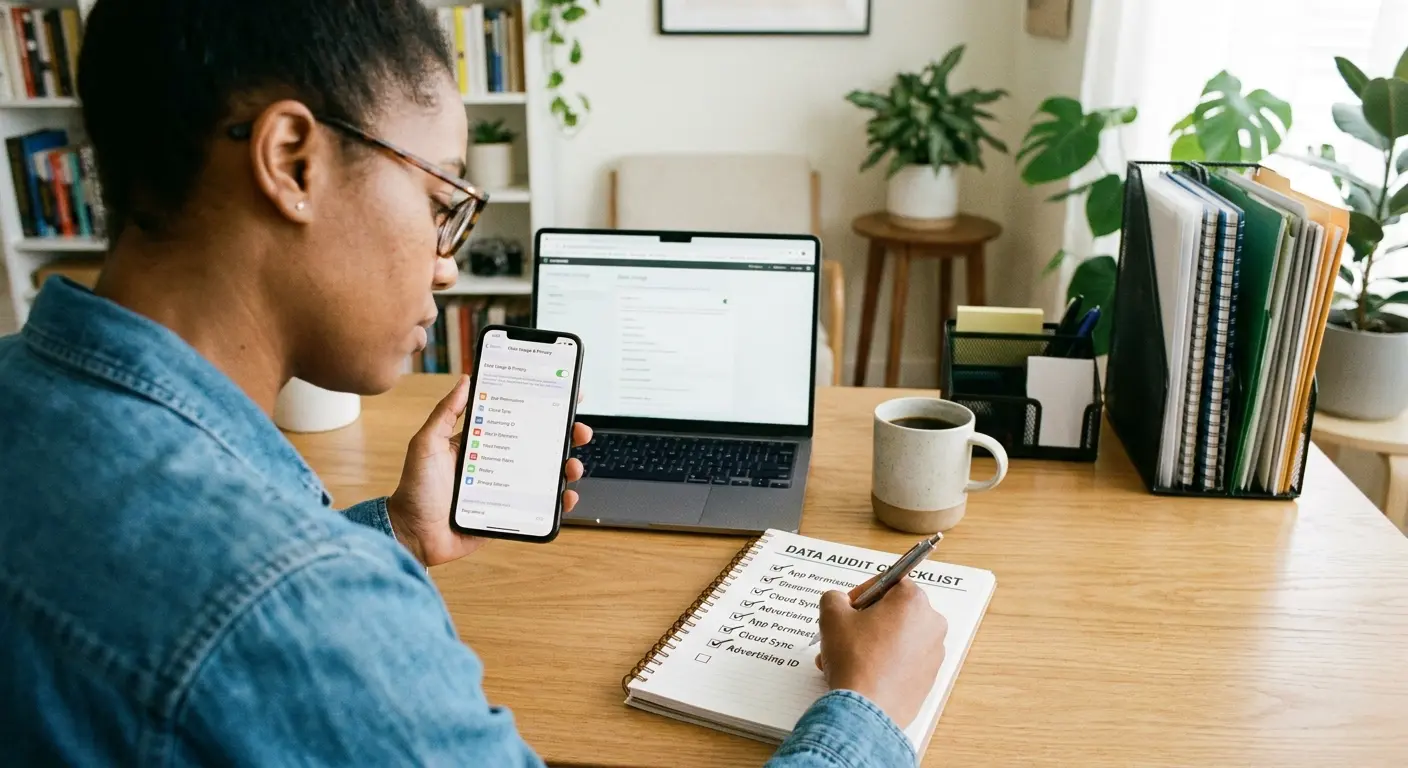
Block out 20 minutes to review your phone's data settings systematically. Start with cellular data usage statistics. Identify which apps consumed the most data in the last month. You'll probably find surprises.
Disable cellular data entirely for apps you don't need on the go. Games, recipe apps, shopping apps, and most utilities work fine on Wi-Fi only. You can always enable cellular temporarily if you genuinely need them while out.
Check Background App Refresh next. Disable it for everything except messaging, navigation, and music streaming. You'll eliminate hundreds of megabytes monthly with five minutes of work.
Review location permissions third. Change everything possible to "While Using" instead of "Always." Scroll through System Services and disable location features you don't actively use.
Finish with streaming quality settings. Set video to 480p on cellular. Drop music streaming to normal quality. Disable autoplay and preloading in social media apps. These changes alone can cut data usage by 50% or more.
Keep It Under Control
Data management isn't one-and-done. Apps update and reset preferences. New apps request permissions. Your usage patterns change.
Set a monthly reminder:
Check cellular usage
Look for surprises
Delete apps you haven't used in 3 months
That's it.
Review installed apps quarterly. Delete apps you haven't used in three months. They're consuming background data for no benefit. Even if you think you might use them someday, you can always reinstall if needed.
Audit location and background refresh permissions twice yearly. Apps you granted permissions months ago might no longer need them. Your usage patterns shift, and permissions should shift with them.
Why Everything Defaults Against You
Phone manufacturers, app developers, and service providers all benefit from high data usage. Carriers sell you bigger data plans. Developers keep you engaged with instant loading and smooth experiences.
Phone manufacturers, app developers, and service providers all benefit from high data usage. Carriers sell you bigger data plans. Developers keep you engaged with instant loading and smooth experiences. Manufacturers create premium-feeling devices that never buffer or delay.
Your interests align with none of theirs. You want to stay within your data plan. You want control over when and how your phone uses data. You want transparency about what's consuming resources.
The settings exist to give you control, but they're buried and disabled by default because making them obvious would reduce data consumption. More data usage means more revenue across the ecosystem.
Taking control requires active effort because passive usage serves everyone's interests except yours. The good news is that once you configure these settings properly, they mostly stay configured. The initial investment pays ongoing dividends.
Where Rokform Fits Into Your Data Strategy
Look, I work for Rokform. We make phone cases and mounts. You're probably wondering what that has to do with data usage. Fair question.
Here's the connection I've noticed: when your phone's properly mounted in your car, you stop checking it at red lights. And guess what you're not doing when you're not checking it at red lights? Scrolling Instagram over cellular data because you're bored.
Secure mounting eliminates the temptation to check your phone at stoplights, which often happens over cellular since you're away from Wi-Fi. Our rugged phone cases make it easier to wait until you're parked and on Wi-Fi to catch up on messages or social media.
The magnetic mounting system keeps your phone accessible for navigation without encouraging constant checking. Navigation apps are legitimate data users, but they consume far less than scrolling social media at stoplights.
We also offer motorcycle mounts and bike mounts that keep your phone secure during activities where data usage should be minimal anyway. You're riding, not streaming.
Not saying our cases will fix your data problem. But using your phone intentionally instead of habitually? That helps.
Our MagSafe compatible cases work seamlessly with Apple's ecosystem while giving you the rugged protection and mounting versatility you need. Whether you're using an iPhone 15 case or protecting an older model, the mounting system helps you use your phone with intention rather than habit.
Final Thoughts
Your phone uses too much data because every default setting prioritizes smooth experience over your data plan.
The settings to fix it exist. They're just buried.
Spend 20 minutes tonight:
Kill Background App Refresh for most apps
Turn off cellular for Cloud Photos
Disable auto-downloads
Set streaming to lower quality
Turn off Wi-Fi Assist
You'll cut usage by 40-60%. Maybe drop to a cheaper plan. Maybe just stop worrying about overages.
Your phone's a tool. Make it work for you.

