


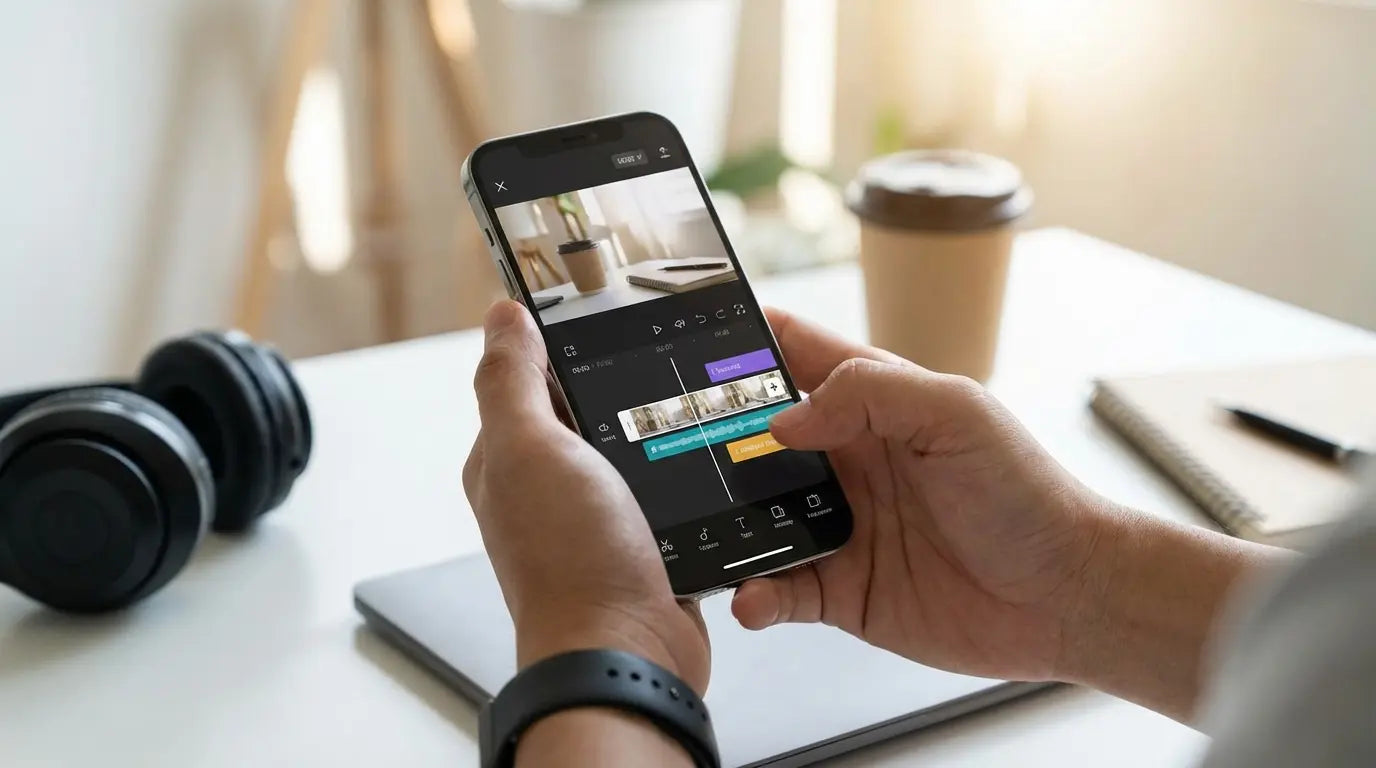
We all know the drill: scroll, double-tap, share. Whether it's TikTok, YouTube, or Instagram, video is king right now. And honestly, the most powerful camera you own is probably the one already in your pocket. I remember trying to splice two clips together on an iPhone 6 years ago—the app crashed so hard I thought my phone had actually died. I just stared at the black screen, wishing I had my laptop.
Fast forward to today, and the script has completely flipped. The processors in our phones are absolute beasts now. The only thing standing between you and a cinematic masterpiece (or just a really funny Reel) is the software. So, let’s cut through the noise. We’re going to look at the absolute best video editing apps for iPhone to get the job done without pulling your hair out.
TL;DR: The Cheat Sheet
In a rush? Here’s the rapid-fire breakdown. We’ve got everything from Hollywood-level tools to AI bots that do the work for you. Also, don't forget the hardware—editing eats battery life for breakfast, so you'll need to think about power and mounting.
The Heavy Hitters: Apps like LumaFusion and DaVinci Resolve are for when you want desktop power on your phone.
Social Speed: CapCut and InShot are the kings of quick, trendy edits for TikTok and Reels.
For the "Vibes": Use VSCO and Prequel when the color and mood matter more than the cuts.
Lazy (Smart) Editing: Tools like Captions and GoPro Quik save you hours by automating subtitles and highlight reels.
Gear Check: Heavy editing drains power. Using magnetic stands and rugged cases makes the workflow way less stressful.
Category |
Best For... |
Top Pick |
|---|---|---|
Professional |
YouTube docs, Client Work, Serious Filmmaking |
LumaFusion |
Social Media |
TikTok Trends, Reels, Fast Turnarounds |
CapCut |
Aesthetic |
Color Grading, Film Filters, Moodiness |
VSCO |
AI / Auto |
Talking Heads, Subtitles, Instant Highlights |
Captions |
Niche |
Stop Motion, Green Screen, Retro Looks |
Stop Motion Studio |
What to Look for Before You Download
Before you commit to a subscription or drop cash on an app, take a second to think about what you actually need. Are you a pro filmmaker or just making memes? You need to weigh your skill level against your wallet.
Skill Level & Interface (UI)
Be honest with yourself here. Do you want full control, or do you want the app to do the thinking for you? Some editors love a magnetic timeline where they can scrub audio frame-by-frame. Others just want a "make it look cool" button.
If you're just posting a quick Story, a pro interface is going to annoy you with too many buttons. But if you're building a mini-documentary, a simple "social" editor isn't going to cut it.
Features That Actually Matter
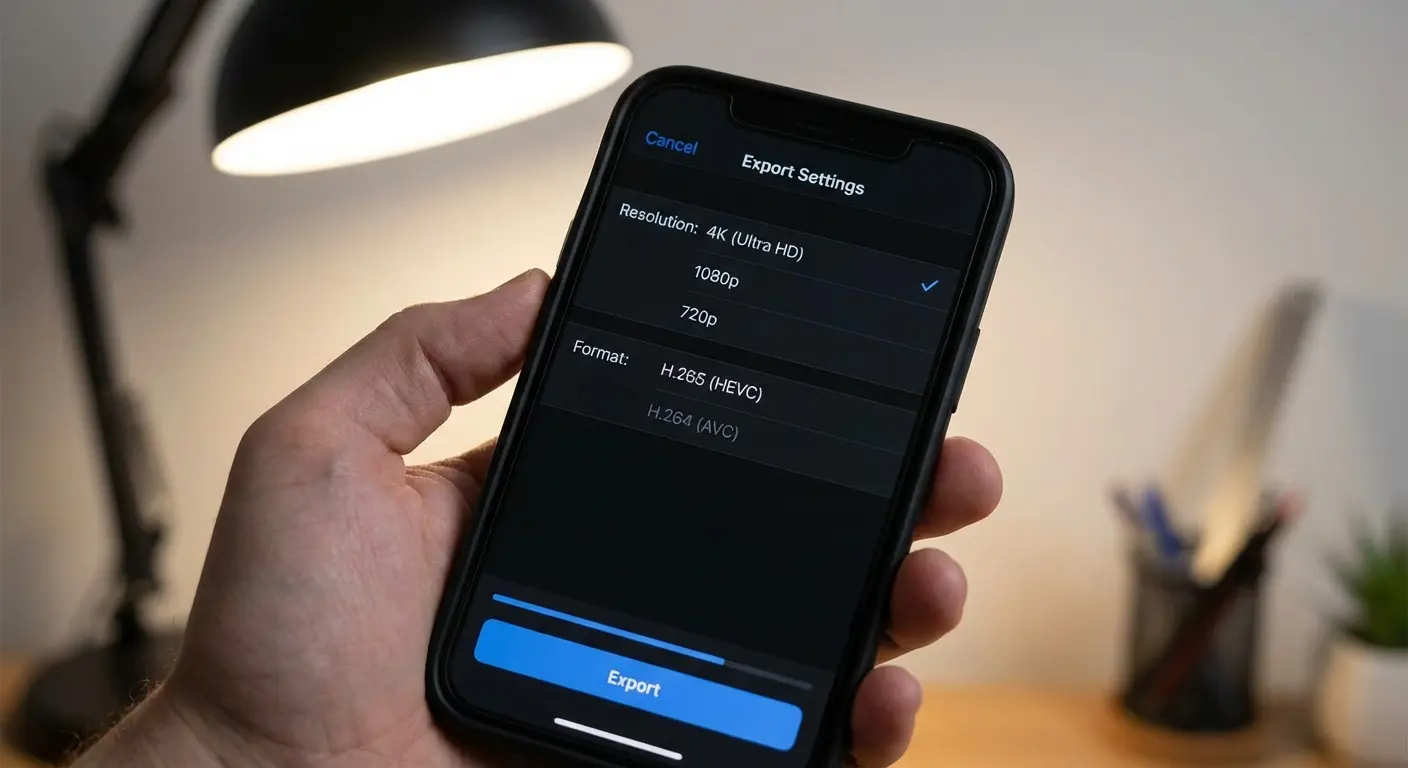
Look at what the app can handle. Multi-track editing is non-negotiable if you want to layer B-roll, music, and voiceovers. Also, check for 4K/60fps export—you don't want to shoot in 4K just to export in grainy 1080p. Nowadays, standard features should include AI captions and background removal. If the app doesn't have that, it's falling behind. To get the best out of these apps, check out our top 6 smartphone video tips to make sure your raw footage is actually good.
The Price Tag
Subscription fatigue is real. I get it. But it's the reality for most good apps now. You usually have three options: Freemium (free but expect watermarks), Subscription (monthly drain on the wallet), or the rare One-Time Purchase.
Pricing Model |
Pros |
Cons |
Best For |
|---|---|---|---|
Freemium |
Free to start, good for testing the waters. |
Usually has annoying watermarks or locks the best features. |
Beginners |
Subscription |
You get cloud storage, stock music, and constant updates. |
Costs add up; stop paying, stop editing. |
Content Creators |
One-Time Purchase |
Pay once, own it forever. No monthly bills. |
High upfront cost; major updates might cost extra later. |
Long-term Filmmakers |
Workflow Integration
Where does your footage live? If you're shooting ProRes Log on a newer iPhone, those files are huge. You absolutely need an app that can edit directly from an external SSD so you aren't constantly deleting photos to make space.
Top 25 Video Editing Apps for iPhone (Categorized)
We broke these down into five groups so you don't have to scroll through stuff you don't need. Whether you want pro tools, social trends, or just aesthetic filters, we've got you covered.
Category 1: The Heavy Hitters (Pro Grade)
These are for the filmmakers and YouTubers who need total control. We're talking magnetic timelines, color grading, and audio mixing that rivals what you can do on a laptop.
1. LumaFusion
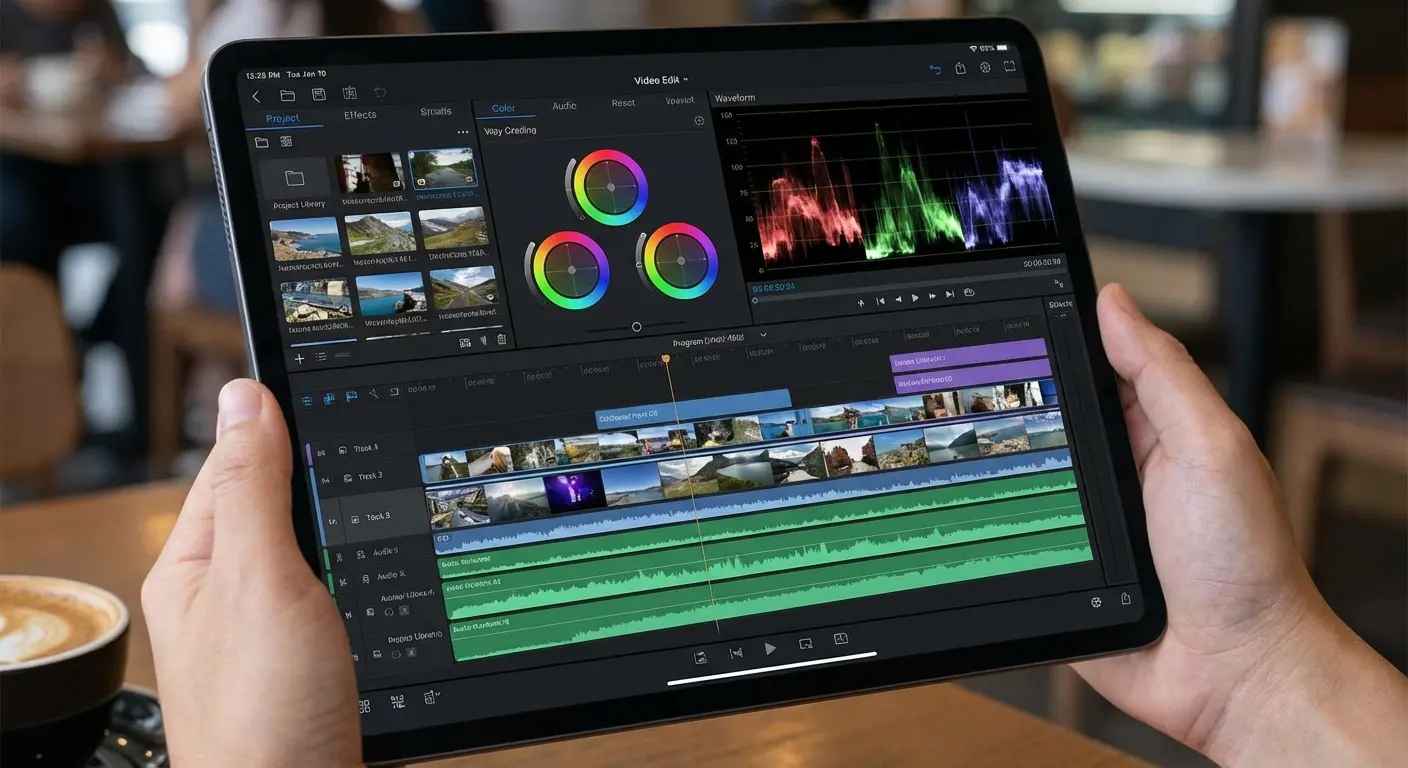
This is widely considered the gold standard. LumaFusion is basically a desktop editor shrunk down for your phone. You get six video/audio tracks and a magnetic timeline. The killer feature? It supports editing directly from an external drive via USB-C.
The "Heavy Data" Workflow: If you're shooting ProRes on an iPhone 15 or 16 Pro, your storage will fill up instantly. Plug in a portable SSD (like a Samsung T7), and LumaFusion lets you edit right off the drive. You can cut a 4K project without transferring a single gigabyte to your phone.
2. DaVinci Resolve for iPad/iPhone
Yes, the actual Hollywood software is on mobile now. It brings the famous "Cut Page" and incredible color grading to your phone. It allows for cloud collaboration with desktop users, too. The learning curve is steep, but the results are cinema-quality.
3. Adobe Premiere Rush
If you're already paying for Adobe Creative Cloud, just use this. Premiere Rush syncs your projects with Premiere Pro on your desktop. Start the edit on the train, finish it at your desk. It’s simplified, but still has that Adobe polish.
4. KineMaster
KineMaster is a landscape-first editor for people who like a classic layout. It’s got a massive asset store, chroma key (green screen), and keyframe animation. It’s a solid choice if you want to tweak every little detail.
5. PowerDirector
Need speed? PowerDirector is fast. It has a huge library of stock footage and effects, plus a solid video stabilizer. It renders quickly, which is a lifesaver when you're on a tight deadline.
Category 2: Social Media & Trends (Short-Form)
This is where the cool kids hang out. These apps dominate TikTok, Reels, and Shorts because they are fast, trendy, and easy to use.
6. CapCut
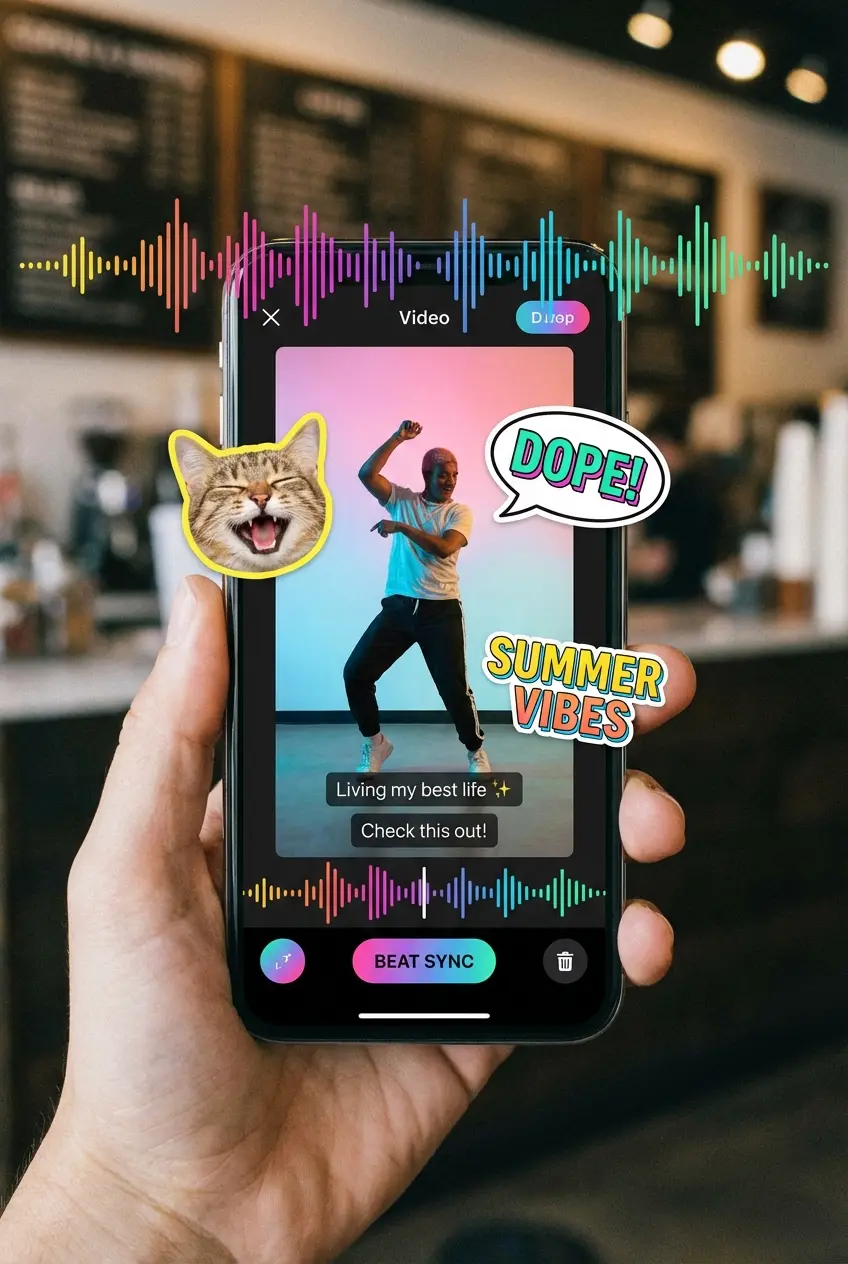
CapCut is the undisputed king of viral content right now. Features like "Auto-Velocity" and "3D Zoom" are basically essential for TikTok trends. It integrates directly with TikTok, so you get all the trending music and a streamlined posting process.
7. InShot
InShot is the OG of resizing. Got a horizontal video you need to make vertical for a Story? InShot handles the background blur and aspect ratios effortlessly. It’s super intuitive, even if you’ve never edited before.
8. VN Video Editor
Think of VN as "Pro-Lite." It’s cleaner than most because it doesn't bombard you with ads, and it offers a multi-track timeline for free. No watermarks, either. It's perfect for vlogs where you need to match cuts to music beats. Soundtracking a clip is its own problem, and I covered the apps to add music to video that handle it cleanly.
The 15-Minute Reel: Grab 10 clips from your day. Open VN, import them, and hit "Beat Clip." Tap the screen to the beat of your song to set markers. VN snaps your cuts to those markers automatically. You get a perfectly synced montage in like 10 minutes.
9. Splice
Splice is great for travel videos. It can automatically sync video transitions to the beat of a track, saving you the tedious work of manual cutting. It’s a bit pricey on the subscription side, but it’s very easy to use.
10. Mojo
Mojo isn't really a timeline editor; it’s a template engine for Stories. If you need animated text to promote a blog post or a product launch, this makes you look like a graphic designer in seconds.
Category 3: Cinematic & Aesthetic (Visuals First)
For the photographers and artists. These apps care less about complex cuts and more about color science, film grain, and vibes.
11. VSCO
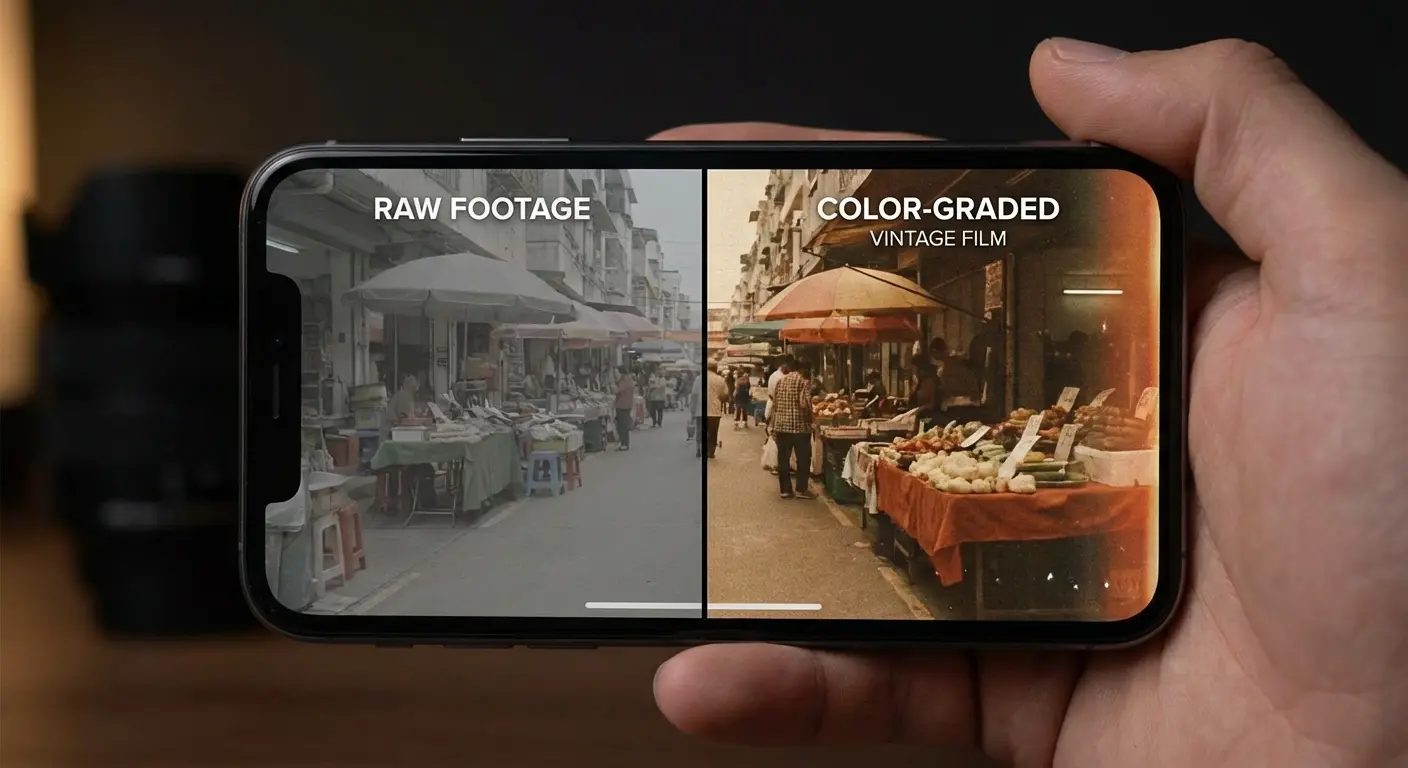
VSCO is all about the "film look." The editing tools are basic, but the color science is top-tier. You can apply popular presets (like C1) to your video so it matches your Instagram feed perfectly. If you love photography, check out our piece on iPhoneography to see how these color principles work.
12. Prequel
Prequel is an effects factory. This is how people get that "Miami" glow or "VHS" grain. Use this to style your clips before you put them into a main editor.
13. Tezza
A favorite among lifestyle influencers. Tezza has a very specific "editorial" look. It’s great for adding stop-motion effects and vintage film borders to make your life look like a magazine spread.
14. Darkroom
Darkroom integrates deep into your Photos library—no importing required. It’s amazing for batch editing. You can color grade 10 clips at once, which speeds up your workflow massively.
15. Filmm
Filmm mixes filters with authentic textures. It adds light leaks and dust scratches that actually look organic, not like a cheap digital overlay.
Category 4: AI & Automated (Work Smarter)
Let the robots do the heavy lifting. These tools automate captions, cuts, and even marketing assets so you can get back to business.
16. Captions
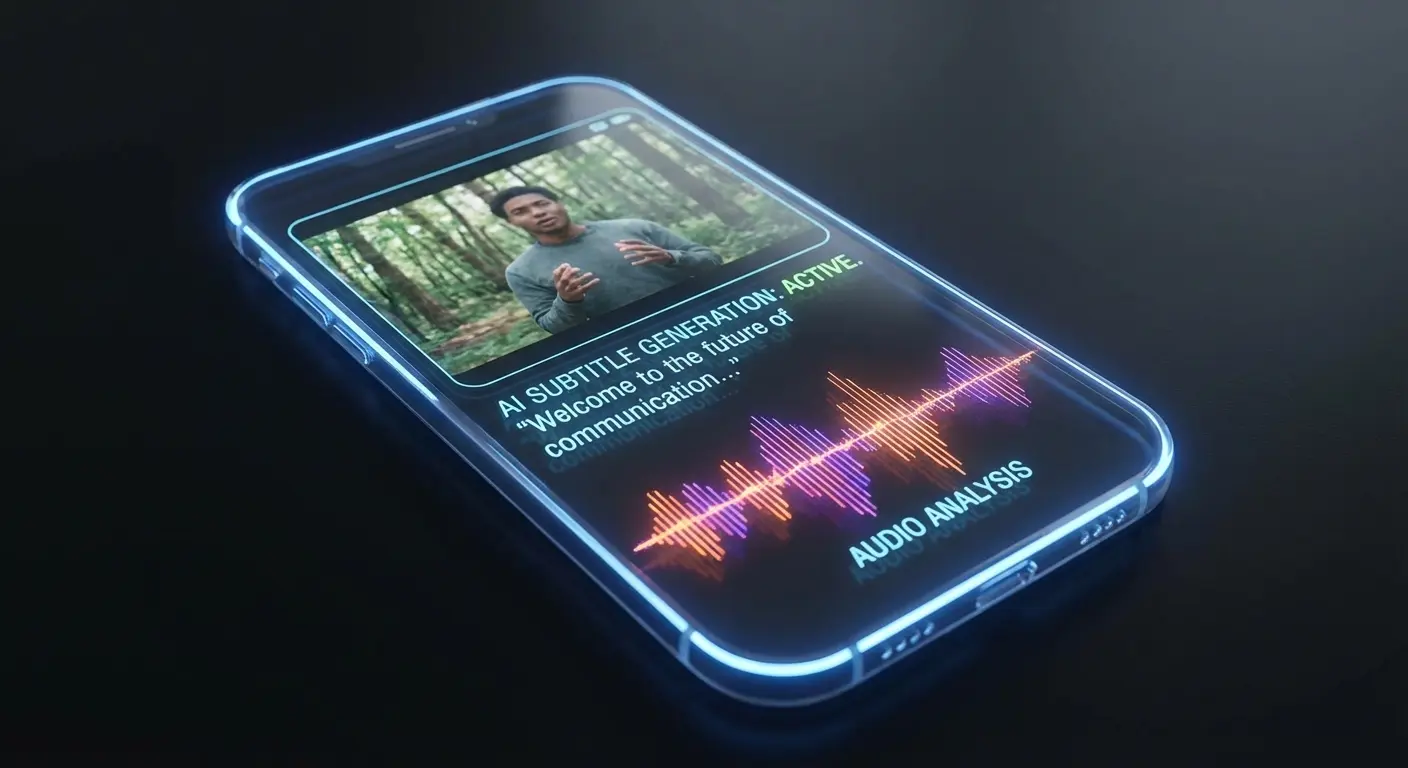
If you record yourself talking, you need this. Captions automatically generates accurate subtitles and even uses AI to correct your eye contact—so it looks like you're looking at the lens even if you're reading a script.
17. GoPro Quik
You don't need a GoPro to use this. The "Auto-Highlight" feature is awesome. Select 20 clips from a trip, pick a song, and the app cuts the video for you, finding the best moments automatically.
18. Canva
Canva is for the non-editors. Drag a video clip into a pre-made marketing frame, add your logo, and you’re done. It keeps your brand looking consistent without any technical skills.
19. Magisto
Magisto uses AI to analyze the emotional tone of your footage. Upload product clips, and it spits out a polished commercial. It’s very hands-off, which is perfect for business owners.
20. Beatleap
Beatleap edits to the music. You pick the track, it picks the cuts. Ideal for high-energy workout promos where every cut needs to hit on a drum beat.
App |
Primary AI Feature |
Best Use Case |
|---|---|---|
Captions |
Eye Contact Fix & Auto-Subs |
Talking Head / Education |
GoPro Quik |
Auto-Highlight Reel |
Travel & Action Sports |
Magisto |
Emotion-Based Edits |
Small Business Ads |
Beatleap |
Audio-Sync Automation |
Workout & Event Promos |
Category 5: Specialized & Niche
Sometimes you need to do something specific, like stop motion or retro VHS recording. These are the tools for those unique jobs.
21. Stop Motion Studio Pro
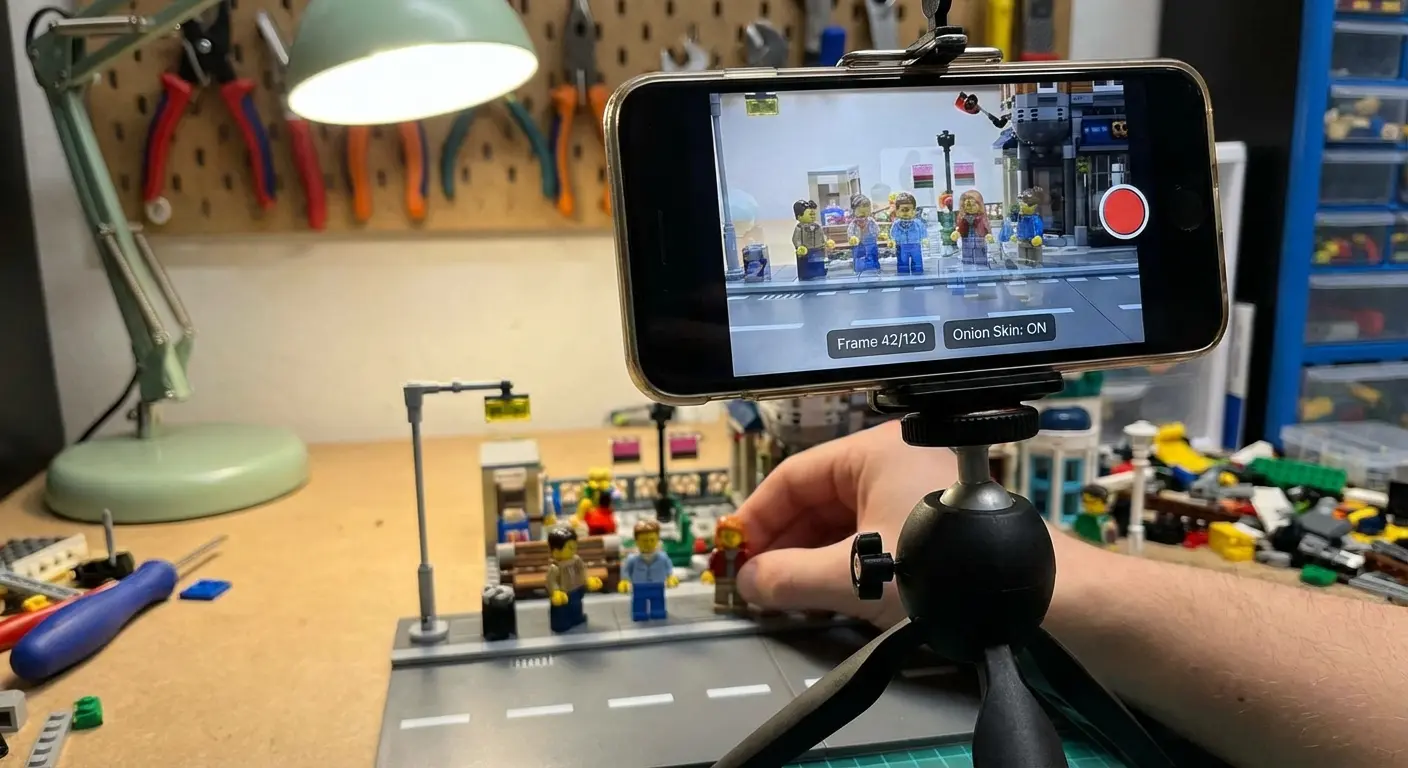
The industry standard for LEGO animation or claymation on a phone. It has "onion skinning," which lets you see the previous frame ghosted over the current one so you don't mess up the movement.
22. DoubleTake
Records from two cameras at once (like the selfie and rear cam). Essential for interviews where you want to capture both people using one phone.
23. Chromavid
Designed for real-time green screen. It’s the best tool for quick background swaps without needing to learn complex masking.
24. Rarevision VHS Camcorder
Simulates 1980s tape recording, complete with the date stamp and cheesy audio distortion. It "edits" as you shoot, creating instant nostalgia.
25. Blur Video
Does one thing and does it well: blurring faces or license plates. Essential for vloggers who need to respect privacy in public spaces.
The Rokform Advantage: Don't Let Your Battery Die
Let’s be real about the physical side of mobile editing. It drains your battery, and holding a phone for hours is a pain. Rokform’s gear helps solve those annoyances so you can actually finish your project.
Power Through the Render
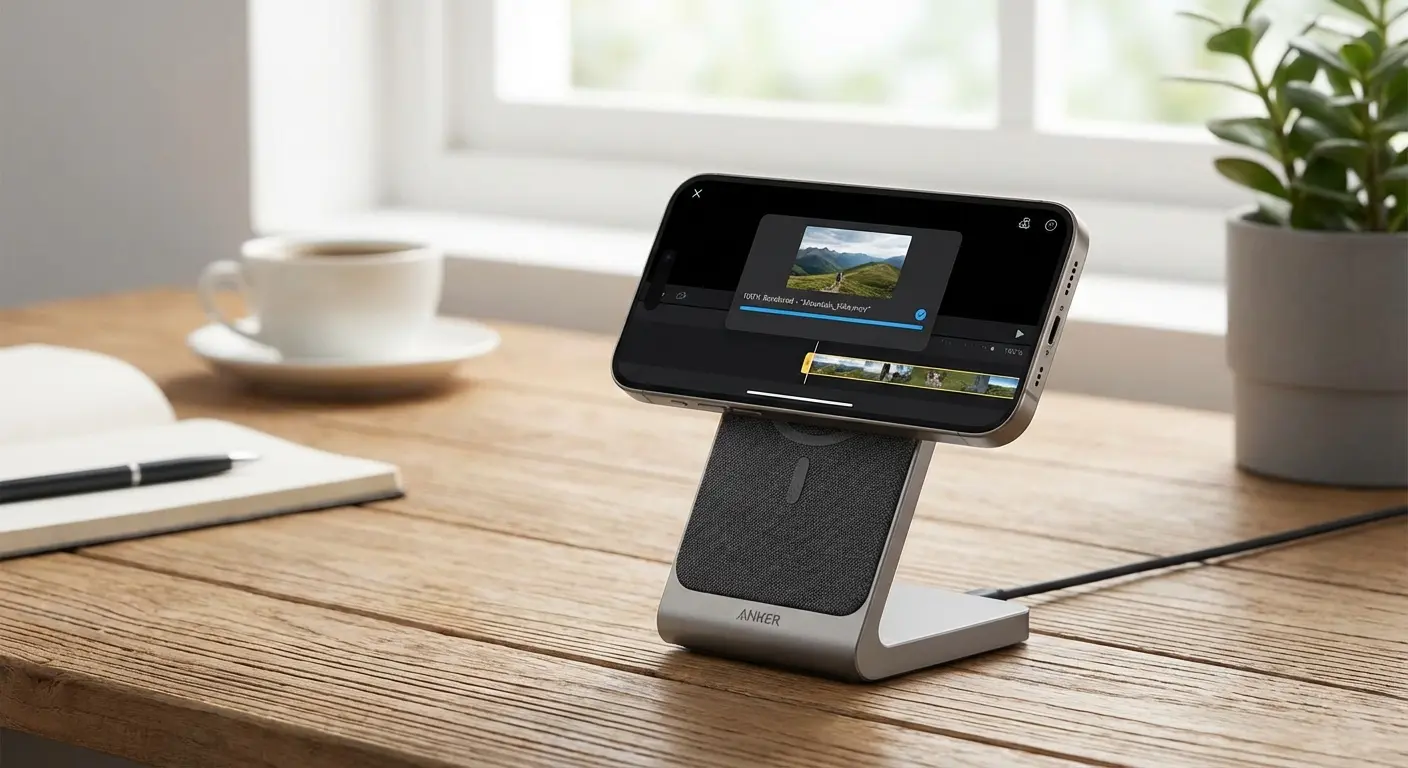
Video editing kills batteries. When you're deep in a LumaFusion timeline or exporting a 4K file, you can't afford to die at 5%. The Rokform Magnetic Wireless Charging Stand gives you a dedicated dock. It holds your phone at the perfect angle for editing while keeping the battery topped off. Check out everything you need to know about the Magnetic Wireless Charging Stand to keep your workflow interrupted.
Protect the Goods
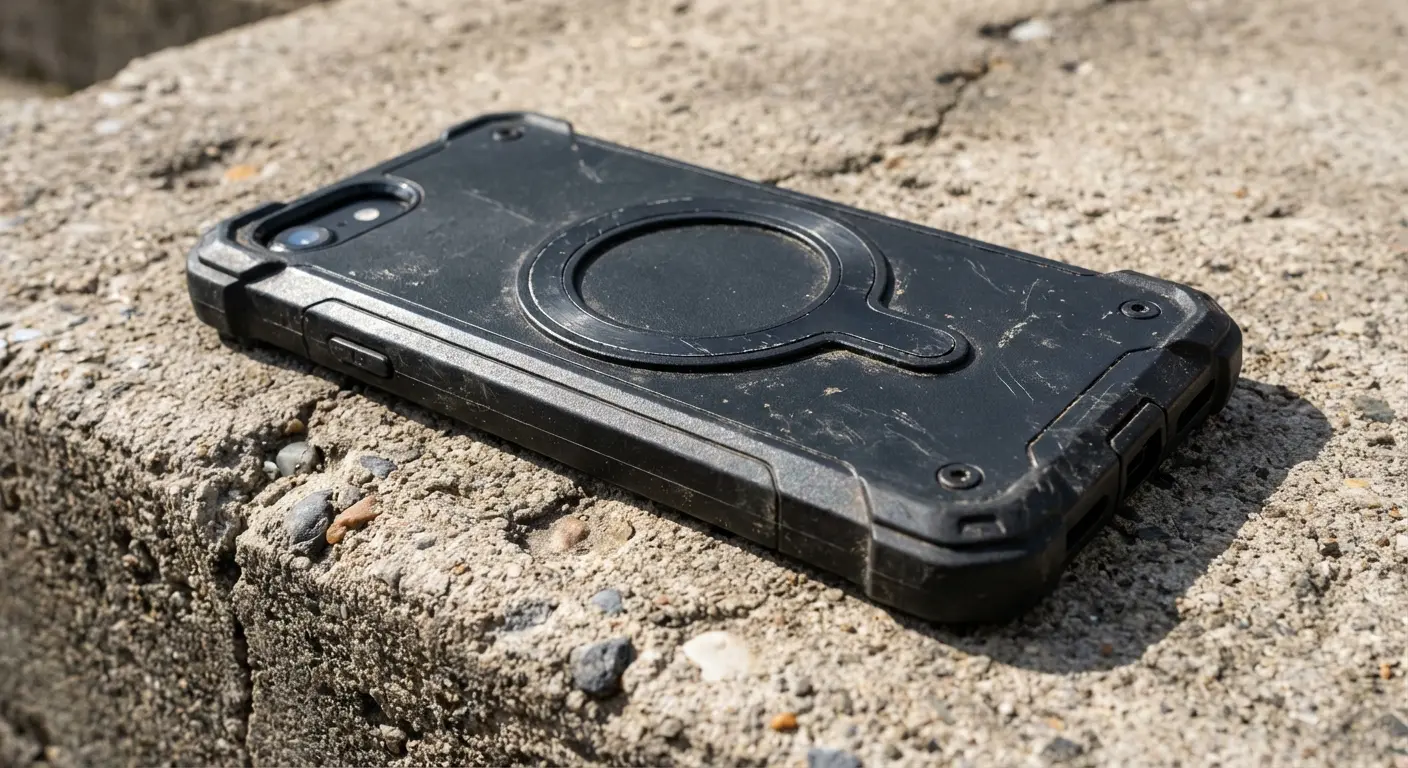
Great edits start with great footage, but filming can be risky. Whether you're mounting your phone to a car or filming a golf swing, accidents happen. Rokform Rugged and Crystal Cases use military-grade polycarbonate to offer serious drop protection. If you drop your device trying to get "the shot," your data is safe. Not sure which one to get? Read our breakdown of the most protective phone cases.
Stick It Anywhere (MAGMAX™)
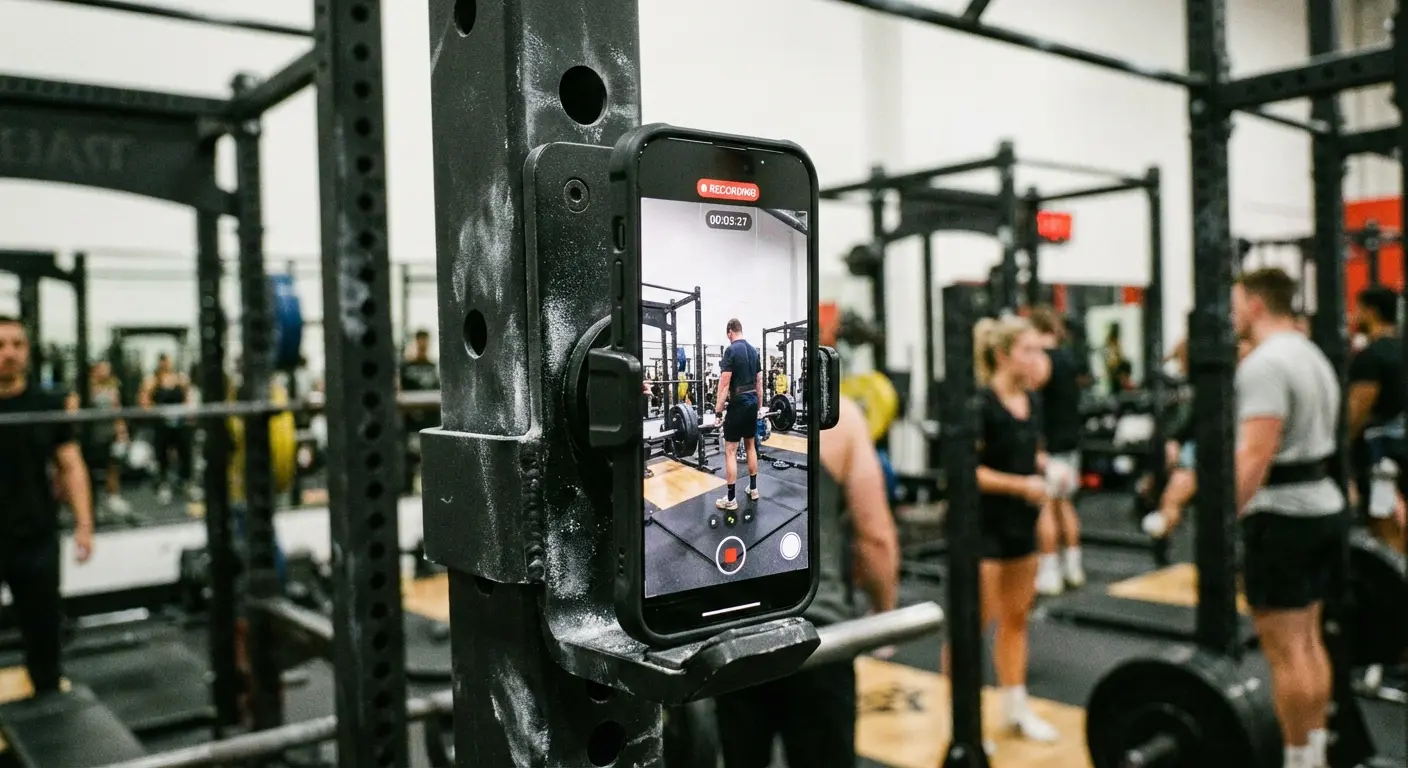
Sometimes you need an extra hand. Rokform’s magnets (MAGMAX™) let you stick your iPhone to almost any magnetic surface—gym racks, golf carts, toolboxes. This gets you stable footage without a tripod, meaning less work stabilizing shaky clips in post-production.
The Solo Shooter Scenario: You're at the gym filming a set. Instead of balancing your phone on a water bottle (we've all done it), just magnet-mount it to the squat rack. Boom—perfect angle, rock steady. Later, when you edit in CapCut, the footage is already smooth.
For creators who film solo, using tripod phone mounts for TikTok creators can drastically improve your production value before you even open an editing app.
Final Thoughts
There are a million video editing apps for iPhone out there, and it's easy to get overwhelmed. My advice? Don't just buy the most expensive one because a YouTuber told you to. Buy the one that actually helps you finish your video.
Whether you're making a cinematic travel vlog or just trying to get a funny clip up on TikTok, the right tool is on this list. Just make sure your hardware is protected and charged up so you never miss the moment.

