



Last Tuesday, my phone died at 4 PM. Again. I'd barely used it: a few texts, maybe 20 minutes of scrolling. Battery health said 89%. What the hell was going on?
Turns out, the usual advice about closing apps and dimming screens misses the actual problem. Your phone's battery isn't dying because of software. It's dying because of physics you can't see: heat trapped by your case, the way wireless charging creates a thermal oven, how your car mount is slowly cooking your battery in direct sunlight. Temperature fluctuations, mounting surfaces, charging angles, and even how you grip your device all create thermal stress that accelerates battery degradation in ways most troubleshooting guides completely ignore.
Here's What's Actually Killing Your Battery:
The heat trap nobody mentions
Why wireless charging is worse than you think
Your case is suffocating your phone
Screen refresh rates drain power even when nothing's moving
5G is a battery vampire (but not how you'd expect)
Notifications are the real background drain
Charging to 100% is slowly destroying your battery
Your car mount is a solar oven
Software updates enable features you didn't ask for
Too Long, Didn't Read?
Your case is an oven. Take it off when charging.
Wireless charging is convenient and terrible for your battery.
If you're in a spotty 5G area, just switch to 4G.
Stop charging to 100% every night.
Mute 90% of your notifications.
Everything else? Honestly, it helps, but fix these five first.
The Thermal Load Nobody Talks About
Your phone gets warm. You've noticed. What you haven't noticed is that "warm" to your hand means the battery inside is sitting at 95°F, slowly destroying itself.
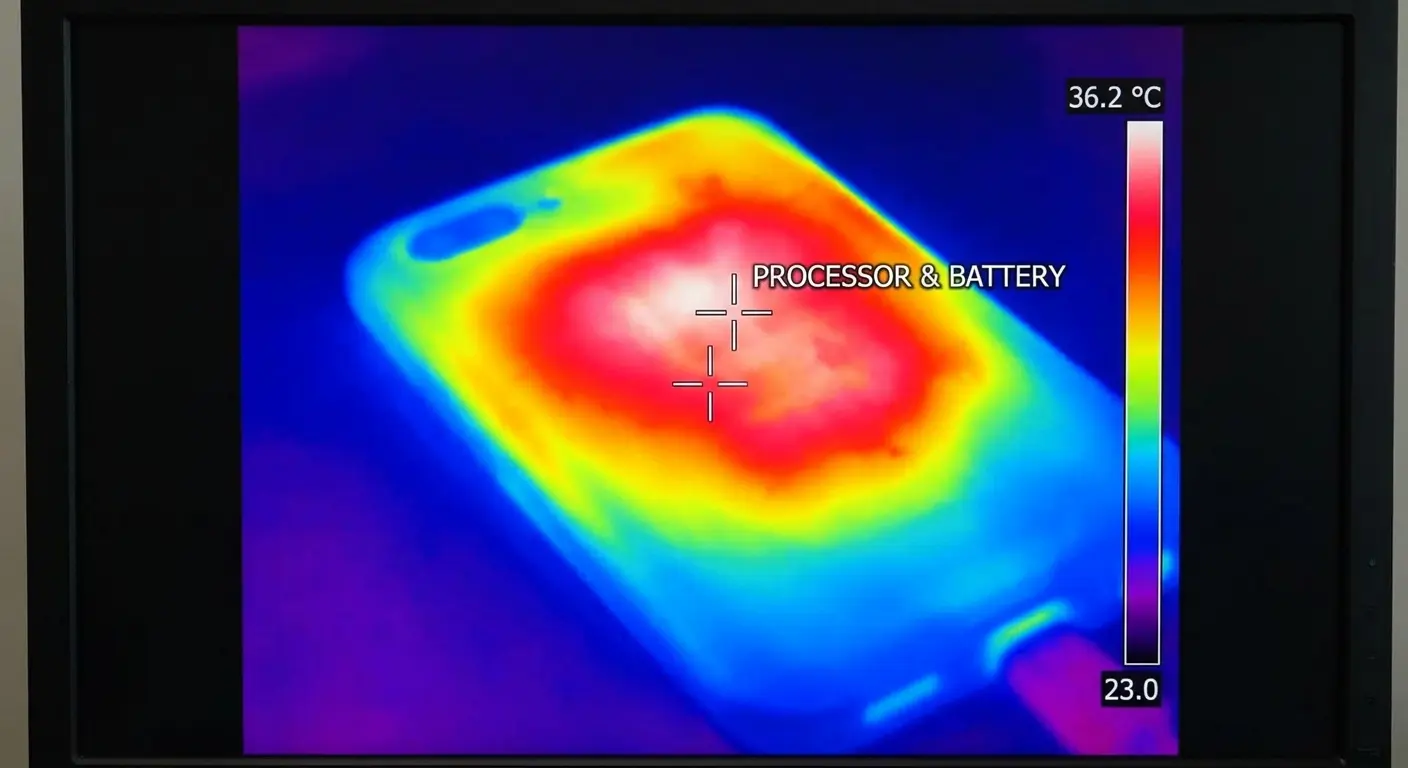
I tested this with a thermal camera (yeah, I'm that person). My iPhone in an Otterbox case, wireless charging overnight, hit 102°F. The battery? Probably 110°F internally. At that temperature, you're losing battery capacity twice as fast as normal.
Understanding why is my phone battery draining so fast starts with recognizing how heat accumulation works and why it matters more than most battery-saving tips acknowledge.
Where Heat Actually Comes From
Your phone's processor generates heat proportional to its workload. Streaming video, gaming, and camera use push the CPU and GPU hard, creating thermal output that radiates through the device's aluminum or glass body.
The battery itself generates heat during charging and discharging cycles. Fast charging amplifies this effect because higher wattage means more energy flowing through the battery cells in less time.
Most phones include thermal management systems like heat pipes, graphite sheets, and vapor chambers to spread heat across the device body. These systems work best when the phone can radiate heat freely into surrounding air.
When you add a case or place the phone against a surface, you restrict that heat dissipation. The battery sits in an environment several degrees warmer than it would otherwise experience.
Why Temperature Matters More Than Charge Cycles
Battery degradation happens through chemical reactions inside lithium-ion cells. Higher temperatures accelerate these reactions.
A battery operating consistently at 95°F degrades roughly twice as fast as one kept at 70°F, even if both go through identical charge cycles. We focus on how many times we charge our phones, but thermal stress causes more permanent capacity loss than cycle count alone.
Your phone might feel slightly warm to the touch. That warmth indicates the internal temperature is way higher. The battery sits beneath other components that generate their own heat. When your device feels warm on the outside, the battery is experiencing temperatures that actively reduce its maximum capacity.
Understanding battery usage patterns in relation to temperature helps you identify when your phone battery is draining fast due to thermal factors rather than software issues.
Temperature Range |
Degradation Rate |
Capacity Loss After 1 Year |
What This Actually Means |
|---|---|---|---|
32°F - 70°F |
Baseline (1x) |
5-8% |
You're fine, stop worrying |
70°F - 85°F |
Moderate (1.5x) |
8-12% |
Normal use, whatever |
85°F - 95°F |
Accelerated (2x) |
12-20% |
Take the damn case off when charging |
95°F+ |
Severe (3x+) |
20-35% |
Your battery is actively dying |
The Compounding Effect of Daily Thermal Stress
You charge your phone overnight in a case. You use it for navigation in a car mount exposed to direct sunlight. You stream video while the phone rests on a couch cushion that insulates the back panel.
Each scenario creates a thermal event. These events compound over weeks and months, gradually reducing the battery's ability to hold a full charge.
Here's what happened to someone I know. They charged their phone wirelessly every night in a thick protective case. During the day, they mounted it on their car dashboard for 45-minute commutes in direct sunlight while running GPS navigation. After six months, their battery health showed 92%, but they noticed the phone dying at 15% during intensive use.
The thermal stress from these two daily habits created voltage delivery problems that the health percentage didn't reflect. When they switched to wired charging without the case and used a vent mount instead of dashboard mounting, their battery stopped the accelerated degradation pattern.
The degradation isn't linear, either. A battery that's lost 10% of its capacity will drain faster during the same tasks, causing you to charge more frequently, which generates more heat, which accelerates further degradation. You enter a feedback loop where thermal stress creates the conditions for more thermal stress.
Wireless Charging Creates a Heat Trap
I love wireless charging. I also know it's killing my battery.
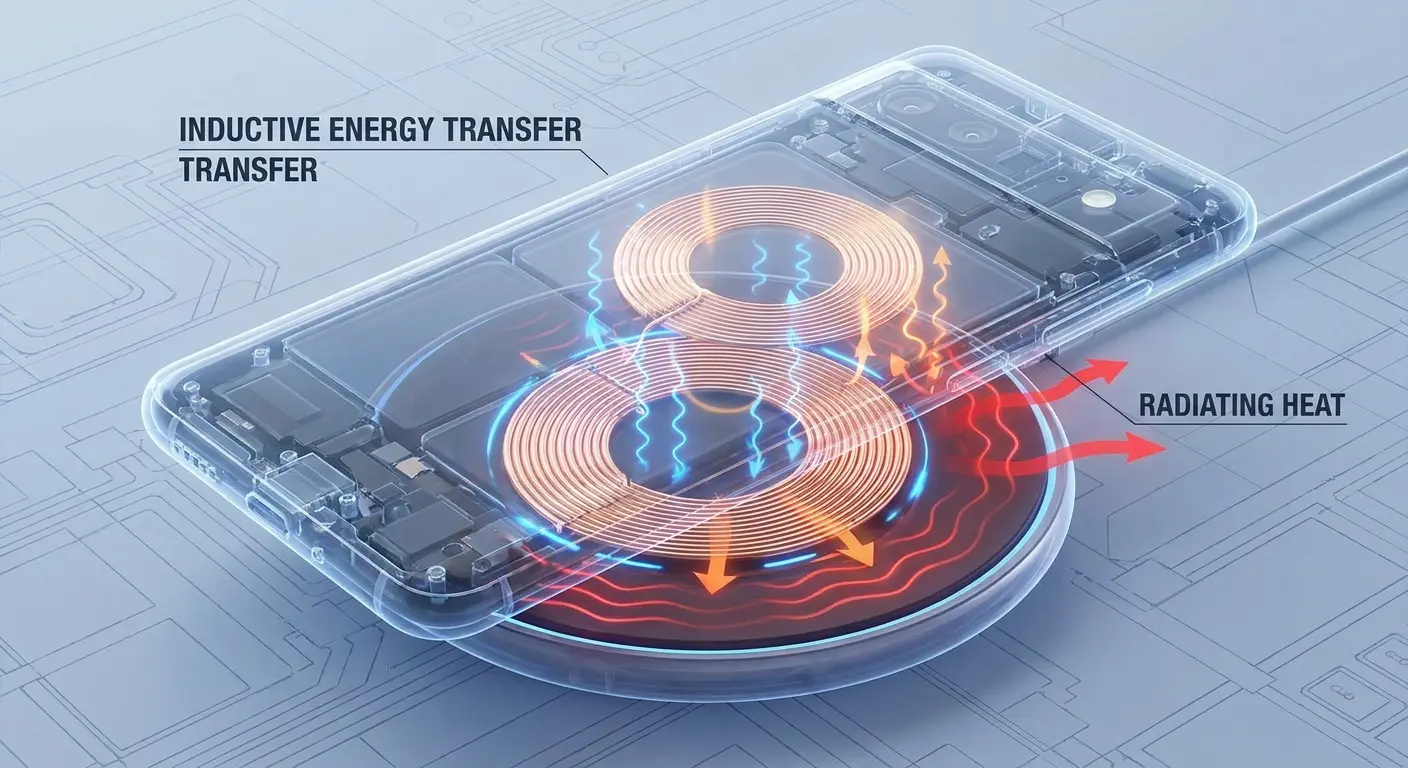
Here's the problem: wireless charging is inefficient as hell. About 20-30% of the energy becomes heat instead of charge. Your phone sits on a hot pad for 6-8 hours every night, baking itself.
Is it worth it? Depends. If you replace your phone every 2 years anyway, who cares. If you're trying to make it to year 4, you need to stop. This explains why phone battery draining quickly becomes a persistent issue for heavy wireless charging users.
How Inductive Charging Wastes Energy as Heat
Wireless charging uses electromagnetic induction to transfer energy from a pad to your phone. This process is inherently less efficient than direct wired connection. Roughly 20-30% of the energy gets lost during transfer, and that lost energy becomes heat. Both the charging pad and your phone's receiver coil warm up during charging.
Your phone sits directly against the heat source for the entire charging duration.
Wired charging generates heat too, but it's concentrated at the charging port and internal circuitry. Wireless charging spreads heat across a larger surface area that includes the battery location. The phone can't dissipate this heat effectively because it's pressed against the pad.
This sustained thermal exposure contributes to phone battery draining quickly over time as the cells degrade from repeated heat stress.
Case Materials Amplify the Problem
Most protective cases use materials that insulate: silicone, rubber, thick plastic. These materials trap heat against the phone body. During wireless charging, you're generating heat at the back panel while simultaneously preventing that heat from escaping. The battery sits in an enclosed environment that gets progressively warmer.
Some cases are thick enough to reduce wireless charging efficiency further, forcing the charger to increase power output to compensate. This creates even more waste heat.
You might notice your phone feels hot after wireless charging overnight. That warmth indicates hours of thermal stress on the battery.
Overnight Charging Extends Thermal Exposure
You place your phone on a wireless charger before bed. It reaches 100% charge within two hours, then maintains that charge level until you wake up. During those maintenance cycles, the phone continues drawing small amounts of power to keep the battery topped off. The charging pad stays active. Heat continues generating throughout the night.
The battery spends six to eight hours in an elevated temperature state. This nightly thermal exposure accumulates over hundreds of charging sessions per year.
The convenience of wireless charging comes with a hidden cost to battery longevity that most users never connect to their draining battery problems months later.
Your Case Might Be Suffocating Your Battery
That $60 Otterbox protecting your $1000 phone? It's also turning it into a little insulated oven.
I'm not saying don't use a case. Drop your phone once on concrete and you'll wish you had. But those thick rubber cases, especially the multi-layer ones that feel like you could throw your phone at a wall, they trap heat like crazy.
What I do: thin case for daily carry, remove it completely when charging or gaming. Is it annoying? Yeah. Does my 3-year-old phone still last all day? Also yeah.
Material Conductivity Varies Dramatically
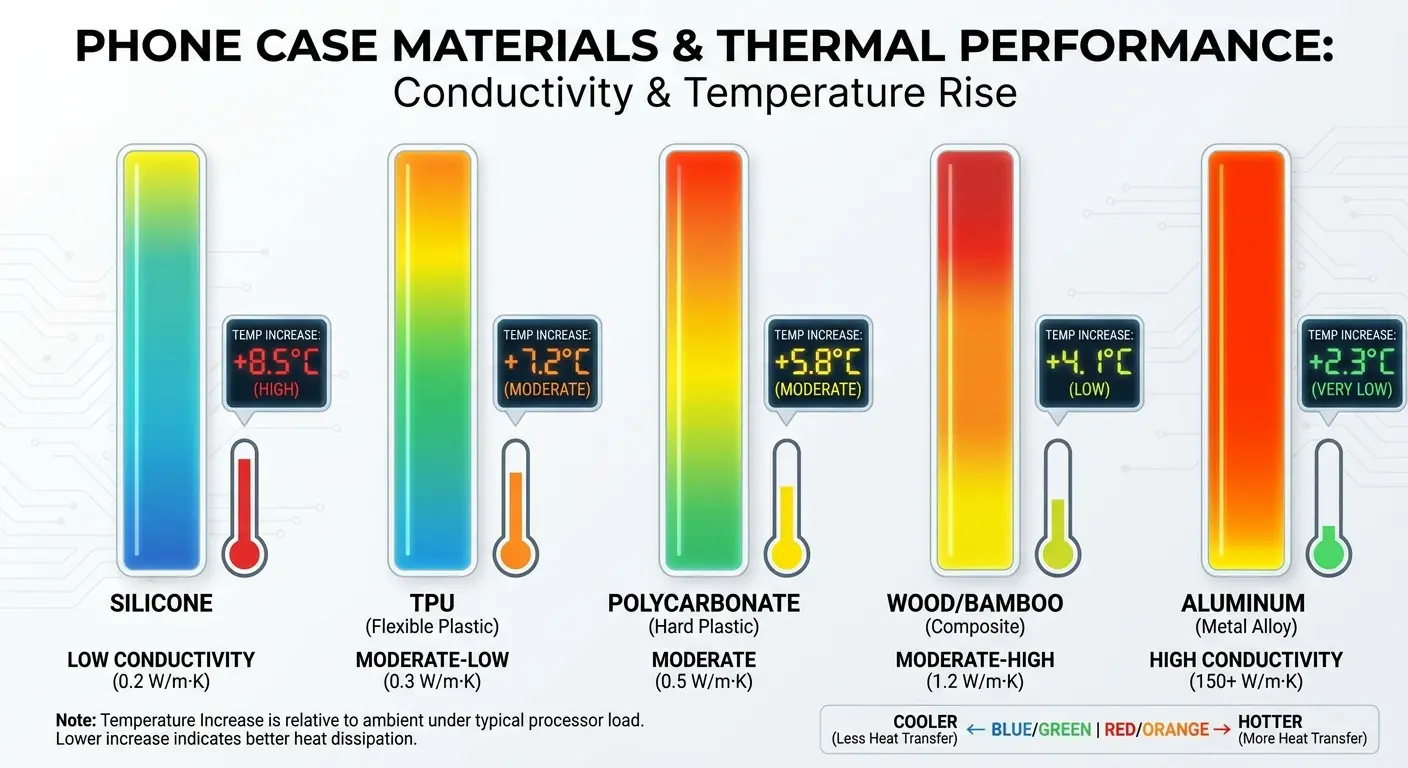
Metal cases conduct heat away from the phone body. Plastic, silicone, and rubber cases insulate. Most protective cases use insulating materials because they're cheaper to manufacture and provide better shock absorption. These materials create a thermal barrier between your phone and the environment.
Your phone generates heat during processor-intensive tasks. That heat needs somewhere to go. Without a case, it radiates through the aluminum or glass chassis into the air. With an insulating case, it stays trapped against the phone body, raising internal temperatures. The battery operates in a warmer environment, accelerating chemical degradation.
Understanding which materials balance protection with thermal performance helps when choosing the best phone cases for long-term battery health.
Case Material |
Thermal Conductivity |
Heat Retention |
Impact on Battery Temp |
Best Use Case |
|---|---|---|---|---|
Aluminum |
High |
Low |
+2-4°F |
Daily use, minimal protection |
Hard Plastic |
Low-Medium |
Medium |
+5-8°F |
Moderate protection |
Silicone |
Very Low |
High |
+8-12°F |
Drop protection, remove when charging |
Rubber |
Very Low |
Very High |
+10-15°F |
Heavy-duty protection, not for extended use |
Multi-layer |
Very Low |
Very High |
+12-18°F |
Maximum protection, remove during intensive tasks |
Thickness Matters More Than Material Alone
A thin silicone case creates less thermal resistance than a thick rugged case with multiple layers. Air gaps between layers can actually worsen insulation by creating dead air spaces that prevent convective cooling.
Some cases market themselves as "heat dissipating" but use materials or designs that still restrict airflow around the phone body.
You might not feel the phone getting hot through a thick case. That's the problem. The case insulates your hand from the heat, but it also insulates the phone from cooling air. The internal components stay warmer than they would in a thinner case or no case at all.
When Protection Conflicts with Performance
We need cases to protect expensive devices from damage. But that protection comes with a thermal penalty that affects battery performance and longevity.
Removing your case during charging, gaming, or other intensive tasks allows better heat dissipation. The battery operates at lower temperatures, reducing degradation rate.
Screen Refresh Rates Aren't Just About Smoothness
Your 120Hz screen is beautiful. It's also why your phone dies by dinner.
The dirty secret about "adaptive" refresh rates: they don't actually adapt that well. My Pixel 7 Pro supposedly drops to 60Hz when I'm reading, but when I check with an app, it's sitting at 120Hz like 80% of the time. Google's adaptive algorithm sucks.
The fix? Force it to 60Hz in settings. You'll lose some smoothness scrolling Instagram. You'll gain 3 hours of battery. Worth it.
More Refreshes Mean More Power Draw
A 60Hz display redraws the screen 60 times per second. A 120Hz display redraws 120 times per second. Doubling the refresh rate doesn't quite double power consumption because the backlight and other components use power too, but it increases the energy required to drive the display.
Your screen is typically the largest single power consumer in your phone. Increasing refresh rate makes that consumption higher. You gain smoother scrolling and better touch responsiveness, but you sacrifice battery life.
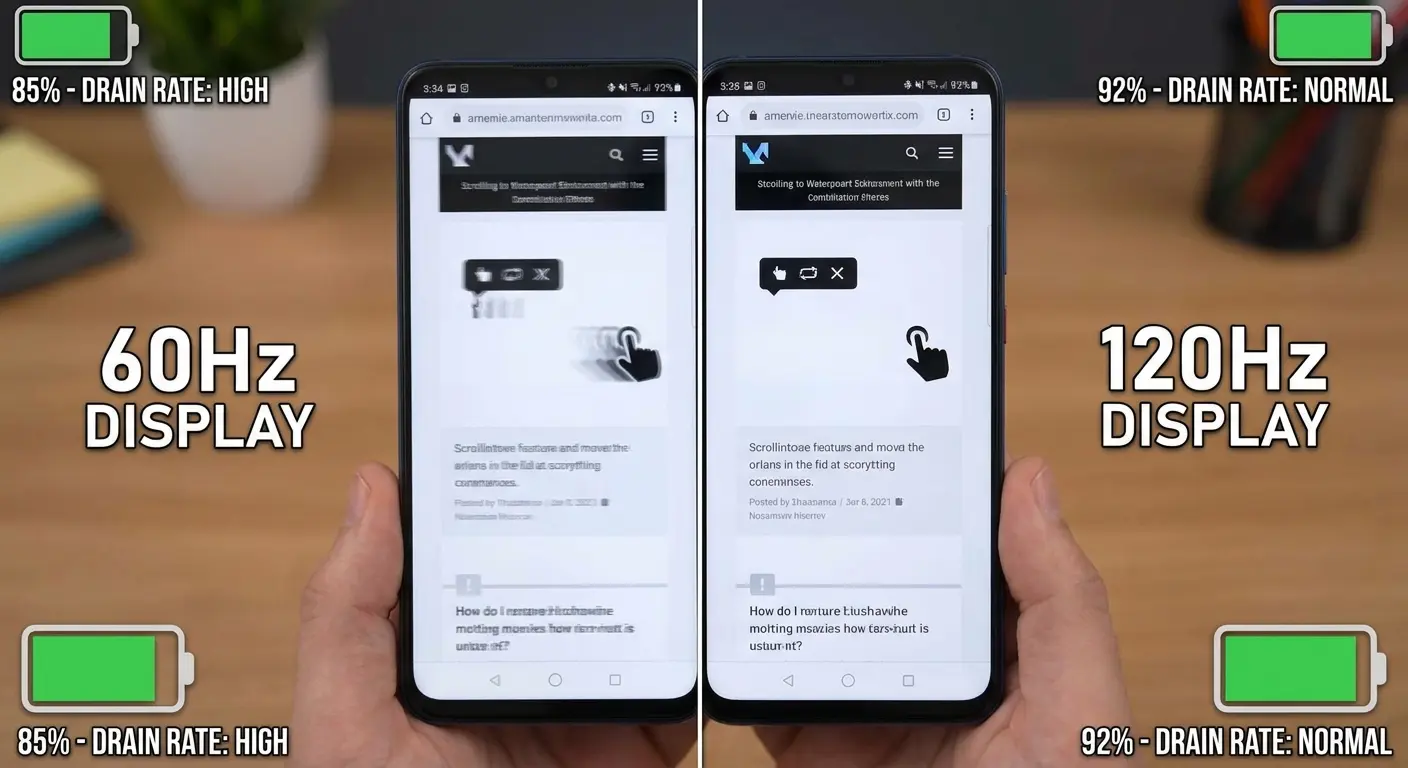
The trade-off becomes obvious when you compare battery drain between 60Hz and 120Hz modes on the same device. Monitoring battery usage through your phone's settings reveals how much impact screen refresh rates have on overall power consumption.
Adaptive Refresh Rate Doesn't Always Adapt
Most modern phones include adaptive refresh rate technology that's supposed to lower the refresh rate during static content. Reading an article, viewing a photo, or looking at your home screen doesn't require 120Hz. The system should drop to 60Hz or even lower to save power.
Adaptive refresh often fails to trigger when it should. Apps need to signal the system that content is static. Not all apps implement this correctly. Some phones use aggressive adaptive algorithms that work well, while others stay at high refresh rates far more often than necessary.
You might think you're getting the power-saving benefits of adaptive refresh when your phone is actually running at 120Hz while you read email.
Checking battery usage statistics can reveal whether your display is consuming more power than expected due to refresh rate issues.
A user with a 120Hz phone notices their battery drains 30% faster than their previous 60Hz device. They assume adaptive refresh is working because it's enabled in settings. Using a refresh rate monitoring app, they discover their phone stays at 120Hz for 85% of their usage time, including while reading news articles and scrolling social media feeds with mostly static images.
The apps they use most frequently don't properly signal static content to the operating system. After manually forcing 60Hz mode, their battery life improved by 25% with no noticeable impact on their actual usage experience.
The Always-On Display Multiplies the Problem
Always-on displays show time, notifications, and other information when your phone is locked. These displays typically run at very low refresh rates (1Hz or lower) and reduced brightness to minimize power consumption.
But when you combine an always-on display with a high baseline refresh rate, you create a scenario where the screen never fully rests.
Every notification that lights up the always-on display triggers a refresh rate increase. Every time you glance at your phone, the system needs to decide whether to wake the full display or stay in low-power mode. These transitions consume power, and they happen dozens of times per day. The cumulative effect shows up as faster battery drain that you can't easily attribute to any single cause.
5G Connectivity Burns Through Power Differently Than You Think
5G is fast. 5G also murders your battery, but not for the reason you think.
It's not the speed that kills you. It's your phone frantically switching between 5G bands every few minutes, looking for a better signal. Each switch spikes power draw. In areas with spotty 5G (which is... most places), your phone is constantly switching. Constantly draining.
I just leave 5G off now unless I'm downloading something big. The speed difference for browsing? Barely noticeable. The battery difference? Massive.
This explains why is my battery draining so fast even when you're not actively using data.
Multiple Radio Bands Mean Multiple Power States
5G networks operate across multiple frequency bands. Low-band 5G (sub-6GHz) offers wide coverage but modest speed improvements over 4G. Millimeter-wave 5G (mmWave) delivers extremely high speeds but only works over short distances. Your phone needs separate radio hardware to connect to these different bands.
When you move through an area with varying 5G coverage, your phone switches between bands to maintain the best connection. Each switch requires powering up different radio components, authenticating with the network, and re-establishing data connections. These transitions consume more power than simply maintaining a stable 4G connection.
If you're constantly wondering phone battery draining fast, 5G band switching could be a major contributing factor.
Signal Searching Happens Constantly
Your phone doesn't just connect to one tower and stay there. It constantly scans for stronger signals from nearby towers. With 5G, this scanning process checks multiple frequency bands simultaneously. The modem needs to power up multiple radio chains, scan for signals, measure signal strength, and determine whether switching would improve connection quality.
This scanning happens even when you're not actively using data. Your phone sits in your pocket, modem active, searching for better 5G signals. The power draw from this background activity accumulates over hours, contributing to phone battery draining fast that seems disconnected from your actual phone usage.
Weak 5G Signals Force Maximum Transmit Power
When your phone connects to a distant or obstructed 5G tower, it needs to increase transmit power to maintain the connection. Higher transmit power means more battery drain.
5G's higher frequencies, especially mmWave, don't penetrate buildings or obstacles as well as 4G's lower frequencies. Your phone works harder to maintain 5G connections in areas where 4G would connect easily.
You might see a 5G indicator on your status bar and assume you have good connectivity. But if that 5G signal is weak, your phone is burning through battery trying to maintain it. Switching to 4G in areas with marginal 5G coverage often improves battery life because the modem can maintain a stable connection at lower transmit power.
5G Battery Optimization Checklist:
Check signal strength indicator - if showing 1-2 bars on 5G, switch to 4G
Disable 5G in settings when in buildings with poor penetration (basements, concrete structures)
Monitor battery drain rate - if losing more than 10% per hour on standby, check 5G connection quality
Use 4G-only mode during commutes through areas with inconsistent 5G coverage
Re-enable 5G only in areas where you consistently get 4+ bars of signal strength
Background App Refresh Isn't the Real Culprit
Everyone tells you to disable background app refresh. It barely matters.
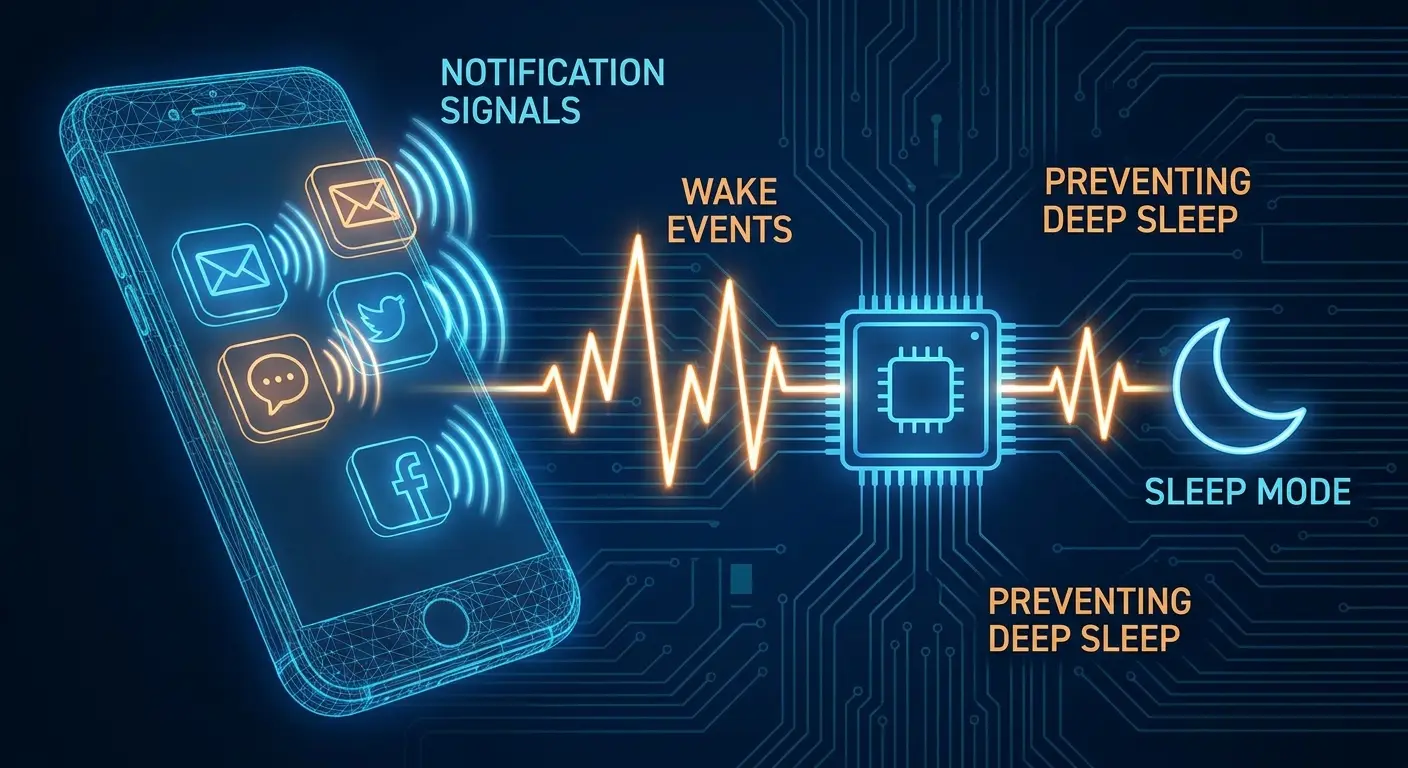
You know what actually kills your battery? The 200 notifications you get per day. Every notification wakes your phone from deep sleep. Every wake costs battery. 200 wakes per day adds up to way more drain than background refresh ever could.
Stop blaming background refresh. Start muting your group chats.
How Background Refresh Actually Works
Background app refresh allows apps to update their content before you open them. Email apps check for new messages, social media apps load recent posts, news apps download articles. These refresh cycles happen on a schedule determined by the operating system, not by the apps themselves.
iOS and Android both limit background refresh to preserve battery life. Apps can't run continuously in the background. They get brief time slots, usually measured in seconds, to fetch new data, then they're suspended again. The power consumed during these refresh cycles is minimal compared to active app use.
Push Notifications Create More Drain Than Refresh Cycles
Push notifications wake your phone from sleep states to display alerts. Each notification triggers multiple system processes: the screen lights up, the notification system activates, the app that sent the notification gets a brief execution window, and various system services log the event. These wake events consume more power than the background refresh cycles themselves.
You receive dozens or hundreds of notifications per day. Each one prevents your phone from staying in deep sleep states where power consumption drops to minimal levels. The cumulative effect of these micro-wakes throughout the day creates noticeable battery drain that users often attribute to background app activity.
Location Services Run Independently of App Refresh
Many apps request location access to provide relevant content or services. Location services use GPS, Wi-Fi scanning, and cellular triangulation to determine your position. These processes run separately from background app refresh and consume way more power.
Apps can request location access in three modes: always, while using the app, or never. Apps with "always" permission can check your location even when you're not actively using them. Each location check activates multiple radios and processors, creating power draw that compounds when multiple apps have location access.
Disabling location access for apps that don't need it provides more battery savings than disabling background app refresh.
Notification Frequency Creates Micro-Wakes That Compound
Here's an annoying exercise that actually works: count how many notifications you get in an hour.
I did this. 47 notifications in one hour. Most of them completely useless: Instagram likes, email newsletters I'll never read, app suggestions. Every single one woke my phone, spiked power, and prevented deep sleep.
After I muted everything except texts from actual humans and calendar alerts, my standby battery drain dropped from 15% overnight to 4%.
Is it annoying to configure 50 apps? Yes. Is it worth it? Also yes.
Understanding why is my phone dying so fast requires examining how notification frequency affects battery life.
Deep Sleep States Save the Most Power
Your phone has multiple power states. Active use consumes the most power. Screen-off idle uses moderate power. Deep sleep uses minimal power because most system components shut down or operate at their lowest performance levels. The processor runs at minimum frequency, radios enter low-power modes, and background processes pause.
Your phone can only enter deep sleep when nothing requires immediate attention. Each notification prevents deep sleep by forcing the system to wake up and process the alert. The phone might return to idle after displaying the notification, but it takes time to transition back to deep sleep. Frequent notifications mean your phone never reaches its most efficient power state.
Group Chats and Social Media Create Wake Cascades
A busy group chat generates dozens of notifications per hour. Each message wakes your phone, lights the screen, and triggers notification processing. Social media apps send notifications for likes, comments, replies, and algorithmic suggestions. Email apps notify for every incoming message unless you configure them otherwise.
These notifications arrive in clusters. You get three messages in quick succession, your phone wakes three times within minutes, and it never enters deep sleep between alerts. The power consumed by these wake events exceeds what you'd use by simply opening the app once and reading all the messages together.
Notification Settings Override Other Battery Optimizations
You can enable every battery-saving feature your phone offers, but if you're receiving 200 notifications per day, those optimizations become irrelevant. Each notification undoes the power savings from reduced screen brightness, disabled background refresh, or lower refresh rates. The micro-wakes compound into measurable battery drain.
Reducing notification frequency requires configuring individual app settings. Most apps let you disable notifications entirely or limit them to specific types of alerts. Messaging apps often support notification grouping that combines multiple messages into a single alert. These configuration changes provide immediate battery improvements because they prevent the wake events that keep your phone from entering efficient power states.
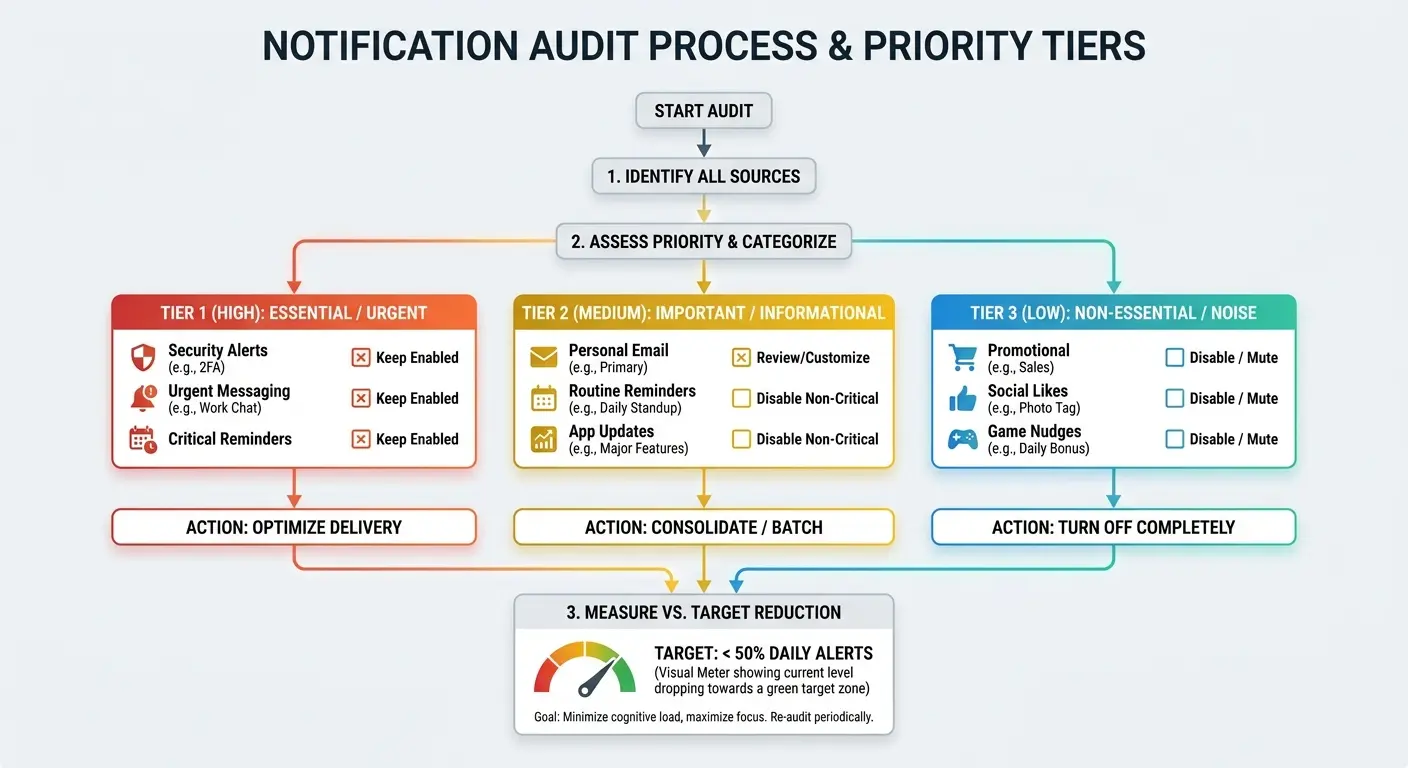
Notification Audit Template:
High-Priority Apps (Allow All Notifications):
Messaging apps from close contacts
Calendar and appointment reminders
Financial/security alerts
Medium-Priority Apps (Limit to Important Only):
Email (VIP senders only)
News apps (breaking news only)
Shopping/delivery tracking
Low-Priority Apps (Disable Completely):
Social media likes/comments
Game notifications
Promotional content
App suggestions/tips
Target: Reduce daily notifications from your current count to under 50
Adaptive Brightness Works Against You in Specific Conditions
Adaptive brightness is supposed to save battery. In practice, it's drunk.
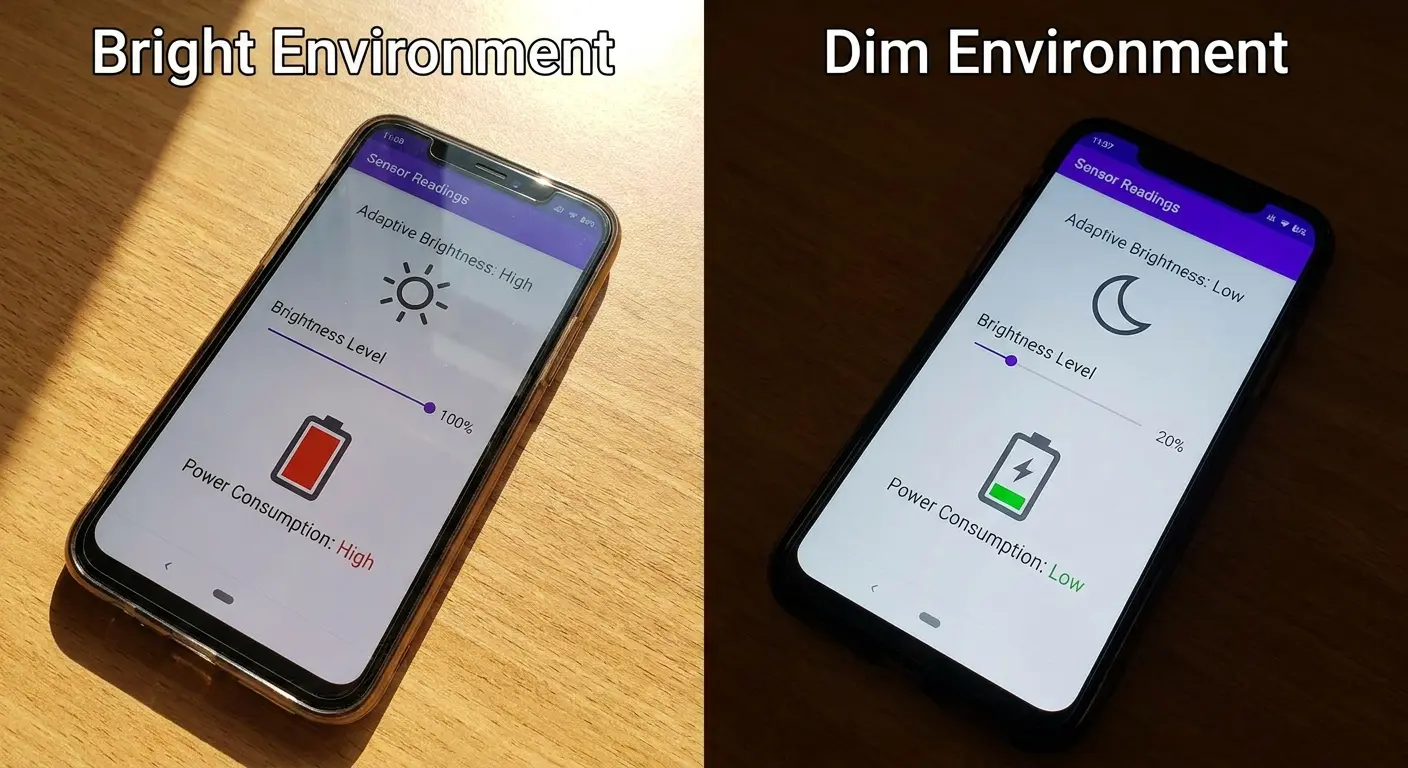
You walk outside, it cranks to 100%. You walk inside, it drops to 5% and you can't see anything. You manually adjust it, and now it's "learned" the wrong brightness for that lighting. After a week of this, adaptive brightness has trained itself to keep your screen way brighter than needed.
I turned it off. I manually set brightness to 40% and adjust when needed. My battery life improved immediately.
Sensor Placement Creates False Readings
The ambient light sensor sits near the front camera or earpiece. This location works well when the phone faces you in consistent lighting. But the sensor can't account for lighting conditions that don't directly illuminate the phone's face.
You might be in a dimly lit room with a bright lamp behind you. The sensor reads low ambient light and dims the screen, but you need more brightness to see clearly.
You manually increase brightness to compensate. The adaptive system interprets this as user preference and adjusts its baseline. Over time, the adaptive algorithm learns incorrect brightness preferences based on sensor readings that don't match actual viewing conditions. Your screen stays brighter than necessary, consuming more power.
Rapid Adjustments Create Visibility Problems
You walk from indoors to outdoors, or drive through an area with alternating sun and shade. The adaptive brightness system constantly adjusts to changing light levels. These rapid changes create a flickering effect that's distracting and uncomfortable.
Most users respond by disabling adaptive brightness and manually setting a higher brightness level that works in all conditions. That manual setting stays active regardless of actual lighting needs. Your screen runs at 80% brightness indoors when 40% would suffice. The extra brightness drains battery throughout the day.
Adaptive brightness was supposed to prevent this scenario, but its poor implementation in changing conditions causes users to abandon it.
OLED Displays Complicate the Calculation
OLED screens consume power proportional to pixel brightness and the number of lit pixels. Displaying white content at high brightness uses way more power than displaying dark content at the same brightness level. Adaptive brightness adjusts overall screen brightness but doesn't account for content being displayed.
You're reading text on a white background in a bright environment. Adaptive brightness increases screen brightness to maintain visibility. The combination of high brightness and bright content creates maximum power draw from the display. A dark mode interface at the same brightness level would consume substantially less power, but adaptive brightness doesn't factor content into its adjustments.
Battery Health Percentage Lies to You
Your phone says 85% battery health. You think that means it's mostly fine. It's lying.
Battery health measures capacity: how much charge it holds. It doesn't measure voltage delivery: how much power it can actually push when you need it. My old iPhone showed 87% health but died at 25% whenever I opened the camera. The capacity was there, but the voltage couldn't keep up.
Apple (and Samsung, and Google) know this. They show you the number that looks better. It's bullshit.
This explains why is my phone battery dying so fast during demanding tasks despite showing acceptable battery health.
Capacity Versus Voltage Delivery
Battery capacity measures how much charge the battery can store. Voltage measures the electrical potential the battery can deliver. These are related but distinct properties. A battery can maintain decent capacity while losing its ability to deliver high voltage under load.
When you run processor-intensive tasks, your phone draws significant current from the battery. This creates voltage sag where the battery's output voltage drops below its nominal level. Degraded batteries experience more voltage sag than healthy batteries. Your phone might shut down at 20% remaining charge because the battery can't maintain sufficient voltage, even though it technically has capacity remaining.
Health Metrics Measure Ideal Conditions
Battery health tests charge and discharge the battery under controlled conditions at moderate current draw. These tests measure maximum capacity but don't simulate real-world usage patterns with variable loads and thermal stress. A battery might pass health testing at 90% capacity but struggle to deliver power during gaming or video recording.
You see 90% battery health and assume your battery is mostly fine. But your phone dies unexpectedly during intensive use because the health metric didn't account for voltage delivery under load. The percentage gives you false confidence about remaining battery performance.
Cycle Count Matters More Than Health Percentage
Batteries degrade through charge cycles regardless of how carefully you use them. Chemical reactions inside lithium-ion cells gradually reduce both capacity and voltage delivery. A battery with 500 cycles will perform worse than one with 100 cycles, even if both show the same health percentage.
Most phones don't display cycle count in user-accessible settings. You need third-party apps or diagnostic tools to check this information. Cycle count provides better insight into expected battery performance than health percentage alone. A battery with 800 cycles and 85% health is near end-of-life, while one with 200 cycles and 85% health might have years of useful service remaining.
Charging Habits Matter More Than Charging Speed
Stop charging to 100%. Seriously.
I know it's satisfying to see that full battery icon. I know you want maximum charge before leaving the house. But charging to 100% (and especially staying at 100% overnight) stresses your battery at high voltage for hours.
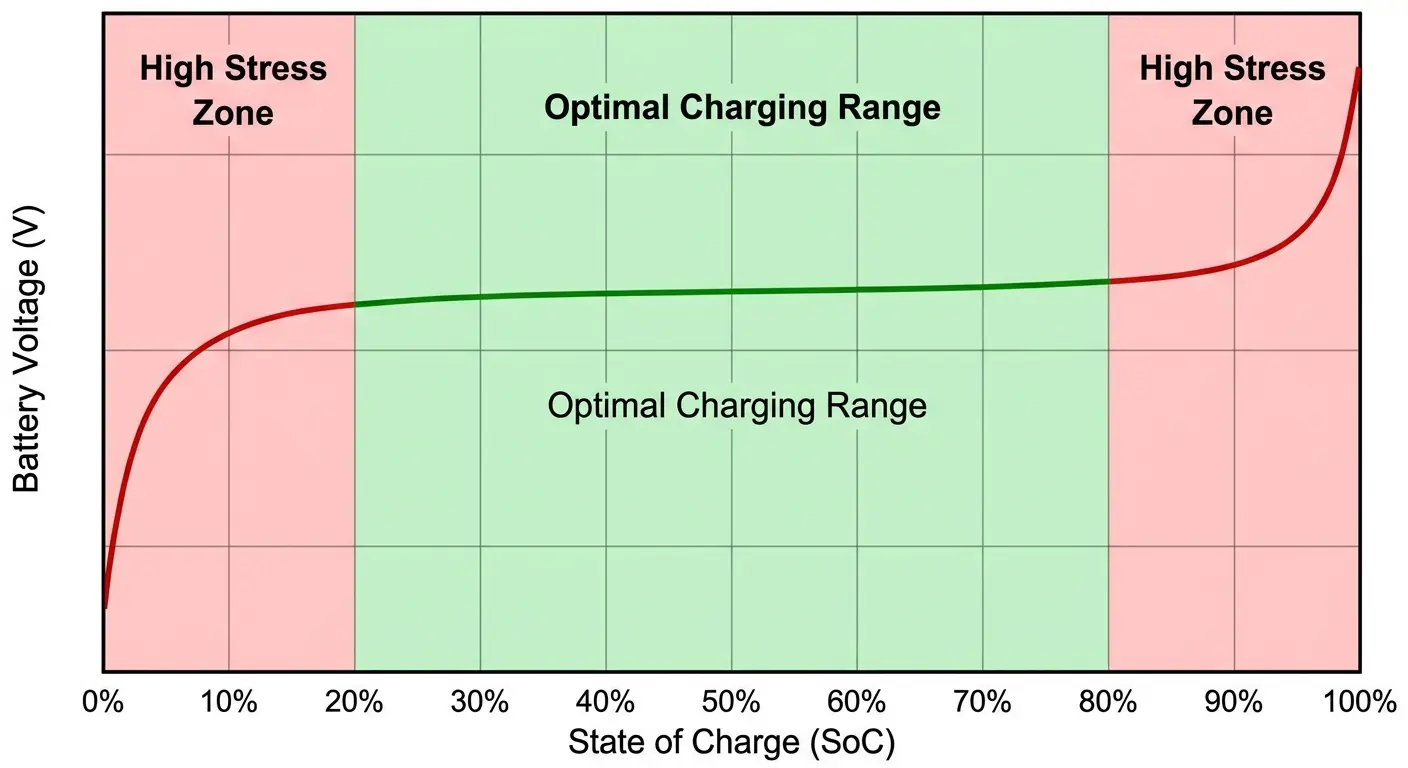
The 20-80% rule is real. It's also annoying as hell to maintain. I use a smart plug that cuts power at 80%. Sometimes I forget and charge to 100% anyway. It's not about perfection: even doing this half the time helps.
Voltage Stress Occurs at Charge Extremes
Lithium-ion batteries experience maximum stress at 0% and 100% charge levels. Depleting to 0% forces the battery to its lowest voltage state, where chemical reactions can cause permanent damage. Charging to 100% pushes the battery to its highest voltage state, where different degradation mechanisms accelerate.
The voltage curve isn't linear. The final 10% of charging, from 90% to 100%, requires higher voltage than the middle 50%, from 25% to 75%. This higher voltage stresses the battery more than the bulk of the charge cycle. Stopping at 80% avoids the high-voltage stress that causes the most degradation.
Partial Charging Extends Lifespan
Charging from 20% to 80% creates less stress than charging from 0% to 100%, even though both add the same amount of charge. The partial cycle avoids voltage extremes at both ends. You can complete more partial cycles before experiencing significant capacity loss compared to full cycles.
This conflicts with traditional battery advice about completing full charge cycles. Older battery chemistries like nickel-cadmium and nickel-metal hydride required full discharge cycles to prevent memory effect. Lithium-ion batteries don't have memory effect. Partial charging actually benefits them by reducing voltage stress.
A smartphone user I know tracked their charging habits over 18 months using two identical phones. Phone A got charged overnight to 100% and used until it hit 10-15% before charging again. Phone B got charged in short bursts throughout the day, keeping the battery between 30% and 75%.
After 18 months, Phone A showed 81% battery health with noticeable performance degradation and unexpected shutdowns during camera use. Phone B maintained 93% battery health with consistent performance. Both phones completed roughly the same number of charge cycles, but Phone B's partial charging strategy avoided the voltage stress that degraded Phone A's battery.
Overnight Charging Creates Maintenance Cycles
You plug in your phone at 40% before bed. It reaches 100% within two hours. For the remaining six hours, it sits at 100% charge with the charger maintaining that level. The battery slowly self-discharges, the charger tops it off, and the cycle repeats throughout the night.
These maintenance cycles keep the battery at high voltage for extended periods. The stress accumulates over hundreds of overnight charging sessions. Using a smart plug or charging timer to stop charging at 80% prevents both the high-voltage stress and the maintenance cycles. Your battery spends the night at a moderate charge level instead of maximum voltage.
The Mounting Position Problem
Dashboard phone mounts in summer are battery killers. Direct sunlight + GPS navigation = your phone hitting 120°F+ easily.
I learned this the hard way when my phone shut down from overheating during navigation in Arizona. Now I use a vent mount, but even that's not perfect: hot air in winter, cold air in summer.
Best solution I've found: mount it, but put a small sunshade over it, or position it so the AC hits it indirectly. Or just use audio navigation and leave the phone in a cupholder.
Understanding how use battery efficiently means considering mounting location impacts.
Direct Sunlight Multiplies Internal Heat Generation
Your phone generates heat during navigation, music streaming, or hands-free calls. When you mount it on a dashboard in direct sunlight, you add external heat from solar radiation. The phone's surface temperature can exceed 120°F in summer conditions. Internal components reach even higher temperatures.
The battery operates in an environment far above its optimal temperature range. Chemical degradation accelerates exponentially at these elevated temperatures. A single hour of navigation in direct sunlight creates more battery stress than several days of normal use. You might not notice immediate capacity loss, but the damage accumulates over repeated exposure.
Tasks that normally use battery moderately become major drain events under thermal stress.
Vent Mounting Seems Smart But Creates Problems
Mounting your phone near an air vent seems logical for cooling. But car vents blow hot air during winter and cold air during summer. Neither extreme benefits battery health. Hot air directly heats the phone beyond ambient temperature. Cold air can cause condensation issues when the phone later moves to a warm environment.
Temperature cycling, repeated heating and cooling, creates physical stress on battery components. The expansion and contraction of materials at different rates can cause microscopic damage that reduces capacity over time. Stable temperatures, even if slightly elevated, cause less damage than dramatic temperature swings.
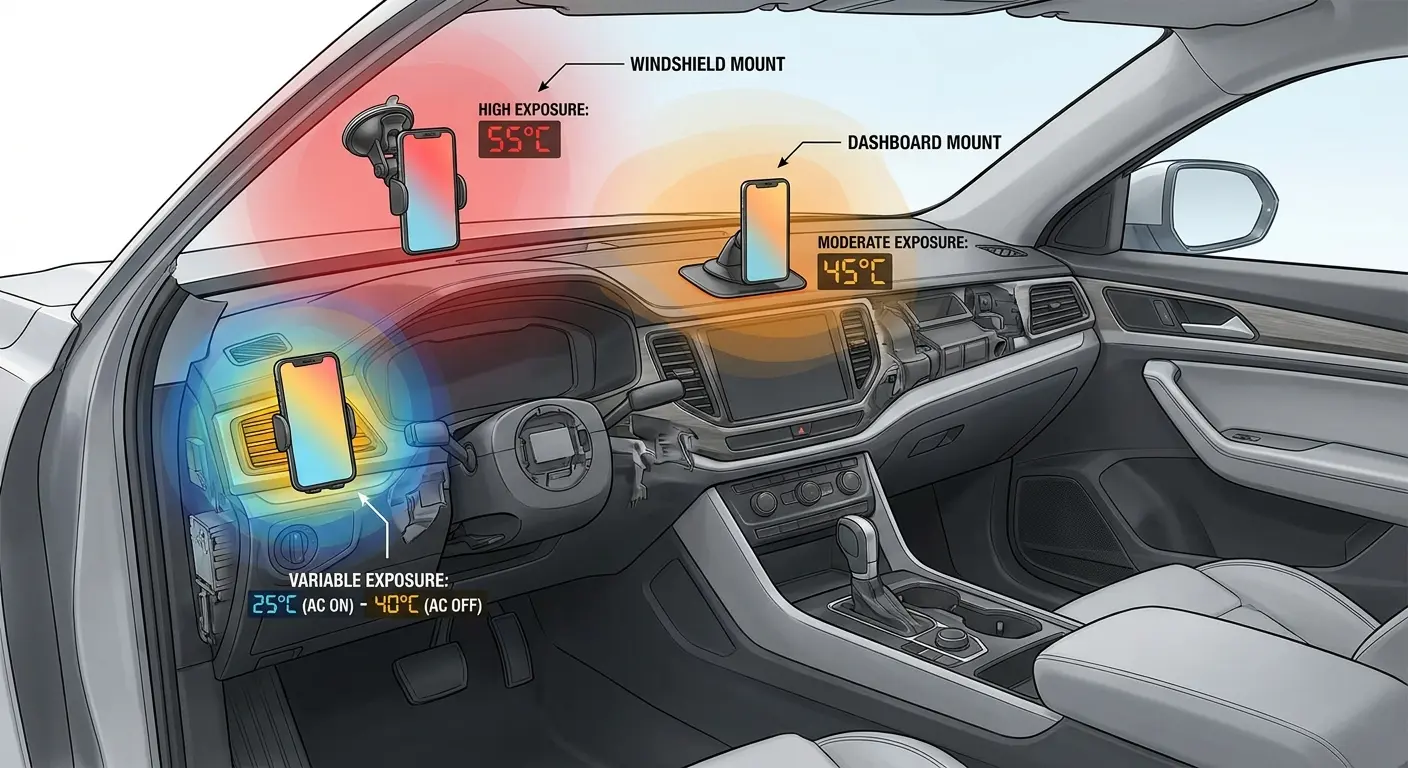
Magnetic Mounting Affects Heat Dissipation
Magnetic mounts use metal plates or built-in magnets to secure your phone. These metal components can interfere with heat dissipation by creating localized hot spots where the magnet contacts the phone body. The metal plate acts as a heat sink, but it can also trap heat if it covers a significant portion of the phone's back panel.
Quality phone mounts designed with thermal considerations minimize these issues while providing secure attachment.
Software Updates Introduce Hidden Power Drains
iOS 17 destroyed my battery life. I updated, and suddenly I was losing 10% per hour on standby.
The culprit? Apple enabled some new "Standby Mode" feature by default that kept the screen ready to display info when charging. Cool feature. Terrible for battery. Took me a week to figure out what changed.
After every major update now, I go through Settings > Battery and check what's new. Usually there's some feature enabled that I didn't ask for.
Understanding battery usage after updates helps identify new drains, while recognizing that phone battery drains quickly following updates is often due to newly enabled features rather than bugs.
New Features Enable by Default
Software updates often include new features that remain enabled after installation. Enhanced tracking for fitness apps, improved voice assistant responsiveness, or additional notification types all consume power. The update process doesn't ask whether you want these features. They activate automatically, and most users never realize they're running.
You update your phone and notice worse battery life within days. You assume the update itself is buggy, but the real issue is new features running in the background. Checking settings after each major update lets you disable features you don't need before they affect battery performance. Monitoring battery usage statistics helps identify which new processes are consuming power.
Background Processes Expand Over Time
Each software update adds new system processes or expands existing ones. Telemetry collection, crash reporting, usage analytics, and feature suggestions all run in the background. Individually, these processes consume minimal power. Collectively, they increase baseline power draw that affects battery life during idle periods.
Your phone never truly idles because these background processes maintain constant low-level activity. The cumulative effect shows up as reduced standby time. Your phone used to last two days with light use. After several updates, it barely makes it through one day with the same usage pattern. The phone battery drains quickly not from active use but from accumulated background processes.
Visual Effects Get More Demanding
Software updates often include visual refinements: smoother animations, enhanced transparency effects, or improved rendering quality. These visual improvements require more processing power, which translates to more battery consumption. The effects are subtle enough that you might not notice them consciously, but your battery does.
Accessibility settings often include options to reduce motion and transparency effects. These settings were designed for users with visual sensitivities, but they also reduce power consumption by simplifying what the graphics processor needs to render. Enabling these reduced-motion settings after updates can recover some of the battery life lost to visual enhancements.
Carrier Settings Updates Change Radio Behavior
Carrier settings updates modify how your phone connects to cellular networks. These updates can change preferred network types, enable new frequency bands, or adjust handoff behavior between towers. The changes optimize network performance but sometimes increase power consumption through more aggressive signal searching or maintaining connections to additional frequency bands.
You might receive a carrier update without realizing it. The update happens automatically in the background, and the only indication is a brief notification you probably dismissed. Your phone's radio behavior changes, power consumption increases, and you can't easily identify what changed or revert it.
Post-Update Battery Optimization Checklist:
Immediately After Update:
Check Settings > Battery to identify new power-consuming features
Review Location Services for newly enabled app permissions
Verify notification settings haven't been reset to defaults
Confirm display refresh rate settings remain at your preference
Within First Week:
Monitor standby battery drain overnight (should be under 5% for 8 hours)
Check for new background processes in battery usage stats
Enable "Reduce Motion" and "Reduce Transparency" in Accessibility settings
Review app permissions for any changes made during update
If Battery Life Decreased:
Force restart phone to clear temporary processes
Check for follow-up patch updates that address battery issues
Reset network settings if cellular drain increased significantly
Consider factory reset as last resort (backup first)
Final Thoughts
Look, your battery is dying. Not because your phone is broken, but because you're wireless charging it to 100% every night in a thick case while getting 200 notifications a day.
Here's what actually matters, in order:
Stop charging to 100% overnight (biggest impact)
Take your case off when charging (second biggest)
Mute 90% of your notifications (third)
Switch to 4G if 5G is spotty where you live (fourth)
Everything else in this article? It helps. But those four things will add 2-3 hours to your daily battery life immediately.
The wireless charging thing sucks to give up. I get it. But my 3-year-old phone still lasts all day because I switched to a cable at night. Your call.
Check your charging habits first. Stop charging to 100% overnight. Keep your battery between 20% and 80% when possible. Remove your phone from its case during intensive tasks or charging sessions. Reduce notification frequency for apps that don't require immediate alerts. Switch to 4G in areas with weak 5G coverage.
These changes require minimal effort but provide measurable improvements in both daily battery life and long-term battery health. The difference between a battery that lasts two years and one that lasts four years often comes down to these small adjustments in how you use and charge your device. Understanding why phone battery draining quickly occurs helps you make informed decisions about daily habits.
Your battery isn't draining fast because your phone is defective. It's draining fast because the cumulative effect of heat, voltage stress, and constant wake events creates power demands that exceed what the battery can deliver as it ages. Address the thermal and charging factors first. The app-level optimizations matter less than you think.
Consider investing in motorcycle phone mounts or bike phone mounts designed with thermal management in mind if you frequently use your phone during outdoor activities. Quality mounting solutions that protect against heat exposure while maintaining accessibility can extend battery lifespan. Similarly, choosing rugged cases that balance protection with thermal dissipation prevents the insulation problems that trap heat against your device during intensive use.
The physics of battery degradation doesn't care about your app choices. It responds to temperature, voltage, and charge cycles. Master those three factors, and your battery will serve you well beyond its expected lifespan.

