


You've restarted your phone three times now. Maybe four. You've forgotten the network, reconnected, even unplugged your router and done that thing where you wait 30 seconds like it's some kind of magic ritual.
Still nothing.
Here's what gets me: we spend hours digging through software settings and calling our internet providers, but almost nobody looks at what's actually, physically happening with the phone itself. Like, the hardware. The actual components inside.
Your WiFi connection issues might have nothing to do with your internet provider or your phone's settings. Sometimes the problem is literally in your hands.
Phone cases with metal components can interfere with the antenna systems built into your device's perimeter, and this physical interference is just one of several hardware factors that most troubleshooting guides completely overlook.
Table of Contents
Your Phone Case Might Be Blocking Your Signal
Physical Damage You Can't See Is Real
Overheating Creates Connection Chaos
Charging Port Corrosion Affects More Than Power
Your Phone's Position Actually Matters
Magnetic Interference From Accessories
The Drop You Forgot About Three Months Ago
Software Updates Can Expose Hardware Weaknesses
When to Stop Troubleshooting and Get Professional Help
TL;DR
Phone cases with metal components can interfere with WiFi antennas located around your device's perimeter
Internal antenna damage from drops often shows no visible exterior signs but causes intermittent connectivity
Thermal throttling during overheating episodes can disable wireless radios to reduce heat generation
Corrosion in charging ports can spread to nearby antenna connection points on the logic board
WiFi signal strength varies dramatically based on how you're holding your phone due to antenna placement
Magnetic mounts and accessories can disrupt the delicate calibration of internal wireless components
Previous physical trauma creates micro-fractures in antenna cables that worsen over time
New OS updates increase power demands that aging hardware can't consistently meet
Persistent issues after basic troubleshooting indicate hardware problems requiring professional assessment
Your Phone Case Might Be Blocking Your Signal
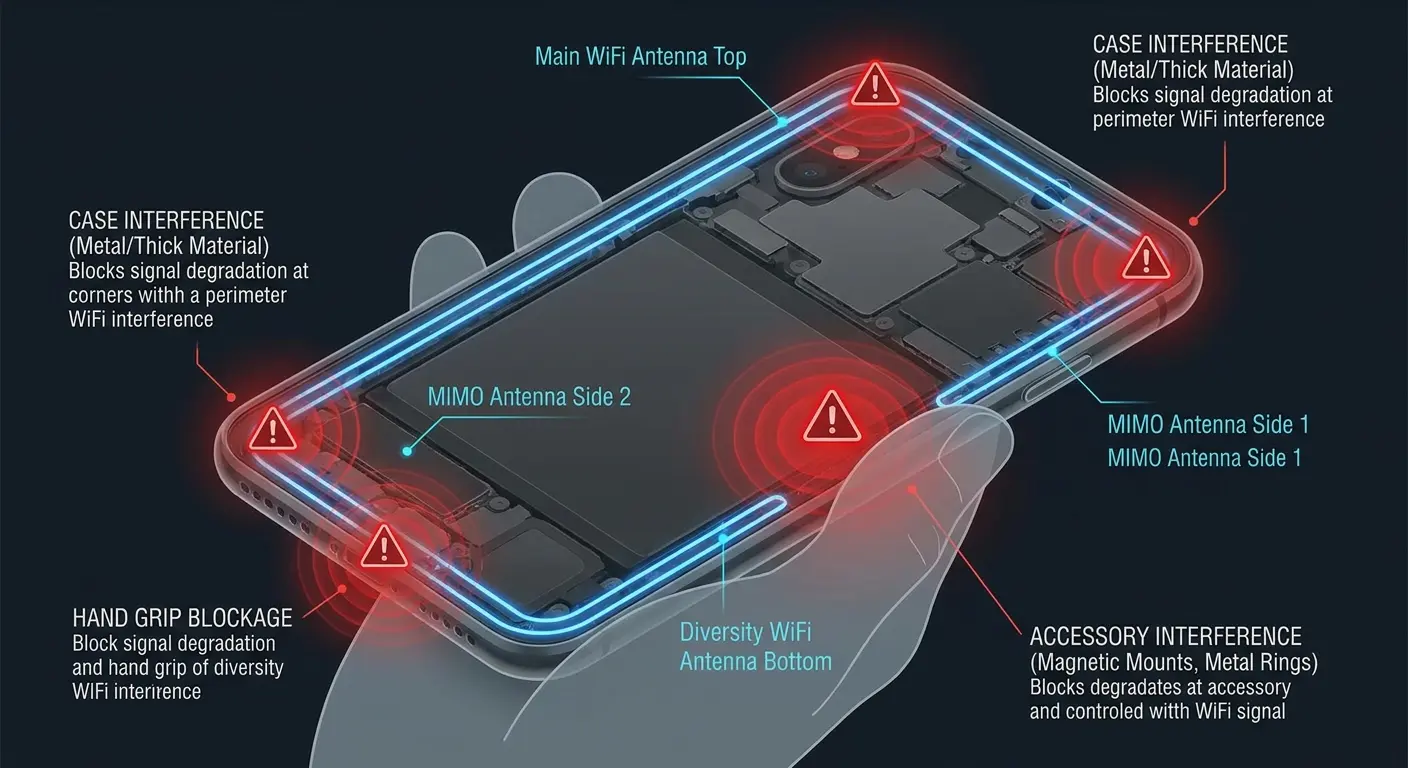
Phone manufacturers place WiFi antennas in specific locations around your device's frame. Most flagship phones have multiple antennas positioned at the top and bottom edges to maintain signal regardless of orientation. When you add a case with metal components, kickstands, or reinforced corners, you're potentially creating a Faraday cage effect around these precise antenna locations.
We've tested this extensively at Rokform. Our cases use selective metal placement that avoids antenna bands entirely. The magnetic system sits in the center back of the phone, nowhere near the antenna lines. But plenty of cases on the market don't consider this engineering reality.
Case Type |
Interference Risk |
Signal Impact |
Best For |
|---|---|---|---|
Thin silicone/TPU |
Low |
Minimal (0-5 dBm loss) |
Daily protection without connectivity sacrifice |
Rugged multi-layer |
Medium-High |
Moderate to severe (10-20 dBm loss) |
High-drop environments where protection outweighs signal loss |
Metal-reinforced |
High |
Severe (15-25 dBm loss) |
Avoid unless manufacturer confirms antenna-aware design |
Wallet cases |
High |
Severe (12-22 dBm loss) |
Convenience users in strong signal areas only |
Magnetic mounting cases |
Low-Medium |
Minimal to moderate (3-12 dBm loss) |
Active users needing secure mounting with engineered magnetic placement |
Remove your case completely and test your WiFi connection. If it improves noticeably, why is my phone not connecting to wifi becomes a question with a simple answer: your case is the problem. This isn't about case quality or price point. It's about whether the manufacturer understood antenna placement for your specific phone model.
The Metal Problem Everyone Overlooks
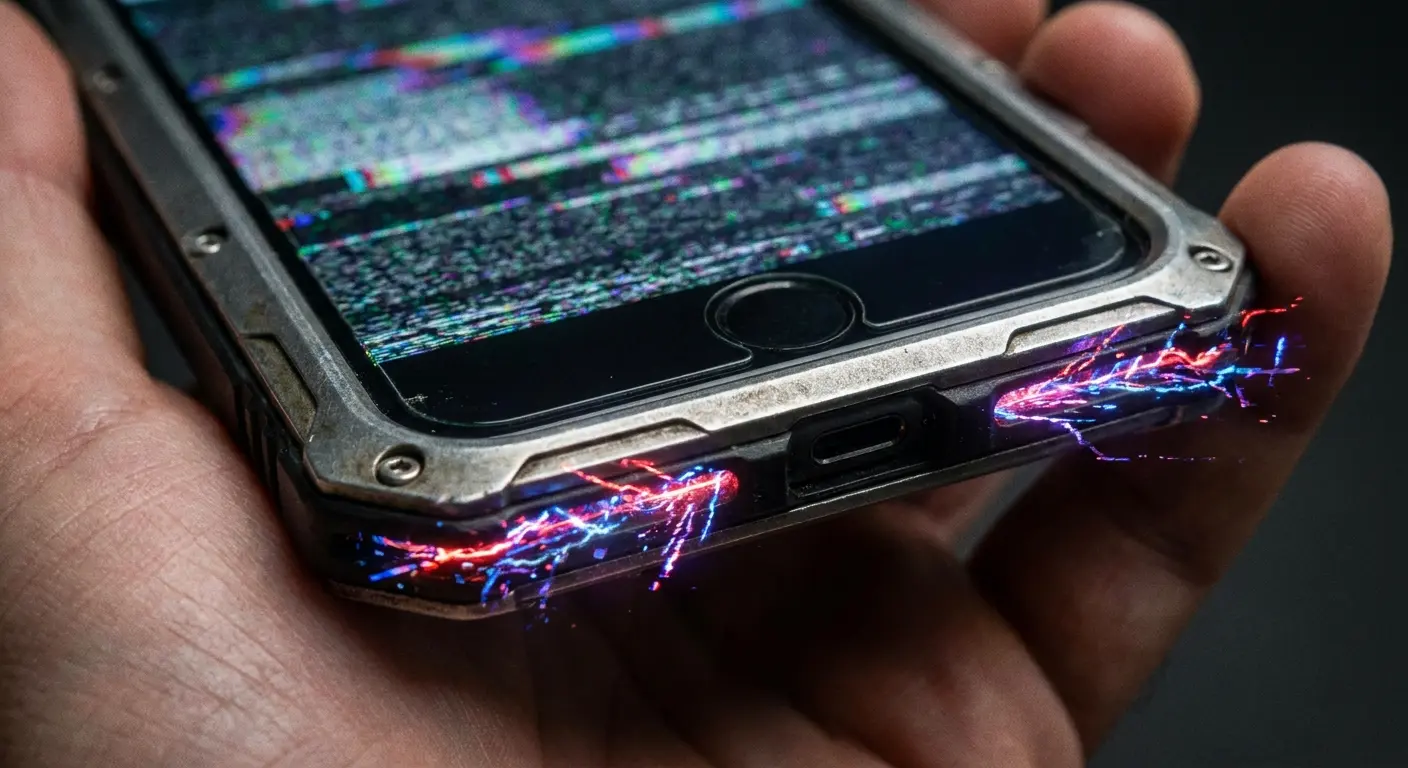
Different phone models have antennas in different locations, but they're almost always around the perimeter. When you add a case with metal components, kickstands, or reinforced corners, you're potentially creating interference at these precise spots.
Here's what most people don't realize: the metal doesn't need to touch your phone to cause problems. The electromagnetic field from your WiFi signal interacts with any nearby metal, creating reflection and absorption that weakens the signal before it even reaches your antenna.
Think about where your case has metal. Is there a metal plate for magnetic mounting? Metal buttons? A metal frame or bumper? Each of these sits millimeters from your antenna bands, close enough to disrupt signal propagation.
Understanding how phone cases protect your phone means recognizing that protection and connectivity require careful engineering balance. You can have both, but only if the manufacturer designed for it.
Case Thickness Changes Everything
Thicker cases create more distance between your phone's antennas and the WiFi router. Signal strength degrades with distance, and even a few millimeters matter when you're already in a weak signal area.
Heavy-duty protective cases often use multiple layers: an inner shell, an outer shell, sometimes air gaps for shock absorption. Each layer adds signal attenuation. You're trading protection for connectivity, often without realizing it.
A construction worker using a heavy-duty case with three layers of protection noticed his phone couldn't connect to the job site WiFi beyond 30 feet from the router, while his coworker's phone with a thin case connected from 60 feet away. After removing his case temporarily during lunch breaks when he needed to download project files, his connection range doubled. He started removing the case specifically when WiFi performance mattered, then reattaching it for protection during active work.
Check your WiFi signal strength in your phone's settings (usually found under WiFi network details). Note the number with your case on, then remove it and check again. A drop of more than 10-15 dBm suggests your case is significantly impacting reception.
Physical Damage You Can't See Is Real
Your phone's WiFi antenna connects to the logic board via tiny coaxial cables thinner than a strand of spaghetti. These cables run along the inside perimeter of your phone's frame.
When you drop your phone, the impact creates flex and torque throughout the chassis. The screen might survive. The frame might look perfect. But those antenna cables can partially disconnect or develop micro-fractures.
Internal Damage Assessment Checklist:
Does WiFi work when phone is stationary but fail during active use?
Does connection quality change based on how tightly you grip the device?
Did WiFi problems begin days or weeks after a drop (not immediately)?
Does the phone pass all diagnostic tests but still experience real-world connectivity issues?
Do problems worsen in certain orientations or holding positions?
Is WiFi inconsistent even when other devices connect perfectly to the same network?
If you answered yes to three or more questions, internal antenna damage is highly probable.
Internal Antenna Cables Are Fragile
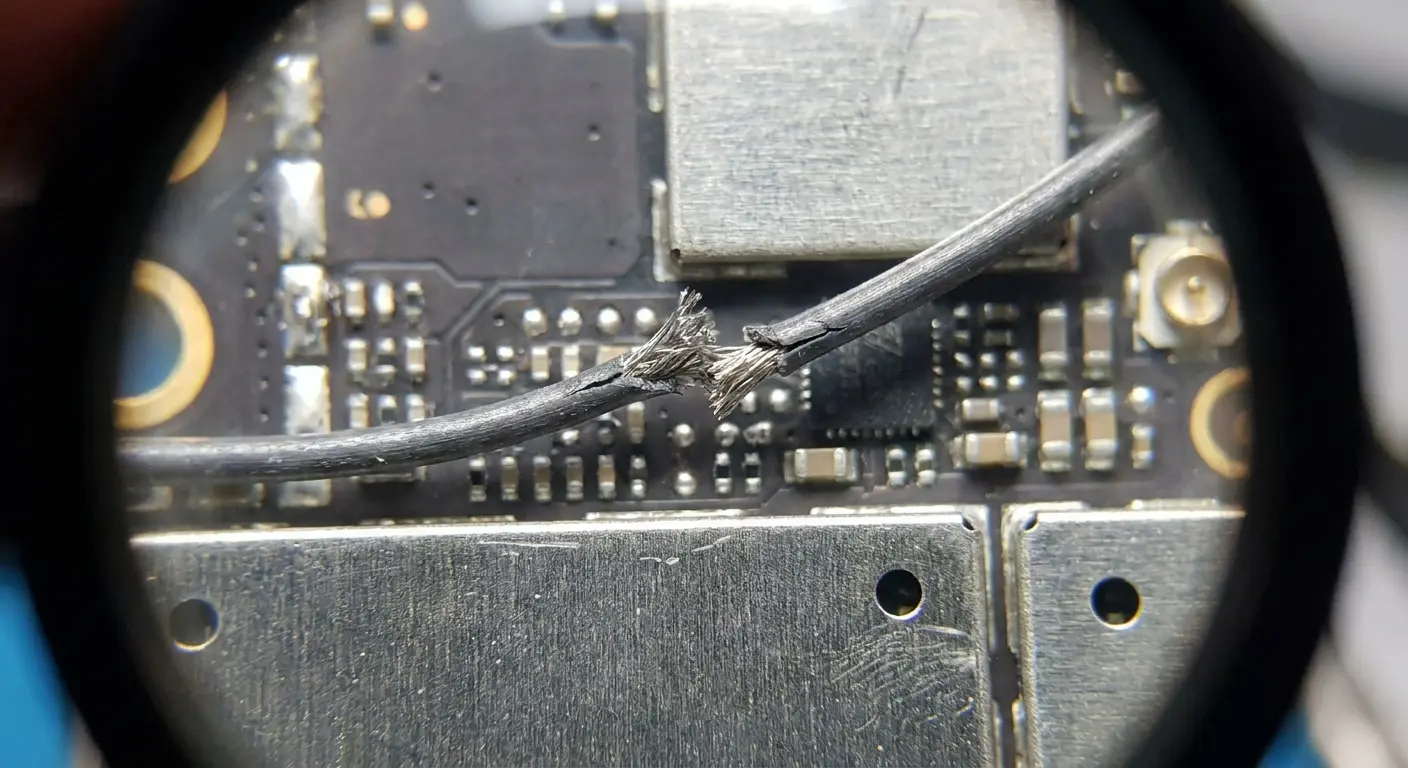
Partial disconnections are worse than complete failures because they create intermittent issues. Your WiFi works fine sometimes, then drops randomly. You blame your router or your carrier, but the real culprit is a connection that makes contact only when your phone is held at certain angles or temperatures.
I've opened hundreds of phones at this point, and the pattern is consistent. The antenna cable connector looks fine from the outside. But under magnification, you can see it's not fully seated. Or there's a tiny crack in the cable itself, invisible to the naked eye.
These failures don't show up in diagnostics because when your phone runs a self-test, it's sitting still on a table. The connection holds. Pick it up, apply normal grip pressure, and the intermittent nature of the damage becomes apparent.
If your WiFi issues get worse when you're actively using your phone but improve when it's sitting idle, this is what you're dealing with.
The Logic Board Flex You Don't Feel
Modern phones are incredibly thin. The logic boards inside them flex slightly during normal use, especially during drops or when pressure is applied to the screen. This flexing can crack solder joints where the WiFi module connects to the board.
These cracks are microscopic. They don't show up on any diagnostic software. Your phone passes every self-test because when it's sitting still on a table, the connection is solid.
Pick it up, apply normal grip pressure, and the crack opens just enough to cause problems. The electrical connection breaks intermittently. WiFi drops. You reconnect. The cycle repeats.
We see this constantly with phones that have been dropped multiple times but show no visible damage. The owner insists the phone is fine because the screen isn't cracked. But internally, the logic board has stress fractures that manifest as connectivity issues.
Overheating Creates Connection Chaos
Your phone monitors its internal temperature constantly. When it gets too hot, it starts shutting down non-essential functions to reduce heat generation. WiFi and Bluetooth radios generate significant heat during active use. They're often the first things your phone sacrifices when temperatures climb.
You'll notice this pattern: your phone gets warm during gaming or video streaming, then suddenly WiFi disconnects. You assume it's internet connection problems with your network. It's your phone protecting itself from heat damage.
Thermal Throttling Kills Radios First
A mobile gamer noticed his phone would disconnect from WiFi exactly 15 minutes into every gaming session, forcing him to reconnect manually. He assumed his router was the problem and bought a new one. The disconnections continued.
When he started tracking his phone's temperature using a monitoring app, he discovered his device hit 42°C right before each disconnect. The phone was deliberately killing WiFi to prevent overheating. He solved the problem by using a phone cooling fan attachment during gaming sessions, which kept temperatures below the thermal throttling threshold.
Check if your WiFi problems correlate with heavy usage or warm environments. If you're consistently losing connection during resource-intensive tasks, thermal management is your issue, not internet connection problems with your provider.
Does your phone feel hot when WiFi drops? That's not coincidence. That's cause and effect.
Heat Degrades Antenna Performance Permanently
Repeated overheating cycles don't just cause temporary disconnections. They degrade the actual antenna components over time.
The adhesives holding antenna cables in place break down. Solder joints weaken. The antenna elements themselves can warp microscopically.
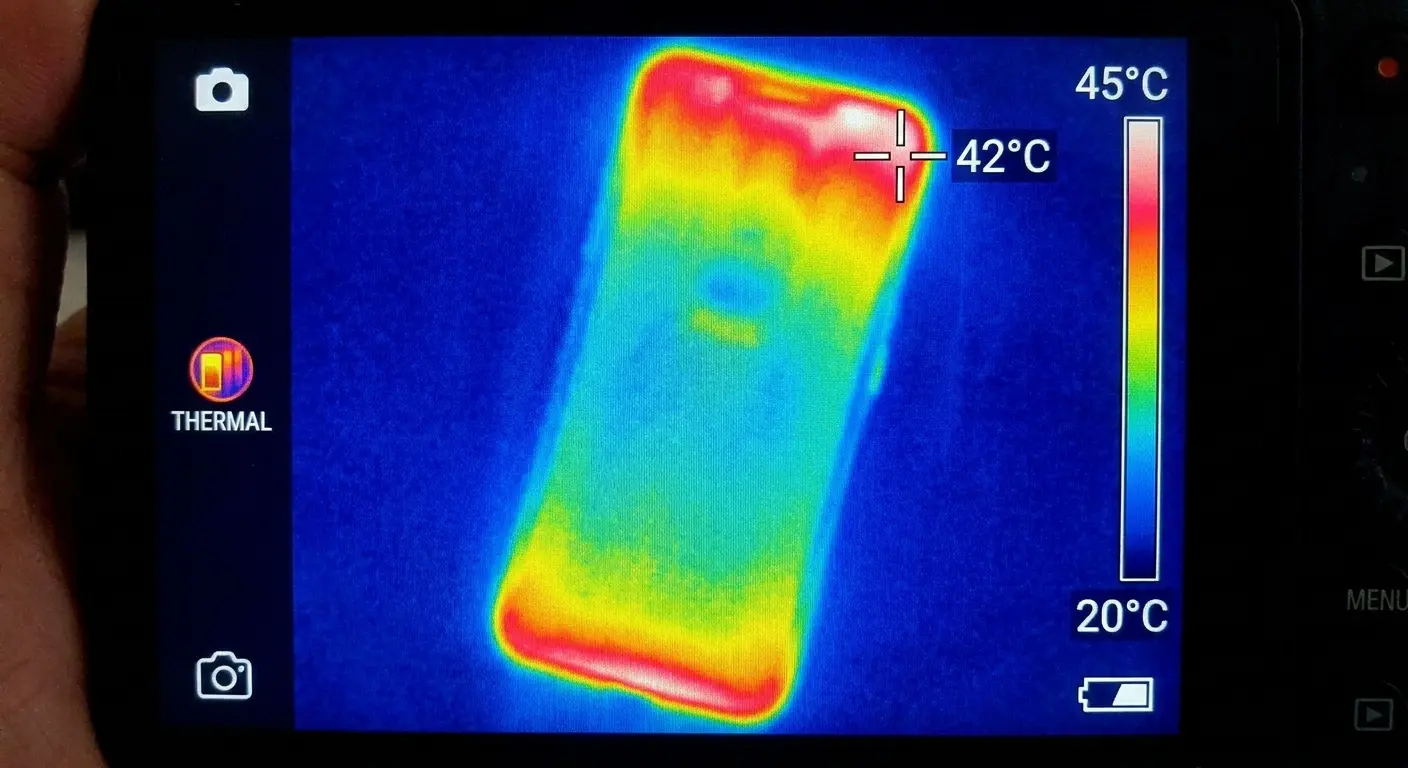
This creates a compounding problem. Your phone runs hotter because it has to work harder to maintain a weak WiFi signal, which makes it run even hotter, which further degrades the antenna. You're in a death spiral of declining performance.
Feel the back of your phone near the top and bottom edges during WiFi use. If these areas get noticeably warm, your antennas are struggling and generating excess heat in the process. This warmth isn't normal. It's a symptom of failing hardware working overtime to compensate.
Charging Port Corrosion Affects More Than Power
Your charging port is an open gateway to your phone's internals. Moisture gets in there constantly (bathroom steam, sweaty pockets, humid environments). When moisture meets the electrical contacts in your charging port, corrosion begins.
This corrosion doesn't stay contained. It spreads along the traces on your logic board, following the path of least resistance.
The Moisture Connection Nobody Mentions
WiFi antenna connection points are often located near charging port connections on the board. The corrosion creeps toward them over time, degrading the electrical connections that your WiFi module depends on.
Shine a flashlight into your charging port. Look for green or white crusty buildup on the contacts. That's corrosion, and it's likely spreading internally where you can't see it.
I've seen phones where the charging port looked slightly dirty, nothing alarming. But when we opened them up, the corrosion had spread across a quarter of the logic board, affecting multiple systems including WiFi. The owner had no idea because the phone still charged (slowly) and mostly worked.
Learning how to clean your iPhone charging port properly can prevent moisture-related corrosion from spreading to WiFi components. Regular cleaning isn't just about charging performance. It's about preventing internal damage that manifests as seemingly unrelated problems.
Wireless Charging Doesn't Solve This
Switching to wireless charging seems like it would eliminate port corrosion issues. It doesn't.
The charging port is still exposed to moisture even if you're not using it. Plus, wireless charging generates more heat than wired charging, which accelerates any existing corrosion issues. Heat and moisture together create the perfect environment for corrosion to spread aggressively.
If you've noticed your WiFi problems started or worsened after you began using your phone in particularly humid environments (beach trips, bathroom use, outdoor activities in rain), moisture intrusion is worth investigating. The timeline matters. Corrosion doesn't happen instantly. It develops over weeks or months of exposure.
Your Phone's Position Actually Matters
Hand position and phone orientation directly affect WiFi signal strength because antennas are located around the device perimeter. Covering antenna bands with your grip or switching orientations changes which physical antenna your phone uses, creating position-dependent connectivity.
12-20 dBm
Holding Position |
Antenna Coverage |
Typical Signal Loss |
WiFi Impact |
|---|---|---|---|
One-handed bottom grip |
Covers lower antenna band |
8-15 dBm |
Moderate, affects download speeds |
Two-handed landscape |
Covers both side antenna bands |
Severe, may cause disconnection |
|
Lying flat on surface |
No antenna coverage |
0-2 dBm |
Minimal, best signal condition |
Pinch grip (top and bottom) |
Covers both primary antennas |
15-25 dBm |
Critical, frequent disconnections |
One-handed side grip |
Covers single side antenna |
5-10 dBm |
Mild, noticeable in weak signal areas |
The Death Grip Is Still Real
Remember the iPhone 4 antenna gate? The fundamental problem hasn't gone away. Covering your phone's antenna bands with your hand attenuates the signal. Different phone models have antennas in different locations, but they're almost always around the perimeter.
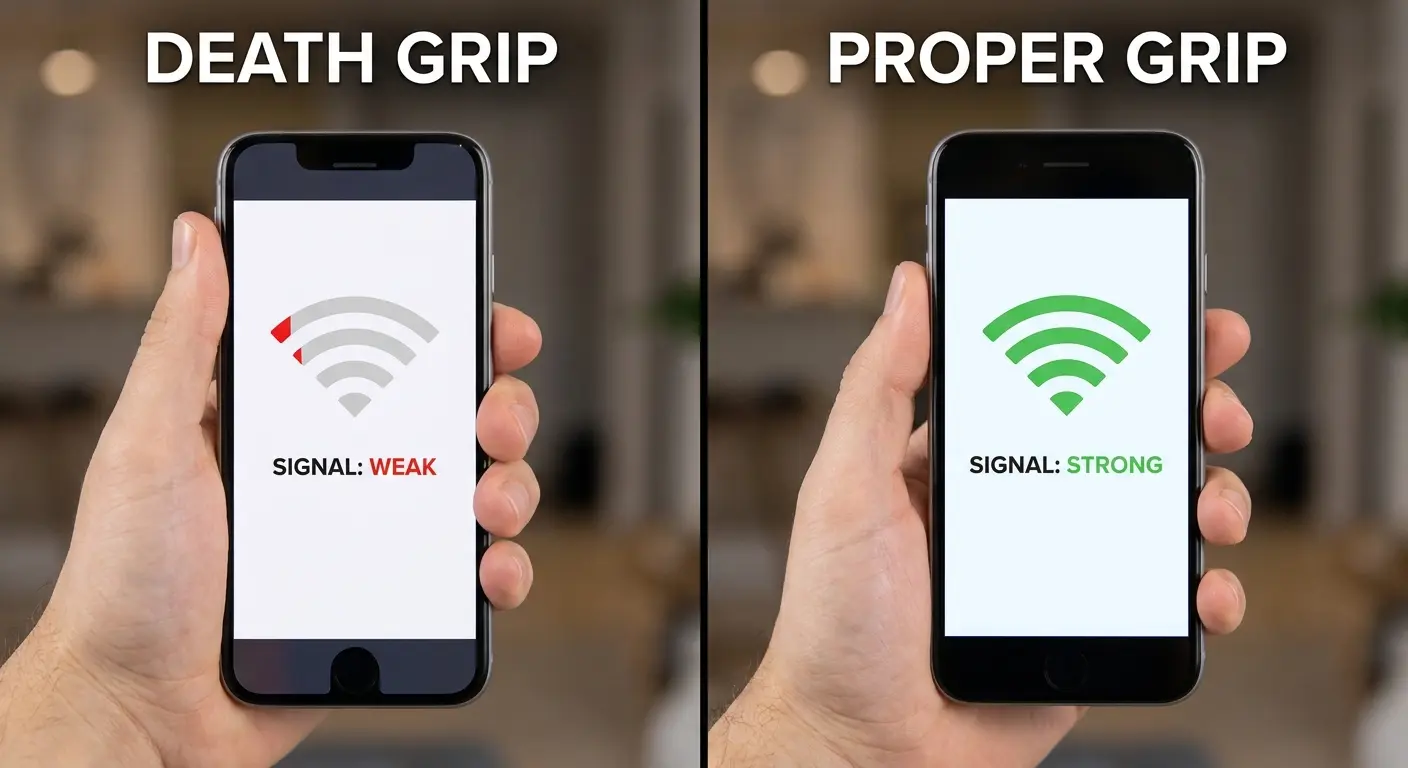
Hold your phone in different positions and watch your WiFi signal strength in real-time. You'll probably find certain grips that tank your connection and others that maintain it. This isn't a defect. It's physics.
Your hand is mostly water. Water absorbs radio frequency signals. When you wrap your hand around the exact spot where your WiFi antenna lives, you're creating a signal-absorbing barrier between the antenna and the router.
If you consistently hold your phone the same way (most people do), and that way happens to cover your primary WiFi antenna, you're creating your own connection problems. Try shifting your grip higher or lower. The difference can be dramatic.
Landscape vs Portrait Makes a Difference
Your phone switches between different antennas based on orientation. When you rotate to landscape for video watching, it might switch to an antenna that's partially damaged or obstructed by your case.
The connection drops, you blame the video app or your network, but it's about which physical antenna your phone is trying to use.
Test this deliberately. Note your WiFi signal strength in portrait, then rotate to landscape and check again. A significant drop indicates orientation-specific antenna issues.
I've had customers swear their phone only has WiFi problems when watching videos. They thought it was a streaming issue or bandwidth problem. When we tested it, their phone had perfect signal in portrait but lost 18 dBm in landscape. One of the side antennas was damaged, and landscape mode prioritized that specific antenna.
Magnetic Interference From Accessories
Strong magnets near your phone can interfere with the internal compass and, in some cases, the wireless radio calibration. Cheap magnetic mounts use powerful rare-earth magnets positioned randomly. They create magnetic fields that extend into your phone's internals.
Magnetic Mounts Aren't All Created Equal
Quality magnetic systems (like what we use at Rokform) are engineered with specific field strengths and positioning to avoid interference. The magnets are strong enough to hold securely but shaped and positioned to keep the magnetic field away from sensitive components. We've done the testing to ensure our magnetic ecosystem doesn't create connectivity issues.
A delivery driver mounted his phone using a cheap magnetic car mount and noticed his navigation would lose WiFi connection every time he placed the phone on the mount, forcing him to rely solely on cellular data. After switching to a properly engineered magnetic mount from Rokform, his WiFi remained stable throughout his routes. The difference was magnetic field positioning: the cheap mount's magnet sat directly against the phone's back where antenna components lived, while the engineered mount positioned the magnetic field in the center, away from critical wireless hardware.
If you started experiencing WiFi problems after adding a magnetic mount or accessory, remove it completely for a few days and monitor your connection stability. The correlation will become obvious if magnetism is your problem.
For riders concerned about magnetic interference, our best motorcycle phone mount guide explains how proper magnetic engineering prevents connectivity issues. The same principles apply whether you're mounting on a motorcycle, in a car, or on a bike.
Wallet Cases Create Dual Problems
Wallet cases combine two WiFi killers: metal components (credit cards have magnetic strips and sometimes RFID chips) and thickness. The cards themselves can interfere with signal, and the extra bulk of the wallet portion increases the distance between your antenna and the router.
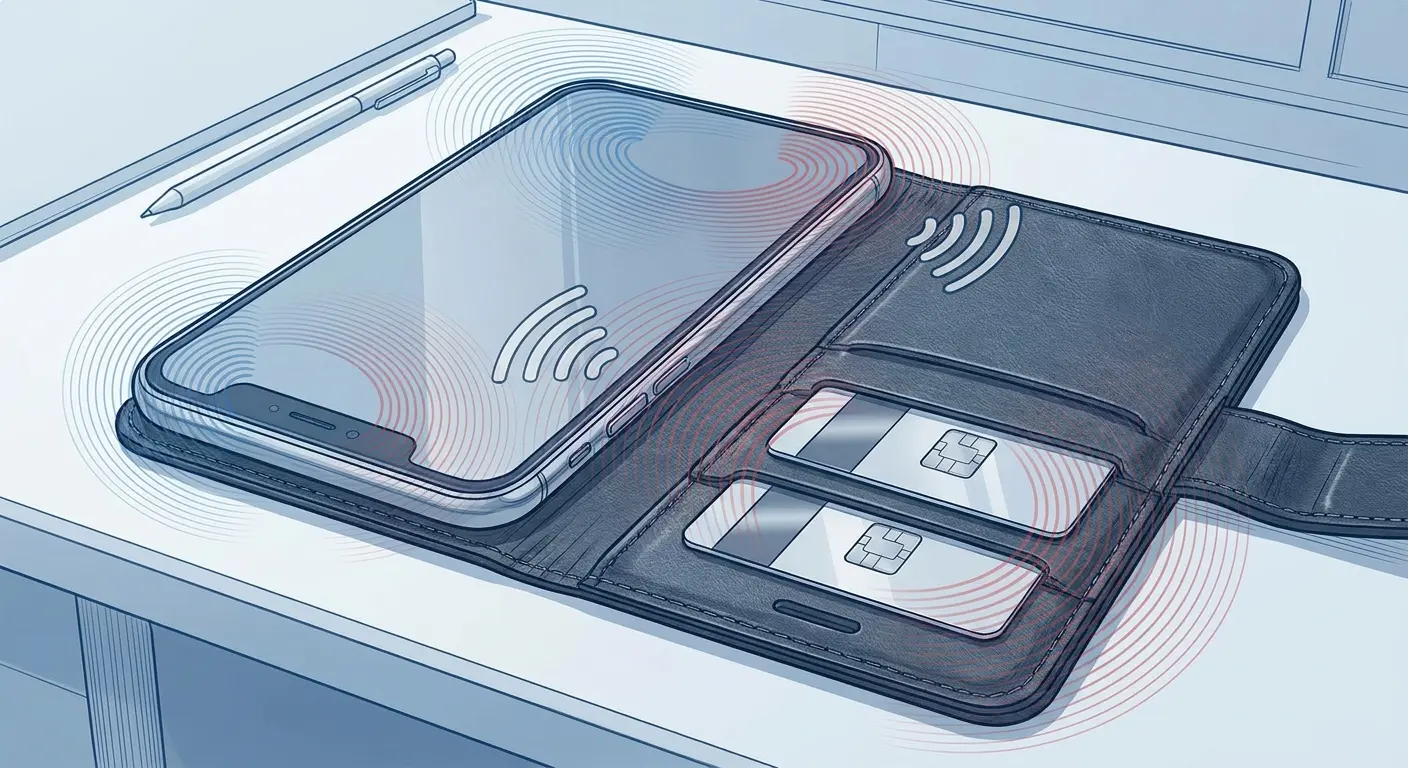
Credit cards also shift position inside the case, creating variable interference. Your WiFi might work fine when your cards are positioned one way, then fail when they shift during normal use.
This explains why some people report their WiFi "randomly" drops and reconnects. It's not random. It's your credit cards moving around in your wallet case, changing the interference pattern each time they shift. Remove the cards from the case and test. If your WiFi stabilizes, you've found your answer.
The Drop You Forgot About Three Months Ago
You don't need a catastrophic drop to damage your WiFi hardware. Multiple small drops create cumulative stress on internal components. Each impact causes microscopic movement of cables, connectors, and solder joints. Over time, these small movements add up to actual failures.
Drop History Assessment Template:
Recent drops (last 2 weeks): List any falls, even minor ones from couch/bed height
Medium-term drops (last 3 months): Note any impacts you remember, including drops onto soft surfaces
Known major impacts (last year): Record any significant falls (concrete, tile, from height above 3 feet)
When WiFi problems started: Specific date or approximate timeframe
Pattern observation: Does WiFi fail more during certain activities or positions?
Environmental factors: Any exposure to extreme temperatures or moisture around the time problems began?
Review this template honestly. The connection between old drops and current WiFi failures becomes clearer when you map the timeline.
Cumulative Damage Adds Up Invisibly
You dropped your phone off the couch six weeks ago. Bumped it off the bathroom counter three weeks ago. It slipped out of your pocket onto pavement yesterday.
None of these seemed serious. Your screen is fine. But internally, you've been slowly destroying your antenna connections.
This is why WiFi problems often seem to appear randomly. There's no single cause you can point to. It's death by a thousand cuts. Each drop weakens connections slightly. Eventually, one final minor impact pushes the damage past the threshold where your phone can compensate.
We designed Rokform cases specifically to prevent this cumulative damage pattern. The RokLock twist-lock mounting system and military-grade protection absorb impacts before they reach your phone's internals, protecting not just your screen but the delicate antenna systems most cases ignore.
The Delayed Failure Pattern
Antenna damage from drops often doesn't manifest immediately. The impact creates a partial failure that holds together temporarily. Temperature changes, normal flex during use, and vibration from speakers or haptics gradually worsen the damage until it crosses the threshold into noticeable connection problems.
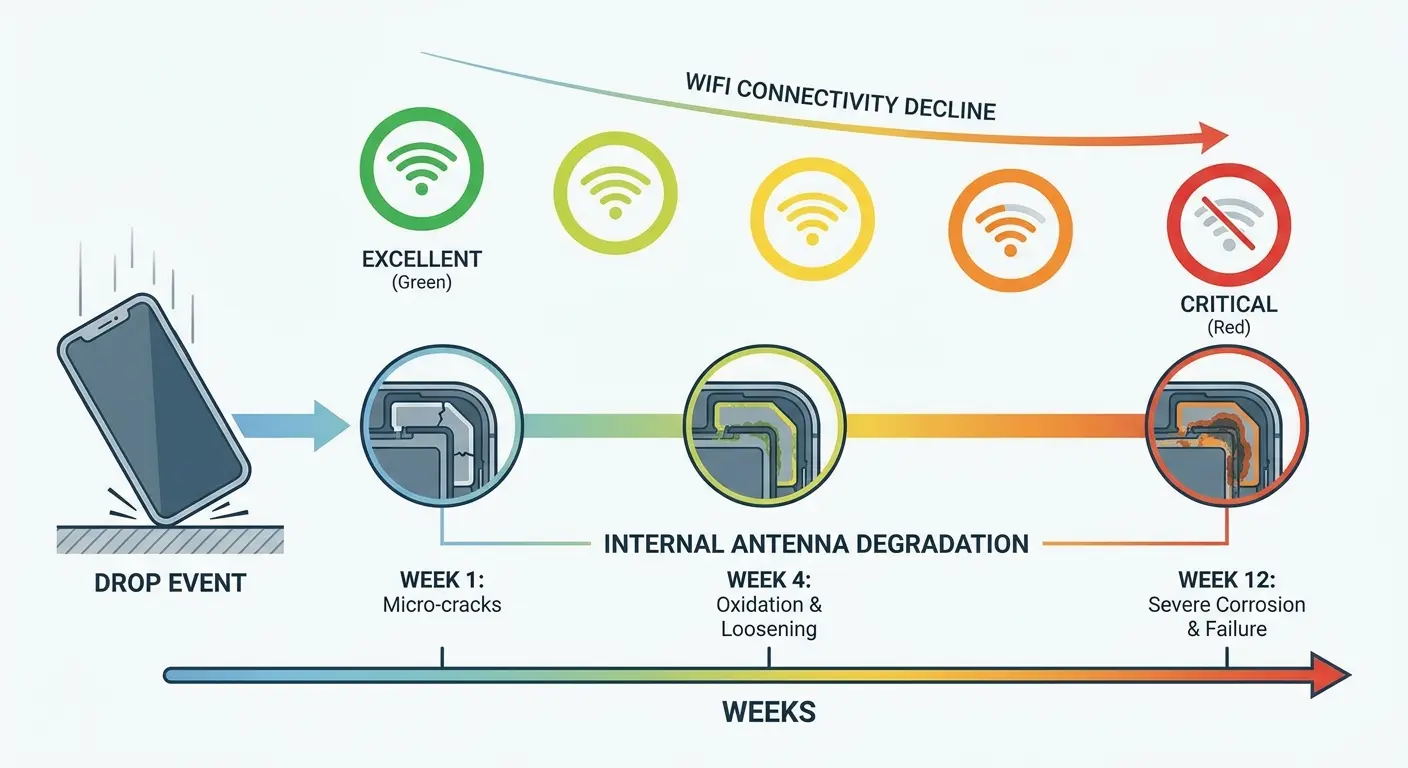
You dropped your phone two months ago and everything seemed fine. Now suddenly you can't hold a WiFi connection. You don't connect these events because of the time gap. But the drop initiated a slow failure process that just now became apparent.
Think of it as a crack in a windshield. The initial impact creates a tiny chip. Over time, temperature changes and vibration cause that chip to spread into a full crack. Your phone's antenna connections behave similarly. The drop creates the initial damage, then normal use propagates it until failure occurs.
Software Updates Can Expose Hardware Weaknesses
New iOS and Android versions typically increase performance and feature sets. This means higher power demands on all components, including WiFi radios. If your WiFi hardware is marginally functional (damaged but still working), the increased power requirements from an OS update can push it over the edge into failure.
Increased Power Demands Reveal Failing Components
Your WiFi worked fine on the previous OS version because the radio was operating at lower power levels. The update increased those power requirements, and your damaged antenna can't keep up anymore.
This explains why so many people report internet connection problems immediately after major OS updates. Everyone blames the software, but often it's just exposing existing hardware problems that were barely functional.
The software isn't broken. Your hardware was already failing. The update just demanded more than your compromised components could deliver.
After major updates, understanding why your iPhone isn't charging or connecting properly often reveals hardware limitations rather than software bugs. The charging and WiFi systems share power management resources. When an update changes power distribution priorities, weaknesses in either system become apparent.
New Features Use WiFi Differently
OS updates add features that use WiFi in new ways. Background app refresh becomes more aggressive. Cloud syncing happens more frequently. These changes create different usage patterns that stress your WiFi hardware differently than before.
A partially damaged antenna might have handled your old usage pattern fine but fails under the new demands. The software isn't broken. Your hardware just can't meet the new requirements.
We see this pattern repeatedly: customer updates their phone, WiFi immediately becomes unreliable, they blame the update. When we examine the phone, we find antenna damage that predates the update by months. The old OS worked around the damage. The new OS can't or won't.
When to Stop Troubleshooting and Get Professional Help
If you've spent more than 48 hours total troubleshooting WiFi issues across multiple sessions, you're dealing with a hardware problem. Software issues resolve quickly or not at all. Hardware issues create intermittent, frustrating problems that seem to improve temporarily then return.
Stop wasting time on software fixes. You need professional diagnosis of your physical components.
The 48-Hour Rule
Here's what 48 hours of troubleshooting looks like: you've restarted multiple times, forgotten and reconnected to networks, reset network settings, updated your OS, changed router channels, modified DNS settings, factory reset your phone, and maybe even bought a new router.
If you've done all that and WiFi still fails intermittently, the problem is physical. No amount of additional software troubleshooting will help. You're trying to fix a broken antenna with settings changes. It doesn't work that way.
These Symptoms Mean Hardware Failure
WiFi works fine when the phone is cool but fails when warm. That's hardware.
Connection drops when you hold the phone certain ways but works when it's sitting still. That's hardware.
WiFi signal strength is dramatically weaker than other devices in the same location. That's hardware.
You've factory reset, updated, changed routers, and the problem persists. That's hardware.
These patterns distinguish physical component damage from software configuration problems. Once you recognize them, you can stop troubleshooting settings and start addressing the actual issue.
What Professional Repair Actually Involves
Proper WiFi hardware repair requires logic board access. A technician needs to inspect antenna cable connections, test the WiFi module itself, check for corrosion, and verify solder joint integrity. This isn't something you can DIY unless you have microsoldering skills and proper tools.
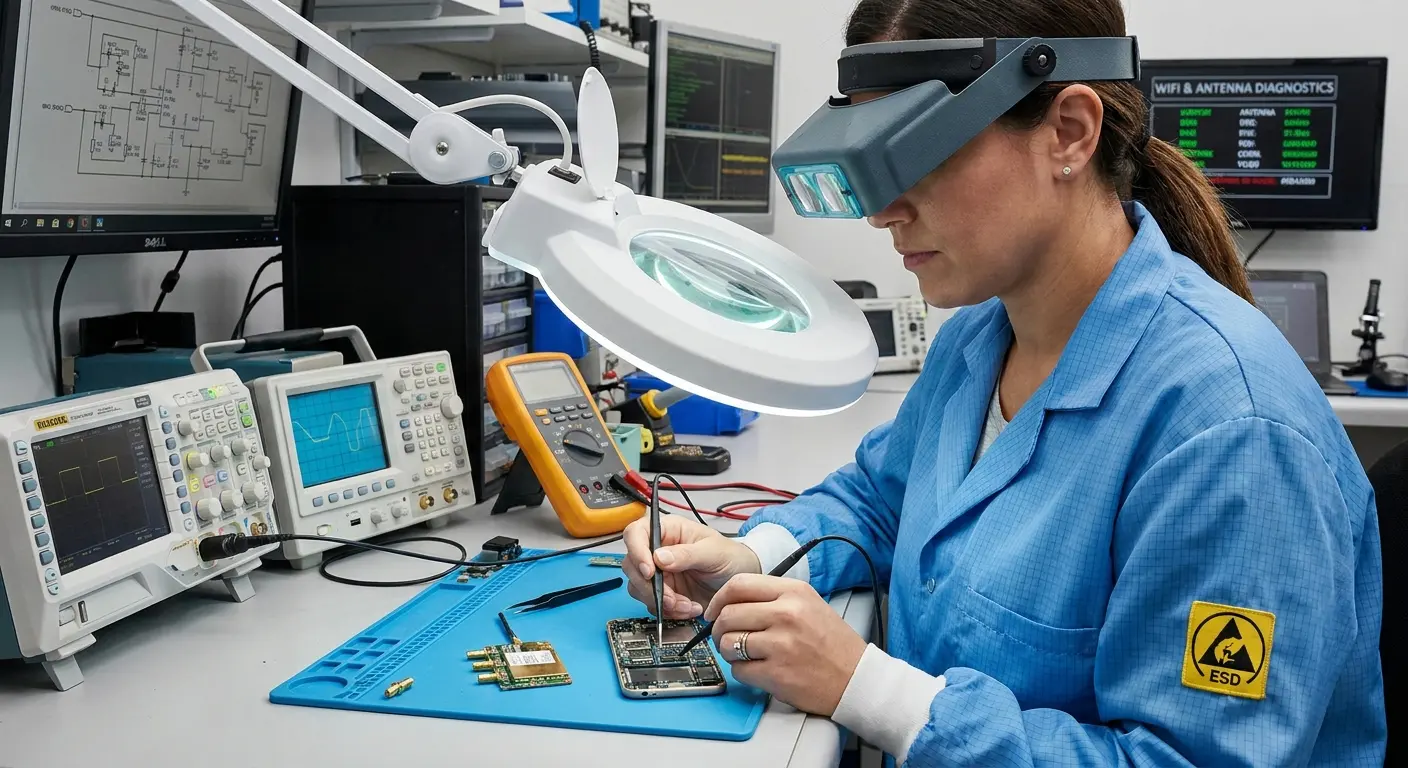
Repair costs vary, but antenna cable replacement typically runs $80-150. WiFi module replacement is $100-200. Logic board repair for corrosion or solder issues can hit $200-300. These prices assume you're using a reputable independent repair shop, not manufacturer service (which costs significantly more).
If your phone is older and the repair cost approaches 50% of a replacement device's price, replacement makes more financial sense. A three-year-old phone with a $150 WiFi repair bill probably isn't worth fixing when you can put that money toward a new device.
Before You Pay for Repair
Get a written diagnosis specifying exactly what hardware component failed. "WiFi issues" isn't specific enough. You want to know if it's the antenna cable, the module, a logic board connection, or corrosion.
Ask if the repair includes a warranty. Reputable shops warranty their work for at least 90 days. If they won't stand behind the repair, find someone who will.
Verify they're using quality replacement parts, not the cheapest available components. Antenna cables and WiFi modules have significant quality variation. Cheap parts fail quickly, putting you right back where you started.
We've seen countless customers struggle with WiFi issues that had nothing to do with their network setup. Your phone is a physical object with delicate components that fail over time and through use. Sometimes the solution isn't in your settings menu. It's in acknowledging that your device has real, physical problems that need real, physical solutions.
Final Thoughts
WiFi connection problems feel like software issues because we interact with them through software interfaces. We tap settings, toggle switches, and restart devices. This creates the illusion that the solution must be digital.
But your phone is a physical device. It has antennas made of metal and plastic. It has cables that disconnect. It has solder joints that crack. It has ports that corrode. These physical components fail, and when they do, no amount of software troubleshooting will fix them.
The next time your phone won't connect to WiFi, consider what's happening physically. Where are you holding it? What case are you using? Has it been dropped recently? Is it running hot?
These physical factors matter more than most people realize. Sometimes the solution is as simple as removing your case or changing how you grip your phone. Sometimes it requires professional repair. But recognizing that hardware matters is the first step toward solving the problem instead of endlessly troubleshooting settings that were never the issue.
Your WiFi problem might not be a WiFi problem at all. It might be an antenna problem, a heat problem, a corrosion problem, or a damage problem. Start thinking physically, and you'll stop wasting time on solutions that were never going to work.

